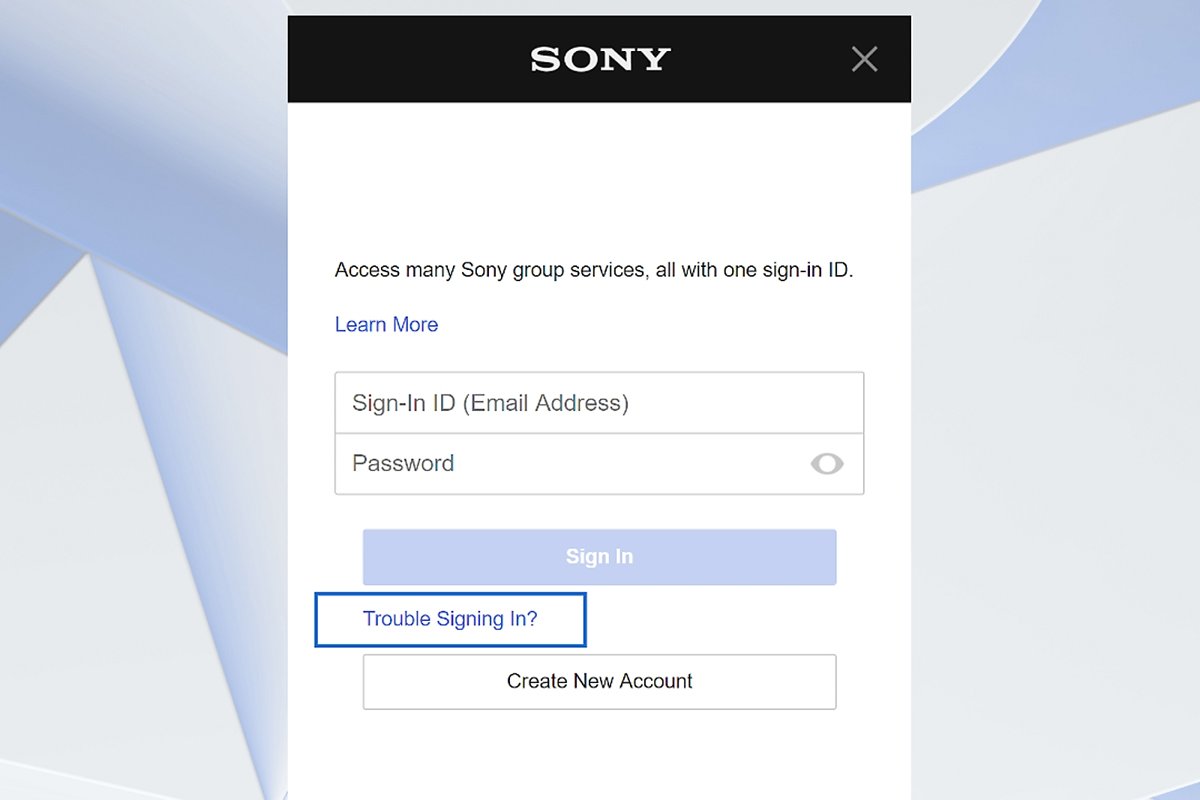
Create a PlayStation account for free by opening Account Management on playstation.com, selecting Create New Account, filling in your details and verifying your email address.
This guide covers the web, PS5 and PS4 routes, the details Sony asks for, child accounts, security settings and what to do when sign-up fails.
How to create a PlayStation account: A comprehensive guide
The web route works from any phone, tablet or computer, so you can finish sign-up before you switch on a console.
A PlayStation account costs nothing, and Sony does not ask for payment details during sign-up.
- Open a browser and go to Account Management on playstation.com.
- Select Create New Account.
- Enter your date of birth, country or region and preferred language, then select Next.
- Enter the email address you want as your sign-in ID and choose a password, then select Next.
- Pick an online ID and enter your name, then select Next on each remaining screen.
- Open your inbox, find the verification message from PlayStation and follow its instructions to verify your email address.
Once the email address is verified, the account is ready to use on a PS5, a PS4, the PlayStation App and PlayStation games on PC.
Information needed to create a PlayStation account
Two of these details are permanent, so check them before you select Next.
Your date of birth and your country or region cannot be changed after the account exists.
| Detail | What it is used for | Can you change it later? |
|---|---|---|
| Date of birth | Account security | No, so enter it correctly |
| Country or region | Which support you get and access to services such as purchases and downloads | No |
| Preferred language | The language of PlayStation Store, some console screens and PlayStation emails | Yes |
| Sign-in ID (email address) | Signing in, important account messages and password recovery | Yes, from Security in Account Management |
| Password | Signing in unless you switch to a passkey | Yes |
| Online ID | Your public display name on PlayStation | Yes; the first change is free, later changes are paid |
| Name | Shown to close friends, depending on your privacy settings | Yes |
Use an email address you can open right now, because the account stays limited until you verify it. If you do not have a spare one, you can create a Google account or set up an Outlook email address first.
How to create a PlayStation account on PS5
Use this route when the console is in front of you and you have no account yet.
If you already have an account from a PS4, sign in with it on the PS5 instead of making a new one.
- On the PS5 home screen, select your profile picture in the upper-right corner.
- Select Switch User.
- Select Add User, then Get Started.
- On the sign-in screen, select Create an Account.
- Enter your date of birth, country or region, sign-in ID, password and online ID when asked.
- Open the verification message PlayStation sends to your email address and follow its instructions.
How to create a PSN account on PS4
The PS4 builds a new console user and the PlayStation account in the same flow.
- Press and hold the PS button on the controller to open the quick menu.
- Select Power, then Switch User.
- Select New User, then Create a User.
- Follow the on-screen prompts and enter the information the console asks for.
- Verify your email address from the message PlayStation sends you.
How to create a PlayStation account for a child
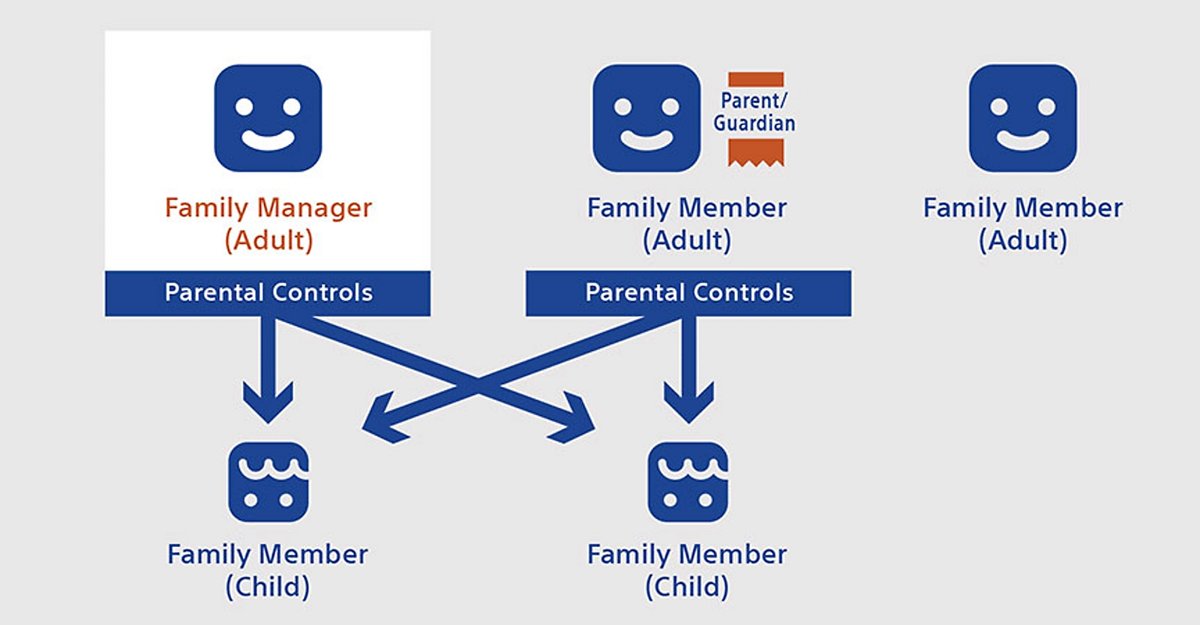
A child account is created by an adult who acts as the family manager, and parental controls are set during the same flow.
Each family has one family manager. That adult can add members, set parental controls and console restrictions, and see a child's playtime.
| Where you start | Steps | Notes |
|---|---|---|
| Web browser | Sign in to Account Management > Family Management > Set Up Now > Add a Child (or Add Family Member > Add a Child if the family already exists) | Follow the on-screen instructions and set parental controls |
| PS5 | Sign in, select your profile icon on the home screen > Switch User > Add User > Get Started > Create an Account | Set parental controls when the console asks |
| PS4 | Settings > Parental Controls/Family Management > Family Management > Set Up Now > Create User (or Add Family Member > Create User) | Set parental controls when the console asks |
| PlayStation Family app | Select Sign in or Create an Account > Set Up Your Family; add more children from Settings > Family Management > Add a child | Useful when the parent is away from the console |
Child members cannot be removed from the family, and only the family manager can reset a child account's password.
When the child becomes eligible, a notice at sign-in offers an upgrade to an adult account. The upgrade is optional and cannot be reversed.
How to verify your PlayStation account email address
An unverified sign-in ID is one of the first things PlayStation support asks about when sign-in fails.
- Open the inbox of the email address you used as your sign-in ID.
- Search for the message titled PlayStation verify, and check the spam or junk folder too.
- Open the message and select the verification link inside it.
- Return to the console, browser or app and sign in with your sign-in ID and password.
If you no longer have access to that email address, contact PlayStation Support through the Online Assistant to verify the account.
How to change your PlayStation online ID
Your online ID is the unique display name other players see, and it is separate from your sign-in ID.
The first change is free; additional changes are charged, and you are signed out of every device afterwards.
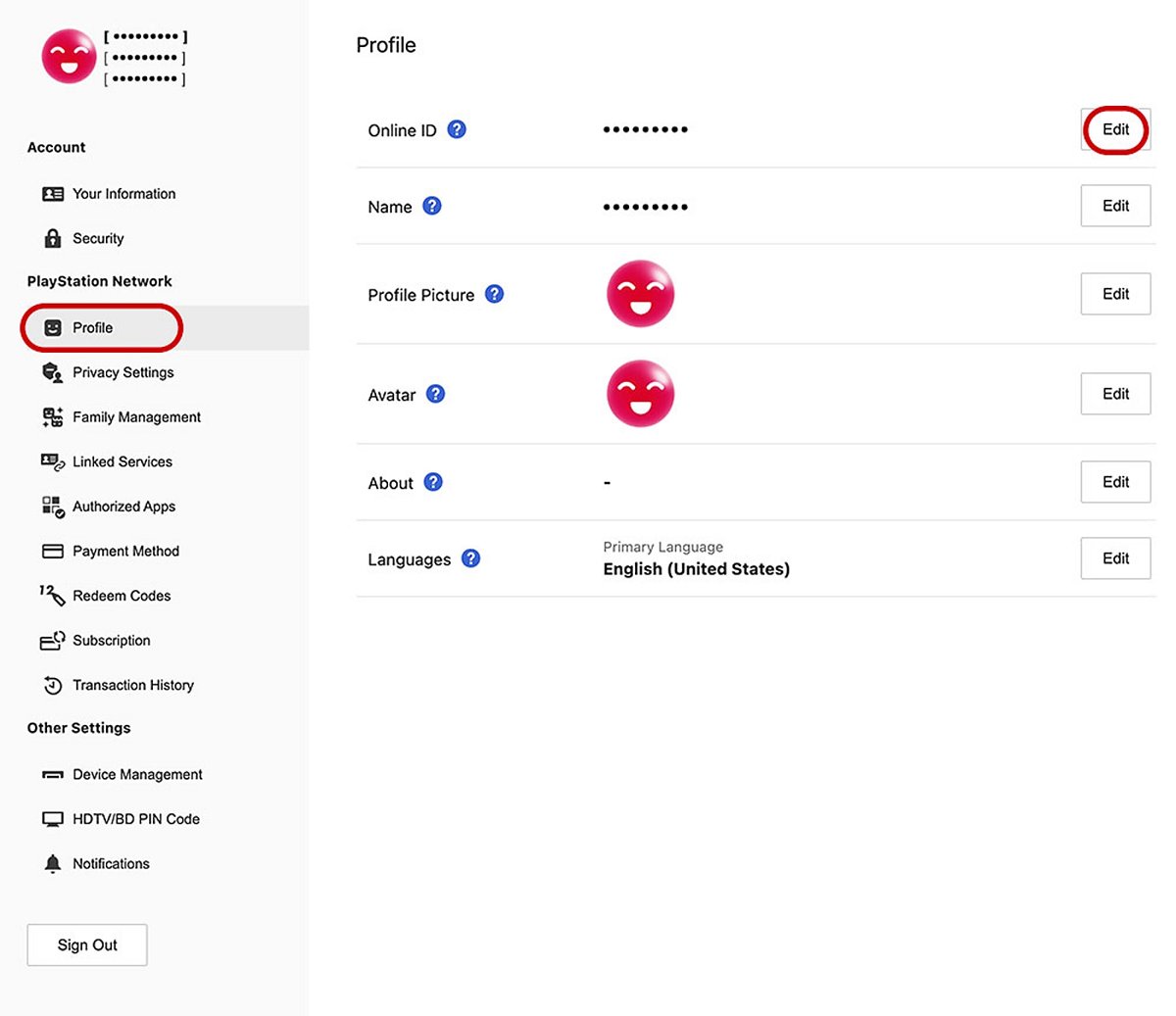
- Sign in to Account Management and select Profile in the sidebar.
- Select Edit next to your current online ID.
- Enter a new online ID and select Check Availability.
- Select Continue if the name is available.
- Choose whether to show your old online ID next to the new one for 30 days.
- Confirm the change, then sign back in on your devices.
Some PS4 games can misbehave after an online ID change. Reverting to the original online ID is free and resolves most of those problems.
PS3 consoles and PS Vita systems do not support online ID changes.
How to turn on 2-step verification on PlayStation
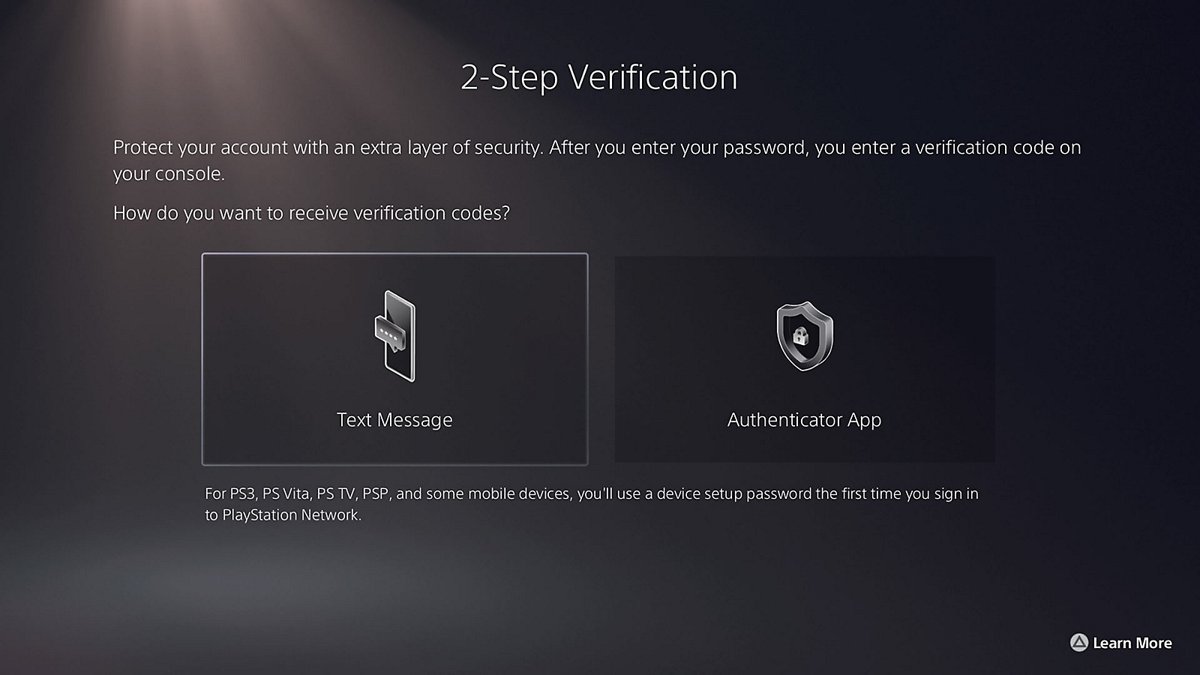
2-step verification asks for a code after your password, which blocks sign-ins from anyone who only knows the password.
PlayStation supports an authenticator app, such as Google Authenticator or Microsoft Authenticator, or text messages.
- Sign in to Account Management and select Security.
- Select Edit next to 2-step Verification Status.
- Choose Authenticator App or Text Message.
- Scan the QR code with your authenticator app, or enter your mobile number.
- Enter the verification code you receive and select Activate.
- Write down the backup codes and store them somewhere safe.
On a PS5 the same setting is under Settings > Users and Accounts > Security > 2-Step Verification. On a PS4 it is under Settings > Account Management > Account Information > Security > 2-Step Verification.
Verification codes expire after 10 minutes, so select Resend Code on the sign-in screen if one runs out.
How to set up a passkey on PlayStation
A passkey replaces the password, and your device signs you in automatically.
Passkeys work on most phones running iOS 16 or later, or Android 9 or later, and in current versions of Safari, Chrome and Edge.
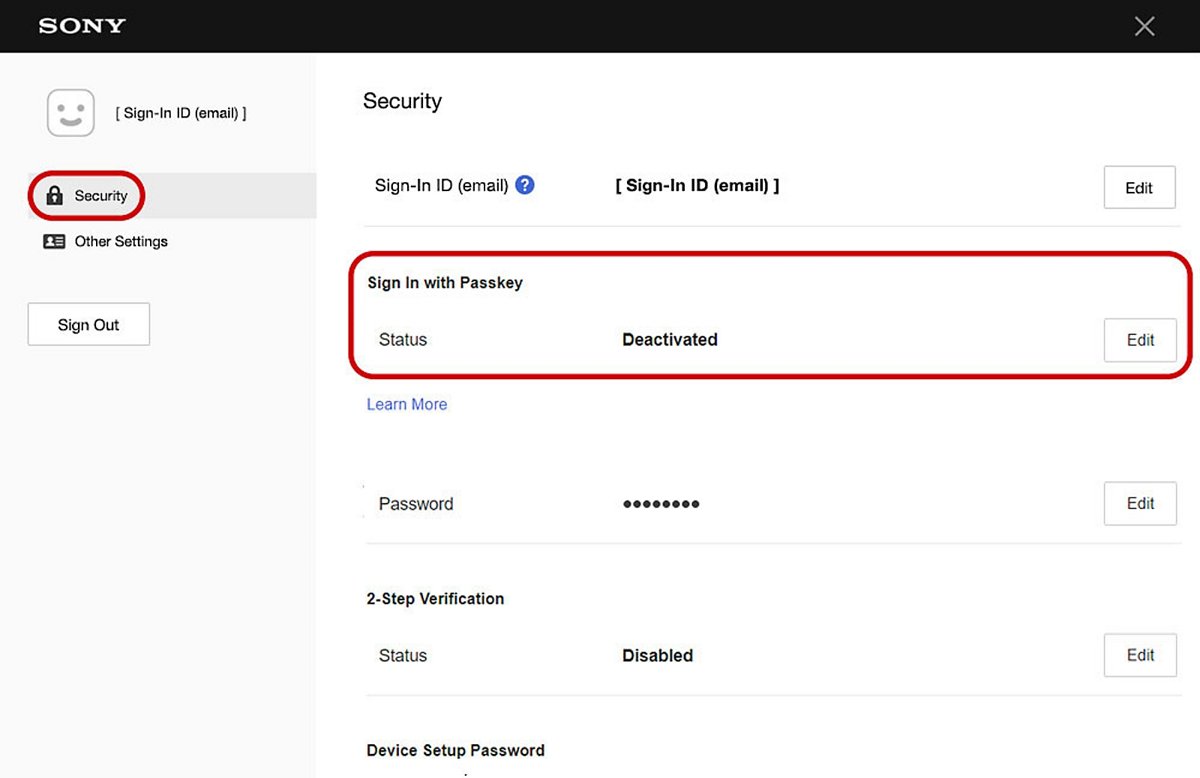
- Sign in to Account Management.
- Go to Security and turn on Sign in with Passkey.
- Select Create a Passkey.
- Choose how you want to create the passkey and follow the on-screen instructions.
- Check your inbox for the confirmation email PlayStation sends once the passkey is saved.
To go back to a password, return to Security, turn off Sign in with Passkey and create a password. The Require Password at Checkout option for PlayStation Store does not work with passkeys.
Can't create a PlayStation account? How to fix it
Sign-up stops or fails partway through
The internet connection dropped, or PlayStation Network is down for maintenance.
- Check that your device or console is still online.
- Turn the console and router off and then on again, and try a wired connection if you use Wi-Fi.
- Open the PlayStation status page at status.playstation.com and wait until it reports no account problems.
- Start the sign-up again from Create New Account.
The email address is already being used
That address is already the sign-in ID of another PlayStation account, often an old one you forgot.
- Try signing in with that email address and select Trouble Signing In? if you do not know the password.
- Select Recover Your Account and follow the on-screen instructions.
- If the old account is not yours, contact PlayStation Support so it can verify the email address.
The verification email never arrives
The message landed in spam, or the sign-in ID was typed with a mistake.
- Search your inbox and spam folder for PlayStation verify.
- Sign in to Account Management, open Security and check the sign-in ID for typos.
- Select Edit next to the sign-in ID to correct it, then wait for a new verification message.
- Contact PlayStation Support through the Online Assistant if nothing arrives.
The PS5 or PS4 refuses to sign in to the new account
Outdated system software or an unverified sign-in ID.
- Update the PS5 or PS4 system software.
- Verify your email address from the PlayStation verify message.
- Sign in to Account Management in a browser to check the account is active and not suspended.
PlayStation account FAQ
Is a PlayStation account free?
Yes. A PlayStation account is free to create, and Sony does not ask for payment details during sign-up. You only pay for things you choose to buy, such as games in PlayStation Store or a PlayStation Plus subscription.
Can I use my PS4 account on PS5?
Yes. An account created on a PS4 works on a PS5, so sign in with it instead of creating a new one.
Can I change the country or region on my PlayStation account?
No. Sony states that the country or region cannot be changed after the account is created, and it decides which support and services, such as purchases and downloads, you can use. Pick the region you live in during sign-up.
Can I change my date of birth on a PlayStation account?
No. The date of birth is used for account security and cannot be changed later. Enter it correctly when you create the account.
What is the difference between an online ID and a sign-in ID?
Your online ID is the unique display name other players see on PlayStation. Your sign-in ID is the email address you use to sign in, receive account messages and recover your password.
Will it cost me to change my online ID?
The first online ID change is free. Each change after that is charged, while reverting to your original online ID is free. You are signed out of every device once a change is complete.
Can a child account be upgraded to an adult account?
Yes. When a child member becomes eligible, a notice at sign-in offers the upgrade, and it can also be done later from Upgrade Your Account in Account Management. An upgraded account cannot go back to being a child account.
Can I have multiple passkeys on my PlayStation account?
Yes. Sign in to Account Management, go to Security, select Manage Passkeys and then Create a Passkey to add another one on this device or a different device.