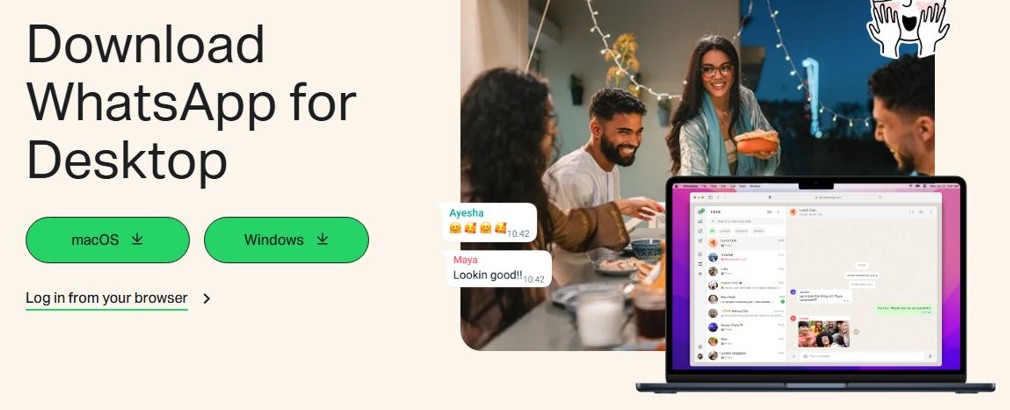
You do not need an APK to run WhatsApp Business on a Windows 11 or Windows 10 PC or laptop: install the free WhatsApp app from the Microsoft Store and link it to the WhatsApp Business account on your phone.
This guide covers the install, both ways to link the account (QR code and phone number), what works on the desktop, how to log out, and why the Android APK route is a poor fit for Windows today.
Downloading and installing WhatsApp Business on your Windows 11/10 PC or laptop
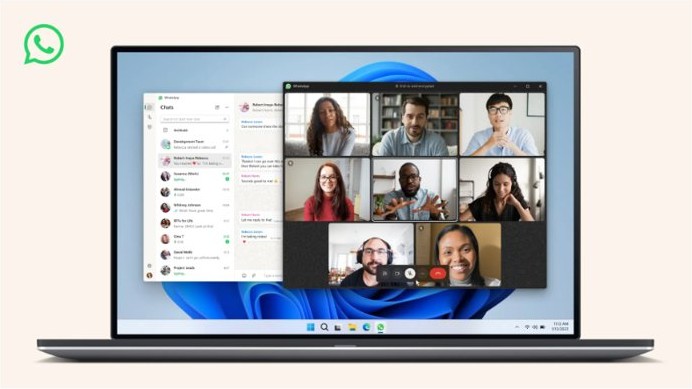
WhatsApp Business on a computer is a linked device. The account stays registered on your phone, and the Windows app mirrors it, so set up the WhatsApp Business app on your phone first.
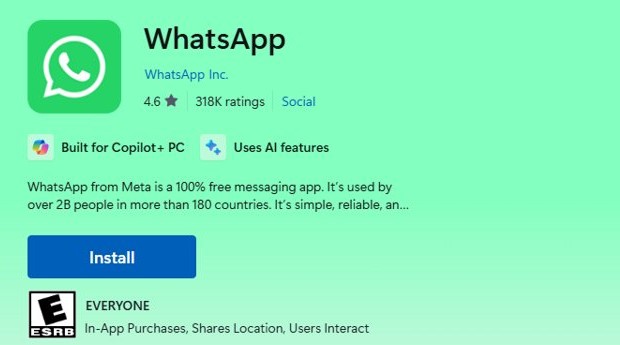
WhatsApp's Help Center lists two official sources for the Windows app: the Microsoft Store and the WhatsApp download page at whatsapp.com/download. Both install the same app.
- Open Microsoft Store on the PC and search for WhatsApp.
- Open the WhatsApp listing and select Get to download and install it.
- Launch WhatsApp from the Start menu. The app shows a QR code on its first screen.
- On your phone, open the WhatsApp Business app. On Android, tap More options (three dots), then Linked devices > Link a device. On iPhone, go to Settings > Linked devices > Link device.
- If the phone asks, confirm with your fingerprint, face or the PIN you use to unlock the phone.
- Point the phone's camera at the QR code on the PC screen. If WhatsApp asks whether you recognize the device, tap Link device.
- Wait while your recent chats load. Depending on how many messages you have, this can take a few minutes.
Once linked, the PC keeps receiving messages even when your phone is switched off or offline.
WhatsApp Business for PC system requirements
The Windows app runs only on 64-bit Windows 10 version 1903 or newer, which includes every Windows 11 PC. To check your PC, right-click Start, choose Settings, select System and then About. The Device specifications area shows whether Windows is 32-bit or 64-bit, and Windows specifications shows the version.
| Requirement | What WhatsApp needs | Where to check |
|---|---|---|
| Windows version | Windows 10 64-bit version 1903 or newer, or Windows 11 | Settings > System > About > Windows specifications |
| System type | 64-bit Windows (32-bit Windows is not supported) | Settings > System > About > Device specifications |
| Primary phone | The WhatsApp Business app installed and registered with your business number | WhatsApp Business on Android (Google Play) or iPhone |
| Internet | An active connection on the PC | Wi-Fi or Ethernet status in the taskbar |
| Voice and video calls | Speakers or headset, a microphone, a camera for video, and WhatsApp allowed to use the microphone and camera | The prompt WhatsApp shows the first time you start a call |
| Linked device slots | Up to four linked devices per account | Linked devices in the phone app |
If your PC runs an older or 32-bit version of Windows, WhatsApp points you to WhatsApp Web in a browser instead.
Link WhatsApp Business to WhatsApp for Windows with a phone number
Use this when the phone camera cannot scan the QR code, for example on a cracked camera or a laptop screen with glare. WhatsApp sends an eight-character code instead.
- Open WhatsApp on the PC and select Link with phone number (some versions say Log in with phone number).
- Choose your country, type the business phone number in international format and select Next.
- Note the eight-character code that appears on the PC screen.
- On the phone, tap the Enter code to link new device notification from WhatsApp Business.
- Check the device name and location the phone shows, then tap Confirm.
- Confirm with your fingerprint, face or phone PIN if asked.
- Type the eight-character code on the phone. The PC finishes linking and loads your chats.
If the notification never arrives, open Linked devices on the phone, tap Link a device (Android) or Link device (iPhone), choose Link with phone number instead, and enter the code there.
Use WhatsApp Business on WhatsApp Web without installing an app
WhatsApp Web runs the same linked account in a browser tab, so it works on PCs that cannot run the Windows app, such as 32-bit Windows or a locked-down work laptop.
- Open a browser on the PC and go to
web.whatsapp.com. - On the phone, open WhatsApp Business and go to Linked devices > Link a device (Android) or Link device (iPhone).
- Scan the QR code shown in the browser tab.
- Keep the tab open to send and receive messages. If the browser asks to create or use a passkey, follow its prompt.
WhatsApp Web syncs less message history than the Windows app, so install the app if you need older chats on the computer. If the page will not open at all, fix WhatsApp Web loading problems before trying again.
WhatsApp Business APK for PC: does it work on Windows 11?
An APK is an Android app package, and Windows cannot open one by itself. Microsoft's own Android layer, Windows Subsystem for Android, and the Amazon Appstore stopped being available in the Microsoft Store on March 5, 2025.
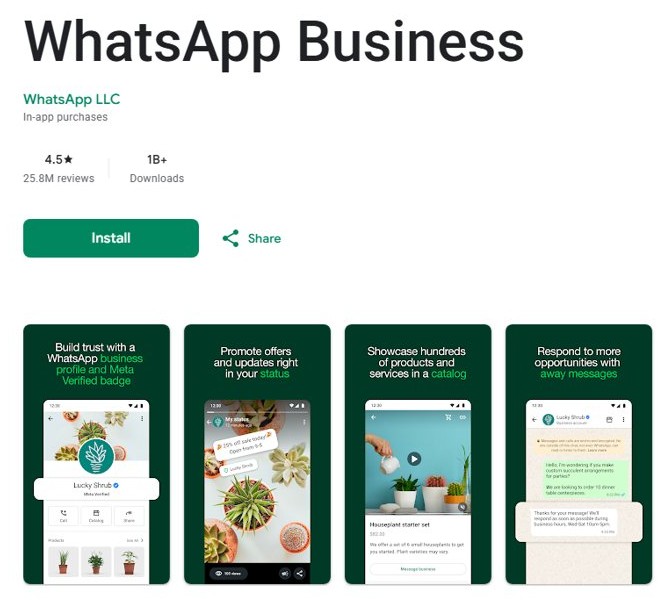
The genuine WhatsApp Business Android app is the one published by WhatsApp LLC on Google Play. WhatsApp warns that unofficial WhatsApp apps and websites can get an account temporarily or permanently banned, so never install a modified Business APK.
| Route | Status on Windows 11 and 10 | What it means for you |
|---|---|---|
| WhatsApp app from the Microsoft Store or whatsapp.com | Official and supported | Links to your WhatsApp Business account; the recommended way |
| WhatsApp Web in a browser | Official and supported | No install; less chat history than the app |
| Windows Subsystem for Android with the Amazon Appstore | Removed from the Microsoft Store on March 5, 2025 | No longer a way to run Android apps on a new Windows 11 setup |
| Third-party Android emulator plus a WhatsApp Business APK | Not provided by Microsoft or WhatsApp | Adds a separate Android system to maintain; never use a modified APK |
| Modified or "premium" WhatsApp Business APK | Unofficial | Risks a temporary or permanent account ban |
The plain WhatsApp app is the only route WhatsApp documents for Windows, and the same WhatsApp download for Windows 11 and 10 serves personal and Business accounts alike.
How to use WhatsApp Business on your PC?
After linking, the Windows app handles day-to-day customer messaging with a full keyboard and mouse. A few features stay on the phone.
| Task | On WhatsApp for Windows | Notes |
|---|---|---|
| Reply to customer chats | Yes | Messages arrive even when the phone is offline |
| Send photos, videos and documents | Yes | Drag files from File Explorer straight into a chat |
| View and mark up PDFs | Yes | Draw, highlight, underline and strike through text, then share it back to the chat |
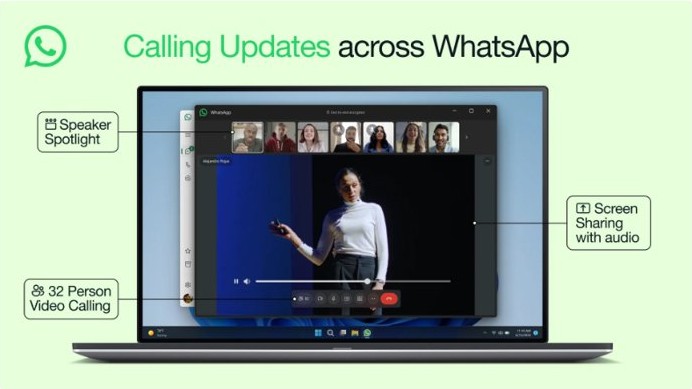
| Voice and video calls | Yes, with up to 32 people | Needs a microphone, and a camera for video |
| Screen sharing | Yes, during a video call | Useful for walking a customer through an order or a form |
| Call links | Yes | Create a link to plan a call and share it in a chat |
| Status, Channels and Communities | Yes | Post status updates and follow channels from the PC |
| Broadcast lists | No | Create and view them on the phone |
| Viewing a live location | No | Open the chat on the phone instead |
| Business interactions that use WhatsApp Flows | No | Complete them on the phone |
Your phone must still open WhatsApp Business at least once every 14 days, or linked devices disconnect.
How to tell if WhatsApp Business is linked to your PC
- On the phone, open WhatsApp Business and go to Linked devices.
- Look for your Windows PC in the device list. Each linked computer appears as its own entry.
- On the PC, check that your business chats appear in the left-hand list and that a test message you send shows on the phone too.
- Give large accounts a few minutes; recent message history arrives on the PC in the background after linking.
How to log out of WhatsApp Business on PC
Log out when you hand over a shared office PC or when a laptop goes missing. Logging out from the phone works even if you no longer have the computer.
- On the phone, open WhatsApp Business and go to Linked devices.
- Tap the PC you want to remove.
- Tap Log out.
- To log out from the PC itself instead, open WhatsApp on the computer and go to Settings > Log out > Log out.
WhatsApp also disconnects any linked device automatically after 30 days of inactivity.
WhatsApp Business for PC not working
These problems come from the limits WhatsApp documents for the Windows app and linked devices.
WhatsApp will not install from the Microsoft Store
The Windows app needs 64-bit Windows 10 version 1903 or newer.
- Right-click Start, choose Settings, then select System > About.
- Read Device specifications, which shows whether Windows is 32-bit or 64-bit. On 32-bit Windows the app cannot run.
- Check the version under Windows specifications, and update Windows if it is older than version 1903.
- Use
web.whatsapp.comin a browser if the PC cannot meet the requirement.
The QR code will not scan or the link fails
Camera glare, an outdated app on the phone or PC, or all four linked device slots already in use.
- Update WhatsApp Business on the phone and WhatsApp on the PC.
- Open Linked devices on the phone and log out of any device you no longer use.
- Switch to Link with phone number on the PC and enter the eight-character code on the phone instead.
- If the Windows app shows no QR code at all, restore the missing WhatsApp QR code first.
WhatsApp Business on PC logged out by itself
Linked devices disconnect when the phone has not opened WhatsApp for 14 days, or after 30 days without use on the PC.
- Open WhatsApp Business on the phone so it can reconnect.
- Relink the PC from Linked devices > Link a device (Android) or Link device (iPhone).
- Open WhatsApp Business on the phone at least once every two weeks to keep the PC connected.
Older business chats are missing on the PC
The phone sends only recent message history to a newly linked device.
- Leave the Windows app open for a few minutes after linking so the sync can finish.
- Use the Windows app rather than WhatsApp Web, because the app syncs more history.
- Search older conversations on the phone, which always keeps the full history.
If a specific error message keeps the account from linking, fix WhatsApp Business linking errors one message at a time.
WhatsApp Business for PC FAQs
Is there a separate WhatsApp Business app for Windows?
No. WhatsApp's Help Center lists one Windows app, called WhatsApp, available from the Microsoft Store and whatsapp.com. Your WhatsApp Business account links to that app from the phone, and the PC then shows your business chats.
Is WhatsApp Business free on PC?
Yes. The WhatsApp app for Windows is a free download from the Microsoft Store, and the WhatsApp Business phone app is free to download. Some business features in the phone app are paid, and data charges from your provider can apply.
Can I use WhatsApp Business on PC without a phone?
Not entirely. You need the phone to register the account and to link the PC. After linking, the PC keeps working when the phone is offline, but the phone must open WhatsApp Business at least every 14 days.
Can I install the WhatsApp Business APK on Windows 11?
Not with Microsoft's tools. Windows Subsystem for Android and the Amazon Appstore were removed from the Microsoft Store on March 5, 2025. Install the WhatsApp app for Windows and link your Business account to it instead.
How many PCs can use one WhatsApp Business account?
WhatsApp's Help Center allows up to four linked devices at a time, such as PCs, browsers and tablets, alongside the phone. The Google Play listing says Meta Verified subscribers can connect more devices.
Does WhatsApp Business work on Windows 7 or 32-bit Windows?
No. The Windows app needs 64-bit Windows 10 version 1903 or newer, or Windows 11. On other systems, open web.whatsapp.com in a browser and link your Business account there instead.
Can I make calls from WhatsApp Business on my laptop?
Yes. The Windows app makes voice and video calls with up to 32 people and supports screen sharing during video calls. You need a microphone, a camera for video, and permission for WhatsApp to use both.
Will my old WhatsApp Business chats show on the PC?
Recent chats appear a few minutes after linking, because the phone sends an encrypted copy of recent history. Not every older message syncs, so search the phone when you need the full history.