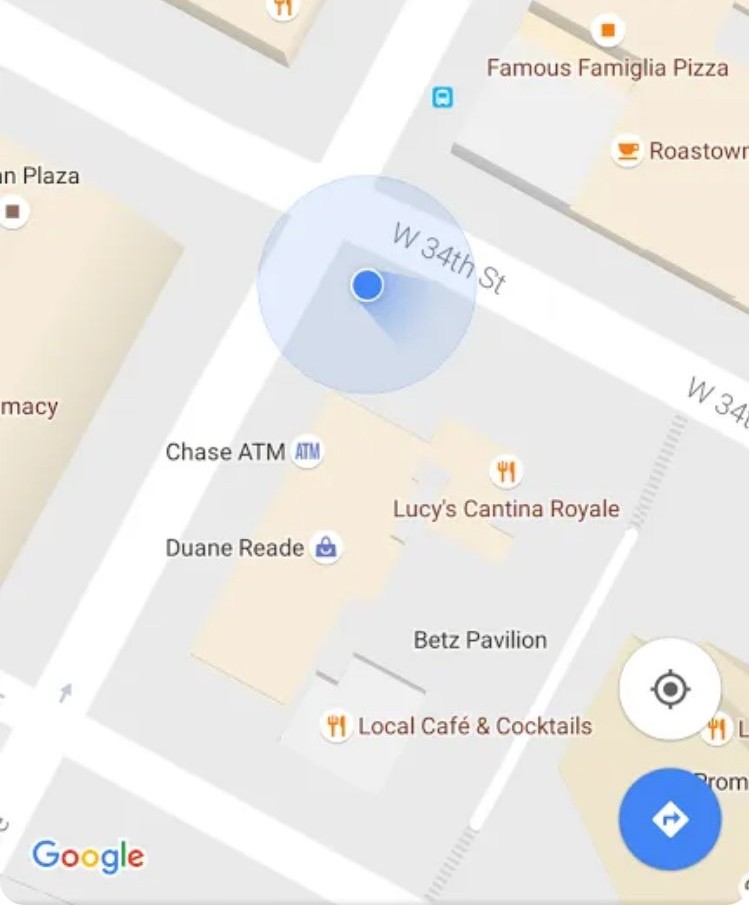
To find north with Google Maps, tap Your location, tap the compass button if it shows so north sits at the top of the map, then turn until the beam on your blue dot points straight up: you are now facing north.
This guide covers showing the compass on Android and iPhone, the compass in navigation and Street View on desktop, calibrating the beam, and the fixes Google lists when the direction is wrong.
Step by step tutorial: Using Google Maps compass to find north
Google Maps has no separate compass screen. The direction comes from two things: the beam on your blue dot, which shows which way the phone faces, and the map's compass button, which puts north back at the top of the map.
- Open the Google Maps app on your Android phone, iPhone or tablet.
- At the bottom right, tap Your location. The blue dot shows where you are.
- If a compass button shows on the map, tap it. The map turns back so north is at the top of the screen and the button fades away.
- Hold the phone flat in front of you and look at the beam coming out of the blue dot.
- Turn your body slowly until the beam points straight at the top of the screen.
- You are now facing north. South is behind you, east is to your right and west is to your left.
If the beam is wide or points the wrong way, calibrate the compass first with the figure 8 motion shown further down.
Does Google Maps have a compass feature?
Yes, in several places. Each one answers a slightly different question about direction.
| Compass feature | Where it appears | What it tells you |
|---|---|---|
| Blue dot beam | Around your blue dot after you tap Your location | The direction your phone is pointing; a narrow beam means a confident reading |
| Compass button on the map | On the map after you rotate or tilt it | Tap it to return the map to its default view with true north at the top |
| Compass in navigation | On the map during turn-by-turn navigation | Tap it to switch the map to your point of view |
| Street View compass | Bottom right of Street View on a computer | Click it to turn the Street View image to face north |
| Lens in Maps | From a place card or the low accuracy message | Uses the camera and nearby buildings to find which way you face |
How to show compass on Google Maps
The compass button only appears once the map is turned away from its default north-up view, so you cannot pin it on screen permanently. Rotating the map brings it up.
- Open the Google Maps app.
- Place two fingers on the map.
- Twist them in a rotate motion to turn the map. You can also move two fingers up or down together to tilt it.
- Look for the compass button that appears on the map once it is rotated or tilted.
- Tap the compass button to snap the map back to north-up with no tilt.
Searches like "how to add compass to Google Maps" or "how to enable compass on Google Maps" lead to the same answer: there is no setting to switch it on, it appears whenever the map is rotated or tilted.
How to use compass on Google Maps desktop
A computer has no compass sensor, so Google Maps on a PC or in a browser cannot show which way you face. The compass you can use on desktop is the one in Street View, which turns the view to north.
- On your computer, open Google Maps in a browser.
- Search for a place or address.
- Drag Pegman onto a street on the map to open Street View.
- At the bottom right, find the compass above the + and – zoom buttons.
- Click the compass to position the Street View image to face north.
- Use the arrows to the left and right of the compass to turn the view, then click Back at the top left to leave Street View.
Planning a walk from the desktop first? You can print Google Maps directions and take the paper map with you.
Use the compass in Google Maps navigation
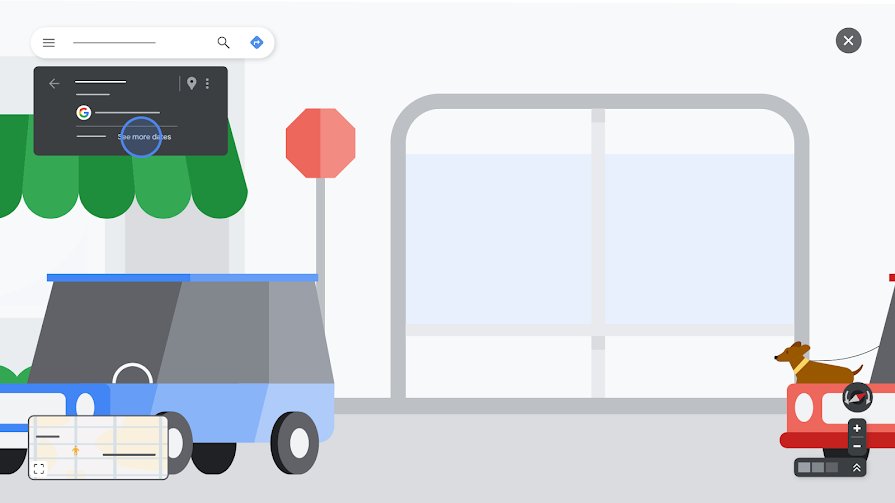
During turn-by-turn navigation the map follows your direction of travel. The compass lets you switch the view.
- Open the Google Maps app and search for a place, or tap it on the map.
- At the bottom left, tap Directions and choose how you are travelling.
- Tap Start to begin navigation.
- Tap the compass on the map to see the map from your point of view.
- To stop navigating, tap Close at the bottom left.
If you see "Searching for GPS", the phone has no signal yet, for example in a tunnel or parking garage. Move into the open before you trust the direction.
How to calibrate compass in Google Maps
Google asks you to calibrate when the blue dot's beam is wide or points in the wrong direction. It takes a few seconds.
- Open the Google Maps app on your Android phone, iPhone or tablet.
- Tap Your location so the blue dot and its beam show on the map.
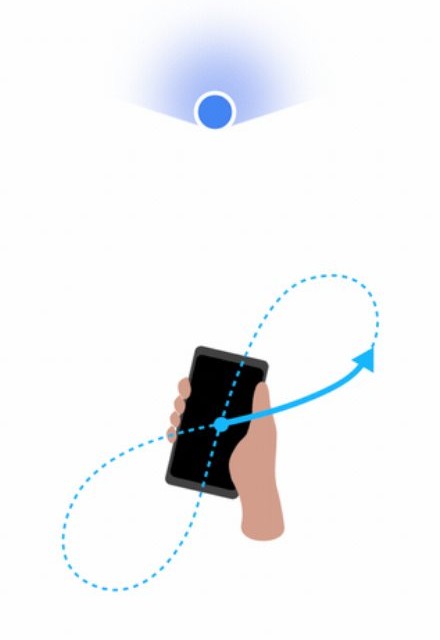
- Hold the phone and move it in a figure 8 motion.
- Keep going until the beam becomes narrow and points in the right direction.
- If Maps shows a low accuracy message, tap it and follow the option to calibrate, which can use Lens in Maps and your camera.
Google notes you only have to do the figure 8 a few times. When using Lens, point the camera at buildings and signs across the street rather than at trees or people.
Find north with the iPhone Compass app
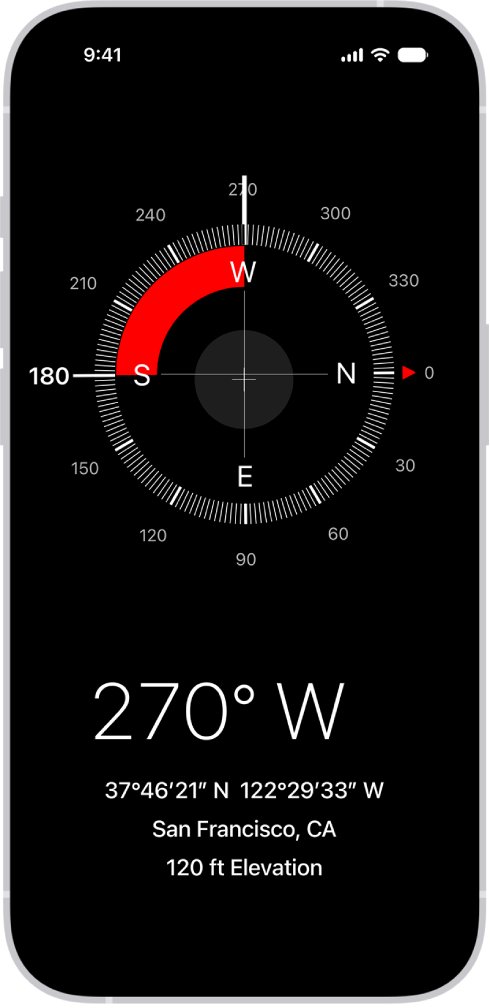
On iPhone, the built-in Compass app gives a numeric bearing as well as your coordinates, which is handy when you need an exact heading rather than a beam on a map.
- Open the Compass app on your iPhone.
- Hold the iPhone flat so the crosshairs line up at the center of the compass.
- Turn until the dial reads north.
- Tap the compass dial to lock your current direction; a red band appears when you drift off course.
- Tap the coordinates to open your location in Maps.
If Compass shows no location, open Settings > Privacy & Security > Location Services, turn it on, tap Compass and choose While Using the App.
Tips for using Google Maps compass to find north
These habits make the beam more trustworthy, based on how Google explains location accuracy.
| Tip | Why it matters |
|---|---|
| Tap the map's compass button before you read the beam | The beam only lines up with north at the top of the screen when the map is in its default orientation |
| Hold the phone flat and away from metal objects | Apple warns that magnetic or environmental interference affects compass accuracy |
| Step outside or away from tall buildings | Buildings, parking garages and being underground weaken GPS, which Google says can make the blue dot inaccurate |
| Turn on Wi-Fi | Nearby Wi-Fi networks help Maps place the blue dot |
| Watch the light blue circle around the dot | The smaller the circle, the more certain Maps is about your location |
| Use Lens in Maps in a city | Lens matches buildings and landmarks around you to orient you, and can show how far away they are |
| Download an offline map before a hike | Offline maps keep the map available when the internet connection is slow or missing |
To plan the route itself, you can measure distance in Google Maps between points before you set off.
Google Maps compass not working
Google lists these location problems and fixes for the Maps app on Android and iPhone.
The blue dot's beam is wide or points in the wrong direction
The phone's compass needs calibrating.
- Open Google Maps and tap Your location.
- Move the phone in a figure 8 until the beam narrows and points the right way.
- If it stays wrong, tap the low accuracy message and use Lens in Maps to calibrate.
The location button is red with a question mark
Google Maps is not allowed to use your location.
- On iPhone, open Settings > Privacy & Security > Location Services and turn it on.
- Scroll to Google Maps and choose While Using the App or Always.
- On Android, turn on Location services and the device's Location Accuracy setting.
The blue dot is gray or missing
Maps cannot find your current location and is showing the last place you visited.
- Turn off Airplane mode.
- Turn on Mobile data or Wi-Fi.
- Move to a place with a better GPS or Wi-Fi signal, away from tall buildings.
- Restart your phone if the dot does not return.
The location jumps around on the map
A power-saving mode is limiting location updates.
- On Android, turn off Battery saver.
- On iPhone, turn off Low Power Mode.
- Open Google Maps again and tap Your location.
Google Maps compass FAQ
Does Google Maps have a compass feature?
Yes. The blue dot's beam shows which way your phone is pointing, a compass button appears when you rotate or tilt the map, navigation has a compass that switches to your point of view, and Street View on a computer has a compass that turns the view north.
How do I show the compass on Google Maps?
Rotate the map with two fingers in the Google Maps app. The compass button appears as soon as the map is turned or tilted away from north-up. Tap it to put north back at the top of the screen.
How do I enable or add a compass to Google Maps?
There is no setting to enable it. The compass button appears automatically whenever the map is rotated or tilted, and it fades away once the map is back to north-up. The blue dot's beam is always on while your location is shown.
How do I use the compass on Google Maps desktop?
A computer cannot sense direction, so desktop Google Maps shows no beam. In Street View, click the compass at the bottom right to turn the image to face north, and use the arrows beside it to turn the view.
How accurate is the Google Maps compass?
It depends on the phone's sensors and surroundings. A narrow beam means a confident reading; a wide beam means you should calibrate with a figure 8. Apple notes that magnetic or environmental interference affects any phone compass, so use it for basic navigation only.
Do I need an internet connection to use the compass?
Maps uses GPS, Wi-Fi and cell towers to place your blue dot. To keep the map itself available without a connection, download an offline map of the area first. Without Wi-Fi or mobile data, location accuracy can be lower.
Can I use Google Maps compass on any device?
The beam needs a phone or tablet with a compass sensor running the Google Maps app on Android or iPhone. Google Maps on a computer has no beam, only the Street View compass.
Can the compass show me directions other than north?
Yes. The beam always points the way you face, so with north at the top of the map, a beam pointing right means east and pointing down means south. The iPhone Compass app shows your exact bearing in degrees.