When a DVD drive stops working in Windows 11, reinstall it from DVD/CD-ROM drives in Device Manager and restart, which clears most driver faults.
If the drive is still missing, this guide covers the IDE/ATAPI controller reset, the UpperFilters registry fix, BIOS checks, a missing drive letter, discs that will not read and drives that will not eject.
DVD drive not working, recognized or reading in Windows 11
Start with the driver. Windows reinstalls the DVD drive automatically on the next restart, so this takes about two minutes.
- Press the Windows key, type
Device Managerand press Enter. - Expand DVD/CD-ROM drives.
- Right-click your drive and select Uninstall device.
- Select Uninstall to confirm.
- Restart the PC from Start > Power > Restart.
- Open File Explorer and check that the drive is back under This PC.
If DVD/CD-ROM drives is not in the list at all, select Action > Scan for hardware changes first. If it still does not appear, go to the IDE/ATAPI and BIOS sections below.
Why is my computer not detecting my CD DVD drive?
A missing or broken DVD drive usually points to a driver or configuration problem, not a dead drive. Microsoft lists three common triggers: a Windows upgrade, installing or removing CD or DVD burning software, and removing Microsoft Digital Image.
Open Device Manager, then open the drive's Properties and read the Device status box. The error code there tells you which fix to use.
| Device status message | What it means | Fix to try first |
|---|---|---|
| Code 19: configuration information (in the registry) is incomplete or damaged | Filter entries left by burning software are broken | Delete UpperFilters and LowerFilters |
| Code 31: Windows cannot load the drivers required for this device | The driver failed to load | Uninstall the drive in Device Manager and restart |
| Code 32: a driver (service) for this device has been disabled | The driver service is turned off | Delete UpperFilters and LowerFilters, then restart |
| Code 39: the driver may be corrupted or missing | Driver files are damaged | Reinstall the driver, then remove the filter entries |
| Code 41: Windows loaded the driver but cannot find the hardware device | Windows cannot see the drive itself | Uninstall it, then Action > Scan for hardware changes |
| No DVD/CD-ROM drives category at all | The drive is off in firmware, unplugged or not powered | Check the BIOS, cables or USB connection |
Optical drives come in CD, DVD and Blu-ray types, and each reads only certain discs. The types of optical drives explain which disc formats a drive can handle.
How to update the DVD drive driver in Windows 11
Windows Update supplies most drive and chipset drivers. Optional driver updates are not installed automatically, so check them by hand.
- Select Start > Settings > Windows Update > Advanced options.
- Turn on Receive updates for other Microsoft products.
- Under Additional options, select Optional updates.
- Select any driver updates listed for your drive or chipset, then select Download and install.
- Restart the PC even if no update asks for it.
- To update from Device Manager instead, right-click the drive under DVD/CD-ROM drives, select Update driver and choose Search automatically for updated driver software.
If the drive broke right after an update, open its Properties > Driver tab and select Roll Back Driver instead. If you install the driver manually, get it only from the PC or drive maker's own site.
Remove and reinstall IDE/ATAPI drivers in Windows 11
On many desktops the DVD drive hangs off a SATA or IDE controller. Reinstalling the controller entries makes Windows detect the drive again from scratch.
- Press the Windows key, type
Device Managerand press Enter. - Select View > Show hidden devices.
- Expand IDE ATA/ATAPI controllers.
- Right-click ATA Channel 0 and select Uninstall, then do the same for ATA Channel 1.
- Right-click Standard Dual Channel PCI IDE Controller and select Uninstall, along with any other entries in that category.
- Restart the PC. Windows reinstalls the controller drivers automatically.
Entry names vary by PC, so uninstall whatever entries your IDE ATA/ATAPI controllers category lists.
Fix DVD drive UpperFilters and LowerFilters registry entries
This is the fix for Code 19, 31, 32 and 39. Burning software can leave filter entries behind that stop the drive loading. You need an administrator account, and you should back up the registry first.
- Press Windows + R, type
regeditand press Enter, then select Yes. - Go to
HKEY_LOCAL_MACHINE\SYSTEM\CurrentControlSet\Control\Class\{4D36E965-E325-11CE-BFC1-08002BE10318}. - In the right pane, select UpperFilters. Leave any UpperFilters.bak entry alone.
- Select Edit > Delete, then Yes.
- Select LowerFilters, select Edit > Delete, then Yes.
- Close Registry Editor and restart the PC.
If neither entry exists, this is not your cause. Afterwards, some CD or DVD burning apps may stop working; reinstall them or get an updated version from their maker.
Check if the DVD drive is enabled in BIOS
If the drive never appears in Device Manager, Windows may simply not be told about it. Every PC maker builds its own firmware screens, so the exact menu names differ.
- Restart the PC and open its BIOS or UEFI setup using the key your PC maker lists.
- Find the storage, SATA or drive configuration page.
- Check that the port or device for the optical drive is enabled and that the drive shows as detected.
- Save the change and restart into Windows.
- Get current chipset drivers from your PC maker, or from the drive's maker if you bought it separately.
If the BIOS cannot see the drive either, Windows is not the problem. Check the data and power cables inside a desktop, or try another USB port and cable for an external drive.
CD/DVD icon not showing in Windows File Explorer
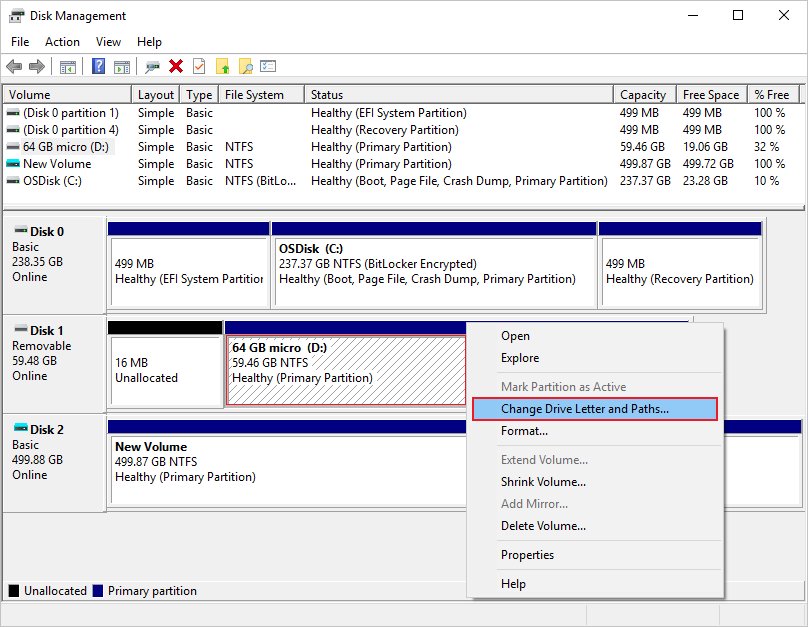
A drive that works in Device Manager but is missing from This PC usually has no drive letter. Disk Management can assign one.
- Right-click Start and select Disk Management.
- Find the drive labelled CD-ROM or DVD in the lower pane.
- Right-click it and select Change Drive Letter and Paths.
- Select Add if it has no letter, or Change to pick a new one.
- Select Assign the following drive letter, choose a free letter and select OK.
- Select Yes to confirm, then open File Explorer again.
If Change Drive Letter and Paths is greyed out, the drive is not ready for a letter yet. Fix the driver first with the steps above.
Windows doesn’t recognize DVD
Sometimes the drive is fine and the disc is the problem. A DVD needs a DVD drive, a Blu-ray disc needs a Blu-ray drive, and a dirty or scratched disc may not read at all.
- Check the drive's label or Device Manager name to confirm it supports the disc type you inserted.
- Wipe the disc gently from the centre outwards with a soft, dry, lint-free cloth.
- Try a different disc that you know works. If that reads, the first disc is damaged.
- Open Start > Settings > Bluetooth & devices > AutoPlay and turn AutoPlay on if nothing happens when you insert a disc.
- Open the disc from This PC in File Explorer. For a program disc, run its Setup.exe or Install.exe.
- To watch a film DVD, open it in a DVD player app such as Windows DVD Player from Microsoft Store.
An error occurred while ejecting DVD RW drive on Windows PC
Windows refuses to eject a disc while an app still has a file open on it. Close the app first, then eject.
- Close every app and File Explorer window that is using a file on the disc.
- Open File Explorer, right-click the DVD drive under This PC and select Eject.
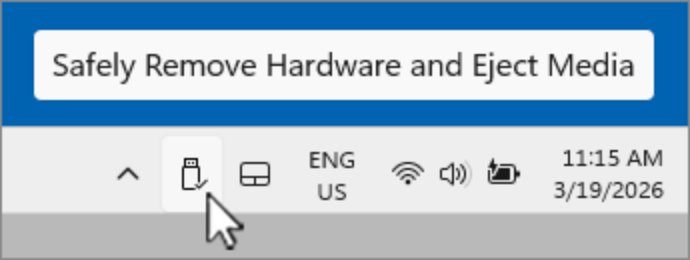
- Or right-click the Safely Remove Hardware and Eject Media icon in the system tray and select Eject for the drive. Select Show hidden icons first if you cannot see it.
- If the error repeats, restart the PC and eject before opening anything.
- Press the eject button on the drive itself once Windows has restarted.
If the tray still will not open with the PC on, try the other ways to open the CD drive tray, or follow your drive or PC maker's instructions for a manual eject. Do not force the tray open.
Can Windows 11 burn DVD?
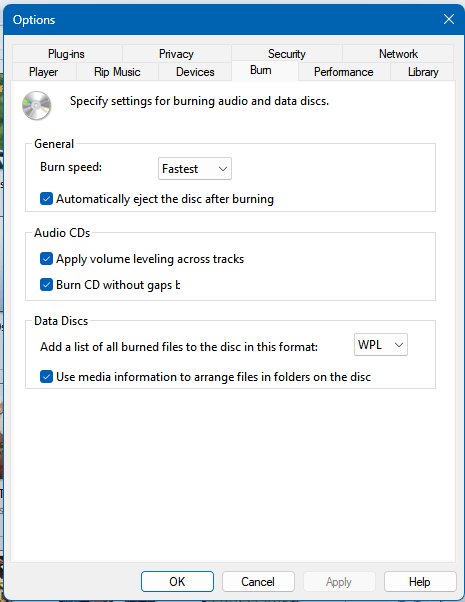
Yes. Windows Media Player can burn audio CDs, data CDs and data DVDs if your drive is a CD or DVD burner. A data DVD holds about 4.7 GB.
- Open Windows Media Player.
- In the Player Library, select the Burn tab, select Burn options and choose Data CD or DVD.
- Insert a blank DVD into your burner.
- If you have more than one drive, select the drive you want to use.
- Drag the files you want to the list pane on the right.
- Select Start burn.
A failed burn on a drive that reads discs fine often traces back to the same filter-driver damage. Remove UpperFilters and LowerFilters, then reinstall the burning app.
How to tell if Windows 11 detects the DVD drive
- Open Device Manager and expand DVD/CD-ROM drives. Your drive should be listed with no yellow exclamation mark.
- Right-click it, select Properties and check that Device status reports no error code.
- Open File Explorer and select This PC. The drive should show with a letter, such as D:.
- Insert a disc you know works and open it from File Explorer.
- If you plan to burn, check that the drive name includes RW or another writer label.
DVD drive not reading discs in Windows 11
DVD drive not showing up in Windows 11 Device Manager
The drive is off in firmware, unplugged, or the controller driver is broken.
- Select Action > Scan for hardware changes in Device Manager.
- Uninstall the IDE ATA/ATAPI controller entries and restart.
- Check that the BIOS detects the drive, and reseat cables or change USB ports.
Yellow exclamation mark on the DVD drive
A driver or registry filter error, shown as a code under Device status.
- Note the code in the drive's Properties.
- For Code 19, 31, 32 or 39, delete UpperFilters and LowerFilters and restart.
- For Code 41, uninstall the drive and run Scan for hardware changes.
DVD drive stopped working after a Windows update
An updated driver does not suit the drive.
- Open the drive's Properties > Driver tab.
- Select Roll Back Driver, pick a reason and select Yes.
- Restart the PC.
Drive shows in File Explorer but says insert a disc
The disc is dirty, damaged or a format the drive cannot read.
- Clean the disc and try again.
- Try a disc you know works.
- Check the drive supports the disc type, such as Blu-ray.
External USB DVD drive not recognized
The port, cable or power supply is not enough for the drive.
- Plug it straight into a USB port on the PC, not a hub.
- Uninstall it in Device Manager, unplug it, restart and plug it back in.
DVD drive not working in Windows 11 FAQ
Why is my computer not detecting my CD DVD drive?
Usually a damaged driver or broken registry filter entries left by burning software. Uninstall the drive in Device Manager and restart, then delete UpperFilters and LowerFilters if an error code remains. If the BIOS cannot see the drive, check its cables or connection.
Can Windows 11 burn DVD?
Yes. With a DVD burner, Windows Media Player can burn data DVDs as well as audio and data CDs. Open the Burn tab, choose Data CD or DVD under Burn options, drag in your files and select Start burn.
Does Windows 11 play DVD movies?
Data DVDs open in File Explorer. For film DVDs, install a DVD player app such as Windows DVD Player, which Microsoft sells in Microsoft Store.
How do I get Windows 11 to recognize my DVD drive?
Open Device Manager, uninstall the drive under DVD/CD-ROM drives and restart. If it is still missing, uninstall the IDE ATA/ATAPI controller entries, delete the UpperFilters and LowerFilters registry values, and check the drive is enabled in BIOS.
Why does my DVD drive show in Device Manager but not in File Explorer?
It has no drive letter. Open Disk Management, right-click the CD-ROM or DVD entry, select Change Drive Letter and Paths, select Add and assign a free letter.
Why won't my DVD drive read discs?
The disc may be dirty, scratched or a format the drive does not support, such as a Blu-ray disc in a DVD drive. Clean the disc, try one you know works, and check the drive's supported formats.
Is it safe to delete UpperFilters for the DVD drive?
Yes, if you follow Microsoft's steps exactly and back up the registry first. Delete only UpperFilters and LowerFilters under the CD/DVD class key. Some burning apps may need reinstalling afterwards.
How do I eject a DVD that Windows says is in use?
Close every app and window using files on the disc, then right-click the drive in File Explorer and select Eject. If that fails, restart the PC and eject before opening anything else.