An optical drive is a disc drive that uses a laser to read data from, and often write data to, CDs, DVDs and Blu-ray discs.
This guide covers the drive types and what each disc holds, how reading and writing work, where these drives still earn their place, how to use one on Windows, and how to fix a drive Windows cannot see.
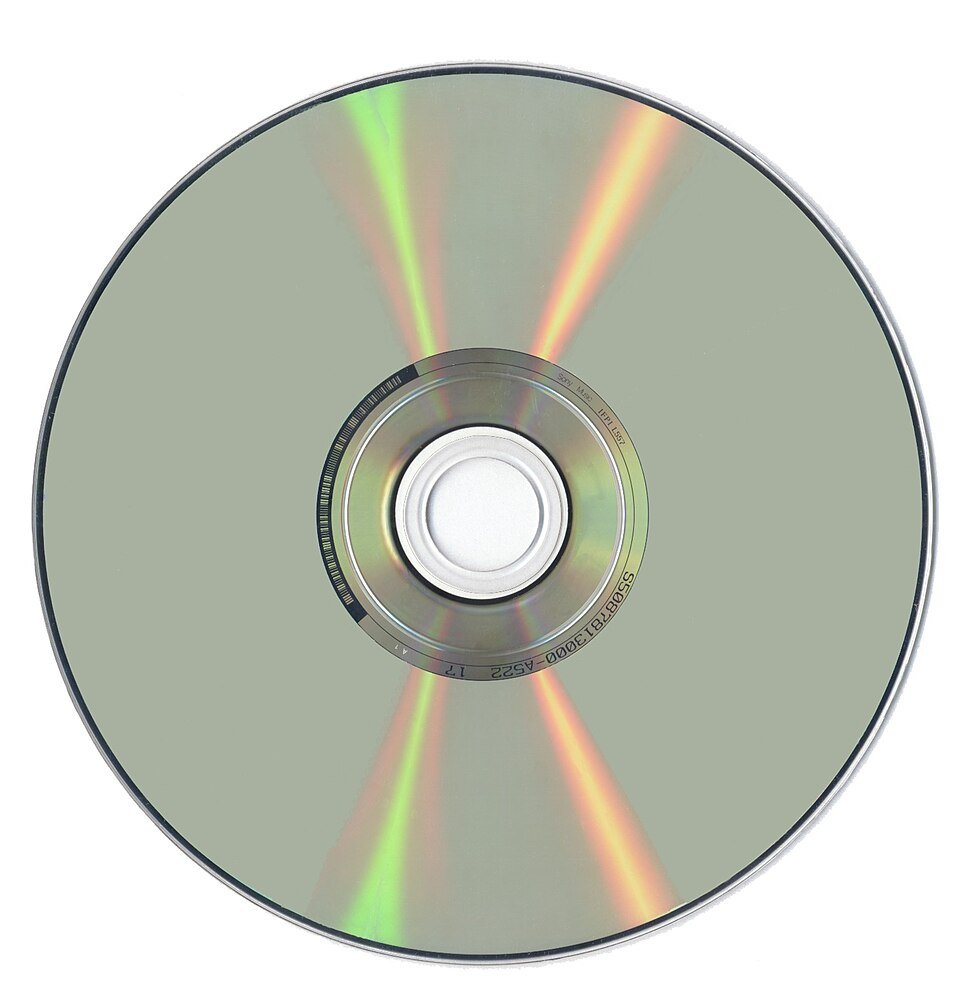
What is an optical drive, and do you need one?
An optical disc drive (ODD) shines a laser at a spinning disc and reads the light that bounces back. A drive that can also record is called a burner or writer.
Most laptops stopped shipping with one during the 2010s, so today the practical question is whether to buy an external drive.
If you still own discs, or need to play, rip or burn them, buy an external USB drive: a DVD writer covers CDs and DVDs, and only a Blu-ray drive reads Blu-ray discs. Modern DVD and Blu-ray drives read and record their own formats and stay backward compatible with audio CDs, CD-ROM and CD-R/RW discs, while slim external models usually run entirely on USB power.
Understanding Optical Drives
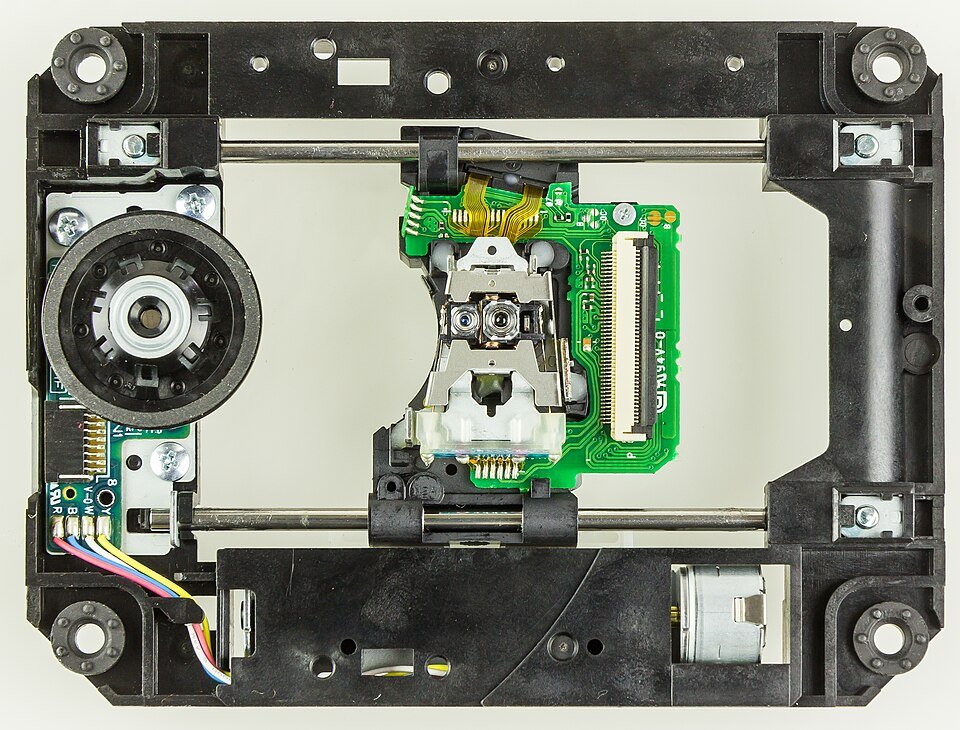
Every optical drive, from a 1990s CD-ROM to a current Blu-ray writer, is built from the same core parts. The most important is the pickup head, which holds the laser and the optics.
| Part | What it does |
|---|---|
| Laser diode | Produces the beam that reads the disc. Writers push much more power through it when recording. |
| Focusing lens | Narrows the beam to a tiny spot on the data layer. Coils and magnets move it to keep focus. |
| Photodiodes | Detect the light reflected from the disc and turn it into an electrical signal. |
| Focus and tracking servos | One keeps the lens at the right distance; the other moves the head along the disc's spiral track. |
| Spindle motor | Spins the disc. Optical media are read from the inner edge outwards. |
| Sled and stepper motor | Carry the pickup head across the disc's radius on two guide rods. |
| Tray, slot or top lid | Loads the disc. Tray drives have a small emergency eject hole; slot drives usually do not. |
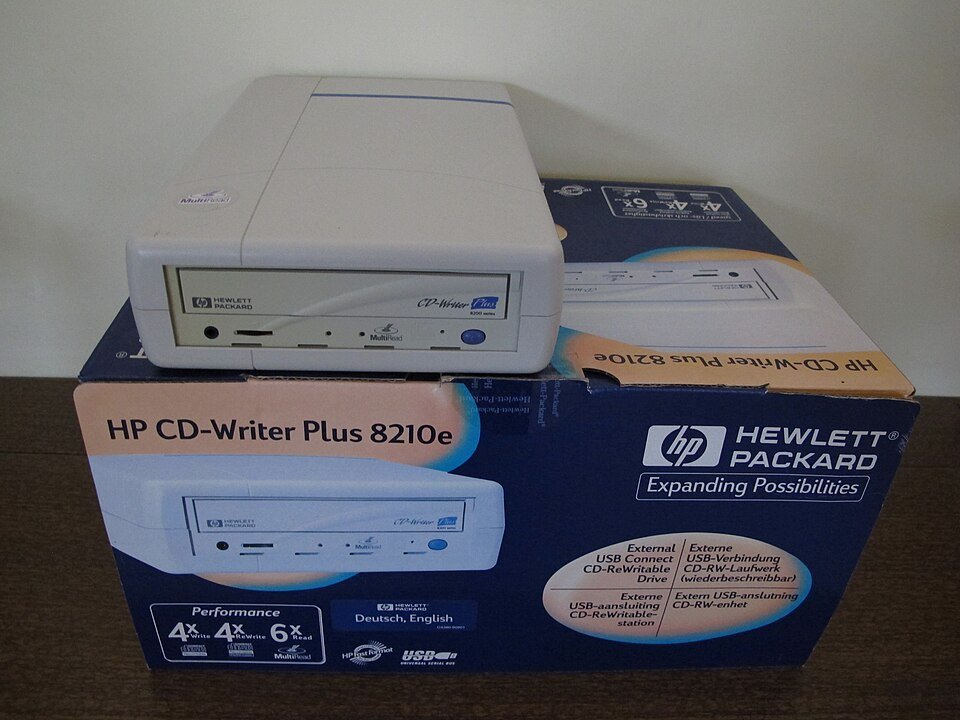
Drives come in two sizes. A half-height drive fits a desktop's 5.25-inch bay and needs 12 V, so the external version needs its own power adapter. A slim drive is 12.7 mm tall or thinner (9.5 mm ultra slim, 7.5 mm internal slim) and runs on 5 V, which is why external slim drives usually work from USB power alone.
Half-height drives run up to about twice as fast as slim ones, because a slim drive's motor tops out around 5,000 rpm.
Types of Optical Drives
Drives are named after the newest disc family they handle. A "-ROM" drive only reads, even when the disc is a writable -R or -RW; a writer (burner) also records.
| Drive type | Laser | Standard disc capacity | Status today |
|---|---|---|---|
| 1. CD drives (CD-ROM, CD-R, CD-RW) | 780 nm infrared | 650 MB (CD-ROM); CD-R typically up to 700 MB or 80 minutes of audio | CD-only drives are no longer made for PCs outside audio devices |
| 2. DVD drives (DVD-ROM, DVD±R/RW writers) | 650 nm red | 4.7 GB single layer, 8.5 GB dual layer | The common cheap choice; reads and writes CDs as well |
| 3. Blu-ray drives (BD-ROM, BD-R/RE writers) | 405 nm violet | 25 GB single layer, 50 GB dual layer; BDXL 100 GB (triple) and 128 GB (quad) | Needed for Blu-ray movies and high-capacity burning |
| 4. Combination drives | Two or more lasers or optical paths | Varies by format | Mixed abilities, for example reading Blu-ray while only writing CDs and DVDs |
Read-only DVD-ROM and BD-ROM drives still exist, but mostly inside game consoles and disc players. A combination drive such as the TSST TS-LB23 reads Blu-ray discs but only writes CDs and DVDs, so check the spec sheet for "BD-R" or "BD-RE" before buying one to burn Blu-ray.

Which discs each drive can read and write
Most optical drives read older formats back to CD, but the standards do not require it. This table shows the usual pattern for current drives.
| Disc | CD-RW drive | DVD writer | Blu-ray reader (BD-ROM combo) | Blu-ray writer |
|---|---|---|---|---|
| Audio CD, CD-ROM | Read | Read | Read | Read |
| CD-R, CD-RW | Read and write | Read and write | Usually read and write | Read and write |
| DVD-ROM (films, software) | No | Read | Read | Read |
| DVD-R, DVD+R, DVD±RW, dual layer | No | Read and write | Usually read and write | Read and write |
| BD-ROM (Blu-ray films, console discs) | No | No | Read | Read |
| BD-R, BD-RE | No | No | Read | Read and write |
| BDXL (100 GB, 128 GB) | No | No | Only if the drive lists BDXL | Only if the drive lists BDXL |
Ultra HD Blu-ray (4K) discs hold up to 100 GB and do not play in standard Blu-ray players. A triple-layer BDXL blank also cannot be burned into an Ultra HD Blu-ray disc, although a 50 GB dual-layer BD-R can.
Mechanisms of Optical Drives
A drive reads by bouncing a weak laser off the disc and writes by heating the recording layer with a much stronger one. The disc type decides whether a mark can be erased.
| Operation | What happens inside the drive | Discs |
|---|---|---|
| Reading data | Pressed discs carry pits and flat lands. A pit's depth cancels part of the reflected light, and the photodiodes read the brighter and dimmer returns as data. The reading laser is usually no stronger than 5 mW. | CD-ROM, DVD-ROM, BD-ROM, and any burned disc |
| Writing data | The laser heats spots in an organic dye layer, changing how much light they reflect. The change is permanent, so the disc records once. DVD writer lasers often peak around 200 mW. | CD-R, DVD-R, DVD+R, BD-R |
| Rewriting data | The laser melts a metal alloy layer. Depending on the power used, it cools back to a crystal or stays amorphous, giving marks that can be erased and rewritten. | CD-RW, DVD-RW, DVD+RW, DVD-RAM, BD-RE |
| Dual-layer discs | Two data layers sit under a semi-reflective layer. The drive refocuses the laser to reach the second layer from the same side. | DVD+R DL, DVD-R DL, BD-R DL, BDXL |
Speed ratings are multiples of a base rate: 1x is 150 KiB/s for CDs, 1.385 MB/s for DVDs and 6.74 MB/s for Blu-ray. Most half-height drives made since around 2007 read at up to 48x for CDs, 16x for DVDs and 12x for Blu-ray, which all come out near 10,000 rpm.
The drive also slows down on its own when it meets a damaged area, because a lower speed improves the chance of reading it.
The Evolution of Optical Drives
Each generation packed data tighter by moving to a shorter laser wavelength and a thinner protective layer over the data.
| Year | Milestone |
|---|---|
| 1972 | The LaserVision 12-inch video disc is demonstrated, storing analog video. |
| 1984 | CD-ROM, developed by Sony and Denon, extends the audio CD to hold any data: 650 MB. |
| 1988 | Recordable CD-R discs arrive, letting PCs burn their own CDs. |
| 1995-1997 | DVD is released with 4.7 GB per layer. Fujitsu ships the first DVD-ROM computers in November 1996, and DVD-ROM drive sales start in the US in March 1997. |
| 2003 | The first commercial Blu-ray recorder goes on sale on April 10. |
| 2006 | The first Blu-ray film titles release on June 20, and Sony's BWU-100A becomes the first mass-market Blu-ray rewriter for PCs on July 18. |
| 2016 | Ultra HD Blu-ray players and discs arrive, holding up to 100 GB of 4K video. |
| Mid-2010s onwards | PC makers drop built-in drives and case makers drop 5.25-inch bays, as USB flash drives and streaming take over. |
| 2025 | Pioneer exits the optical disc market in May. |
Modern-Day Uses of Optical Drives
Optical drives are now a specialist tool rather than standard equipment. They still do a few jobs better than anything else.
| Use | Why a disc still works | Where something else is better |
|---|---|---|
| Data backup and archiving | Recording on an R disc is permanent, so a finished archive disc cannot be overwritten later. | Whole-PC backups of hundreds of gigabytes; an external hard drive is cheaper and faster. |
| Software installation and distribution | Older programs, drivers and some licensed software still ship on disc. | Most current software downloads directly. |
| Video and music libraries | Playing, ripping and burning a CD or DVD collection you already own. Blu-ray remains the main medium for boxed films. | Casual viewing, which has moved to streaming. |
| Gaming | PlayStation 5, Xbox Series X and earlier Xbox One and PlayStation models use Blu-ray for boxed games and can play Blu-ray films. | Digital-only consoles and PC stores. |
| Compatibility and legacy support | Opening old archives, photo CDs and discs from other people or organisations. | Anything already on a network share or USB drive. |
| Educational purposes | Course, reference and training discs that shipped on CD-ROM or DVD. | Material that is now hosted online. |
Optical drives are also built into standalone CD, DVD and Blu-ray players, DVD recorders and car audio units, which is where most slot-loading drives live.
Which optical drive should you buy today?
| Your situation | Get this | Why |
|---|---|---|
| Laptop or small PC, CDs and DVDs only | External slim USB DVD writer | Runs from USB power and handles every CD and DVD format |
| You want to watch or rip Blu-ray films | External or internal Blu-ray drive | DVD drives cannot read Blu-ray discs at all |
| You want to burn 25-128 GB discs | Blu-ray writer that lists BD-R, BD-RE and BDXL | Combination drives may read Blu-ray without writing it |
| You play 4K Ultra HD Blu-ray films | A drive or player sold as Ultra HD Blu-ray compatible | Standard Blu-ray drives cannot play Ultra HD discs |
| Desktop with a free 5.25-inch bay | Half-height internal drive | Up to about twice as fast as a slim drive |
| Slim external drive not powering up | A model with a second USB power lead, or a powered port | Some slim drives draw power from two USB connectors |
How to play a DVD or Blu-ray disc on Windows
DVD films are encoded in MPEG-2, and a player needs a compatible DVD decoder to show them. Microsoft sells the Windows DVD Player app in the Microsoft Store for Windows 10 and later.
- Connect the drive and insert the disc, label side up.
- Open Microsoft Store and search for Windows DVD Player, or another app that plays DVDs.
- Install the app, then open it from the Start menu.
- Select the disc to start playback.
- For a Blu-ray film, use a Blu-ray drive and a player app that states Blu-ray support. Windows Media Player does not include the codecs Blu-ray needs.
How to burn a CD or DVD with Windows Media Player
You need a writer drive and a blank disc. Choose Audio CD for a music disc that plays in most CD players, or Data CD or DVD for files.
- Open Windows Media Player.
- In the Player Library, select the Burn tab in the upper-right corner.
- Select the Burn options button, then choose Audio CD or Data CD or DVD.
- Insert a blank disc. If you have more than one drive, select the writer.
- Drag songs, pictures or videos from your library into the list pane on the right.
- Drag items to reorder them, or right-click an item to remove it.
- Select Start burn.
An audio CD holds up to 80 minutes of music. A data CD holds about 700 MB, and a data DVD about 4.7 GB. To copy a CD to your PC instead, insert it and select Rip CD; the songs go to your Music folder.
How to install a program from a CD or DVD
- Insert the disc into the internal or external drive and follow any prompts that appear.
- Enter an administrator password if Windows asks for one.
- If nothing happens, go to Start > Settings > Bluetooth & devices > AutoPlay and make sure AutoPlay is On.
- If the installer still does not start, open File Explorer and browse the disc.
- Double-click the setup file, usually named Setup.exe or Install.exe.
How to check that Windows sees your optical drive
- Press the Windows logo key, type Device Manager and press Enter.
- Expand DVD/CD-ROM drives. Your drive should be listed by its model name.
- Confirm there is no yellow exclamation mark on the entry.
- Open File Explorer and select This PC. The drive should appear with its own letter.
- Insert a disc you know works. The drive's entry should show the disc's name.
If the drive is missing or flagged, go to the fixes further down.
Pros and Cons of Optical Drives
| Pros | Cons |
|---|---|
| Write-once R discs cannot be changed after burning | Capacity is small next to hard drives: 4.7 GB per DVD layer, 25 GB per Blu-ray layer |
| Plays and rips the physical film, music and game discs you already own | Most laptops and many PC cases no longer have a drive or a bay for one |
| Blank CDs and DVDs are cheap per disc | Burned discs degrade: the dye in CD-Rs can break down and silver layers oxidise |
| Pressed discs are cheap to mass-produce for distribution | USB flash drives are faster, rewritable and hard to scratch |
| Discs work without an internet connection or account | Scratches and damage can make files unreadable or make File Explorer hang |
| External slim drives plug into any USB port | Parts are getting harder to source as manufacturers leave the market |
Manufacturers have estimated gold-based CD-Rs could last as long as 100 years because gold does not oxidise, but gold discs are expensive and no longer common. Discs larger than 700 MB are less reliable for archiving because other drives may not read them.
Fix an optical drive that Windows does not recognise
These symptoms and fixes come from Microsoft's own CD and DVD drive troubleshooting for Windows 11 and Windows 10. Work through them in order.
The drive is missing from File Explorer
The drive is switched off in the firmware settings, or the chipset drivers are out of date.
- Restart the PC and open its BIOS or UEFI settings; the key varies by manufacturer.
- Check that the optical drive is enabled, then save and exit.
- Get current chipset drivers from your PC or motherboard manufacturer's support site.
Device Manager shows a yellow mark with Code 19, 31, 32, 39 or 41
The drive's driver is damaged, disabled or missing.
- Press the Windows logo key, type Device Manager and press Enter.
- Expand DVD/CD-ROM drives.
- Right-click the drive and select Uninstall device, then confirm.
- Restart the PC. Windows reinstalls the driver automatically.
- If it still fails, select View > Show hidden devices, expand IDE/ATAPI Controllers, uninstall each ATA Channel entry and the Standard Dual Channel PCI IDE Controller, then restart.
The error persists after reinstalling the driver
Corrupted UpperFilters or LowerFilters registry values, often left by disc-burning software.
- Back up the registry, then press Windows logo key + R, type regedit and press Enter. Select Yes.
- Go to
HKEY_LOCAL_MACHINE\SYSTEM\CurrentControlSet\Control\Class\{4D36E965-E325-11CE-BFC1-08002BE10318}. - In the right pane, select UpperFilters, then select Edit > Delete and confirm.
- Delete LowerFilters the same way if it is present.
- Close Registry Editor and restart the PC. Reinstall your burning software if it stops working.
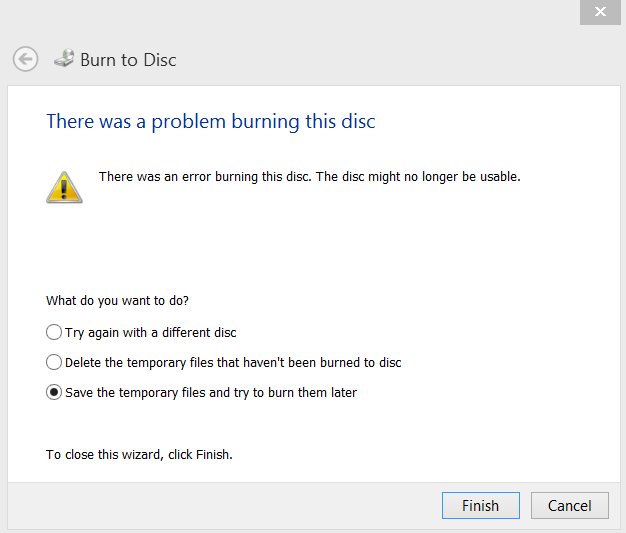
"There was a problem burning this disc"
A second burn started while files were still being copied to the disc.
- Wait for the file copy to the disc to finish.
- Only then select Burn to disc.
- Use a fresh blank if the failed disc was a write-once R disc.
A DVD film will not play
No compatible DVD decoder is installed.
- Install a DVD playback app such as Windows DVD Player from Microsoft Store.
- Play the disc from that app instead of Windows Media Player.
The disc is stuck and the tray will not open
The PC is off, or a program has locked the tray.
- Close any program using the disc and press the drive's eject button.
- Shut down the PC.
- Push the end of a straightened paper clip into the small emergency eject hole on the tray front.
- Pull the tray out and remove the disc. Slot-loading drives usually have no such hole.
The Future of Optical Drives
Optical drives are not disappearing overnight, but the market is narrowing to films, consoles and archiving.
| Trend | What it means for you |
|---|---|
| Niche markets | Blu-ray remains the medium for boxed films and PlayStation and Xbox games, so drives stay on sale for those buyers. |
| Fewer manufacturers | Pioneer left the optical disc market in May 2025, and in August 2026 reports said disc factories were closing and drive components were getting harder to source. |
| Innovations in optical media | BDXL reaches 128 GB per disc, Ultra HD Blu-ray carries 4K video, and Sony's Optical Disc Archive system uses multiple lasers for professional archiving. |
| Integration with new technologies | Almost every current drive is a USB external unit rather than an internal part of the PC. |
If you rely on discs, buy a drive while models are easy to find, and copy important discs to other storage as well.
Frequently Asked Questions
What is an optical drive?
An optical drive is a disc drive that uses a laser to read data from CDs, DVDs or Blu-ray discs. Many models, called burners or writers, can also record data onto blank discs. The drive reads the light reflected from the disc's surface and turns it into data.
What are the types of optical drives?
The main types are CD drives, DVD drives, Blu-ray drives and combination drives. Each can be read-only (ROM) or a writer. CD-only drives are no longer made for PCs, so a DVD writer is the basic choice and a Blu-ray drive is needed for Blu-ray discs.
What are some examples of optical drives?
Examples include a DVD-ROM drive in an older desktop, an external slim USB DVD writer for a laptop, and an internal Blu-ray writer. Game consoles such as PlayStation 5 and Xbox Series X, and standalone DVD and Blu-ray players, also contain optical drives.
How does an optical drive work?
A laser diode shines onto the spinning disc, a lens focuses the beam, and photodiodes detect the reflected light. Pits and lands, or burned marks, reflect differently, and the drive reads that difference as data. To write, the laser heats the disc's recording layer.
What is an optical drive used for today?
Optical drives are used today to play and rip DVD, Blu-ray and audio CD collections, install older software from disc, burn write-once archive copies, and read old backups. PlayStation and Xbox consoles with disc drives also use Blu-ray for boxed games.
Do PCs still come with optical drives?
Most do not. Laptop makers dropped built-in drives during the 2010s to cut cost, weight and thickness, and many desktop cases no longer have 5.25-inch bays. External USB optical drives are still sold and work with any PC that has a USB port.
Can a DVD drive read Blu-ray discs?
No. Blu-ray uses a 405 nm violet laser and a thinner cover layer that DVD drives cannot read. A Blu-ray drive, however, normally reads DVDs and CDs as well, although standards do not require backward compatibility.
How much data does a CD, DVD or Blu-ray disc hold?
A CD-ROM holds 650 MB, and a CD-R typically up to 700 MB. A DVD holds 4.7 GB per layer, or 8.5 GB dual layer. A Blu-ray disc holds 25 GB per layer, 50 GB dual layer, and BDXL discs 100 or 128 GB.
Can Windows 11 play DVDs?
Windows 11 needs a DVD playback app, because DVD films need a compatible DVD decoder. Microsoft sells the Windows DVD Player app in Microsoft Store, and other Store apps also play DVDs. Blu-ray films need a Blu-ray drive and an app that supports them.
When was the optical drive invented?
The first laser video disc, LaserVision, was demonstrated in 1972. CD-ROM for computer data followed in 1984, recordable CD-R in 1988, DVD in 1995, and Blu-ray recorders in 2003, with Blu-ray films and the first PC Blu-ray rewriter arriving in 2006.


SATA vs SATA 2 vs SATA 3 – What’s the Difference? - Techdows
[…] (Serial ATA) connects hard drives, SSDs and optical drives to the motherboard. It replaced the older IDE and parallel ATA (PATA) […]
Understanding NVMe vs M.2 vs SATA: exploring the differences - Techdows
[…] names overlap. SATA (Serial ATA) is the interface that replaced IDE/PATA for hard drives, SSDs and optical drives. Its current generation runs at up to 6 Gb/s and stays compatible with the older 3 Gb/s and 1.5 […]