The HID-compliant touch screen driver is built into Windows, so you update it from Device Manager or Windows Update rather than downloading it as a separate file.
This guide covers the four official ways to get or refresh it, how to enable and roll it back, the battery driver on the same laptops, and fixes when the touch screen entry is missing.
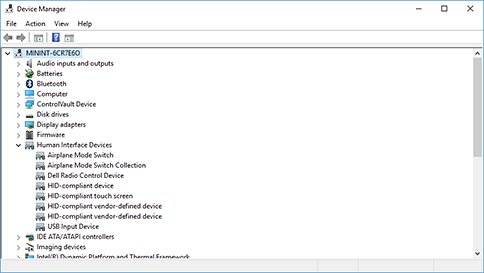
How to download or update HID-compliant touch screen driver in Windows 11/10
Once you open Device Manager, it can ask Windows Update for a newer touch driver in one pass. Connect to the internet first, because Windows downloads the driver for you.
- Right-click the Start button and select Device Manager.
- Select the arrow next to Human Interface Devices to expand it.
- Right-click HID-compliant touch screen and select Update driver.
- Select Search automatically for updated driver software.
- If Windows says the best driver is installed, select Search for updated drivers on Windows update to check optional driver updates too.
- Select Close, then restart the PC.
- If several HID-compliant touch screen entries are listed, repeat the steps for each one.
When both searches find nothing new, Windows already has the latest driver it offers for your touch panel. A newer one can only come from your PC maker.
What is the HID-compliant touch screen driver?
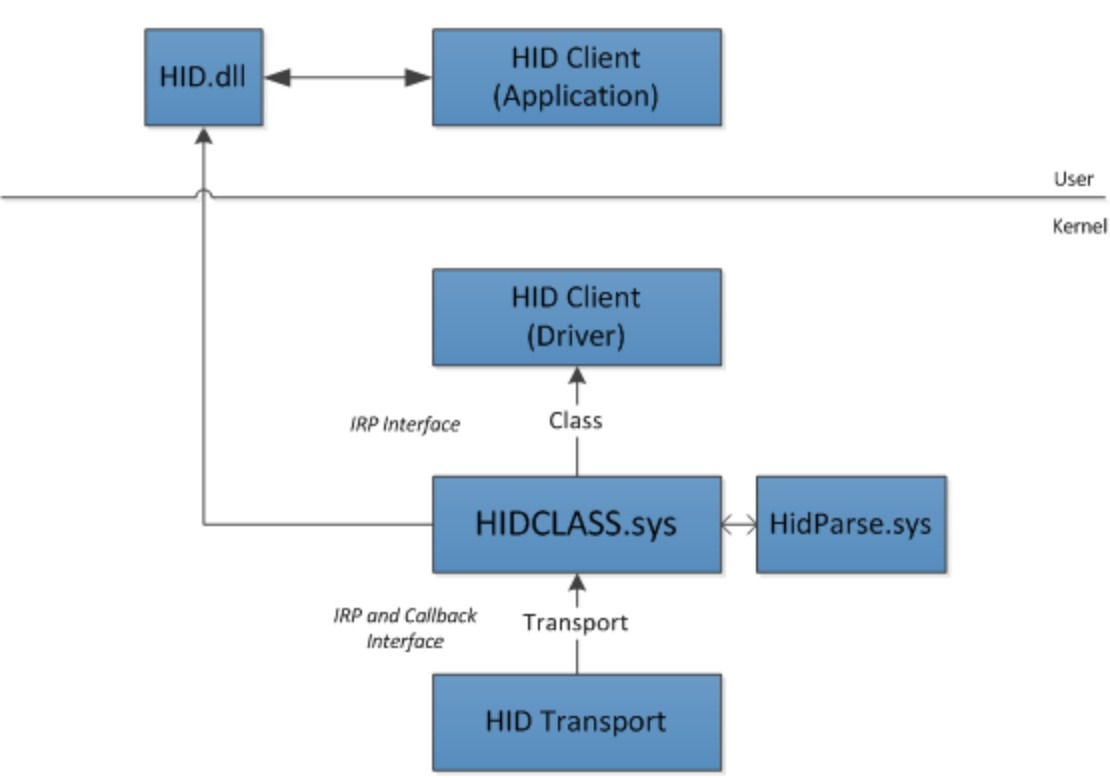
HID stands for Human Interface Devices, the device class Windows uses for keyboards, mice, game controllers, sensors and touch screens. Windows ships its own HID drivers, and Microsoft recommends using them for the standard connection types.
| Part | What it does | Where it comes from |
|---|---|---|
| HID-compliant touch screen | The Device Manager entry for the touch panel itself | Built into Windows |
| HID class driver (Hidclass) | Handles the data every HID device sends to Windows | Built into Windows |
| Hidi2c.sys | Connects HID devices over I2C, the link most laptop touch panels use (Windows 8 and later) | Built into Windows |
| Hidusb.sys | Connects HID devices over USB, such as an external touch monitor | Built into Windows |
| HidSpi.sys | Connects HID devices over SPI (Windows 11) | Built into Windows |
| Touch controller or firmware driver, for example Intel(R) Precise Touch Device | Drives the controller chip under the panel | PC maker, through Windows Update or its support site |
When touch fails after an update, the controller or firmware driver is the part that usually needs a fresh copy, not the generic HID entry.
How to install the touch screen driver from optional updates in Windows 11
PC makers publish touch controller drivers through Windows Update, but Windows does not install optional drivers on its own. Windows 10 uses the same route under Update & Security > Windows Update > View optional updates.
- Select Start > Settings > Windows Update > Advanced options.
- Turn on Receive updates for other Microsoft products.
- Under Additional options, select Optional updates.
- If driver updates are listed, tick any touch, HID or I2C driver for your device.
- Select Download and install.
- Go back to Windows Update, select Check for updates and install everything listed.
- Restart the PC, even if no update asks for it.
How to download HID touch screen driver from Microsoft Update Catalog
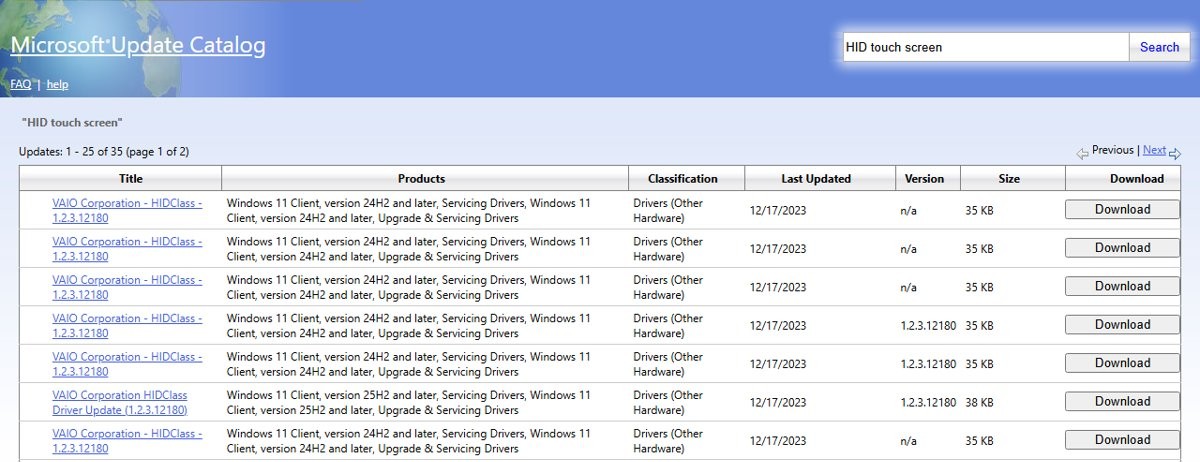
The Microsoft Update Catalog holds the same drivers Windows Update delivers, searchable by hardware ID. Microsoft aims it at IT departments, so use it only when Device Manager and optional updates come up empty.
- In Device Manager, right-click HID-compliant touch screen (or the touch controller entry) and select Properties.
- Select the Details tab and choose Hardware Ids in the Property list.
- Copy the top value, which is the most specific ID for your panel.
- Open
https://www.catalog.update.microsoft.com/in your browser and paste the ID into the search box. - Pick the newest result that matches your Windows version and download it. Extract the files to a folder if the download is an archive.
- Back in Device Manager, right-click the device, select Update driver > Browse my computer for drivers.
- Select Browse…, choose the folder, select OK, then Next, and restart when the install finishes.
How to download touch screen driver from the manufacturer's website
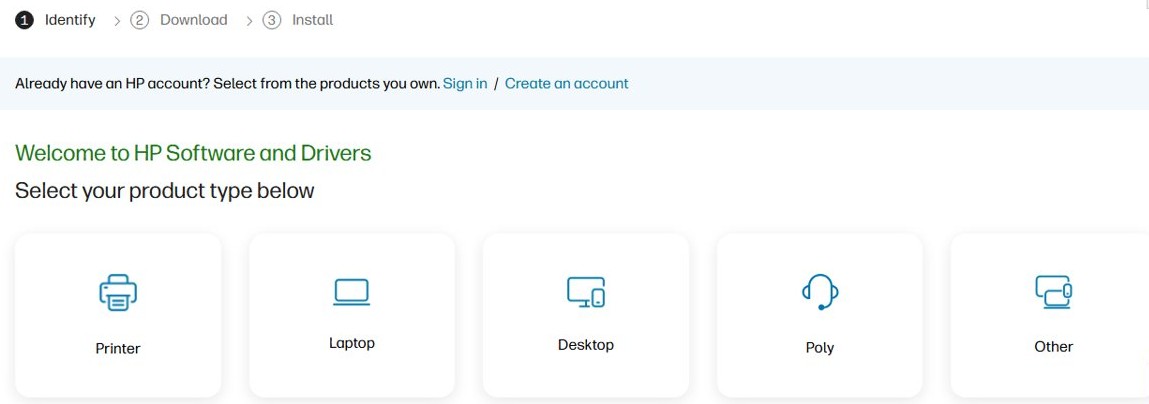
Microsoft advises against drivers from any site other than the device maker's own. For a laptop or 2-in-1, the maker is the PC brand, not the touch panel supplier.
- Find your exact model and serial number on the label under the laptop or in the PC maker's own support app.
- Open the support or drivers page on the PC maker's website and enter the model or serial number.
- Choose your Windows version, then look for a touch, input or chipset driver.
- Download the touch, I2C or Precise Touch driver package and run it, or extract it and install it manually with Browse my computer for drivers in Device Manager.
- Restart the PC when the installer finishes.
Surface owners get touch drivers and firmware through Windows Update. In the Surface app, expand Help & support to check whether updates are waiting. Use the same routes to update other drivers on Windows 11.
How to reinstall HID-compliant touch screen driver
Reinstalling replaces a damaged copy of the driver with a clean one. Connect a mouse and keyboard first in case touch stops during the process.
Do not do this on a Surface Pro X. Microsoft warns that uninstalled drivers on that model come back only with a full system reset.
- Type device manager in the taskbar search box and select Device Manager.
- Expand Human Interface Devices.
- If Intel(R) Precise Touch Device is listed, right-click it, select Uninstall device and then Uninstall.
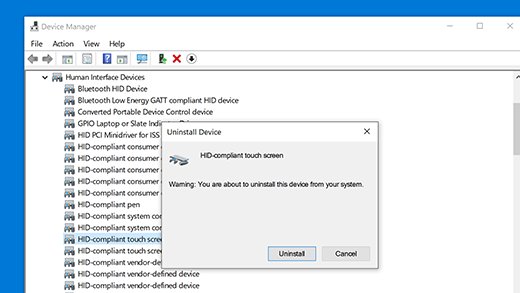
- Right-click HID-compliant touch screen, select Uninstall device and then Uninstall. Repeat for a second touch screen entry if there is one.
- Select the Action menu, then Scan for hardware changes.
- Restart the PC while connected to the internet so Windows downloads and installs the touch driver again.
How to enable HID-compliant touch screen in Device Manager
A disabled touch screen still appears in Device Manager, so enabling it is the first thing to try when touch stops after a settings change.
- Right-click Start and select Device Manager.
- Expand Human Interface Devices.
- Right-click HID-compliant touch screen and select Enable device.
- Repeat for every HID-compliant touch screen entry in the list.
- Tap the screen to check that it responds.
To turn touch off instead, choose Disable device in the same menu. Disabling touch also stops touch accessories such as a pen, Surface Dial and the touch keyboard.
How to roll back HID-compliant touch screen driver
Roll back when touch broke right after a driver update. The button only works if Windows kept the previous driver, and you need administrator rights.
- Open Device Manager from the Start menu.
- Expand Human Interface Devices, right-click HID-compliant touch screen or the touch controller entry and select Properties.
- Select the Driver tab.
- Select Roll Back Driver.
- Choose a reason when asked, then select Yes.
- Restart the PC if prompted.
How to download and install Battery driver in Windows 11/10
The battery driver is also built into Windows, so the fix for a battery that reads wrong or will not charge is a reinstall, not a download. Plug the laptop into power before you start.
- Type device manager in the taskbar search box and select Device Manager.
- Select the arrow next to Batteries.
- Right-click Microsoft ACPI-Compliant Control Method Battery (on Surface, Surface Battery) and select Uninstall device, then confirm.
- Select the computer name at the top of the list.
- Select the Action menu, then Scan for hardware changes.
- Select Start > Power > Restart. Windows installs the battery driver again.
If the battery icon shows a red X after the restart, Windows cannot detect the battery at all, and the laptop needs service from its maker.
How to test touch screen after driver update in Windows
A driver can install without errors and still leave touch partly working, so test single and multi-touch gestures.
- Open Device Manager and expand Human Interface Devices. HID-compliant touch screen should be listed with no yellow warning icon.
- Open Microsoft Edge or another browser using touch.
- Scroll a page with one finger.
- Pinch to zoom in and out.
- Swipe in from the right edge of the screen.
- Long-press a link to check that a menu opens.
If single taps work but pinch and swipe fail, or taps land in the wrong place, Microsoft treats it as a hardware fault rather than a driver problem.
HID-compliant touch screen missing from Device Manager
Restart the PC before anything else; Microsoft lists a restart as the first fix for an unresponsive touch screen. If a restart does not help, work through the checks below or the wider touchscreen not working fixes.
No HID-compliant touch screen under Human Interface Devices
The touch controller driver or firmware is missing, or the PC has no touch panel.
- Check the model's specifications on the maker's website to confirm it has a touch screen.
- Install all optional driver updates from Settings > Windows Update > Advanced options > Optional updates.
- Download the touch or serial IO driver for your exact model from the PC maker's support site and install it.
- Restart the PC and check Human Interface Devices again.
Yellow warning icon next to the touch screen or touch firmware
The driver failed to start or is damaged.
- Reinstall the driver with Uninstall device and Scan for hardware changes, as shown above.
- If the icon returns, install the touch driver package from the PC maker manually.
Driver installs but the screen still ignores touch
The panel or its connection has failed.
- On a Surface, shut down, then hold volume up and press power to open UEFI.
- Tap menu items in UEFI. If touch works there, the fault is in Windows or the driver; reinstall the driver.
- If touch fails in UEFI too, the hardware has failed and needs service.
- On other brands, run the PC maker's built-in hardware diagnostics or contact its support.
Phantom or ghost touches
Electrical interference from nearby equipment, or a panel fault.
- Move the device away from other electronics and chargers and test again.
- If ghost touches continue with no interference nearby, arrange a repair with the maker.
HID touch screen driver FAQ
How do I install an HID driver?
Windows installs HID drivers itself. To refresh one, open Device Manager, uninstall the device under Human Interface Devices, select Action > Scan for hardware changes and restart. For a controller-specific driver, use optional updates or the PC maker's support site.
What is HID in a computer?
HID stands for Human Interface Devices, the device class for hardware people use to control a computer. Keyboards, mice, game controllers, sensors, bar code readers and touch screens are all HID devices, and Windows includes drivers for them.
What is the Microsoft HIDClass driver update?
HIDClass is the Windows class driver that handles data from every HID device. A Windows Update or optional update labelled HIDClass is a driver package for a device in that class, such as a touch panel, keyboard or sensor. Install it when it matches hardware on your PC.
Why do I not have HID-compliant touch screen?
Either the PC has no touch panel, or the touch controller driver is missing. Confirm touch support in the model's specifications, then install optional driver updates and the PC maker's touch driver. The entry appears once Windows recognizes the panel.
How do I enable HID-compliant touch screen?
Right-click Start, select Device Manager and expand Human Interface Devices. Right-click HID-compliant touch screen and select Enable device. Repeat for every touch screen entry in the list, then tap the screen to test it.
Can I download the HID-compliant touch screen driver from Microsoft?
Not as a standalone installer, because the driver is part of Windows. Windows Update and the Microsoft Update Catalog deliver touch controller drivers that PC makers publish, and you can search the catalog by your device's hardware ID.
How do I turn off the touch screen in Windows 11?
Open Device Manager, expand Human Interface Devices, right-click HID-compliant touch screen and select Disable device. Do this for every touch screen entry. Disabling touch also turns off touch accessories such as a pen and the touch keyboard.
Does Windows 10 still get touch screen driver updates?
Support for Windows 10 ended on October 14, 2025, and Microsoft recommends moving to Windows 11. PC makers may still offer older drivers for Windows 10 on their support sites, but new fixes target Windows 11.