When a MacBook shows in Find Devices on iCloud.com but not in the Find My app, the app is usually signed in to a different Apple Account or running out-of-date software, so match the account and update iOS and macOS first.
This guide covers checking Find My Mac, Location Services, multiple Mac user accounts, what No location found means, removing or turning off Find My on a Mac, and fixes when Find My still will not list it.
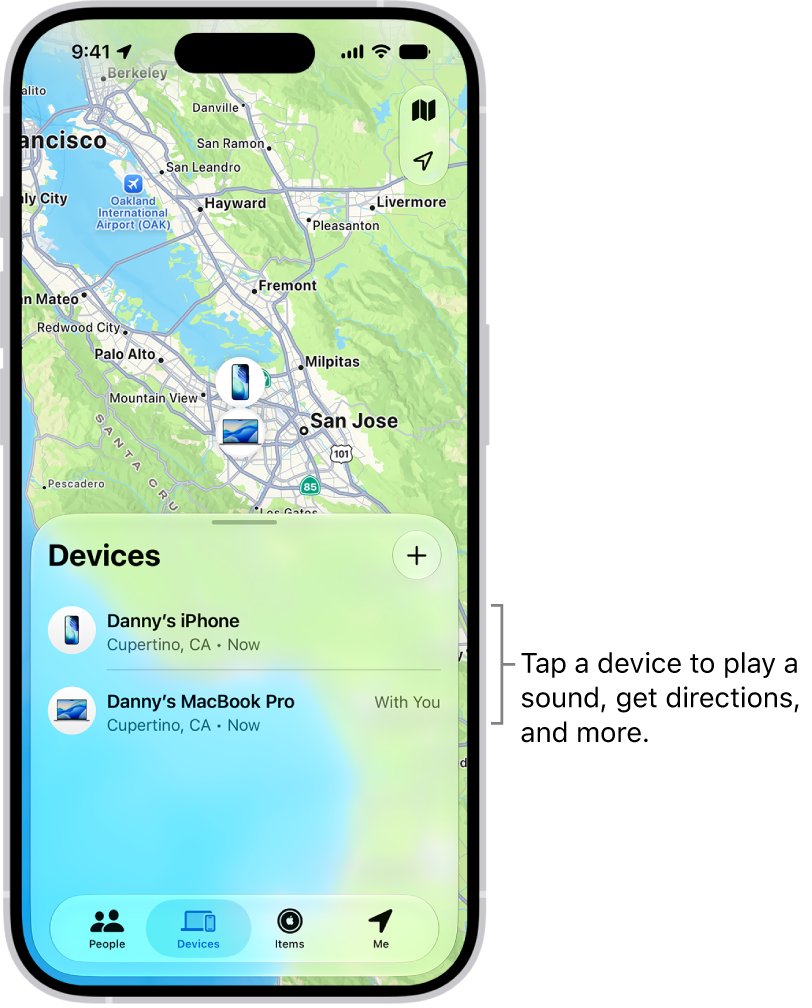
Fix a MacBook missing from the Find My app
iCloud.com and the Find My app read the same device list for one Apple Account. If one shows the MacBook and the other does not, work through these steps in order.
- On the iPhone or iPad where the app is missing the Mac, open Settings and tap your name. Note the Apple Account email shown.
- On iCloud.com, select your account photo and check that the email matches. If it does not, the app is looking at a different account.
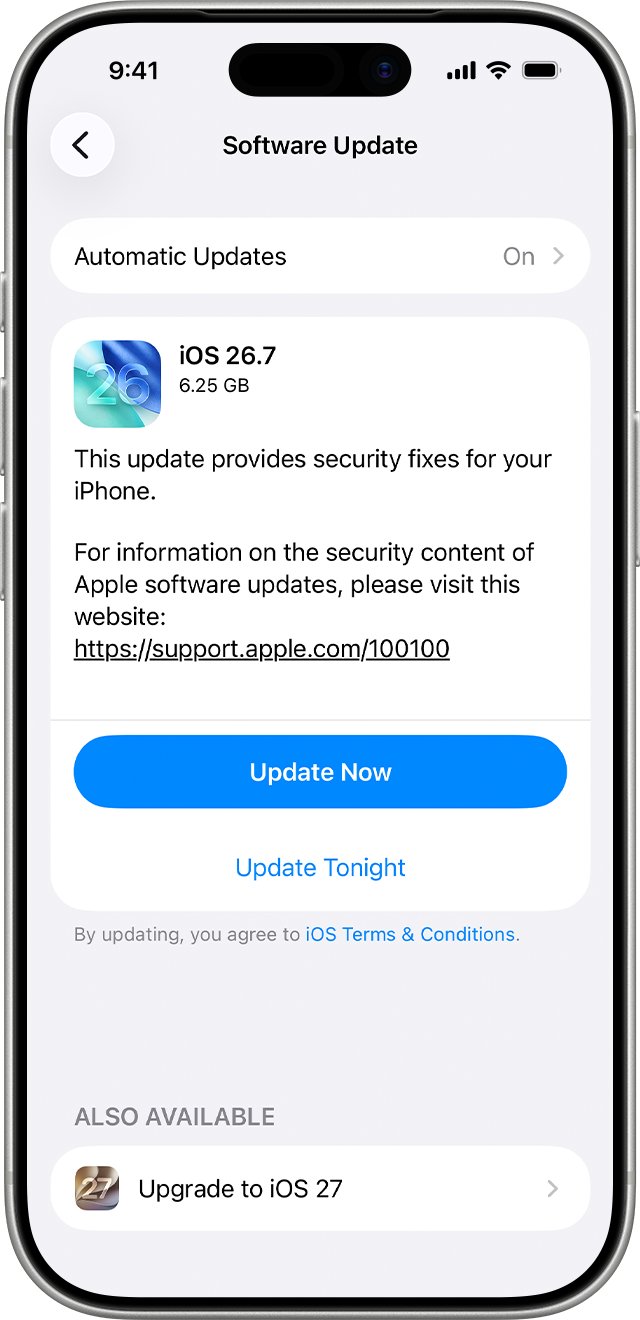
- Update the iPhone or iPad: open Settings > General > Software Update and install any update.
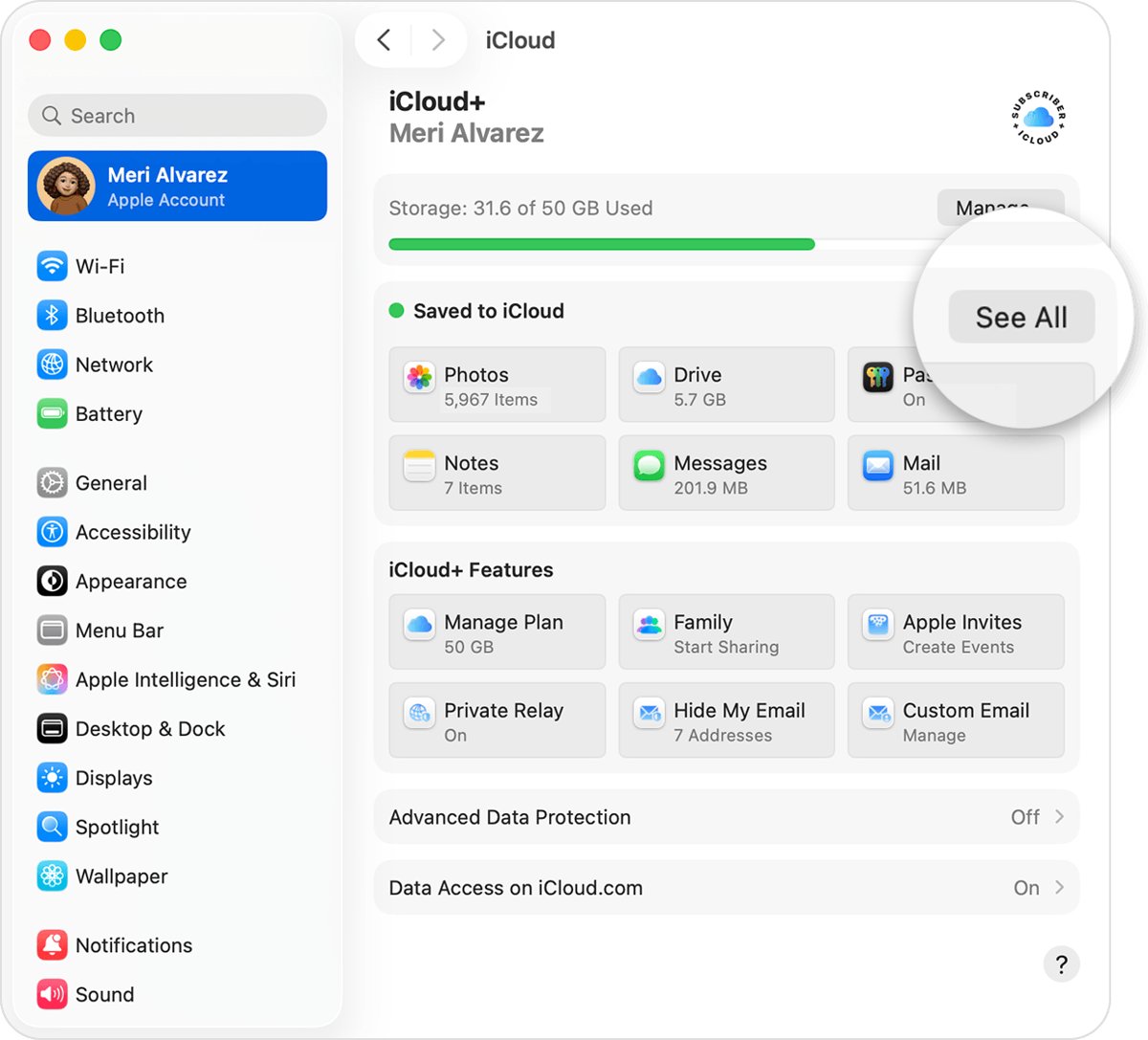
- On the MacBook, choose Apple menu > System Settings > General > Software Update and install any update.
- Open the Find My app and tap Devices, not People or Items.
- Close and reopen the Find My app, then look for the MacBook by name under Devices.
Apple's own fix for a device that is not listed in Find My is to update to the latest iOS, iPadOS or macOS, so do not skip steps 3 and 4.
Why MacBook shows on iCloud but not in the Find My app
Match what you see to a row, then apply the fix in the right-hand column.
| Cause | How to tell | Fix |
|---|---|---|
| Find My app signed in to another Apple Account | The email under your name in iPhone Settings differs from the one on iCloud.com | Sign in to the iPhone with the account the Mac uses, or check the Mac on a device that uses it |
| iOS, iPadOS or macOS out of date | Software Update offers an update on either device | Install the updates, then reopen Find My |
| Looking in the wrong tab | The app is on People or Items | Tap Devices |
| Find My Mac belongs to another macOS user | The Mac has several user accounts | Turn on Find My Mac in the user account you want to find it under |
| Mac was removed from Find My | Remove was selected while the Mac was offline | Wait for it to come back online, or turn Find My Mac on again |
| Mac belongs to a family member | It sits below your own devices on iCloud.com | The family member must share location with you before it shows in your app |
Check if Find My Mac is on
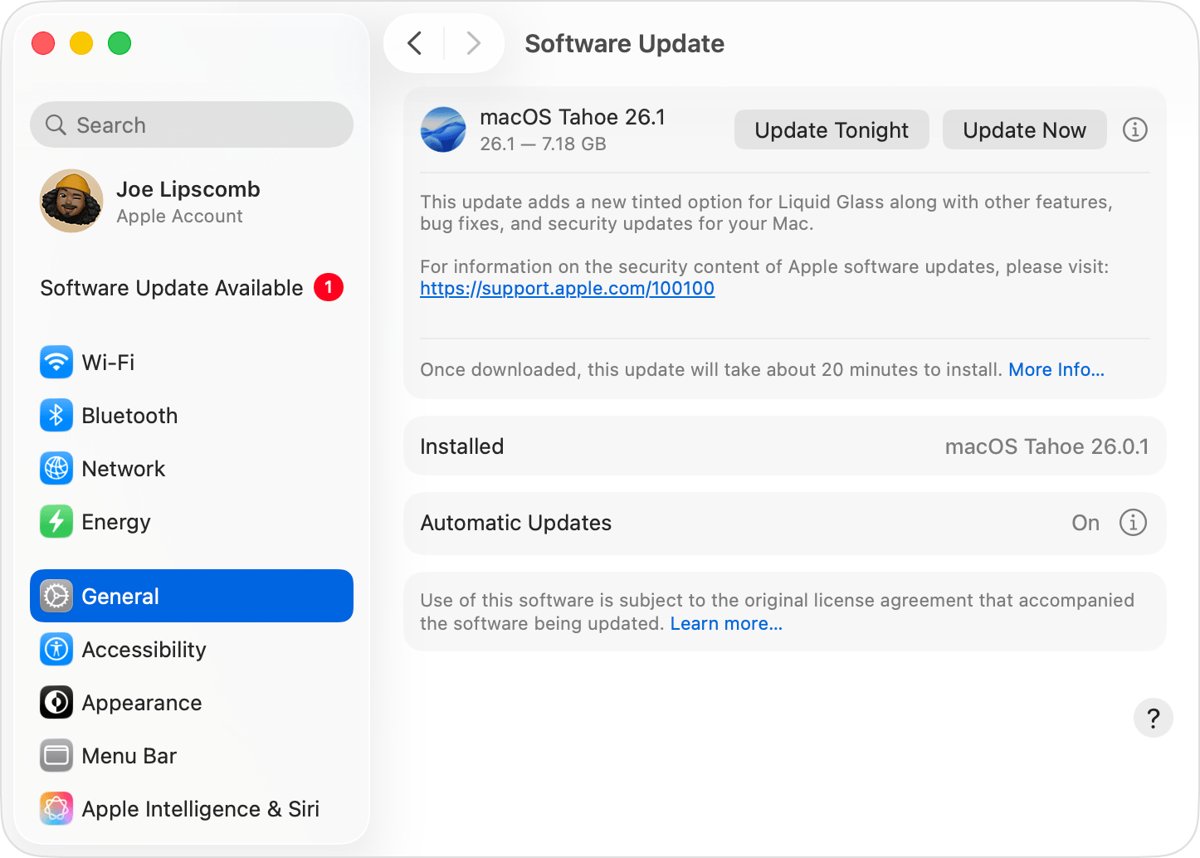
A MacBook only appears in Find My after Find My Mac is turned on in its iCloud settings. Turning it on also turns on Activation Lock.
- Choose Apple menu > System Settings.
- Click your name at the top of the sidebar. If you see Sign in, sign in with your Apple Account first.
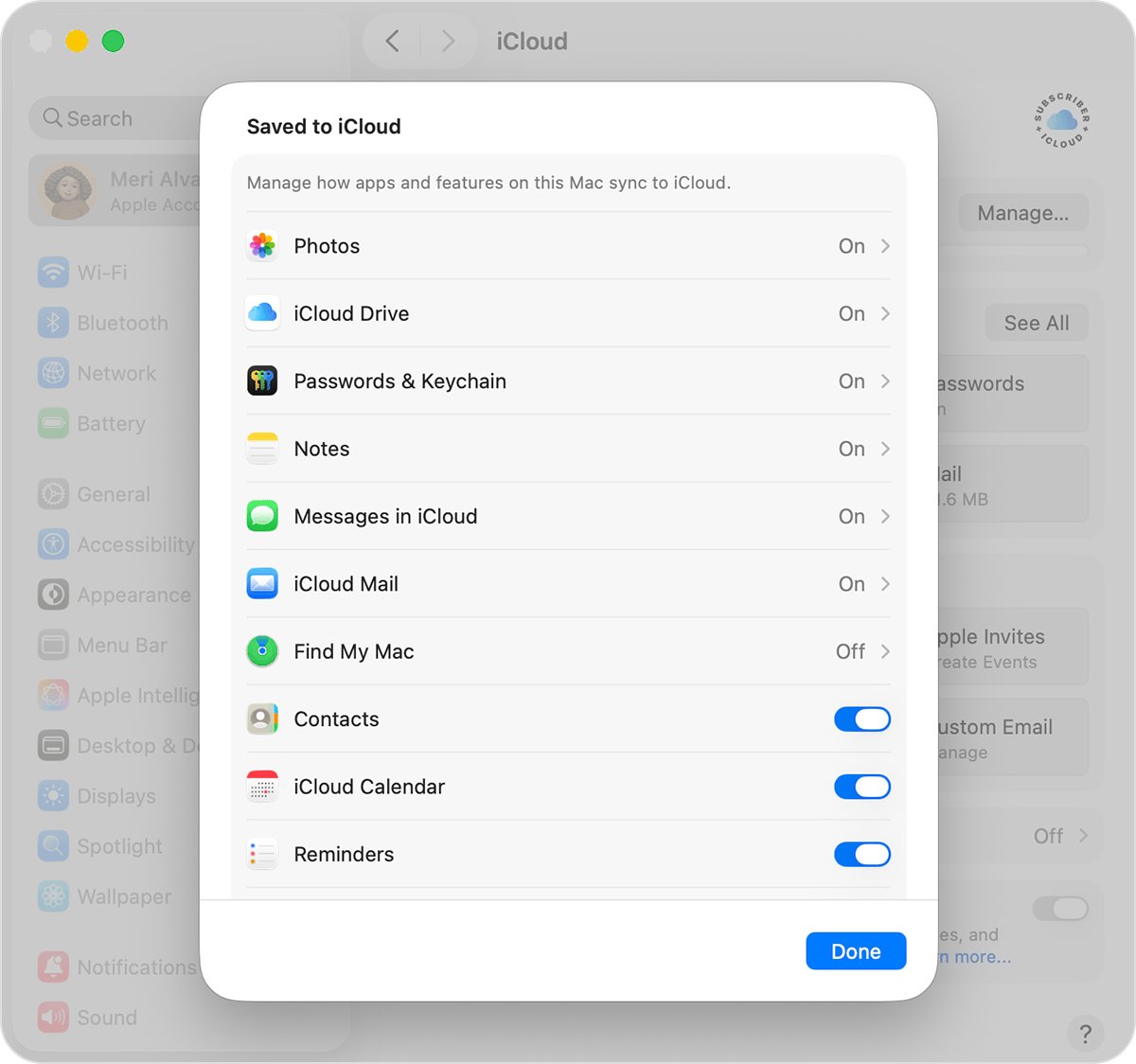
- Click iCloud, click See All, then scroll down and click Find My Mac.
- If it is off, click Turn On and enter your Apple Account password if asked.
- Click Allow when asked to let Find My Mac use the location of your Mac.
- Turn on the Find My network if you want to find the Mac while it is offline, then click Done.
If the Find My icon shows a warning badge, Location Services is off. Fix that in the next section, then come back.
Turn on Location Services for Find My on Mac
Without Location Services the Mac can appear in the list with no position on the map. A Mac works out its location from nearby Wi-Fi networks.
- Open System Settings on the Mac.
- Click Privacy & Security in the sidebar. You may need to scroll down.
- Click Location Services.
- Turn on Location Services.
- Turn on Find My in the list of apps.
- If Find My is not listed, scroll to System Services, click Details, then turn on Find My Mac.
Use the same Apple Account for Find My on iPhone and Mac
The Find My app shows the devices of the Apple Account it is signed in to, plus family members who share location. A Mac signed in to a second Apple Account of yours will never appear there.
- On the Mac, open System Settings and read the Apple Account email under your name.
- On the iPhone, open Settings and read the email under your name.
- If they differ, decide which account should own the Mac.
- To move the Mac, sign out under System Settings > [your name] > Sign Out, then sign in with the account the iPhone uses.
- Turn Find My Mac back on under iCloud > See All > Find My Mac.
- Open Find My on the iPhone and check Devices again.
Signing out of the Apple Account on a Mac removes it from Find My and turns off its iCloud features, so only do this when the accounts really differ. If iCloud.com shows no devices at all, the problem is the account itself: fix iCloud Find My showing no devices first.
Find My Mac with multiple user accounts
Apple states that Find My Mac can be used by only one user account on a Mac at a time. If another person's macOS user turned it on, the Mac registers under their Apple Account, not yours.
- Log in to the macOS user account that turned on Find My Mac.
- Open System Settings > [name] > iCloud > See All > Find My Mac and click Turn Off.
- Log out, then log in to your own macOS user account.
- Open System Settings > [your name] > iCloud > See All > Find My Mac and click Turn On.
- Click Allow for location access, then click Done.
- Check the Devices tab in Find My on your iPhone.
How to find a lost MacBook with Find My
Once the MacBook is listed again, it can be located from the Find My app on any Apple device signed in to the same Apple Account, or at icloud.com/find.
- Open the Find My app on your iPhone, iPad or another Mac.
- Tap Devices, then tap the MacBook's name.
- If it can be located, it appears on the map with an updated location and timestamp.
- Tap Play to play a sound; on the Mac, click OK in the Find My Mac alert to stop it.
- Tap Directions to open the route in Maps.
- If it shows No location found, turn on Notify When Found so you get an alert when it reports in.
Without an Apple device, sign in at icloud.com/find, select the Mac in the device list and use the same options.
Why Apple Find My location says not found
A Mac that is listed but has no position shows one of these labels. Each one has a different cause.
| Label | Where you see it | What it means |
|---|---|---|
| No location found | Find My app | More than seven days have passed since the Mac last sent its location to Apple |
| Offline | icloud.com/find | The Mac is off or has no connection; the last known location shows for up to 24 hours |
| Not sharing location • Online | Find My app | The Mac is online but cannot send its location, usually a Location Services problem |
| Location and timestamp below the name | Both | The Mac is reporting normally |
If you turned on Stolen Device Protection on your iPhone and changed your Apple Account password in an unfamiliar place, device locations may be hidden on icloud.com/find for a period of time.
How to remove Mac from Find My
Remove a Mac you no longer use so it stops appearing on iCloud.com. A device can be removed only while it is offline.
- Turn off the Mac you want to remove.
- Open the Find My app on another Mac and click Devices.
- Select the Mac, then click the info button.
- In the Settings section, click Remove.
- Wait 30 days; the Mac is removed from the list after that time.
- On iCloud.com, the same option is Remove This Device in the device list.
A removed Mac reappears the next time it comes online if it is still signed in with Activation Lock on. If you already sold it, erase it from Find My first, then click Remove.
How to turn off Find My on MacBook
Turn off Find My Mac before you sell, give away or trade in the MacBook so Activation Lock no longer ties it to your Apple Account.
- Choose Apple menu > System Settings.
- Click your name at the top of the sidebar.
- Click iCloud, click See All, then click Find My Mac.
- Click Turn Off next to Find My Mac.
- Enter your Apple Account password if asked. If you have forgotten it, reset your Apple Account password first.
- To turn off every iCloud feature instead, scroll down, click Sign Out and follow the prompts.
Apple Find My not working for MacBook
If the steps above did not bring the MacBook back into the Find My app, match the symptom below. When the app misbehaves for every device, fix Find My on the iPhone first.
Find My Mac is off and the icon has a warning badge
Location Services is turned off on the Mac.
- Open System Settings > Privacy & Security > Location Services.
- Turn on Location Services and Find My, then turn on Find My Mac in iCloud settings.
Can't turn off Find My Mac
You are signed out already, or you are in the wrong macOS user account.
- Open System Settings and click your name. If you see Sign in, Find My is already off and Activation Lock is removed.
- If another user turned it on, log in to that user account and turn it off there.
The Mac keeps coming back after you remove it
It came online while still signed in to your Apple Account, which turns Activation Lock back on.
- Turn off Find My Mac on the Mac itself, or sign out of the Apple Account on it.
- Remove it again from Devices in Find My while it is offline.
Remove This Device does nothing on iCloud.com
The Mac is online, so it cannot be removed.
- Turn the Mac off, then select Remove This Device again.
- On macOS 27, selecting Continue while online marks the Mac Ready for Repair or Trade In for 30 days instead.
The Mac is still not listed in the app after updates
The app and iCloud.com are using different Apple Accounts.
- Compare the Apple Account email in iPhone Settings with the one on iCloud.com.
- Open the Find My app on a device signed in to the account that iCloud.com shows.
MacBook Find My FAQ
How do I find my MacBook?
Open the Find My app on an iPhone, iPad or Mac signed in to the same Apple Account, tap Devices and select the MacBook. Without an Apple device, sign in at icloud.com/find and pick it from the device list.
How do I find a lost MacBook?
Use the Find My app or icloud.com/find to see it on a map, play a sound or get directions. Find My Mac must have been turned on before the MacBook went missing, or it will not appear in either place.
Why is Find My Mac off?
Find My Mac is off when it was never turned on, when you signed out of your Apple Account on the Mac, or when another macOS user account has it. Turn it on under System Settings > your name > iCloud > See All > Find My Mac.
How do I check if Find My Mac is on?
Open System Settings, click your name, click iCloud, then click See All and look at Find My Mac. It reads On or Off; click it to change the setting or see the Find My network option.
How do I remove a Mac from Find My?
Turn the Mac off, open Find My on another Mac, click Devices, select it, click the info button and click Remove. The Mac leaves the list after 30 days, and comes back if it goes online still signed in.
How do I turn off Find My on a MacBook?
Open System Settings, click your name, click iCloud, click See All, click Find My Mac, then click Turn Off. Signing out of the Apple Account on the Mac also turns it off and removes Activation Lock.
Why can't I turn off Find My Mac?
If System Settings shows Sign in, you are already signed out and Find My is already off. If another macOS user turned on Find My Mac, log in to that user account, because only one user can use it at a time.
Why does Apple Find My say location not found?
No location found means more than seven days have passed since the device last sent its location to Apple. A Mac that is online but cannot send its location shows Not sharing location instead, which points to Location Services.
Why is Apple Find My not working on my Mac?
The usual causes are Find My Mac being off, Location Services being off for Find My, out-of-date macOS, or a different Apple Account. Turn on both settings, update macOS and confirm the account matches.