To get music from your CDs onto an iPhone, iPad and MacBook Air, import each disc into the Music app on the Mac through an external CD or DVD drive, then send the songs to your iPhone and iPad with a cable sync or Sync Library.
This guide covers importing on a Mac or Windows PC, the import settings that matter, both ways to move the songs to iPhone and iPad, burning your own CDs, and fixes for discs that will not import.
How to put CD music on iPhone, iPad and MacBook Air
iPhone and iPad cannot read a disc, so the import always happens on a computer. Once the songs are in the Mac's music library, you can play them on the MacBook Air without the CD.
- Connect an external CD or DVD drive to your MacBook Air.
- Open the Music app and insert the audio CD.
- Click Yes when Music asks whether to import the CD.
- Wait for the import to finish, then click the eject button near the top right of the Music window.
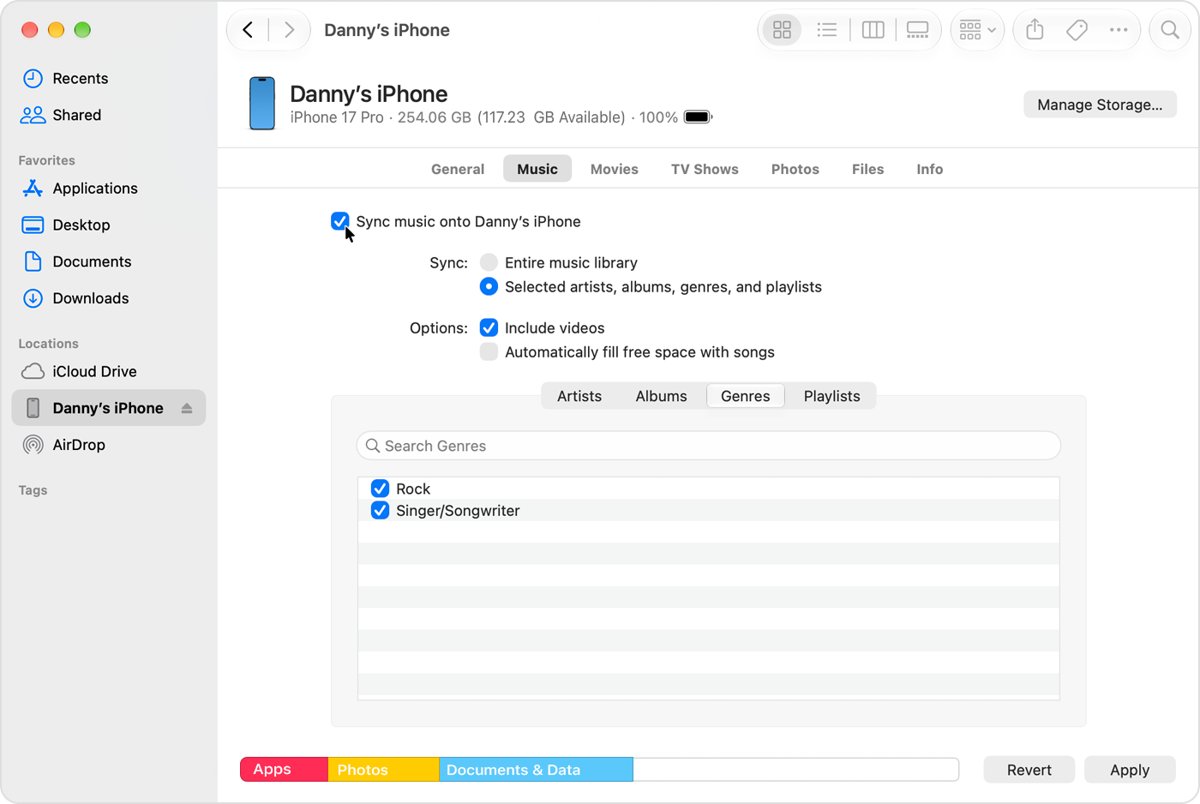
- Connect your iPhone or iPad with a USB or USB-C cable and select it in the Finder sidebar.
- Click Music, select Sync music onto [device name], then click Apply.
If you subscribe to Apple Music and use Sync Library, skip the cable steps. The imported songs reach your other devices through iCloud instead.
Can you transfer CDs to iPhone without a computer?
No. A computer with a disc drive reads the CD first. The choice that remains is how the songs get from that computer to your iPhone and iPad.
| Your setup | Import with | Get songs onto iPhone and iPad |
|---|---|---|
| MacBook Air, no Apple Music subscription | Music app plus an external drive | Cable or Wi-Fi sync in Finder |
| MacBook Air with Apple Music | Music app plus an external drive | Sync Library on every device |
| Windows PC with a disc drive | iTunes for Windows | Apple Devices app sync, or Sync Library with Apple Music |
| Only an iPhone or iPad | Nothing; these devices cannot read discs | Borrow or use a computer with a CD drive |
There is no barcode or camera scan that adds a CD you own to your library. The songs have to be read from the disc.
How to import a CD into the Music app on a MacBook Air
MacBook Air has no built-in disc drive, but the Music app imports from an external CD or DVD drive plugged into one of the MacBook Air's ports. An entire CD takes about 10 minutes.
- Connect the external drive and open the Music app.
- Insert the CD. If its details do not appear, select the CD below Devices in the sidebar.
- Click No in the import prompt if you want to leave some songs out, or Yes to import every track.
- Clear the checkmark next to any songs you do not want.
- Click Import CD near the top right of the Music window.
- Click the eject button near the top right when the import finishes.
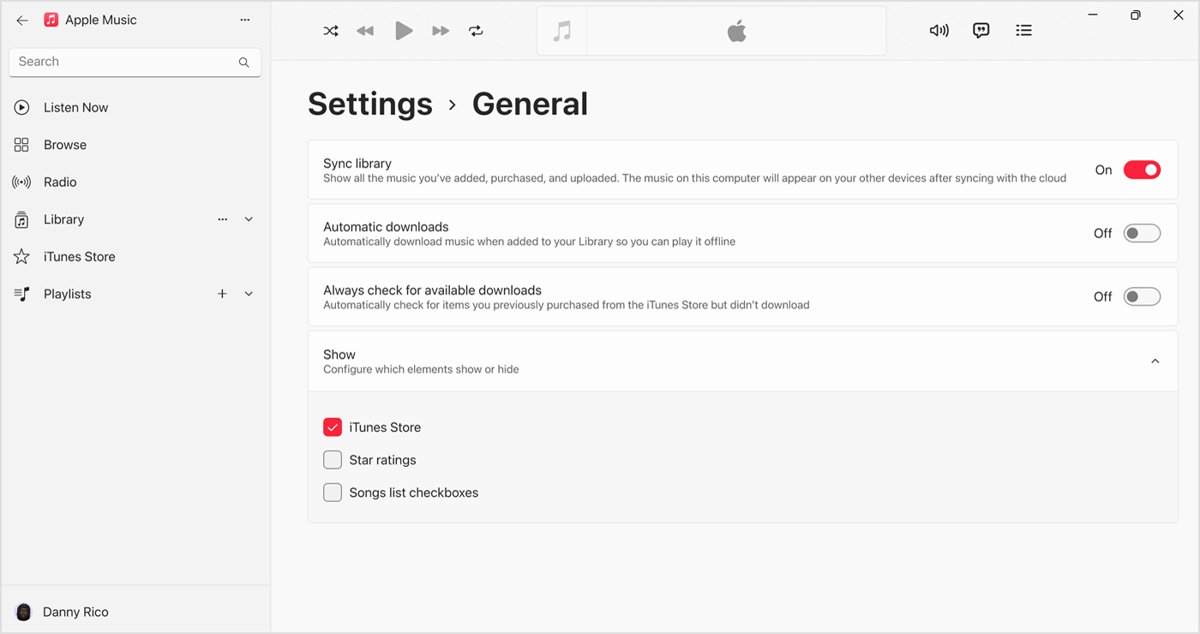
If you have a stack of discs, choose Music > Settings > General and set When a CD is inserted to Import CD and Eject. Music then imports each disc and pushes it out without a prompt.
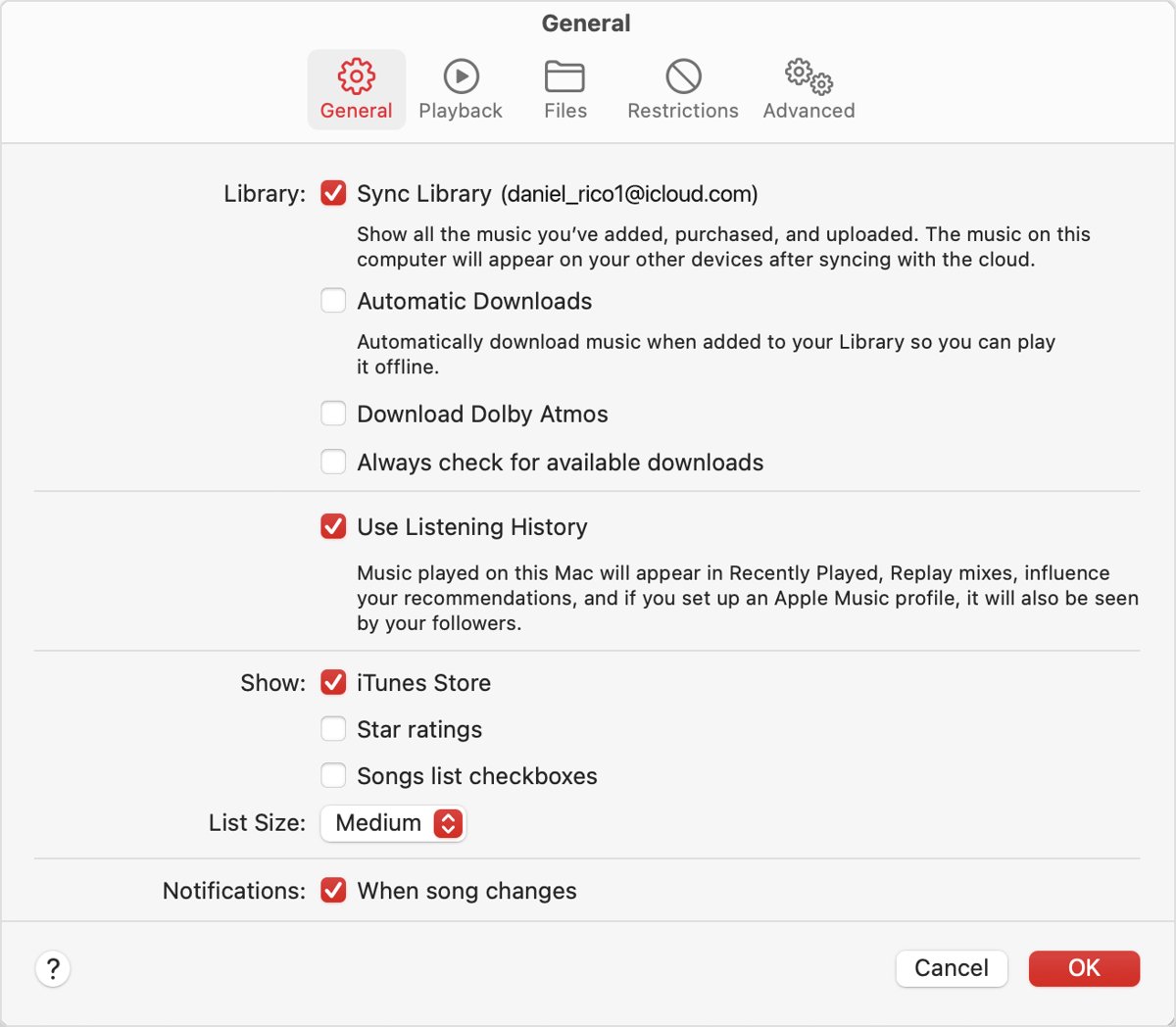
If no checkboxes show next to the songs, turn on Songs list checkboxes in the same General pane.
CD import settings in Apple Music on Mac
Music imports CDs as AAC by default. Change the format or reading options before you start a large collection, because settings apply only to new imports.
| Setting | Where to find it | What it does |
|---|---|---|
| When a CD is inserted | Music > Settings > General | Show, play, import, import and eject, or ask to import |
| Import Settings | Music > Settings > Files | Choose the encoder format and quality |
| Use error correction when reading Audio CDs | Files > Import Settings | Rereads damaged sections; slower but removes pops and clicks |
| Keep Media folder organized | Music > Settings > Files | Renames files on disk when you edit song info |
| Songs list checkboxes | Music > Settings > General | Shows the checkboxes used to pick tracks |
How to sync CD music to iPhone and iPad from a Mac
Without an Apple Music subscription, a Finder sync copies the imported songs to your device. The first sync needs a cable; later syncs can run over Wi-Fi.
- Connect the iPhone or iPad to the Mac with a USB or USB-C cable.
- Open a Finder window and select the device in the sidebar. Click Trust on the Mac and tap Trust on the device the first time.
- Click Music in the row near the top.
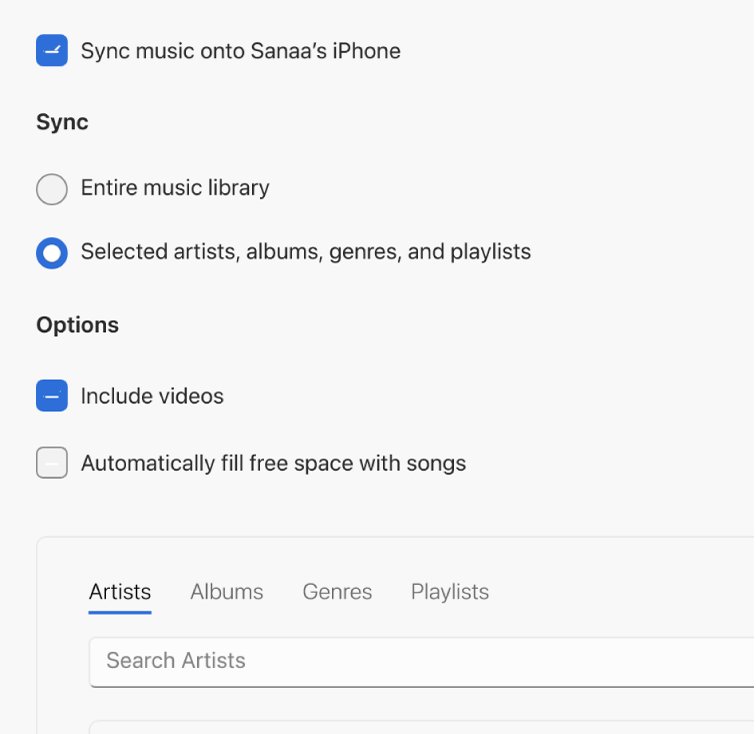
- Select Sync music onto [device name].
- Choose Selected artists, albums, genres, and playlists and tick the albums from your CDs, or sync the whole library.
- Click Apply, then click the eject button next to the device in the sidebar before you unplug it.
If clicking Music shows no sync options, the Mac uses Apple Music, which syncs music through iCloud instead. Use the Sync Library method below. To sync between devices more generally, you can also sync your iPhone and iPad.
How to get CD music on iPhone with Sync Library
With an Apple Music subscription, Sync Library makes the imported CD songs available on every device signed in to the same Apple Account. It holds up to 100,000 songs, and each file can be up to 200 MB.
- On the Mac, open Music and choose Music > Settings, then click General.
- Select the Sync Library checkbox.
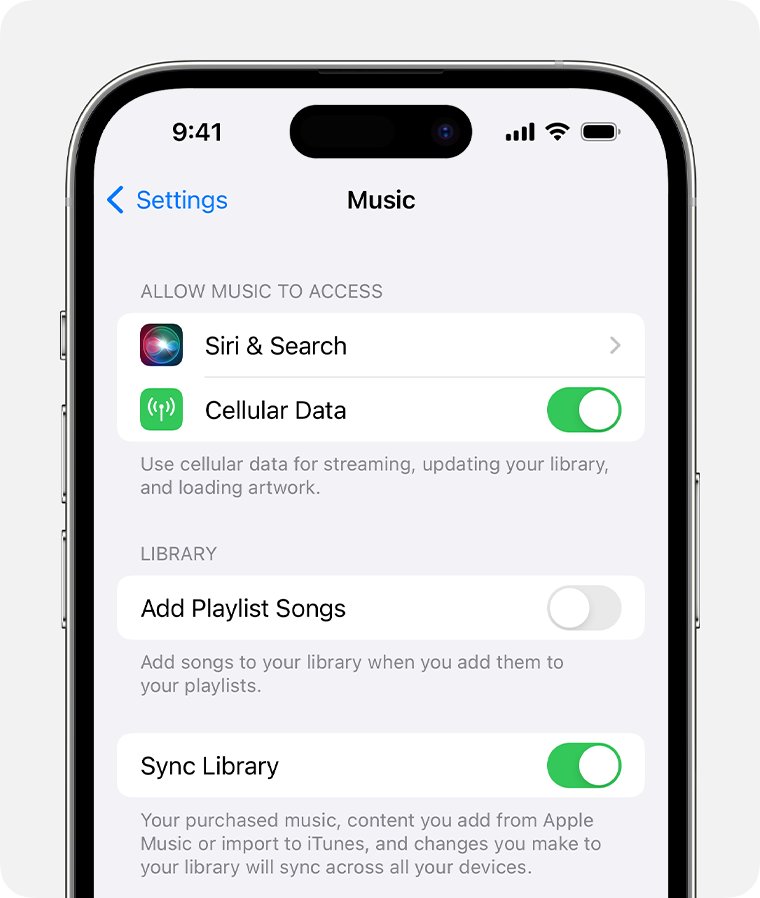
- On the iPhone or iPad, go to Settings > Apps > Music.
- Check you are signed in with the same Apple Account as the Mac.
- Turn on Sync Library.
- Open the Music app on the device and find the album in Library. Download it to play it offline.
Songs that are also in the iTunes Store are matched at 256 kbps AAC, and other songs keep their original quality. If Sync Library is missing, you are not signed in or do not subscribe to Apple Music.
How to transfer CD music to a Windows computer with iTunes
On a Windows PC with a CD or DVD drive, iTunes does the import. Download iTunes for Windows first if it is not installed.
- Open iTunes and insert the audio CD.
- If the CD details do not appear, click the CD button near the top left of the iTunes window.
- Click Yes to import every song, or No to pick tracks first.
- Clear the checkmarks next to songs you do not want, then click Import CD.
- Choose your import options and click OK.
- Click the eject button near the top right when the import ends.
To move those songs to an iPhone or iPad from Windows, open the Apple Devices app, select the device, select Music, tick Sync music onto [device name] and select Apply. The Apple Music app must be installed, and this sync is unavailable while Sync Library is on. You can connect your iPhone to a Windows PC by cable for the first sync.
How to make music CDs on a Mac
The Music app also works the other way: it burns a playlist to a blank disc. You need an external writable optical drive on a MacBook Air.
- Create a playlist with the songs you want on the disc.
- Choose View > as Songs and check that each song you want has a checkmark.
- Insert a blank disc.
- Select the playlist and choose File > Burn Playlist to Disc.
- Choose Audio CD for a disc that plays in any standard CD player, and set options such as Gap Between Songs or Include CD Text.
- Click Burn.
If Burn Playlist to Disc is missing, the playlist contains items with usage restrictions, such as a song the Mac is not authorized to play. An MP3 CD needs every song in MP3 format first.
How to tell if CD songs imported into Apple Music
A finished import plays without the disc and shows real track names.
- Eject the CD.
- In Music, click Songs in the sidebar and find the album.
- Play a track. It plays only if it was imported.
- Check the names: songs listed as Track 01, Track 02 imported without CD information.
- On the iPhone or iPad, open Music and look for the album in Library after the sync or Sync Library finishes.
Why does my CD stop playing or importing?
Match the symptom to the fix. The same checks apply in Music on Mac and iTunes on Windows unless noted.
Importing one song takes more than 10 minutes
The CD is dirty or scratched, or error correction is slowing the read.
- Clean the disc with a soft, lint-free cloth.
- Open Import Settings and toggle Use error correction when reading Audio CDs: select it if it is off, deselect it if it is on.
- Import the CD again.
Imported songs pop or click
The drive misread the disc during the import.
- Turn on Use error correction when reading Audio CDs in Import Settings.
- Delete the songs imported before so you do not get duplicates.
- Insert the CD and import it again.
Songs show as Track 01, Track 02
The computer was offline or the CD was not found in the Gracenote database.
- Connect to the internet and insert the CD again before importing.
- Or select a song, choose Song > Get Info, type the names, and press Return.
iTunes does not recognize the audio CD on Windows
iTunes opened from a broken shortcut, or the drive needs updates.
- Quit iTunes and open it from the iTunes folder in Program Files, not the desktop shortcut.
- Choose Help > Run Diagnostics, then choose CD/DVD drive tests.
- Install Windows updates and the drive maker's firmware and drivers.
- Try another drive if the PC has more than one.
The CD won't eject from the Mac
An app or another user is still using the disc.
- Quit the app that is using the CD, then press the Eject key.
- Log out other users who are using the disc.
- Restart the Mac while holding the mouse or trackpad button until the disc ejects.
CD music on iPhone and Mac FAQ
Can you transfer CDs to an iPhone?
Yes, through a computer. Import the CD into the Music app on a Mac or iTunes on a PC, then sync the songs to the iPhone by cable or use Sync Library with Apple Music. The iPhone itself cannot read a disc.
How to get CD music on a computer?
Insert the CD into the computer's drive or an external drive, open Music on a Mac or iTunes on Windows, and click Yes to import it. The songs then play without the disc, stored as AAC files by default.
Can I scan a CD barcode to add the album to my library?
No. Apple's apps import a CD you own only by reading the disc in a drive. The album information is looked up online during the import, but the music itself has to come from the CD.
How to put music on CDs?
In the Music app on a Mac, make a playlist, insert a blank disc, select the playlist and choose File > Burn Playlist to Disc. Pick Audio CD so the disc plays in any standard CD player, then click Burn.
How to copy a music CD to another CD?
Import the original CD into the Music app, add its songs to a playlist, then burn that playlist to a blank disc as an Audio CD. Only the last disc in a multi-disc burn keeps the song titles.
How to play music from a CD on a computer?
Insert the disc and select it in Music or iTunes. To make it play straight away, set When a CD is inserted to Play CD in the General settings. A MacBook Air needs an external CD or DVD drive.
Why does my CD stop playing?
A dirty or scratched disc is the usual cause, and the same damage makes imports slow or noisy. Clean the CD with a soft, lint-free cloth and import it again with Use error correction when reading Audio CDs turned on.
Do I need iTunes to put CDs on my iPhone from a Mac?
No. Current Macs use the Music app for importing and the Finder for syncing to iPhone and iPad. iTunes is only needed on a Windows PC, where it imports the CD.