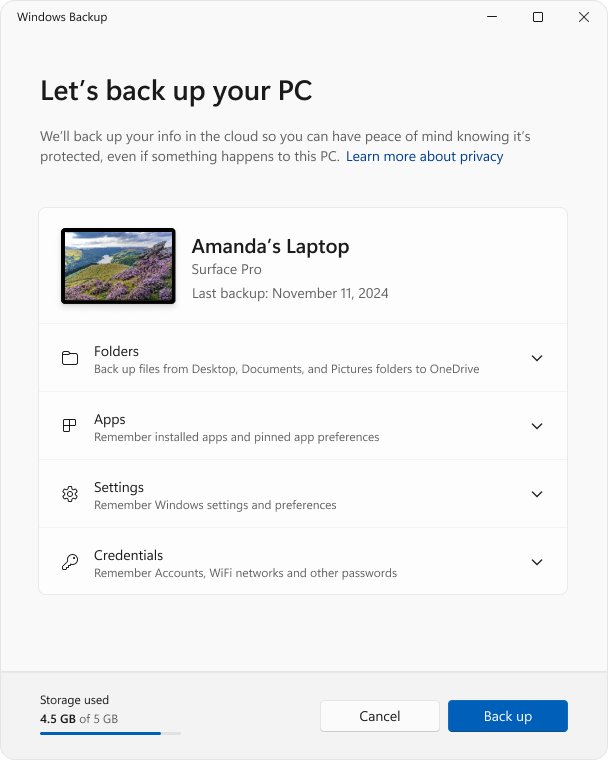
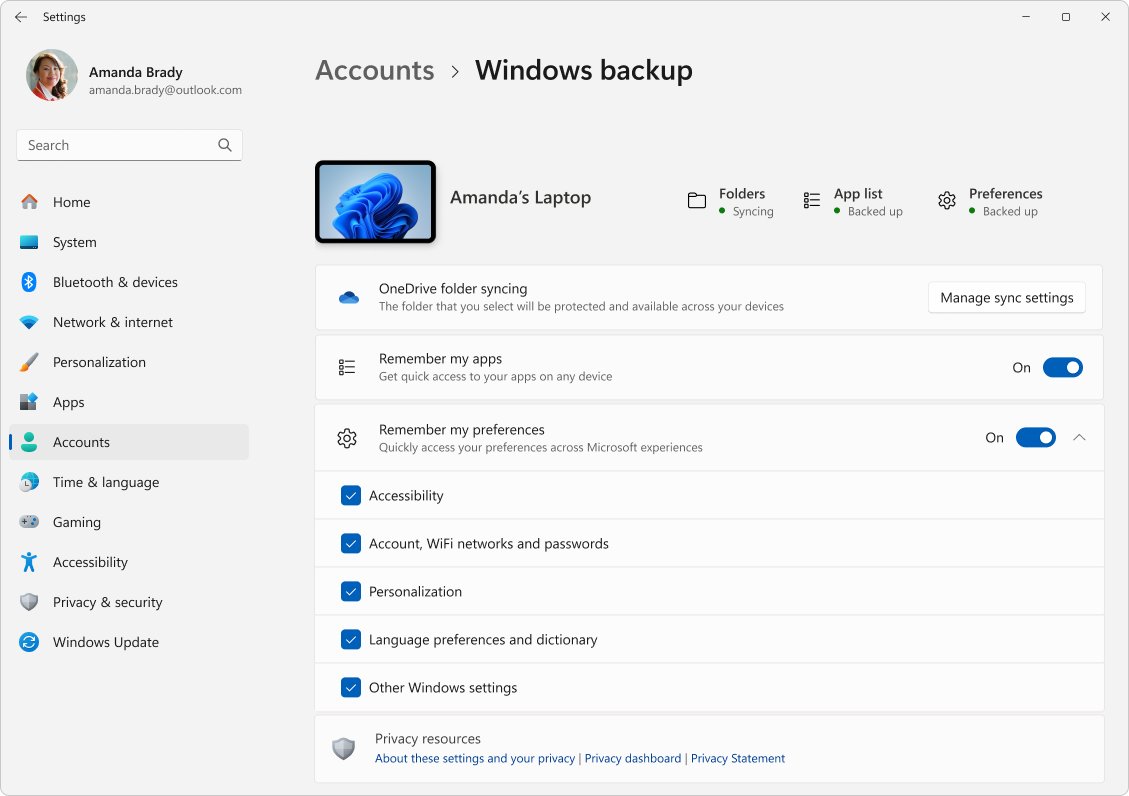
To automatically back up files and folders in Windows 11, open Windows Backup, expand Folders, turn on the folders you want and select Back up, which keeps them copied to OneDrive from then on.
This guide also covers OneDrive folder backup, File History to an external or USB drive, adding any folder to the backup, restoring previous versions, and fixes when automatic backup stops.
How to create automatic file backup on Windows 11/10
Windows Backup is built into Windows 11 and Windows 10. It syncs your Desktop, Documents, Pictures, Videos and Music folders to OneDrive and keeps doing it in the background, so new and changed files are copied without you starting anything.
- Sign in to Windows with a personal Microsoft account. If you use a local account, go to Settings > Accounts > Your info and select Sign in with a Microsoft account instead.
- Select Start, type
backupand select Windows Backup. - Expand Folders.
- Turn the switch On for each folder you want backed up: Desktop, Documents, Pictures, Videos and Music.
- Expand the settings sections and turn on any apps, Wi-Fi or personalization items you also want saved.
- Select Back up.
A free Microsoft account includes 5 GB of OneDrive storage, and the backup stops with an error when that space runs out. Windows Backup works with personal accounts such as outlook.com or live.com; work and school accounts are not supported.
Windows Backup vs File History vs OneDrive backup
Windows has three built-in ways to back up files automatically. They differ in where the copies go and what you need.
| Your situation | Use this | Why |
|---|---|---|
| You want files safe and reachable on any PC | Windows Backup or OneDrive folder backup | Copies live in the cloud, with no extra hardware |
| No reliable internet, or very large files | File History to an external drive | Works offline and is not limited by cloud storage |
| You need older versions of files, not just the latest | File History | Keeps versions you can browse and restore |
| You keep files outside the standard user folders | File History with Include in library | Any folder added to a library is backed up |
| You already pay for Google storage | Google Drive for desktop | Syncs the folders you add to Google Drive |
| You still use system images and schedules from Windows 7 | Backup and Restore (Windows 7) | Legacy tool; Microsoft recommends the options above |
For the legacy tool, the steps to schedule Backup and Restore still work on Windows 11. Using a cloud backup and File History together gives you an off-site copy and a local copy.
How to automatically backup files to OneDrive
OneDrive folder backup does the same job as Windows Backup from the OneDrive app itself. Use it to see which folders are covered and change them on the spot.
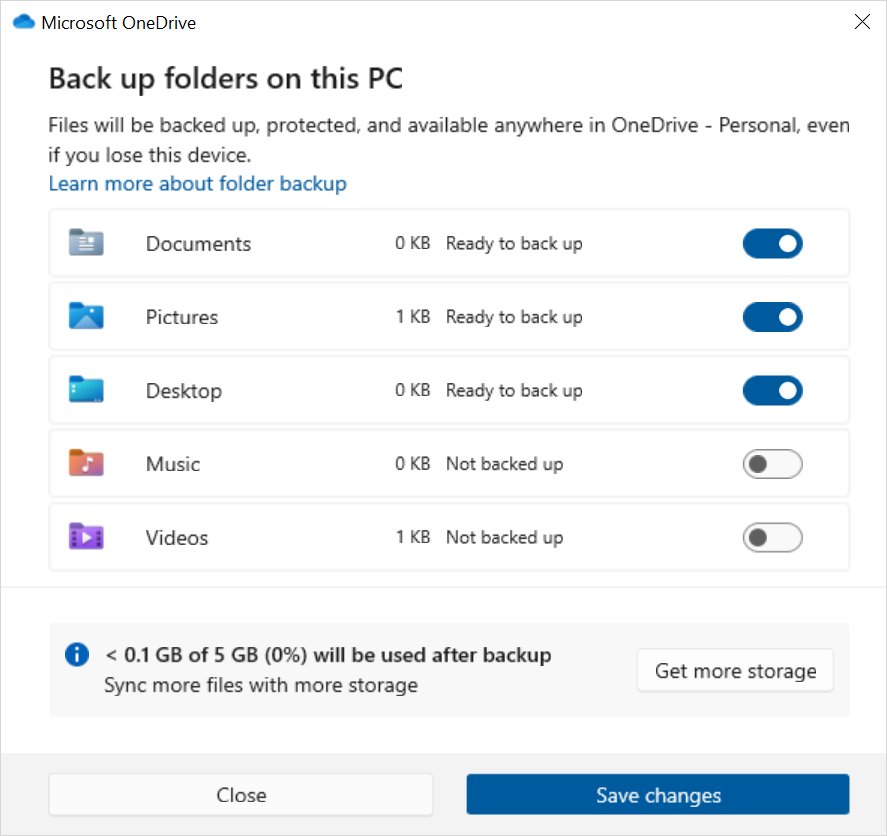
- Select the OneDrive cloud icon in the notification area of the taskbar.
- Select the Help & Settings icon, then Settings.
- Go to the Sync and backup tab.
- Select Manage backup.
- Turn on each folder that says Not backed up.
- Select Save changes.
Once syncing finishes, the files are in OneDrive and you can open them on any device signed in with the same account. Here is where to find OneDrive backup files afterwards.
How to automatically backup files to external drive or USB with File History
File History watches your libraries and Desktop and copies changed files to an external drive or network location on a schedule. A large USB drive works as the target.
- Connect the external or USB drive, or make sure the network location is available.
- Open Control Panel and, under System and Security, select Save backup copies of your files with File History.
- If no drive is shown, select Select drive.
- In the Select a File History drive window, pick the drive or network location and select OK.
- Select Turn on.
- Leave the drive connected so File History can run its scheduled backups.
File History backs up the Documents, Pictures, Videos, Music and Desktop folders plus any custom libraries. If you switch drives later, Windows asks whether to move existing backups to the new one or start fresh.
How to automatically backup a folder in Windows 11
File History only covers libraries. To back up a folder that lives somewhere else, such as D:\Projects, add it to a library.
- Open File Explorer and go to the folder you want backed up.
- Right-click the folder.
- Select Show more options > Include in library.
- Pick an existing library, such as Documents, or create a new library for it.
- Open File History in Control Panel and select Run now to back up the new folder straight away.
For the cloud route, OneDrive only backs up the standard user folders. Move other folders inside one of them, or inside your OneDrive folder, if you want them in the cloud too.
How to tell if Windows Backup is backing up your files
Each tool shows its own status. Check once after setup and again after a few days.
- Open Settings > Accounts > Windows backup and check that the folders you chose show as backed up.
- Open the Windows Backup app for the current state of every item.
- In OneDrive Settings > Sync and backup > Manage backup, confirm no folder still says Not backed up.
- For File History, open it in Control Panel and check the time of the last copy, or select Run now.
- Right-click a backed-up folder, select Restore previous versions, and check that recent versions are listed.
How to restore previous version of file in Windows 11
File History versions appear right in Windows File Explorer. Restore the folder that held a deleted file, or the file itself if it still exists.
- Open File Explorer and go to the folder that contains, or used to contain, the file.
- Right-click the folder and select Restore previous versions. For a folder at the top of a drive, such as
C:\, right-click the drive instead. - On the Previous Versions tab, pick a version from before the file was lost or changed.
- Expand Open and select Open in File History to preview it.
- Select Restore to replace the current version, or expand Restore and select Restore to to save it somewhere else.
A restore that replaces the current file cannot be undone, so use Restore to when you are unsure. For files inside a library, right-click them in the folder where they are actually saved, not in the library view.
Restore a previous version of a file stored in OneDrive
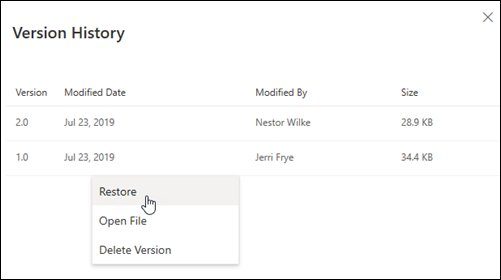
Files backed up by Windows Backup or OneDrive have version history for 30 days, for any file type.
- In File Explorer, right-click the file inside a OneDrive-backed folder.
- Select Version history.
- Select the … next to the version you want.
- Select Restore. That version becomes the current one.
You can do the same at onedrive.com: sign in, right-click the file and select Version history. Only one file can be restored at a time.
Does Windows automatically backup files?
Not your personal files until you turn a backup on. Windows does save some system snapshots on its own, but they are not a file backup.
| Feature | On by default? | What it protects | How long |
|---|---|---|---|
| Windows Backup folders | No, you choose the folders | Desktop, Documents, Pictures, Videos, Music in OneDrive | Until you delete them; 30 days of versions |
| File History | No, needs a drive | Libraries and Desktop on an external or network drive | As long as the drive has space |
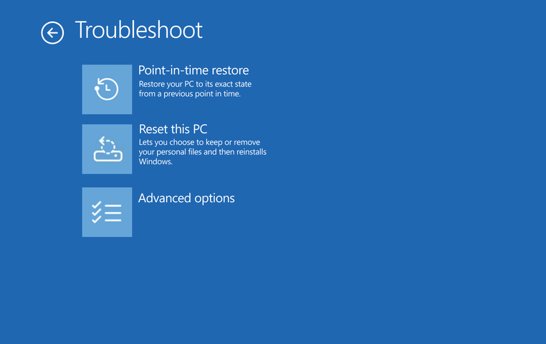
| Point-in-time restore | Yes on unmanaged PCs with a 200 GB or larger system volume | The whole Windows drive, including files | About every 24 hours, kept 72 hours |
| System Restore | Restore points are event-triggered or manual | System files and settings only, not personal files | Until disk space is needed |
Point-in-time restore is under Settings > System > Recovery > Point-in-time restore. It rolls back the entire system drive, so any file you saved after the restore point is lost; treat it as a recovery tool, not as a substitute for a file backup.
How to stop automatic folder backup in OneDrive
- Open OneDrive Settings from the cloud icon and go to the Sync and backup tab.
- Select Manage backup.
- Turn off the switch for the folder you want to stop backing up.
- Choose whether to keep the files only in OneDrive or only on this PC.
- Select Save changes if asked.
If the folder holds files that only exist in the cloud, OneDrive asks you to set them to Always keep on this device first. To stop File History, open it in Control Panel and select Turn off.
Automatic backup not working in Windows 11
"Reconnect your File History drive"
The external drive or network location has been unavailable for too long.
- Plug the external drive back in, or open Control Panel > System and Security > File History and reselect the network location.
- Select Run now to back up immediately instead of waiting for the next scheduled run.
Windows Backup shows a OneDrive error
You are signed out of OneDrive or the account has run out of storage.
- Select the OneDrive cloud icon and sign in if prompted.
- Check free space in OneDrive settings and remove files or add storage.
- Open Windows Backup and select Back up again.
"Folder protection is unavailable"
The PC is joined to a domain, and its folders cannot be protected in a personal OneDrive account.
- Sign in to OneDrive with your work or school account instead, or ask your IT administrator.
- Use File History to an external drive for this PC in the meantime.
Some files will not back up to OneDrive
The path is too long, the file is over 250 GB, or the name has characters OneDrive does not allow.
- Shorten the file or folder names so the full path is under 260 characters.
- Rename files that start with a space or contain
\ : / * ? < > " |. - Move files larger than 250 GB out of the backed-up folder.
- Close any open file that OneDrive reports as in use, then retry.
Error 0x80070005 when turning on folder backup
The policy Prohibit User from manually redirecting Profile Folders is enabled.
- Check whether files moved into same-named folders inside your OneDrive folder.
- Move them back to their original folders.
- Ask your administrator whether the policy can be changed.
If File History keeps losing its drive, reconnect the File History drive and keep it connected between scheduled backups.
Automatic backup in Windows 11 FAQ
Does OneDrive automatically back up files?
Only the folders you turn on. In OneDrive Settings > Sync and backup > Manage backup, or in the Windows Backup app, switch on Desktop, Documents, Pictures, Videos and Music. From then on OneDrive copies new and changed files in those folders automatically.
Does Windows automatically back up files?
Not by default. Windows Backup and File History both have to be turned on. Point-in-time restore takes automatic snapshots of the whole system drive on many PCs, but it keeps them only 72 hours and rolls back everything, so it is not a file backup.
How do I automatically back up files to a USB drive?
Connect the USB drive, open Control Panel > System and Security > Save backup copies of your files with File History, select the drive and select Turn on. Keep the drive connected so File History can copy changed files on its schedule.
How do I automatically back up a folder?
Right-click the folder in File Explorer, select Show more options > Include in library, and add it to a library such as Documents. File History backs up every library, so the folder is included in each automatic backup from then on.
How do I automatically back up files in Windows 10?
The same tools exist in Windows 10: Windows Backup, OneDrive folder backup and File History in Control Panel. Windows 10 support ended on October 14, 2025, so the PC no longer gets security fixes, which makes a current backup more important.
How does an automatic backup work?
The backup tool watches chosen folders and copies new or changed files to another location without you starting it. Windows Backup and OneDrive copy to the cloud as files change; File History scans for changes and copies them to an external or network drive.
What does it mean to back up files?
Backing up means keeping a copy of your files in a second place, such as OneDrive or an external drive. If the original is deleted, damaged or lost with the PC, you restore the copy instead of losing the file.
How do I back up my important files?
Keep important files in Desktop, Documents or Pictures and turn those folders on in Windows Backup. For a second copy, add File History to an external drive. Together they protect you against both a dead PC and a lost OneDrive account.
How do I automatically back up my whole computer?
Windows Backup saves your folders, many settings, installed app list and Wi-Fi details to your Microsoft account, and restores them when you sign in on a new PC. For a full disk image, Backup and Restore (Windows 7) still exists as a legacy option.