Fix Code 10 by updating the device's driver from the Driver tab in Device Manager, which is Microsoft's recommended resolution, and restart the PC first if you have not already.
This guide walks through eight fixes in order, from a restart to registry filter values, plus what Code 10 means and what to do when the device still will not start on Windows 11 or Windows 10.
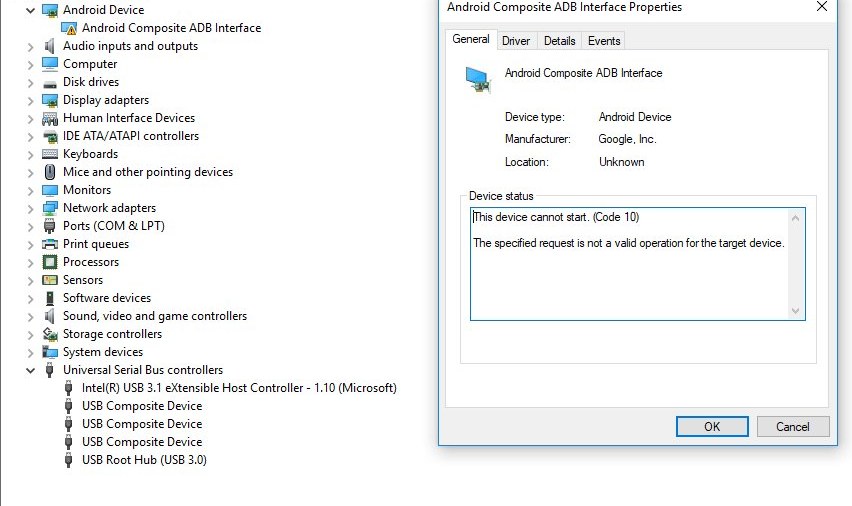
How to fix Code 10 error in Device Manager
Most Code 10 errors clear with a fresh or older driver. Work through these steps and stop when the yellow warning icon disappears.
- Restart the PC from Start > Power > Restart.
- Right-click the Start button and select Device Manager.
- Expand the category that holds the device with the yellow warning icon.
- Right-click the device and select Update driver, then Search automatically for updated driver software.
- If the error started after a recent update, open the device's Properties > Driver tab and select Roll Back Driver instead.
- Restart again and check the device's Properties window for the error code.
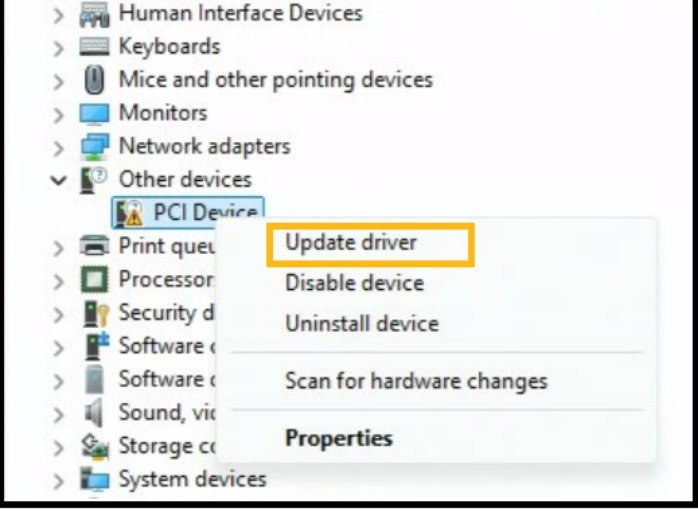
What does Code 10 mean in Device Manager?
Code 10 means Windows loaded a driver for the device but the device failed to start. One of the drivers in its driver stack refused the start request, so the hardware never became usable.
| Detail | What it tells you |
|---|---|
| Full message | "This device cannot start. Try upgrading the device drivers for this device. (Code 10)" |
| Custom message | If the driver or hardware maker supplies its own failure text (a FailReasonString value), Device Manager shows that text instead of the generic message |
| Microsoft's recommended fix | Select Update Driver on the device's Driver tab |
| Where it appears | The Device status box on the device's Properties window, with a yellow warning icon on the device in Device Manager |
| Related error | Code 43 means Windows stopped the device after it started and reported a problem |
If Device Manager shows Code 43 rather than Code 10, the fixes differ; you can fix the Code 43 device error separately.
How to find the Code 10 error in Device Manager
- Right-click the Start button and select Device Manager.
- Look for a device with a yellow warning icon and expand its category.
- Right-click the device and select Properties.
- Read the error in the Device status box on the General tab.
- Note the device name and category, because several fixes below act on that exact entry.
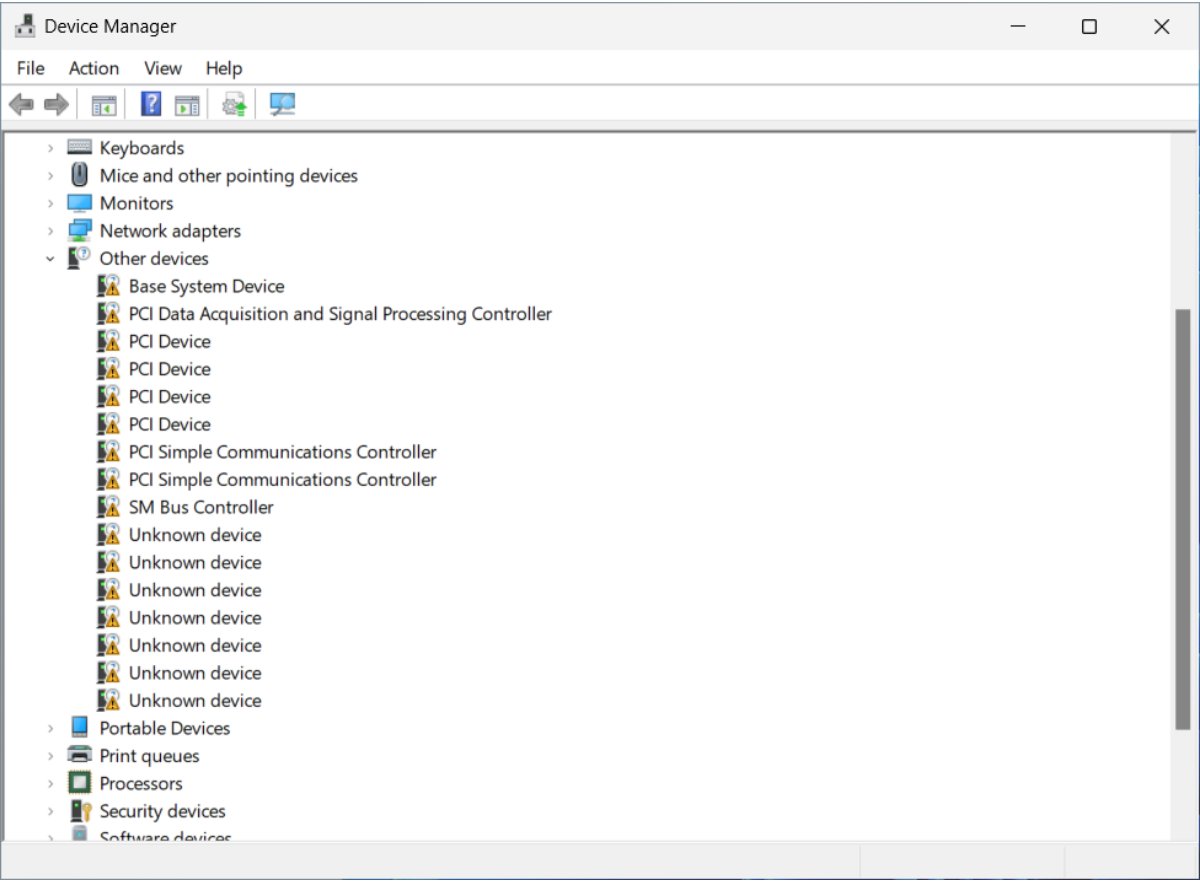
Fix #1: Restart your PC
A restart reloads every driver in the device's stack and clears a start failure caused by a driver that hung during boot. Use Restart from the Start menu rather than only closing the device's app.
- Save your work and close open apps.
- Select Start > Power > Restart.
- For an external device, unplug it before the restart and plug it back in once Windows has loaded.
- Open Device Manager and check whether the warning icon is gone.
Fix #2: Disable and re-enable the device
Disabling and enabling the device makes Windows stop and start its driver stack without a full restart.
- Open Device Manager and expand the device's category.
- Right-click the device and select Disable device, then confirm with Yes.
- Wait a few seconds until the device shows the disabled icon.
- Right-click the device again and select Enable device.
- Open Properties and read the Device status box.
Do not disable the keyboard or mouse you are using, or the input device you need to re-enable it stops responding.
Fix #3: Uninstall and reinstall the driver
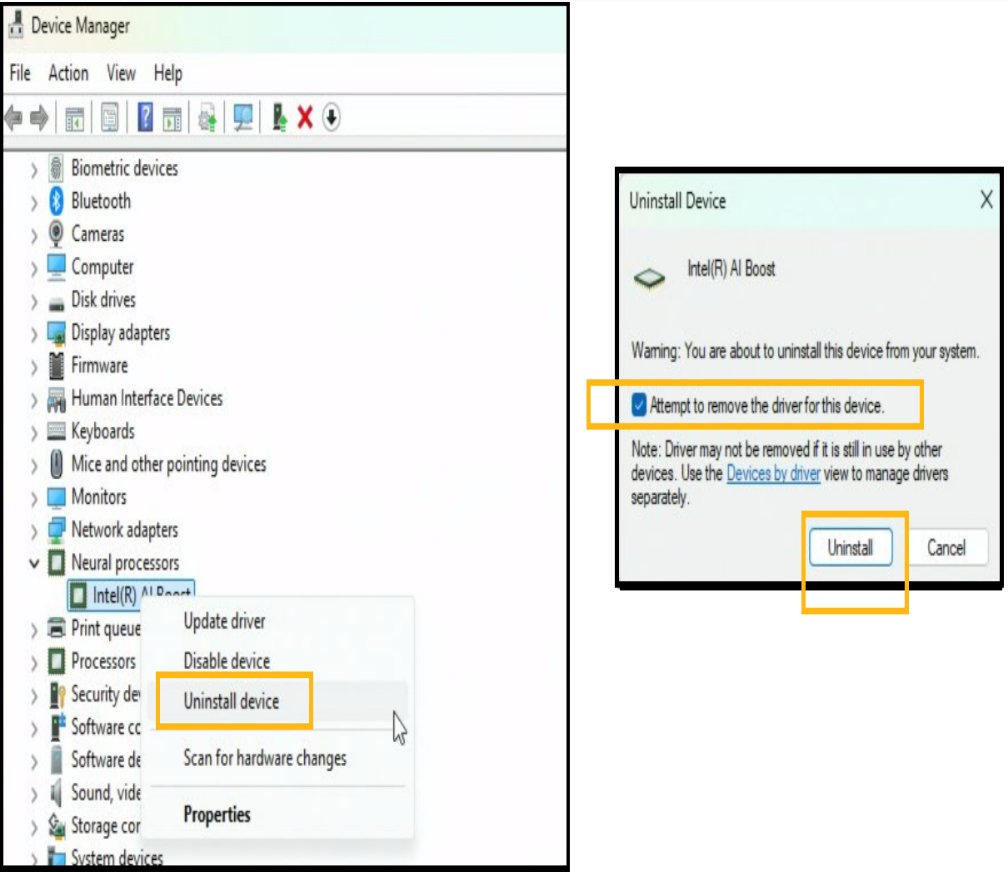
Uninstalling removes the device and its driver configuration; Windows then detects the hardware again and installs a fresh copy of the driver.
- Save your work and close all apps.
- Right-click the Start button and select Device Manager.
- Expand the category and find the device with Code 10.
- Right-click the device and select Uninstall device.
- Select Uninstall to confirm.
- Restart the PC from the Start menu.
- If Windows does not reinstall the driver on its own, open Device Manager, select Action > Scan for hardware changes.
For a graphics card, the maker's installer usually replaces the driver more cleanly; if the NVIDIA setup refuses to run, you can fix the NVIDIA installer error first.
Fix #4: Update the driver from the manufacturer’s site
Windows Update offers a tested driver, but the device or PC maker often has a newer one. Download drivers only from the maker's official site.
- Find the exact model of the device (or of the PC, for built-in hardware) on its label or in the device's Properties window.
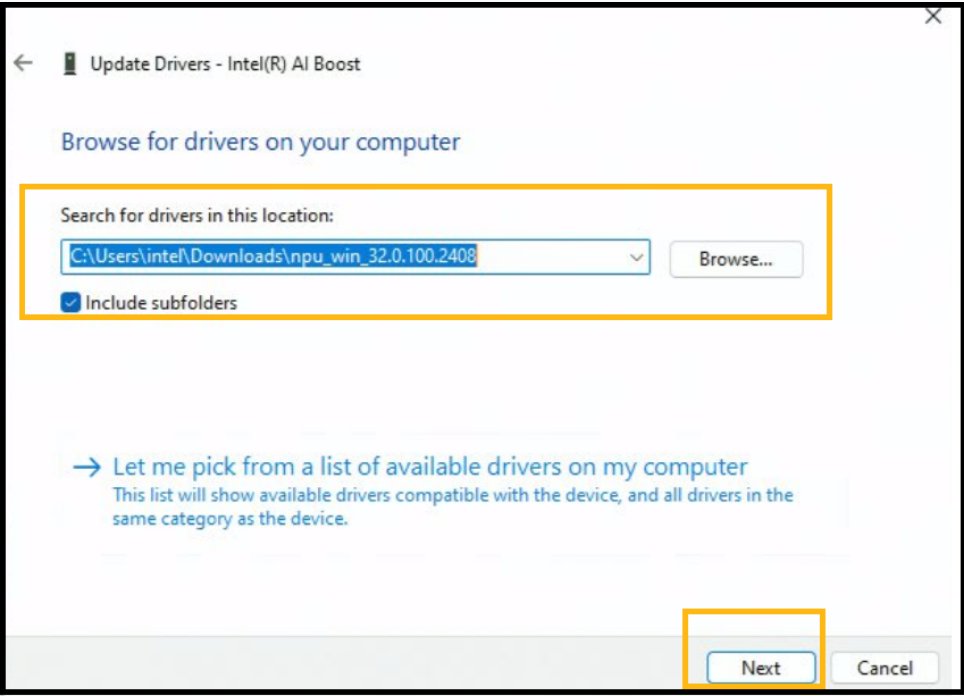
- Download the driver for your Windows version and architecture from the maker's support site, and extract it if it comes as an archive.
- In Device Manager, right-click the device and select Update driver.
- Select Browse my computer for drivers, then Browse…, pick the driver folder and select OK.
- Select Next and let Windows install the driver.
- Select Close and restart the PC.
If Windows reports The best drivers for your device are already installed, the folder holds the same or an older version. Optional driver updates also appear under Settings > Windows Update > Advanced options > Optional updates.
Fix #5: Roll back the driver
Rolling back returns the device to the driver it used before the latest update. It often fixes a Code 10 that appeared right after Windows Update installed a new driver, and it needs administrator rights.
- Right-click the Start button and select Device Manager.
- Expand the category and right-click the device.
- Select Properties and open the Driver tab.
- Select Roll Back Driver.
- Choose a reason when prompted and select Yes.
- Restart the PC if Windows asks you to.
A greyed-out Roll Back Driver button means Windows has no previous driver stored for that device. Use Fix #3 or Fix #4 instead. If a USB sound card stopped with Code 10 after a Windows 11 update, the same rollback is how you get USB audio working again.
Fix #6: Run the Hardware and Devices troubleshooter
Microsoft is retiring the Hardware and Devices troubleshooter. It still runs on Windows 10 and on Windows 11 version 22H2 and older, but it is removed from newer Windows 11 releases, where the device-specific Get Help troubleshooters take its place.
- Select Start > Settings > System > Troubleshoot.
- Select Other troubleshooters.
- Pick the troubleshooter that matches the device: Audio, Bluetooth, Camera, Network and Internet or Printer.
- Run it and apply any fix it offers.
- Restart the PC and check the device in Device Manager.
There is no Get Help troubleshooter for every device type. For a device outside those categories, skip to Fix #7 or Fix #8.
Fix #7: Uninstall all USB controllers (USB devices only)
Use this only when the Code 10 device connects over USB. Corrupt USB controller drivers stop USB devices from being recognised, and Windows reinstalls the controllers automatically after a restart. USB keyboards and mice can stop responding until the restart, so finish every step before you reboot.
- Save your work and close all apps.
- Right-click the Start button and select Device Manager.
- Expand Universal Serial Bus controllers.
- Right-click each entry in turn and select Uninstall device, confirming each time.
- Restart the PC from the Start menu, or with the power button if a USB mouse has stopped working.
- Wait while Windows reinstalls the USB drivers, then plug the device back in.
If the device still fails, try a different USB port directly on the PC rather than through a hub or dock.
Fix #8: Delete UpperFilters and LowerFilters in the registry (advanced)
Corrupted UpperFilters and LowerFilters values can stop a device's driver stack from starting. Microsoft documents this fix for CD and DVD drives, often after CD or DVD recording software was installed or removed. Leave the filter values of other device classes alone.
You must be signed in as an administrator. Back up the registry first, because a wrong edit can cause serious problems.
- Press Windows key + R, type
regeditand press Enter, then select Yes. - Go to
HKEY_LOCAL_MACHINE\SYSTEM\CurrentControlSet\Control\Class\{4D36E965-E325-11CE-BFC1-08002BE10318}. - Right-click that key, select Export and save a backup copy.
- In the right pane, select UpperFilters, then Edit > Delete and confirm with Yes. Leave any UpperFilters.bak value in place.
- Select LowerFilters, then Edit > Delete and confirm with Yes. If it is not there, skip this step.
- Close Registry Editor and restart the PC.
CD or DVD recording software can stop working after this change. Reinstall the app, or check its maker for an updated version.
When the fixes don’t work
If all eight fixes fail, the cause is usually outside the driver: firmware settings, the chipset, or the hardware itself.
The device shows Code 10 on a second PC too
The hardware or its firmware is faulty.
- Connect the device to another computer or port to confirm the fault follows the device.
- Contact the device maker for a firmware update, repair or warranty replacement.
The device works on another PC but not on this one
A BIOS setting or an out-of-date chipset driver is blocking it.
- Check that the device or port is enabled in the PC's BIOS or UEFI settings; the PC maker's manual names the setting.
- Install the latest chipset driver from the PC maker's support site.
- Open Settings > Windows Update > Advanced options > Optional updates and install any driver updates listed.
- Restart the PC even if no update asks for it.
Code 10 comes back after Windows Update
Windows Update reinstalled the driver version that fails on this hardware.
- Roll back the driver as in Fix #5.
- Install the maker's driver as in Fix #4.
- Contact the device maker if their latest driver also fails, since only they can supply a compatible version.
A USB device fails only through a hub or dock
The hub, dock or its power supply cannot start the device.
- Plug the device straight into a USB port on the PC.
- Try another port, then another cable.
- Update the dock's firmware and drivers from its maker.
How to tell if the Code 10 error is gone
- Open Device Manager and expand the device's category.
- Check that the yellow warning icon has gone from the device.
- Right-click the device, select Properties and read the Device status box; it no longer lists Code 10.
- Use the device: play a sound, connect to Wi-Fi, or open a file on the drive.
- Restart once more and check that the error does not return.
Code 10 device cannot start FAQ
What does "This device cannot start (Code 10)" mean?
It means one of the drivers in the device's driver stack failed when Windows tried to start the device. The hardware is detected, but Windows cannot use it until the driver problem is fixed.
Is Code 10 a hardware or software problem?
Usually software. A missing, corrupted or incompatible driver is the most common cause, and Microsoft's first recommendation is to update it. If the device also fails with Code 10 on another PC, the hardware itself is faulty.
How do I fix Code 10 on a USB device?
Restart, then reinstall the device's driver from Device Manager. If it still fails, uninstall every entry under Universal Serial Bus controllers and restart so Windows reinstalls them, and connect the device straight to the PC instead of a hub.
Can a Windows update cause Code 10?
Yes. A new driver delivered by Windows Update can fail to start on some hardware. Open the device's Properties, select the Driver tab and choose Roll Back Driver to return to the previous version.
Why is Roll Back Driver greyed out?
Windows has no earlier driver stored for that device, so there is nothing to roll back to. Reinstall the current driver from Device Manager or install the maker's driver with Browse my computer for drivers.
Where is the Hardware and Devices troubleshooter in Windows 11?
It has been removed from newer Windows 11 releases as part of the MSDT troubleshooter retirement. Windows 11 version 22H2 and older and Windows 10 still run it; newer builds offer device-specific troubleshooters under Settings > System > Troubleshoot > Other troubleshooters.
Is it safe to delete UpperFilters and LowerFilters?
Microsoft documents it as a fix for CD and DVD drives, with a registry backup first. Delete only those two values under the CD and DVD drive class key, and expect to reinstall disc-burning software afterwards.
Why does Device Manager show a different message with Code 10?
The driver or hardware maker can supply its own failure text. When it does, Device Manager shows that text instead of the generic "This device cannot start" message, but the code and fixes are the same.