When an unknown error occurs while signing into Apple ID, check Apple's System Status page, set the date and time to update automatically, switch networks and sign in again.
This guide covers the fix on iPhone, iPad, Mac and Windows, the "Verification failed" version of the message in iCloud for Windows, and the account errors that look similar.
How to fix unknown error occurred signing into Apple ID
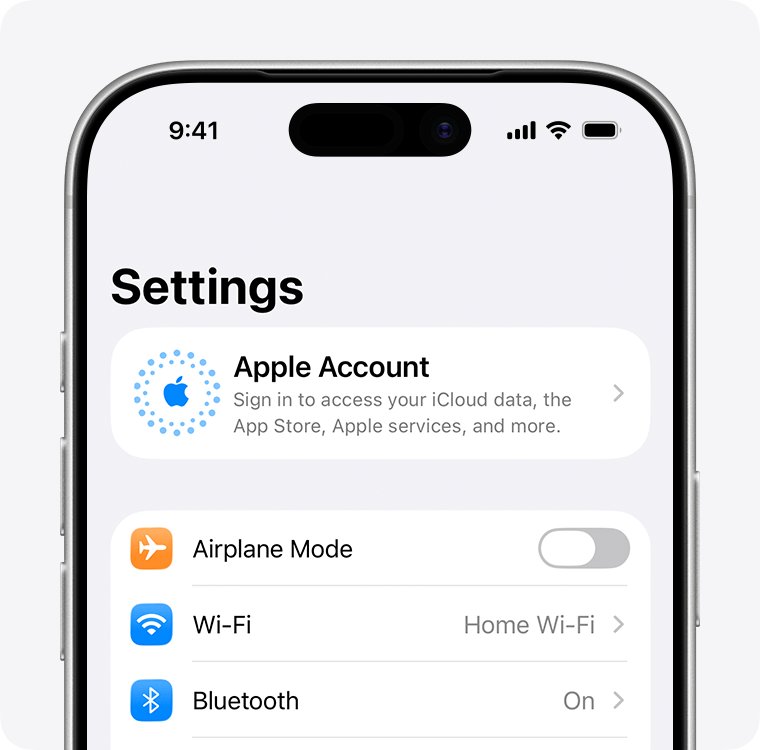
Apple ID is now called Apple Account, and it still signs in with the same email address or phone number and password. The message usually means the device could not finish talking to Apple's sign-in servers, so start with the connection, not the password.
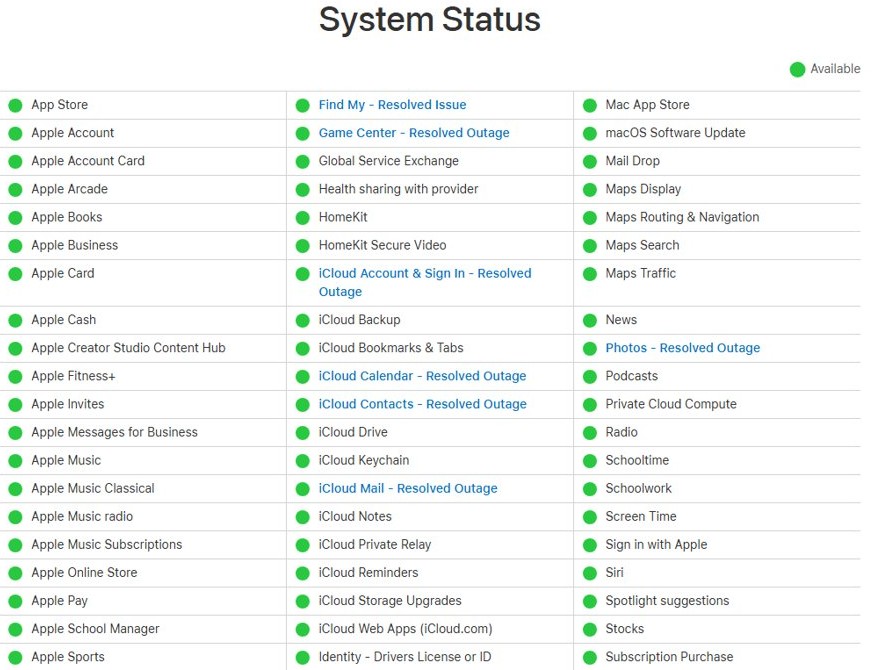
- Open apple.com/support/systemstatus in a browser and check that Apple Account and iCloud Account & Sign In show as available.
- On iPhone or iPad, open Settings, tap General, tap Date & Time and turn on Set Time Automatically.
- Connect to a different Wi-Fi network, or switch from Wi-Fi to cellular data, so the sign-in uses another internet connection.
- Restart the iPhone, iPad or Mac.
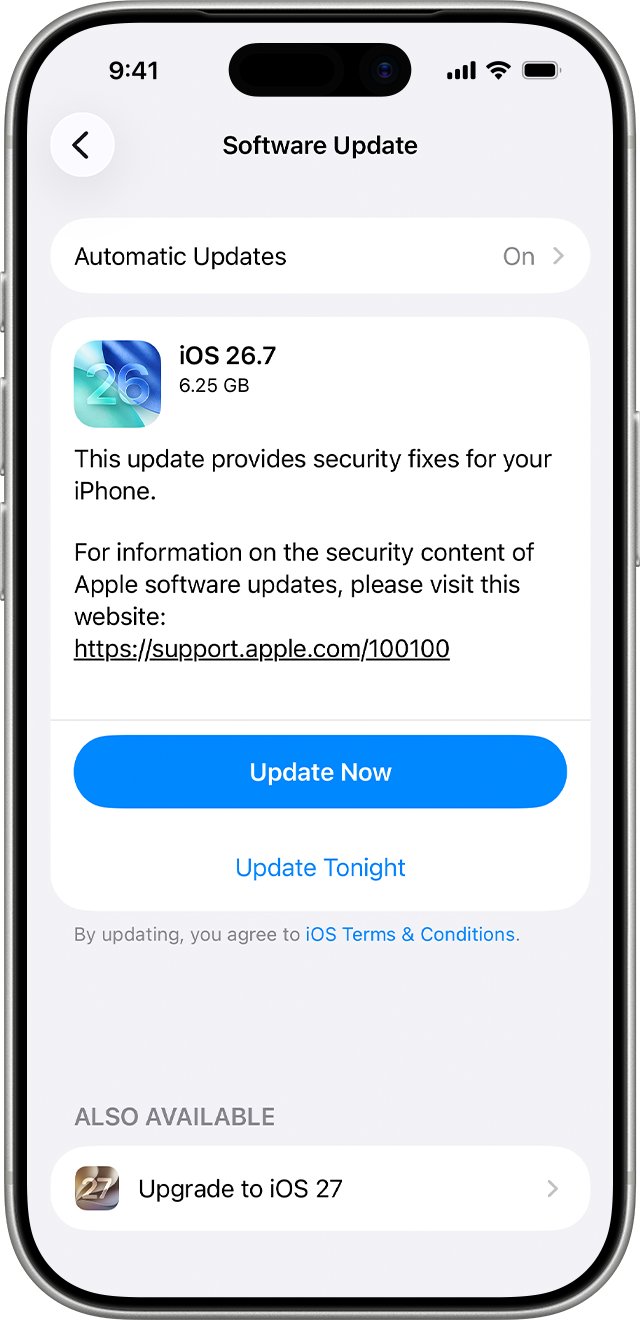
- Open Settings, tap Apple Account at the top, choose Sign in Manually and enter your email address or phone number and password.
- Enter the six-digit verification code that appears on your trusted device or arrives on your trusted phone number.
- If the error comes back after several tries, wait and try again later, because Apple's own advice for a sign-in that spins or cannot reach a server is to try another network or try later.
If the message names an organization, a locked or disabled account or a wrong password instead, jump to the account error fixes further down.
What does an unknown error occurred mean on Apple ID sign in?
The wording is generic, so the device and the exact text matter more than the error itself. Match what you see to a row before you change anything.
| Where you see it | Exact wording | Most likely cause | Start here |
|---|---|---|---|
| iPhone, iPad or Mac Settings | An unknown error occurred | The device cannot reach Apple's sign-in servers, or the clock is wrong | System Status, date and time, another network |
| iCloud for Windows | Verification Failed: An unknown error occurred | Security software, date and time, or an old version of iCloud for Windows | The iCloud for Windows fixes below |
| iCloud for Windows | An error occurred during authentication. Please try again. | Security software blocking the connection to Apple | Ask the security software vendor to allow Apple's ports and services |
| School or work device | Verification Failed. This device can only be used with Apple Accounts from [organization name] | The device is enrolled in Apple School Manager or Apple Business | Contact the administrator who gave you the device |
| iTunes or Finder during a restore | An unknown error occurred (9), (4005), (4013) or (4014) | The device disconnected during an update or restore, not a sign-in fault | Update the computer, force restart the device and choose Update |
How to check Apple Account system status
An outage on Apple's side produces the same error on every device you try, so rule it out first.
- Open apple.com/support/systemstatus in Safari, Edge or Chrome on any device.
- Find Apple Account and iCloud Account & Sign In in the list of services.
- Check the label next to each one: "available" means Apple reports no problem, while an issue or outage note means the fault is on Apple's side.
- If either service shows an issue, stop retrying and sign in again after the page shows it as resolved.
- If both are available, keep going with the date, time and network fixes.
Set date and time automatically on iPhone, Mac and Windows
Apple lists a wrong date, time or time zone as one of the first things to check when iCloud sign-in fails. A clock that is off can break the secure connection to Apple's servers.
| Device | Path | Turn on |
|---|---|---|
| iPhone or iPad | Settings > General > Date & Time | Set Time Automatically (older iOS versions label it Set Automatically) |
| iPhone or iPad time zone | Settings > Privacy & Security > Location Services > System Services | Setting Time Zone |
| Mac | System Settings > Date & Time settings | The options to set the time and date automatically and to set the time zone automatically, then restart the Mac |
| Windows 11 or Windows 10 | Start > Settings > Time & language > Date & time | Set time automatically and Set time zone automatically |
If Set Time Automatically is dimmed on an iPhone, a Screen Time passcode or a corporate profile with restrictions can lock it. Some carriers and regions also do not offer the option.
Reset network settings on iPhone to fix Apple ID sign in
Use this when the error appears only on one iPhone or iPad and another network did not help. It removes saved Wi-Fi networks and VPN settings but does not delete your data.
- Make sure you know the passwords of the Wi-Fi networks you use, because they are removed.
- Open Settings and tap General.
- Tap Transfer or Reset iPhone, then tap Reset.
- Tap Reset Network Settings and enter your passcode if asked. Do not choose Erase All Content and Settings.
- Join your Wi-Fi network again after the iPhone restarts.
- Open Settings, tap Apple Account and sign in again.
Resetting network settings also renames the device to "iPhone" in Settings > General > About and may turn off cellular data roaming.
Update iPhone, Mac or iCloud for Windows to fix Apple ID errors
Apple asks you to run the latest software before you troubleshoot iCloud sign-in. An old build of iOS, macOS or iCloud for Windows is a common reason a sign-in stops working.
- On iPhone or iPad, connect to Wi-Fi, open Settings, tap General, then Software Update, and tap Download and Install if an update is listed.
- On a Mac, choose System Settings from the Apple menu, click General, then Software Update, and install any update it shows.
- On a Windows PC, update iCloud for Windows from the Microsoft Store, which is where Apple distributes it.
- Check that the PC runs Windows 11 or later, which the latest iCloud for Windows requires.
- Restart the device after the update and try signing in again.
VPN or proxy connections can stop a wireless iPhone update from reaching Apple's update servers, so turn off a VPN while updating.
Sign in to Apple Account on the web to test your password
Signing in on the web tells you whether the account itself works. If the web sign-in succeeds, the problem is the device, not the account.
- Open account.apple.com in a browser on any computer or phone.
- Enter your Apple Account email address or phone number and your password.
- Approve the sign-in on a trusted device or enter the six-digit code you receive.
- If the web sign-in works, return to the device and repeat the date, network and update fixes.
- If the web sign-in says the password is wrong, select Forgot password? and reset your Apple Account password before you try the device again.
Any email address or phone number on your account works for sign-in. If you are unsure which one you used, find the Apple ID on your iPhone first.
Sign out of Apple ID and sign back in on iPhone and Mac
Use this when you are already signed in but iCloud, the App Store or Messages throws the error. Make sure your iCloud backup is current before you sign out.
- On iPhone or iPad, open Settings and tap your name.
- Scroll to the bottom and tap Sign Out.
- Choose Sign Out But Don't Erase, enter your passcode or Apple Account password, then tap Confirm and Sign Out.
- On a Mac, choose System Settings from the Apple menu, click your name, click Sign Out, select the data to keep and click Keep a Copy.
- Restart the device.
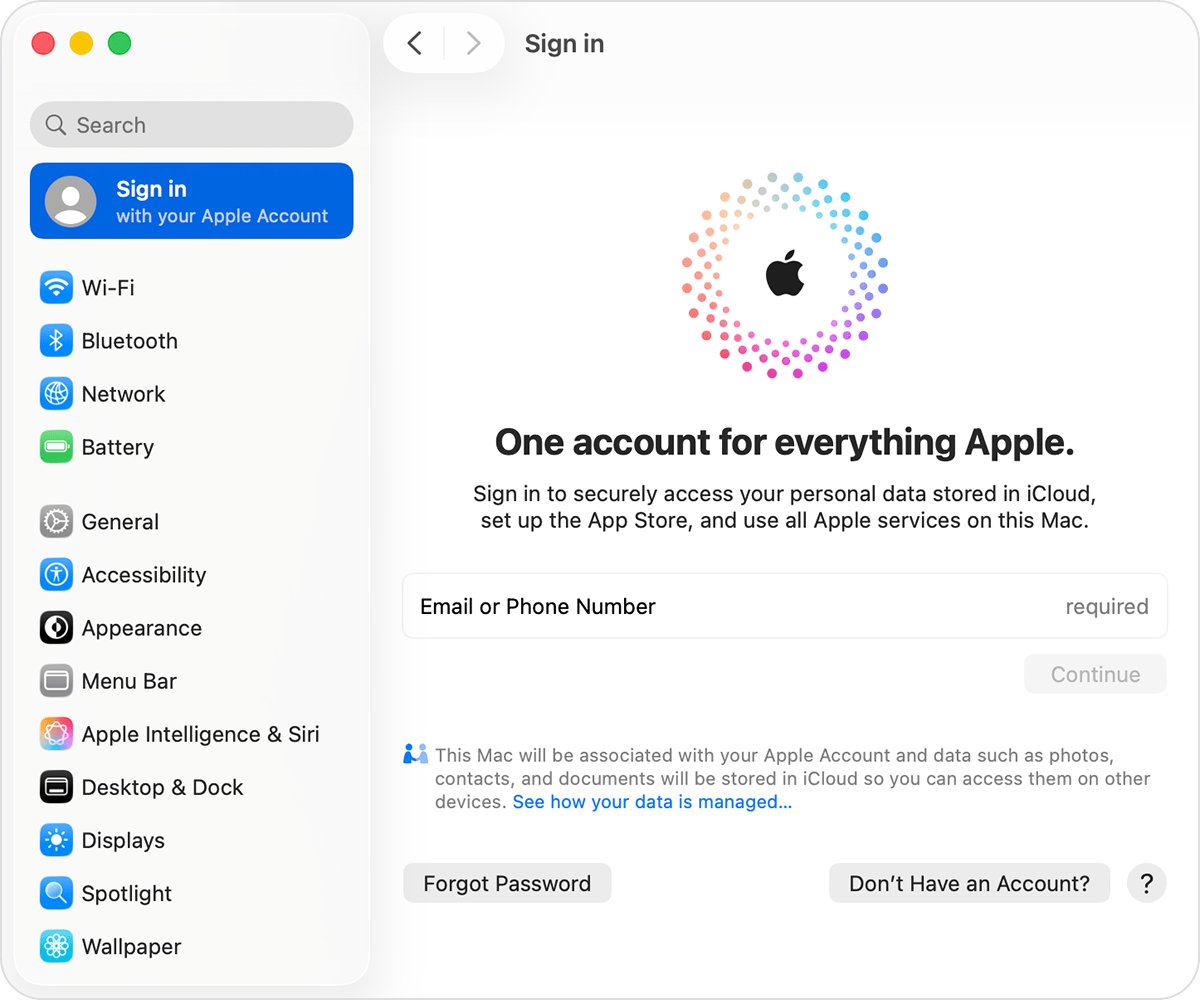
- Sign in again: tap Apple Account at the top of Settings on iPhone, or click Sign in at the top of the System Settings sidebar on a Mac.
Do not sign out while an iCloud backup is in progress, and change the password first if you do not know it.
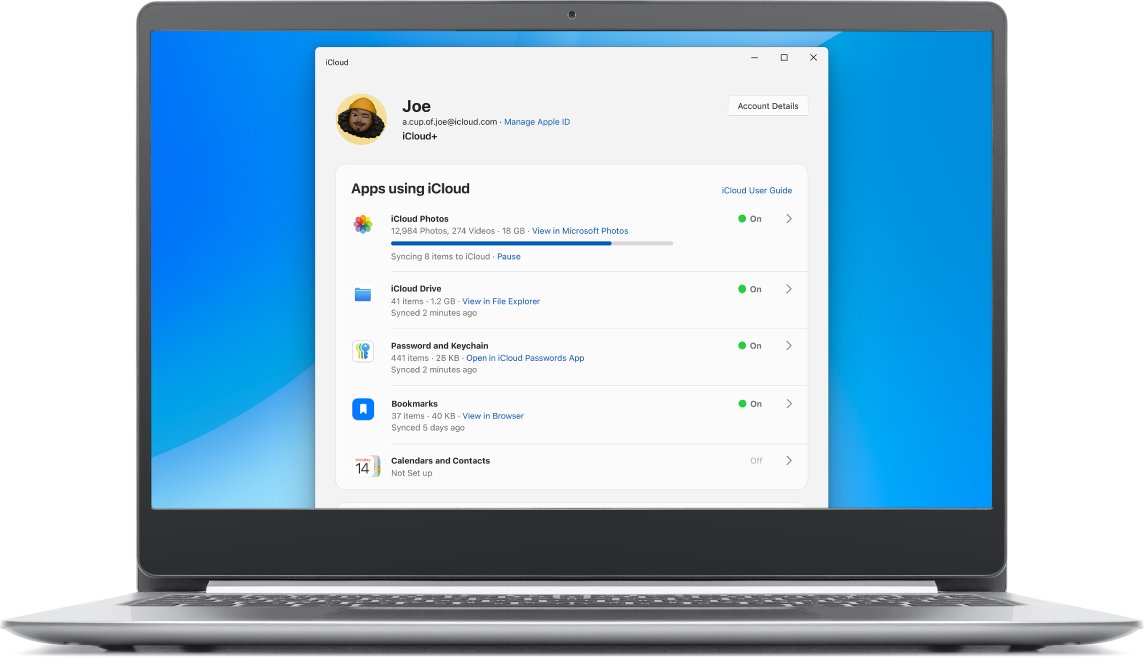
Verification failed an unknown error occurred on iCloud for Windows
On a Windows PC, Apple ties this message to the connection between iCloud for Windows and Apple's servers. Work through the checks in order; if sign-in works but iCloud for Windows stops syncing afterwards, that is a separate fix.
"Verification Failed: An unknown error occurred"
The PC clock is wrong, the account is not an administrator, or iCloud for Windows is out of date.
- Open Start > Settings > Time & language > Date & time and turn on Set time automatically and Set time zone automatically.
- Sign in to Windows with an administrator account, not a guest account.
- Update iCloud for Windows from the Microsoft Store and install pending Windows updates.
- Set up Windows Hello on the PC, which Apple lists as a check for iCloud for Windows.
- Open iCloud for Windows and sign in again.
"An error occurred during authentication. Please try again."
Third-party security software is stopping iCloud for Windows from reaching Apple's servers.
- Check that only one security product is installed on the PC.
- Check that the Windows hosts file does not block Apple's servers.
- Contact the security software vendor and ask them to allow the full list of ports and services Apple products use.
- Restart the PC and sign in to iCloud for Windows again.
"Your setup couldn't be started because the iCloud server stopped responding"
Apple lists this alongside the security software and connection problems above.
- Check apple.com/support/systemstatus for an iCloud Account & Sign In issue.
- Run the date, time, administrator and security software checks above.
- Try a different network and sign in again.
Work or school Apple Account will not sign in to iCloud for Windows
iCloud for Windows does not support Managed Apple Accounts.
- Sign in with a personal Apple Account instead.
- Use iCloud.com in a browser for the managed account.
Apple ID sign in error on iPhone and Mac
These messages look like the unknown error but each has its own cause and fix.
"This device can only be used with Apple Accounts from [organization name]"
The device is enrolled in Apple School Manager or Apple Business and requires a school or work account.
- Contact the school or business administrator that provided the device.
- If you bought the device yourself from Apple or an Apple Authorized Reseller and have no link to an organization, contact Apple Support.
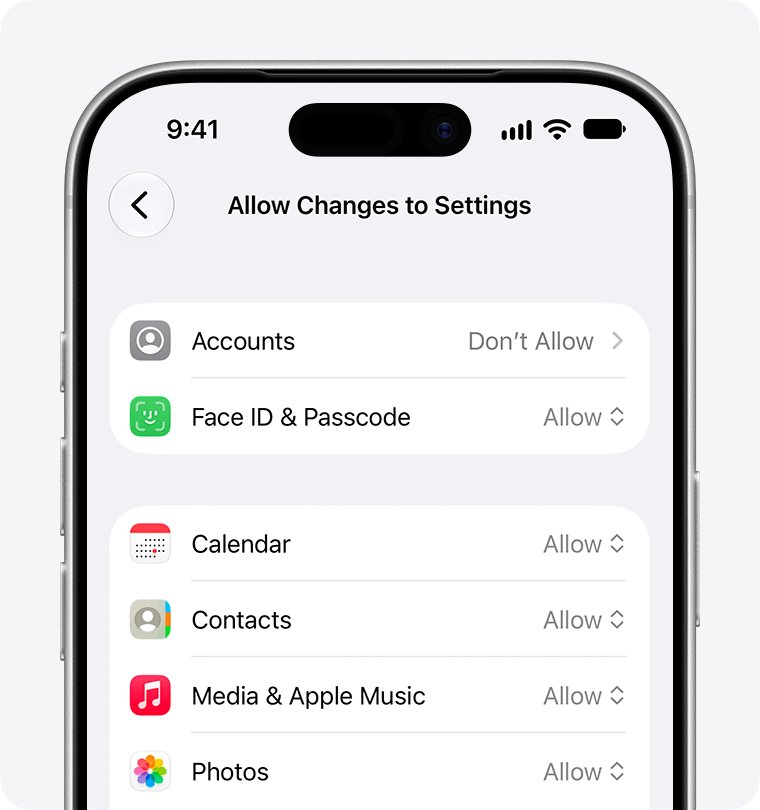
Apple Account is grayed out in Settings
Screen Time restrictions block account changes on the device.
- Open Settings and tap Screen Time.
- Tap Content & Privacy Restrictions.
- Scroll to Privacy Restrictions and tap Allow Changes to Settings.
- Tap Accounts and set it to Allow, entering the Screen Time passcode if asked.
- If you are a child in a Family Sharing group, ask your parent or guardian to enter the Screen Time passcode.
"This Apple Account has been disabled for security reasons"
The password or other account details were entered incorrectly too many times.
- Stop retrying the old password.
- Select Forgot password? on the sign-in screen and follow the onscreen steps.
- Sign in with the new password.
Your Apple Account is locked or not active
Apple locked the account and needs an access request.
- Tap Request Access on the alert.
- Follow the onscreen steps to verify your identity.
- If you see "This Apple Account is locked and can't be used", create a new Apple Account.
No verification code arrives
Your trusted device is not nearby or the text is filtered.
- Select Didn't Get a Code? or Can't get to your devices? on the code screen.
- Choose to get the code by text message or phone call to your trusted phone number.
- Check the Unknown Senders filter in Messages if the text does not show up.
How to tell if you are signed in to your Apple Account
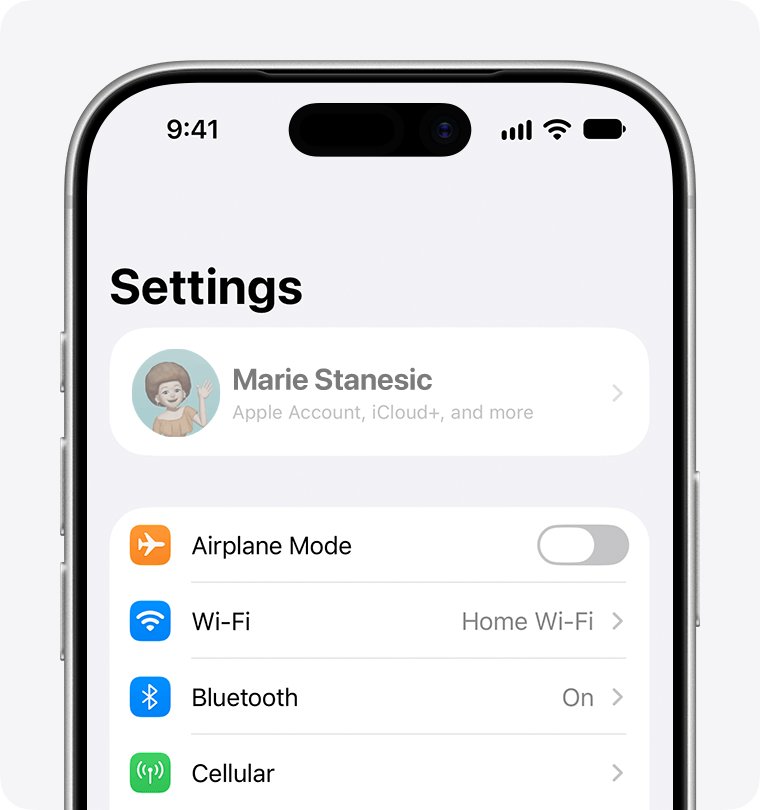
- On iPhone or iPad, open Settings and look at the top: your name shows instead of Apple Account when you are signed in.
- Tap your name, then iCloud, and check that the sync status icon is green rather than yellow or red.
- On a Mac, open System Settings and look at the top of the sidebar: your name replaces Sign in.
- In iCloud for Windows, a Sign out button shows when you are signed in.
- Open the App Store and check that purchases and downloads work without another sign-in prompt.
Your Apple Account is also your iCloud account, so iCloud and Apple ID use the same sign-in and one successful sign-in covers both.
Apple ID unknown error FAQ
Why does it say an unknown error occurred when signing into Apple ID?
The device could not complete the sign-in with Apple's servers. The usual causes are an Apple outage, a wrong date or time, a network that blocks the connection, or old software. On Windows, Apple also lists third-party security software as a cause.
What does an unknown error has occurred mean?
It means the app received a failure it has no specific message for. On Apple devices the text is the same for several causes, so check where it appears, such as Settings, iCloud for Windows or a restore in iTunes, and follow the fix for that place.
How do I fix an unknown error occurred on my iPhone?
Check Apple's System Status page, turn on Set Time Automatically in Settings > General > Date & Time, switch networks and restart the iPhone. Then tap Apple Account at the top of Settings and sign in manually. If it still fails, reset network settings.
What does unknown error mean in Windows when signing in to iCloud?
In iCloud for Windows, "Verification Failed: An unknown error occurred" points to the PC's connection with Apple. Correct the date and time, sign in as an administrator, update iCloud for Windows and ask your security software vendor to allow Apple's ports and services.
What does unknown error mean in software like iTunes or Finder?
In iTunes or Finder, "An unknown error occurred" with a number is usually an update or restore error, not a sign-in problem. Error 9, 4005, 4013 and 4014 appear when the device disconnects during an update or restore.
What is unknown error occurred 9 on iPhone?
Error 9 means the iPhone disconnected during an update or restore. Update the Mac or iTunes, force restart the iPhone, connect it with a USB cable and choose Update instead of Restore, which keeps your data. Try another USB cable if it repeats.
Can an unknown network error stop Apple ID sign in?
Yes. Apple's advice for a sign-in that keeps spinning or cannot connect to a server is to check System Status, then connect to another network or try again later. Resetting network settings on the iPhone clears saved Wi-Fi and VPN settings that may be at fault.
Will resetting my Apple ID password fix the unknown error?
Only if the password is the problem. Sign in at account.apple.com first; if the password works there, the fault is the device or network. If the web sign-in fails, select Forgot password? and reset it, then sign in on the device.