When OneDrive says it isn't connected or the sign-in screen hangs, restart the OneDrive app from Start, then sign in again from the gray cloud icon in the notification area.
If that does not work, the fixes below clear the saved sign-in file, reset or relink the sync app, and deal with work accounts, offline status and the sign-in error codes Microsoft documents.
OneDrive isn’t connected; signing in stuck
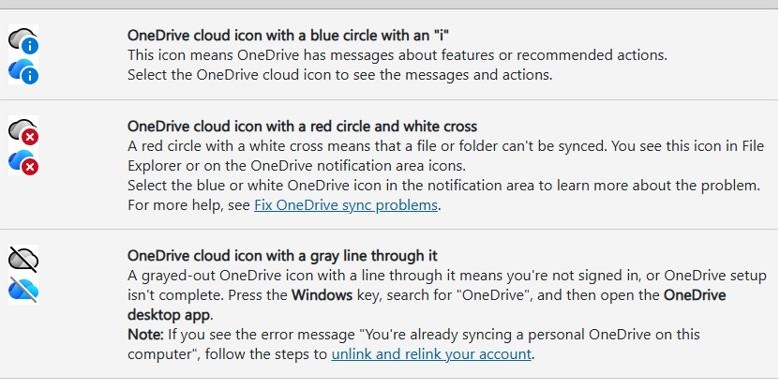
A gray OneDrive cloud with a line through it means the sync app is not signed in. Microsoft's first fix for the "OneDrive is not connected" message is a restart of the app followed by a fresh sign-in.
- Select Start, type OneDrive and open the OneDrive app to restart it.
- Select the gray OneDrive cloud icon in the notification area at the right end of the taskbar.
- On the Set up OneDrive screen, enter your email address and select Sign in.
- Enter your password when asked and finish the sign-in prompts.
- If the app is missing from Start, install the latest OneDrive sync app from Microsoft and sign in again.
If the sign-in window hangs, closes or returns an error, move on to the next sections in order. Each one rules out a different cause.
Why isn't OneDrive signing in?
Match what you see to a row, then jump to the fix it names.
| What you see | Likely cause | Fix to try first |
|---|---|---|
| Gray cloud icon with a line through it | OneDrive is not signed in | Select the icon and sign in again |
| "OneDrive is not connected" | The sync app stopped or lost its session | Restart OneDrive from Start |
| Sign-in fails right after a password change | OneDrive still holds the old sign-in details | Delete PreSignInSettingsConfig.json |
| "You're syncing a different account" | Expired or mismatched saved credentials | Delete PreSignInSettingsConfig.json, then reinstall if needed |
| Signed in, but still not connecting | A firewall at your internet provider blocks OneDrive | Test the PC on a mobile hotspot |
| No sign-in prompt appears at all | A Group Policy setting stops OneDrive from starting | Ask your IT admin to change the policy |
| "Selected user account does not exist in tenant 'Microsoft Services'" | A personal account used on a work or school OneDrive site | Sign in with your work or school account |
| Error 0x8004de40 or 0x8004de88 | OneDrive cannot reach the cloud | Check the connection and TLS 1.2 setting |
OneDrive not signing in after a password change
OneDrive keeps a small settings file from your last sign-in. After a Microsoft account password change, that file can stop the new sign-in from completing. Deleting it does not touch your synced files.
- Press Windows key + R to open the Run dialog.
- Type
%localappdata%\Microsoft\OneDrive\settingsand select OK. - Delete the PreSignInSettingsConfig.json file in the folder that opens.
- Select Start, type OneDrive and open the app.
- Sign in with your current email address and new password.
On a Mac, the equivalent step is to open Keychain Access, search for OneDrive, delete OneDrive Cached Credential and run OneDrive again.
How to reset OneDrive in Windows 11
A reset disconnects every sync connection, personal and work, and rebuilds OneDrive's settings. Microsoft states that you will not lose files or data, and OneDrive runs a full sync afterwards.
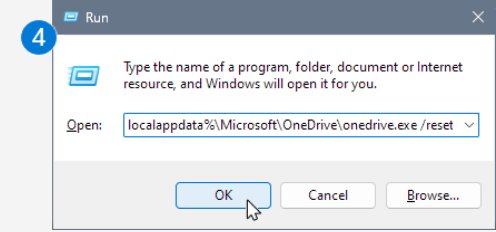
- Press Windows key + R to open the Run dialog.
- Paste
%localappdata%\Microsoft\OneDrive\onedrive.exe /resetand select OK. - If you see a "Windows cannot find…" message, run
C:\Program Files\Microsoft OneDrive\onedrive.exe /resetinstead. - If that also fails, run
C:\Program Files (x86)\Microsoft OneDrive\onedrive.exe /reset. - Select Start, type OneDrive and open the OneDrive desktop app to restart it.
- Sign in when prompted and pick the folders to sync again if you had limited them before.
If none of the three commands is found, the OneDrive sync app is not installed. If you use the Microsoft Store version, press Start, enter apps:onedrive, select App settings and select Reset.
How to unlink and relink OneDrive account
Unlinking disconnects the PC from the cloud for a short while and clears the account from the sync app. Local files stay where they are, and changes made while unlinked sync once you sign in again.
- Select the OneDrive cloud in the notification area to open the OneDrive pop-up.
- Select the Help & Settings gear icon, then select Settings.
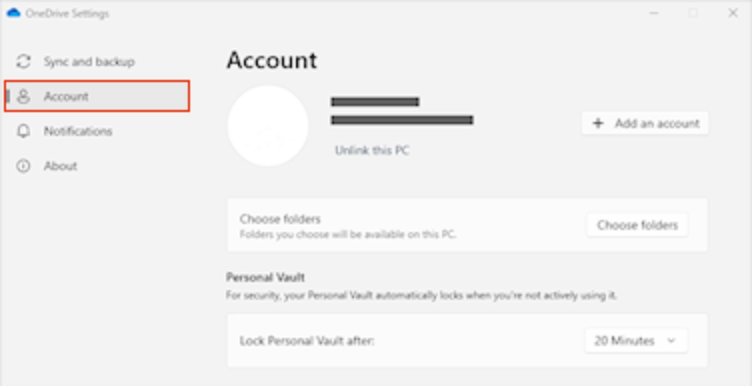
- Go to the Account tab and select Unlink this PC, then select Unlink account.
- Press Windows key + R, enter
%localappdata%\Microsoft\OneDrive\settingsand select OK. - Delete the PreSignInSettingsConfig.json file.
- Sign in when OneDrive prompts you, or open OneDrive from Start if it does not open.
- When OneDrive says a folder already exists, select Use this folder.
OneDrive then syncs placeholders for your files back to the PC. If you use more than one account, you can add a second OneDrive account once the first one is connected again.
Can't sign in to OneDrive work or school account
Work and school OneDrive accounts sign in through Microsoft Entra ID, so some failures can only be fixed by your organization. Work through these checks before you contact IT.
- Check the error. "Selected user account does not exist in tenant 'Microsoft Services'" means a personal Microsoft account was used on a work or school site.
- Sign out and sign in again with your work or school email address instead of your personal one.
- If you have forgotten the password, use your organization's password reset or ask your IT admin.
- For error 0x8004de40 or 0x8004de88, confirm the PC is online, then press Windows key + R, type
inetcpl.cpland press Enter. - On the Advanced tab, make sure Use TLS 1.2 is selected, then select Apply and OK.
- Restart the PC while it is connected to your organization's network and sign in to OneDrive again.
- If OneDrive never shows a sign-in prompt, contact your IT admin, because a Group Policy setting may be blocking the sync app.
Microsoft adds that cipher suite order and rejoining the device to Microsoft Entra ID can also clear 0x8004de40, but those are admin tasks done on the organization's network.
OneDrive sign in error codes explained
These are the sign-in and connection codes Microsoft lists for the OneDrive sync app, with the fix it gives for each.
| Error code | What it means | Fix |
|---|---|---|
| 0x8004de40, 0x8004de88 | OneDrive is having trouble connecting to the cloud | Check the internet connection and that TLS 1.2 is turned on |
| 0x8004de85, 0x8004de8a | The account signed in does not match the one expected | Check the Account tab in OneDrive Settings shows the right account |
| 0x8004de90 | OneDrive setup was not finished | Open OneDrive from Start, enter your email and select Sign in |
| 0x8004de96 | Sign-in fails after a password change | Apply the "syncing a different account" fix |
| 0x8004def0 | Saved credentials have expired | Check you can sign in to Outlook.com or Microsoft 365 on the web |
| 0x8004def5 | Saved credentials have expired | Delete PreSignInSettingsConfig.json, then reinstall OneDrive if needed |
| 0x8004ded2 | The organization is not supported by this sign-in | Reset OneDrive |
| 0x80048823, 0x8004de44, 0x8004de42 | Your proxy requires authentication, which OneDrive does not support | Reset the Settings app, reinstall OneDrive, or connect without that proxy |
| Error Code 2 | OneDrive could not fetch your account details | Sign in to your Microsoft account on the web to check for problems |
| Error Code 6 | A timeout error occurred | Check the internet connection and service health, then restart the PC |
| 0x80040c81 | A connection problem in the sync app | Reset OneDrive |
OneDrive is showing offline on Windows 11
If OneDrive is signed in but stays offline or keeps saying it is not connected, the block is usually on the network path between the PC and Microsoft.
OneDrive shows offline and other sites load slowly or not at all
The PC has no working internet connection, or the connection timed out (Error Code 6).
- Open a browser and load any website to confirm the PC is online.
- Restart the router and the PC.
- Open OneDrive from Start and wait for it to reconnect.
Signed in, but OneDrive still cannot connect
A firewall at your internet provider or on your network blocks OneDrive.
- Turn on the mobile hotspot on your phone and connect the PC to it.
- Open OneDrive and check whether it connects over the hotspot.
- If it does, contact your internet provider and ask whether it supports Microsoft 365 services.
OneDrive offline on a network that uses a proxy
OneDrive does not support proxies that require authentication (errors 0x80048823, 0x8004de44 or 0x8004de42).
- Select Start and type Settings without opening it.
- Select App settings in the pane on the right.
- Select Reset under the Reset section.
- Reinstall OneDrive, or connect through a network that does not need proxy sign-in.
OneDrive offline for everyone, not just your PC
A Microsoft service problem.
- Check the OneDrive service status linked from Microsoft's "Can't sign in to OneDrive" support page.
- Wait for the incident to clear, then restart OneDrive.
OneDrive error 0x8007016A, the cloud file provider is not running
Microsoft says this error means OneDrive is misconfigured. It usually appears when you open or copy a file that is stored online only. You can turn Files On-Demand on or off again after the fix.
Error 0x8007016A when opening or copying OneDrive files
Files On-Demand is in a bad state in the sync app.
- Sign in to OneDrive and select the OneDrive icon in the notification area.
- Select Help & Settings > Settings.
- If you have a Settings tab, clear Save space and download files as you use them.
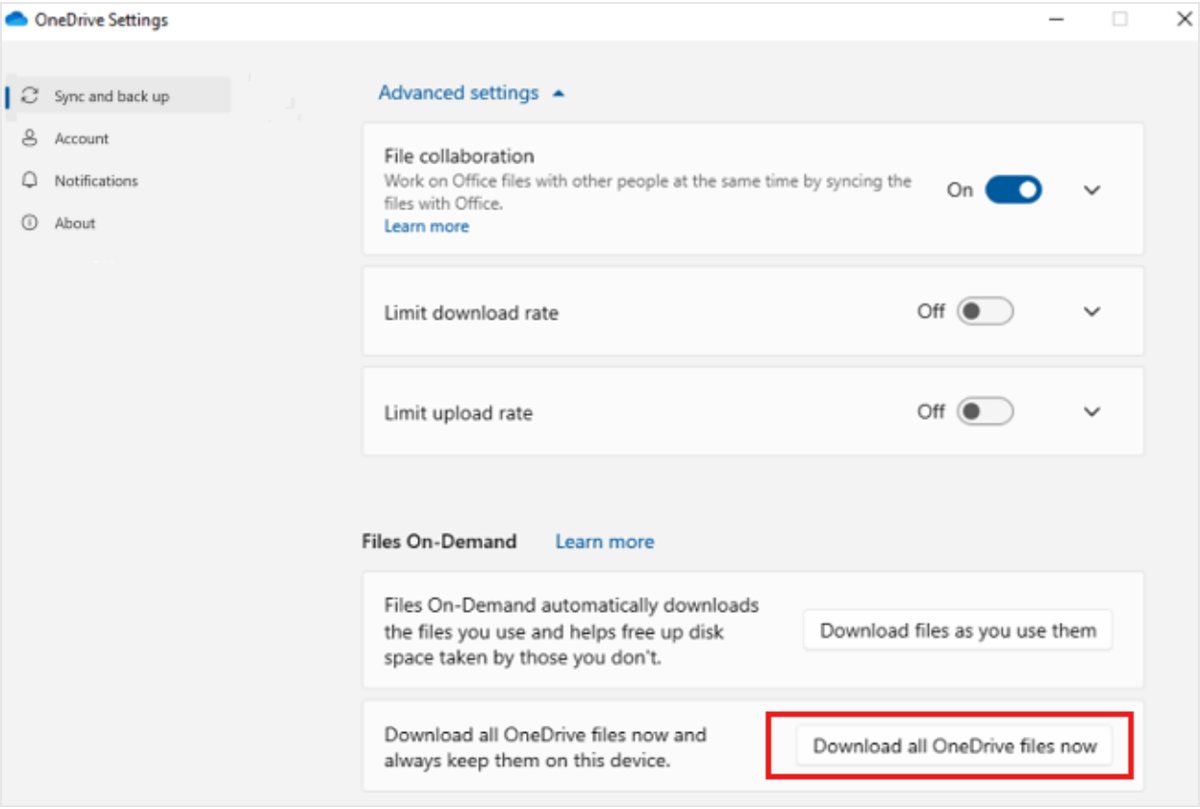
- If you do not have that tab, select Sync and back up > Advanced settings and select Download all OneDrive files now under Files On-Demand.
- Reset OneDrive with
%localappdata%\Microsoft\OneDrive\onedrive.exe /reset. - Turn Files On-Demand back on if you need it, then try the file again.
0x8007016A keeps coming back after a reset
Windows is missing an update the cloud files feature depends on.
- Select Start, type updates and select Check for updates.
- Install all available Windows updates and restart the PC.
- Open OneDrive and try the file again.
OneDrive not signing in on computer
These symptoms stop the sign-in screen itself, so the restart and reset steps above do not clear them.
"You're syncing a different account" or "You're already syncing this account"
OneDrive is holding stale credentials, often after a password change.
- Press Windows key + R, enter
%localappdata%\Microsoft\OneDrive\settingsand select OK. - Delete PreSignInSettingsConfig.json.
- Open OneDrive and sign in again.
- If the error remains, uninstall OneDrive, install the latest version from Microsoft and sign in.
OneDrive never shows a sign-in prompt and nothing syncs
An administrator has set a Group Policy that stops onedrive.exe from starting.
- Ask your IT admin whether the
DisableFileSyncNGSCpolicy is set underHKEY_LOCAL_MACHINE\Software\Policies\Microsoft\Windows\OneDrive. - Have the admin remove the policy or set the value to 0.
- Restart the PC and open OneDrive from Start.
Can't add a second personal Microsoft account
The OneDrive sync app accepts only one personal Microsoft account.
- Open OneDrive Settings and check the Account tab for the personal account already added.
- Use your second personal account at OneDrive.com in a browser, or unlink the first account and sign in with the other.
Forgotten email address or password
The Microsoft account itself will not sign in.
- Use the Microsoft account sign-in helper linked from Microsoft's OneDrive sign-in support page.
- Once the account signs in on the web, open OneDrive on the PC and sign in again.
Microsoft warns that changing the policy value yourself does not last, because the policy is reapplied after a restart or the next policy refresh.
How to tell if OneDrive is signed in
- Look at the OneDrive cloud in the notification area. A cloud without a gray line through it means the app is signed in.
- Select the cloud, then select Help & Settings > Settings.
- Open the Account tab and check that it shows the email address you expect.
- Open your OneDrive folder in File Explorer and check that files show status icons again.
If the icons look wrong after sign-in, the OneDrive icons meaning list shows what each one says about sync.
OneDrive sign in FAQ
Why isn't OneDrive signing in?
The usual causes are a stopped sync app, saved sign-in details from before a password change, a blocked network, or the wrong account type. Restart OneDrive from Start first. If that fails, delete PreSignInSettingsConfig.json from the OneDrive settings folder and sign in again.
Why can't I sign into OneDrive on my computer when the website works?
When OneDrive.com works but the PC app does not, the problem sits in the sync app or the network path it uses. Reset OneDrive with the /reset command, then test the PC on a mobile hotspot to rule out a firewall at your internet provider.
Why won't OneDrive sign in after I changed my password?
OneDrive can keep the old sign-in details and show "You're syncing a different account". Press Windows key + R, open %localappdata%\Microsoft\OneDrive\settings, delete PreSignInSettingsConfig.json and sign in with the new password. Reinstall OneDrive if the error remains.
Why is my OneDrive not connected?
"OneDrive is not connected" means the sync app has lost its session with Microsoft's servers. Restart OneDrive from Start and sign in again. If it stays disconnected, check the internet connection, try a mobile hotspot, and look up any error code it shows.
Can't get OneDrive to sign in with a work account?
Make sure you are using your work or school email, not a personal Microsoft account. Error 0x8004de40 points to a connection or TLS problem, so check that TLS 1.2 is turned on in Internet Options. If no sign-in prompt appears, your admin may have blocked OneDrive by policy.
Does resetting OneDrive delete my files?
No. Microsoft states that resetting OneDrive does not delete files or data. It disconnects every sync connection, rebuilds the settings, and runs a full sync when you sign in again. You only need to choose your sync folders again if you had limited them.
How do I fix OneDrive sync errors?
Start from the icon OneDrive shows, because each icon points to a different fix. A gray cloud means not signed in, while red and paused icons mean sync problems. Restart OneDrive, then unlink and relink the PC or reset the app if errors continue.
Can I sign in to OneDrive with two personal accounts on one PC?
No. The OneDrive sync app accepts only one personal Microsoft account. You can add work or school accounts alongside it, and you can still open a second personal account at OneDrive.com in a browser.
If sign-in works but files still refuse to update, the OneDrive not syncing fixes cover paused, red and pending sync states.