To enable StreetView in Bing Maps, open bing.com/maps, zoom into a street that has coverage and select Streetside in the map controls, then pick a spot on the highlighted coverage.
This guide covers the web steps, the older Windows Maps app route, Streetside controls and keyboard shortcuts, where coverage exists, and why the option sometimes does not appear.
How to enable StreetView/Streetside in Bing Maps?
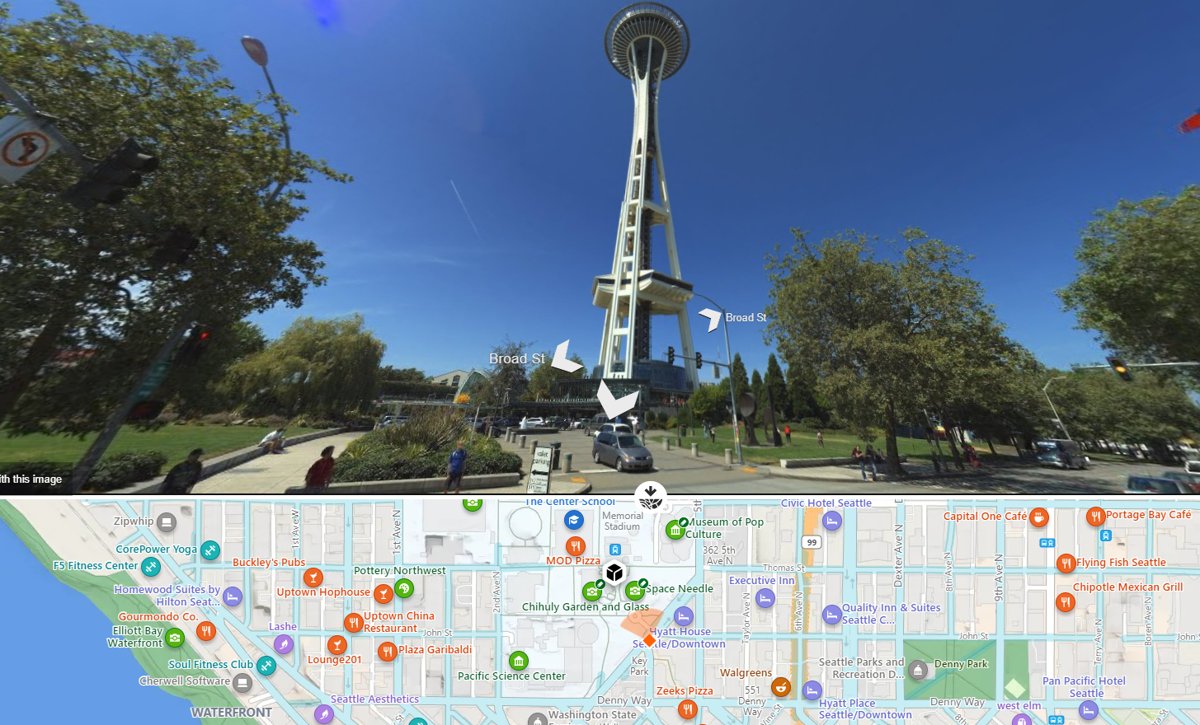
Streetside is Microsoft's name for 360-degree street-level imagery, the Bing Maps equivalent of StreetView. There is no setting to switch on first; the option appears in the map controls wherever imagery exists.
- Open bing.com/maps in your web browser.
- Type a street address, town or landmark into the search box and press Enter.
- Zoom in on the street you want until street names and buildings are clear.
- Open the map style menu in the map controls and select Streetside.
- Click a street inside the coverage overlay to load the panorama at that spot.
- Drag the image to look around, and click further along the road to move forward.
If Streetside is not in the menu, the area or your market has no imagery. The troubleshooting section below covers each cause.
How to turn on Streetside in the Windows Maps app
The Windows Maps app had its own Streetside switch. Microsoft deprecated the Windows Maps app and removed it from the Microsoft Store in July 2025, so it only works on PCs that still have it installed.
- Open Maps from the Start menu.
- Select Road, then turn on Streetside.
- Double-click or double-tap an area shaded blue to jump into Streetside view.
- Or search for a place and select Streetside on its info card.
- Select an arrow on the street, or drag in any direction, to move around.
- Select Exit Streetside to return to the map.
Once the app is removed, it cannot be reinstalled from the Store. Use Bing Maps on the web instead.
How to use Streetside in Bing Maps
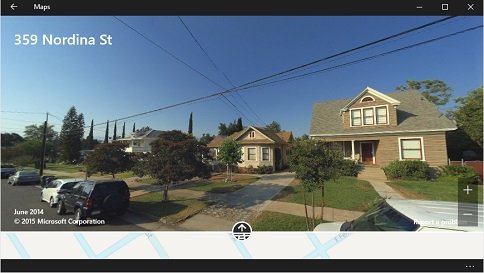
The Bing Maps map control gives Streetside its own set of on-screen controls. Each one does a single job.
| Control | What it does |
|---|---|
| Exit button | Leaves Streetside and returns to the flat map |
| Heading compass | Shows which direction the camera faces and turns the view |
| Zoom buttons | Zoom into or out of the current panorama |
| Current address | Names the street address you are looking at |
| Overview map | A small map that shows where the panorama sits on the street |
| Report a problem link | Sends Microsoft a report about a Streetside image |
Click a point further down the road, or drag the image, to move between panoramas.
Bing Maps Streetside keyboard shortcuts
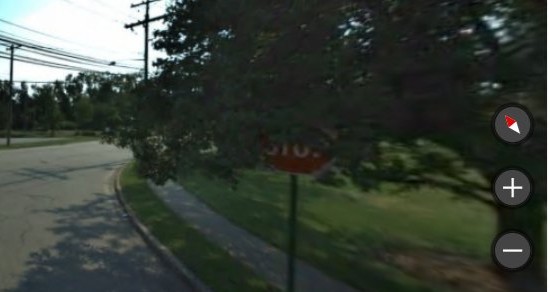
These keys work when the Streetside view has focus. Click the panorama once before you press them.
| To | Press |
|---|---|
| Move to the next panorama | Up arrow or Down arrow |
| Rotate the panorama | Left arrow or Right arrow |
| Zoom in | Plus sign (+) |
| Zoom out | Minus sign (-) |
On the flat map, r switches to Road view, a to Aerial and b to Bird's eye with labels.
Bing Maps Streetside vs Bird's eye view
Bing Maps has several imagery views. Streetside is the only one taken from street level.
| You want to see | Use this view | Why |
|---|---|---|
| A shop front, house entrance or road sign | Streetside | 360-degree imagery taken from the road |
| A building from an angle, with its sides visible | Bird's eye | High-resolution imagery shot at 45 degrees from four directions |
| Roofs, fields and the layout of a block | Aerial | Straight-down imagery from above |
| Roads and labels to plan a trip | Road | The standard map with streets and place names |
Planning a trip from street level? You can save a route in Bing Maps after checking the destination in Streetside.
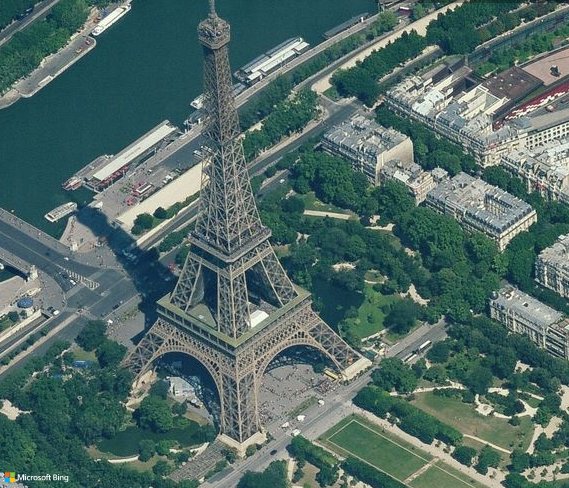
Where is Bing Maps Streetside available?
Streetside only appears where Microsoft has captured imagery and where the Bing Maps market supports it.
| Factor | Effect on Streetside |
|---|---|
| Imagery coverage | Streets without captured panoramas show no coverage overlay and cannot open Streetside |
| Zoom level | The coverage overlay appears automatically only after you zoom in |
| Market and location | Bing Maps hides Streetside in markets where it is not offered; Microsoft gives India (en-IN) as an example |
| Sites that embed Bing Maps | A website can switch Streetside off in its own embedded map |
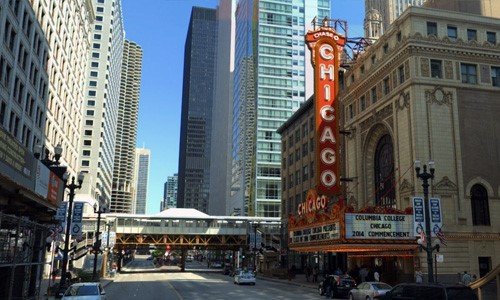
Streetside not showing in Bing Maps
Streetside is missing from the map style menu
Bing Maps lists Streetside only in areas and markets where imagery is offered.
- Search for a large city in the United States, such as Seattle, WA.
- Zoom in on a main street and open the map style menu again.
- If Streetside now appears, the place you wanted has no imagery yet.
No coverage overlay appears on the streets
The overlay only shows once the map is zoomed in far enough.
- Zoom in with the + button or the mouse wheel until individual streets are clear.
- Select Streetside in the map style menu again.
- Click a highlighted street rather than a building or park.
Streetside will not open on another website's map
Sites that embed Bing Maps can turn Streetside off in their own map.
- Note the address shown on the site.
- Open bing.com/maps in a new tab and search for that address.
- Use Streetside on Bing Maps itself.
The Maps app is missing from Windows
Microsoft removed the deprecated Maps app from the Microsoft Store in July 2025.
- Open bing.com/maps in your browser instead.
- Follow the web steps at the top of this guide.
Bing Maps Streetside FAQ
What is the difference between Street View and Streetside?
They are the same idea from two companies. Street View is Google's name for street-level panoramas in Google Maps, and Streetside is Microsoft's name for the 360-degree street imagery in Bing Maps. Coverage differs, so if Bing has no imagery for a street, Google Maps on your PC may show it.
Why can't I find Streetside in Bing Maps?
Bing Maps only shows Streetside where imagery exists and where your market supports it. Zoom in on a street first, because the coverage overlay appears only at closer zoom levels. Microsoft hides the feature in some markets, India being its own example.
Do I need to enable any settings to use Streetside?
No setting needs switching on in Bing Maps on the web. Select Streetside in the map controls and click a covered street. The old Windows Maps app was different: you selected Road and turned on its Streetside switch.
Is Streetside available on mobile devices?
Microsoft documents Streetside for Bing Maps on the web and in the Windows Maps app. On a phone, open bing.com/maps in the browser and use the same map controls. The same coverage and market limits apply.
Can I use Streetside offline?
No. Streetside panoramas load from Microsoft's Bing Maps imagery service as you move, so the view needs an internet connection. Open the street while you are online if you want to study it before a trip.
Is Bing Maps Streetside free to use?
Yes. Streetside is part of Bing Maps at bing.com/maps, which needs no account or payment to browse. Developers who embed Bing Maps in their own apps work under Microsoft's separate Bing Maps for Enterprise terms.
How do I exit Streetside in Bing Maps?
Select the exit button in the Streetside view to return to the flat map. In the old Windows Maps app, the button was labelled Exit Streetside. Either way, you land back on the map at the same location.