To make a custom notification sound on Android, copy a short MP3 file into the phone's Notifications folder, then open Settings > Sound & vibration > Default notification sound and select it.
This guide covers getting the file onto the phone, setting it as the default sound, giving one app or one notification type its own sound on Pixel and Samsung Galaxy phones, Gmail's sound setting, and what to do when the sound doesn't appear.
Step by step tutorial: Make a custom notification sound Android
Menu names vary a little by phone maker and Android version. These steps use the labels on Android 12 and later.
- Pick or create a short audio clip and save it as an MP3 file with a clear name, such as
ping.mp3. - Unlock your phone and connect it to your computer with a USB cable.
- On the phone, tap the Charging this device via USB notification and select File Transfer under Use USB for.
- In the file window on your computer, open the phone's main storage and drag the MP3 into the Notifications folder. Create the folder if it isn't there.
- Eject the phone from Windows and unplug the cable.
- On the phone, open Settings and tap Sound & vibration.
- Tap Default notification sound, select your file in the list and tap Save.
What audio formats work for Android notification sounds?
Android plays the same formats for notification sounds as for any other audio. Google's supported media formats list includes these common ones.
| Format | File extension | Notes |
|---|---|---|
| MP3 | .mp3 | The format Google's own help uses for custom ringtones; the safest choice |
| AAC | .m4a, .mp4, .3gp | Compressed and widely supported |
| Ogg Vorbis | .ogg | Compressed, small files |
| Opus | .ogg | Playback on Android 5.0 and later |
| FLAC | .flac | Lossless, but large for a short alert |
| WAVE (PCM) | .wav | Uncompressed 8- and 16-bit audio |
| MIDI | .mid, .xmf, .mxmf | Plays, but sounds depend on the phone's synthesizer |
How to copy a sound file to the Notifications folder on Android
Android has standard folders for audio that should appear in the system pickers: Notifications for alert sounds, Ringtones for call tones and Alarms for alarm tones. A file in the Music folder is treated as regular music.
- Unlock the phone and plug it into a Windows PC with a USB cable.
- Tap the Charging this device via USB notification on the phone.
- Under Use USB for, select File Transfer.
- In the window that opens on the PC, open the phone's internal storage.
- Open the Notifications folder, or create a new folder with that name at the top level of the storage.
- Drag your sound file into the folder.
- Eject the device from Windows, then unplug the USB cable.
Google's help also lets you copy an MP3 into the Ringtones folder the same way if you want the clip as a call ringtone instead.
How to change the default notification sound on Android
- Open the Settings app.
- Tap Sound & vibration. On older Android versions this menu is called Sound.
- Tap Default notification sound.
- Scroll to your custom file, or pick a built-in sound.
- Tap Save.
Apps that use the default sound switch to it straight away. Apps with their own sound settings keep theirs until you change them.
How to set a custom notification sound for a specific app on Android
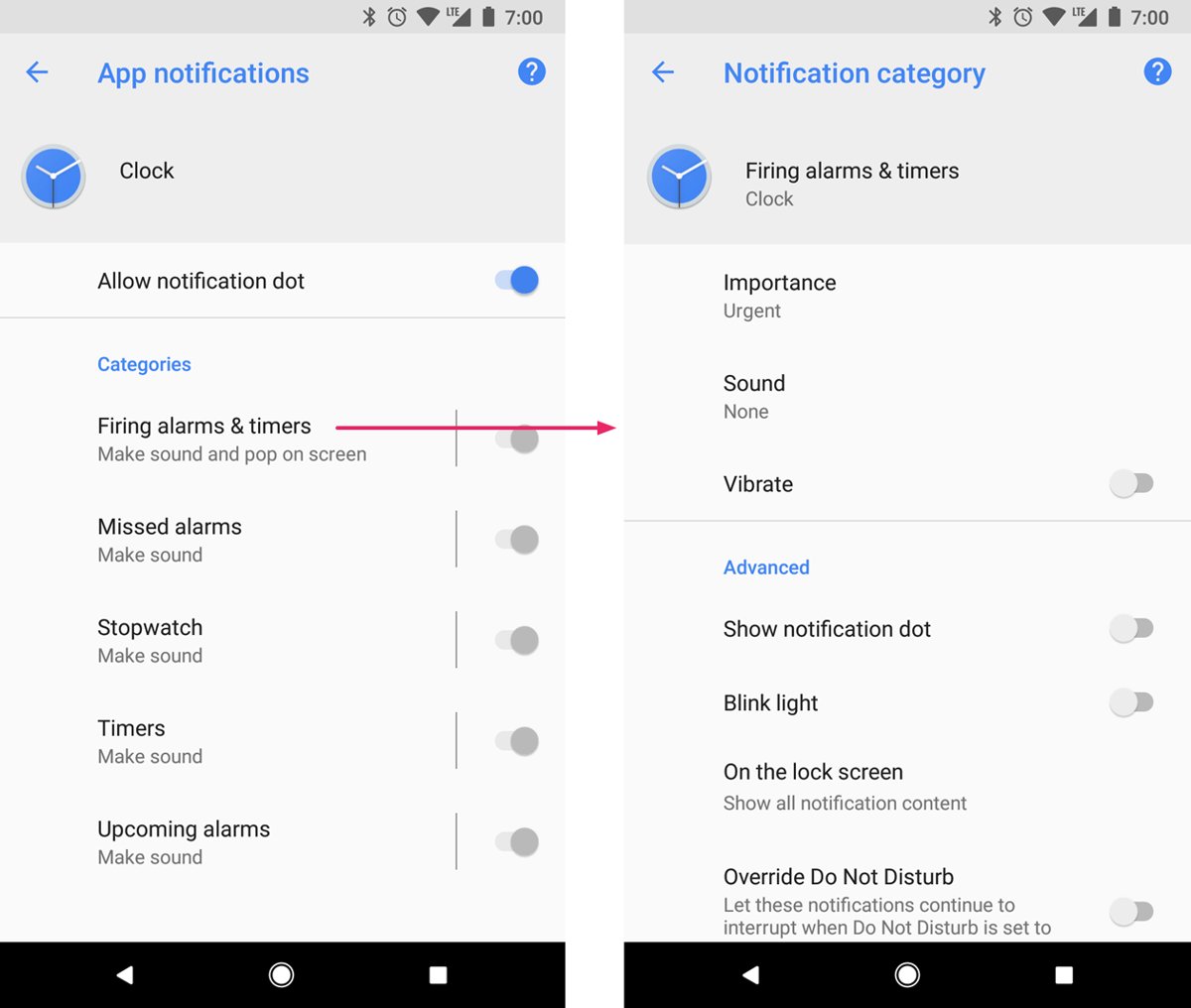
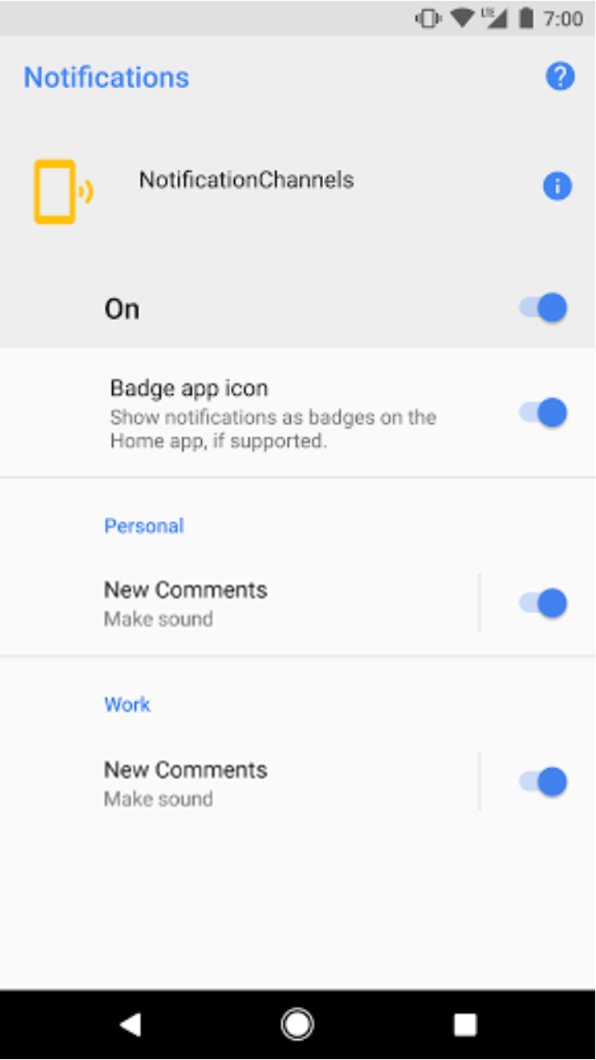
Since Android 8.0, every app notification belongs to a channel, which Settings shows as a notification category. Each category can have its own sound, and once an app creates it, only you can change that sound.
- When a notification from the app arrives, touch and hold it, then tap Settings.
- Or open Settings > Notifications > App notifications and tap the app.
- Tap the notification category you want, such as messages or mentions.
- Make sure the category is set to Alerting rather than Silent.
- Tap Sound and choose your custom file.
- Repeat for each category that should use the custom sound.
How to make custom notification sound Samsung
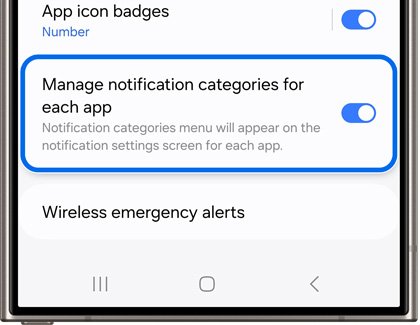
Samsung Galaxy phones hide notification categories until you turn them on. Not every app supports a custom sound; some offer it in their own settings instead.
- Open Settings and tap Notifications.
- Tap Advanced settings and turn on Manage notification categories for each app, then go back.
- Tap App notifications and select the app.
- Tap Notification categories and select a category.
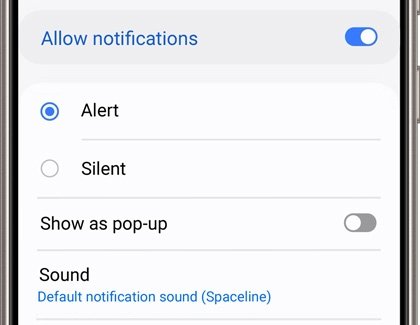
- Make sure Allow notifications is on and Alert is selected.
- Tap Sound and choose the sound for that notification.
How to change Gmail notification sound on Android
Gmail keeps its sound setting inside the app, per account. Set it for each account you have in Gmail.
- Open the Gmail app and tap Menu at the top left.
- Tap Settings and select your account.
- Under Notifications, tap Notification sounds.
- Under Email or Chat and spaces, tap Notification sound, then Sound.
- Choose your custom sound, or tap None to mute Gmail alerts.
How to set a custom ringtone for a contact on Android
Calls use ringtones, not notification sounds. To hear a custom tone when one person calls, assign it in Contacts.
- Copy the MP3 into the phone's Ringtones folder over USB.
- Open the Contacts app and tap the contact.
- Tap More, then Set ringtone.
- Select your file and tap Save.
Tips for making a custom notification sound Android
| Tip | Why it matters |
|---|---|
| Keep the clip to a second or two | A long clip gets cut off or repeats over the next alert |
| Trim silence from the start | The sound plays the moment the notification arrives |
| Save as MP3 | It is the format Google's own instructions use |
| Give the file a clear name | The picker lists files by name, so ping.mp3 is easy to find |
| Put it in Notifications, not Music | Files in the standard Notifications folder appear in the notification sound list |
| Use different sounds per app category | You can tell a work chat from a delivery alert without looking |
| Keep a copy on your computer | You can copy it back after a reset or onto a new phone |
How to reset notification sound to default on Android
- Open Settings > Sound & vibration > Default notification sound.
- Select one of the built-in sounds and tap Save.
- For an app with its own sound, open its notification category and set Sound back to the default.
- Delete the custom file from the Notifications folder if you no longer want it in the list.
Custom notification sound not showing or not playing on Android
Custom sound not in the notification sound list
The file is in the wrong folder or in a format the phone can't play.
- Move the file into the Notifications folder at the top level of internal storage.
- Convert it to MP3 if it is in an unusual format.
- Restart the phone, then open the sound picker again.
App still plays its old sound
The app's notification category has its own sound that overrides the default.
- Touch and hold one of the app's notifications and tap Settings.
- Open the category and set Sound to your file.
- Check the app's own settings, as Gmail does, for a separate sound option.
Notification arrives with no sound
The category is set to Silent, notification volume is down, or Do Not Disturb is on.
- Set the app's notification category to Alerting.
- Press a volume button, tap the menu and raise Notification volume.
- Turn off Do Not Disturb or allow the app through it.
- If alerts are missing entirely on a locked phone, fix notifications on the lock screen.
No Sound option for an app on Samsung
Notification categories are off, or the category is not set to Alert.
- Turn on Manage notification categories for each app under Notifications > Advanced settings.
- Select Alert for the category, then tap Sound.
- If the option is still missing, look for a sound setting inside the app itself.
Custom notification sound Android FAQ
What audio formats are supported for custom notification sounds on Android?
Android plays MP3, AAC (.m4a), Ogg Vorbis and Opus (.ogg), FLAC, WAV and MIDI files. MP3 is the safest choice because Google's own help uses it for custom tones, and every Android phone plays it.
How can I make my own sound clip for a custom notification sound?
Record the sound with a voice recorder app, use Sound Recorder on Windows 11, or cut it from an audio file you own on your computer. Trim it to a second or two, remove silence at the start, export it as MP3 and copy it into the phone's Notifications folder.
Can I set a custom notification sound for specific apps?
Yes. Touch and hold the app's notification, tap Settings, open a notification category and tap Sound. On Samsung phones, first turn on Manage notification categories for each app. Some apps, such as Gmail, keep the sound setting inside the app.
Will my custom notification sound transfer if I switch to a new Android device?
Don't rely on it. The setting points at a file on the old phone. Copy the MP3 to the new phone's Notifications folder over USB, then choose it again under Default notification sound and in each app category.
Is there a limit to how many custom notification sounds I can have on my Android device?
Android's documentation sets no number limit for files in the Notifications folder. Storage space is the only practical limit, and short clips take very little. A very long list just makes the picker slower to scroll.
How do I set a custom notification sound on Android without a computer?
Save or record the clip on the phone, then use a file manager app to move it into the Notifications folder in internal storage. Open Settings > Sound & vibration > Default notification sound and select it.
How do I customize notifications on Android?
In your phone's Settings app, open Notifications to turn apps on or off, set categories to Alerting or Silent, control lock screen content and turn on notification history. Each category can also have its own sound.
Why is my custom notification sound not playing?
The app's category is usually set to Silent, notification volume is low, or Do Not Disturb is on. Set the category to Alerting, raise Notification volume and check that the file still exists in the Notifications folder.