To block someone on Snapchat, swipe right to the Chat screen, tap and hold the person's name, tap Manage Friendship, then tap Block.
This guide covers every place you can block from, blocking a Public Profile or a stranger who messages you, what changes for the blocked person, how to unblock, and what to do when Block is missing.
Step-by-step guide: how to block someone on Snapchat
This is the fastest route for anyone already in your Friends Feed. The person gets no notification that you blocked them.
- Open the Snapchat app.
- Swipe right from the Camera screen to open the Chat screen.
- Find the person in your Friends Feed.
- Tap and hold their name until the menu opens.
- Tap Manage Friendship.
- Tap Block.
Their name leaves your Friends Feed straight away, and your one-on-one conversation with them is no longer visible.
Snapchat blocking methods comparison
Where you start depends on who the person is. All routes end with the same block.
| Your situation | Block from here | Why |
|---|---|---|
| The person is a friend in your Friends Feed | Chat screen: tap and hold their name | Fewest taps, no need to open the chat |
| You already have their chat open | Their profile icon, then the three circles | Works without going back to the feed |
| The account is a Public Profile | The three-dot icon on the Public Profile | Public Profiles have their own Block option |
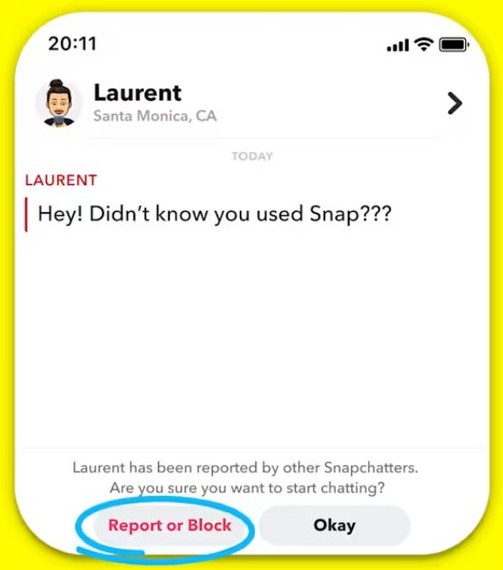
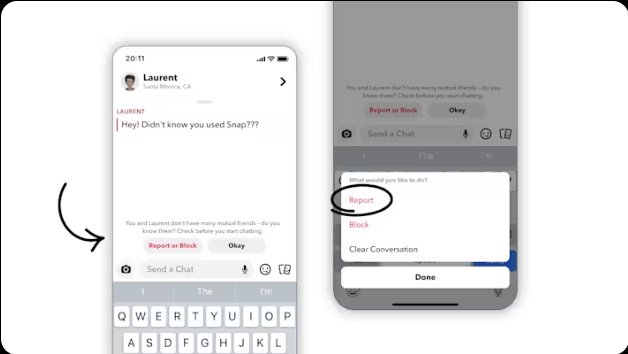
| A stranger who is not your friend messages you | Report or Block in that Chat | Clears the conversation from your feed in one step |
| You are using Snapchat on a computer | The Snapchat app on your phone | Snapchat Support documents block steps for the app only |
How to block someone on Snapchat: complete guide
Use this route when you are already in a conversation with the person and want to block them from their profile.
- Swipe right to open the Chat screen.
- Tap the chat with the person you want to block.
- Tap their profile icon at the top of the chat to open their profile.
- Tap the three circles at the top of the profile.
- Tap Manage Friendship.
- Tap Block.
Blocking a friend takes them off your Search results, your Best Friends list and Quick Add suggestions as well.
How to block a Public Profile on Snapchat
Public Profiles, such as creators and businesses, are not in your Friends Feed, so the Manage Friendship menu does not apply to them.
- Open the Public Profile you want to block.
- Tap the three-dot icon in the top right corner.
- Tap Block.
- Tap Yes to confirm.
How to block someone on Snapchat who is not your friend
By default, only your Snapchat friends can contact you. People saved in your phone's Contacts can still message you before you add them.
- Swipe right to open the Chat screen.
- Open the message from the person who is not your friend.
- Tap Report or Block in the Chat to clear the conversation from your feed.
- To stop messages from non-friends entirely, tap the gear icon in My Account to open Settings.
- Tap Who Can Contact Me and select Friends.
Snapchat says the sender will not know that you hid or blocked them.
How to block someone on Snapchat web
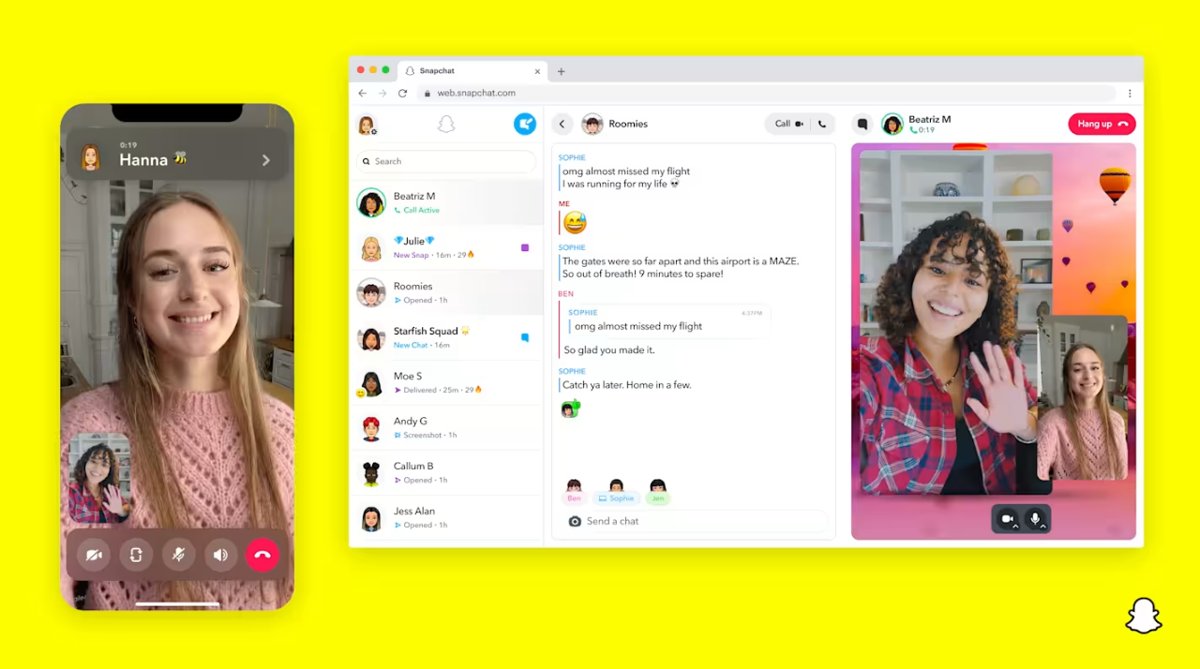
Snapchat for Web at web.snapchat.com covers chatting, calls, Snaps and file sharing, and Snapchat Support documents block steps for the mobile app only.
The Blocked Users list sits in your account Settings, so a block you make on your phone applies to the account you sign in with on your computer.
- Pick up the phone that has the Snapchat app signed in to the same account you use at web.snapchat.com.
- Open Snapchat and swipe right to the Chat screen.
- Tap and hold the person's name.
- Tap Manage Friendship, then tap Block.
- Return to web.snapchat.com and reload the page in Chrome, Edge or Safari.
Snapchat for Web needs the latest Snapchat app on your phone, signed in to the same account, and you can be signed in to it on only one computer at a time.
Why is blocking someone on Snapchat important?
Blocking is the only Snapchat control that cuts off all direct contact at once. Muting and removing a friend each leave a door open.
| Problem | What blocking stops |
|---|---|
| Unwanted Snaps or Chats | The blocked person can no longer send you Snaps or Chats |
| Someone watching your Stories | They no longer see your Stories or Charms |
| Location sharing you regret | Your Snap Map location is hidden from them, even if you shared it before |
| Being added to new groups | They cannot add you to new Group Chats or message you privately |
| Seeing them around the app | They drop out of your Search results, Best Friends list and Quick Add suggestions |
What happens when you block someone on Snapchat
Some things carry on after a block, and knowing them avoids surprises.
| After the block | What happens |
|---|---|
| Notification | The person is not notified, but they can spot the signs of being blocked, such as no longer seeing your profile or reaching you |
| Public Stories and Spotlight | Blocked users can still view content you post publicly |
| Shared Group Chats | You stay in the group and still see their messages there, unless you leave |
| Your one-on-one chat | The conversation disappears from your Chat screen |
| Saved messages | Saved messages may be removed once you are no longer friends |
| If you unblock later | You may not see all of your previous Chat history with that person |
Alternative methods to block someone on Snapchat
If a full block is more than you want, these controls limit contact without cutting it off.
| Alternative | Where to find it | What it does | What the person can still do |
|---|---|---|---|
| Remove Friend | Chat screen > tap and hold the name > Manage Friendship > Remove Friend | Takes them off your friends list and private Stories | View public content, and Snap or Chat you if your settings allow |
| Mute Story | Chat screen > tap and hold the name > Story Settings > Mute Story | Stops their Story appearing at the top of your Stories | Everything; they are not notified |
| Mute Chats or Mute Calls | Chat screen > tap and hold the name > Chat and Notification Settings > Notification Settings | Silences their notifications | Send Snaps and Chats as usual |
| Who Can Contact Me: Friends | Settings > Who Can Contact Me | Stops non-friends contacting you directly | Message you inside a Group Chat you share |
| Who Can View My Story: Custom | Settings > My Privacy & Data | Hides your Story from friends you pick | Contact you normally |
If you want to leave the app altogether instead, you can delete your Snapchat account permanently.
How to unblock someone on Snapchat
Unblocking does not add the person back as a friend. You both have to add each other again.
- Tap your profile icon at the top of the screen.
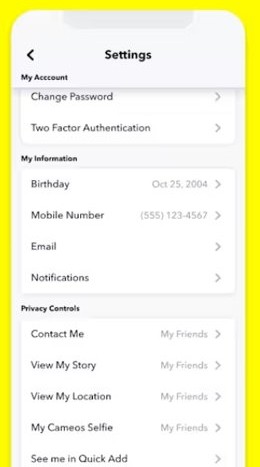
- Tap the gear icon to open Settings.
- Scroll down and tap Blocked Users.
- Tap the X next to the name to unblock that person.
- To be friends again, search for their username and tap + Add. You are friends once they add you back.
Tips for blocking effectively on Snapchat
A block covers one account. These habits make it hold.
| Tip | Why |
|---|---|
| Report the account as well as blocking it | Snapchat lets you report an account or a specific Snap from the app or a web form when someone breaks its rules |
| Leave Group Chats you share with them | A block does not remove you from an existing group |
| Set Who Can Contact Me to Friends | Stops a new account from the same person messaging you |
| Block on other apps too | A Snapchat block does nothing to their texts or calls, so block their number on iPhone as well if they contact you there |
Snapchat block still not working? Troubleshooting common issues
Most block problems come from using the wrong menu for the type of account.
Why can't I block someone on Snapchat?
Manage Friendship only appears for friends, so Public Profiles and strangers need a different route.
- For a Public Profile, open it and tap the three-dot icon, then Block and Yes.
- For a stranger who messaged you, open the Chat and tap Report or Block.
- For a friend, swipe right to Chat, tap and hold the name, tap Manage Friendship, then Block.
Snapchat won't let me block someone on a laptop or PC
Snapchat Support documents blocking in the mobile app, not in Snapchat for Web.
- Open Snapchat on your phone, signed in to the same account.
- Block the person from the Chat screen.
- Reload web.snapchat.com on your computer.
The blocked person still shows up in a group chat
Blocking does not remove you from a Group Chat you already share.
- Open the Group Chat.
- Leave the group if you do not want to see their messages.
- Keep the block in place so they cannot message you privately or add you to new groups.
The blocked person can still see my Spotlight or Public Story
Blocked users can still view content you post publicly.
- Post to your private Story instead of a Public Story.
- Delete any public posts you do not want them to see.
Frequently asked questions about blocking on Snapchat
How to block someone on Snapchat?
Swipe right to the Chat screen, tap and hold the person's name, tap Manage Friendship, then tap Block. You can also open their profile from a chat, tap the three circles, and choose Manage Friendship and Block.
Can someone tell if I blocked them on Snapchat?
Snapchat does not notify the person. They can work it out if they notice they can no longer view your profile, send you Snaps or Chats, or see your Stories and Snap Map location.
How to block on Snapchat web?
Snapchat Support documents block steps for the mobile app only. Block the person in the Snapchat app on your phone, signed in to the same account, then reload web.snapchat.com on your computer.
How to block someone on Snapchat on a laptop or PC?
Use your phone. Snapchat for Web handles chats, calls, Snaps and file sharing in Chrome, Edge or Safari, but Snapchat's own block instructions are for the app: Chat screen, tap and hold the name, Manage Friendship, Block.
Why won't Snapchat let me block someone?
The Manage Friendship menu only appears for friends. Block a Public Profile from its three-dot icon, and block a stranger who messaged you by tapping Report or Block in that Chat.
Can I unblock someone after blocking them on Snapchat?
Yes. Tap your profile icon, tap the gear icon for Settings, scroll to Blocked Users and tap the X next to the name. Unblocking does not restore the friendship, so you both need to add each other again.
Will blocking delete my chat history on Snapchat?
The one-on-one conversation disappears from your Chat screen when you block. If you unblock later, you may not see all of your previous Chat history, and saved messages may be removed once you are no longer friends.
What is the difference between blocking and removing a friend on Snapchat?
Blocking stops all direct contact. Removing a friend only takes them off your friends list and your private Stories, and depending on your privacy settings they can still Snap or Chat you and view your public content.
Does muting someone on Snapchat block them?
No. Muting only changes what you see and hear. A muted person can still view your Stories and send you Snaps and Chats, and they are not notified that you muted them.