When Microsoft Outlook won't open, end every Outlook and Office process in Task Manager and start it again; if it still fails, open it with Outlook.exe /safe to check whether an add-in is blocking the start.
This guide covers 10 fixes for classic Outlook and the new Outlook app on Windows 11 and Windows 10, from the quickest restart to repairing the profile, data file and Office itself.
How to fix when Outlook won’t open
Fix 1 is the quickest. Outlook often fails to start because an earlier Outlook or Office process is still running in the background and holding the profile.
- Right-click an empty part of the taskbar and select Task Manager.
- On the Processes tab, find Microsoft Outlook and any other Office processes.
- Select each one and choose End task.
- Close Task Manager and open Outlook again.
- If it still will not start, restart the PC and try once more.
If Outlook still does not open, work through the fixes below in order. Fixes 2 to 9 are for classic Outlook; fix 10 is for the new Outlook app.
Why Outlook will not open
Each cause has a matching fix below, so jump straight to the one that fits what you see.
| Cause | Typical sign | Fix |
|---|---|---|
| Outlook or Office still running in the background | Nothing happens when you click the icon, or it hangs at Loading Profile | Fix 1 |
| An add-in conflicts with Outlook | Outlook opens in safe mode but not normally | Fixes 3 and 4 |
| Damaged navigation pane settings | "Cannot start Microsoft Outlook. Cannot open the Outlook window" | Fix 5 |
| A corrupted Outlook profile | Outlook fails even in safe mode | Fix 6 |
| A damaged .pst or .ost data file | Outlook says it cannot open the data file or the set of folders | Fix 7 |
| Damaged or outdated Office files | Other Office apps also misbehave | Fixes 8 and 9 |
| A problem with the new Outlook app | New Outlook closes or never loads | Fix 10 |
2. Run the classic Outlook startup troubleshooter
Microsoft's classic Outlook startup troubleshooter runs in the Get Help app and checks several common start-up problems for you. It needs Windows 10 or later and must run on the same PC as Outlook.
- Open Microsoft's support article for the "Cannot start Microsoft Outlook" error on the PC where Outlook fails.
- Select Start under the classic Outlook startup troubleshooter.
- Select Open if the browser says the site is trying to open Get Help.
- Follow the prompts in the Get Help window.
- Try opening Outlook when the troubleshooter finishes.
3. Start Outlook in safe mode with Outlook.exe /safe
Safe mode starts Outlook without add-ins. If Outlook opens this way, an add-in is the likely cause, and fix 4 finds it. The same switch works from the Start search box, and there are more ways to open Outlook in safe mode if Run is blocked.
- Press Windows key + R to open Run.
- Type
Outlook.exe /safein the Open box and select OK. - In Choose Profiles, keep the default Outlook profile and select OK.
- Enter your password and select Accept if asked.
- Look for the safe mode label at the top of the Outlook window.
If Windows cannot find Outlook.exe /safe, type the full path to Outlook instead, for example the folder under C:\Program Files\Microsoft Office. If Outlook does not open even in safe mode, skip to fix 6.
4. Disable Outlook add-ins that stop it from opening
Do this from safe mode. Clear the add-in check boxes rather than selecting Remove, which can delete the add-in.
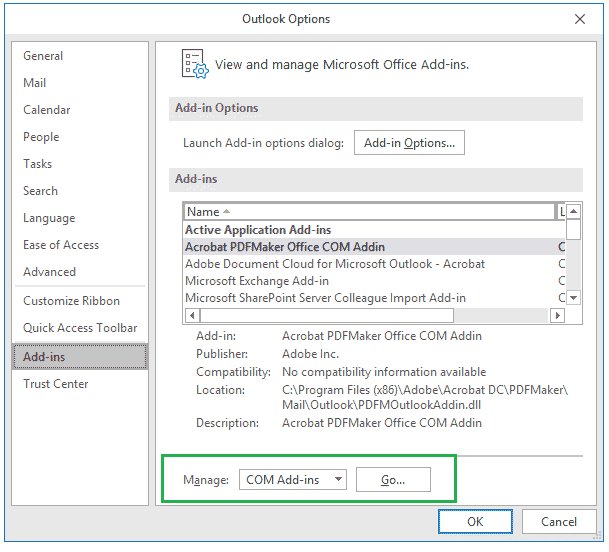
- In Outlook, select File > Options > Add-ins.
- Make sure Manage shows COM Add-ins, then select Go.
- Write down or screenshot which add-ins are ticked.
- Clear every ticked box and select OK.
- Select File > Exit, then press Windows key + R, type
Outlookand select OK. - If Outlook opens, re-enable one add-in at a time and restart Outlook after each until the problem returns.
- Leave the add-in that caused it switched off.
Microsoft notes that an outdated ABBYY FineReader add-in can cause Outlook start-up errors. More than one add-in can be at fault, so test each one. If Outlook keeps starting only in safe mode, there is a separate fix for Outlook only opening in safe mode.
5. Run Outlook.exe /resetnavpane
The navigation pane holds your folder list and the Mail, Calendar, People and Tasks icons. Resetting it removes its customizations, which clears a damaged pane that stops Outlook from starting. Close Outlook first.
Outlook.exe /resetnavpanePress Windows key + R, type the command in the Open box and select OK. Outlook starts with the navigation pane rebuilt from defaults. Customizations are stored per PC, so run it on each computer that shows the error.
You should see: Outlook opens and the folder pane shows your default folders. Re-add any favourites you had pinned.
6. Create a new Outlook profile when Outlook won’t start
A profile holds your accounts, data files and settings. If Outlook fails even in safe mode, a new profile tells you whether the old one is corrupt.
- Hold Shift while you start Outlook, or press Windows key + R, type
Outlook.exe /profilesand press Enter. - In the profile picker, select Options.
- Tick Prompt a profile to be used so you can choose a profile at each start.
- Select New, type a name for the profile and select OK.
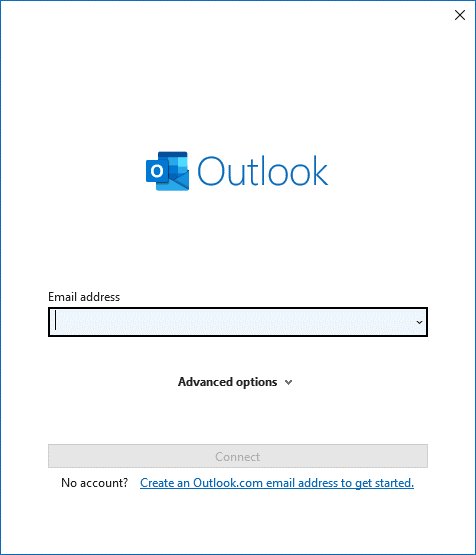
- Add your email account when Outlook asks.
- Start Outlook and pick the new profile from the Choose Profile list, then select OK.
If Outlook opens with the new profile, the old one was the problem. Back up its data files before you remove it, because removing a profile deletes its offline cached content. On Windows 10 you can also create profiles from Control Panel > User Accounts > Mail > Show Profiles > Add.
7. Repair Outlook data files with the Inbox Repair tool
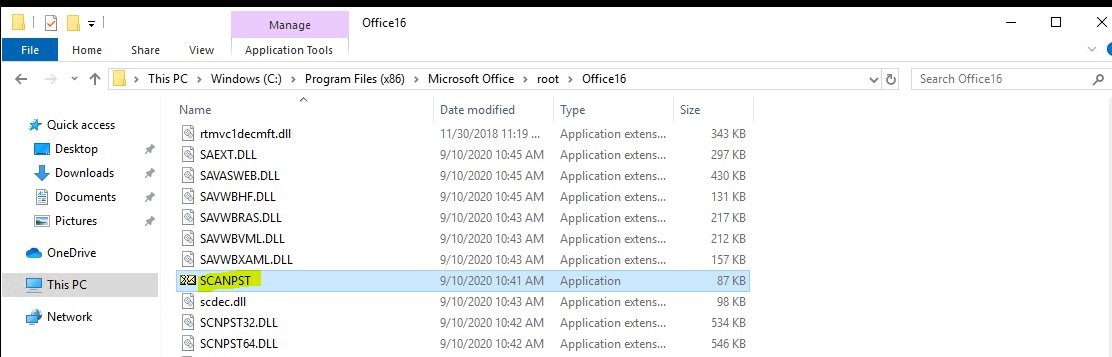
The Inbox Repair tool (SCANPST.EXE) checks .pst data files for corruption. Use it when Outlook says it cannot open your data file or the set of folders. Back up the .pst file first.
- Exit Outlook.
- Open the Office folder, for example C:\Program Files (x86)\Microsoft Office\root\Office16 for Outlook 2016 and 2019.
- Open SCANPST.EXE.
- Select Browse and choose the .pst file you want to check.
- Select Start to scan the file.
- If errors are found, select Repair.
- Start Outlook with the profile that uses the repaired file.
You may need to run the tool more than once. For an Exchange or Microsoft 365 account, you can delete the offline .ost file instead, and Outlook rebuilds it from the server the next time it opens.
8. Repair Office when Outlook won’t start
A repair replaces damaged Office program files. It repairs the whole suite, not just Outlook.
- Close all Office apps.
- On Windows 11, right-click Start and select Installed apps. On Windows 10, right-click Start and select Apps and Features.
- Find your Microsoft 365 or Office entry, select the … menu (Windows 11) or the entry itself (Windows 10), and select Modify.
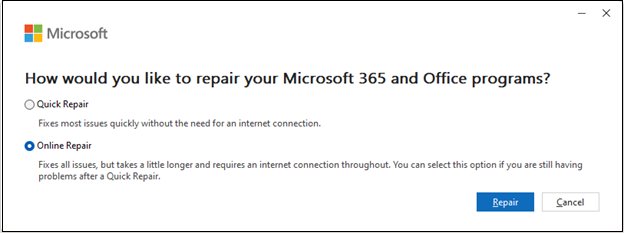
- For a Click-to-run install, select Online Repair > Repair.
- For an MSI-based install, select Repair in Change your installation, then select Continue.
- Follow the prompts, then restart the PC and open Outlook.
Quick Repair is faster but only finds and replaces corrupted files. Online Repair takes longer and fixes more.
9. Update Office to fix Outlook not opening
Office updates fix known start-up bugs. You do not need Outlook to open: any Office app can install the updates.
- Open another Office app, such as Word, and create a new document.
- Select File > Account.
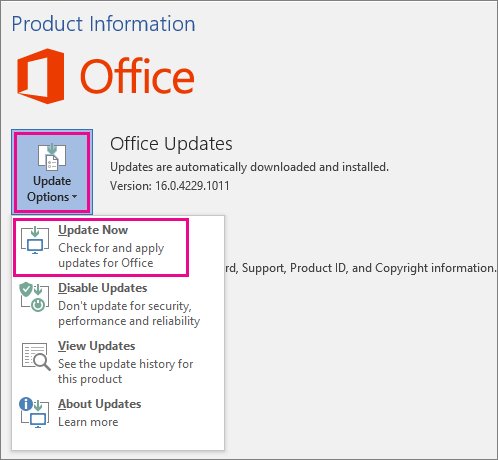
- Under Product Information, select Update Options > Update Now.
- Select Enable Updates first if Update Now is missing.
- Close the You're up to date! or Updates were installed window, then open Outlook.
If Update Options is missing and only About shows, your organisation manages updates; contact its help desk. If no Office app opens at all, repair Office first (fix 8).
10. Repair or reset the new Outlook app in Windows 11
The fixes above apply to classic Outlook. The new Outlook for Windows is a separate app, so repair it from Settings or reinstall it from the Microsoft Store.
- Open Task Manager, select Microsoft Outlook and choose End task.
- Open Start > Settings > Apps > Installed apps.
- Select the More icon next to the new Outlook app and choose Advanced options.
- Select Repair, then try opening Outlook.
- If that fails or Repair is missing, select Reset.
- If it still will not open, uninstall the app from the Start menu and reinstall it from the Microsoft Store.
Cannot start Microsoft Outlook error and other startup problems
"Cannot start Microsoft Outlook. Cannot open the Outlook window"
Usually a damaged navigation pane, a bad add-in or a corrupt profile.
- Run
Outlook.exe /resetnavpane(fix 5). - Start in safe mode and disable add-ins (fixes 3 and 4).
- Create a new profile if the error remains (fix 6).
"The set of folders cannot be opened. The attempt to log on to Microsoft Exchange has failed"
A damaged data file or, for work mailboxes, a problem on the Exchange Online service.
- Repair the data file with the Inbox Repair tool (fix 7).
- Use Outlook on the web or the new Outlook for Windows to reach your mail in the meantime.
- If it is a work account and the error persists, ask your administrator to open a case from the Microsoft 365 admin center.
Outlook stuck at Loading Profile
Other Office processes are running in the background and block the profile.
- End every Office process in Task Manager (fix 1).
- In Outlook, select File > Options > People and clear Display online status next to name and Show user photographs when available.
- Select OK and restart Outlook.
Outlook stuck at Processing
An add-in or a hidden dialog box holds up the start.
- Press Alt + Tab and answer any dialog box waiting for a response.
- Close Outlook, start it with
Outlook.exe /safe, then close it and open it normally.
Windows cannot find Outlook.exe /safe
Run cannot locate Outlook.exe on that PC.
- Type the full path to Outlook.exe inside the Office folder under C:\Program Files\Microsoft Office, followed by
/safe.
Outlook won’t open FAQ
Why is my Outlook not opening on Windows 11?
The usual causes are a stuck Outlook process, a faulty add-in, damaged navigation pane settings, a corrupt profile or data file, or damaged Office files. End Outlook in Task Manager first, then try safe mode to see whether an add-in is the cause.
How do I force Outlook to open?
End every Outlook and Office process in Task Manager, then press Windows key + R, type Outlook.exe /safe and select OK. Safe mode starts Outlook without add-ins, which gets it open when an add-in is blocking the normal start.
Will repairing Office delete my emails?
No. Repairing Office replaces damaged program files and does not touch your mailbox. Your mail lives in your account and in Outlook data files, which the Office repair leaves in place.
Will creating a new Outlook profile delete my email?
Creating a new profile does not delete anything. Removing the old profile later deletes its offline cached content, so back up any .pst data files first. Mail stored on Microsoft 365 or Exchange downloads again into the new profile.
What does Outlook.exe /resetnavpane do?
It removes all customizations to the navigation pane, the left pane with your folder list and the Mail, Calendar and People icons. It clears a damaged pane that can stop Outlook from opening, and it must be run on each PC separately.
Can I read my email while Outlook won't open?
Yes. Sign in to Outlook on the web in a browser, or use the new Outlook for Windows. Microsoft suggests both as workarounds when classic Outlook shows the 'Cannot start Microsoft Outlook' error.
Does the classic Outlook troubleshooter work on the new Outlook?
No. The classic Outlook startup troubleshooter and the classic fixes apply only to classic Outlook. For the new Outlook app, end it in Task Manager, repair or reset it in Settings, or reinstall it from the Microsoft Store.
Get Outlook up and running again
End stuck Office processes first, then use safe mode to split add-in problems from profile and file problems. If Outlook opens in safe mode, disabling add-ins fixes it; if it does not, a new profile, the Inbox Repair tool and an Office repair cover what is left, in that order.