To install the SCCM console on Windows 11, run ConsoleSetup.exe from the Tools\ConsoleSetup folder on your Configuration Manager site server, enter the site server's FQDN and select Install.
This guide covers the setup wizard, the silent PowerShell or command-line install, deploying the console to other PCs, opening and connecting it, updating it after a site upgrade, and removing it.
Install the SCCM Console on Windows 11
You need local Administrator rights on the Windows 11 PC and Read access to the console installation files. Since version 2403 the console needs .NET Framework 4.8, and setup does not install it for you.
- On the Windows 11 PC, open File Explorer and browse to
\\<site server>\<install share>\Tools\ConsoleSetup, or copy the ConsoleSetup folder from the site server to the PC. - Open ConsoleSetup.exe.
- In the wizard, select Next.
- On the Site Server page, enter the fully qualified domain name (FQDN) of your central administration site or primary site server.
- On the Installation Folder page, accept or enter the folder for the console. The path cannot include trailing spaces or Unicode characters.
- On the Ready to Install page, select Install.
- When setup finishes, open Configuration Manager console from the Start menu.
Always install with ConsoleSetup.exe. Running AdminConsole.msi directly skips the prerequisite and dependency checks, so the console might not install correctly.
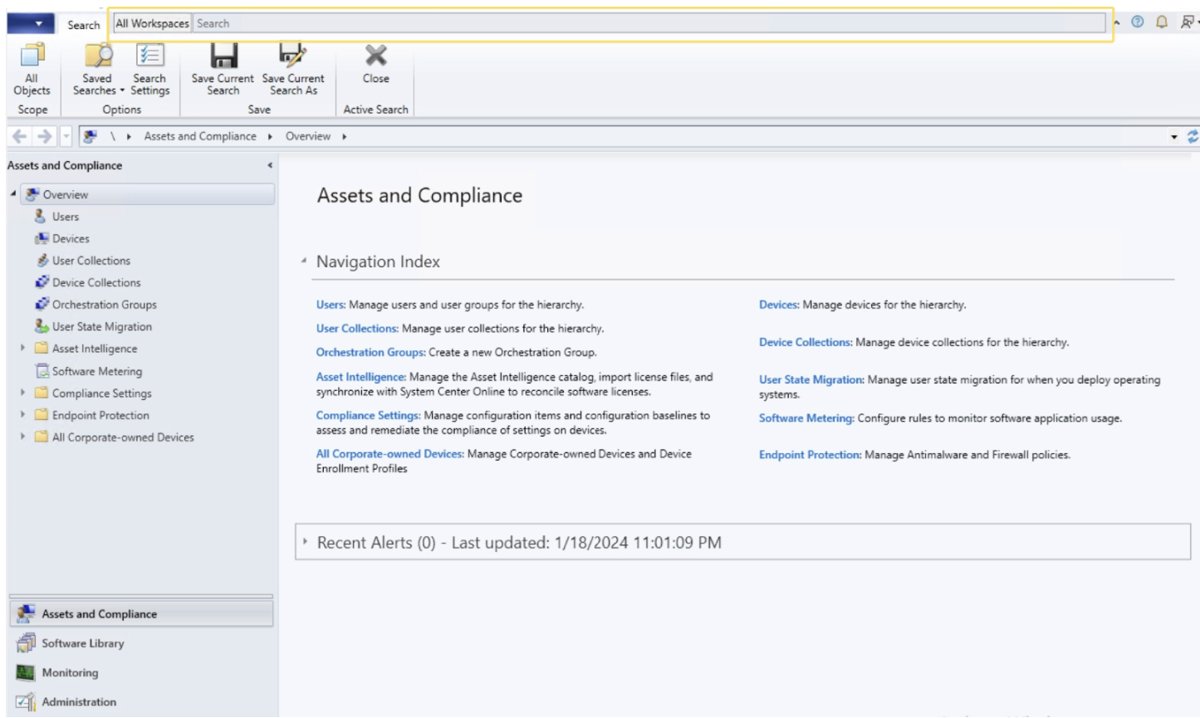
What is a SCCM console?
The SCCM console is the Configuration Manager console, the main administration tool for Microsoft Configuration Manager. The product was called System Center Configuration Manager (SCCM), and Microsoft now names it Configuration Manager as part of the Microsoft Intune family.
| Fact | Detail |
|---|---|
| What it does | Configures sites and clients, and runs and monitors management tasks such as app, update and OS deployments |
| Where it is installed | Always on every CAS and primary site server; you can add it to other computers |
| What it connects to | A central administration site or a primary site, never a secondary site |
| Workspaces | Assets and Compliance, Software Library, Monitoring, Administration |
| Access control | Role-based administration limits what each admin sees |
| Not the same as | Software Center, the end-user app installed with the Configuration Manager client |
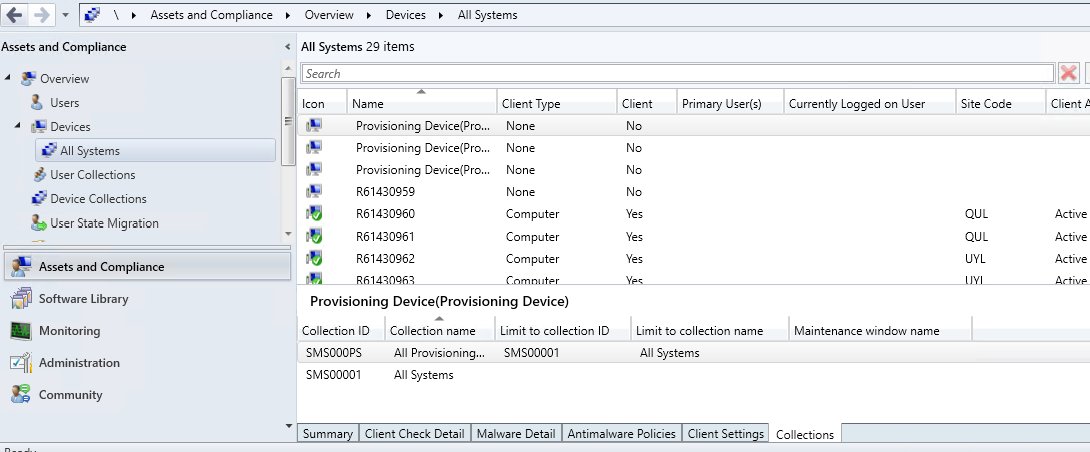
Users install deployed apps from Software Center, which admins can switch to the new Software Center in Configuration Manager from the console.
Install SCCM console on Windows 11 requirements
| Requirement | What Microsoft supports |
|---|---|
| Windows 11 | x64 Pro and Enterprise editions |
| Windows 10 | x86 and x64 Pro and Enterprise editions |
| Windows Server | 2016, 2019, 2022 (from version 2107) and 2025 (from version 2409), Standard and Datacenter |
| .NET Framework | 4.8 from version 2403; 4.6.2 minimum from version 2107 (setup does not install it) |
| PowerShell module | .NET 4.7.2 or later for the ConfigurationManager module, from version 2103 |
| Permissions | Local Administrator on the target PC and Read on the installation files |
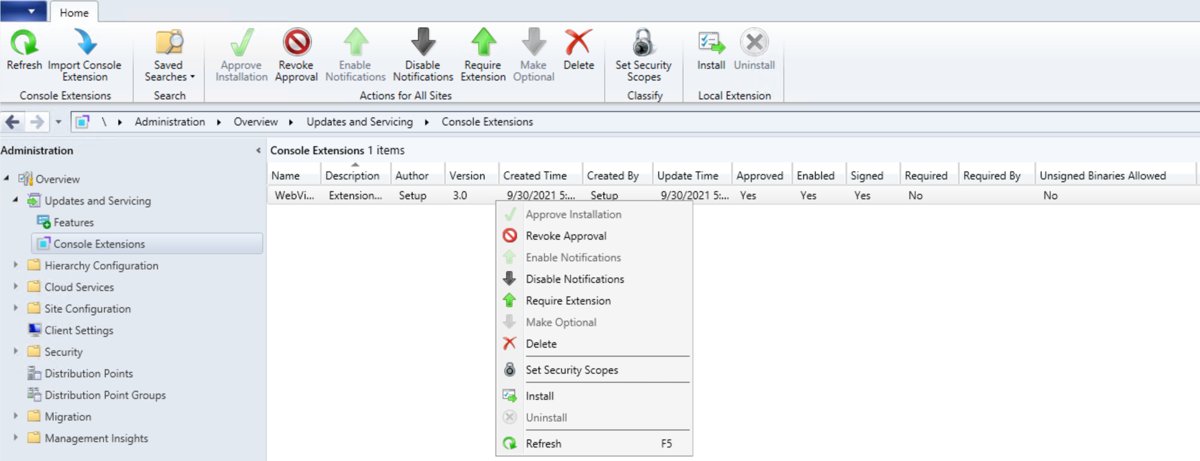
| After install | The WebView2 console extension for Community hub and dashboards, offered when you open the console |
Windows 11 Home is not on the supported list, so use a Pro or Enterprise PC for the console.
SCCM console install files location
There is no public SCCM console setup download. The installer comes from your own site server or your Configuration Manager installation media.
| Source | Path | When to use it |
|---|---|---|
| Site server install folder (recommended) | <ConfigMgr install path>\Tools\ConsoleSetup | Always first choice: the site keeps it up to date and includes the site's language packs |
| Configuration Manager installation media | \SMSSETUP\BIN\I386 | Only when you cannot reach the site server; it always installs the English console |
| CD.Latest folder | Not supported | Never install the console from CD.Latest; it can break the installation |
| Your own package or share | Copy of the ConsoleSetup folder | Deploying the console to many PCs |
A package must contain ConsoleSetup.exe, AdminConsole.msi, ConfigMgr.AC_Extension.i386.cab and ConfigMgr.AC_Extension.amd64.cab.
SCCM console install via PowerShell
A silent install runs from an elevated PowerShell window, or from Command Prompt as administrator, opened in the ConsoleSetup folder. The /q switch needs both TargetDir and DefaultSiteServerName.
.\ConsoleSetup.exe /q "TargetDir=C:\Program Files\ConfigMgr Console" DefaultSiteServerName=MyServer.Contoso.comInstalls the Configuration Manager console unattended into C:\Program Files\ConfigMgr Console and points it at the site server MyServer.Contoso.com. Replace the server name with your site server's FQDN. In Command Prompt, drop the leading .\ and you can use %ProgramFiles% in the path.
You should see: No wizard appears. When setup ends, Configuration Manager console is in the Start menu and opens connected to the named site server.
A command-line install is always English. Use the setup wizard, or add LangPackDir, for another language.
ConsoleSetup.exe command-line options
| Option | What it does |
|---|---|
| /q | Installs the console unattended; TargetDir and DefaultSiteServerName are required with it |
| /uninstall | Removes the console; put it before /q when you combine them |
| TargetDir | The folder to install the console into |
| DefaultSiteServerName | The FQDN of the site server the console connects to when it opens |
| LangPackDir | The folder with language files from Setup Downloader; without it setup looks in the current folder, then installs English only |
Example with language packs: ConsoleSetup.exe /q "TargetDir=C:\Program Files\ConfigMgr Console" DefaultSiteServerName=MyServer.Contoso.com LangPackDir=C:\Downloads\ConfigMgr.
Install SCCM console on remote machine
Yes, you can deploy the SCCM console from SCCM itself. Package the ConsoleSetup files, then deploy a program that runs the silent install.
- Copy the ConsoleSetup folder from the site server to a source share the site server's computer account can read.
- In the console, go to Software Library > Application Management > Packages.
- On the Home tab, select Create Package, tick This package contains source files and browse to the share.
- On the Program Type page, select Standard program.
- Enter the silent command line, for example
ConsoleSetup.exe /q "TargetDir=%ProgramFiles%\ConfigMgr Console" DefaultSiteServerName=MyServer.Contoso.com. - Set Run mode to Run with administrative rights and finish the wizard.
- Select the package, choose Deploy, pick the admin PCs' collection and add a distribution point.
- Set the purpose to Available or Required and complete the wizard.
Track the rollout in Monitoring > Deployments.
How do I open the Configuration Manager console in Windows 11?
- Select Start and type
Configuration Manager console. - Select Configuration Manager console in the results.
- Or open All apps and find the Configuration Manager console icon in the Microsoft Endpoint Manager group.
- Wait for the console to connect to the site server you entered during setup.
Right-click the result and select Pin to Start to launch the SCCM console with one click next time.
How to access SCCM console on a different site server
- Open the Configuration Manager console.
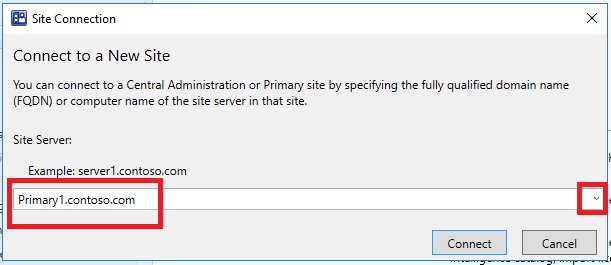
- Select the arrow at the top-left of the ribbon and choose Connect to a New Site.
- Enter the site server's FQDN, or pick a previous server from the drop-down list.
- Select Connect.
The console connects only to a central administration site or a primary site. To start it against a server from a shortcut, add the /server=<FQDN> option.
How to update SCCM console
Each console must update after its CAS or primary site updates. There is no separate console download.
- Install the site update from Administration > Updates and Servicing at the top-level site.
- Open the Configuration Manager console on the Windows 11 PC after the site update completes.
- Accept the prompt to update the console. It also appears when you open a new node in an open console.
- Wait for the console to update and reopen.
Update the console right away after the site updates, so it matches the site's version.
How to check SCCM console version
- Open the Configuration Manager console.
- Select About Configuration Manager at the top-left corner.
- Compare the console version with the site version shown in the same window.
- Read the console's minor version: it matches the site's build. For version 2303 the site is 5.0.9122.1000 and the console is 5.9122.1082.1700.
Admins can also see every console's version in Administration > Security > Console Connections, once the administration service is configured.
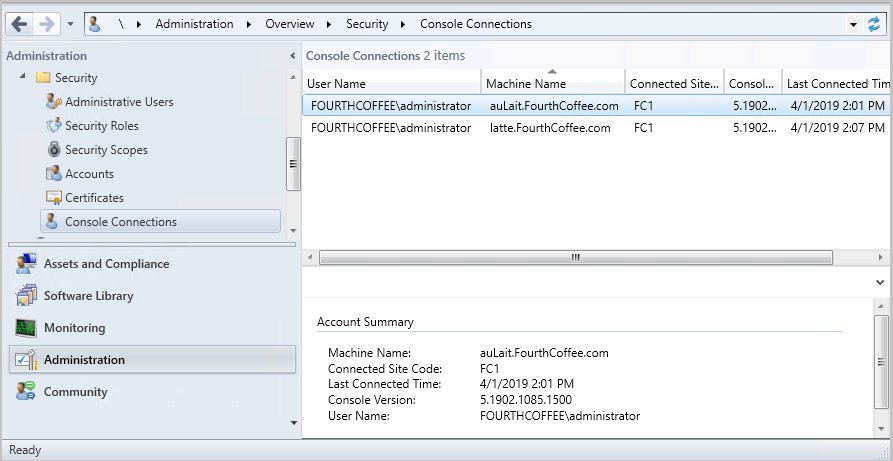
How to uninstall SCCM console
ConsoleSetup.exe /uninstall /qRemoves the Configuration Manager console silently. /uninstall must come before /q. Run it from an elevated prompt in the ConsoleSetup folder.
You should see: Configuration Manager console disappears from the Start menu and from the installed apps list.
SCCM console install not working on Windows 11
Console setup stops on a missing .NET Framework
Version 2403 and later need .NET Framework 4.8, and ConsoleSetup.exe does not install it.
- Install .NET Framework 4.8 or later on the PC.
- Restart if Windows asks.
- Run ConsoleSetup.exe again.
The installed console misbehaves after setup
It was installed from AdminConsole.msi, which skips prerequisite checks, or from the unsupported CD.Latest folder.
- Remove it with
ConsoleSetup.exe /uninstall /q. - Copy a fresh ConsoleSetup folder from the site server's
Tools\ConsoleSetuppath. - Install again with ConsoleSetup.exe.
The console installs in English only
Installs from the setup media or the command line without LangPackDir are always English.
- Run setup from the site server's ConsoleSetup folder with the wizard.
- Or add
LangPackDir=<folder>with language files from Setup Downloader.
Setup rejects the installation folder
The path has trailing spaces or Unicode characters.
- Enter a plain path such as
C:\Program Files\ConfigMgr Console. - Select Next and continue the wizard.
The console cannot connect to the site
It points at a secondary site or a wrong server name.
- Open Connect to a New Site from the ribbon arrow.
- Enter the FQDN of the CAS or a primary site server and select Connect.
SCCM console on Windows 11 FAQ
How do I install the SCCM admin console?
Run ConsoleSetup.exe from the Tools\ConsoleSetup folder on your Configuration Manager site server. Select Next, enter the site server FQDN, choose the installation folder and select Install. You need local administrator rights and .NET Framework 4.8.
How do I download the SCCM console?
Microsoft does not publish a separate console download. Copy the ConsoleSetup folder from your site server's Tools\ConsoleSetup path, or use \SMSSETUP\BIN\I386 on the installation media, which always installs the English console.
How do I open the SCCM console?
Select Start and type Configuration Manager console, then select it. In All apps, the icon sits in the Microsoft Endpoint Manager group. On a site server the console is already installed.
How do I launch the SCCM console against a specific server?
Start the console with the /server= option followed by the site server FQDN, or open it and use Connect to a New Site from the arrow at the top of the ribbon.
How do I update the SCCM console?
Update the site first. The next time you open the console, or open a new node, it prompts you to update. Accept the prompt, then check the version under About Configuration Manager.
Can I deploy the SCCM console from SCCM?
Yes. Create a package with ConsoleSetup.exe, AdminConsole.msi and the two ConfigMgr.AC_Extension .cab files, add a program that runs ConsoleSetup.exe /q with TargetDir and DefaultSiteServerName, and deploy it to a collection.
Can I install the SCCM console on Windows 11 Home?
Microsoft supports the console on Windows 11 x64 Pro and Enterprise only. Windows 11 Home is not on the supported list, so use a Pro or Enterprise edition.
Do I need to install SCCM to get the console?
No. The console needs an existing Configuration Manager site to connect to, but you install it on its own with ConsoleSetup.exe. Installing SCCM itself is a site server setup, not a Windows 11 install.