When your keyboard opens shortcuts instead of typing letters in Windows 11, a modifier key such as Windows, Ctrl or Alt is being held down, either physically stuck, latched by Sticky Keys, or sent by a key remap.
This guide shows how to release the stuck key, turn off Sticky Keys and Filter Keys, clear PowerToys or keyboard software remaps, repair the keyboard driver, and test every key afterwards.
Keyboard opening shortcuts instead of typing letters in Windows 11/10
Work through these steps in order and test after each one. Most keyboards go back to normal by step 3.
- Press and release the left and right Windows keys, both Ctrl keys, both Alt keys and both Shift keys two or three times each to free a key that is stuck down.
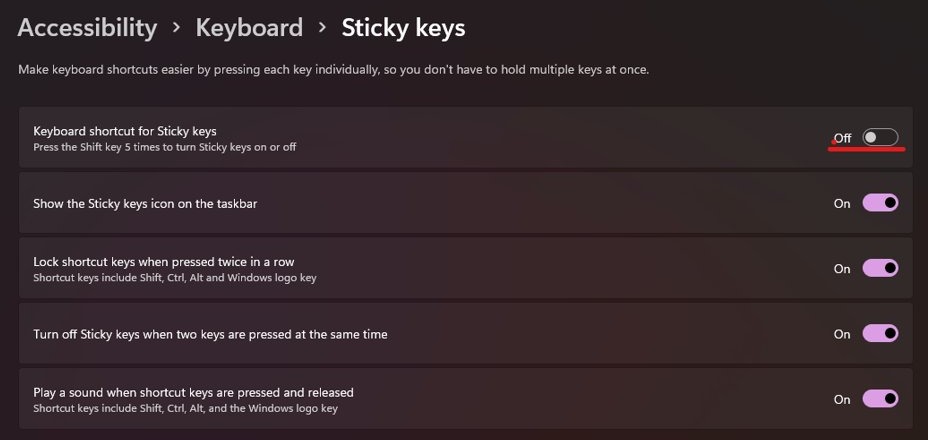
- Select Start > Settings > Accessibility > Keyboard with the mouse, and turn off Sticky keys and Filter keys.
- Unplug a USB keyboard, wait about 10 seconds, and plug it into a different USB port. For a wireless keyboard, unplug the USB receiver for about 10 seconds or press the Reset button if the keyboard has one.
- Right-click Start, select Shut down or sign out > Restart, and try typing again after you sign in.
- Open Notepad and type every letter from A to Z. If each letter appears as text, the keyboard is fixed.
If letters still open apps after a restart, the cause is software: a key remap, keyboard software or a driver. The sections below cover each one.
Keyboard doing shortcuts instead of typing: what each letter opens
The window that opens tells you which key is held. Match what you see to a column, and that column names the stuck key.
| Letter you press | What opens if the Windows key is held | What happens if Ctrl is held |
|---|---|---|
| A | Quick Settings | Selects all text or items |
| D | Shows or hides the desktop | Depends on the app |
| E | File Explorer | Opens search in most apps |
| F | Feedback Hub | Find text |
| G | Xbox Game Bar | Depends on the app |
| H | Voice dictation | Find and replace |
| I | Settings | Applies italic formatting |
| L | Locks the PC | Depends on the app |
| M | Minimizes all windows | Depends on the app |
| N | Notification center and calendar | Depends on the app |
| R | Run dialog box | Refreshes the current window |
| S or Q | Windows search | Depends on the app |
| U | Accessibility settings | Applies underline formatting |
| V | Clipboard history | Pastes the clipboard |
| W | Widgets | Depends on the app |
| X | Quick Link menu | Cuts the selection |
| Z | Snap layouts | Undoes the last action |
If menu names show underlined letters and pressing a letter runs a menu command, Alt is the held key, because Alt plus an underlined letter runs that action. Every other combination is listed with the Windows keyboard shortcuts by category.
How to turn off Sticky Keys and Filter Keys in Windows 11
Sticky Keys lets you press a shortcut one key at a time, so a single tap of Ctrl or the Windows key stays active for the next letter. Pressing Shift five times turns it on, which is easy to do by accident in a game or while holding Shift.
- Select Start > Settings with the mouse. You can also press Windows + U if the Windows key still works.
- Select Accessibility, then select Keyboard under Interaction.
- Turn off the Sticky keys switch.
- Turn off the Filter keys switch. Filter Keys makes Windows ignore brief or repeated keystrokes, and holding the right Shift key for eight seconds turns it on.
- Close Settings and type a few letters in Notepad to check the result.
To toggle Sticky Keys from the keyboard, press Shift five times. The Settings switch is the surer way to disable Sticky Keys and keep it off.
How to remove key remapping in PowerToys Keyboard Manager
PowerToys Keyboard Manager can map a single letter to a shortcut or to a block of text, and the mapping applies across Windows while PowerToys runs. A forgotten remap makes a letter open a shortcut every time you press it.
- Close PowerToys from the notification area of the taskbar, then type a few letters. If they now type normally, a remap is the cause.
- Start PowerToys again and open PowerToys Settings.
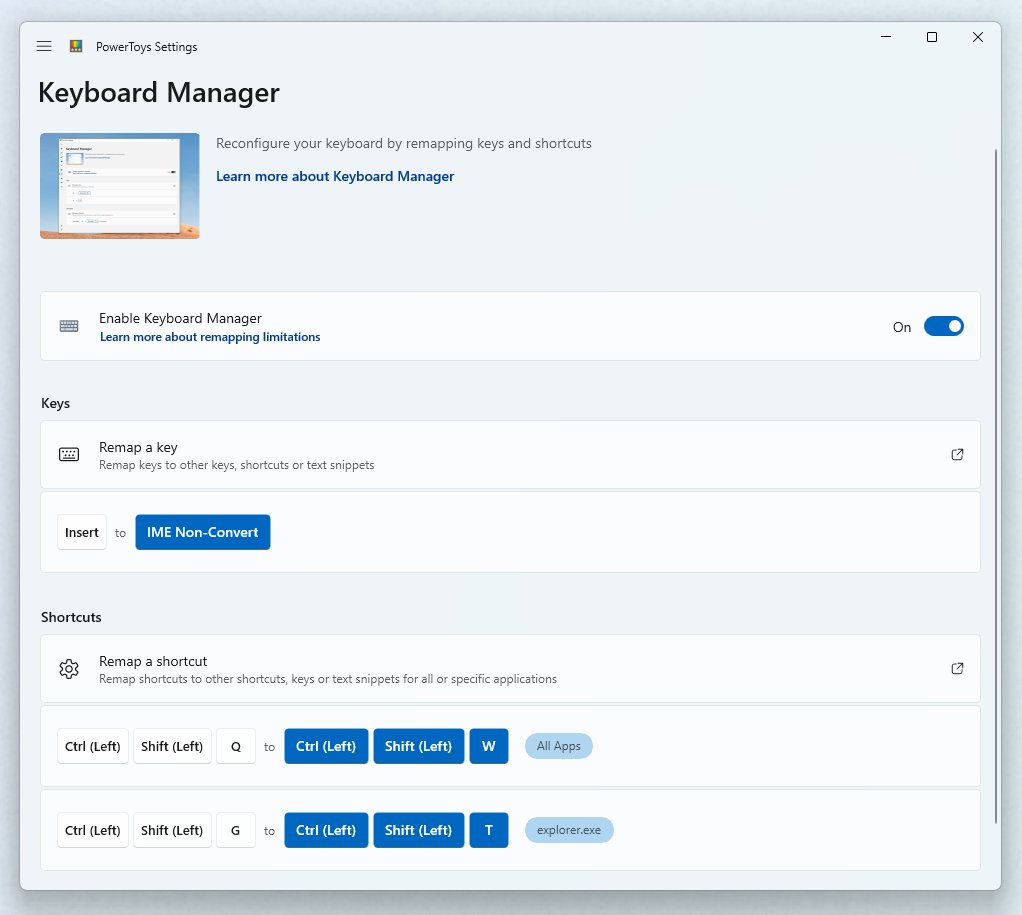
- Select the Keyboard Manager tab.
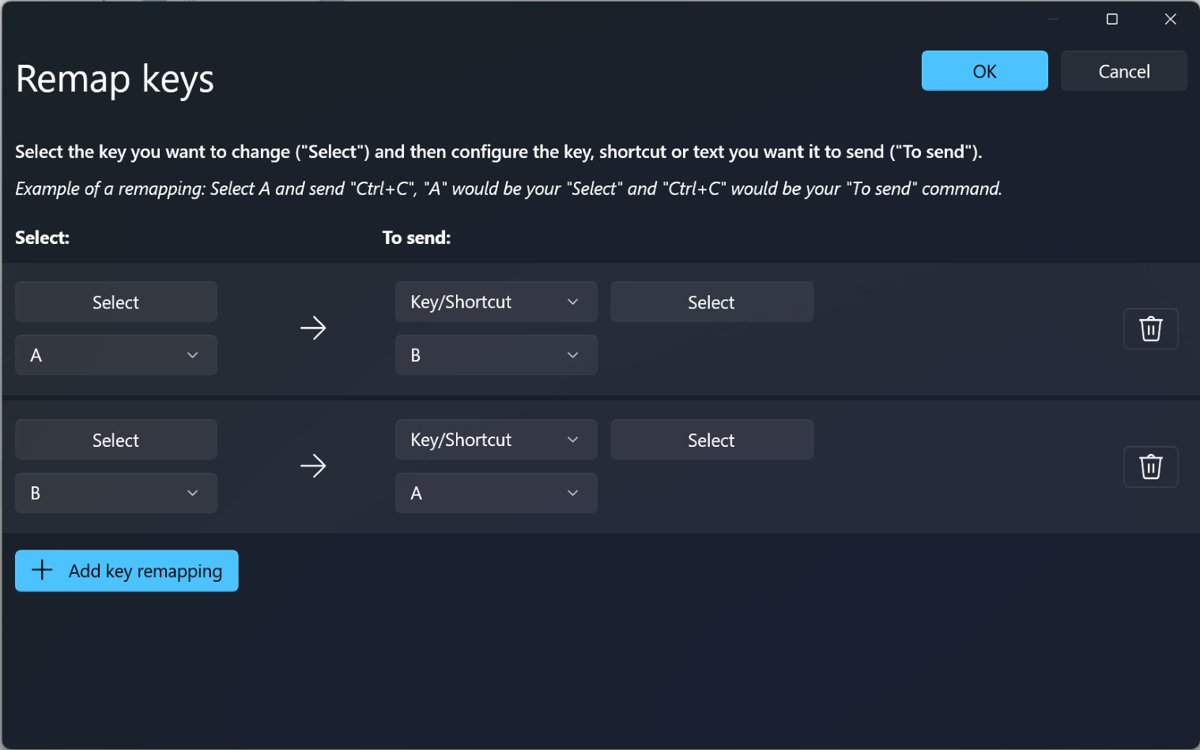
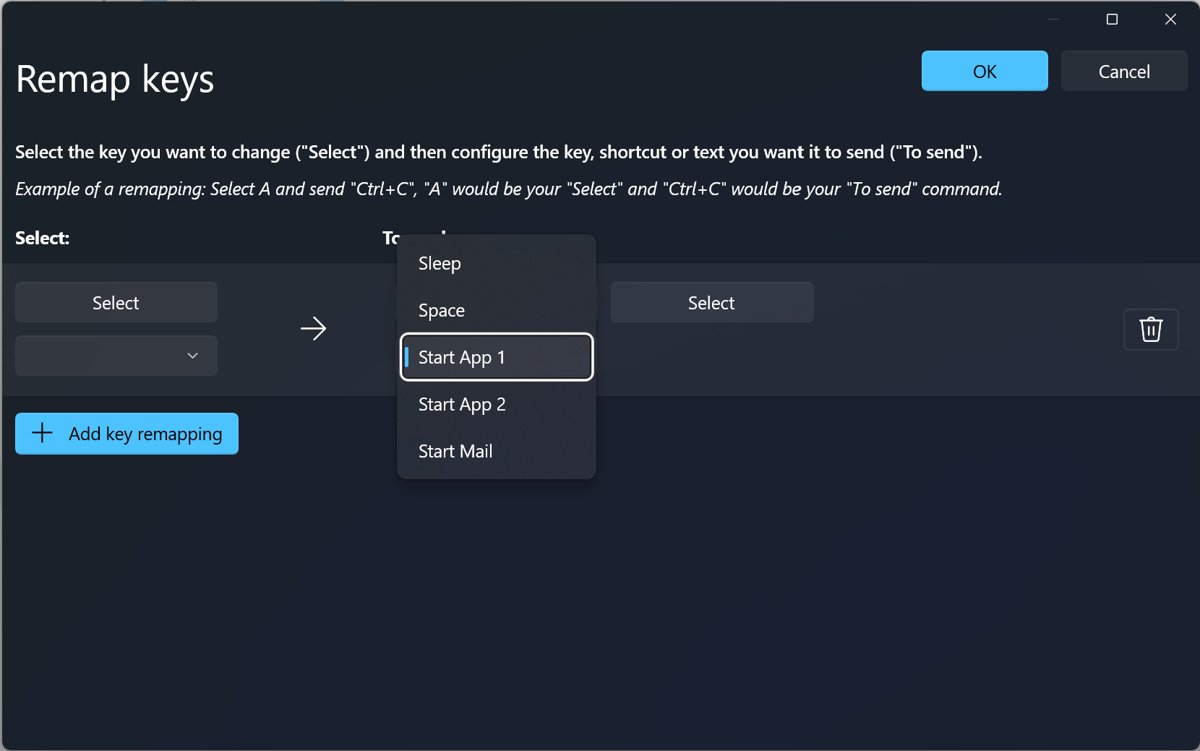
- Select Remap a key and look for any letter in the Select column that sends a shortcut in the To send column.
- Remove that row, then select OK so the change applies immediately.
- Select Remap a shortcut and check it for the same kind of row.
- If you do not use remapping at all, turn off Keyboard Manager on the same tab.
Gaming keyboards and mice often ship with their own macro software that works the same way. Open that app and reset the keyboard profile to default if letters fire macros.
How to update or reinstall the keyboard driver in Device Manager
A damaged keyboard driver can report keys incorrectly. Windows Update delivers most keyboard drivers, so check it first, then reinstall the driver.
- Select Start > Settings > Windows Update and select Check for updates. Install anything offered and restart.
- Save your work and close your apps.
- Right-click Start and select Device Manager.
- Expand Keyboards by selecting its arrow.
- Right-click your keyboard and select Update driver, then select Search automatically for updated driver software.
- If that does not help, right-click the keyboard again, select Uninstall device, and select Uninstall to confirm.
- Right-click Start, select Shut down or sign out > Restart. Windows reinstalls the keyboard driver when it starts.
If the problem began right after a driver update, open the keyboard's Properties, select the Driver tab and select Roll Back Driver instead.
How to clean boot Windows 11 to find the app hijacking your keys
A clean boot starts Windows with only essential drivers and startup apps. If letters type normally in a clean boot, a background app is turning them into shortcuts.
- Sign in with an administrator account.
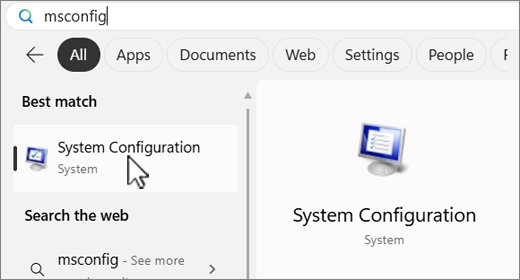
- Select Search, type msconfig, and select System Configuration.
- On the Services tab, select Hide all Microsoft services, select Disable all, then select Apply.
- On the Startup tab, select Open Task Manager.
- On the Startup apps tab, select each Enabled item and select Disable. Write down what you disabled.
- Close Task Manager, select OK in System Configuration, and restart the PC.
- Type in Notepad. If letters work, turn the services and startup apps back on half at a time until the shortcuts return, and that last group holds the cause.
When you finish, turn the startup apps and services back on so Windows starts normally again.
Keyboard shortcut to open the on-screen keyboard
The On-Screen Keyboard lets you keep typing with the mouse while the physical keyboard misbehaves. It also tells you whether the fault is in the keyboard or in Windows.
- Press Windows + Ctrl + O to open the On-Screen Keyboard.
- If the Windows key does not respond, select Start > Settings > Accessibility > Keyboard and turn on the On-Screen Keyboard switch.
- At the sign-in screen, select the Accessibility button in the lower-right corner, then select On-Screen Keyboard.
- Click into Notepad and select letters on the On-Screen Keyboard with the mouse.
- If letters typed this way appear as text but the physical keys open shortcuts, the physical keyboard or its connection is the problem.
Windows key or WinKey not working on Windows 11
A Windows key that misbehaves causes both problems in this guide: it either does nothing, or it acts as if it is always held and turns every letter into a shortcut.
The Windows key acts as if it is always pressed
The key is physically stuck, or dirt is holding it down.
- Press both Windows keys firmly several times.
- Turn the keyboard off or unplug it, and check that no dirt is blocking the key.
- Plug the keyboard into a different USB port and test again.
- Connect the keyboard to another PC. If the problem follows the keyboard, replace it.
The Windows key does nothing at all
A lock key on the keyboard, a remap, or a driver fault is blocking it.
- Check your keyboard maker's manual for a Windows key lock or gaming mode switch, and turn it off.
- Open PowerToys Keyboard Manager and remove any remap that lists Win in the Select column.
- Press Windows on the On-Screen Keyboard. If Start opens, the physical key is faulty.
- Reinstall the keyboard driver from Device Manager > Keyboards.
The Copilot key opens shortcuts instead of Copilot
The Copilot key sends a shortcut that includes the Windows key, so a remap or setting changes what it does.
- Select Start > Settings > Personalization > Text input.
- Select Customize Copilot key on keyboard and choose what the key should open.
- Remove any PowerToys remap that targets the Copilot key's shortcut.
Keyboard opens programs instead of typing
Letters select everything, save files or undo your typing
A Ctrl key is held or latched by Sticky Keys.
- Press and release both Ctrl keys several times.
- Turn off Sticky keys in Settings > Accessibility > Keyboard.
- Test with the On-Screen Keyboard to rule out a stuck physical key.
Pressing a letter runs a menu command in the open app
An Alt key is held, so letters act as Alt plus an underlined letter.
- Press and release both Alt keys several times.
- Press Esc to close any open menu.
- Turn off Sticky keys if the problem returns after each tap of Alt.
Shortcuts started after installing keyboard or mouse software
The software, or PowerToys, maps letters to shortcuts or macros.
- Close the app from the notification area and type again.
- Reset its keyboard profile to default, or remove the remap in Keyboard Manager.
- Run a clean boot if you cannot tell which app is responsible.
Letters on a laptop type numbers instead
Num Lock is on for a keyboard with a built-in number pad overlay.
- Press Num Lock, or Fn + Num Lock on laptops that need it.
- Type in Notepad to confirm letters appear again.
- Work through the fixes for laptop keys typing numbers instead of letters if Num Lock is not the cause.
The keyboard is not typing anything at all
The keyboard has lost power, its connection or its driver.
- Replace the batteries or charge a wireless keyboard.
- Unplug the keyboard or its USB receiver, wait about 10 seconds, and reconnect it.
- Remove any USB hub and plug the keyboard straight into the PC.
- Try the remaining fixes for a keyboard that is not typing on Windows 11.
How to test keyboard keys in Windows 11 after the fix
- Open Notepad from the Start menu.
- Type every letter from A to Z, then every number from 0 to 9.
- Tap the left and right Windows keys once each. Start should open and close, and nothing else should happen.
- Tap Ctrl, Alt and Shift once each, then type a letter. The letter should appear as text.
- Restart the PC and repeat the test, because a remap or startup app returns after a restart.
How to create keyboard shortcuts for typing in Windows 11
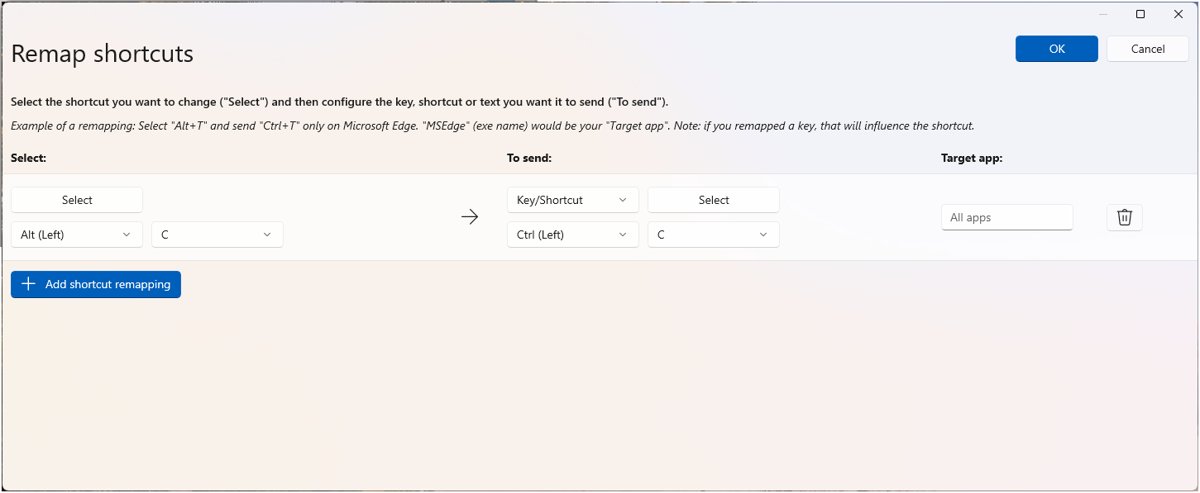
PowerToys Keyboard Manager can send a block of text when you press a key or a shortcut. Map shortcuts, not single letters, so the letter itself still types.
- Open PowerToys Settings and select the Keyboard Manager tab.
- Select Remap a shortcut, then select Add shortcut remapping.
- In the Select column, enter a shortcut that starts with Ctrl, Shift, Alt or Win and ends with a letter or number.
- In the To send column, choose Text and type the text you want inserted.
- Select OK. The shortcut works immediately while PowerToys is running.
Remapped keys stop working when PowerToys is closed, and they do not work on the sign-in screen.
Keyboard shortcuts instead of letters FAQ
Why does my keyboard keep opening programs instead of typing?
A modifier key is active when you press each letter. The Windows key turns letters into shortcuts such as Windows + E for File Explorer, and Ctrl or Alt do the same inside apps. The key may be stuck, latched by Sticky Keys, or sent by a PowerToys or keyboard software remap.
How do I get my keyboard back to normal?
Press and release each Windows, Ctrl, Alt and Shift key, then turn off Sticky keys and Filter keys in Settings > Accessibility > Keyboard. Reconnect the keyboard, restart the PC and test in Notepad. If shortcuts continue, remove PowerToys remaps and reinstall the keyboard driver.
Why is my keyboard not typing anything?
A keyboard that types nothing has usually lost power, its connection or its driver. Charge it or change the batteries, reconnect the cable or USB receiver, and try another USB port. Then reinstall the driver from Device Manager under Keyboards and restart.
How do I open the keyboard with a shortcut?
Press Windows + Ctrl + O to open the On-Screen Keyboard in Windows 11 and Windows 10. You can also turn on the On-Screen Keyboard switch in Settings > Accessibility > Keyboard, or open it from the Accessibility button on the sign-in screen.
How do I open Windows keyboard shortcuts settings?
Press Windows + U to open Accessibility settings, then select Keyboard. That page holds Sticky keys, Filter keys, Toggle keys and the On-Screen Keyboard switch. Press Windows + I to open the main Settings app instead.
How do I make keyboard shortcuts for typing?
Use PowerToys Keyboard Manager. Select Remap a shortcut, enter a shortcut that starts with Ctrl, Shift, Alt or Win, choose Text in the To send column and type your text. The shortcut inserts that text in any app while PowerToys runs.
Can a key remap make letters open shortcuts?
Yes. Keyboard Manager can map a single letter to a shortcut, and that mapping applies across Windows. Close PowerToys or turn off Keyboard Manager to stop it, then remove the row from Remap a key.
How do I learn typing keyboard shortcuts?
Start with the Windows key shortcuts you use most, such as Windows + E, Windows + V and Windows + L, then add Ctrl shortcuts for editing text. Microsoft's Keyboard shortcuts in Windows page lists every shortcut by category for reference.