To move a window that is off screen in Windows 11, select it with Alt + Tab, then press Windows key + Up arrow to maximize it or Windows key + Left arrow to snap it back onto the visible screen.
This guide covers the keyboard Move option, Task View, display settings, cascading every window at once, moving a window to another monitor, and how to stop windows opening off screen again.
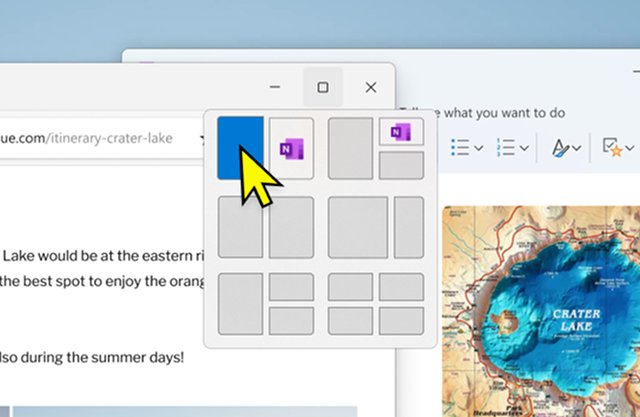
Moving a window off-screen in Windows 11
A window that sits off screen is still open, so the job is to make it the active window and then let a Snap shortcut place it for you.
Snap shortcuts work even when you cannot see the title bar, because they act on whichever window has focus.
- Hold Alt and press Tab until the missing window is highlighted, then release both keys. You can also click its icon on the taskbar.
- Press Windows key + Up arrow to maximize the window so it fills the current screen.
- If you want it at half size instead, press Windows key + Left arrow or Windows key + Right arrow to snap it to one side.
- Drag the title bar to where you want the window, or press Windows key + Down arrow to step it down from maximized to a normal window.
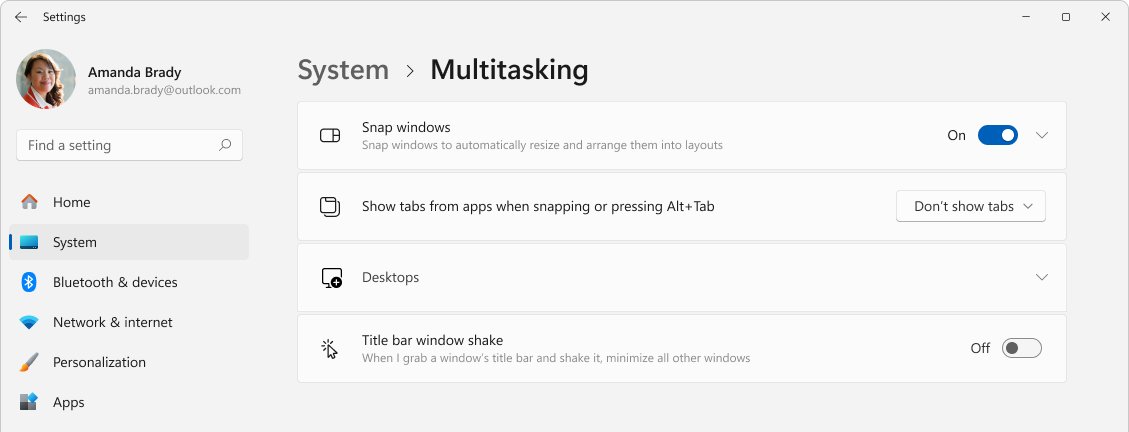
- If a shortcut does nothing, open Settings > System > Multitasking and turn on Snap windows, then try again.
Snap layouts give more placement choices: press Windows key + Z with the window active and pick a zone. The Snap and FancyZones window tools go further if you arrange windows often.
Using the Move option
Every standard desktop window has a context menu with Restore, Move, Size, Minimize, Maximize and Close. Windows 11 opens it for the active window with Alt + Spacebar, so you never need to reach the title bar.
This is the route for windows that refuse to maximize, such as fixed-size dialog boxes and installers.
- Select the off-screen window with Alt + Tab or its taskbar icon.
- Press Alt + Spacebar to open the window's context menu.
- Press M, or use the down arrow to highlight Move and press Enter.
- Press the arrow keys to slide the window back toward the middle of the screen.
- Press Enter to drop the window in its new place, or Esc to cancel the move.
Use Size from the same menu when the window is too large for the screen: press S, then the arrow keys, then Enter.
Using the Task View
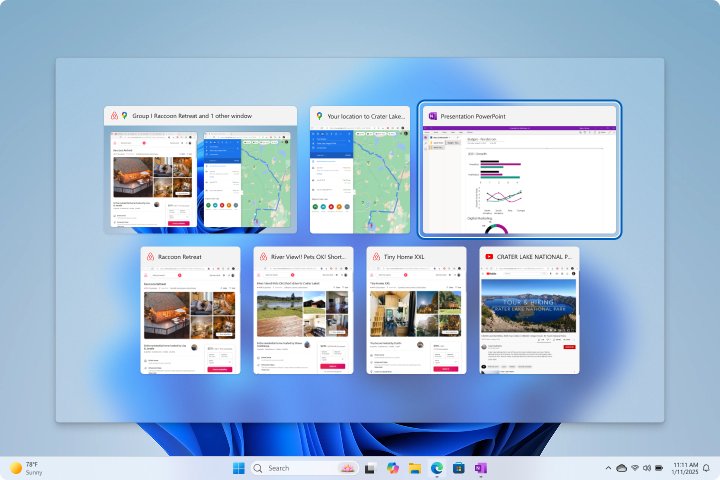
Task View shows a thumbnail of every open window on the current screen, which makes it the easiest way to find a window you cannot see at all.
- Press Windows key + Tab, or select the Task View button on the taskbar.
- Find the thumbnail of the off-screen window.
- Click the thumbnail to bring the window to the foreground and make it active.
- Press Windows key + Up arrow to maximize it, or Windows key + Left arrow to snap it onto the screen.
- If the window belongs on another virtual desktop, right-click its thumbnail, select Move to and pick the desktop you are using.
Using the cascade windows feature
Cascading windows stacks every open window diagonally from the top-left corner of the screen, which pulls lost windows back into view in one go.
The Windows 11 taskbar menu leads to Taskbar settings, so run the cascade command from PowerShell instead. It calls the same Shell command that the taskbar menu used.
(New-Object -ComObject Shell.Application).CascadeWindows()Open Start, type PowerShell, open it, paste the line and press Enter. New-Object creates the Shell.Application object, and its CascadeWindows method cascades all of the windows on the desktop. Replace CascadeWindows with TileHorizontally to stack windows, or TileVertically to show them side by side.
You should see: Every open, non-minimized window reappears in a diagonal stack, each with its title bar visible. Drag the window you need to its final position.
Minimized windows stay minimized. Press Windows key + Shift + M first to restore them so the cascade includes them.
Change the display settings to bring back an off-screen window
Windows that vanish after a monitor is unplugged or the resolution changes are usually parked on screen space that no longer exists. Changing the display layout forces Windows to recalculate where they sit.
- Open Start > Settings > System > Display.
- If a second monitor was recently unplugged, expand Multiple displays and select Detect so Windows reads the current setup.
- Under Scale & layout, open the Display resolution list and pick a different resolution, then switch back to the one marked (Recommended).
- Press Windows key + P and choose PC screen only if Windows still thinks a second display is attached.
- Select Identify and drag the display boxes so they match how your monitors stand on the desk, then select Apply.
If windows keep landing in the wrong place, adjust resolution, scaling and display layout so each monitor's settings match the hardware.
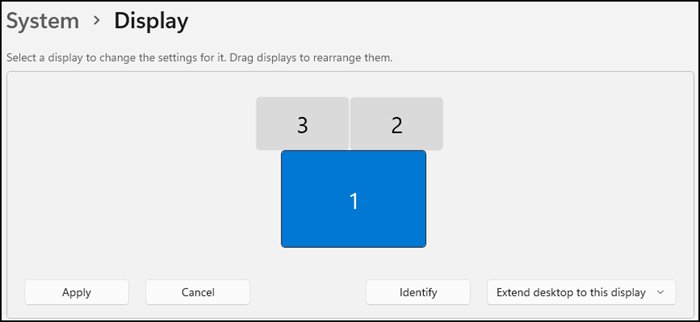
How to move a window to another monitor in Windows 11
When a window opens on a monitor that is switched off or out of view, move it across with one shortcut instead of hunting for it.
- Select the window with Alt + Tab or its taskbar icon.
- Press Windows key + Shift + Left arrow to move it to the monitor on the left.
- Press Windows key + Shift + Right arrow to move it to the monitor on the right.
- Repeat the shortcut until the window lands on the screen you are looking at.
If Windows does not see the other screen at all, fix a second monitor that is not detected before moving windows to it.
Move a window off screen with PowerToys Grab and Move
Microsoft PowerToys includes Grab And Move, which lets you drag a window from anywhere inside it, not only from the title bar. That helps when the title bar is the part that is off screen.
- Install Microsoft PowerToys and open its settings.
- Select Grab And Move and turn it on.
- Hold Alt, the default activation modifier key, and drag with the left mouse button anywhere inside the window.
- Release the mouse button when the window is where you want it.
- To resize, hold Alt and drag with the right mouse button; the nearest edge or corner follows the pointer.
Grab And Move may not work reliably with some touchpads, and you can switch the modifier to the Windows key in its settings.
Windows 11 keyboard shortcuts to move a window
| Shortcut | What it does to the active window |
|---|---|
| Alt + Tab | Switches between open windows so you can select the hidden one |
| Windows key + Up arrow | Maximizes the window on its current screen |
| Windows key + Down arrow | Minimizes the window, or restores it from maximized |
| Windows key + Left arrow / Right arrow | Snaps the window to the left or right side of the screen |
| Windows key + Shift + Left arrow / Right arrow | Moves the window to the monitor on the left or right |
| Windows key + Shift + Up arrow | Stretches the window to the top and bottom of the screen |
| Windows key + Z | Opens snap layouts |
| Alt + Spacebar | Opens the window context menu with Move and Size |
| Windows key + Tab | Opens Task View |
| Windows key + Shift + M | Restores minimized windows |
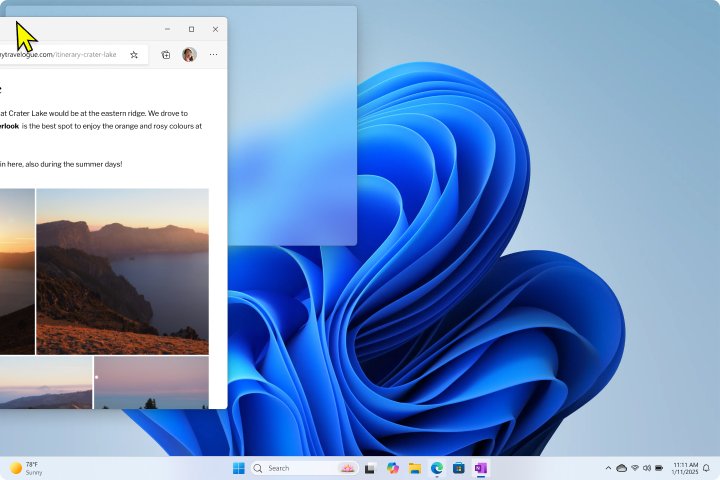
How to tell if a window is open but off screen in Windows 11
Before trying fixes, make sure the window is really open and not closed or minimized.
- Press Alt + Tab and keep holding Alt; an open window shows as a thumbnail even when it is off screen.
- Press Windows key + Tab to see the same window in Task View on the current desktop.
- Hover over the app's taskbar icon to see a preview of each of its open windows.
- If a thumbnail shows but nothing appears on screen when you select it, the window is off screen; use any method above to bring it back.
Remember window locations based on monitor connection in Windows 11
Two settings decide what happens to windows when a monitor is plugged in or unplugged. Turning them on stops windows from being stranded on a screen that is gone.
- Open Start > Settings > System > Display.
- Scroll down and select Multiple displays to expand the section.
- Select Remember window locations based on monitor connection so windows return to their monitor when it is reconnected.
- Select Minimize windows when a monitor is disconnected so windows from a removed screen go to the taskbar instead of sitting off screen.
Tips for moving a window off-screen in Windows 11
| Tip | Why it helps |
|---|---|
| Select the window first | Every shortcut and the Move option act on the active window only |
| Try Windows key + Up arrow before anything else | Maximizing places the window fully on the current screen in one keystroke |
| Use Alt + Spacebar for fixed-size dialogs | Dialogs that cannot maximize can still be moved with the arrow keys |
| Close and reopen the app after moving it | Many apps save their last position on exit, so the next launch opens where you left it |
| Keep Snap windows turned on | Snap shortcuts stop working when Settings > System > Multitasking > Snap windows is off |
| Set the display layout to match your desk | Dragging the display boxes in Display settings keeps windows moving to the right screen |
Fix window went off-screen issue in Windows 11
Window went off screen after unplugging a second monitor
The window kept its position on the disconnected display.
- Select the window with Alt + Tab.
- Press Windows key + Shift + Left arrow or Right arrow to move it to the remaining monitor.
- Open Settings > System > Display > Multiple displays and select Detect.
- Turn on Minimize windows when a monitor is disconnected so it does not happen again.
Window is off screen after changing resolution or scaling
The window's saved position is outside the new, smaller desktop area.
- Select the window and press Windows key + Up arrow to maximize it.
- Press Windows key + Down arrow to restore it to a normal window inside the screen.
- If it still does not fit, press Alt + Spacebar, choose Size and use the arrow keys to make it smaller.
App always opens off screen every time it starts
The app saved an off-screen position when it last closed.
- Open the app and bring the window back with Alt + Spacebar > Move and the arrow keys.
- Press Enter to place it in the middle of the screen.
- Close the app normally so it saves the new position.
- Open it again to confirm it starts on screen.
Snap shortcuts do nothing on the off-screen window
Snap windows is turned off, or the window is a fixed-size dialog that cannot snap.
- Open Settings > System > Multitasking and turn on Snap windows.
- For a dialog box, select it and use Alt + Spacebar > Move instead.
- If several windows are lost, run the cascade command in PowerShell to bring them all back.
Off-screen window in Windows 11 FAQ
How do I move a window in Windows 11?
Drag the window by its title bar, or select it and use Snap. Press Windows key + Left arrow or Right arrow to snap it to a side, Windows key + Up arrow to maximize it, or Windows key + Z to pick a snap layout.
How do I move a window with the keyboard in Windows 11?
Select the window with Alt + Tab, press Alt + Spacebar to open its context menu, and press M for Move. Use the arrow keys to slide the window, then press Enter to drop it in place or Esc to cancel.
How do I move an app to another monitor in Windows 11?
Select the app window and press Windows key + Shift + Left arrow or Windows key + Shift + Right arrow. The window jumps to the monitor on that side. Repeat the shortcut to cross more than one monitor.
Why do windows go off-screen in Windows 11?
Windows go off screen when the space they were placed on disappears. Unplugging a second monitor, lowering the resolution, changing scaling or an app restoring a saved position from an older setup all leave a window outside the visible desktop.
How can I prevent windows from going off-screen?
Open Settings > System > Display > Multiple displays and turn on Remember window locations based on monitor connection and Minimize windows when a monitor is disconnected. Windows then returns windows to their monitor or minimizes them instead of stranding them.
Can I use a mouse to move an off-screen window?
Yes. Open Task View with Windows key + Tab, click the window's thumbnail, then drag the title bar once it is visible. PowerToys Grab And Move also lets you hold Alt and drag from anywhere inside the window.
Is there a way to resize off-screen windows?
Yes. Select the window, press Alt + Spacebar and choose Size, then use the arrow keys to change its width and height and press Enter. Maximizing with Windows key + Up arrow and restoring with Windows key + Down arrow also fits it to the screen.
Can third-party software help manage windows?
Microsoft PowerToys covers this without third-party tools. Grab And Move drags a window from any point inside it, and FancyZones adds custom layouts. Built-in Snap layouts already handle most placement in Windows 11.
How do I bring all windows back onto the screen at once?
Open PowerShell and run (New-Object -ComObject Shell.Application).CascadeWindows(). It cascades every open window from the top-left corner. Press Windows key + Shift + M first so minimized windows are included.