When a website still refuses cookies after you turn off Block All Cookies, Safari is usually limiting the site's third-party cookies through Prevent Cross-Site Tracking, a content blocker is stopping it, or the site kept old data; turn off Prevent Cross-Site Tracking, remove that site's website data, then close the tab and open the site again.
Safari has no list of websites allowed to use cookies, so this guide covers the device-wide settings that matter on iPad, iPhone and Mac, plus content blockers, Lockdown Mode, Chrome and how to tell whether cookies are still blocked.
How to enable cookies in Safari on iPad when a website still blocks them
Work through the steps in order and test the website after each one. Paths are for iPadOS 18 and later; on iPadOS 17, open Settings > Safari instead of Settings > Apps > Safari.
- Open Settings, tap Apps, then tap Safari.
- Tap Advanced and check that Block All Cookies is off.
- Go back to the main Safari settings and turn off Prevent Cross-Site Tracking.
- Tap Advanced > Website Data and tap Remove All Website Data, then tap Remove Now.
- Tap Extensions and turn off any content blocker in the list.
- Open Safari, close the website's tab, then open the site in a new tab and sign in again.
Removing website data signs you out of sites that remembered you. Once the site works, turn Prevent Cross-Site Tracking back on and test again; if the site breaks, leave it off only while you use that site.
Why are my cookies disabled in Safari?
| What you see | Likely cause | Fix |
|---|---|---|
| Every site forgets you and sign-in fails even with the right password | Block All Cookies is on | Turn off Block All Cookies in Safari's Advanced settings |
| Only one site says cookies are off, often during sign-in, checkout or an embedded form | Prevent Cross-Site Tracking limits the third-party cookies that site depends on | Turn off Prevent Cross-Site Tracking, then reload the site |
| The site still fails after you change both settings | Old cookies or website data for the site are stuck | Remove the website data, then open the site in a new tab |
| Ads, scripts or banners are missing and the site breaks | A content blocker app is filtering the page | Turn off the blocker in Extensions, or for that site on a Mac |
| A banner in Safari says Lockdown Mode is on | Lockdown Mode blocks some complex web technologies | Exclude the trusted website from Lockdown Mode |
| Clear History and Website Data is gray | Web content restrictions in Screen Time, or there is no data to clear | Check Screen Time web content restrictions |
Apple notes that blocking cookies can stop you signing in, show a message that cookies are required or off, and stop some site features from working, which is exactly what a site that rejects Safari shows.
How to turn off Block All Cookies in Safari on iPad and iPhone
Block All Cookies stops every site from storing cookies. Turning it on removes all existing cookies and website data, quits Safari and reloads your tabs, so switching it off does not bring old sign-ins back.
- Open Settings and tap Apps.
- Tap Safari, then tap Advanced.
- Turn off Block All Cookies.
- Open Safari and close any tab that showed a cookie error.
- Open the website again in a new tab and sign in.
To block cookies again later, turn Block All Cookies back on and tap Block All to confirm.
How to turn off Prevent Cross-Site Tracking in Safari
Safari limits third-party cookies and data by default. A website that loads sign-in, payment or video from another domain can treat that limit as cookies being disabled, even when Block All Cookies is off.
- On iPad or iPhone, open Settings > Apps > Safari.
- Turn off Prevent Cross-Site Tracking.
- On a Mac, open Safari, choose Safari > Settings, then click Privacy.
- Deselect Prevent cross-site tracking.
- Reload the website and try the feature that failed.
With the option on, a third-party provider's cookies and website data are deleted unless you visit and use that provider as a site in its own right. Signing in to the provider's own website first can therefore help an embedded login work.
How to clear cookies for one website in Safari
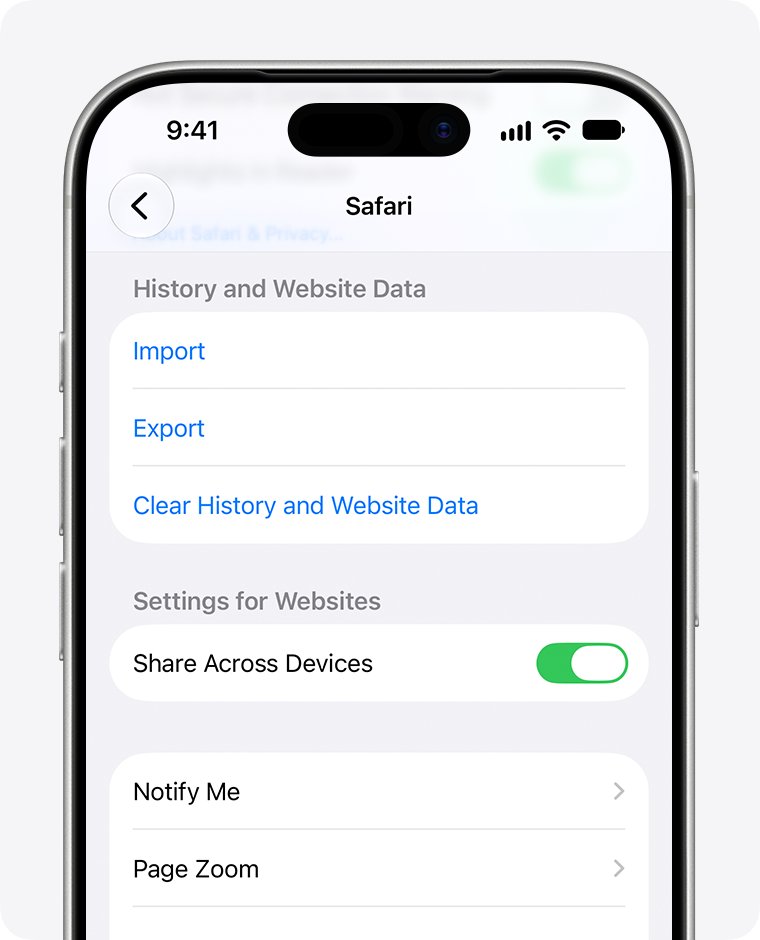
Stale cookies from the time cookies were blocked can keep a site in a broken state. On a Mac you can remove one site's data; on iPad and iPhone Apple documents removing all website data at once.
- On a Mac, open Safari, choose Safari > Settings, then click Privacy.
- Click Manage Website Data.
- Select the website, then click Remove.
- On iPad or iPhone, open Settings > Apps > Safari > Advanced > Website Data.
- Tap Remove All Website Data, then tap Remove Now.
- Open the website again and accept its cookie prompt if one appears.
Removing cookies in Safari on a Mac can change or remove them in other apps too. If the site also fails in another browser, clear cookies in Chrome, Firefox and Edge on a Mac as well.
How to turn off content blockers in Safari for a website
Content blockers are third-party apps and extensions that let Safari block cookies, images, resources and pop-ups. A blocker can stop a site's cookie scripts even with every Safari cookie setting allowing them.
- On iPad or iPhone, open Settings > Apps > Safari, then tap Extensions.
- Turn off each listed content blocker.
- Reload the website and test it.
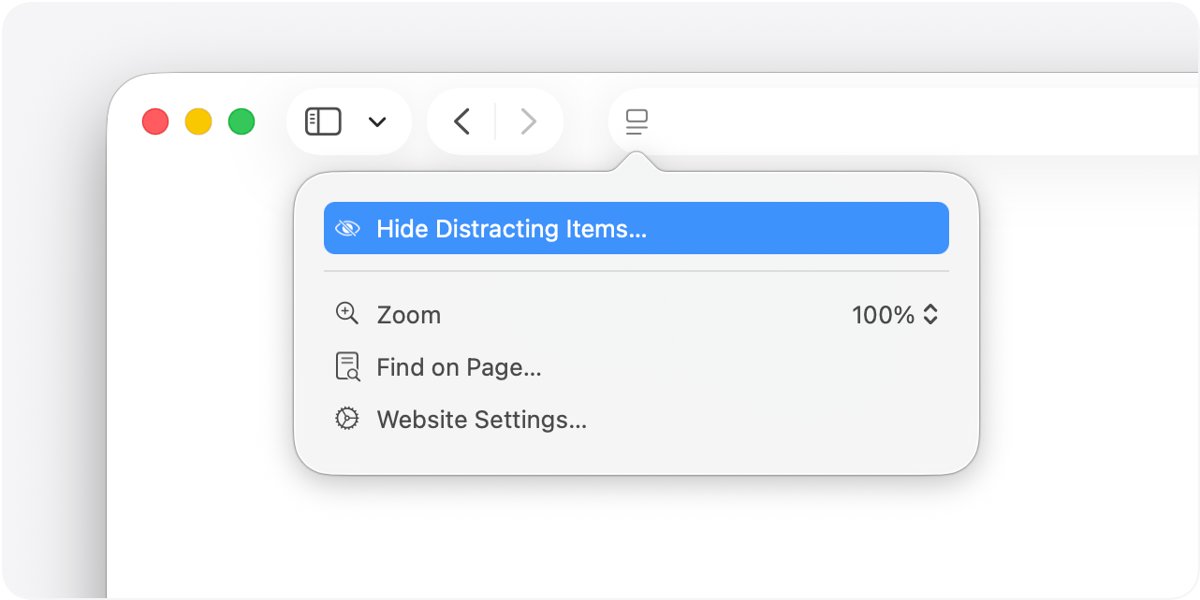
- On a Mac, open the website, click the Page menu in the Smart Search field, then choose Website Settings.
- Deselect Enable content blockers for that website only.
If the site works with blockers off, turn them on one at a time to find the one that breaks it, then contact that app's developer. Any extension with access to browsing data is also turned off automatically in Private Browsing.
How to exclude a website from Lockdown Mode in Safari
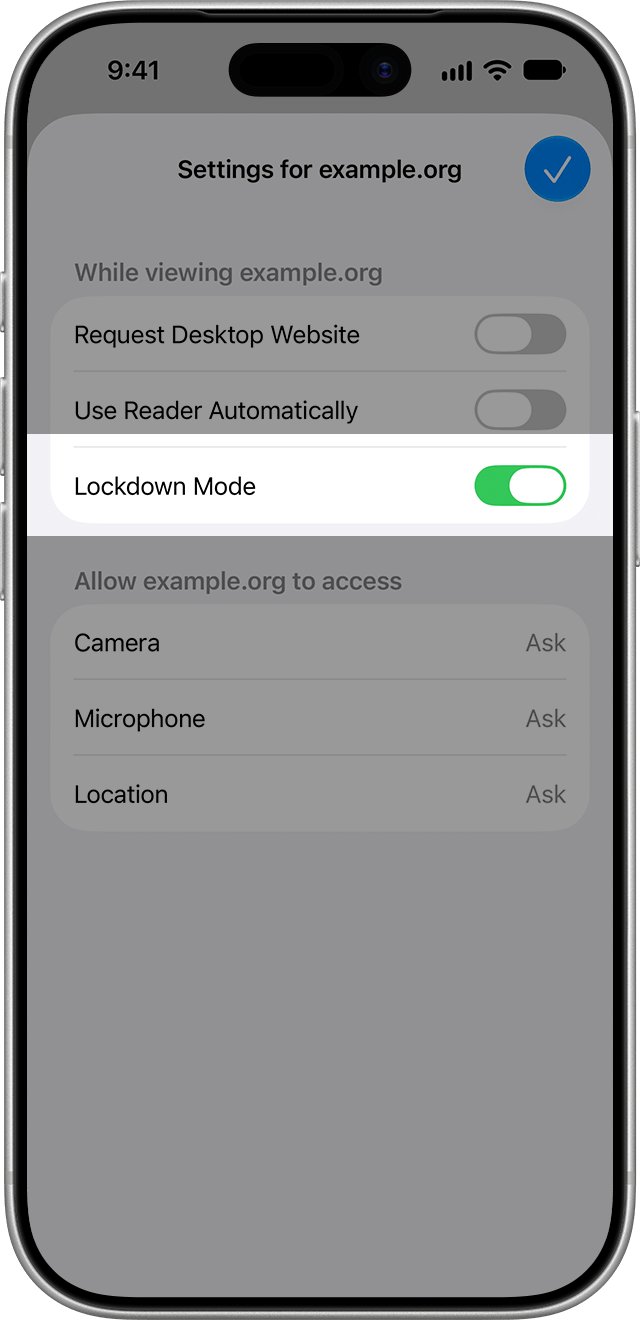
Lockdown Mode blocks some complex web technologies, which can make websites load slowly or not work. Exclude only a website you trust, because the exclusion lowers Lockdown Mode's protection for it.
- On iPad or iPhone, open the website in Safari.
- Tap the Page Menu button, scroll down and tap Website Settings.
- Turn off Lockdown Mode for that website.
- On a Mac, choose Settings for [website] from the Safari menu and deselect Enable Lockdown Mode.
- Reload the website.
To review exclusions on iPad, open Settings > Privacy & Security > Lockdown Mode > Customize Web Sites > Excluded Safari Websites.
Where is Block All Cookies in Safari settings?
| Setting | iPad and iPhone (iPadOS and iOS 18 or later) | Mac (Safari) | What it does |
|---|---|---|---|
| Block All Cookies | Settings > Apps > Safari > Advanced | Safari > Settings > Advanced | Blocks cookies and website data from every site |
| Prevent Cross-Site Tracking | Settings > Apps > Safari | Safari > Settings > Privacy | Limits third-party cookies and data |
| Website data | Settings > Apps > Safari > Advanced > Website Data | Safari > Settings > Privacy > Manage Website Data | Shows and removes stored cookies |
| Content blockers | Settings > Apps > Safari > Extensions | Page menu > Website Settings > Enable content blockers | Third-party blocking of cookies, scripts and ads |
| Per-website settings | Page Menu > Website Settings | Safari > Settings > Websites | Camera, microphone, location, pop-ups and similar; no cookie option |
On iPadOS 17 and iOS 17, the same Safari settings open from Settings > Safari, without the Apps step. That is why a guide written for one version can send you to a menu that is not there on another.
How to enable cookies in Safari on Mac
Safari on a Mac either accepts or blocks cookies and website data for all sites. Deselecting the block lets websites, third parties and advertisers store cookies again.
- Open Safari on your Mac.
- Choose Safari > Settings, then click Advanced.
- Deselect Block all cookies.
- Click Privacy and deselect Prevent cross-site tracking if the site still fails.
- Quit Safari, open it again and load the website.
The Mac's Websites settings let you set camera, location, pop-ups and other permissions per site, but not cookies, so the cookie choice always applies to every site.
How to stop Chrome blocking cookies
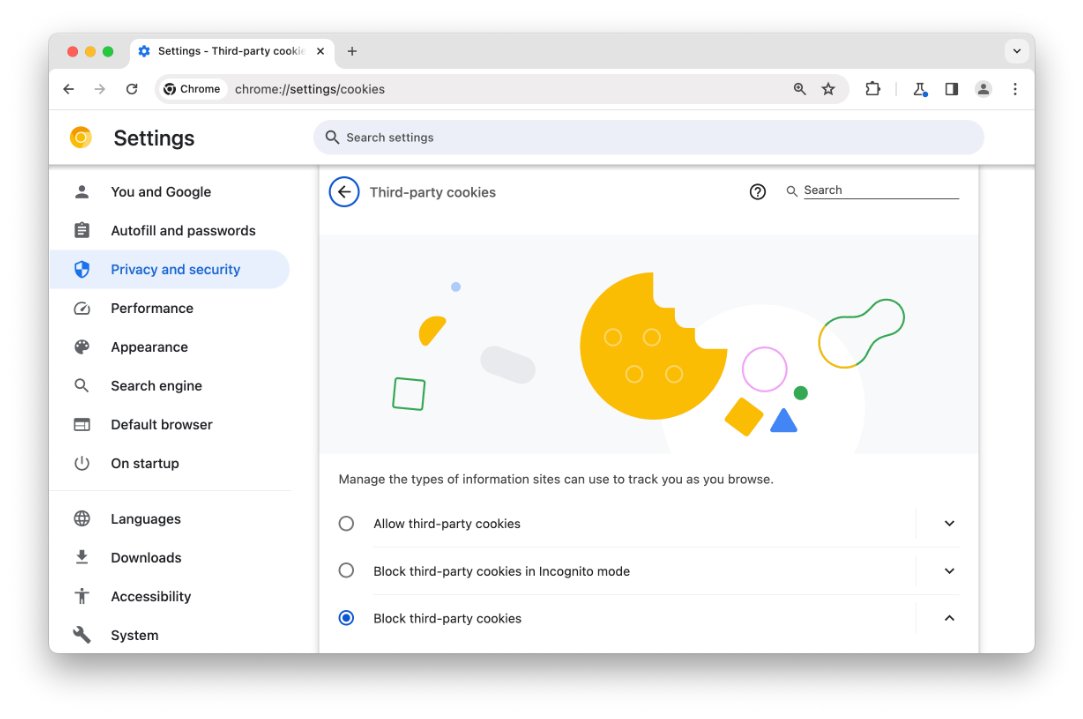
If the website fails in Chrome rather than Safari, Chrome has its own cookie controls. On a computer, Chrome can allow third-party cookies for every site or for one site.
- Open Chrome on your computer.
- Select More > Settings at the top right.
- Select Privacy and security > Third-party cookies.
- Choose to allow third-party cookies, or add the website to the sites allowed to use them.
- Reload the website.
You can also enable cookies in Google Chrome for every site at once. In Firefox, the equivalent switch is Total Cookie Protection inside Enhanced Tracking Protection.
How to tell if cookies are blocked in Safari
- Open Settings > Apps > Safari > Advanced; Block All Cookies should be off.
- Tap Website Data; after you visit a site, its domain appears in the list with stored data.
- Open the website, sign in, close the tab and open the site again; you should still be signed in.
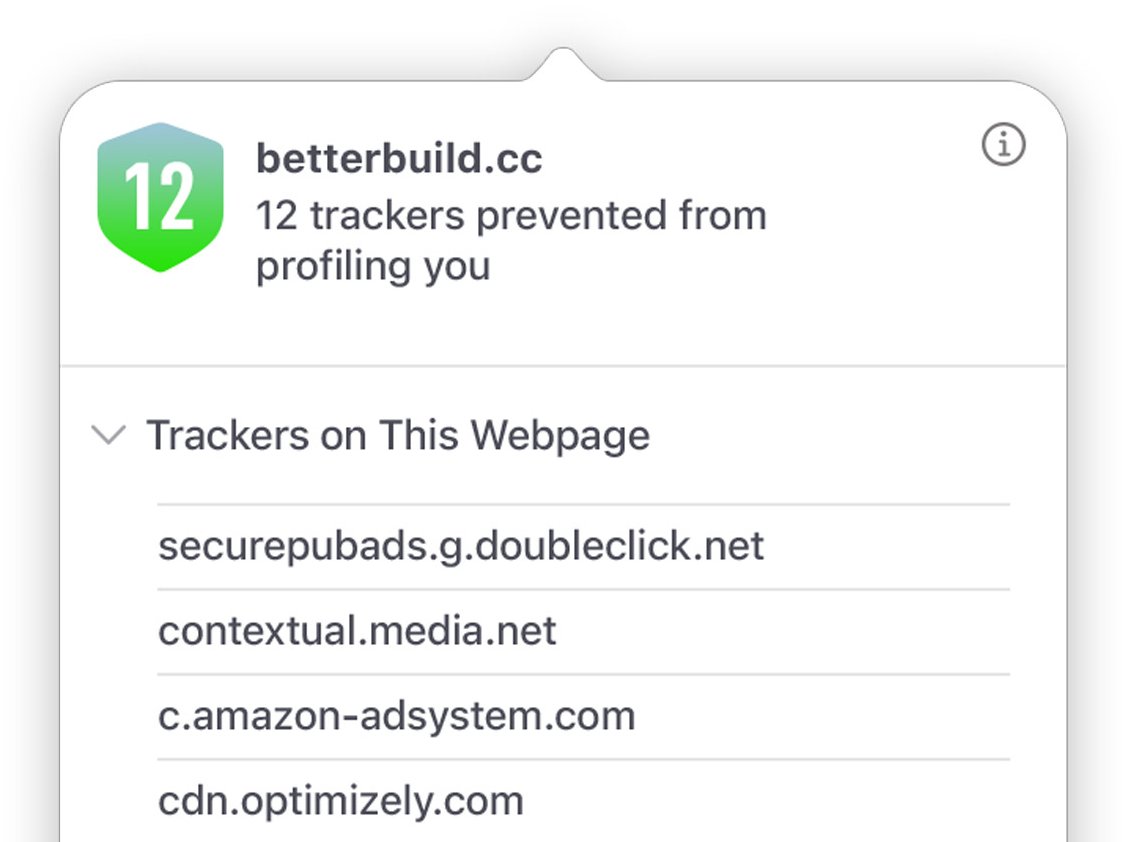
- In Safari, tap the Page Menu button, tap Privacy & Security, then tap Privacy Report to see which trackers Safari prevented on that page.
- On a Mac, open Safari > Settings > Privacy > Manage Website Data and search for the site.
If the site is in Website Data and you stay signed in, Safari is storing its cookies. A remaining error comes from the site's own checks or from a blocked third-party domain.
Website says cookies are disabled on iPad
Website still says cookies are required after turning off Block All Cookies
The tab loaded while cookies were blocked, or the site needs third-party cookies.
- Close the tab and open the website in a new tab.
- Turn off Prevent Cross-Site Tracking in Settings > Apps > Safari.
- Remove website data, then sign in again.
Can't sign in to a website even with the correct password
Blocked cookies stop the site remembering that you signed in.
- Check that Block All Cookies is off.
- Turn off content blockers in Extensions.
- Try the sign-in again in a new tab.
Clear History and Website Data or Remove All Website Data is gray
There is no data to clear, or Screen Time web content restrictions are set.
- Open Settings > Screen Time and check the web content restrictions.
- Ask the person who manages Screen Time on the iPad to change them if they are on.
- Return to Safari settings and clear the data.
Website loads slowly or features are missing, with a Lockdown Mode banner
Lockdown Mode limits some web technologies.
- Open the website, tap Page Menu > Website Settings.
- Turn off Lockdown Mode for that trusted website only.
- Reload the page.
Website blocks access because of your IP address
iCloud Private Relay hides your IP address from sites that filter or rate-limit by IP.
- On the website, tap the Page Menu button, then tap Privacy & Security.
- Tap Show IP Address.
- Reload the page; Private Relay stays on for other sites.
Safari cookies on iPad and Mac FAQ
How do I enable blocked cookies in Safari?
Open Settings, tap Apps, tap Safari, tap Advanced and turn off Block All Cookies. If a site still refuses, turn off Prevent Cross-Site Tracking, remove website data and open the site in a new tab. On a Mac, deselect Block all cookies in Safari's Advanced settings.
How do I stop Safari blocking cookies on one website?
Safari has no per-site cookie exception. Turn off Block All Cookies and Prevent Cross-Site Tracking for all sites, then turn off content blockers for that site. When you finish with the site, you can turn Prevent Cross-Site Tracking back on.
How do I disable cookies in Safari?
On iPad or iPhone, open Settings, tap Apps, tap Safari, tap Advanced, turn on Block All Cookies and tap Block All. This removes all existing cookies and website data. On a Mac, choose Safari, Settings, Advanced, then select Block all cookies.
How do I block cookies on a website?
Safari applies cookie blocking to every site, not one. To limit tracking cookies without breaking sign-ins, leave Prevent Cross-Site Tracking on. To remove what one site stored on a Mac, open Safari Settings, Privacy, Manage Website Data, select the site and click Remove.
How do I turn off a cookie blocker?
Content blockers are apps you install from the App Store. On iPad or iPhone, open Settings, tap Apps, tap Safari, tap Extensions and turn the blocker off. On a Mac, open Website Settings from the Page menu and deselect Enable content blockers for the site.
Do I have cookies blocked?
Check Settings, Apps, Safari, Advanced: if Block All Cookies is on, every site is blocked. If it is off, visit a site and look for it under Website Data; a site listed there is storing cookies. Being signed out every time you reopen a site is another sign.
Why are my cookies disabled?
Block All Cookies may be on, Prevent Cross-Site Tracking may be limiting a site's third-party cookies, or a content blocker may be filtering the page. Lockdown Mode and Screen Time restrictions can also change how websites work in Safari.
How do I block cookies on this computer?
In Safari on a Mac, choose Safari, Settings, Advanced, and select Block all cookies. In Chrome, open Settings, Privacy and security, Third-party cookies to block third-party cookies. Blocking all cookies can stop websites signing you in.