To use RDCMan on Windows, download Remote Desktop Connection Manager from Microsoft Sysinternals, save your servers into named groups inside an .rdg file, set logon credentials once on the group, and select a server and press Enter to connect.
This guide covers installing RDCMan, building groups, the connection settings each server inherits, bulk import, Hyper-V virtual machine consoles, credential profiles, command-line switches and the fixes Microsoft documents for common errors.
How to use RDCMan to manage multiple remote desktop connections
RDCMan wraps the Windows Remote Desktop client in one window with a server tree on one side and the live sessions on the other. Each remote PC must already accept Remote Desktop connections.
- Open the Sysinternals RDCMan page on Microsoft Learn and download Remote Desktop Connection Manager, or run it from Sysinternals Live.
- Start RDCMan and use the File menu to create and save a new file group, which is stored as an .rdg file.
- Right-click the file in the server tree and add a group, such as one for each site or role.
- Right-click the group and add a server by its network name or IP address.
- Open the group's properties with Alt + Enter, open Logon Credentials, and enter the user name, password and domain once.
- Select a server and press Enter to connect, or press Shift + Enter to connect with different credentials through Connect As.
Select the group instead of a server to see every server in it as a thumbnail with live action. If a target PC refuses the connection, enable Remote Desktop on Windows 11 on that PC first.
What is RDCMan used for
Microsoft describes RDCMan as a tool for managing many remote desktop connections, such as server labs and data centers where you need regular access to each machine.
| Feature | What it does |
|---|---|
| Groups | Connect or disconnect every server in a group with one command |
| Thumbnail view | Shows all servers in a selected group as live thumbnails |
| Inherited logon settings | Change a lab password in one place instead of on every server |
| Encrypted passwords | Stored with CryptProtectData under your Windows account, or with an X509 certificate |
| Virtual groups | Connected, Reconnect, Favorites, Recent and Connect To groups that fill themselves |
| Smart groups | Groups populated dynamically from a set of rules |
| List Sessions | Shows, disconnects or logs off other sessions on a server, with the right permissions |
Installing RDCMan (Remote Desktop Connection Manager) on Windows
RDCMan comes only from Microsoft Sysinternals. The current release on Microsoft Learn is version 3.23, published November 5, 2026.
| Item | Detail |
|---|---|
| Official source | learn.microsoft.com/sysinternals/downloads/rdcman |
| Run without downloading | Sysinternals Live: enter live.sysinternals.com/<toolname> or \\live.sysinternals.com\tools\<toolname> in File Explorer |
| Supported client | Windows 11 and higher |
| Supported server | Windows Server 2016 and higher |
| Older .rdg files | Files saved by this version will not open in older versions; the legacy file is backed up as filename.old |
| Default behavior on launch | Reopens the files that were loaded when RDCMan last closed |
Back up a shared .rdg file before you open it with a new version, since anyone still on an older RDCMan build cannot read the saved copy.
Configuring RDCMan, creating RDP host groups
The file is the top-level container. Servers cannot live outside a group, and groups cannot live outside a file. A group holds either other groups or servers, never both.
- Open your .rdg file from the File menu.
- Right-click the file node in the tree and add a group, for example Web servers.
- Add nested groups under it if you need a hierarchy, such as one per data center.
- Right-click the group that will hold machines and add servers to it.
- Drag servers or groups in the tree to move them between groups.
- Open the group's properties with Alt + Enter and set Logon Credentials there so every server under it inherits them.
- Save the file from the File menu, or turn on Auto save interval in Tools > Options > General.
When adding servers, you can type a pattern to add many at once: server[001-15] adds server001 to server015, and server1{a,b,c} adds server1a, server1b and server1c.
Configuring RDP connection settings in RDCMan
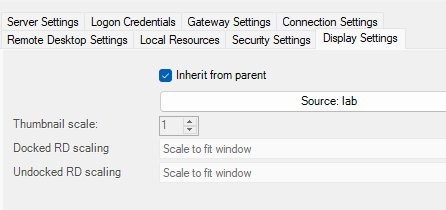
Groups and servers share the same tabbed property pages. With Inherit from parent checked, a page takes its settings from the parent group; clear it to set values for one group or server. Most changes apply the next time that server connects.
| Properties tab | What you set there |
|---|---|
| Logon Credentials | User name, password and domain; use domain\user, or [server] or [display] for a machine's local account |
| Gateway Settings | TS Gateway name, authentication method and local address bypass |
| Connection Settings | Connect to the console session, the RDP port, and a program to run on first console logon |
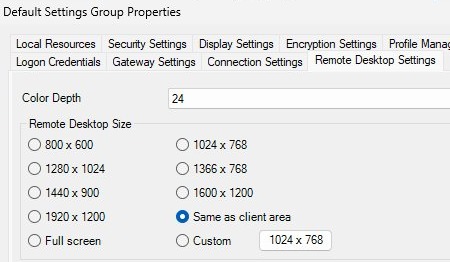
| Remote Desktop Settings | Remote desktop size, Same as client area or Full screen |
| Local Resources | Sound, where Windows key combinations go, and drive, port, printer, smart card and clipboard sharing |
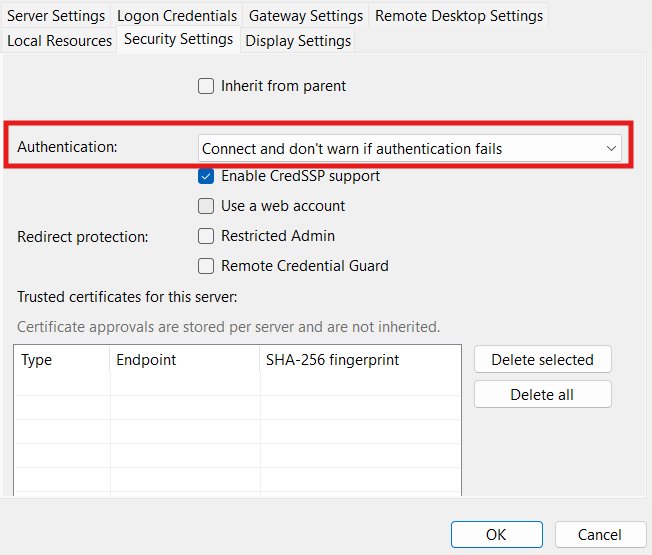
| Security Settings | Whether the remote machine must be authenticated before connecting |
| Display Settings | Thumbnail scale, live previews and whether thumbnails accept input |
| Encryption Settings | Encrypt stored passwords with your Windows account or an X509 certificate |
Remote Desktop listens on port 3389 by default. If a server uses another port, enter it in Connection Settings; the same number must match what you set when changing the default RDP port on that server. Global defaults for the whole tree live under Tools > Options > General > Default group settings.
How to import servers into RDCMan?
Importing suits a list exported from Active Directory, a spreadsheet or an inventory tool. Every imported server lands in the same group with the same settings.
- Create a plain text file with one server name per line.
- Create or select the group that should receive the servers.
- Right-click the group and open the import option for servers.
- Choose the text file, or type server names directly in the dialog.
- Confirm the import and check the new servers in the tree.
If an imported name matches a server already in the group, RDCMan keeps the server and updates its settings to the imported ones.
Accessing Hyper-V virtual machine console via RDCMan
RDCMan can reach a virtual machine's console through its host instead of through the guest's own network connection. You need the VM's ID from a host that has Hyper-V turned on in Windows 11 or Windows Server.
- On the Hyper-V host, open PowerShell as administrator.
- Run
Get-VM | Format-Table Name, Idto list each virtual machine with its GUID. - In RDCMan, add a server whose server name is the Hyper-V host.
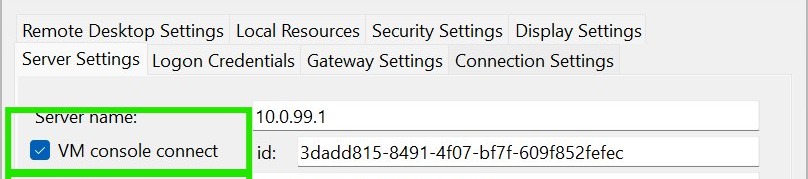
- Open that server's properties with Alt + Enter and go to Server Settings.
- Turn on the VM console connect option and paste the VM's ID.
- Close the dialog, select the server, and press Enter to open the VM console.
Microsoft's RDCMan page describes this for SCVMM virtual machines and gives get-vm | ft ElementName,Name,Id as its command to find the ID.
How to save credentials in RDCMan with credential profiles
Passwords saved in an .rdg file are encrypted for your own Windows account, so a colleague who opens the same file cannot use them. Credential profiles solve that and keep one password in one place.
| Where the profile lives | Use it when | How passwords are protected |
|---|---|---|
| Global store | Each user defines their own profile, such as Me, for a shared .rdg file | The Default Group Settings encryption |
| File store | Several groups without a common parent need the same credentials | The containing file's Encryption Settings |
| Group Logon Credentials | One group of servers shares one account | CryptProtectData for your account, or an X509 certificate |
Add, edit or remove profiles from the Profile Management tab. To encrypt with a certificate you can move between PCs, Microsoft gives this command: New-SelfSignedCertificate -KeySpec KeyExchange -KeyExportPolicy Exportable -HashAlgorithm SHA1 -KeyLength 2048 -CertStoreLocation "cert:\CurrentUser\My" -Subject "CN=MyRDCManCert", then export it with the private key.
RDCMan keyboard shortcuts
These are the defaults Microsoft lists. Change the remote desktop hot keys under Tools > Options > Hot Keys.
| Shortcut | Action |
|---|---|
| Enter | Connect to the selected server |
| Shift + Enter | Connect with Connect As |
| Alt + Enter | Open properties for the selected server or group |
| Delete / Shift + Delete | Remove the selected server or group, with or without a prompt |
| Tab | Give focus to the selected connected server |
| Ctrl + Alt + Break | Enter or leave full screen mode |
| Ctrl + Alt + Left / Right | Release focus to the previous session, or choose where focus goes |
| Ctrl + F | Find servers by a regular expression pattern |
For Ctrl + Alt + Del and similar keys inside a session, use Session > Send keys or Session > Remote actions.
RDCMan command line switches
Pass one or more .rdg files on the command line to open them instead of the files from the last session. These switches change startup behavior.
RDCMan.exe /noopen /c server1,server2/noopen starts with an empty environment, and /c connects the listed servers. Other switches: /reset clears saved preferences such as window size and location, /reconnect connects every server that was connected at shutdown without asking, and /noconnect skips that reconnect prompt.
You should see: RDCMan opens with no files loaded and starts sessions to server1 and server2.
RDCMan not connecting: errors and fixes
These symptoms come from Microsoft's own RDCMan FAQ. Problems with the Remote Desktop service itself usually come down to common Remote Desktop connection issues.
Error 50331656 when connecting through a gateway
The gateway was entered as a short name instead of a fully qualified domain name.
- Open the server or group properties with Alt + Enter.
- Go to Gateway Settings.
- Enter the gateway as an FQDN, such as gateway.contoso.com, and connect again.
RDCMan auto-logon does not work and you are asked for a password
Group Policy on the remote computer forces a password prompt.
- Open the Group Policy snap-in in MMC on the remote computer.
- Go to Local Computer Policy > Computer Configuration > Administrative Templates > Windows Components > Terminal Services > Encryption and Security.
- Double-click Always prompt client for password upon connection and select Disabled.
Smart card logon fails
Smart cards are not redirected to the session.
- Open the server or group properties.
- Go to Local Resources.
- Turn on Redirect smart cards and reconnect.
Remote desktop size is wrong while connected
The size is fixed at connect time and cannot change during a session.
- Change the size in Remote Desktop Settings.
- Disconnect and reconnect, or use Reconnect to do both in one step.
- Turn on automatic reconnect with the new resolution in Display Settings if you resize often.
List Sessions shows nothing or is refused
Your account lacks Query Information permission, or the server is behind a gateway.
- Ask for Query Information permission on the remote server, plus Disconnect and Logoff to act on sessions.
- Run Session > List Sessions against a server you can reach directly, not through a gateway.
RDCMan FAQ
Where do I download RDCMan?
Download Remote Desktop Connection Manager from its Sysinternals page on Microsoft Learn, or run it from Sysinternals Live. Microsoft lists Windows 11 and higher, and Windows Server 2016 and higher, as supported systems for the current version.
Does RDCMan run on Windows 10?
Microsoft's Sysinternals page lists Windows 11 and higher as the supported client and Windows Server 2016 and higher as the supported server. Windows 10 is not on that list for the current release, so test it before you rely on it there.
Where does RDCMan store passwords?
RDCMan stores passwords in the .rdg file or in a credential profile, encrypted with CryptProtectData under the logged-on Windows user, or with an X509 certificate. Because the default encryption is user-specific, another person cannot reuse passwords saved in your file.
Can I share an RDCMan .rdg file with my team?
Yes. Share the file without stored passwords and have each person define a credential profile, such as Me, in their own global store. Everyone then signs in with their own account while using the same server tree.
Can I open new RDCMan files in an older version?
No. Microsoft states that RDG files saved by the current version are not compatible with older program versions. When a legacy file is opened and saved, RDCMan backs up the original as filename.old.
How do I make RDCMan reconnect to a server after it reboots?
Drag the server to the Reconnect virtual group. RDCMan keeps trying to connect until the server is back online, which suits reboots after an update. Toggle the Reconnect group on or off from the View menu.
Can RDCMan connect to a virtual machine console?
Yes. Add the Hyper-V host as the server, open Server Settings, turn on the VM console connect option and enter the VM's ID. Find the ID on the host with Get-VM, which lists each virtual machine's GUID.
How do I resize the remote desktop while connected in RDCMan?
You cannot resize a connected session. Change the size in Remote Desktop Settings, then disconnect and reconnect, or use Reconnect to do it in one step. Display Settings can reconnect automatically with the new resolution.