No, iCloud Mail has no delivery receipt or read receipt function: Apple documents no such option in Mail on iCloud.com, the Mail app on iPhone, or its Mail settings.
This guide shows what you can check instead, how read receipts work in Messages, and how iCloud Mail stops other senders from tracking when you open their email.
Does iCloud Mail have read receipts?
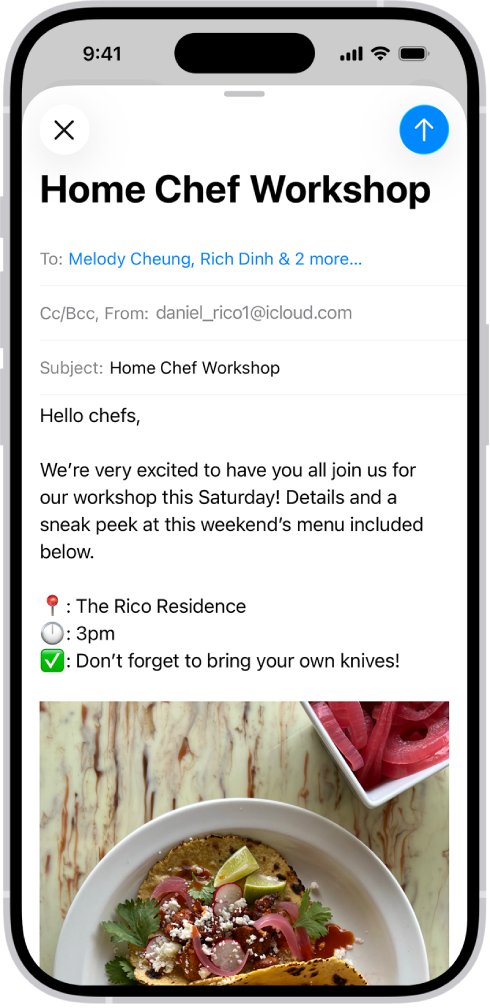
No. You cannot request a delivery or read receipt for an email sent from an @icloud.com address, so confirm the email left your account in the Sent mailbox and ask the recipient to reply if you need proof it arrived. Apple's iCloud Mail guide covers writing, sending, Undo Send, reminders and attachments, but no receipt request, and Microsoft states that Outlook receipts are not available for IMAP accounts such as iCloud.
If the person you are writing to uses an iPhone, iPad or Mac, a message in the Messages app can show Delivered and Read instead. That route is covered below.
Difference between delivery and read receipt
The two receipts answer different questions, and neither one is guaranteed even in email services that support them.
| Receipt | What it confirms | Limits | Available in iCloud Mail |
|---|---|---|---|
| Delivery receipt | The email reached the recipient's mailbox | Says nothing about whether it was opened | No |
| Read receipt | The email was opened | The recipient can decline it, and some email programs don't support it | No |
| Messages "Delivered" | The text reached the other person's device | Shown when they haven't read it or have read receipts off | Not email; Messages only |
| Messages "Read" | The other person opened the text | Only appears when they turned on Send Read Receipts | Not email; Messages only |
Microsoft's own guidance adds that there is no way to force a recipient to send a read receipt, even in Outlook.
Can you get read receipts for iCloud Mail in Outlook?
No. Adding your iCloud account to Outlook does not unlock delivery or read receipts. Microsoft says the receipt options are not available for IMAP or POP accounts such as Gmail, Yahoo or iCloud. They work with Microsoft Exchange and Microsoft 365 work accounts instead.
If you also have a work account in Outlook, the Outlook read receipt setting applies to email sent from that account, not from your @icloud.com address.
How to check if an iCloud email was sent
iCloud Mail can show that an email left your account, which is the closest it gets to a delivery receipt.
- Go to icloud.com/mail and sign in to iCloud Mail with your Apple Account.
- Open the Sent mailbox and look for the email at the top of the list.
- If sent mail is missing, select the settings icon at the top of the Mailboxes list, choose Settings, then Mailbox Behavior.
- Make sure Save sent messages in is selected, then select Done.
- On iPhone, open Settings > Apps > Mail and turn on Always Bcc Myself below Composing to get your own copy of each email.
- Check your inbox over the next few minutes for a returned email, which means the recipient's service rejected the message.
A copy in Sent proves the email left iCloud. Only a reply proves that the recipient received and read it.
Turn read receipts on or off in Messages on iPhone
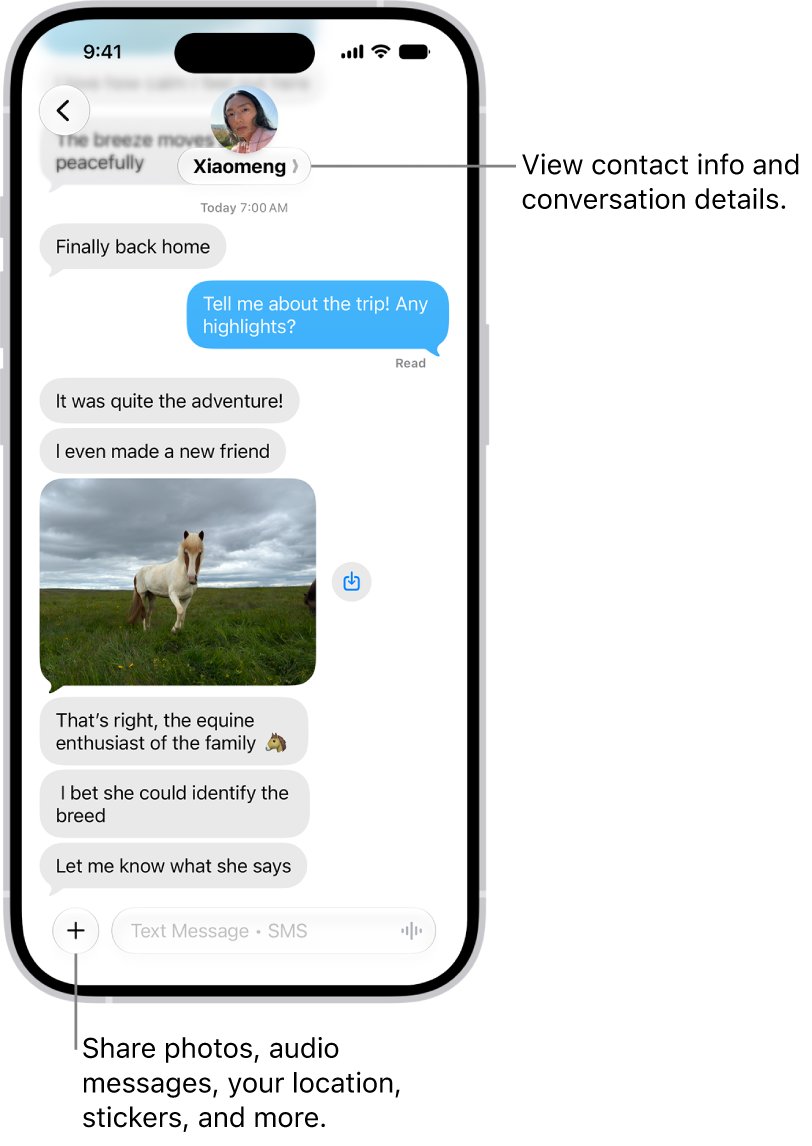
Read receipts do exist on Apple devices, but in the Messages app rather than in Mail. When they are on, the sender sees Read below their message once you open it.
- Open the Settings app on your iPhone.
- Tap Apps, then tap Messages.
- Turn Send Read Receipts on or off for everyone.
- To set it for one person only, open Messages and tap that conversation.
- Tap the contact icon at the top of the conversation.
- Turn Send Read Receipts on or off for that contact.
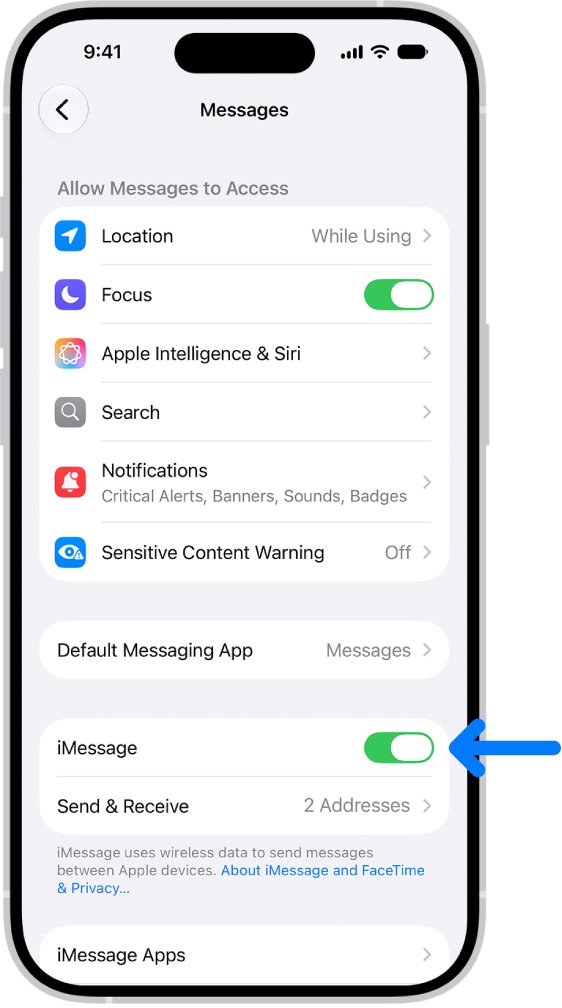
The setting controls the receipts you send, not the ones you receive. You see Read under your own messages only when the other person turned the feature on. If iMessage is off, turn on iMessage on iPhone first.
Does delivered mean read in iMessage?
| Status under your message | What it means | What it does not mean |
|---|---|---|
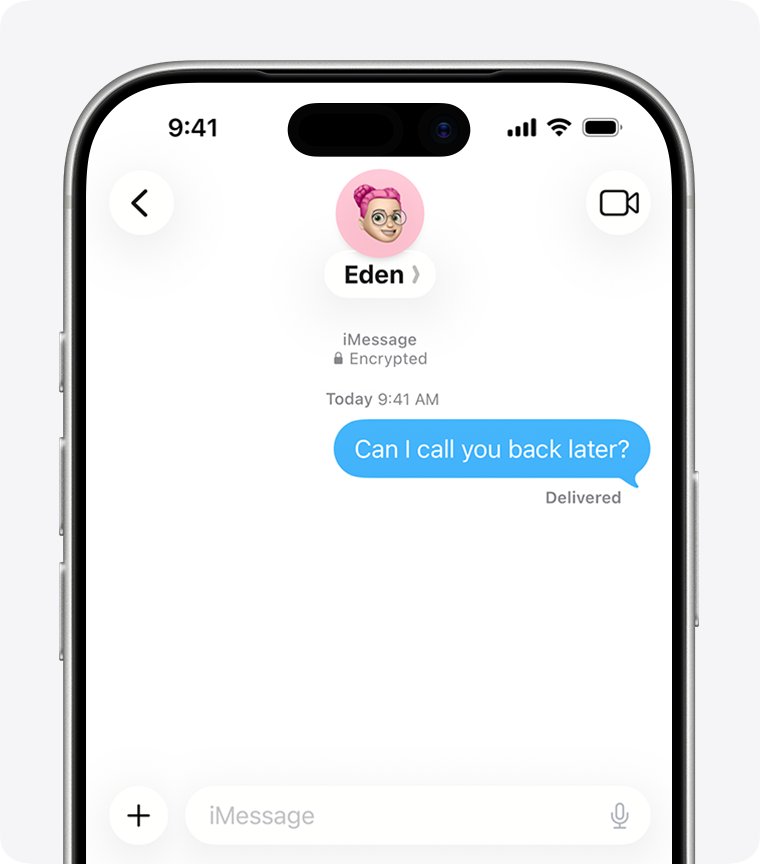
| Delivered | The message reached the other person's device | That they have not read it, since read receipts may be off |
| Read | The other person opened the conversation and has read receipts on | That they replied or will reply |
Apple states that a sender sees Delivered when you haven't read their message. With read receipts turned off, the status stays at Delivered even after the message is opened.
Turn on Mail Privacy Protection in iCloud Mail
Some marketing senders track when you open their email, which acts like a read receipt you never agreed to. Mail Privacy Protection hides your IP address and stops senders from seeing whether you opened their email.
- On the web, go to icloud.com/mail and sign in.
- Select the settings icon at the top of the Mailboxes list and choose Settings.
- Select Privacy & Security in the sidebar, then select the Protect Mail Activity checkbox.
- On iPhone, go to Settings > Apps > Mail.
- Tap Privacy Protection, then turn on Protect Mail Activity.
- If prompted, turn on Limit IP Address Tracking in Settings > Wi-Fi for your network.
Mail Privacy Protection is not available in every country or region. It also does not cover links or attachments such as PDF files.
How to unsend an email in iCloud Mail
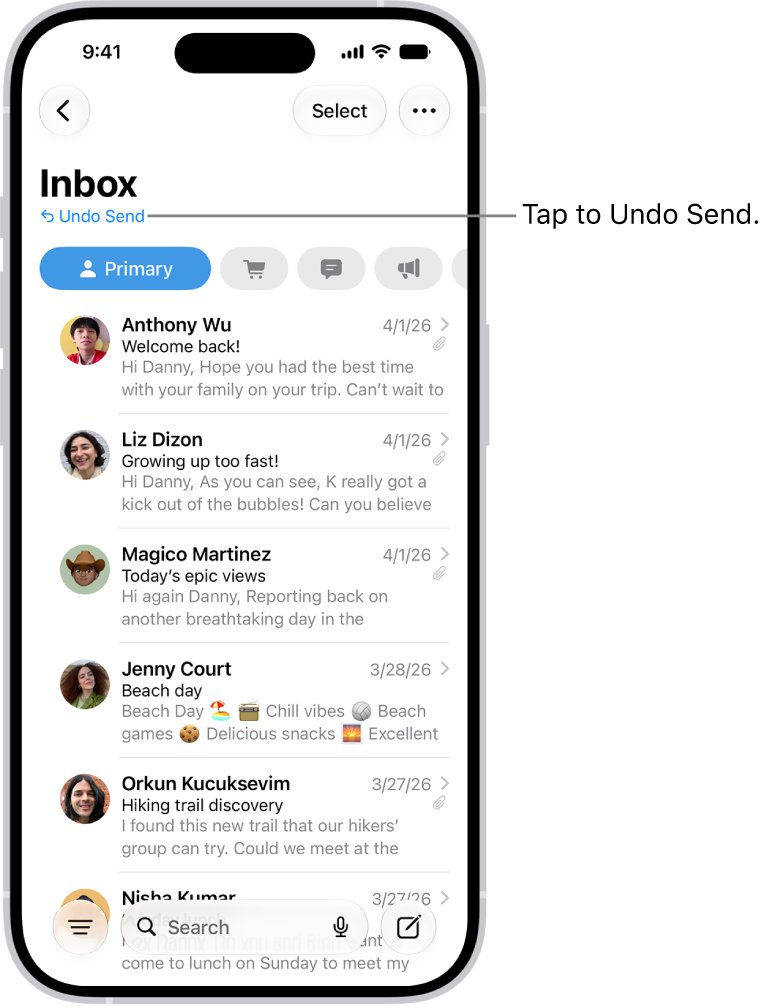
With no receipts and no recall, Undo Send is the only way to pull back an email sent from iCloud Mail. It works only for a few seconds after you select Send.
- On iCloud.com, select Undo Send at the bottom of the screen right after you send the email.
- To get more time, open Settings from the Mailboxes list and choose Composing.
- Select the pop-up menu next to Undo Send Delay and pick a longer option.
- On iPhone, tap Undo Send at the top of the inbox within 10 seconds.
- To change the delay on iPhone, go to Settings > Apps > Mail > Undo Send Delay and choose a length of time.
The default window is 10 seconds on both iCloud.com and iPhone. After it closes, the email cannot be pulled back.
iCloud Mail email not delivered
The email came back as returned or undeliverable
The recipient's email service rejected it, often because the message exceeded its size limit.
- Open the returned message and read the reason it gives.
- If attachments were large, write the email again and attach the files.
- Choose Mail Drop when iCloud Mail offers it, or share the files with an iCloud link instead.
- Send the email again.
Someone with an @icloud.com address never gets your email
An iCloud account that runs out of storage cannot receive new email until space is freed.
- Ask the person whether their iCloud storage is full.
- Send the email again once they free up iCloud storage or upgrade it.
- Use another channel, such as Messages, for anything urgent in the meantime.
The email is not in your Sent mailbox
Saving sent messages is turned off, or the message was still in Drafts when you closed the window.
- Open Settings > Mailbox Behavior on iCloud.com and select Save sent messages in.
- Check the Drafts mailbox for the unsent message.
- Open the draft and select the send button.
iCloud Mail read receipt FAQ
How do I add a delivery and read receipt in iCloud Mail?
You can't. Mail on iCloud.com and the Mail app on iPhone have no option to request a delivery or read receipt. Check the Sent mailbox to confirm the email left your account, and ask the recipient to reply if you need confirmation.
Does delivered mean the message was read?
No. In Messages, Delivered means the text reached the other person's device. It changes to Read only if they open it and have Send Read Receipts turned on, so a read message can still show Delivered.
What is the difference between delivered and read text?
Delivered confirms the message arrived on the recipient's device. Read confirms they opened it, and it appears only when the recipient has turned on read receipts in Messages for everyone or for your conversation.
What is the difference between a delivery receipt and a read receipt?
A delivery receipt confirms an email reached the recipient's mailbox. A read receipt confirms it was opened. The recipient can decline a read receipt, and iCloud Mail supports neither.
Can someone tell if I opened their email in iCloud Mail?
Not when Protect Mail Activity is on. Mail Privacy Protection hides your IP address and prevents senders from seeing whether you opened their email. Turn it on in iCloud.com Mail settings under Privacy & Security, or in Settings > Apps > Mail on iPhone.
Does Outlook add read receipts to an iCloud account?
No. Microsoft says Outlook's read and delivery receipts are not available for IMAP or POP accounts such as iCloud, Gmail or Yahoo. They work with Exchange and Microsoft 365 work accounts.
Can I recall an email sent from iCloud Mail?
Only within the Undo Send window, which is 10 seconds by default. Select Undo Send right after sending, or set a longer Undo Send Delay in iCloud.com Composing settings or in Settings > Apps > Mail on iPhone.