A virus is very unlikely to transfer through iCloud to a new iPhone, because an iCloud backup restores settings and app data while the apps themselves download again from the App Store, signed by Apple and sandboxed.
This guide explains what an iCloud backup carries, which problems can follow you to a new iPhone, how to restore safely, and how to check the new phone after setup.
Can a virus transfer through iCloud to a new iPhone?
Restore your new iPhone from iCloud as normal, then secure your Apple Account and check for unknown configuration profiles, because those are the parts that can follow you. iOS requires all executable code to be signed with an Apple-issued certificate, every third-party app runs in its own sandbox, and the operating system partition is read-only. iCloud Backup stores settings, layout and app data, and the apps reinstall from Apple after you sign in. A stolen Apple Account password, by contrast, lives in your account, so it works on any phone you set up.
If the old iPhone showed odd behavior, first scan your iPhone for viruses and malware to find out what was really going on.
What does iCloud back up and restore to a new iPhone?
iCloud keeps your data in two ways, and the difference between sync and backup matters here: services such as iCloud Photos, iCloud Drive and Notes sync continuously, and iCloud Backup stores whatever does not sync. Both come back on a new iPhone.
| What comes back | How it reaches the new iPhone | Can it carry malware? |
|---|---|---|
| Device settings, Home Screen layout and app organization | iCloud Backup | Settings are restored as they were, which is why an unwanted configuration profile is worth checking for afterwards |
| App data for downloaded apps | iCloud Backup, or iCloud Drive if the app stores data there | Data stays inside each app's sandbox and cannot change other apps |
| Apps themselves | Download again after you sign in to restore apps and purchases | Apps must be signed with an Apple-issued certificate, and iPhone checks installed apps for known malware |
| Messages, photos and videos | iCloud Backup, or sync if Messages in iCloud and iCloud Photos are on | These are files, not apps that run on the iPhone |
| Ringtones, Visual Voicemail password, Apple Watch backup | iCloud Backup | No |
| Apple Account sign-in and trusted devices | Your account, on any device you sign in to | Not malware, but a compromised account follows you to every phone |
Is the malware in my iCloud storage?
Find the problem you saw on the old iPhone in the left column. Most iPhone "virus" symptoms come from websites or accounts, not from files in iCloud.
| What you saw on the old iPhone | Where it really lives | What to do on the new iPhone |
|---|---|---|
| Pop-up saying the iPhone has a virus | A website ad in Safari | Close the tab and ignore it; Apple says these pop-ups are usually fraudulent ads |
| Calendar events you never created | A spam invitation or calendar subscription | Report the invitation as Junk in iCloud, or delete the spam calendar |
| Alert that an app contains malware | That app | Tap Delete App from the alert |
| Unknown profile in VPN & Device Management | A configuration profile on the device | Delete it from Settings > General > VPN & Device Management |
| Sign-ins, purchases or password changes you did not make | Your Apple Account | Change the Apple Account password and remove devices you do not recognize |
| Crashes, battery drain and broken services after a jailbreak | The modified copy of iOS on the old phone | Leave the new iPhone unmodified and install apps from the App Store |
How to restore a new iPhone from an iCloud backup
Restore from an iCloud backup of your iPhone made before the problem started if you can. The list shows the date and size of each backup so you can pick one.
- Turn on the new iPhone and follow the setup steps from the Hello screen.
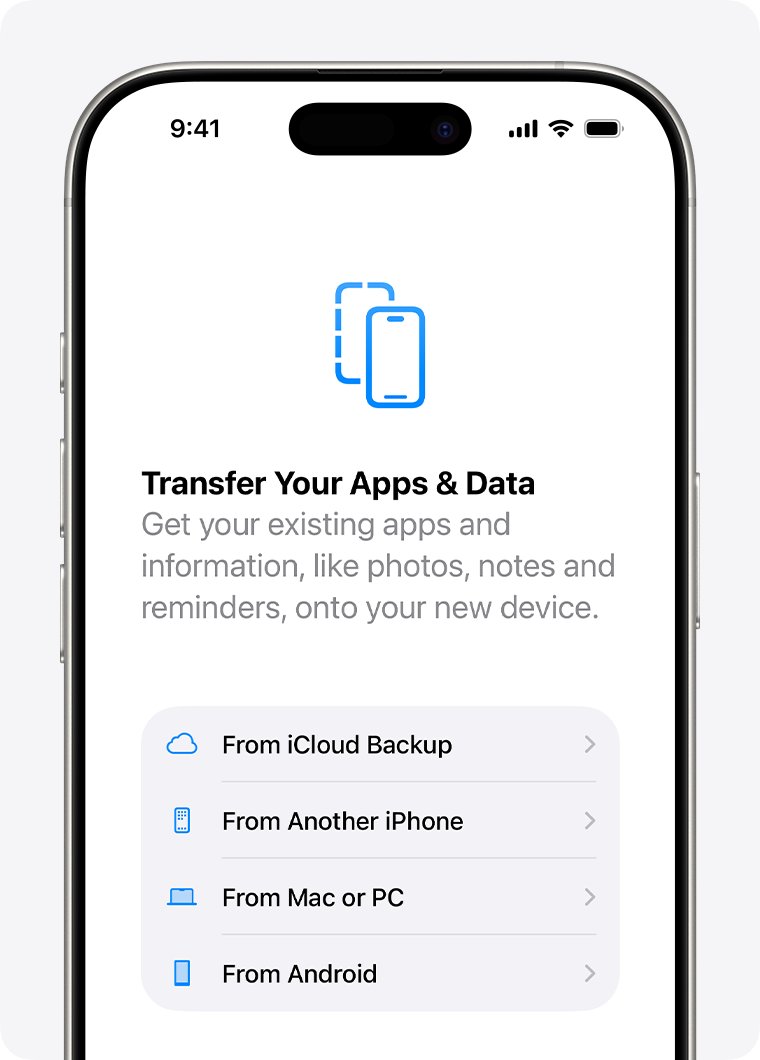
- Stop at the Transfer Your Apps & Data screen and tap From iCloud Backup.
- Sign in to your Apple Account to see your backups.
- Review the date and size of each backup, then choose one.
- When asked, sign in again to restore your apps and purchases.
- Keep the iPhone on Wi-Fi and power until the progress bar finishes, then finish setup.
Photos, music and apps keep downloading from iCloud after setup. If you already set up the iPhone, erase it first to get back to the Hello screen.
How to secure your Apple Account before restoring to a new iPhone
Apple lists the signs of a compromised account: alerts about sign-ins you do not recognize, two-factor codes you did not request, a password that no longer works, or a device placed in Lost Mode by someone else.
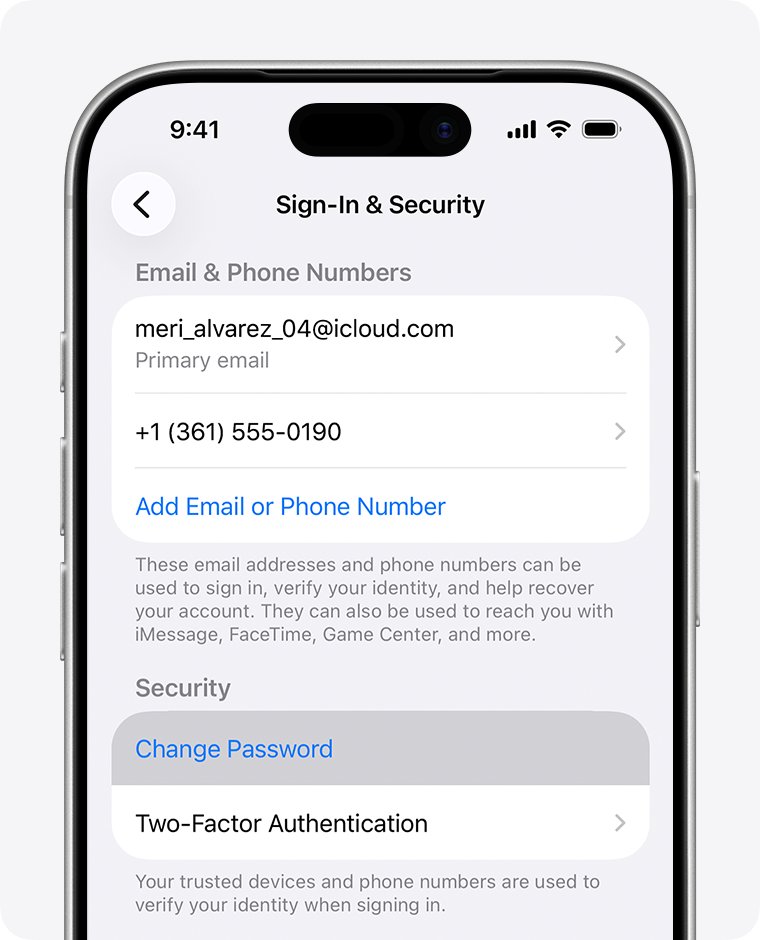
- On a trusted iPhone, open Settings, tap your name and tap Sign-In & Security.
- Tap Change Password and follow the onscreen steps.
- When asked, tap Remove Other Devices so every other device has to sign in again.
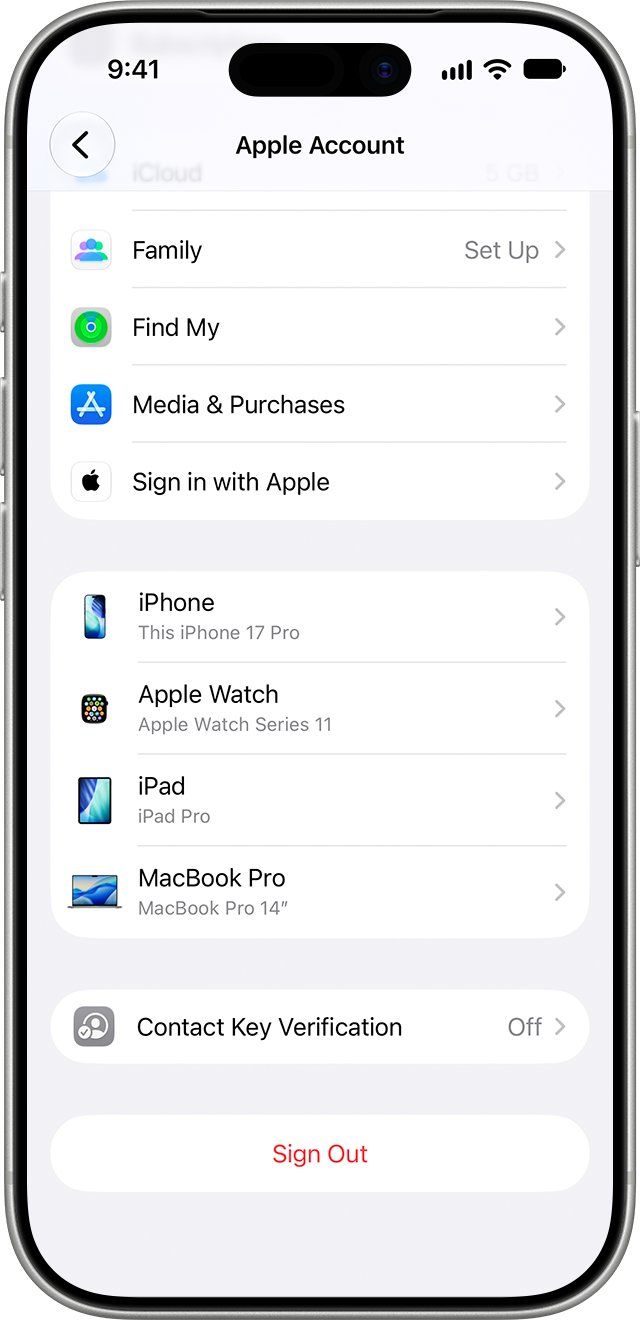
- Go back to Settings > [your name] and scroll to the device list.
- Tap any device you do not recognize and tap Remove from Account.
- Make sure two-factor authentication is on for your Apple Account.
Without a trusted device, sign in at account.apple.com, open Sign-In and Security and choose Password. If you are locked out, you can get into iCloud without your phone through account recovery.
How to check a new iPhone for configuration profiles
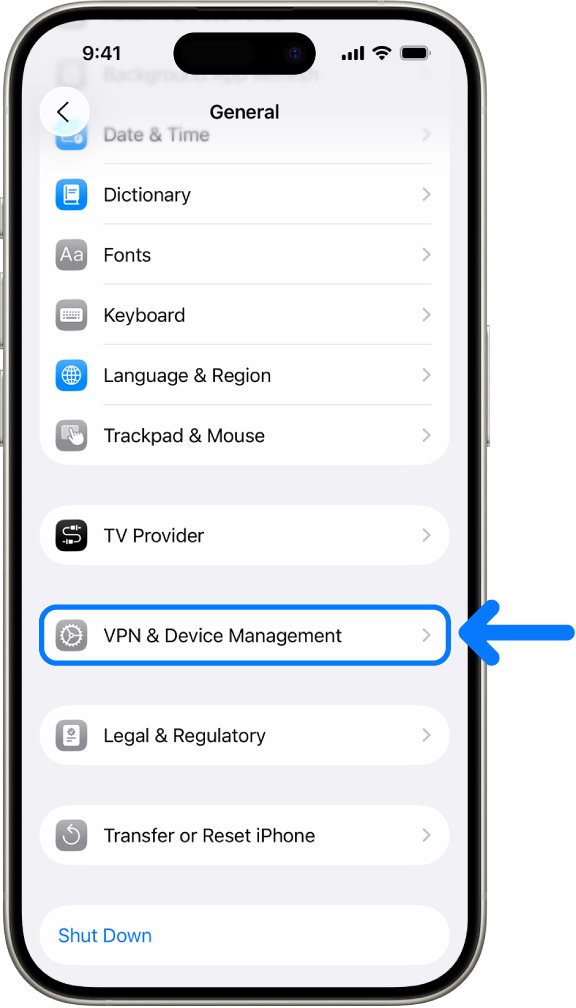
Schools and businesses use configuration profiles to manage devices, and a profile can allow access to data or location. A personal iPhone usually has none.
- Open Settings and tap General.
- Tap VPN & Device Management.
- If no profiles are listed, none are installed and you can stop here.
- Tap any profile you did not install and tap Delete Profile.
- Follow the onscreen steps, then restart the iPhone.
Deleting a profile removes all of its settings, apps and data. If the iPhone belongs to your employer or school, ask the administrator first.
How to delete an app that shows a malware alert on iPhone
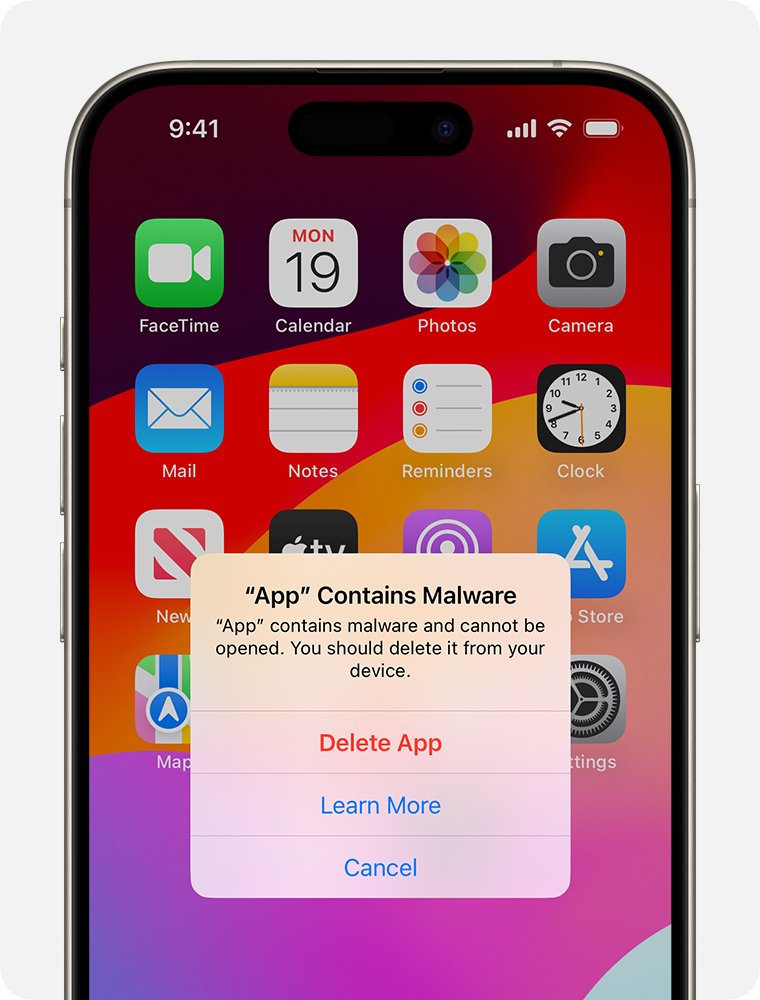
iPhone regularly checks installed third-party apps for malware that Apple has identified. If a restored app is flagged, iPhone blocks it and recommends deleting it.
- Tap Delete App in the malware alert.
- If you closed the alert, open Settings and tap the app named in the alert to read the details.
- Tap Delete App.
- If a new version is offered, decide whether to install it after reading the alert details.
You can also delete the app from the Home Screen or App Library. Apple warns that using a flagged app could harm your device or compromise your privacy, so avoid the Re-Enable App option.
How iPhone stops malware from spreading through apps
These protections are why a restored backup does not reinstall hidden code. Apple documents each one in its Platform Security guide.
| Protection | What it does |
|---|---|
| Mandatory code signing | All executable code must be signed with an Apple-issued certificate, and apps cannot load unsigned code |
| Developer identity checks | Apple verifies each developer's real-world identity before issuing a certificate |
| App sandbox | Each third-party app has its own home directory and cannot gather or change other apps' information |
| Read-only system partition | The operating system partition is mounted read-only, and apps cannot escalate their own privileges |
| Malware checks on installed apps | iPhone checks installed third-party apps for malware Apple has identified and blocks flagged apps |
In the European Union, apps can also come from alternative marketplaces and developer websites, and Apple says this carries a greater prevalence of malware, fraud and scams.
Virus warning on new iPhone after iCloud restore
Safari says your new iPhone is infected
A fraudulent website ad designed to make you call a number or install something.
- Do not call the number or tap any link in the pop-up.
- Close the tab or navigate away from the page.
- Open Settings > Apps > Safari and tap Clear History and Website Data.
- Confirm the timeframe and tap Clear History.
Spam calendar events came back after the restore
A spam invitation or an unwanted calendar subscription tied to your account.
- Open the event and report the invitation as Junk.
- If you subscribed to a spam calendar by accident, delete that calendar.
- Check the new iPhone again the next day to make sure no new events appear.
Strange account activity continues on the new iPhone
Someone else knows your Apple Account password.
- Change your Apple Account password from Settings > [your name] > Sign-In & Security.
- Remove unknown devices from the device list in Settings > [your name].
- Check with your email provider and carrier that you control every email address and phone number on the account.
iCloud restore or sign-in fails on the new iPhone
An Apple service outage, or a password that no longer works.
- Open Apple's System Status page and check iCloud Backup and iCloud Account & Sign In.
- If the service is available, sign in again and check the password.
- If you cannot reset the password, go to iforgot.apple.com to start account recovery.
iCloud virus and malware FAQ
Does Apple recommend virus alerts for iCloud?
No. Apple says pop-ups warning about viruses on your device are usually fraudulent ads. Apple's real security alerts are threat notifications for mercenary spyware, shown in Settings and at account.apple.com, and they never ask you to tap links or install apps.
Is the malware in my cloud storage?
Almost never for an iPhone. iCloud stores settings, files and app data, but iPhone runs only signed apps from Apple in a sandbox. Account takeovers and spam calendar subscriptions are the problems that can follow you through iCloud.
Can a virus spread from an old iPhone to a new one through an iCloud backup?
It is very unlikely. The backup restores settings and app data, and the apps download again from Apple. After setup, check Settings, General, VPN & Device Management for profiles you did not install.
What is wrong with iCloud today?
Check Apple's System Status page, which lists each service, such as iCloud Backup, iCloud Drive and iCloud Account & Sign In, as available or with a current issue. If everything is available, the problem is on your device or account.
Why can't I get into my iCloud?
The usual causes are a changed or forgotten password, missing two-factor codes, or a service outage. Check Apple's System Status page first, then reset your password or start account recovery at iforgot.apple.com.
What happened to my iCloud storage after I got a new iPhone?
Your old iPhone's backup can stay in iCloud and keep using space. If you turn off iCloud Backup for a device, Apple keeps its backups for 180 days before deleting them, and you can delete old backups yourself.
Is there an Apple malware update for iCloud?
Apple delivers security fixes through software updates for your devices. Update the new iPhone to the latest iOS, use a passcode, turn on two-factor authentication and Stolen Device Protection, and install apps from the App Store.