To boot Windows 11 in Safe Mode, open Settings > System > Recovery, select Restart now next to Advanced startup, then choose Troubleshoot > Advanced options > Startup Settings > Restart and press 4 or F4.
This guide covers all five routes on Windows 11, the Windows 10 equivalents, how to leave Safe Mode, and what to do when Safe Mode will not load.
Method 1 — Settings (best when Windows boots normally)
Use this route when you can sign in and reach the desktop. It sends the PC to the Advanced startup menu, which is part of the Windows Recovery Environment (Windows RE).
- Open Settings and select System > Recovery.
- Under Recovery options, select Restart now next to Advanced startup.
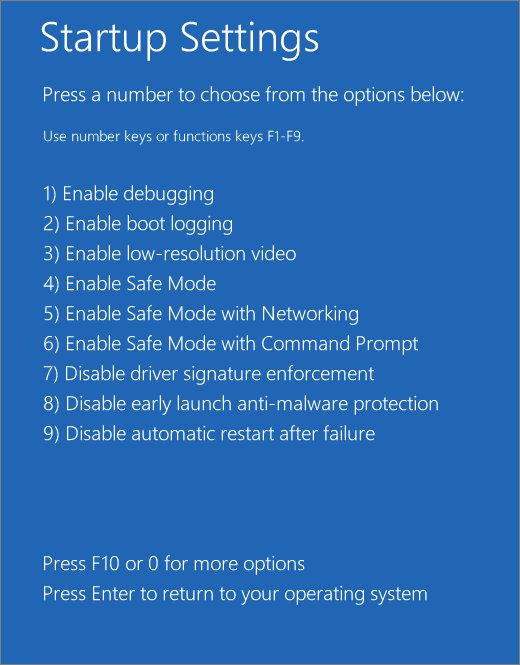
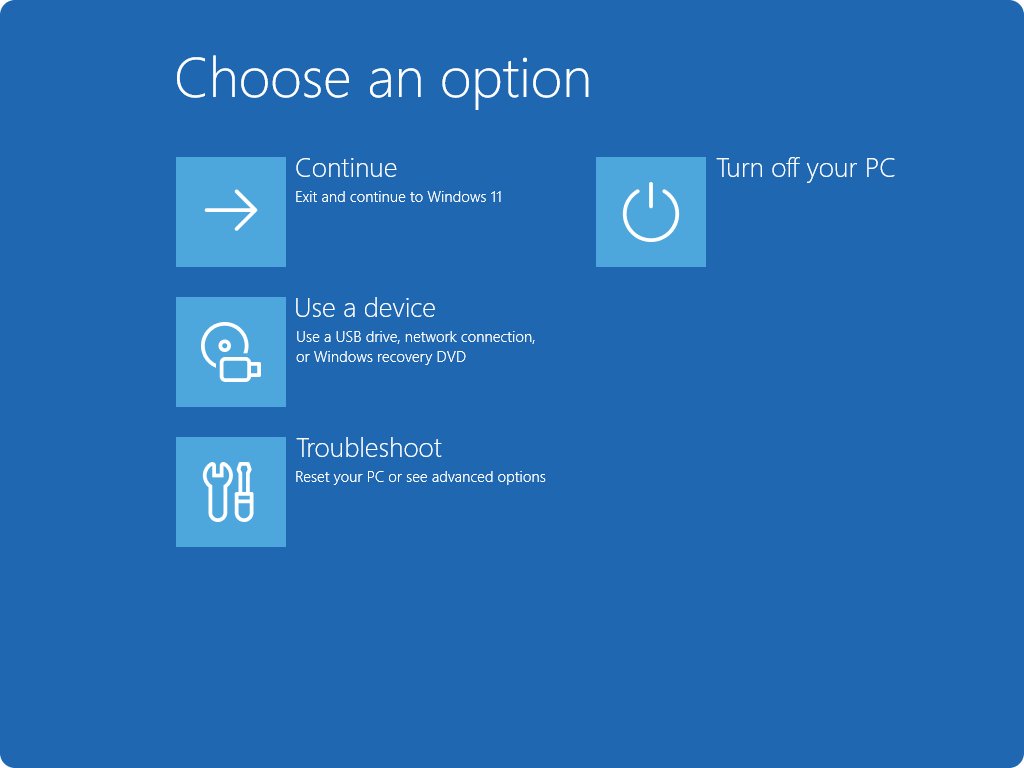
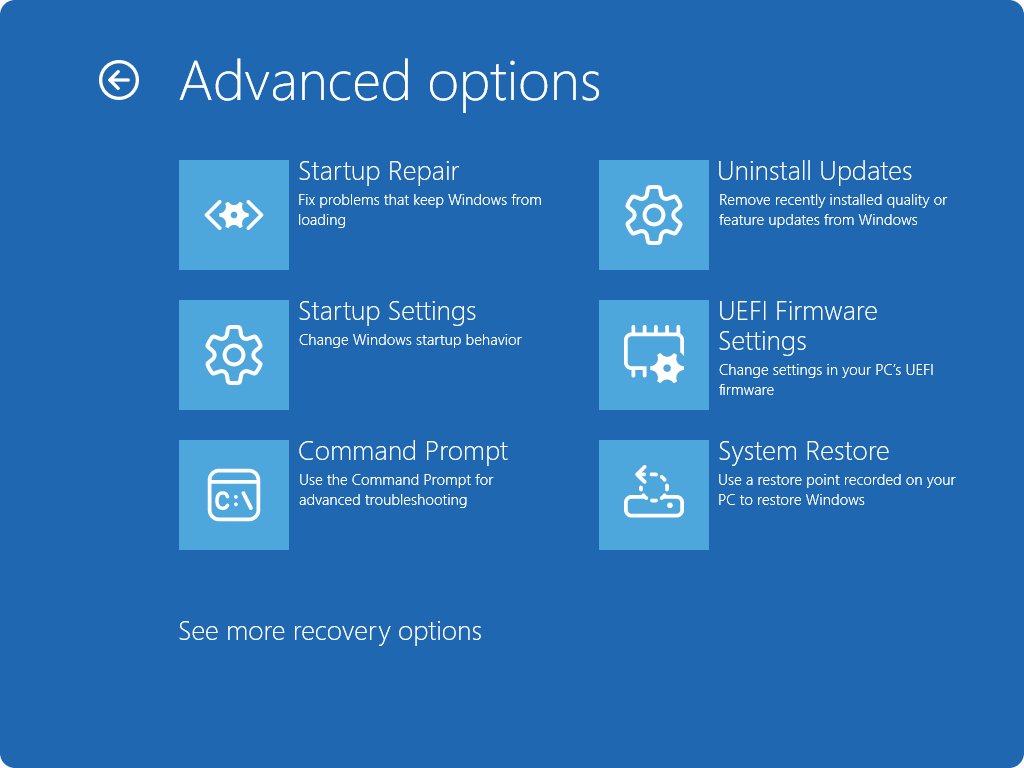
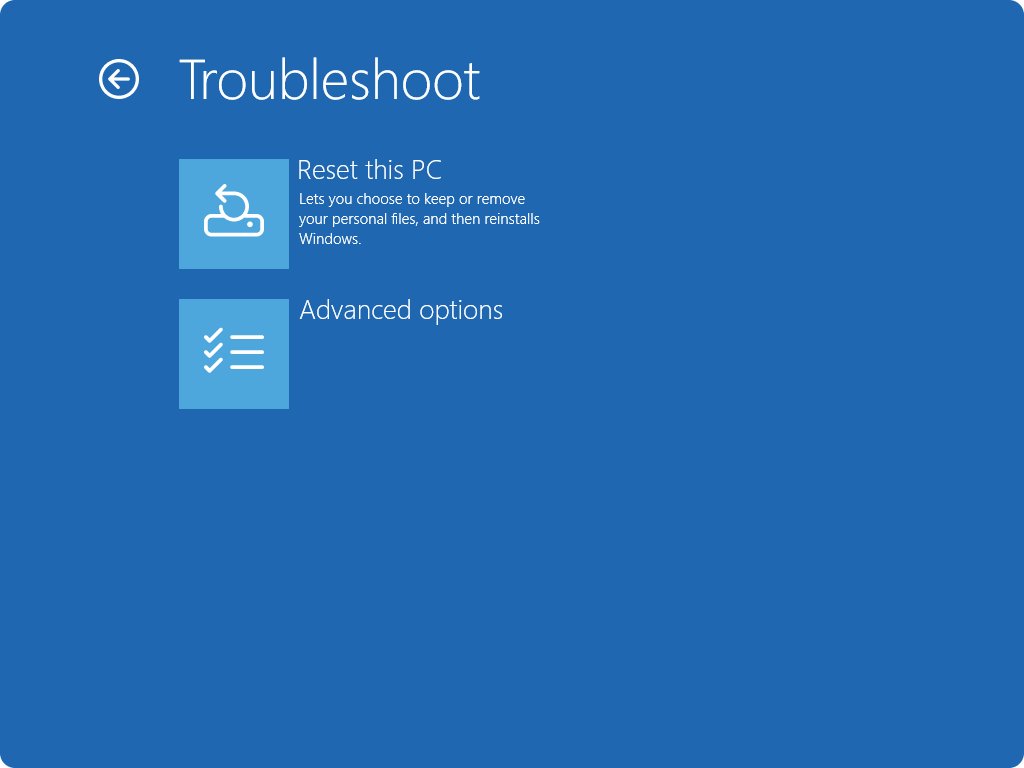
- On the Choose an option screen, select Troubleshoot > Advanced options > Startup Settings.
- Select Restart.
- When the Startup Settings list appears, press 4 or F4 for Safe Mode, 5 or F5 for Safe Mode with Networking, or 6 or F6 for Safe Mode with Command Prompt.
On a BitLocker-encrypted PC, keep your BitLocker recovery key at hand, because Startup Settings asks for it before the restart completes.
Quick compatibility matrix — which method to use
| Your situation | Use this | Why |
|---|---|---|
| Windows starts and you can sign in | Method 1: Settings | Fewest steps and no commands |
| You are stuck at the sign-in screen | Method 2: Shift + Restart | Works from the power icon without signing in |
| You need Safe Mode on every restart while you test | Method 3: msconfig | The Safe boot setting stays until you clear it |
| Windows fails to load at all | Method 4: Windows RE | Forced shutdowns or a USB drive open recovery without the desktop |
| You manage PCs from the command line | Method 5: bcdedit | One command sets Safe Mode for the next boots |
| You still run Windows 10 | The Windows 10 routes below | Same menus, but Settings uses Update & Security |
Method 2 — Shift + Restart (from sign-in screen or desktop)
Holding Shift while you restart opens the Advanced startup menu instead of restarting normally. Microsoft documents it from both the desktop and the sign-in screen, so you do not need to sign in first.
- On the desktop, open Start and select the Power icon. On the sign-in screen, select the Power icon.
- Press and hold Shift, then select Restart.
- Select Troubleshoot > Advanced options > Startup Settings > Restart.
- Press 4 or F4 to start Safe Mode.
Method 3 — System Configuration (msconfig) — persistent safe boot
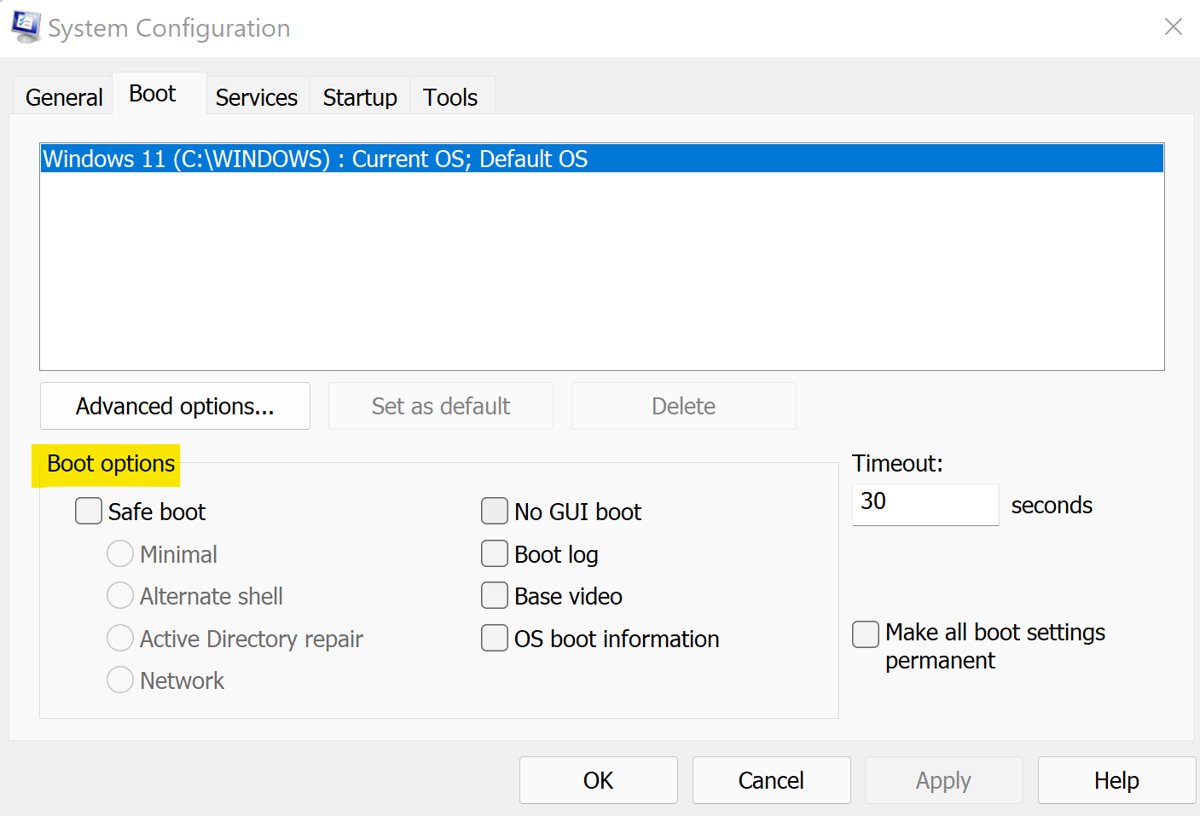
System Configuration writes Safe Mode into the boot settings, so Windows keeps starting in Safe Mode on every restart until you turn it off. You must sign in with an administrator account to use it.
- Press Windows + R, type
msconfigand select OK. - Select the Boot tab.
- Under Boot options, select the Safe boot check box.
- Select OK, then select Restart when Windows offers it.
- Work in Safe Mode, then return to the Boot tab and clear Safe boot before your next normal restart.
This route suits repeated testing, such as removing a driver and restarting several times. For a single visit to Safe Mode, Method 1 is safer because it never leaves a setting behind.
Method 4 — Windows Recovery Environment (WinRE) — when Windows won't boot
When Windows never reaches the sign-in screen, force it into Automatic Repair. Windows RE also starts on its own after two failed starts in a row.
- Turn on the PC and wait for the Windows or manufacturer logo.
- As soon as the logo appears, press and hold the power button until the PC shuts down.
- Turn it on and repeat the forced shutdown once more.
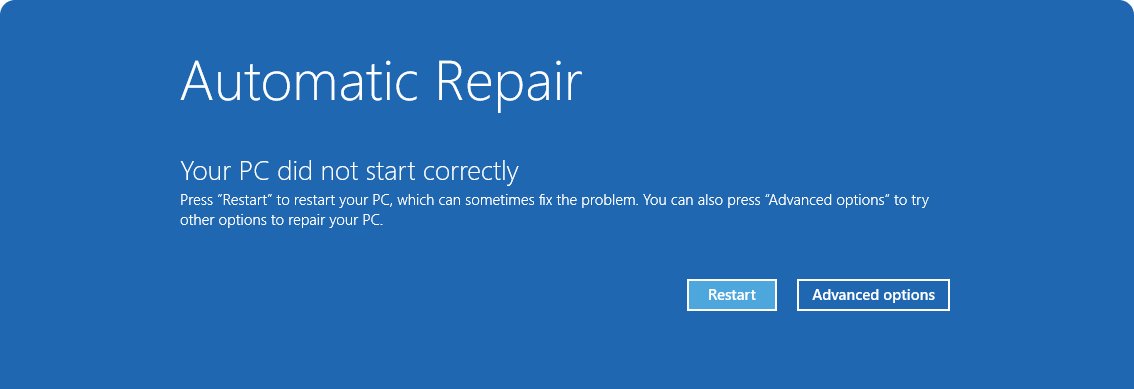
- Turn the PC on a third time and wait for the Automatic Repair screen.
- Select Advanced options, then Troubleshoot > Advanced options > Startup Settings > Restart.
- Press 4 or F4 for Safe Mode.
If Automatic Repair never appears, boot from a USB recovery drive or Windows installation media instead. On the setup screen, choose your language, select Next, then Repair my PC, and you can enter Safe Mode from a recovery drive through the same menus.
Method 5 — bcdedit (command line) — advanced and scriptable
Open Terminal (Admin) or Command Prompt as administrator, then set the safeboot value on the current Windows entry.
bcdedit /set {current} safeboot minimal{current} is the Windows installation you are running, and safeboot minimal tells the boot manager to load Safe Mode. The value stays in place, so every restart opens Safe Mode until you delete it.
You should see: Restart the PC. Windows loads Safe Mode instead of the normal desktop. Run bcdedit /deletevalue {current} safeboot from an elevated prompt to go back to normal startup.
To reach the Startup Settings menu without the Settings app, run shutdown /r /o /t 0. The /o switch restarts into the Advanced boot options menu, and it only works together with /r.
Overview: what Safe Mode is and when to use it
Safe Mode starts Windows with a limited set of files and drivers. If a problem disappears in Safe Mode, default settings and basic device drivers are not the cause, which narrows the search to apps, services and added drivers.
| Startup Settings option | Key | What loads | Use it when |
|---|---|---|---|
| Enable Safe Mode | 4 or F4 | Basic files and drivers only | A driver, app or update crashes Windows |
| Safe Mode with Networking | 5 or F5 | Safe Mode plus network drivers and services | You need the internet to download a driver or run an online scan |
| Safe Mode with Command Prompt | 6 or F6 | Safe Mode with a command window instead of the desktop | Explorer will not load or you prefer commands |
| Enable low-resolution video | 3 or F3 | Your current video driver at low resolution | A bad display setting leaves a blank or unreadable screen |
| Enable boot logging | 2 or F2 | Normal startup, plus a driver log in ntbtlog.txt | You want a list of drivers loaded during startup |
Background: how Startup Settings and WinRE work
Windows 11 starts quickly, so the old F8 menu is ignored by default. Startup Settings now lives inside Windows RE, and every Safe Mode route except msconfig and bcdedit passes through it.
| Part | What it does | How you reach it |
|---|---|---|
| Windows RE | A set of recovery tools that runs outside the installed Windows | Advanced startup, Shift + Restart, two failed starts, recovery media or an OEM recovery button |
| Choose an option screen | The first Windows RE menu | Appears after any Advanced startup entry point |
| Startup Settings | Changes how Windows starts for one boot, including Safe Mode | Troubleshoot > Advanced options > Startup Settings |
| Boot Configuration Data | Stores boot entries such as safeboot and bootmenupolicy | bcdedit from an elevated prompt or msconfig |
| BitLocker | Protects the drive and asks for the recovery key in Windows RE | Needed for some recovery tools on encrypted PCs |
On Windows 11, most Windows RE tools run without picking an administrator account and password. Encrypted files still need the BitLocker key.
How to start Windows 10 in Safe Mode using Power options
Windows 10 uses the same Advanced startup menu. Only the Settings path differs from Windows 11.
- Open Start and select the Power icon.
- Hold Shift and select Restart.
- Select Troubleshoot > Advanced options > Startup Settings > Restart.
- Press 4 or F4 for Safe Mode, or 5 or F5 for Safe Mode with Networking.
- If you prefer Settings, open Settings > Update & Security > Recovery and select Restart now under Advanced startup.
How to start Windows 10 in Safe Mode using Command Prompt
These commands are identical on Windows 10 and Windows 11. Run them from Command Prompt opened as administrator.
- Select Start, type
cmd, right-click Command Prompt and select Run as administrator. - To open Startup Settings on the next restart, run
shutdown /r /o /t 0, then choose Troubleshoot > Advanced options > Startup Settings > Restart. - To boot straight into Safe Mode instead, run
bcdedit /set {current} safeboot minimaland restart. - When you finish, run
bcdedit /deletevalue {current} safebootand restart to return to normal mode.
How to start Windows 10 in Safe Mode using MSConfig
- Press Windows + R, type
msconfigand select OK. - Open the Boot tab.
- Under Boot options, select Safe boot.
- Select OK, then Restart.
- After your fix, open msconfig again and clear Safe boot so Windows 10 starts normally.
What to do while in Safe Mode — a practical triage checklist
Safe Mode is a diagnostic state, not a fix. Use the visit to find and remove the cause, then leave.
| Task | Tool | What it tells you or fixes |
|---|---|---|
| Read recent errors | Event Viewer > Windows Logs > System | Which driver or service failed during startup |
| Find a bad service or startup app | msconfig > Services and Startup tabs (Selective startup) | Enable items one at a time to isolate the culprit |
| Remove a recent driver or app | Device Manager or Settings > Apps | Takes out a change made just before the problem began |
| Repair system files | sfc /scannow in an elevated Command Prompt |
Replaces damaged protected Windows files |
| Undo recent system changes | System Restore | Rolls back system files and settings, keeping personal files |
| Download a fresh driver | Safe Mode with Networking | Internet access while third-party drivers stay off |
If a restore point exists from before the problem, you can roll back with System Restore from Safe Mode or from Windows RE.
Exiting Safe Mode
A Safe Mode visit started from Startup Settings ends on the next restart. A Safe Mode set by msconfig or bcdedit stays until you remove it.
- Restart the PC from Start > Power > Restart.
- If Windows opens in Safe Mode again, press Windows + R, type
msconfigand select OK. - On the Boot tab, under Boot options, clear the Safe boot check box.
- Select OK and restart.
- If msconfig is not available, open Command Prompt as administrator, run
bcdedit /deletevalue {current} safebootand restart.
Troubleshooting: Safe Mode won't load or shows a black screen
A black screen appears after the logo, even in Safe Mode
A display setting, a failing driver or damaged system files stop the desktop from drawing.
- Open Startup Settings from Windows RE and press 3 or F3 for Enable low-resolution video.
- If the desktop appears, reset your display settings or remove the recent graphics driver.
- If it stays black, return to Windows RE and run Startup Repair from Troubleshoot > Advanced options.
- Read the Startup Repair log at
%windir%\System32\LogFiles\Srt\SrtTrail.txtto see what it found.
F8 does nothing at startup
Windows 11 uses the Standard boot menu, which ignores F8.
- Use Method 1, 2 or 4 instead, which reach the same Startup Settings list.
- To bring F8 back, run
bcdedit /set {default} bootmenupolicy legacyfrom an elevated prompt. - Restart and press F8 before the Windows logo, or enable the F8 key only for the next startup.
Windows asks for a BitLocker recovery key
The drive is encrypted, and Startup Settings needs the key to continue.
- Find the recovery key on another device, for example in your Microsoft account.
- Type it on the BitLocker screen and press Enter.
- Continue to Startup Settings and pick Safe Mode.
Windows keeps booting into Safe Mode
The Safe boot option in msconfig, or the safeboot value in the boot data, is still set.
- Open
msconfig, select the Boot tab and clear Safe boot. - Or run
bcdedit /deletevalue {default} safebootfrom an elevated prompt. - Restart normally.
Safe Mode starts but crashes or restarts
Damaged system files or disk errors affect even the minimal driver set.
- Open Command Prompt from Troubleshoot > Advanced options in Windows RE.
- Run
SFC /Scannow /OffBootDir=C:\ /OffWinDir=C:\Windowsto repair system files offline. - Run
chkdsk /f /rto check the disk. - Restart and try Safe Mode again.
Advanced: repairing boot records and when to reinstall
Boot code errors such as a missing BCD stop Windows before Safe Mode can load. Run these commands from Command Prompt in Windows RE, one at a time, and restart after each stage.
- Run
bootrec /fixmbrto repair the master boot code. - Run
bootrec /fixbootto repair the boot sector. - Run
bootrec /scanos, then restart to test whether Windows starts. - If BCD errors remain, run
bcdedit /export c:\bcdbackup, thenattrib c:\boot\bcd -r -s -h, thenren c:\boot\bcd bcd.old. - Run
bootrec /rebuildbcdand restart. - If Windows still fails, use Reset this PC in Windows RE, which can keep or remove your personal files.
Fixmbr rewrites only the master boot code, so it cannot repair a damaged partition table. Run Startup Repair first when you repair Windows boot problems, because it fixes common causes without commands.
Safety, risks, and common pitfalls
| Pitfall | What happens | How to avoid it |
|---|---|---|
| Leaving Safe boot ticked in msconfig | Every restart lands in Safe Mode | Clear Safe boot before your last restart |
| Forgetting the bcdedit safeboot value | The PC never returns to normal mode on its own | Run bcdedit /deletevalue {current} safeboot when you finish |
| No BitLocker key on hand | Startup Settings and some Windows RE tools stop at the key prompt | Save the recovery key before you start |
| Choosing Disable early launch anti-malware protection | Boot drivers start before anti-malware can check them | Leave it alone unless support asks for it |
| Choosing Disable Driver Signature Enforcement | Drivers with improper signatures can install | Pick option 4, 5 or 6 for Safe Mode instead |
| Running Reset this PC first | Apps and settings are removed | Try Safe Mode, Startup Repair and System Restore first |
Verified quick reference: commands & keystrokes (checked against multiple sources)
| Action | Windows 11 | Windows 10 |
|---|---|---|
| Open Advanced startup | Settings > System > Recovery > Restart now | Settings > Update & Security > Recovery > Restart now |
| Restart into Advanced startup | Hold Shift + Power > Restart | Hold Shift + Power > Restart |
| Restart into Advanced boot options | shutdown /r /o /t 0 | shutdown /r /o /t 0 |
| Safe Mode keys in Startup Settings | 4 or F4, 5 or F5, 6 or F6 | 4 or F4, 5 or F5, 6 or F6 |
| Turn on persistent Safe Mode | bcdedit /set {current} safeboot minimal | bcdedit /set {current} safeboot minimal |
| Turn off persistent Safe Mode | bcdedit /deletevalue {current} safeboot | bcdedit /deletevalue {current} safeboot |
| Bring back the F8 menu | bcdedit /set {default} bootmenupolicy legacy | bcdedit /set {default} bootmenupolicy legacy |
| Open System Configuration | Windows + R, msconfig | Windows + R, msconfig |
Windows 11 Safe Mode FAQ
What key do you press for Safe Mode in Windows 11?
Press 4 or F4 on the Startup Settings screen. You reach that screen from Settings > System > Recovery > Advanced startup, or by holding Shift while you select Restart, then choosing Troubleshoot > Advanced options > Startup Settings > Restart.
Does F8 work for Safe Mode on Windows 11?
Not by default. Windows 11 uses the Standard boot menu, which ignores F8 during startup. Running bcdedit /set {default} bootmenupolicy legacy from an elevated prompt brings the F8 Advanced options menu back.
How do I get out of Safe Mode in Windows 11?
Restart the PC. If it returns to Safe Mode, open msconfig, clear Safe boot on the Boot tab and restart, or run bcdedit /deletevalue {current} safeboot from an elevated Command Prompt.
Can I boot into Safe Mode when Windows 11 won't start?
Yes. Interrupt startup twice by holding the power button at the logo, and the third start opens Automatic Repair. Select Advanced options, then Troubleshoot > Advanced options > Startup Settings > Restart, and press 4.
Does Safe Mode have internet access?
Plain Safe Mode does not load network drivers. Choose Safe Mode with Networking, key 5 or F5 on the Startup Settings screen, when you need to download a driver or reach other computers on your network.
Do I need a BitLocker key to start Safe Mode?
On an encrypted PC, yes. Windows asks for the BitLocker recovery key when you use Startup Settings and some other Windows RE tools, so save the key before you begin.
Why does my PC keep starting in Safe Mode?
The Safe boot option in msconfig, or a safeboot value set with bcdedit, is still active. Clear Safe boot on the msconfig Boot tab, or delete the value with bcdedit, then restart.
What is Safe Mode with Command Prompt?
It starts Windows in Safe Mode with a command window instead of the normal desktop. Choose it with key 6 or F6 on the Startup Settings screen when File Explorer will not load.
Final recommendations — a safe, practical workflow
Start with Settings or Shift + Restart for a one-time Safe Mode visit, and use Windows RE when Windows will not load. Reserve msconfig and bcdedit for repeated testing, and always clear Safe boot afterwards. Startup Settings changes only the next boot, so nothing is left behind. The persistent options are useful but are the main reason PCs get stuck in Safe Mode.