The Apple menu is the Apple logo in the top-left corner of the screen, at the left end of the menu bar on every Mac.
This guide shows how to open it with the pointer or the keyboard, what each item in it does, where its settings live in each macOS version, and what to do when the menu bar is hidden.
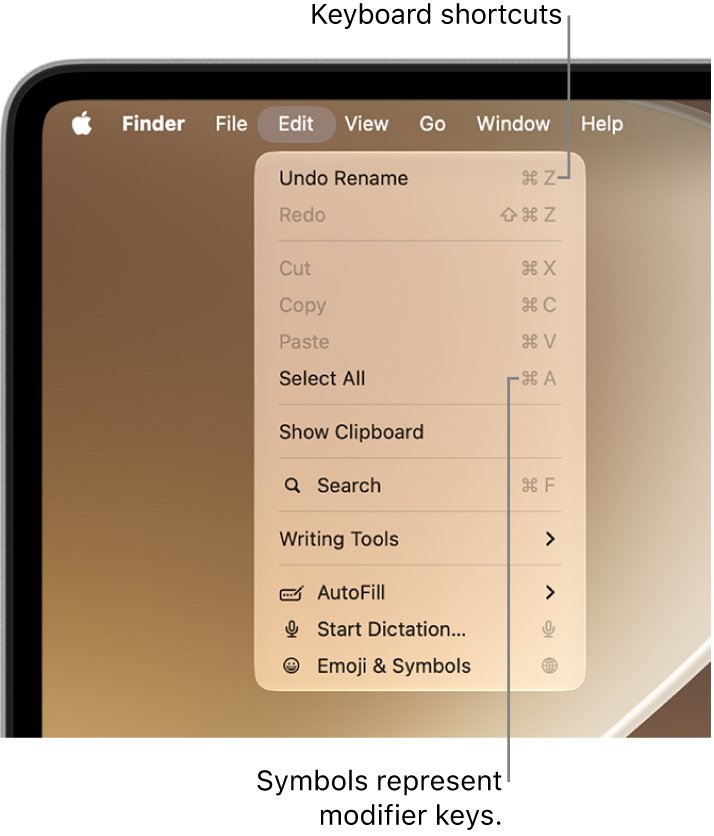
Where is the Apple menu on Mac
The menu bar runs along the top of the screen, and the Apple menu sits at its far left, before the bold name of the app you are using. It is in the same place on a MacBook Air, MacBook Pro, iMac, Mac mini and Mac Studio.
- Move the pointer to the top-left corner of the screen.
- Find the Apple logo at the left end of the menu bar.
- Click the Apple logo once to open the Apple menu.
- Choose an item, such as System Settings, About This Mac or Shut Down.
If no menu bar shows at the top of the screen, it is set to hide or an app is in full screen. Move the pointer to the very top edge and it slides back into view.
How to open the Apple menu with the keyboard
Mac has a shortcut that moves keyboard focus to the menu bar. Apple notes that some focus shortcuts must be turned on first in Keyboard settings.
- Press Control-F2. On a Mac laptop, press Fn-Control-F2 if the F2 key controls brightness.
- Check that the Apple menu is now highlighted at the left of the menu bar.
- Press Return to open the highlighted menu.
- Use the arrow keys to move to the item you want, or type the start of its name to jump to it.
- Press Return to choose the item.
If nothing happens, turn the shortcut on: choose Apple menu > System Settings, click Keyboard, click Keyboard Shortcuts, select Keyboard on the left, then turn on the menu bar focus shortcut.
If the keys themselves do not respond, fix the Mac keyboard first, then try the shortcut again.
What is the Apple menu
The Apple menu holds the commands you use for the whole Mac rather than for one app. Its items stay the same whichever app is in front.
| Apple menu item | What it does |
|---|---|
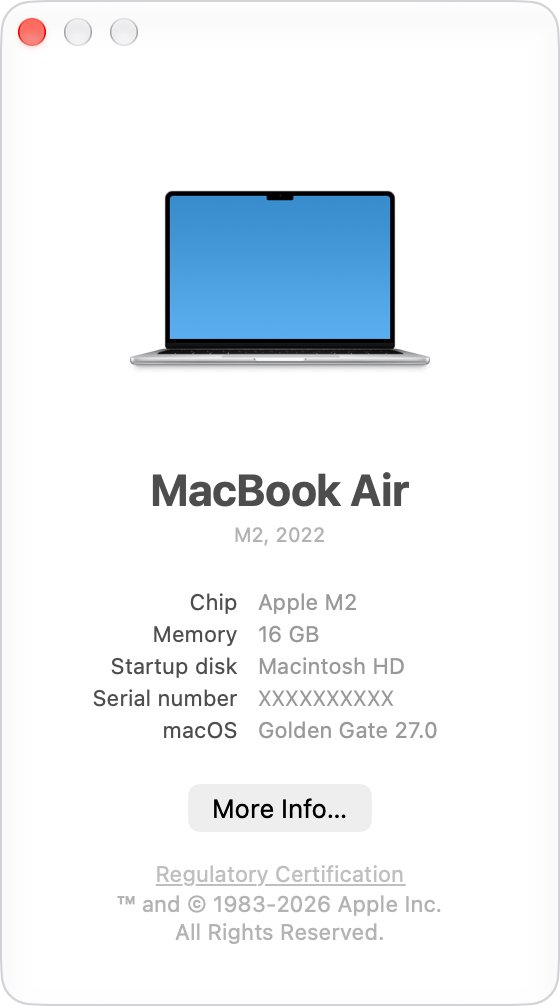
| About This Mac | Shows the macOS version, chip or processor, and memory. More Info adds details and storage options. |
| System Settings | Opens the settings app, where you change most Mac settings and update macOS to the latest version. |
| App Store | Opens the App Store for apps and app updates. |
| Recent Items | Lists files, apps and servers you used recently, so you can reopen them. |
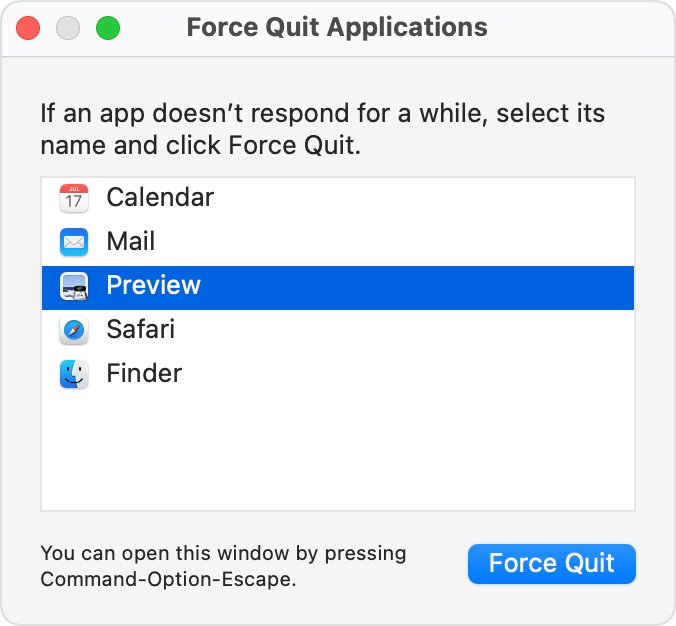
| Force Quit | Closes an app that is not responding. Unsaved changes in that app may be lost. |
| Sleep | Dims the screen and reduces power use without turning the Mac off. |
| Restart | Turns the Mac off briefly and starts it again. |
| Shut Down | Turns the Mac off completely. |
| Lock Screen | Locks the screen at once to protect your information. |
| Log Out [user name] | Signs out of your account without shutting down, which helps on a shared Mac. |
Older Macs running macOS Monterey or earlier show System Preferences in place of System Settings.
Apple menu options: keyboard shortcuts for each item
Several Apple menu commands have their own shortcut, so you can skip the menu once you know them.
| Apple menu item | Shortcut |
|---|---|
| Force Quit | Option-Command-Esc |
| Lock Screen | Control-Command-Q |
| Log Out | Shift-Command-Q, or Option-Shift-Command-Q to log out without the confirmation |
| Shut Down, Restart or Log Out without the dialog | Hold Option while you choose the item |
| Open the Apple menu itself | Control-F2 or Fn-Control-F2 |
For an app that will not close, there are other ways to force quit a frozen app on Mac besides the Apple menu.
Apple menu System Settings in each macOS version
The setting that hides the menu bar, and the Apple menu with it, has moved several times. This table shows where it is on your version. Check About This Mac if you are not sure which version you run.
| macOS version | Settings app in the Apple menu | Where the hide menu bar option is |
|---|---|---|
| macOS 27 Golden Gate | System Settings | Menu Bar > Automatically hide and show the menu bar |
| macOS Tahoe 26 | System Settings | Menu Bar > Automatically hide and show the menu bar |
| macOS Sequoia 15 | System Settings | Control Center > Automatically hide and show the menu bar |
| macOS Sonoma 14 | System Settings | Control Center > Automatically hide and show the menu bar |
| macOS Ventura 13 | System Settings | Desktop & Dock > Automatically hide and show the menu bar |
| macOS Monterey 12 | System Preferences | Dock & Menu Bar > Automatically hide and show the menu bar on desktop and in full screen |
The same pane controls how many entries appear under Recent Items, through the Recent documents, applications, and servers option on macOS Ventura and later.
How to keep the Apple menu bar visible on Mac
Set the hide option to Never when you want the Apple menu on screen at all times, including in full-screen apps. These steps are for macOS Tahoe 26 and later; use the table above for older versions.
- Move the pointer to the top of the screen so the menu bar appears.
- Choose Apple menu > System Settings.
- Click Menu Bar in the sidebar. You may need to scroll down.
- Click the Automatically hide and show the menu bar pop-up menu.
- Choose Never.
The other choices are Always, On Desktop Only and In Full Screen Only. With any of them, moving the pointer to the top edge still brings the menu bar back.
On a Mac with more than one display, you can also show the menu bar on every screen so the Apple menu is on each one.
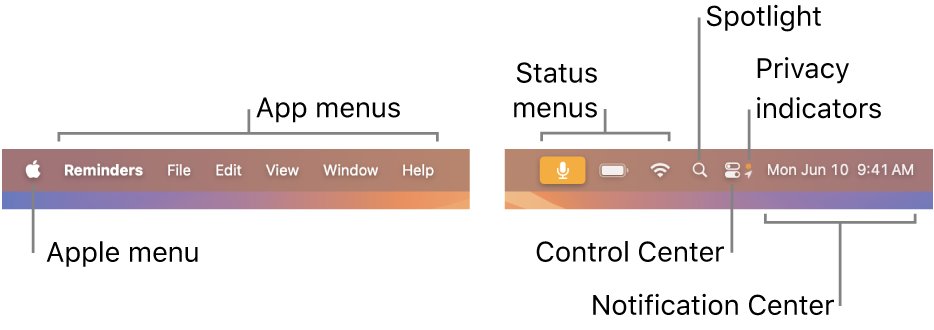
Apple menu bar: what the other menus do
The Apple menu is the first of several parts of the menu bar. Knowing the others helps you tell the Apple menu apart from an app's own menus.
| Part of the menu bar | Where it is | What it is for |
|---|---|---|
| Apple menu | Far left | Commands for the whole Mac: settings, updates, sleep, restart, shut down, lock and log out |
| App menus | Next to the Apple menu, starting with the app's name in bold | Commands for the current app, such as File, Edit, Window and Help |
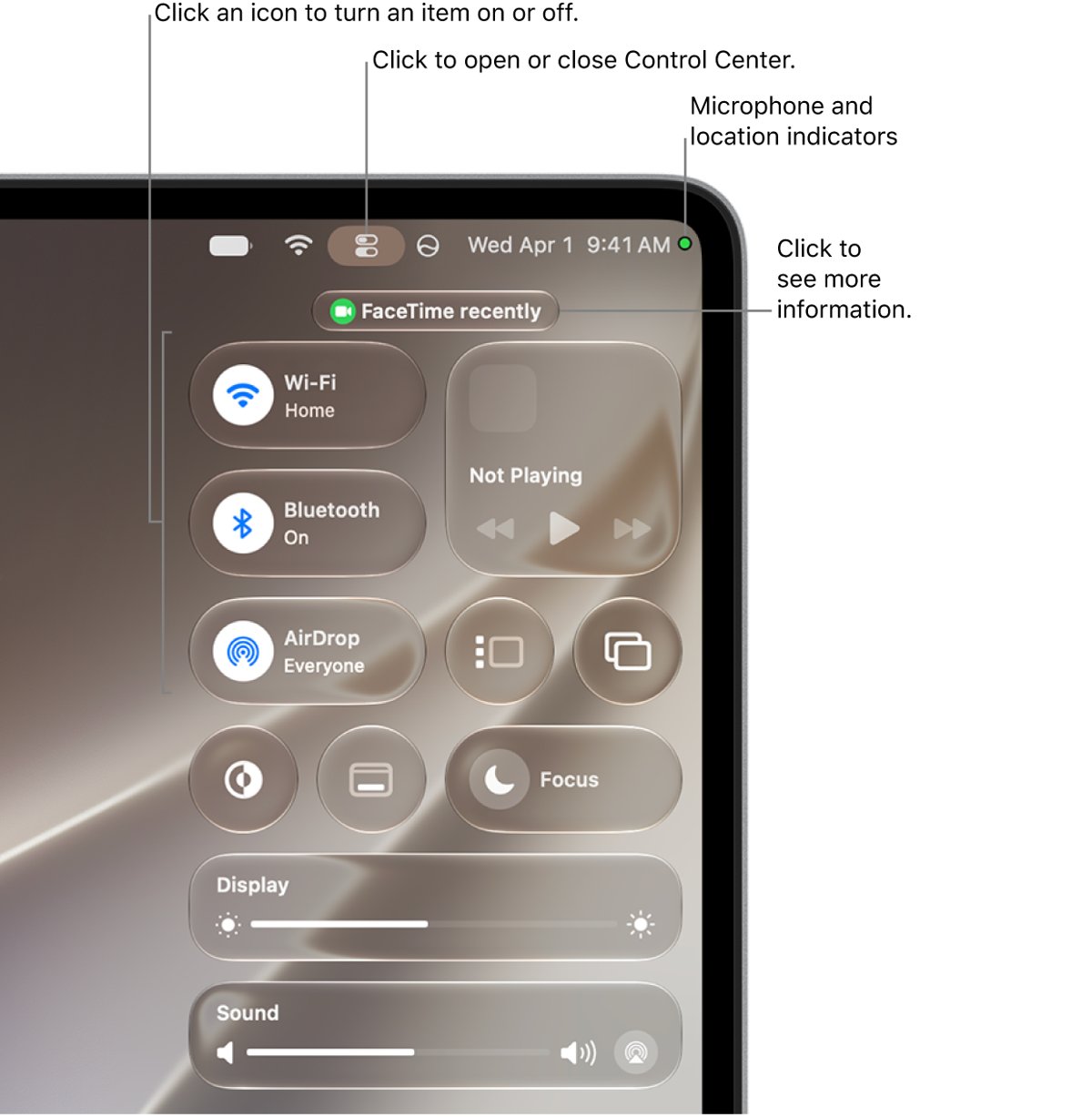
| Status menus | Toward the right end | Icons for status and quick controls, such as battery and Wi-Fi |
| Spotlight | Right side, when shown | Searches your Mac and the web |
| Control Center | Right side | AirDrop, Focus, Screen Mirroring, Stage Manager and other quick settings |
| Date and time | Far right | Opens Notification Center with widgets and missed notifications |
To rearrange status menu icons, hold Command and drag an icon. Dragging one out of the menu bar while holding Command removes it.
Apple menu on Windows and iPhone
The Apple menu is part of macOS, so a Windows PC, iPhone or iPad does not have one. This table shows what to use instead.
| Device | Is there an Apple menu? | What to use instead |
|---|---|---|
| Mac | Yes, top-left corner | Click the Apple logo |
| Windows PC | No | Apple compares the Windows Start button with the Dock on Mac, and Control Panel with System Settings |
| iPad | No | With Windowed Apps or Stage Manager on, tap the app's name in the top-left corner to open its menu bar |
| iPhone | No | Use the Settings app |
If an Apple app on Windows has lost its own menus, you can restore the Apple Music menu bar.
Apple menu not showing on Mac
When there is no Apple logo at the top-left, the menu bar is almost always hidden rather than missing.
No menu bar at the top of the desktop
The hide option is set to Always or On Desktop Only.
- Move the pointer to the very top edge of the screen and wait for the menu bar to slide down.
- Click the Apple logo while the menu bar is showing.
- To stop it hiding, set Automatically hide and show the menu bar to Never in the pane listed for your macOS version above.
The Apple menu disappears inside one app
The app is in full screen, which hides the menu bar until you point at the top edge.
- Move the pointer to the top of the screen to show the menu bar.
- Hold the pointer over the green button in the top-left corner of the window.
- Choose Exit Full Screen to return the app to a normal window.
The Apple menu will not open because the Mac is frozen
An app has stopped responding, or the whole Mac has.
- Press Option-Command-Esc to open Force Quit.
- Select the app that is not responding and click Force Quit.
- If the Mac still does not respond, press and hold the power button until it turns off.
- Press the power button again to start up.
Apple menu on Mac FAQ
Where is the Apple menu on a Mac?
The Apple menu is the Apple logo in the top-left corner of the screen, at the left end of the menu bar. Click the logo to open it. If the menu bar is hidden, move the pointer to the top edge of the screen first.
Where is the Apple menu on a MacBook Air?
On a MacBook Air, the Apple menu is in the same place as on every Mac: the Apple logo at the far left of the menu bar along the top of the screen. Click it, or press Fn-Control-F2 to move focus to it from the keyboard.
How do you open the Apple menu?
Click the Apple logo in the top-left corner of the screen. From the keyboard, press Control-F2, or Fn-Control-F2 on a laptop, then press Return. If the shortcut does nothing, turn it on in System Settings > Keyboard > Keyboard Shortcuts.
How do I access the Apple menu when the menu bar is hidden?
Move the pointer to the very top of the screen and the menu bar slides back into view, with the Apple menu at the left. To keep it visible, set Automatically hide and show the menu bar to Never in your Mac's menu bar settings.
What is the Apple menu?
The Apple menu is the menu for system-wide commands on a Mac. It holds About This Mac, System Settings, App Store, Recent Items, Force Quit, Sleep, Restart, Shut Down, Lock Screen and Log Out, and it stays the same in every app.
Where is the app menu on a Mac?
The app menu is right next to the Apple menu. It starts with the name of the current app in bold, followed by menus such as File, Edit and Window. Its contents change with whichever app is in front.
Is there an Apple menu on Windows?
No. The Apple menu is part of macOS, so a Windows PC has none. Apple compares the Windows Start button with the Dock on a Mac, and Windows Control Panel with System Settings.
Is there an Apple menu on iPhone?
No. iPhone has no menu bar or Apple menu. Settings are in the Settings app. On iPad with Windowed Apps or Stage Manager turned on, you tap the app's name in the top-left corner to open that app's menu bar.
Where is System Settings in the Apple menu?
System Settings is the second item in the Apple menu, just below About This Mac. On macOS Monterey and earlier, the same item is called System Preferences.