When location sharing stops working on your iPhone, open Find My, tap Me, turn on Share My Location, make sure this iPhone is listed next to Sharing From, and allow Location Services for Find My.
This guide covers each of those settings, a new iPhone that is not sharing, Messages and Family Sharing problems, Screen Time limits, expired shares, and how to stop sharing when you want to.
How to fix location sharing not working on iPhone
These steps run on the iPhone whose location is not getting through. They cover the three settings Apple names when others cannot see your location.
- Open the Find My app and tap Me.
- Turn on Share My Location.
- Check the device next to Sharing From. If it is not this iPhone, tap Use This iPhone as My Location.
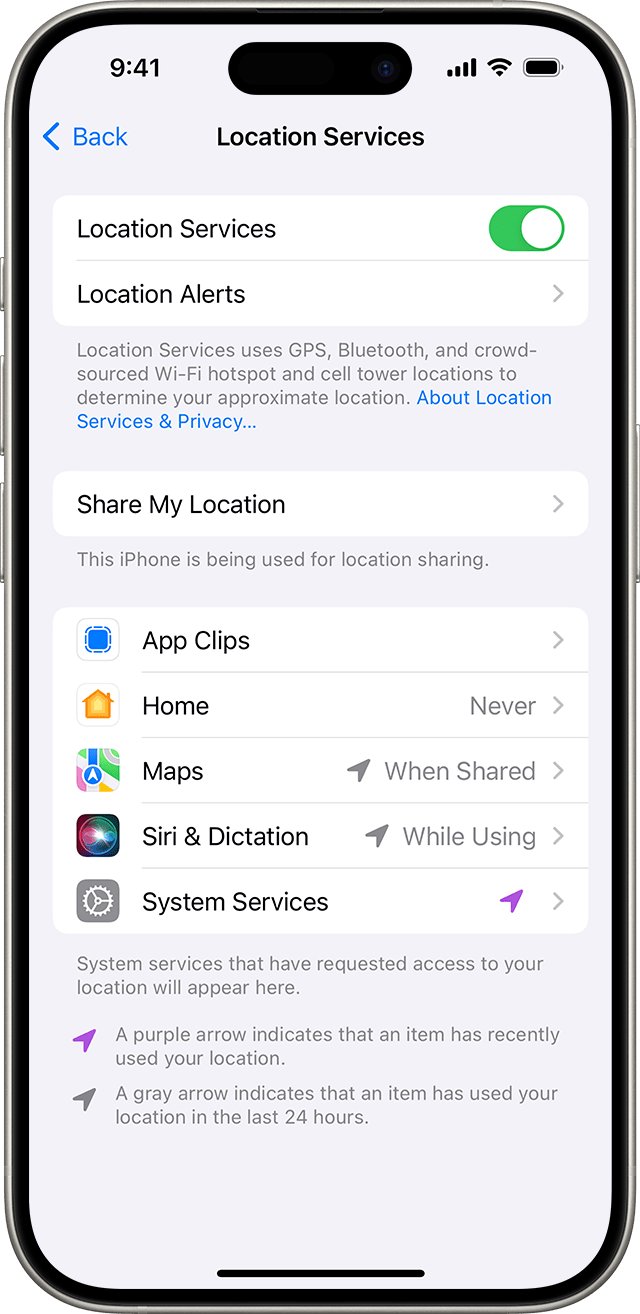
- Open Settings and tap Privacy & Security, then Location Services.
- Turn on Location Services, scroll down, tap Find My and choose an option other than Never.
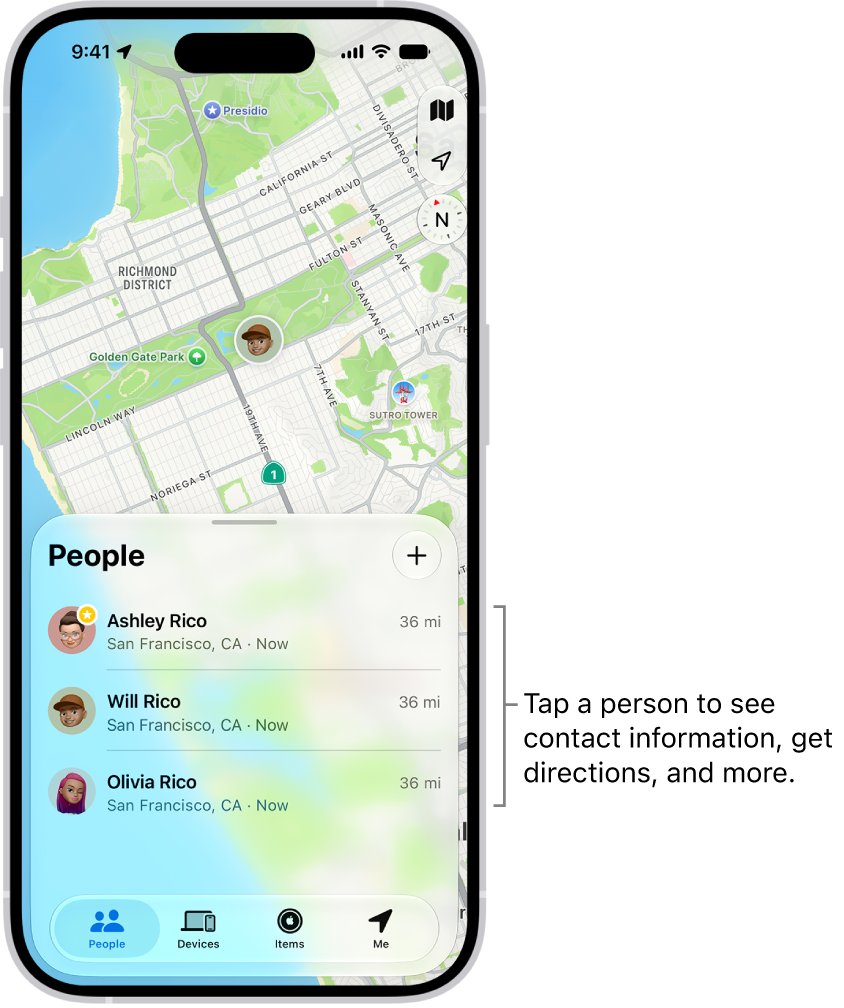
- Tap People in Find My and check that the person is listed and still has your location.
If your own location is fine but a friend's entry shows No location found instead of a map, the fix is on their phone.
Why is my location not sharing on iPhone
Match what you or the other person sees to a row, then go to the section that fixes it.
| What happens | Likely cause | Fix |
|---|---|---|
| Nobody can see you anywhere | Share My Location is off, which hides you from everyone | Turn it on under Me in Find My |
| You moved to a new iPhone and your location stopped updating | The old iPhone or an iPad is still the Sharing From device | Tap Use This iPhone as My Location |
| Your name shows but no location appears | Location Services is off, or set to Never for Find My | Allow Find My under Location Services |
| One person lost your location, others still see it | The share for that person expired, or you paused or stopped it | Share again with a longer duration |
| Your location shows in the wrong place | Precise Location is off, or a device left at home is sharing | Turn on Precise Location and check Sharing From |
| Share is missing in a Messages conversation | The conversation is SMS, not iMessage | Send a pinned location instead |
| You cannot change Share My Location on a child's iPhone | Screen Time Content & Privacy Restrictions manage it | A parent allows the change from Settings > Family |
How to turn on share my location in Find My on iPhone
Turning off Share My Location hides you from every person at once, so it is the first switch to check.
- Open Find My and tap Me.
- Turn on Share My Location.
- Tap People, tap the add button, then choose Share My Location.
- In the With field, enter the person's name, or pick them from your contacts.
- Tap send, then choose how long to share. Pick Custom to set a duration or an end time.
- Check that the person now appears in People.
The same switches are in Settings > [your name] > Find My, and you can also share your location on iPhone from Maps during a trip.
New phone location sharing not working: use this iPhone as my location
You share your location from one device at a time. After a phone upgrade, Find My can keep reporting from the old iPhone or from an iPad that never leaves the house.
- On the iPhone you carry, open Settings.
- Tap your name, then tap Find My.
- Tap Use This iPhone as My Location.
- Open the Find My app and tap Me.
- Check that this iPhone is now named next to Sharing From.
With a GPS + Cellular Apple Watch paired, your location comes from the watch when it is on your wrist and out of range of your iPhone.
Turn on Location Services for Find My on iPhone
Apple's own fix for "I set up location sharing and others still can't see my location" is this setting. Location Services uses GPS, Bluetooth, Wi-Fi hotspots and cell towers to work out where you are.
- Open Settings and tap Privacy & Security.
- Tap Location Services and turn it on.
- Scroll down the app list and tap Find My.
- Choose While Using the App or another option other than Never.
- Turn on Precise Location so people see your exact spot, not an approximate area.
With Precise Location off, Find My shares only an approximate location, which can look like location sharing is wrong rather than broken.
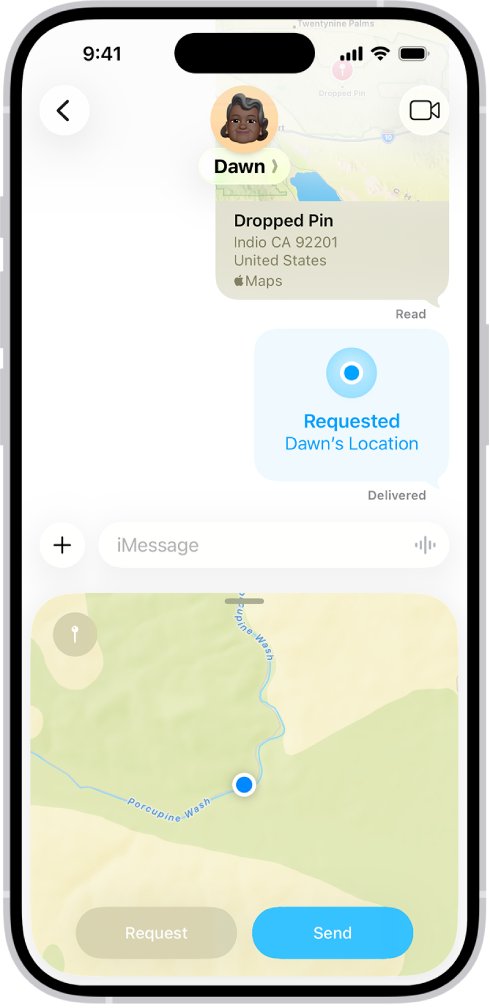
Share my location not working in Messages
Messages uses Find My for live location, so the settings above apply here too. A live location updates in the conversation as you move.
- Open Messages and open the conversation.
- Tap the add button, then tap Location.
- Tap Share, then choose how long. Tap Indefinitely to share until you stop it.
- Tap send.
- In an SMS conversation, tap Location, drag the map to place the pin, tap Send Pin, then send it.
A pinned location does not update as you move. If you added people to a group after sharing, share your location again so the new members see it.
Family Sharing location sharing not working on iPhone
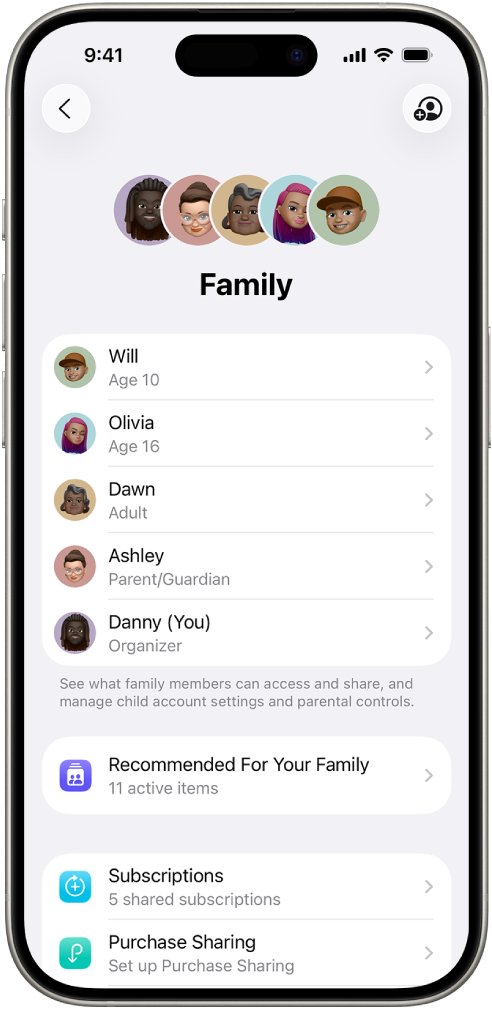
The Family Sharing organizer turns location sharing on for the group, but each member still chooses whether to share. Your family cannot see you until you pick them.
- Open Settings and tap Family.
- Tap Location Sharing.
- Under Share Your Location With, choose each family member who should see you.
- Turn on Automatically Share Location to include people who join the group later.
- Open Find My, tap People and check that the family members are listed.
Without a family group, open Find My, tap People, select the person, tap the More button and tap Share My Location.
Allow location sharing changes in Screen Time on a child's iPhone
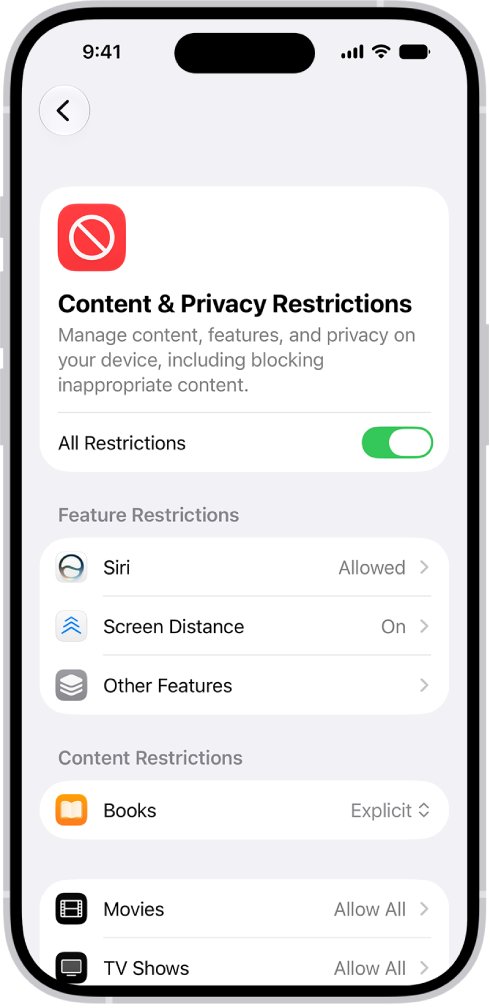
Screen Time Content & Privacy Restrictions let a parent decide when a child can change settings such as Share My Location. A locked setting cannot be changed on the child's own iPhone.
- On the parent's iPhone, open Settings and tap Family.
- Tap the child's name.
- Tap Content & Privacy Restrictions, and enter the Screen Time passcode if asked.
- Find Share My Location in the list and choose Allow.
- On the child's iPhone, turn on Share My Location under Me in Find My.
In some countries and regions, certain settings for accounts under 18 are on by default and cannot be turned off.
How to see if your iPhone is sharing location
Two places prove it: your own Me tab, and the other person's Find My.
- Open Find My and tap Me.
- Check that Share My Location is on and this iPhone appears next to Sharing From.
- Tap People and check that the person is in the list with your sharing still active.
- Ask them to open Find My, tap People and tap your name.
- Confirm with them that you appear on their map, not as "No location found".
Set a Location Label such as Home or Work under Me if you want the label to show with your location.
How to stop sharing my location on iPhone
You can stop sharing with one person, pause it, or hide your location from everyone. Each option is the reason sharing "stops working" when it was done by accident.
- To stop with one person, open Find My, tap People, tap their name, tap Stop Sharing My Location, then Stop Sharing Location.
- To pause with one person, tap their name in People, tap the more button, then tap Hide Location.
- To hide your location from everyone, tap Me and turn off Share My Location.
- To stop in Messages, open the conversation, tap the contact icon at the top and tap Stop Sharing My Location.
- To stop new requests, tap Me and turn off Allow Friend Requests.
Location sharing stopped working on iPhone
Why did my location stop sharing
A time-limited share ended, or you stopped, paused or hid your location.
- Open Find My, tap People and look for the person.
- If they are missing, share again from People and choose a longer duration, or Custom.
- Tap Me and check that Share My Location is still on.
Location sharing isn't enabled on this device
The sharing settings on this iPhone are off: Share My Location is off, or another device is set as your location.
- Open Settings, tap your name, then tap Find My.
- Tap Use This iPhone as My Location.
- Turn on Share My Location on the same screen.
- Check Privacy & Security > Location Services > Find My and choose an option other than Never.
Location sharing not working on iPhone 16 or iPhone 15
The model is not the cause; the same Find My settings control sharing on every iPhone.
- Run the fixes in the first section.
- Open Settings > General > Software Update and install any update listed.
- Restart the iPhone. If it will not respond, force restart the iPhone.
- Reopen Find My and check Me.
Find My not sharing location while offline
Your iPhone needs a Wi-Fi or cellular connection to send a fresh location to people who follow you.
- Turn off Airplane Mode in Control Center.
- Connect to Wi-Fi, or turn on cellular data.
- If Wi-Fi drops only on your iPhone, fix Wi-Fi on the iPhone and reopen Find My.
Why can't I share my location
Finding people with location sharing is not available in every country or region, and Screen Time can lock the setting.
- Check whether you are traveling in a region where the feature is limited.
- If Share My Location cannot be changed, ask the parent who manages Screen Time to allow it.
- Send a pinned location in Messages as a stopgap.
Location sharing not working on Google Maps
Google Maps uses Google Location Sharing, which is separate from Apple's Find My and is off until you share in a Google app.
- Open Settings > Privacy & Security > Location Services and check that Location Services is on.
- Scroll down, tap Google Maps and choose an option other than Never.
- Make sure the iPhone has an internet connection.
- If a Google Workspace account is signed in, ask its administrator whether Location Sharing is allowed.
Location sharing not working FAQ
Why is share my location not working?
Usually Share My Location is off, another device is listed next to Sharing From, or Location Services is set to Never for Find My. Turn each one on in Find My under Me and in Settings > Privacy & Security > Location Services.
Why is my location not sharing?
Your iPhone may not be the device sharing your location. Open Settings, tap your name, tap Find My and tap Use This iPhone as My Location. Then check that Share My Location is on and the iPhone is online.
Why did my location stop sharing?
A share with a time limit has ended, or you stopped, paused or hid your location. Open Find My, tap People, and share again with that person, choosing Indefinitely or a Custom end time if you want it to last.
Why does location sharing stop?
It stops when the chosen duration runs out, when you tap Stop Sharing My Location or Hide Location, or when you turn off Share My Location. A fresh location also cannot reach anyone while your iPhone is off or has no Wi-Fi or cellular connection.
Why can't I share my location?
Location sharing with people is not available in every country or region. On a child's iPhone, Screen Time Content & Privacy Restrictions can block changes to Share My Location, so a parent must allow it from Settings > Family.
Why is location sharing not working on iPhone after getting a new phone?
Find My is still using your old device as your location. On the new iPhone, open Settings, tap your name, tap Find My and tap Use This iPhone as My Location, then check Sharing From under Me in Find My.
How to stop sharing my location?
Open Find My, tap People, tap the person and tap Stop Sharing My Location. To stop with everyone at once, tap Me and turn off Share My Location. In Messages, tap the contact icon and choose Stop Sharing My Location.
Why is my sharing location not working in Messages?
Live location in Messages uses Find My, so the same settings must be on. In an SMS conversation, live sharing is not offered, so tap Location and send a pinned location, which does not update as you move.
Why does my shared location look wrong?
Precise Location is off for Find My, so only an approximate area is shared, or a device you left somewhere else is sharing. Turn on Precise Location under Location Services and check the Sharing From device.