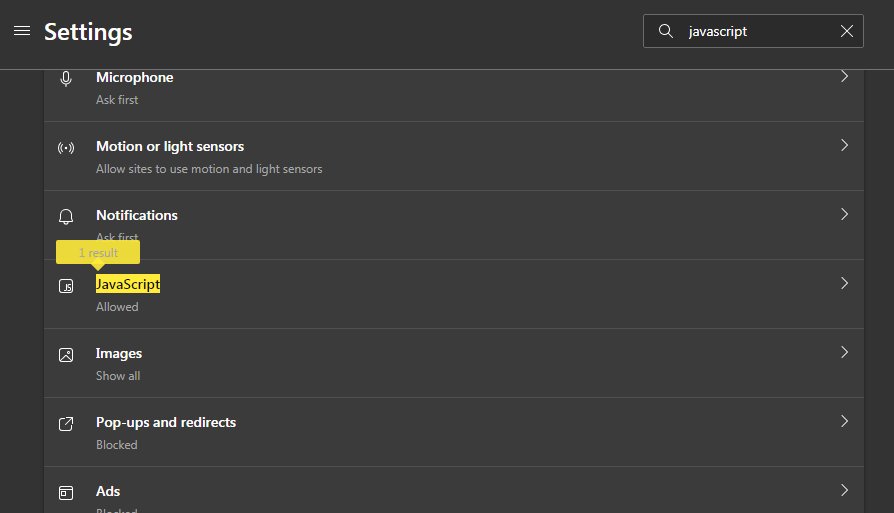
To enable JavaScript in Microsoft Edge on Windows 10 or Windows 11, open Settings and more (…) > Settings > Privacy, search, and services > Site permissions > All permissions > JavaScript, and turn on Allowed (recommended).
This guide covers the setting itself, why it gets turned off, the policy that greys it out, a DevTools switch for testing, and fixes for pages that still say JavaScript is required.
How to enable or disable JavaScript in Microsoft Edge
The steps are the same in Edge on Windows 10 and Windows 11, because both run the same Chromium-based browser. JavaScript is on by default unless you, an extension or an administrator changed it.
- Open Microsoft Edge and select Settings and more (…) in the upper-right corner.
- Select Settings.
- Select Privacy, search, and services, then Site permissions.
- Select All permissions, then scroll to JavaScript and select it.
- Turn on Allowed (recommended) to enable JavaScript, or turn it off to block JavaScript on every site.
- Go back to the tab that needed JavaScript and press F5 to reload it.
If the toggle is greyed out and cannot be changed, an administrative setting controls it. The policy section below shows how to find and change that setting.

Why would JavaScript sometimes be disabled in Microsoft Edge?
Most sites need JavaScript for menus, sign-in forms, video players and checkout pages. When it is off, a site usually shows a banner asking you to enable it, or parts of the page simply do nothing.
| Cause | What you notice | What to do |
|---|---|---|
| The JavaScript toggle was turned off in Site permissions | Every site shows an enable JavaScript message | Turn on Allowed (recommended) |
| The DefaultJavaScriptSetting policy is set to block | The toggle is greyed out | Change or remove the policy (admin rights needed) |
| The JavaScriptBlockedForUrls policy lists a site | Only certain sites break; the main toggle is on | Ask the administrator, or remove the entry on a PC you manage |
| A script-blocking or privacy extension | Sites break in normal windows but work with extensions off | Turn off the extension and reload |
| Old or damaged cached files | One site keeps showing a stale error after you enable JavaScript | Clear Cached images and files |
| DevTools has Disable JavaScript active | Only the tab with DevTools open is affected | Run Enable JavaScript or close DevTools |
Turning JavaScript off can reduce what a page can do in the browser, but most modern sites stop working properly without it. Keep it on unless a specific task needs it off.
Where is the JavaScript setting in Microsoft Edge?
Edge has one user setting for JavaScript and two administrator controls that override it, both part of the wider Microsoft Edge policy settings. Knowing which one is in charge saves time when the toggle will not move.
| Control | Where it lives | Who can change it |
|---|---|---|
| Edge setting | Settings > Privacy, search, and services > Site permissions > All permissions > JavaScript | Anyone using the profile |
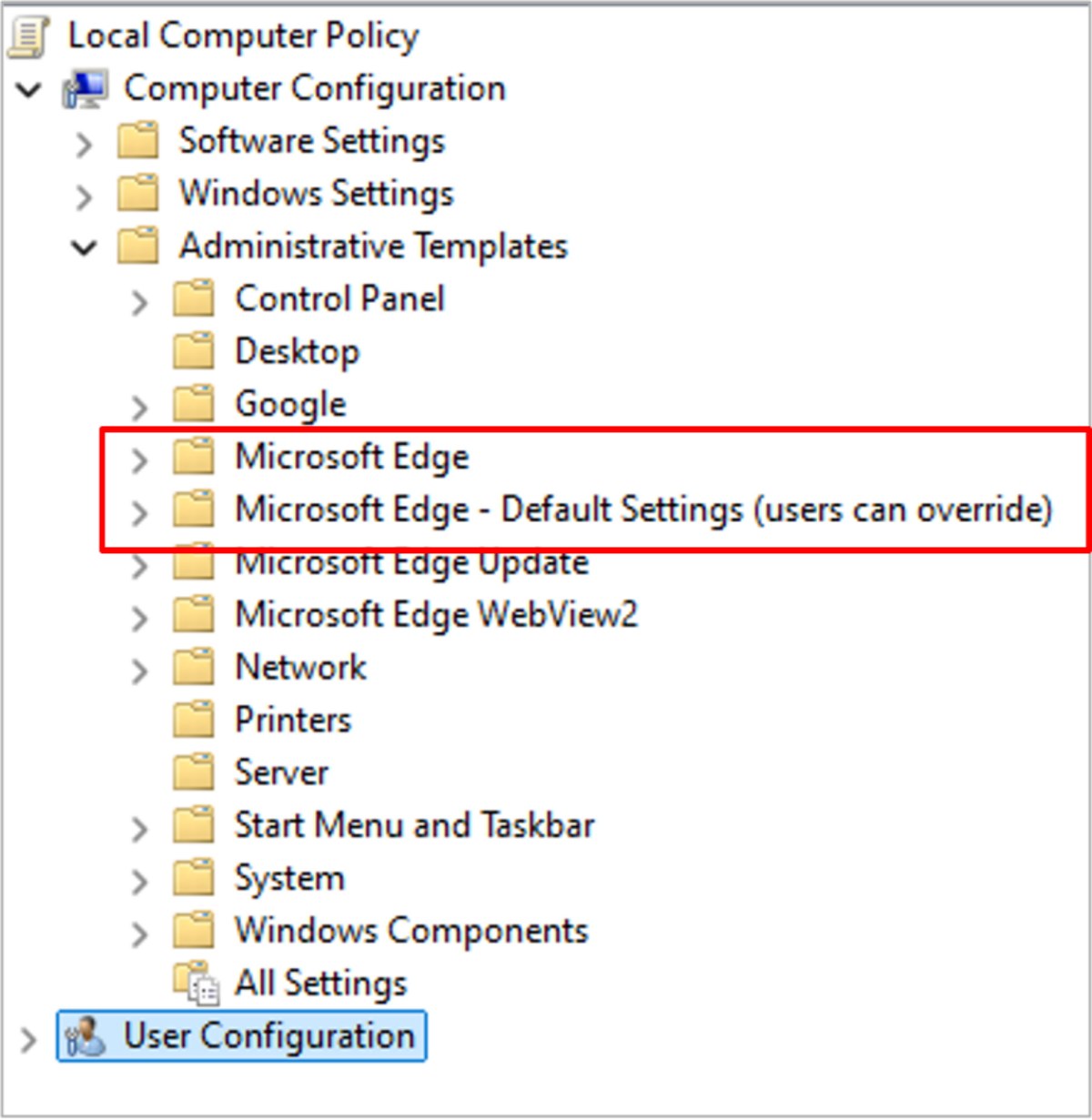
| Group Policy | Administrative Templates > Microsoft Edge > Content settings > Default JavaScript setting | An administrator |
| Registry policy | SOFTWARE\Policies\Microsoft\Edge, value DefaultJavaScriptSetting (REG_DWORD) |
An administrator |
| Per-site block policy | Content settings > Block JavaScript on specific sites (JavaScriptBlockedForUrls) |
An administrator |
| DevTools switch | Command Menu > Disable JavaScript [Debugger] | Anyone, for the current tab while DevTools is open |
The DefaultJavaScriptSetting values are 1 to allow all sites to run JavaScript and 2 to block it on all sites. When the policy is not configured, all sites can run JavaScript and you can change the setting yourself.
Edge JavaScript setting greyed out? Check the DefaultJavaScriptSetting policy
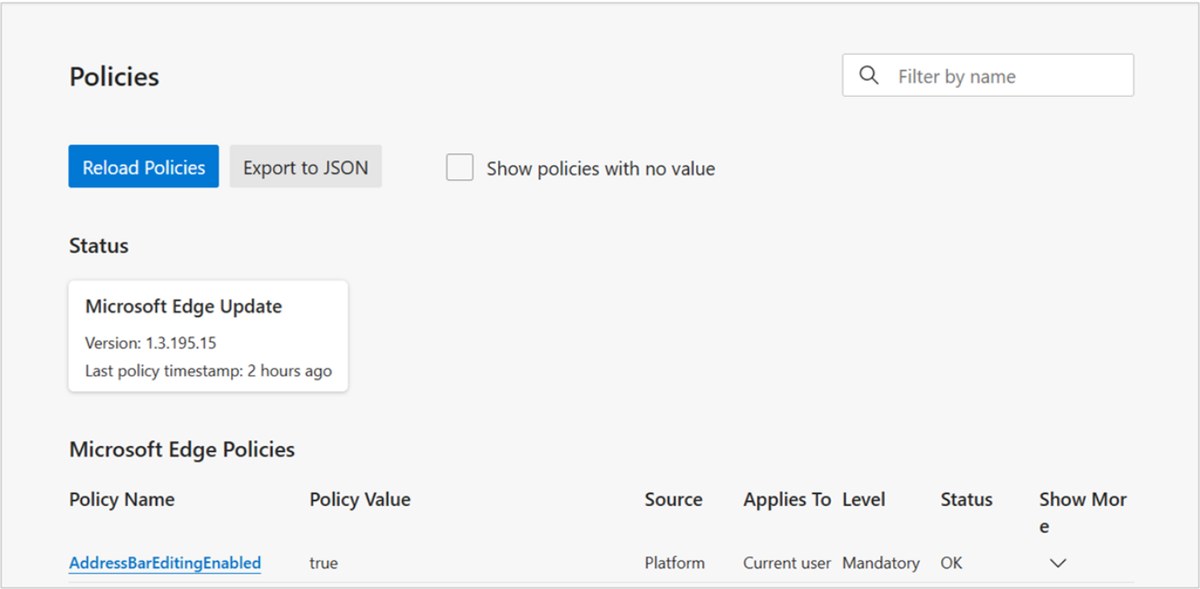
A greyed-out toggle means a policy sets the value and Edge will not let the profile override it. Type edge://policy in the address bar to list every policy applied to the browser, then look for DefaultJavaScriptSetting or JavaScriptBlockedForUrls.
On a work or school PC, ask your IT administrator to change the policy. On your own PC, open Command Prompt as administrator and query the value.
reg query HKLM\SOFTWARE\Policies\Microsoft\Edge /v DefaultJavaScriptSettingThis reads the machine-wide Edge policy key. A result of 0x2 means JavaScript is blocked for all sites by policy; 0x1 means it is allowed for all sites. Repeat the query with HKCU in place of HKLM to check the policy for your user account only.
You should see: "ERROR: The system was unable to find the specified registry key or value" means no machine policy sets JavaScript, so the Edge setting is in your control.
On a PC you manage, set Default JavaScript setting to Allow all sites to run JavaScript in the Group Policy editor, or set it back to Not Configured. Restart Edge and confirm the change on the edge://policy page.
Clear your browser cache
If one site still complains after JavaScript is on, Edge may be loading old copies of that site's files. Clearing the Microsoft Edge cache forces a fresh download of every script.
- Select Settings and more (…) > Settings > Privacy, search, and services.
- Select Clear browsing data, then select Choose what to clear next to Clear browsing data now.
- Under Time range, choose a period from the drop-down menu, such as All time.
- Check Cached images and files and Cookies and other site data.
- Leave Passwords and Autofill form data unchecked if you want to keep them.
- Select Clear now, then reopen the site.
Sync decides where the deletion applies. To clear only this PC, turn off sync first in Settings > Profiles > Sync; leave sync on to clear the data on every synced device. Clearing cookies signs you out of most sites.
Try to disable problematic extensions
Script blockers, privacy tools and some ad-related extensions stop JavaScript from running on chosen sites even when Edge allows it. Turn them off one at a time to find the one responsible.
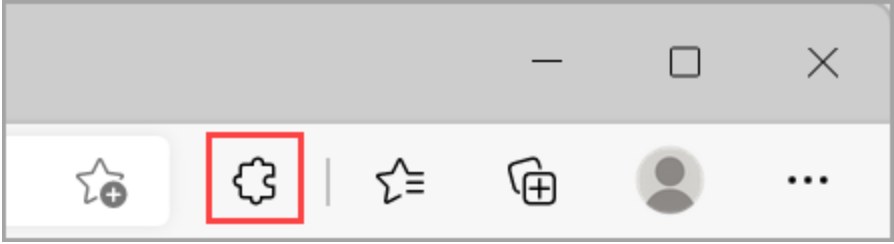
- Select the Extensions button to the right of the address bar.
- Select Manage extensions.
- Switch off the toggle next to an extension that blocks scripts or filters content.
- Reload the broken site and check whether it works.
- Turn the extension back on if it was not the cause, and test the next one.
- To get rid of the culprit, right-click its icon next to the address bar, select Remove from Microsoft Edge, then Remove.
Many script blockers keep their own allow list, so you can trust a single site inside the extension instead of removing it. You can also turn Edge extensions on or off in bulk from the same page.
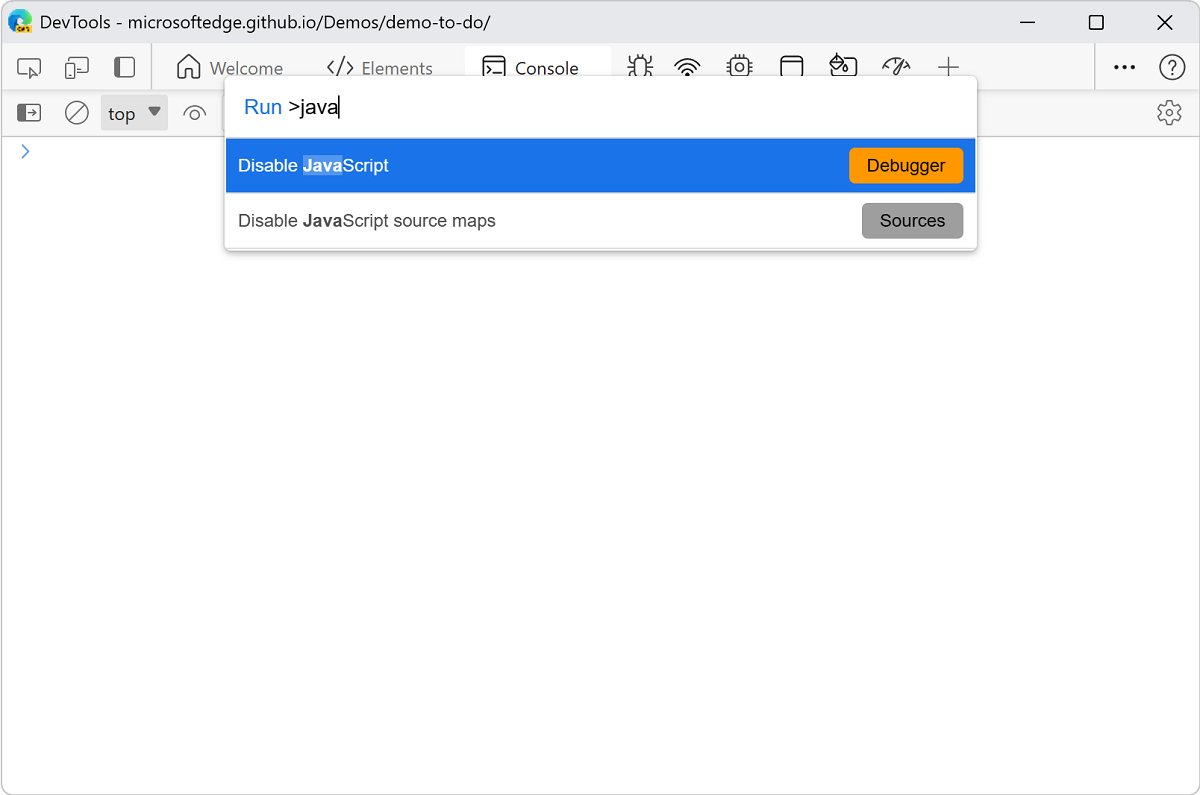
How to disable JavaScript in Edge for testing with DevTools
Web developers often need to see how a page behaves without scripts. DevTools can turn JavaScript off for one tab without touching the browser-wide setting.
- Right-click the page and select Inspect, or press Ctrl + Shift + I.
- Press Ctrl + Shift + P to open the Command Menu.
- Type
javascript, select Disable JavaScript [Debugger], and press Enter. - Refresh the page to see it without JavaScript; a yellow warning icon on the Sources tab shows that scripts are off.
- To turn scripts back on, press Ctrl + Shift + P again, select Enable JavaScript [Debugger], and press Enter.
JavaScript stays off in that tab for as long as DevTools is open, so closing DevTools also ends the test. For script errors rather than a disabled engine, start with the Console tool, where you can troubleshoot JavaScript errors line by line.
How to check if JavaScript is enabled in Microsoft Edge
- Open Settings > Privacy, search, and services > Site permissions > All permissions > JavaScript.
- Check that Allowed (recommended) is turned on and not greyed out.
- Type
edge://policyin the address bar and confirm that DefaultJavaScriptSetting is not listed with a value of2. - Open the site that complained and press Shift + F5 to reload it.
- Check that the enable JavaScript banner is gone and that menus, buttons and forms respond.
If the setting is on and the policy page is clean but one site still fails, the cause is an extension, the cache, or the site itself. Open the same page in an InPrivate window with Ctrl + Shift + N to test it without your saved cookies.
JavaScript not working in Microsoft Edge after enabling it
The site still says "Please enable JavaScript"
A cached copy of the page, an extension, or a per-site block policy is still in the way.
- Press Shift + F5 to reload the page without the cache.
- Clear Cached images and files for All time in Clear browsing data.
- Turn off script-blocking extensions in Manage extensions and reload.
- Check
edge://policyfor JavaScriptBlockedForUrls entries that match the site.
The JavaScript toggle is greyed out
The DefaultJavaScriptSetting policy is configured, so the profile cannot override it.
- Type
edge://policyin the address bar and find DefaultJavaScriptSetting. - On a work or school device, ask the IT administrator to change it.
- On your own PC, set Default JavaScript setting to Not Configured in the Group Policy editor, or delete the
DefaultJavaScriptSettingvalue fromSOFTWARE\Policies\Microsoft\Edge. - Restart Edge and check the toggle again.
Pages hang, crash or load half-way in Edge
Low memory, an outdated browser or damaged Edge files, not the JavaScript setting.
- Close extra tabs and apps, pause downloads, and reload the page.
- Go to Settings and more > Settings > About Microsoft Edge and install any available update.
- Restart the PC and try again.
- Run a scan with Windows Security to rule out malware.
Edge itself seems broken on every site
Edge program files may be damaged; a repair reinstalls them.
- Close Edge and sign in with an administrator account.
- Open Start > Settings > Apps > Installed apps (Apps & features on Windows 10).
- Select Microsoft Edge, then Modify, and approve the prompt.
- Stay connected to the internet and select Repair.
- If Modify is missing, your organization manages Edge, so contact your administrator.
A repair should not affect your browser data or settings. If the page fails in Edge, Chrome and Firefox alike, the problem is with the site, so contact its owner.
Edge JavaScript FAQ
Is JavaScript enabled by default in Microsoft Edge?
Yes. Unless a policy or a user changes it, all sites can run JavaScript in Edge. The Allowed (recommended) toggle under Site permissions > JavaScript is on in a new profile.
How do I turn off JavaScript in Edge?
Open Settings > Privacy, search, and services > Site permissions > All permissions > JavaScript and turn off Allowed (recommended). Most sites lose menus, forms and video until you turn it back on.
Why can't I change the JavaScript setting in Edge?
A greyed-out toggle means the DefaultJavaScriptSetting policy is set by an administrator or a program. Check edge://policy to see it, then ask IT or change the policy on a PC you manage.
Are the steps different on Windows 10 and Windows 11?
No. Edge uses the same Settings layout on both, so the path through Privacy, search, and services and Site permissions is identical. Only the Windows repair path differs, using Apps & features on Windows 10.
Does clearing the cache turn JavaScript back on?
No. Clearing the cache only removes stored copies of site files. It can fix a site that still shows an old error after you enable JavaScript, but the JavaScript toggle itself must be turned on in Site permissions.
Can I disable JavaScript in Edge for one tab only?
Yes. Open DevTools with Ctrl + Shift + I, press Ctrl + Shift + P, and run Disable JavaScript [Debugger]. It applies to that tab only and ends when you close DevTools.
Can an extension block JavaScript in Edge?
Yes. Script blockers and some privacy extensions stop scripts on chosen sites even when Edge allows them. Turn the extension off in Manage extensions and reload the page to test it.