To fix a missing USB Ethernet driver, install Apple Devices or iTunes for Windows when the device is an iPhone, or get the driver from Windows Update or the maker's site when it's a USB-to-Ethernet adapter.
This guide covers both cases, installing a driver on a PC with no internet, finding which driver you have, and fixes when Windows or a Mac still won't detect the connection.
How to fix USB Ethernet driver missing on Windows
These steps work on Windows 11 and Windows 10 and start with the route that needs the least effort.
- Plug the iPhone or adapter directly into a different USB port, not a hub or dock.
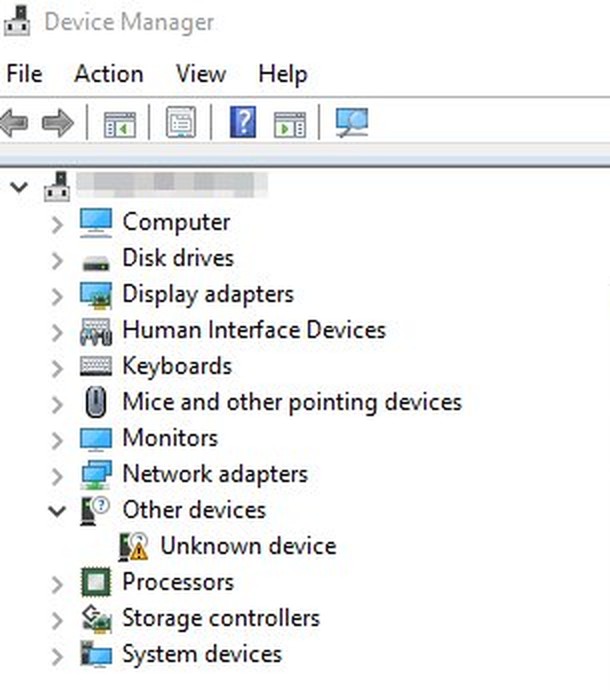
- Right-click Start and select Device Manager.
- Find the device with a yellow exclamation point, right-click it, select Properties, and read the Device status box.
- If the device is an iPhone, install the latest Apple Devices app from the Microsoft Store or iTunes for Windows, then reconnect it.
- If it's an adapter, right-click it, select Update driver, then Search automatically for updated driver software.
- If nothing is found, select Search for updated drivers on Windows update and install any driver listed under Optional updates.
- If Windows Update has nothing, download the driver from the adapter maker's official site and install it manually.
The drivers for this device are not installed. (Code 28) is the message that confirms a missing driver. Other codes point to a different problem, listed in the error code table below.
USB to Ethernet drivers: where to get the right one
The right source depends on what you plugged in. Microsoft warns against driver downloads from anywhere except the manufacturer's official site, so skip driver download portals and driver updater tools.
| Your situation | Use this | Why |
|---|---|---|
| iPhone connected to a Windows PC by USB | Apple Devices app or iTunes for Windows | Apple lists one of them as the Windows requirement for Personal Hotspot over USB |
| Android phone or iPhone on Windows 11, and you need the full setup | USB tethering setup for Windows 11 | Covers the phone settings as well as the PC side |
| USB adapter on Windows 11 that supports USB NCM | Plug it in and let Windows load the driver | UsbNcm.sys is included in Windows 11 |
| USB adapter that Windows can't match to a driver | Windows Update, then the adapter maker's site | Windows Update has optional drivers, and Microsoft points to the maker when it finds none |
| Adapter or dock supplied with your Dell, HP or Lenovo PC | The PC maker's support site | Microsoft says to get Ethernet drivers using your PC's manufacturer and model |
| The PC has no internet at all | Another PC plus a USB flash drive | Microsoft's advice for a PC that can't download its own driver |
| USB Ethernet on a Mac | System Settings > Network | Apple's fix is a network service, not a Windows-style driver install |
Missing Apple USB Ethernet driver on Windows
Apple's instructions for Personal Hotspot over USB name Apple Devices or iTunes for Windows as the requirement and list no separate driver download. Turn on the hotspot first; you can enable the iPhone hotspot in a few taps.
- On the iPhone, open Settings > Personal Hotspot and turn on Allow Others to Join.
- On the PC, install the latest Apple Devices app from the Microsoft Store, or the latest iTunes for Windows.
- Connect the iPhone with a USB cable that supports both data and charging.
- Select Allow if the PC asks to allow the accessory to connect.
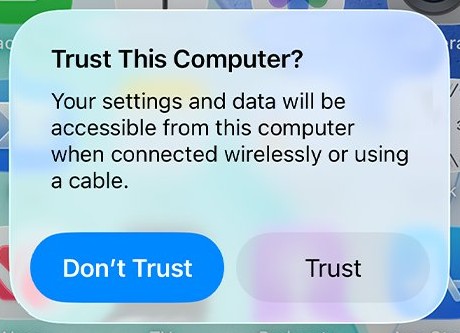
- Unlock the iPhone and tap Trust when the Trust This Computer? alert appears.
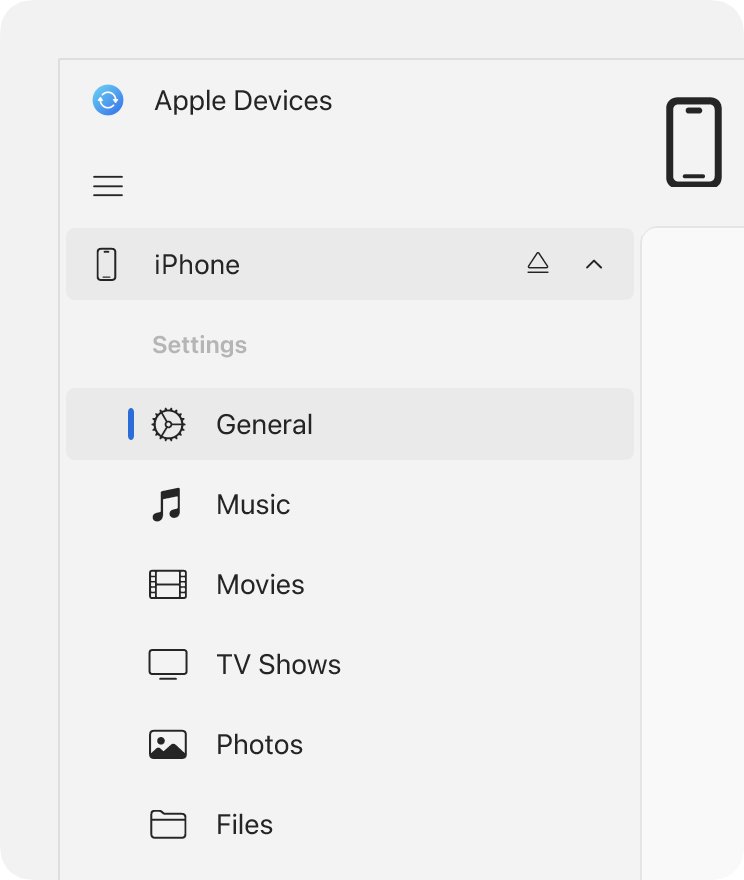
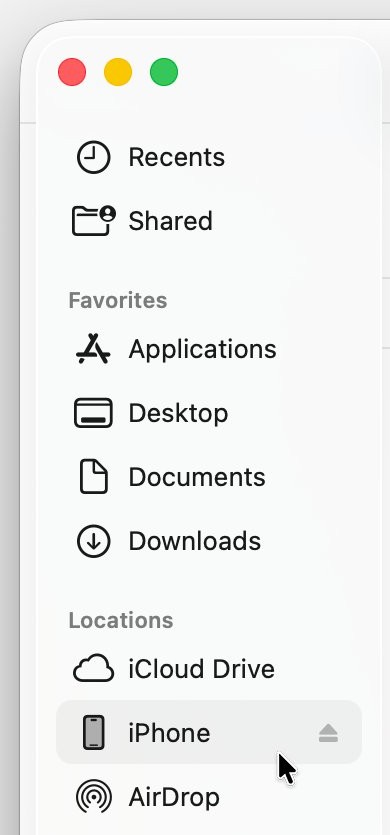
- Open Apple Devices and make sure the iPhone appears in the sidebar.
Personal Hotspot needs a carrier that supports it and Cellular Data turned on. It stays active while the USB cable is connected, so turn off Allow Others to Join afterwards to avoid unwanted data charges.
How to install the Apple USB Ethernet driver without internet
A PC with no Wi-Fi and no working Ethernet can't reach the Microsoft Store, so use Apple's direct iTunes installer from another computer. 64-bit Windows needs the 64-bit installer.
- On another PC with internet, open apple.com/itunes.
- Select Download iTunes for Windows now (64-bit).
- Copy the installer to a USB flash drive.
- Plug the flash drive into the offline PC, run the installer, and follow the onscreen instructions.
- Turn on Allow Others to Join on the iPhone, then connect it by USB.
- Select Allow on the PC and tap Trust on the iPhone.
- Open Settings > Network & internet on the PC and look for Connected on Windows 11, or You're connected to the Internet on Windows 10.
Ethernet USB adapter driver from Windows Update
Windows Update installs recommended drivers on its own, and a missing adapter driver may be waiting under optional updates. The PC needs a temporary connection for this route. You can also update drivers on Windows 11 through the other built-in routes.
- On Windows 11, open Start > Settings > Windows Update > Advanced options.
- Turn on Receive updates for other Microsoft products.
- Select Optional updates under Additional options.
- Choose the driver updates, select Download and install, and restart.
- On Windows 10, open Settings > Update & Security > Windows Update > Advanced options and turn on the same setting.
- Go back, select Check for updates, then View optional updates if it appears, and install the driver.
How to find the right USB Ethernet driver by hardware ID
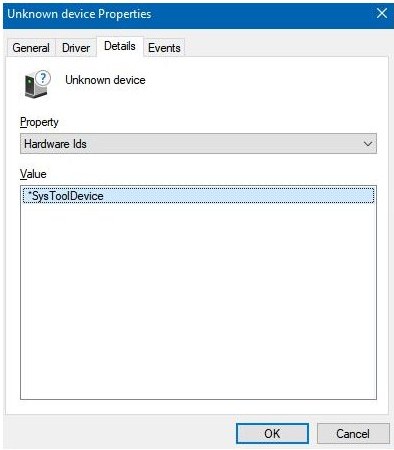
An adapter with no brand name still reports who made it. The hardware ID holds two four-digit codes: VID is the vendor code assigned by the USB committee, and PID is the product code assigned by the vendor.
- Open Device Manager and find the device with the yellow exclamation point.
- Right-click it and select Properties.
- Select the Details tab.
- For Property, select Hardware Ids.
- Read the line that looks like
USB\VID_045E&PID_00DB. The numbers on your device will differ. - Compare those codes with the model listed on the adapter maker's support page before you download its driver.
How to install a USB Ethernet driver in Device Manager
Use this route once you have the driver from the maker's site. Match your Windows version and architecture, and extract the files if they arrive compressed.
- Right-click Start and select Device Manager.
- Right-click the device with the yellow exclamation point and select Update driver.
- Select Browse my computer for drivers.
- Select Browse, choose the folder with the extracted driver, and select OK.
- Confirm the path and select Next.
- Select Close when Windows finishes installing.
The best drivers for your device are already installed means Windows already holds that driver or a newer one, so look for the cause in the error code table instead.
Install an Ethernet driver from a USB flash drive with pnputil
If the driver comes as .inf files rather than an installer, copy them to a flash drive and add them from Command Prompt. Run it as administrator and change D: to your flash drive's letter. This needs Windows 10, version 1607 or later.
pnputil /add-driver D:\*.inf /subdirs /install/add-driver adds the package to the driver store, /subdirs looks through subfolders for packages, and /install installs it on any matching device.
You should see: the yellow exclamation point disappears from the device in Device Manager. PnPUtil won't force a driver that isn't the highest ranked on the system.
Which driver is my Ethernet driver?
Run this in PowerShell to list every visible network adapter with its driver details. In Device Manager, the same information sits on the Driver tab of the adapter's Properties dialog.
Get-NetAdapter -Name * | Format-Table -View DriverGet-NetAdapter returns visible adapters, and the Driver view adds miniport and driver information such as the date and version.
You should see: one row per adapter. If your USB adapter isn't listed, Windows hasn't set it up as a network adapter yet.
To list only devices stuck without a driver, run pnputil /enum-devices /problem 28 in an administrator Command Prompt on Windows 10, version 1903 or later.
How to get Ethernet driver back
Windows tries to reinstall a removed adapter driver when it detects the hardware again, so start with a rescan.
- Reconnect the adapter if you unplugged it.
- Open Device Manager.
- Select Action > Scan for hardware changes.
- Restart the PC if the adapter doesn't appear under Network adapters.
- If Windows still doesn't reinstall it, install the driver you saved, or copy one over on a USB flash drive.
From an administrator Command Prompt, pnputil /scan-devices runs the same hardware scan on Windows 10, version 2004 or later.
How to delete Ethernet driver and reinstall it
A clean reinstall can fix a damaged driver, but download a replacement first in case Windows doesn't restore it. Microsoft recommends unplugging a device before you uninstall it, because Windows might otherwise rediscover it and reinstall the driver straight away.
- Unplug the USB adapter.
- Open Device Manager, select View, and turn on Show hidden devices.
- Expand Network adapters and right-click the adapter.
- Select Uninstall device.
- Check Attempt to remove the driver for this device, which some versions label Delete the driver software for this device.
- Select Uninstall, then restart the PC.
- Plug the adapter back in and let Windows reinstall the driver, or install your saved copy.
If that driver keeps returning, delete the package from the driver store with pnputil /delete-driver oem#.inf /uninstall, replacing oem#.inf with the name shown by pnputil /enum-drivers.
How to tell if a USB Ethernet driver is installed
- Open Device Manager and expand Network adapters.
- Make sure the adapter is listed with no yellow exclamation point.
- Run
pnputil /enum-devices /class Net /connectedin an administrator Command Prompt and look for Started next to the adapter. - Open Settings > Network & internet and read the status at the top of the page.
- Select Ethernet and check that the connection has an IPv4 address.
Why Windows says the USB Ethernet driver is missing
Windows carries its own drivers for standard USB device classes and loads them automatically. A device that doesn't match one of those classes depends on a driver from its maker, which is why two similar-looking adapters can behave differently.
| USB device type | Driver | Windows support | What you do |
|---|---|---|---|
| USB NCM network device | UsbNcm.sys |
Windows 11, Windows Server 2022 | Nothing on Windows 11. Microsoft doesn't list it for Windows 10, so use the maker's driver there |
| RNDIS network device | Rndismp.sys |
Windows 11, Windows 10 | Nothing. Windows loads it automatically |
| Mobile broadband (MBIM) device | wmbclass.sys |
Windows 11, Windows 10 | Nothing. Windows loads it automatically |
| Vendor-specific device | No Windows class driver for networking | Depends on the maker | Install the maker's driver for your Windows version |
Class drivers live in \Windows\System32\DriverStore\FileRepository and update through Windows Update, so you never need to download them.
Device Manager error codes for USB Ethernet adapters
Open the device's Properties and read the Device status box to find the code. If an adapter shows a code not listed here, contact its maker's support team.
| Code | Windows message | Fix |
|---|---|---|
| Code 28 | The drivers for this device are not installed. | Right-click the device, select Uninstall device, then Action > Scan for hardware changes. Install the driver manually if it stays missing |
| Code 22 | This device is disabled. | Select the device, then Action > Enable Device, and finish the wizard |
| Code 10 | This device cannot start. | Open Properties > Driver and select Update Driver |
| Code 31 | This device is not working properly because Windows cannot load the drivers required for this device. | Right-click the device and select Update driver |
| Code 43 | Windows has stopped this device because it has reported problems. | Uninstall the device, then select Action > Scan for hardware changes. Check the hardware documentation or the maker if it returns |
My USB Ethernet adapter is not detected on Mac
macOS Network settings include a service for each network port by default, so a missing service is the first thing to check. For an iPhone connection, Apple says to make sure the iPhone appears in the Finder first, then look for the iPhone USB service.
- Update macOS to the latest version and connect the adapter or iPhone.
- Choose Apple menu > System Settings, then click Network in the sidebar.
- If the service is listed, select it and click Make Inactive, then Make Active.
- If it isn't listed, click the Action pop-up menu and choose Add Service.
- Click the Interface pop-up menu and choose the adapter or iPhone USB.
- Enter a name in Service Name, then click Create.
If the adapter doesn't appear in the Interface menu, try another port or cable, and check the adapter maker's site for a macOS driver.
USB to Ethernet adapter troubleshooting
USB Ethernet adapter not recognized
Microsoft points to a problem with the port, power or the device driver. Hubs and docks can also limit what a port delivers.
- Connect the adapter directly to the PC, then try a different USB port.
- Disconnect any unused USB devices to free up power.
- Plug a laptop into external power rather than running on battery.
- Open Device Manager and read the code under Device status if the adapter appears with a yellow exclamation point.
- Test the adapter on another PC. If it fails there too, suspect the adapter.
iPhone USB Ethernet not showing in Windows
Windows needs a trusted connection and Apple's software, and Personal Hotspot must be on.
- Try a different USB cable that supports data as well as charging, and check the iPhone's port for debris.
- Update Windows and iOS, then restart both devices.
- On the iPhone, open Settings > General > Transfer or Reset iPhone > Reset > Reset Location & Privacy if you tapped Don't Trust.
- Reconnect the iPhone and tap Trust.
- If Personal Hotspot still fails, select Reset, then Reset Network Settings. This also clears saved Wi-Fi passwords and cellular, VPN and APN settings.
Ethernet missing from network connections
The adapter may be disabled, hidden, or have no driver loaded. You can check its state in network adapter settings.
- Open Device Manager, select View, and turn on Show hidden devices.
- Expand Network adapters and look for the adapter.
- Select the adapter and choose Action > Enable Device if it shows Code 22.
- As a last resort on Windows 11, open Settings > Network & internet > Advanced network settings > Network reset, select Reset now, then Yes.
- On Windows 10, the same option is at Settings > Network & internet > Status > Network reset.
Ethernet driver not working after a Windows update
A new driver can break a working adapter, and Microsoft says the previous driver often fixes it. On a 26H2 PC, you can also fix 26H2 Ethernet driver problems.
- Open Device Manager and expand Network adapters.
- Right-click the adapter and select Properties.
- Select the Driver tab, then Roll Back Driver.
- Choose a reason, select Yes, and restart if prompted.
Network adapter driver not found by Windows
Automatic search finds nothing when Windows has no matching driver and can't reach Windows Update.
- Identify the adapter by its hardware ID.
- Download the driver for your Windows version from the maker's site on another device.
- Copy it over on a USB flash drive and extract it.
- Install it with Browse my computer for drivers or
pnputil.
Ethernet driver installed but no internet
The driver is fine if Device Manager shows no error, so the problem is in the network settings or the connection itself.
- Open Command Prompt as administrator.
- Run
netsh winsock reset, thennetsh int ip reset. - Run
ipconfig /release,ipconfig /renew, andipconfig /flushdns. - Check that the cable is seated at both ends and plugged into a LAN port on the router.
- Restart the modem and router, then try again.
USB Ethernet driver FAQ
How do I find my Ethernet driver?
Open Device Manager, expand Network adapters, right-click the adapter, and select Properties. The Driver tab shows the installed driver's details. If the adapter has a yellow exclamation point, the Details tab gives you its hardware ID for finding the correct download.
Where is my Ethernet driver?
Windows keeps installed driver packages in the driver store, and class drivers sit in \Windows\System32\DriverStore\FileRepository. You don't need that folder for a normal fix. Manage the driver in Device Manager under Network adapters, which handles updating, rolling back and uninstalling.
Where can I find Ethernet drivers?
Check Windows Update's optional updates first, then the official site of the adapter or PC maker. Microsoft warns against other sites. A PC maker needs your exact model, and an adapter maker needs the model printed on the adapter or matched by hardware ID.
How do I get Ethernet drivers on a PC with no internet?
Download the driver on another device and copy it over on a USB flash drive. Then install it with Browse my computer for drivers in Device Manager, or run pnputil /add-driver from an administrator Command Prompt. iPhone users can copy the iTunes installer the same way.
Why is my USB driver not working?
The device may have reported a problem, or its driver may be missing or damaged. Device Manager marks it with a yellow exclamation point and shows a code under Device status. Try another port first, then follow the fix for that code.
Does a USB Ethernet adapter need a driver?
Every adapter needs one, but Windows may already include it. Windows loads its own class drivers automatically for standard device types, including USB NCM on Windows 11 and RNDIS on Windows 11 and 10. Other adapters need the maker's driver.
Why is the Ethernet driver missing on Windows 11?
Windows 11 has no matching driver for that device yet, or the driver was removed or damaged. Device Manager shows Code 28 when no driver is installed. Use optional updates in Windows Update, the maker's site, or Apple Devices for an iPhone connection.