To transfer files from iPhone to Windows 10, connect the iPhone with a USB cable, tap Trust, then use the Photos app for pictures and videos or iTunes File Sharing for documents saved in apps.
This guide covers both cable routes, the wireless options through iCloud Drive and OneDrive, USB drives, shared folders, and fixes for a PC that can't see the phone.
How to transfer files from iPhone to Windows
A USB cable and the Windows Photos app are the fastest way to move pictures and videos, and the copy doesn't pass through cloud storage.
- Install the Apple Devices app from the Microsoft Store on your PC.
- Connect the iPhone to the PC with a USB cable that can transfer files.
- Unlock the iPhone, because the PC can't find a locked phone.
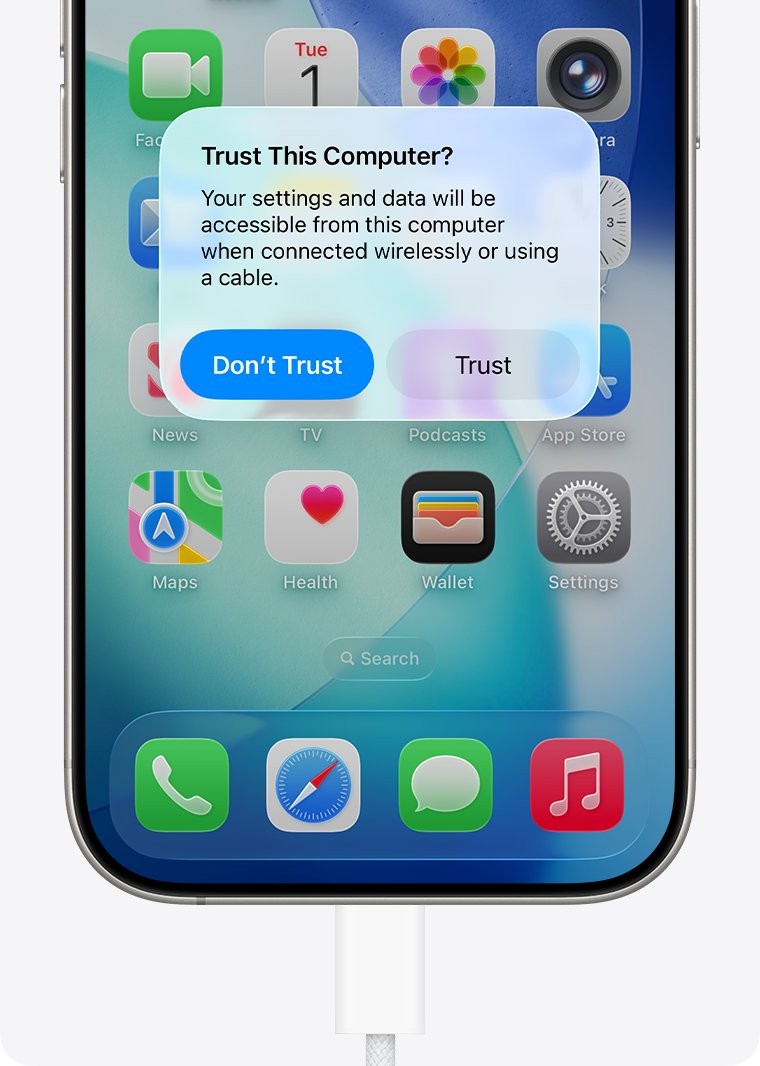
- Tap Trust or Allow if the iPhone asks about trusting this computer.
- On the PC, select Start, then select Photos.
- Select Import, select your iPhone, then follow the instructions on screen.
- Pick the items you want and choose where to save them.
This import covers photos and videos. For documents, PDFs and other app files, use iTunes File Sharing or iCloud Drive.
iPhone to Windows file transfer software and apps
| What you want to move | Use this | What to expect |
|---|---|---|
| Photos and videos, with a cable handy | Microsoft Photos app | Direct copy to a folder you choose, no cloud storage used |
| Files inside an iPhone app | iTunes File Sharing | Works only with apps that support file sharing |
| Files going from the PC to the iPhone | Apple Devices app | Drag files onto a listed app, and they transfer immediately |
| Files in the iPhone Files app, no cable | iCloud Drive on iCloud.com | Runs in a browser and uses your iCloud storage |
| Files you want in File Explorer on both devices | OneDrive | Needs a Microsoft account and the OneDrive app on the iPhone |
| Large batches without internet | USB drive or SD card | May need a cable adapter for the iPhone |
| Regular transfers on the same network | Shared Windows folder | The iPhone connects to the PC through the Files app |
Transfer files from iPhone to Windows with iTunes File Sharing
iTunes File Sharing copies a document out of an app to any folder on your PC. It only lists apps that support file sharing, so a missing app means that app needs a different route.
Apple documents the Save to step for iTunes, while its Apple Devices guide covers only the Windows-to-iPhone direction.
- Download iTunes for Windows from the Microsoft Store and open it.
- Connect the iPhone with a USB or USB-C cable.
- Click the Device button near the top left of the iTunes window.
- Click File Sharing.
- In the list on the left, select the app that holds the file.
- In the list on the right, select the file and click Save to.
- Choose the folder on your PC, then click Save To.
- Click the eject button before you unplug the iPhone.
If the Device button doesn't appear, move the file with iCloud Drive or a USB drive instead.

Transfer files from Windows to iPhone with the Apple Devices app
The Apple Devices app sends files from the PC into an iPhone app that supports file sharing. For photo libraries, send pictures from your desktop to iPhone with a photo sync instead.
- Open the Microsoft Store, search for Apple Devices, select the app, then select Get.
- Connect the iPhone with a USB or USB-C cable.
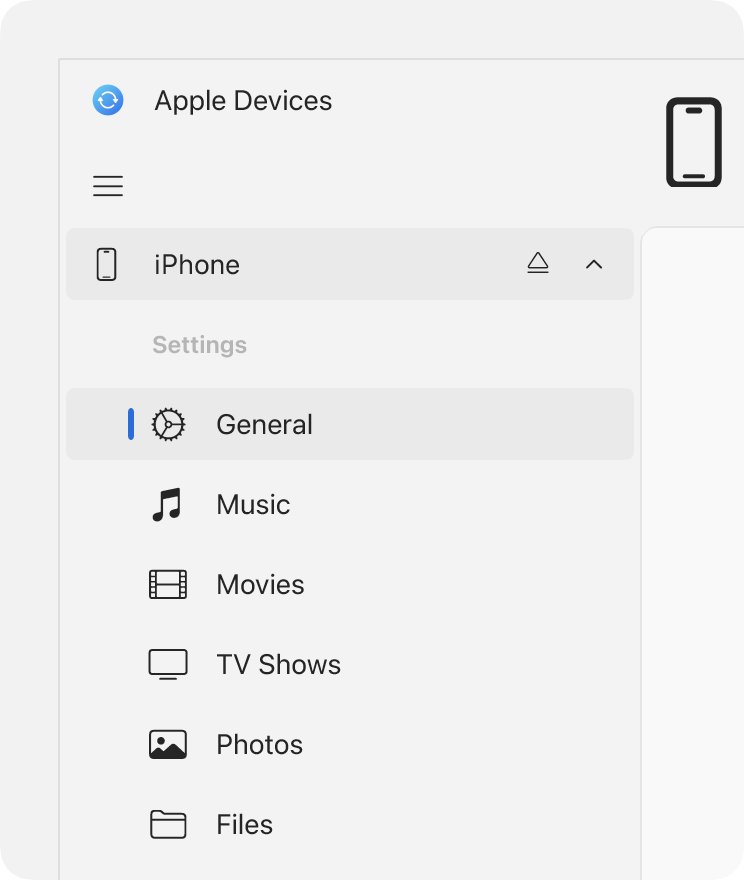
- Select the iPhone in the sidebar of the Apple Devices app.
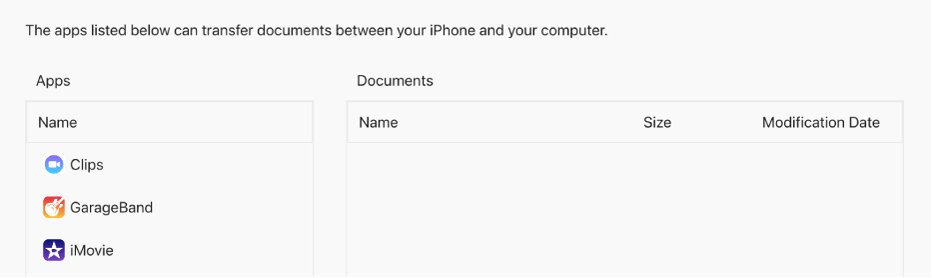
- Select Files in the sidebar to list apps that support file sharing.
- Drag the files from Windows onto an app in the Apple Devices window.
- Select that app in the list to see the files it received.
- Select the Eject button in the sidebar before you unplug the iPhone.
To delete a transferred file, select it, press Control-Delete, then select Delete. The file leaves the iPhone immediately, with no sync needed.
Transfer files between iPhone and Windows 10 over Wi-Fi
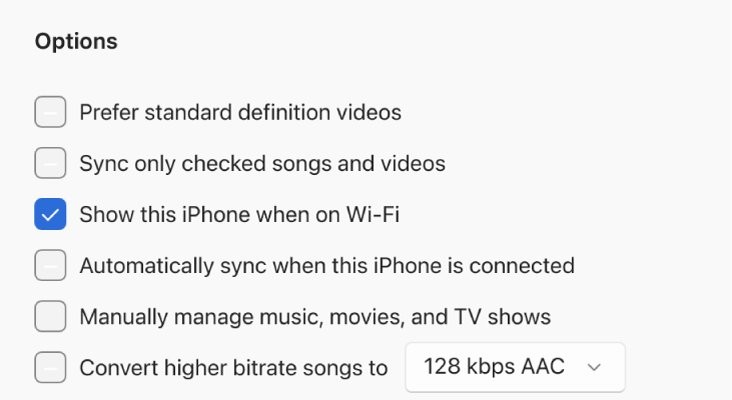
After one setup with a cable, the iPhone can appear in the Apple Devices app over Wi-Fi. Both devices must be on the same Wi-Fi network.
- Connect the iPhone to the PC with a USB or USB-C cable.
- Click the iPhone in the sidebar of the Apple Devices app.
- Click General in the sidebar.
- Check Show this iPhone when on Wi-Fi.
- Click Apply, select Eject, then unplug the cable.
- Keep both devices on the same network, then select the iPhone and open Files when you need to transfer.
Transfer files from iPhone to Windows PC with iCloud Drive
iCloud Drive on iCloud.com needs no software on the PC, which makes it the simplest wireless route on Windows 10. If you can't locate a document first, find your files on iPhone in the Files app.
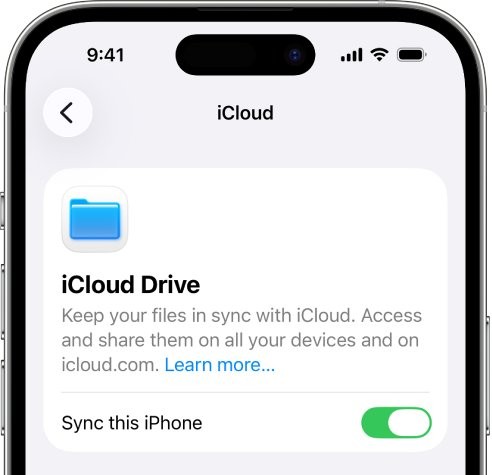
- On the iPhone, go to Settings > [your name] > iCloud.
- Tap Drive (or iCloud Drive), then turn on Sync this iPhone.
- Open the Files app, touch and hold the file, then tap Move.
- Choose a folder in the iCloud Drive section.
- On the PC, go to icloud.com/iclouddrive and sign in with the same Apple Account.
- Select the files, then click the Download button in the toolbar.
The files land in your browser's download location.
iCloud for Windows file transfer through File Explorer
iCloud for Windows puts iCloud Drive inside File Explorer. Apple says the latest version requires Windows 11 or later, so on Windows 10 the iCloud.com route above is the dependable choice.
You must set up iCloud on the iPhone before you can use iCloud for Windows.
- Download iCloud for Windows from the Microsoft Store and open it.
- Sign in to the same Apple Account you use on the iPhone.
- Complete the identity check if a code is requested.
- Choose the sync options, then click Finish Setup.
- Turn on iCloud Drive, then click Done.
- Open File Explorer and click iCloud Drive in the Navigation pane.
- Drag the items from iCloud Drive to the desktop or another folder.
Dragging moves the items, so they also leave iCloud Drive on all your devices. You can drag them back if you change your mind.
Transfer files from iPhone to Windows laptop with OneDrive
OneDrive suits laptops that already sync to a Microsoft account, and the synced files appear in File Explorer. Apple also lists cloud services such as Box and Dropbox for this job, and you can send files with Dropbox Transfer when the PC belongs to someone else.
- Open the OneDrive app on the iPhone and tap the add button at the top of the screen.
- Tap Upload a file or photo, then pick your items.
- On the PC, open File Explorer and go to your OneDrive folder.
- Or sign in with your Microsoft account at onedrive.com and select the files.
- In the top navigation, select Download, then choose where to save them.
Selecting several files on the website downloads them as a single .zip file.
Transfer files from iPhone to a USB drive for a Windows PC
A USB drive or SD card moves large batches with no internet connection. The iPhone may need a cable adapter to connect to the drive.
On iPhone models with a USB-C port, the Files app can format a drive as ExFAT, one of the main Windows file systems. Touch and hold the drive under Locations, then tap Erase, but copy anything you need first.
- Connect the drive to the iPhone.
- Open the Files app and tap Browse.
- Open the location that holds your file.
- Touch and hold the file, then tap Copy or Move and place it on the drive listed under Locations.
- Disconnect the drive and plug it into the Windows PC.
- Open the drive in File Explorer and copy the files to a folder on the PC.
Transfer files from iPhone to a Windows shared folder
The Files app can connect straight to a shared folder on your PC over the same network. This route takes more setup, and it suits people who move files often. The same share also helps you transfer files from PC to PC later.
- In File Explorer, go to Network, select the banner saying network discovery is off, then select Turn on network discovery and file sharing.
- Right-click the folder, then go to Give access to > Specific people and pick a user.
- On the iPhone, open the Files app and tap Browse.
- Tap the options icon on the Browse screen, then tap Connect to Server.
- Enter the PC's local hostname or network address, then tap Connect.
- Select Registered User, enter your user name and password, then tap Next.
- Select the shared folder below Shared in the Browse sidebar, then copy your files into it.
How to make iPhone photos compatible with Windows 10
Apple recommends the Most Compatible camera format for the best results with Windows. The change only affects photos and videos you capture from now on.
- Open the Settings app on the iPhone.
- Tap Camera, then tap Formats.
- Tap Most Compatible to capture in JPEG and H.264.
Where do transferred iPhone files go on Windows 10?
| Route | Where the files end up | How to reach them |
|---|---|---|
| Photos app import | The folder you chose during import | File Explorer or the Photos app |
| iTunes File Sharing | The location you picked in Save To | File Explorer |
| iCloud.com download | Your browser's download location | Your browser's downloads list |
| iCloud for Windows | C:\Users\[user name]\iCloud Drive by default |
iCloud Drive in the Navigation pane |
| iCloud Photos | The iCloud Photos folder, as thumbnails until downloaded | iCloud Photos in the Navigation pane, or inside Pictures |
| OneDrive | Your OneDrive folder, or your browser's save location | OneDrive – Personal in File Explorer |
iPhone to Windows file transfer not working
iPhone not showing up on the Windows PC
A locked phone, a charge-only cable or an out-of-date system stops the connection.
- Seat the cable firmly at both ends and confirm the iPhone starts charging.
- Unlock the iPhone and leave the Home Screen showing.
- Try another cable that supports both data and charging.
- Try another USB port or another computer.
- Update Windows, then update iOS on the iPhone.
Trust This Computer alert not appearing on iPhone
The iPhone remembers an earlier Don't Trust answer for this PC.
- On the iPhone, go to Settings > General.
- Tap Transfer or Reset iPhone, then tap Reset.
- Tap Reset Location & Privacy.
- Reconnect the iPhone and tap Trust.
iPhone photos missing from the Windows import
With iCloud Photos on, the full-size originals may sit in iCloud and not on the phone.
- Download the original, full-resolution versions to the iPhone, then import again.
- Or set up Photos in iCloud for Windows and open iCloud Photos in File Explorer.
- Double-click a thumbnail to download and view that photo.
iCloud Drive file won't open on the PC
A file must be downloaded before it opens, and it may need an app the PC doesn't have.
- Open File Explorer and click iCloud Drive in the Navigation pane.
- Right-click the file and choose Always keep on this device.
- Install an app that can open that file type if it still won't open.
OneDrive won't upload iPhone photos
OneDrive can't upload photos optimized for iCloud.
- On the iPhone, open Settings > iCloud > Photos.
- Turn off Optimize Storage.
- Try the upload again in the OneDrive app.
iPhone to Windows file transfer FAQ
Can we transfer files from iPhone to Windows?
Yes. A USB cable moves photos and videos through the Windows Photos app, and iTunes File Sharing saves files from supported apps. iCloud Drive, OneDrive, a USB drive and a shared folder handle other files without a direct cable connection.
How do you transfer files from iPhone to a Windows PC without a cable?
Save the file to iCloud Drive in the iPhone Files app, then download it at icloud.com/iclouddrive on the PC. OneDrive does the same job with a Microsoft account, and it shows the file in File Explorer once your OneDrive folder syncs.
What is the best iPhone to Windows file transfer app?
It depends on the file type. The Microsoft Photos app handles pictures and videos, iTunes handles files inside iPhone apps, and Apple Devices sends files from the PC to the iPhone. Apple Devices and iTunes both install from the Microsoft Store.
Does the transfer work the same on Windows 11?
Mostly. The Photos import, iTunes File Sharing and iCloud.com steps are the same. Windows 11 places the folder-sharing command under Show more options, and Apple's latest iCloud for Windows version requires Windows 11 or later.
Can you use AirDrop to transfer files from iPhone to Windows?
No. Apple describes AirDrop as a way to send items to nearby Apple devices, and a Windows PC isn't one. Use a USB cable, iCloud Drive, OneDrive or a USB drive to reach a Windows PC instead.
Do you need iTunes to transfer files from iPhone to Windows?
Not for photos and videos, which import through the Windows Photos app after you install Apple Devices. iCloud Drive and OneDrive don't need it either. iTunes is the route Apple documents for saving files from iPhone apps to a PC.
Why do you have to unlock the iPhone to transfer files?
Windows can't find an iPhone while it's locked. The iPhone also asks whether you trust the computer, and a trusted computer can sync with the phone and access its photos, videos and contacts until you reset that choice or erase the phone.