Task Host Window prevents shutdown because Windows is waiting for a process to close, so save your work, restart once, and use the six numbered fixes below if the message returns.
The steps apply to Windows 11 and Windows 10. The sections after the six fixes help you pin down the cause and shut the PC down safely in the meantime.
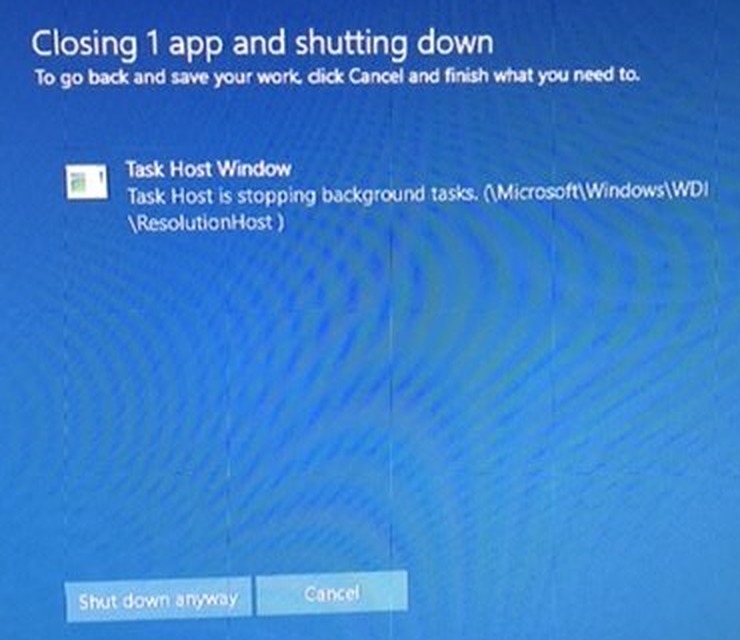
How to stop Task Host Window preventing shutdown
A restart is the quickest test. Microsoft's Fast Startup setting doesn't apply to Restart, so Windows runs a full boot cycle and starts with a clean session.
- Give the shutdown screen a minute, because the process may close by itself.
- If it stays, go back to the desktop and save anything you have open.
- Select Start, then Power, then Restart.
- Wait for the desktop to finish loading after the restart.
- Select Start, then Power, then Shut down.
If the PC turns off normally, you are done. If Task Host Window appears again, match what you see in the table below and start with that fix.
What is Task Host Window in Windows?
Task Host Window is the name Windows shows for its Task Host process while it waits for that process to close. Seeing the name doesn't mean something is broken.
| Question | Answer |
|---|---|
| What does the message say? | Microsoft documents the wording as 1 program still needs to close: (Waiting for) Task Host Window. Other Windows versions can word it differently. |
| What process is it? | Microsoft's support article ties the message to the TaskHost.exe process. |
| Why does Windows wait? | When you shut down, Windows tells running apps and services to save their data and close, and it gives them time to do so. |
| Can an app block shutdown? | Yes. Windows lets an app block shutdown and show a reason on the screen during an operation it can't interrupt. |
| Does it apply to Restart too? | Yes. Microsoft describes the same delay for shutdown, restart and sign-out. |
Why does Task Host Window prevent shutdown?
Microsoft doesn't publish one cause for current versions of Windows, so use the pattern you see to pick a starting point. The six numbered fixes run from the safest to the most invasive.
| What you notice | Possible cause | Start with |
|---|---|---|
| It began after a Windows update, or an update is waiting | An unfinished update or a Windows Update problem | Fix 1 |
| It appears after Microsoft Store apps update | The Store install service is still working | Fix 2 |
| It began after you installed an app or driver | A third-party service or startup app is holding on | Fix 3 |
| You also see crashes or other system errors | Damaged system files | Fix 4 |
| It happens on Shut down but not on Restart | Fast Startup hibernates the Windows session | Fix 5 |
| The message clears by itself, but the wait annoys you | A service is taking its full time to stop | Fix 6 |
1. Run the Windows Update troubleshooter tool
Try this first, because Microsoft built the tool for Windows Update problems and it needs no registry or service changes from you. Microsoft offers it through the Get Help app and through Settings.
- On Windows 11, open Settings > System > Troubleshoot > Other troubleshooters.
- Under Most frequent, select Run beside Windows Update.
- On Windows 10, open Settings > Update & Security > Troubleshoot > Additional troubleshooters.
- Under Get up and running, select Windows Update, then Run the troubleshooter.
- Follow the prompts, then restart the PC when the tool finishes.
- Open Windows Update in Settings, select Check for updates and install anything it finds.
2. Restart the Microsoft Store Install Service
Microsoft Store Install Service (InstallService) provides infrastructure support for the Microsoft Store and starts on demand. Restarting it can clear a Store install that has stalled.
- Press Windows logo key + R, type
services.mscand press Enter. - Scroll down to Microsoft Store Install Service.
- If its status is Running, right-click it and select Restart.
- If it isn't running, leave it alone, since Windows starts it only when needed.
- Close Services, then try the shutdown again.
Don't set this service to Disabled. Microsoft warns that installations will not work properly without it.
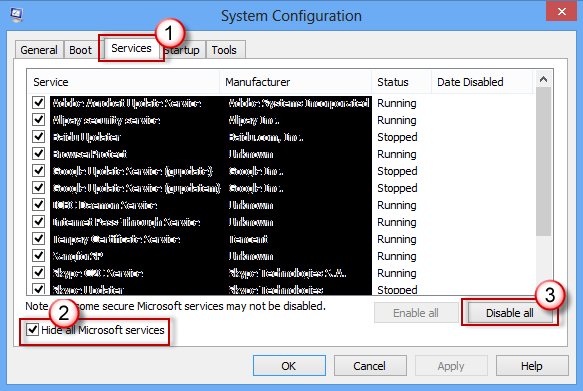
3. Disable all non-essential services and startup apps using msconfig
This is Microsoft's clean boot procedure, and it shows whether third-party software is causing the block. Sign in as an administrator first. The PC may have reduced functions until you reverse it.
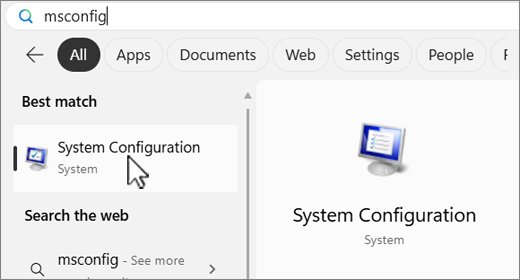
- Search for
msconfigand select System Configuration. - On the Services tab, check Hide all Microsoft services, then select Disable all and Apply.
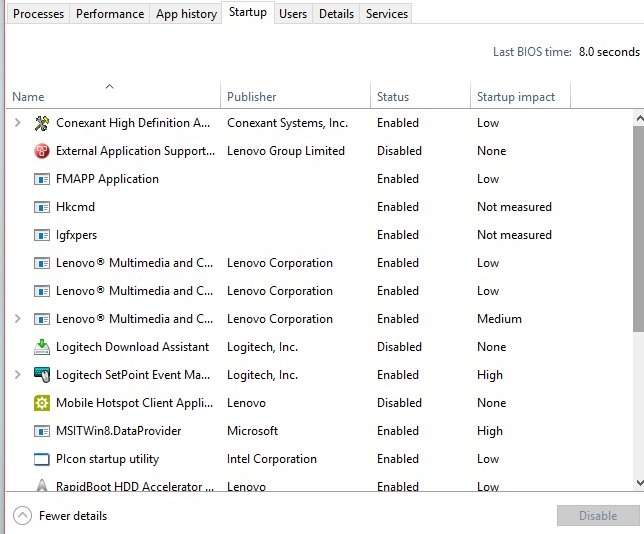
- On the Startup tab, select Open Task Manager.
- On the Startup apps tab (Startup on Windows 10), disable each enabled item and write down what you disabled.
- Close Task Manager and select OK in System Configuration.
- Restart the PC, then try a normal shutdown.
If the message is gone, third-party software is the likely cause. Bring items back one at a time to find it, then reverse the clean boot with the steps further down.
4. Run a DISM and SFC scan
Microsoft's order is DISM first and System File Checker second. DISM repairs the Windows image, and SFC then checks protected system files and replaces damaged ones.
- Search for Command Prompt, right-click it and select Run as administrator.
- Type
DISM.exe /Online /Cleanup-image /Restorehealthand press Enter. - Wait for DISM to finish.
- Type
sfc /scannowand press Enter. - Keep the window open until the scan reaches 100%.
- Restart the PC and test the shutdown.
If Windows Update itself is broken, DISM may need a repair source: DISM.exe /Online /Cleanup-Image /RestoreHealth /Source:C:\RepairSource\Windows /LimitAccess. Replace the sample folder with your own source location.
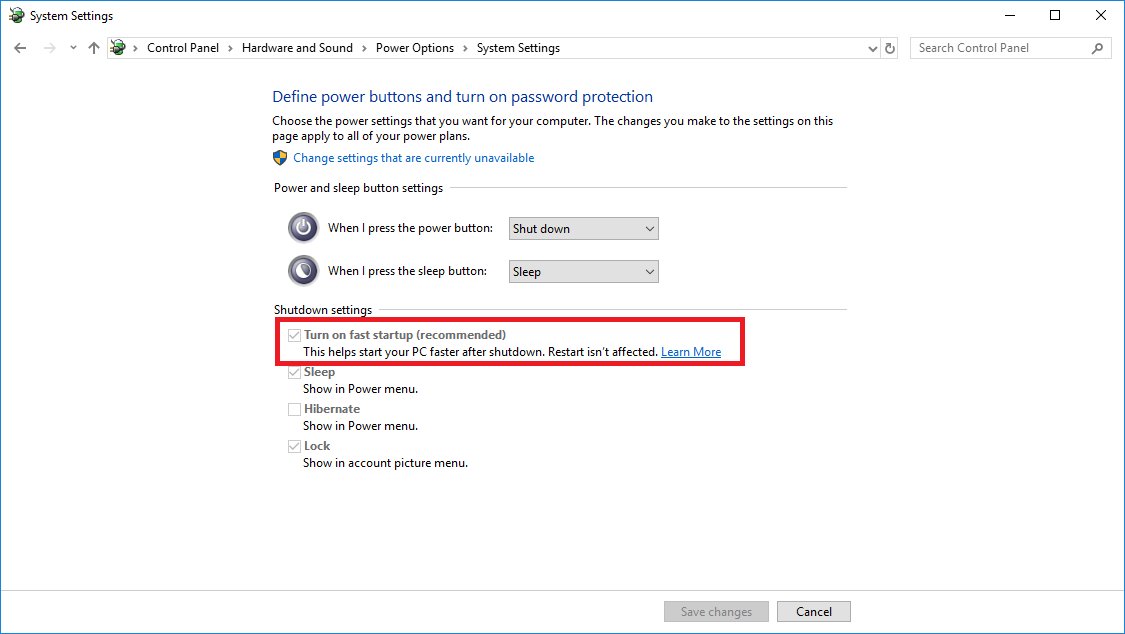
5. Disable Fast Startup
With Fast Startup on, a shutdown signs out your sessions and then hibernates the Windows kernel instead of closing it. It is on by default, and Microsoft does not recommend turning it off, so treat this as a test and not a permanent setting.
- Search the taskbar for Control Panel and open it.
- Select System and Security.
- Under Power Options, select Choose what the power buttons do.
- Select Change settings that are currently unavailable.
- Under Shutdown settings, clear Turn on fast startup.
- Select Save changes, then try a shutdown.
On Windows 10, reach the same page through Settings > System > Power & sleep > Additional power settings. You can also disable Fast Startup on Windows 11 or 10 with other methods. Your startups will be slower with the setting off.
6. Edit WaitToKillServiceTimeout in Windows Registry
WaitToKillServiceTimeout sets how long, in milliseconds, Windows waits for services during a reboot. It shortens that wait only, so it won't remove the underlying cause, and a service with less time can lose its chance to finish cleaning up.
- Select Start, type
regedit.exeand press Enter, then confirm the prompt. - Go to
HKEY_LOCAL_MACHINE\SYSTEM\CurrentControlSet\Control. - Select File > Export, choose a location, type a name and select Save to back up the key.
- Double-click WaitToKillServiceTimeout in the right pane and note its current value.
- Enter a value in milliseconds. For example, 5000 means 5 seconds.
- Select OK, close Registry Editor and restart the PC.
If the value isn't listed, skip this fix. To go back, open Registry Editor, select File > Import and choose your backup file.
How to undo a clean boot with msconfig
Run these steps when you finish fix 3, even if it didn't help. Your disabled services and startup apps stay off until you do.
- Search for
msconfigand select System Configuration. - On the General tab, select Normal Startup.
- On the Services tab, clear Hide all Microsoft services, select Enable all, then select Apply.
- On the Startup tab, select Open Task Manager and enable the apps you disabled.
- Select OK, then select Restart when prompted.
Install pending Windows updates and complete restart operations
Many updates need a restart before they finish. Complete any that are waiting, even if you already ran the troubleshooter.
- Save your work and close your apps.
- On Windows 11, open Settings > Windows Update. On Windows 10, open Settings > Update & Security > Windows Update.
- Select Check for Windows updates.
- Select Download & install if any updates appear.
- Select Start > Power, then choose Update and restart or Update and shut down.
- After the update finishes, test a normal shutdown.
Disable problematic startup programs
You don't need a full clean boot once you suspect a particular app. Turn off only that app and test again.
- Open Start > Settings > Apps > Startup.
- Find the app you suspect and switch its toggle to Off.
- Alternatively, right-click Start, open Task Manager, go to Startup apps, select the app and select Disable.
- Restart the PC and test a shutdown.
- If the message is gone, update or uninstall that app. If it isn't, turn the app back on and try the next one.
If the same apps also slow down your PC, you can speed up a slow computer with Task Manager using the same tab.
Repair corrupted system files
SFC ends with one of four messages, and each one asks for something different. Use this table after running fix 4.
| SFC message | What it means | What to do |
|---|---|---|
| Windows Resource Protection did not find any integrity violations. | Nothing is missing or corrupted. | Move on to another fix. |
| Windows Resource Protection could not perform the requested operation. | The scan could not run. | Run the scan again in Safe Mode. |
| Windows Resource Protection found corrupt files and successfully repaired them. | The repair succeeded. | Restart and test the shutdown. |
| Windows Resource Protection found corrupt files but was unable to fix some of them. | Some files are still damaged. | Find them in the log and replace them with good copies from a PC running the same Windows version. |
To pull the SFC results from %windir%\Logs\CBS\CBS.log onto your desktop, run findstr /c:"[SR]" %windir%\Logs\CBS\CBS.log >"%userprofile%\Desktop\sfcdetails.txt" in an elevated Command Prompt. Lines that say Cannot repair member file name the damaged files.
You can also run a System File Checker scan by itself when you only need to re-check those files.
Turn off Fast Startup temporarily
You can skip Fast Startup for one shutdown without changing any setting. This is the better test before you try fix 5, because your next normal shutdown goes back to Fast Startup.
shutdown /s /t 0Run it from Command Prompt or the Run box. /s shuts down the PC and /t 0 removes the delay. Full shutdown is the default for this command, so it bypasses hybrid shutdown. You can also shut down from Command Prompt or PowerShell with other switches.
You should see: The PC turns off with no hibernated session. If Task Host Window doesn't appear on this route but appears on the Start route, Fast Startup is the likely trigger.
Identify and close background processes causing the problem
Look at what is running before you shut down, then close it yourself. Save your work first, because ending a process discards anything unsaved in it.
- Note any app named on the shutdown screen, since Windows lists apps that are blocking it.
- Press Ctrl + Shift + Esc to open Task Manager, then select Processes.
- Under Apps, right-click an app you recognize and no longer need, then select End task.
- Open Windows PowerShell and run
Get-ScheduledTask | Where-Object State -eq 'Running'to list scheduled tasks in progress. - Let those tasks finish if you can, then shut down again.
- Leave Windows processes you don't recognize alone, and close only apps you opened or installed.
Safely shutting down your PC
Windows has a preferred route and a few fallbacks. Use the first one that works, because each step down the table gives apps less chance to save data.
| Route | What it does | When to use it |
|---|---|---|
| Start > Power > Shut down | Closes files and notifies services and apps so that they can save data | Always try this first |
| Start > Power > Restart | Runs a full boot cycle, without Fast Startup | To clear a stuck session |
shutdown /s /t 0 |
Runs a full shutdown, without hybrid shutdown | To test whether Fast Startup is involved |
shutdown /s /f /t 0 |
Forces running apps to close without warning, and unsaved data can be lost | Only after you save your work |
| Hold the power button for at least four seconds | Cuts in on the Windows shutdown and logs Event ID 41 at next startup | Only if the PC stops responding and you have no alternative |
How to read Event ID 1074 and 6006 after a Windows shutdown
Event Viewer records how the last shutdown went. Use it after any fix to see whether Windows closed cleanly.
- Press Windows logo key + R, type
eventvwr.mscand press Enter. - Open Windows Logs, then select System.
- Select the Event ID column header to sort the list, or scroll to the time of your last shutdown.
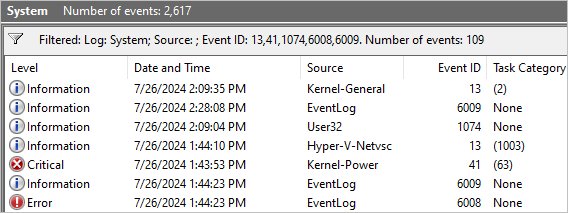
- Look for Event ID 1074, which records who or what started the shutdown or restart.
- Look for Event ID 6006, which shows that Windows turned off properly.
- Treat Event ID 6008 or 41 as a warning, because each one marks an unexpected shutdown.
Additional troubleshooting tips for Task Host Window
The PC goes back to the lock screen instead of shutting down
Microsoft links this to Fast Startup when a memory dump driver fails to load during hibernation, and Event ID 45 appears in the System log.
- Check the System log in Event Viewer for Event ID 45.
- Back up the registry, then open
HKEY_LOCAL_MACHINE\System\CurrentControlSet\Control\CrashControl\. - Open the DumpFilters value and make sure that
dumpfve.sysis the only entry. - Close Registry Editor and restart the PC.
Another app is named on the shutdown screen
An app can block shutdown by itself, so the fix belongs to that app and not to Task Host.
- Save your work and close the named app.
- Update the app or turn off its startup entry.
- If the name is Elara, you can stop the Elara app blocking shutdown on Windows 11.
Shutdown is slow with no Task Host Window message
A long wait without any named program usually has a different cause.
- Note whether the delay began after a new app, driver or update.
- On Windows 10, you can fix slow shutdown issues that have nothing to do with Task Host.
Task Host Window delays shutdown on Windows 7
Microsoft traced a delay of about six seconds on Windows 7 and Windows Server 2008 R2 to TaskHost.exe no longer handling messages during shutdown.
- Confirm the delay is short and that the message names Task Host Window.
- Apply Microsoft's supported hotfix only if the PC has this exact problem, then restart.
- Plan an upgrade, because Windows 7 no longer receives regular support.
The message survives a clean boot and a repair scan
With third-party software and damaged files ruled out, the problem sits in the Windows installation.
- Back up your files.
- Use the Windows recovery options to reinstall Windows, as Microsoft suggests when repairs fail.
Task Host Window shutdown FAQ
Is Task Host Window a virus?
The name itself is a Windows one. Microsoft's own support article uses it for the TaskHost.exe process that Windows waits on at shutdown. If you still suspect malware, run a full Microsoft Defender scan rather than deleting or disabling any Windows file.
Is it safe to force a shutdown when Task Host Window appears?
Only after you save your work, because a forced shutdown can lose unsaved data. shutdown /f closes apps without warning. Holding the power button interferes with the Windows shutdown, so Microsoft recommends that route only when you have no alternative.
Does disabling Fast Startup stop Task Host Window?
It can, if the message appears on Shut down but not on Restart. Microsoft says Fast Startup doesn't apply to Restart, and it doesn't recommend disabling the feature. Test with shutdown /s /t 0 first, because that command changes no settings.
What is the default WaitToKillServiceTimeout time?
Microsoft says a service has approximately 20 seconds by default to clean up before the system shuts down. The registry value is set in milliseconds. Note the number stored on your own PC before you change it, so that you can put it back.
Can I end Task Host Window in Task Manager?
Close the apps you recognize first, because ending a Windows process you can't identify can interrupt a background job and lose its work. If Windows finishes the wait by itself, you don't need to end anything, and the shutdown continues.
Does Task Host Window affect Windows 11?
Yes. Task Host Window can appear on Windows 11 and Windows 10, and the fixes on this page apply to both. Labels differ in a few places, such as the Startup apps tab, which is called Startup on Windows 10.
Why does Task Host Window appear when I restart?
Windows asks running processes to close on a restart as well as on a shutdown, so the same wait can appear. Microsoft's support article describes the delay for shutdown, restart and sign-out. Fix 1 and fix 3 are the best places to start.