To delete a document from Microsoft Word, close the file, select File > Open, right-click it in the Recent list and select Delete file.
The same file can also be removed through File Explorer, OneDrive, Microsoft 365, Finder or the Word mobile app, and each route has its own recovery window.
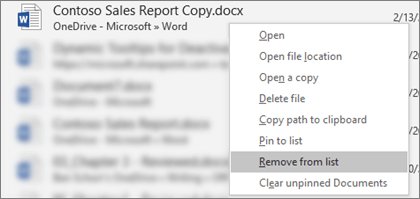
Deleting a Word document: A step-by-step guide
These steps work in Word for Windows when the document appears in your recent files. Windows cannot delete a file while any program has it open, so the document must be closed first.
- Save your work and close the document you want to delete.
- In Word, select the File tab, then select Open.
- Find the document in the Recent list.
- Right-click the document and select Delete file.
- Confirm the deletion if Word asks.
- Open the Recycle Bin on your desktop to see the document there if it was stored on your hard disk.
Take care with the menu: Remove from list only hides the entry and leaves the file on your PC. To remove a single page rather than the whole file, delete the page in Word instead.
How to delete documents in Word
Microsoft names File Explorer as the best way to delete files on Windows, and Word's Recent list only shows documents you have opened lately. Pick the row that matches where your document is.
| Your situation | Use this | Why |
|---|---|---|
| The document is in Word's Recent list | File > Open, then Delete file | No need to find the folder |
| The document is on your PC but not in Recent, or you have several to remove | File Explorer | Ctrl and Shift select many files at once |
| The document is stored in OneDrive | onedrive.com or your synced OneDrive folder | Removes the cloud copy and keeps a recycle bin copy |
| You see the document on the Microsoft 365 home page | … More options > Delete | Works in a browser with no desktop app |
| You use a Mac | Word's Recent list or Finder | Finder sends the file to the Trash |
| You use an iPhone, iPad or Android device | The Word mobile app | The delete command sits in the file's own menu |
| You want to keep the file and clear the entry | Remove from list | The file stays where it is |
Delete documents in the Word app
The delete command sits in a different place in each version of Word. Close the document first in every version, and go back to the file list if you have it open on a phone or tablet.
| Word version | Where to start | Command to select |
|---|---|---|
| Word for Windows | File > Open > Recent | Right-click the file, then Delete file |
| Word for Mac | File > Open > Recent | Right-click or Control-click the file, then Delete |
| Word for iPhone and iPad | Open, then the service that holds the file (OneDrive, Dropbox or a team site) | File actions > Delete |
| Word for Android | Open, then the storage location (OneDrive, Dropbox, a team site or your device) | More > Delete |
| Microsoft 365 home page | Quick access or My Content | … More options > Delete |
If your copy of Word does not show a delete command, use File Explorer or Finder instead. The file is the same wherever you delete it.
Delete Word document using File Explorer
This is the route to use for documents that never appear in Word's recent files, and it also answers how to delete documents from a PC or laptop running Windows.
- Close the document in Word.
- Press Windows key + E to open File Explorer.
- Go to the folder that holds the document, such as Documents.
- Select the file. To select more than one, hold Ctrl as you select each file.
- To select a long run of files, select the first one, hold Shift and select the last one.
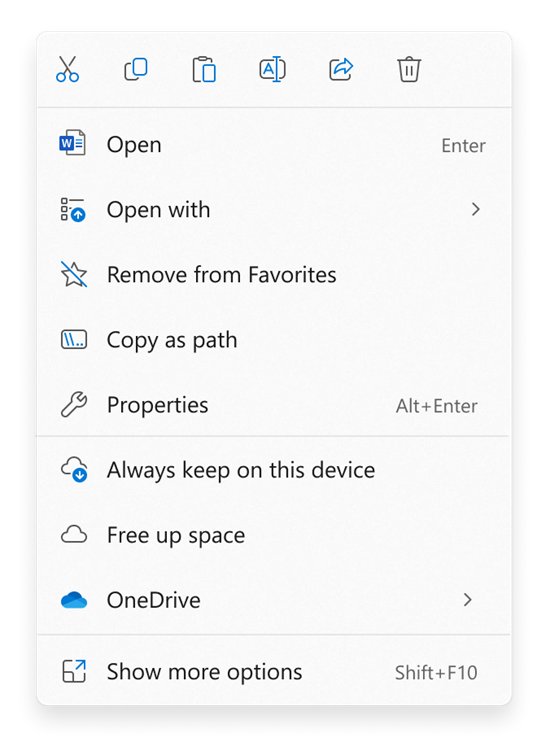
- Press the Delete key. You can also right-click the file and select the Delete icon in Windows 11, or select Delete on the Home tab in Windows 10.
Files on your hard disk move to the Recycle Bin. Microsoft warns that a file deleted from a disk, CD or network location is destroyed rather than moved there.
How to delete a Word document on Mac
Finder handles any Word document on your Mac, including files Word no longer lists under Recent.
- Close the document in Word.
- Open Finder and go to the folder that holds the document.
- Select the file and press Command-Delete, or drag it to the Trash in the Dock.
- Confirm the move if macOS says the item is locked.
The document stays recoverable until the Trash is emptied. A file moved to the Trash from iCloud Drive is removed automatically after 30 days, whatever your Finder settings say.
Delete Word documents saved in OneDrive
Use the OneDrive website when you want to delete documents from the Microsoft cloud without touching your PC. Deleting an item that has been shared deletes it for everyone, and OneDrive may ask you to confirm.
- Go to onedrive.com and sign in with your Microsoft account or your work or school account.
- Open the folder that holds the document.
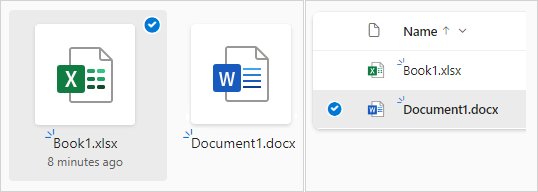
- Point at the document and select the circle check box that appears.
- To select everything in the folder press Ctrl + A, or Shift-click to select a range.
- Select Delete in the top bar, or right-click the selection and select Delete.
In a synced OneDrive folder, open File Explorer on Windows, select the files and press the Delete key. On a Mac, right-click the files in Finder and select Move to Trash.
To stop sharing a document without deleting it, open the Shared view, select the file and select Manage Access.
How to delete documents from Microsoft 365
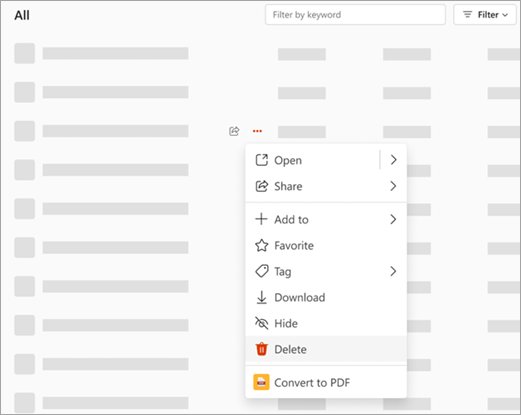
The Microsoft 365 home page deletes a file from your storage, which is different from hiding it. After that the file is only reachable through your OneDrive Recycle bin.
- Open the Microsoft 365 (Office) app, or go to microsoft365.com in a browser.
- Sign in with your Microsoft account or your work or school account if prompted.
- Find the document under Quick access on the home page, or open My Content.
- Select … More options, then select Delete.
- Confirm that you want to delete the file.
- If the file is in a shared location such as a SharePoint folder, select Go to file location to finish.
Delete a Word document from OneDrive but keep it on your PC
A synced file exists in two places, so where you delete it decides what survives. Match what you want to keep.
| What you want | What to do |
|---|---|
| Remove it from OneDrive and keep it on your computer | Move the file out of your OneDrive folder to another folder on your computer |
| Keep it in OneDrive and free up space on your computer | Leave it in your OneDrive folder and turn on Files On-Demand, so it uses no hard drive space |
| See fewer OneDrive folders on your computer | Choose which OneDrive folders sync to your computer |
| Remove it from both OneDrive and your computer | Find the file in File Explorer or Finder and delete it there |
Delete unneeded Word documents in Windows
To clear out old documents in bulk, list them all in one place and sort them before you delete anything.
- Press Windows key + E and open your Documents folder.
- Select the search box, type
ext:.docxand press Enter. Repeat withext:.docfor older files. - Select View > Details.
- Right-click an empty area of the window and select Sort by > Size to put the largest files in order.
- Hold Ctrl and select each document you no longer need.
- Press the Delete key.
- Right-click the Recycle Bin and select Empty Recycle Bin once you are sure, because deleted files use drive space until you do.
Windows 11 can also suggest files to remove. Go to Start > Settings > System > Storage > Cleanup recommendations, review Large or unused files, select the items and select Clean up.
If you are unsure about a file, make a copy of the document on an external drive and delete the original.
How to tell if a Word document is really deleted
A deleted document usually leaves two traces: a recycle bin entry and an old link in Word.
- Open the folder that held the document and look for the file name.
- Open the Recycle Bin on Windows or the Trash on a Mac and look for the same name.
- For a OneDrive file, sign in at onedrive.com and select Recycle bin in the navigation pane.
- If the name still shows under Recent in Word, right-click it and select Remove from list, because that entry is only a link.
Where do deleted Word documents go?
The answer depends on where the file was stored, and that decides how long you have to change your mind.
| Where the file was | Where it goes | How long it stays |
|---|---|---|
| Windows hard disk | Recycle Bin | Until you empty the bin or remove the item |
| Disk, CD or network location | Nowhere, the file is destroyed | Not recoverable from the Recycle Bin |
| Mac | Trash | Until you empty it, or 30 days if you turn on Remove items from the Trash after 30 days |
| OneDrive, personal account | OneDrive recycle bin | 30 days |
| OneDrive, work or school account | OneDrive recycle bin | 93 days unless your administrator changed it |
| SharePoint or Teams | Site recycle bin, then the site collection recycle bin | 93 days from the original deletion |
How to permanently delete a Word document
These commands skip or clear the recycle bin. Files removed from the OneDrive recycle bin cannot be restored, so check the name before you confirm.
| Where the file is | How to remove it for good |
|---|---|
| Windows, before you delete it | Select the file and press Shift + Delete, which skips the Recycle Bin |
| Windows, already in the Recycle Bin | Right-click the Recycle Bin and select Empty Recycle Bin |
| Mac, already in the Trash | Control-click one item in the Trash and select Delete Immediately, or select Finder > Empty Trash |
| OneDrive on the web | Select Recycle bin in the left navigation, select the items and select Delete |
| OneDrive on Android | Tap the Me icon, select your account, open Recycle Bin, select the files and tap Delete |
Recover deleted Word documents
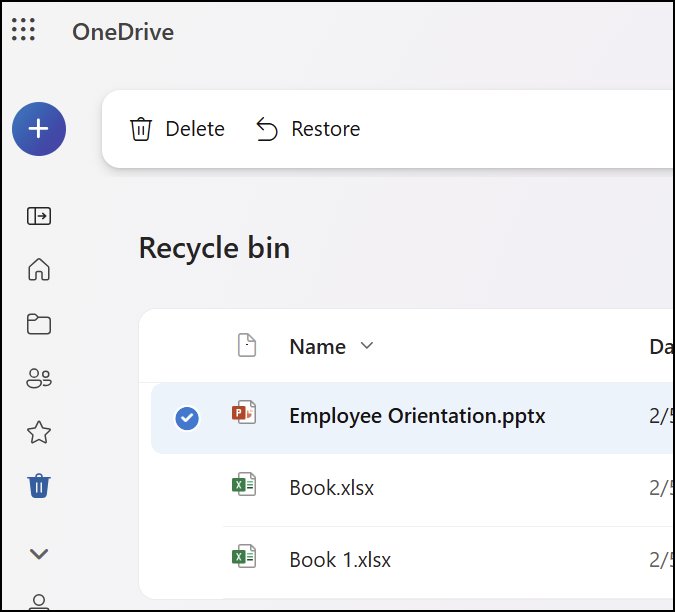
Start with the recycle bin that matches where the file was stored. Online-only files and files deleted from the cloud do not appear in the local Recycle Bin, so check the OneDrive one as well.
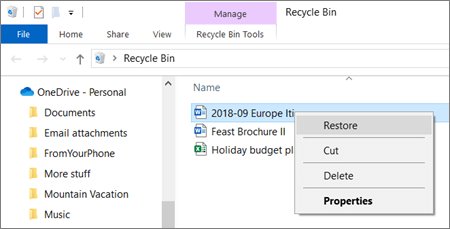
- Open the Recycle Bin on Windows, right-click the document and select Restore.
- On a Mac, open the Trash, select the document and select File > Put Back.
- For a OneDrive file, go to onedrive.com and select Recycle bin in the navigation pane.
- Point at the document, select the circle check box and select Restore.
- For a file deleted from the Microsoft 365 home page, select View in OneDrive Recycle bin in the notification at the bottom of the page.
- On a phone, open the OneDrive app, tap the Me icon, choose your account, tap Recycle Bin, select the file and tap Restore.
A draft you never saved is a different problem, and you can often recover an unsaved Word document from Word itself. For a file that still exists but will not open, try the Word document recovery options.
Restore a deleted Word document with File History
File History only helps if it was already set up with an external drive or network location before the document was deleted.
- Open File Explorer and go to the folder that used to contain the document.
- Right-click the folder name and select Restore previous versions.
- On the Previous Versions tab, select a version of the folder from before you deleted the file.
- Expand Open and select Open in File History to confirm that the document is inside.
- Expand Restore and select Restore to… to save the document somewhere else without overwriting current files.
Recover a permanently deleted Word document with Windows File Recovery
Windows File Recovery is a Microsoft Store command line app for local drives, external drives and USB devices, including files that are no longer in the Recycle Bin. It does not support cloud storage or network file shares.
Minimize or avoid using your computer until you run it, because any new file can overwrite the space the document used. The source and destination drives must be different.
winfr C: E: /regular /n *.docxSearches drive C: for deleted .docx files in Regular mode, which Microsoft recommends for NTFS drives where the file was deleted recently, and saves what it finds to drive E:. Enter Y when prompted to start.
You should see: A folder named Recovery_<date and time> appears on the destination drive with the recovered documents inside.
Search for Windows File Recovery from the Start menu and select Yes at the prompt to open it. If the document went through the Recycle Bin first, you can also try other ways to recover files after emptying the Recycle Bin.
Remove a Word document from the recent list without deleting it
Removing the entry leaves the file untouched. Use this when you want a document out of sight on a shared PC or simply off the list.
- In Word, select the File tab, then select Open.
- Right-click the document under Recent.
- Select Remove from list, not Delete file.
- To clear every entry that is not pinned, right-click any file and select Clear unpinned Documents or Clear non-favorite items, depending on your version, then select Yes.
- To hide the whole list, select File > Options > Advanced, and set Show this number of Recent Documents to zero.
Your recent list syncs with your Microsoft account, so an entry can reappear when an older PC comes back online. Remove it again the same way.
Why can't I delete documents in Microsoft 365?
A Word document will not delete because it is open
A file cannot be deleted while someone has it open in any program.
- Close the document in Word and in any other program using it.
- Ask anyone else who has the shared file open to close it.
- If it is a shared file that was checked out, check it in, then delete it.
Delete is missing on the Microsoft 365 home page
Microsoft 365 does not delete files you do not own, files being edited or files already deleted.
- Ask the file's owner to delete it if you do not own it.
- Wait until nobody is editing the document, then try again.
- Look in your OneDrive Recycle bin in case it is already deleted.
Delete is missing or fails in OneDrive
You may not have permission for the item, or your organization has a retention policy.
- Ask the person who shared the file for permission to delete it.
- On a work or school account with retention turned on, empty the folder before you delete the folder itself.
Word says the document is locked for editing by another user
Word quit improperly and left its temporary owner file behind, a second Word process has the file open, or another person on the network is using it.
- Confirm that nobody else on the network has the document open.
- Save your work and close your programs.
- Press Ctrl + Shift + Esc to open Task Manager and end each
Winword.exeprocess. - Open the document's folder and delete the owner file, whose name starts with
~$, such as~$cument.docforDocument.doc. - Restart Word, or delete the document in File Explorer.
Why is Word deleting my documents?
When a Word document seems to vanish, one of these four situations is the usual explanation.
A document disappeared from Word's recent list after you moved it
Moving a closed file breaks the link in the recent list, but the file still exists.
- Select File > Open > Browse.
- Type part of the file name in the Search box and press Enter.
- Open the file from its new location to add the link back to the list.
A draft vanished after you selected Don't Save
Word for Mac deletes the AutoRecover copy when you select Don't Save, and Word for Windows keeps one only when its setting is on.
- In Word for Windows, select File > Options > Save.
- Select Save AutoRecover information every x minutes and set a low number, such as 5 or 10.
- Select Keep the last autorecovered version if I close without saving.
A shared document disappeared from OneDrive
Anyone who deletes a shared item deletes it for everyone, and you can only restore files from your own OneDrive.
- Ask the file's owner to open Recycle bin on onedrive.com.
- Have the owner select the file and select Restore.
Recovered copies are gone from the Document Recovery pane
Choosing No, remove the files. I have saved the files I need when you close the pane removes those autorecover files.
- Save every recovered document you want before you close the pane.
- Select Yes, I want to view these files later if you are not sure which ones you need.
Deleting Microsoft Word documents FAQ
Can you delete documents on Microsoft Word?
Yes. In Word for Windows, select File > Open, right-click the closed document under Recent and select Delete file. Word for Mac uses Delete in the same menu. For a document that is not listed, delete the file in File Explorer or Finder.
How do you delete documents from Microsoft 365?
Go to microsoft365.com, find the file under Quick access or My Content, select More options and then Delete. The file leaves your storage and stays in your OneDrive Recycle bin. You cannot delete files you do not own or files being edited.
How do you delete documents from the Microsoft cloud?
Sign in at onedrive.com, select the document and select Delete in the top bar. It stays in the OneDrive recycle bin for 30 days on a personal account and 93 days on a work or school account, unless an administrator changed that setting.
How do you delete documents from a PC?
Press Windows key + E to open File Explorer, find the document, select it and press the Delete key. A file on your hard disk moves to the Recycle Bin, where it keeps using drive space until you empty the bin.
How do you delete documents on a laptop?
A Windows laptop uses File Explorer: select the file and press the Delete key. A MacBook uses Finder: select the file and press Command-Delete to move it to the Trash. Close the document in Word first on either laptop, because open files cannot be deleted.
Does removing a Word document from the recent list delete it?
No. Remove from list only clears the entry from Word's Recent list, and the file stays where it is stored. Delete file, the option near it in the same right-click menu, is the command that removes the document from your system.
Does deleting a Word document from OneDrive remove it from my computer?
Yes, if you delete it in your synced OneDrive folder using File Explorer or Finder, it goes from both places. To keep a copy on your computer only, move the file out of the OneDrive folder to a different folder instead of deleting it.