Detect malware on your iPad by watching for Apple's malware alert and checking for unknown configuration profiles, unfamiliar apps and unusual battery or data use, because Apple offers no manual scan button.
This guide covers each check, which warning signs are real, how to remove what you find, whether an iPad needs antivirus, spyware checks, and when to erase the iPad.
How do I check for malware on my iPad?
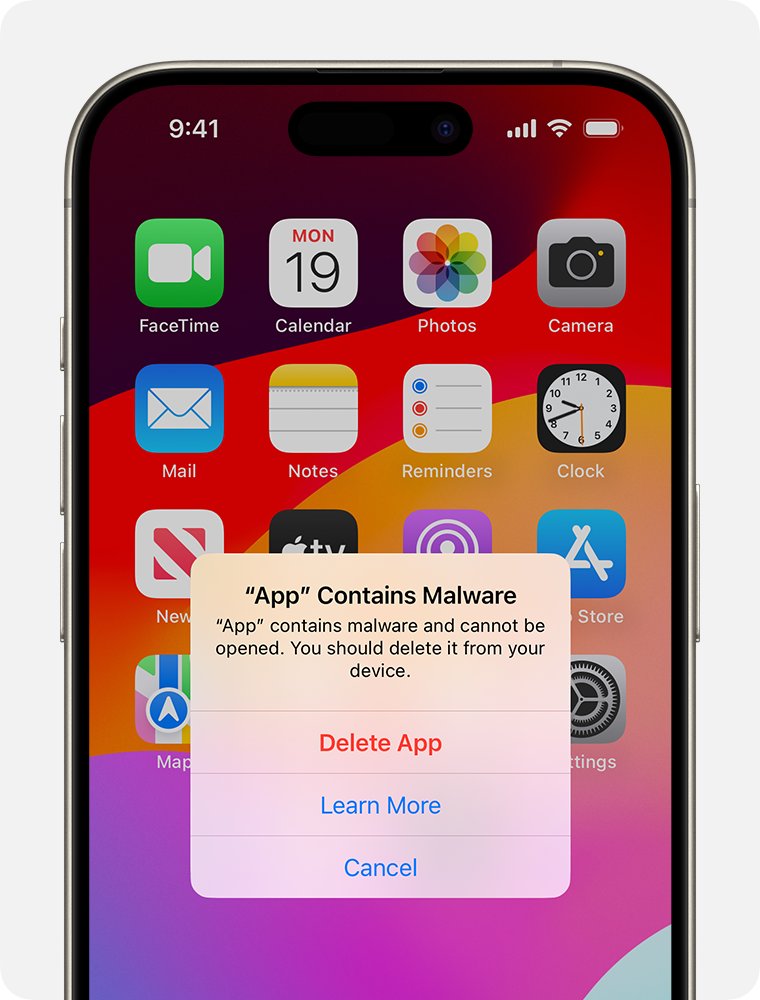
Your iPad regularly checks installed third-party apps for malware that Apple has identified, and it shows an alert if it finds any. These manual checks cover what that alert does not.
- Go to Settings > General > Software Update and install any update, since updates carry the latest security fixes.
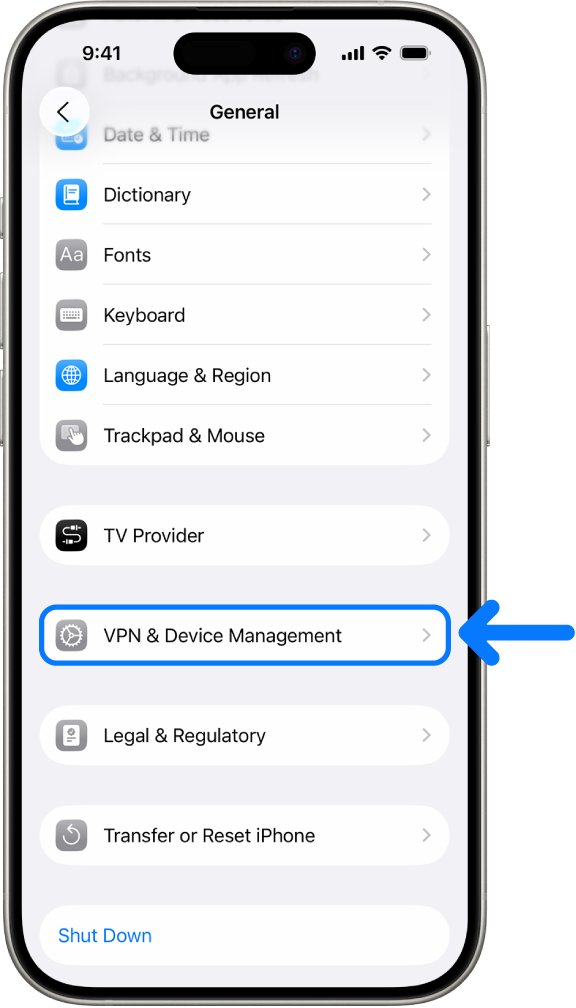
- Go to Settings > General > VPN & Device Management and look for a profile you do not recognize.
- Look through your Home Screen and App Library for apps you do not remember installing.
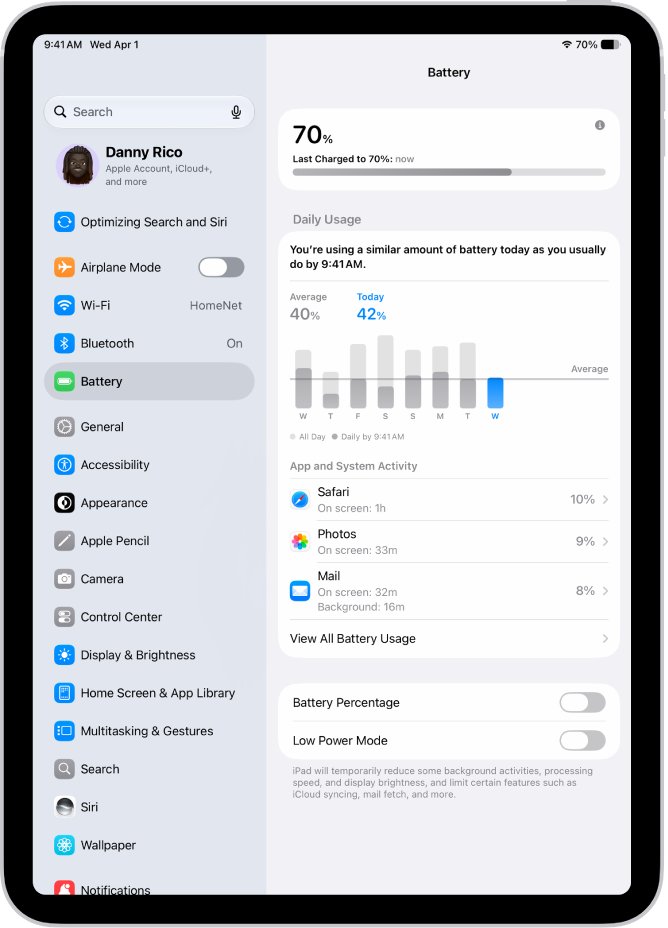
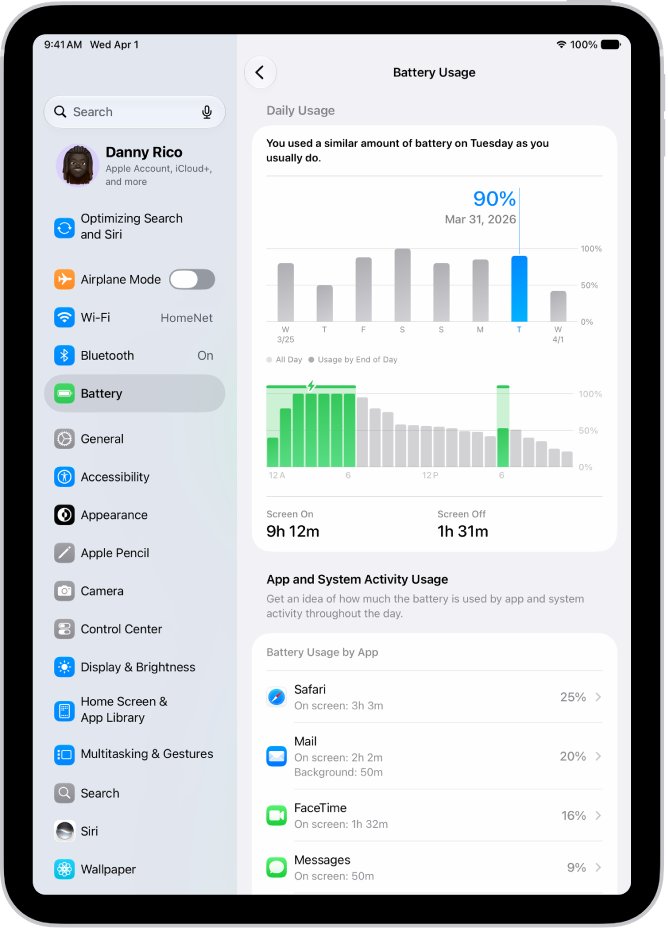
- Go to Settings > Battery and scroll to the list of apps and system activity.
- Tap your name at the top of Settings and confirm the Apple Account email is yours.
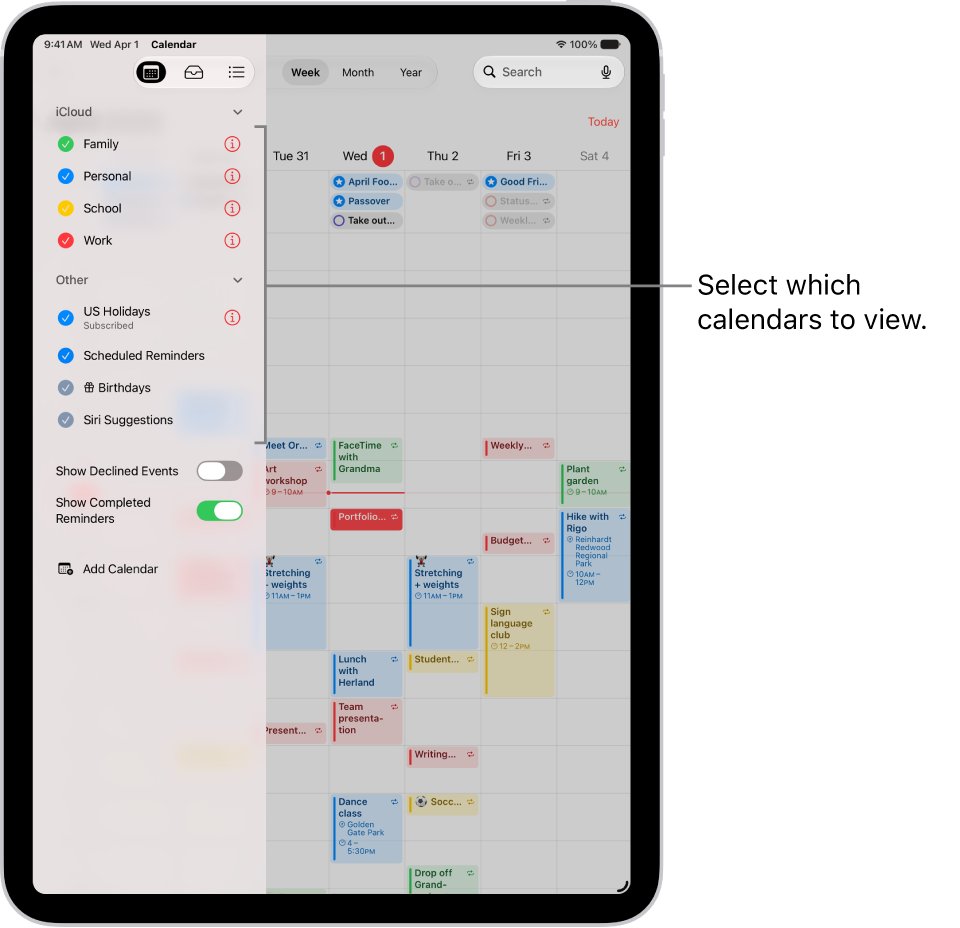
- Open Calendar and look for subscribed calendars you never added.
If all six checks come back clean and no alert has appeared, there is no sign of malware on your iPad. A single odd symptom on its own, such as a warm iPad, is not evidence of infection.
Can an iPad get malware or a virus?
iPadOS is built to make traditional viruses very difficult, but your risk is not zero. Apple's own security guide lists the protections, and the situations below are where they weaken.
| Situation | Apple's position | Risk level |
|---|---|---|
| App Store apps on a normal iPad | Third-party apps are sandboxed and cannot gather or modify other apps' data or change the device | Lowest |
| Apps from alternative marketplaces (EU) | Apple warns of a greater prevalence of malware, fraud and scams, despite notarization | Higher |
| A configuration profile from a webpage or email | A profile can manage settings and may allow access to data or location | Higher |
| A jailbroken iPad | Removing security layers lets hackers introduce malware, spyware or viruses | Highest |
| Phishing sites and fake alerts | These trick you into giving up passwords, so they need no malware on the device | Common |
How to tell if I have malware on my iPad
Sort what you are seeing into one of these signs. Several of them point to a scam or an account problem rather than malicious software on the iPad itself.
| What you see | What it usually is | What to do |
|---|---|---|
| An iPad alert that an app contains malware | Apple has identified malware in that app | Tap Delete App in the alert |
| A Safari pop-up saying your iPad is infected | A fraudulent advert, and Apple says not to believe it | Close the tab, and do not call the number |
| Events and warnings filling your calendar | A spam calendar subscription | Unsubscribe and report it as junk |
| A profile you did not install | A configuration profile that may manage the device | Delete it in VPN & Device Management |
| Messages you did not send, or codes you did not request | A compromised Apple Account | Change your Apple Account password |
| An app you do not recognize using a lot of battery | Possibly an unwanted app running in the background | Delete the app |
iPad says an app contains malware: what to do
This alert is the closest thing iPadOS has to a scan result, and your iPad will not open the flagged app. Apple recommends deleting the app, and using it anyway could harm your device or compromise your privacy.
- Tap Delete App in the alert.
- If you dismissed the alert, open Settings and tap the entry for that app to read more about the warning.
- Tap Delete App there. You can also delete it from the Home Screen or App Library.
- Install a new version only if one is offered and you still want the app.
How to remove an unknown configuration profile from an iPad
Configuration profiles are meant for school and business networks. Some unwanted downloads ask you to install one so they can control the device, which makes this the most useful check on the list.
- Go to Settings > General > VPN & Device Management.
- If you do not see any profiles, no device management profiles are installed.
- If the iPad belongs to a school or business, check with the administrator before you remove anything.
- Select the unknown profile, tap Delete Profile, and follow the onscreen instructions.
- Restart your iPad.
Deleting a profile also deletes the settings, apps and data tied to it. If you need help powering down, you can turn off your iPad and start it again.
How to find malware apps on an iPad and delete them
An app you do not remember installing is worth removing even when it is harmless. Deleting removes the app and its data from the iPad, while anything the app stored in iCloud stays there.
- Swipe through every Home Screen page, then open App Library.
- Touch and hold an app you do not recognize.
- Tap Remove App, then tap Delete App.
- Tap Delete to confirm.
- Avoid Remove from Home Screen for this job, because that only moves the app to App Library.
How to check iPad battery usage for malware
Battery data shows what has been running. Apple's background category includes normal jobs such as syncing photos and playing music, so look for an app you do not recognize rather than a high number alone.
- Go to Settings > Battery.
- Check Daily Usage. Orange means higher use than usual, and iPad names the top three apps or activities behind it.
- Tap View All Battery Usage, then tap a day.
- Scroll to the app and system activity list and look for unfamiliar names.
- Tap an app to see its On screen and Background details.
On Wi-Fi + Cellular models, also go to Settings > Cellular Data and scroll to your apps. The amount of cellular data each app has used appears below its name, and you can switch cellular data off for any app there.
How to get rid of fake virus warnings on an iPad
A browser pop-up cannot scan your iPad. Apple says these warnings are usually fraudulent advertisements designed to get you to download damaging software or hand over money or personal details.
- Do not tap anything inside the pop-up, because some have fake close buttons.
- Close the Safari tab or window, or enter a new address in the search field.
- Do not call any number shown or follow its links.
- Go to Settings > Apps > Safari.
- Turn on Block Pop-ups and Fraudulent Website Warning.
- Update iPadOS if pop-ups continue, since updates include improvements that help control them.
How to remove calendar virus spam on an iPad
Calendar spam looks alarming, yet it comes from a subscription rather than from malware on the iPad. Unsubscribing removes that calendar, and you can report it to Apple at the same time.
- Open Calendar and tap the calendars button at the top left.
- Tap the info button next to the calendar you want to remove.
- Tap Unsubscribe.
- Tap Unsubscribe and Report Junk to report it to Apple, or Unsubscribe to just remove it.
Why antivirus software cannot detect malware on an iPad
Sandboxing limits security apps as well as harmful ones. Apple's guide makes no mention of a manual iPad scan and recommends software updates and App Store downloads instead, so be careful with any app that promises to clean your iPad.
| What a scanner would need | What iPadOS allows |
|---|---|
| Read files belonging to other apps | Sandboxing is designed to prevent apps from gathering information stored by other apps |
| Inspect or repair system files | The operating system partition is read-only, and apps cannot raise their own privileges |
| Run constant background checks | Apps can do background processing only through system-provided APIs |
| Arrive through a pop-up or an advert | Apple says pop-ups offering downloads or updates can be tricks to install unwanted software |
Malware checks on a computer work differently. If your worry is a PC, you can remove a virus from a computer instead.
How do I detect spyware on my iPad?
Mercenary spyware such as Pegasus targets a very small number of people, and Apple says the vast majority of users will never see it. These attacks are much harder to detect, so Apple's threat notifications are the official signal.
- Sign in at account.apple.com and look for a threat notification banner at the top of the page.
- Check your Apple Account email addresses for a message from [email protected].
- Ignore any notice that asks you to click a link, open a file, install an app or profile, or give a password or code, because genuine ones never do.
- If you believe you are personally targeted, go to Settings > Privacy & Security, scroll down, and tap Lockdown Mode.
- Tap Turn On Lockdown Mode, tap it again, then tap Turn On & Restart and enter your passcode.
Lockdown Mode is an extreme protection that strictly limits some apps, websites and features, so most people do not need it. It requires iPadOS 16 or later.
How to secure your Apple Account after a malware scare on an iPad
If you typed a password into a suspicious site, the risk sits with your account, not the iPad. Apple's signs include sign-in alerts you do not recognize, two-factor codes you did not request, and a password that stops working.
- Change your Apple Account password to a strong, unique one.
- Go to account.apple.com and correct any personal or security details you do not recognize.
- Select Devices and remove any device you do not recognize.
- Turn on two-factor authentication if it is not already on.
- Use iforgot.apple.com to start account recovery if you cannot reset the password or sign in.
How to factory reset an iPad to remove malware
Erasing is the final step if the warning signs remain after the earlier checks. It removes all content and settings, so make a current iPad backup first.
- Go to Settings > General > Transfer or Reset iPad.
- Tap Erase All Content and Settings, then tap Continue.
- Choose whether to keep or delete your eSIM if you are asked.
- Enter your passcode and wait for any backup to finish.
- Enter your Apple Account password and wait for the iPad to reset.
- At the Hello screen, tap Set Up Manually, then choose Restore from iCloud Backup or set the iPad up as new.
Reinstall apps only from the App Store, and leave out anything you flagged during these checks.
iPad malware warning signs that are something else
The profile cannot be deleted
Whether you can delete a profile depends on who installed it, and a school or business may manage the iPad.
- Ask the school or business administrator about the profile.
- If the iPad is yours and the profile should not be there, contact Apple Support.
Pop-ups keep coming back in Safari
The current site or an outdated version of iPadOS is letting them through.
- Close the tab or window that shows the pop-up.
- Turn on Block Pop-ups in Settings > Apps > Safari.
- Install the latest update from Settings > General > Software Update.
The screen moves or taps by itself
Apps cannot change the device outside their sandbox, so a touch or display fault is the likelier cause.
- Work through the iPad ghost touching fixes.
- Contact Apple Support if the fault returns.
Your Apple Account password no longer works
Someone may have changed it, which is one of Apple's listed signs of a compromised account.
- Reset the password.
- If you cannot reset it or sign in, go to iforgot.apple.com and start account recovery.
How to tell if an iPad is free of malware
No screen in iPadOS says your iPad is clean. Treat these results together as the answer.
- Confirm Software Update shows that iPadOS is up to date.
- Check that VPN & Device Management lists no profile you do not recognize.
- Check that your Home Screen and App Library hold only apps you chose.
- Check that Battery shows no unfamiliar app in its activity list.
- Sign in at account.apple.com and check that the Devices list holds only your own devices.
iPad malware FAQ
How do I check for malware on my iPad?
Apple offers no manual scan. Install the latest update, then check VPN & Device Management for unknown profiles, your Home Screen and App Library for unfamiliar apps, and Battery for unknown activity. The iPad also checks third-party apps itself and shows an alert when it identifies malware.
How do I find malware on my iPad?
Look for what malware needs to get in: an unknown configuration profile, an app you never installed, or a subscribed calendar you never added. Each can be found in Settings or its own app and removed in a few taps, and removing them takes no extra software.
How can malware be identified on an iPad?
Apple identifies known malware in installed third-party apps and shows an alert that the app contains malware and cannot be opened. Beyond that alert, you identify a problem through unknown profiles, unfamiliar apps, unusual battery activity, or signs of a compromised Apple Account.
How do I tell if I have malware on my iPad?
An iPad alert about an app is the clearest sign. An unknown configuration profile or an unfamiliar app also deserves action. A Safari pop-up saying you are infected is not evidence of malware, because Apple says such warnings are usually fraudulent adverts.
How do I detect spyware on my iPad?
Sign in at account.apple.com and look for a threat notification banner, and check your email for a message from Apple Threat Notifications. Apple describes mercenary spyware as highly targeted and says the vast majority of users will never face it.
Why can't antivirus software detect malware on an iPad?
iPadOS sandboxes every third-party app, which is designed to prevent an app from gathering or modifying information stored by other apps. The operating system partition is also read-only. Those limits apply to security apps too, so they cannot inspect the iPad as a PC scanner would.
How do I detect malware on my computer instead?
Computers use different tools from an iPad. Microsoft Defender Antivirus is built into Windows and appears under Virus & threat protection in the Windows Security app. Apple says macOS includes antivirus protection that blocks and, if necessary, removes malware. These iPad checks do not carry over.