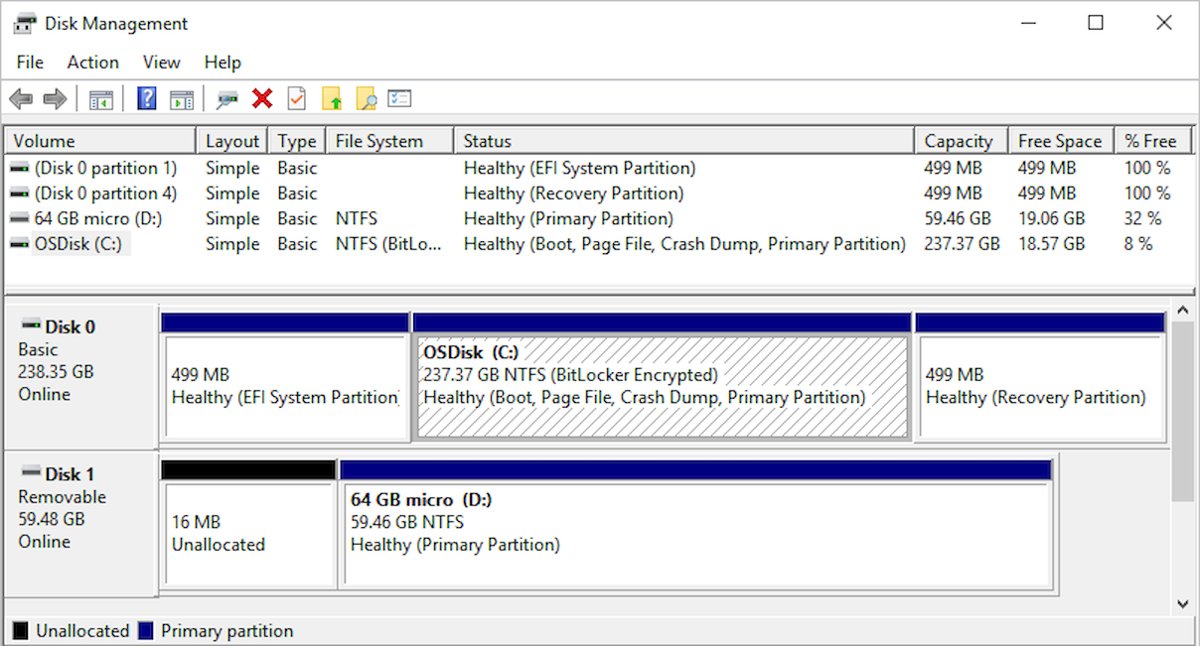
Open Disk Management, rescan your disks, and read the drive's status, because that status tells you whether the drive needs a connection fix, a drive letter, a new volume, or initializing.
The fixes below run from the ones that keep your data safe to the ones that erase it, and they cover internal and external drives on Windows 10.
How to make a hard drive show up on Windows 10
A missing drive is either invisible to Windows or visible to Windows but not ready for File Explorer. These steps tell you which one you have and solve the most common case.
- In the taskbar search box, enter Create and format hard disk partitions, right-click the result, and select Run as administrator > Yes.
- Select Action > Rescan Disks and wait for the list to refresh.
- Find the missing drive in the lower pane and read its status.
- If the disk says Offline, right-click it and select Online.
- If a partition has a file system such as NTFS but no letter, right-click it and select Change Drive Letter and Paths > Add, then choose a letter and select OK.
- Open File Explorer > This PC and check that the drive now appears.
If the drive is not listed at all, start with the connection and hardware checks below. Windows cannot repair a drive it cannot see.
Hard drive status in Disk Management and the fix for each one
Match what Disk Management shows to one row. Rows marked as erasing data are only for a drive that is new or empty.
| What Disk Management shows | Do this | Does it erase data? |
|---|---|---|
| Drive not listed | Check the connection, then run the physical checks | No |
| Offline | Right-click the disk and select Online | No |
| Online and Healthy, file system present, no letter | Assign a drive letter | No |
| Not Initialized | Initialize only if the drive is new or holds nothing you need | Yes, on a drive already in use |
| Unallocated | Create a new volume only if the space is empty | Yes, if lost files are still recoverable |
| RAW | Format only if you know the partition is empty | Yes |
| Exclamation mark in Device Manager | Reinstall or update the driver | No |
Ignore partitions labeled EFI System Partition or Recovery Partition. Your PC needs them to start and to recover from problems, so leave them alone.
Check connection
Loose cables, weak USB ports, and failed cables are the first things to rule out. USB hubs are a common cause because some ports do not supply enough power for a disk.
- Unplug an external drive, plug it back in, and select Action > Rescan Disks in Disk Management.
- Move the drive to a different USB port directly on your PC, not on a hub.
- Swap the cable for another one, because cables fail often.
- Turn on the drive if it has its own power cord and power switch.
- For an internal drive in a desktop, shut down the PC first, then replace or reseat the cables using your PC's manual as a guide.
Physical troubleshooting
Once the cables are ruled out, find out whether the fault follows the drive or stays with the PC. This is also the point where a failing disk usually shows itself, and failure is the most common reason a disk goes missing.
- Shut down the PC and turn off an external drive, then turn both back on.
- Select Start > Settings > Update & Security > Recovery, then under Advanced startup select Restart now.
- Select Troubleshoot > Advanced options > UEFI Firmware Settings > Restart to open your PC's firmware settings.
- Look for the drive in the firmware's storage or boot list. The layout varies by PC manufacturer, so use your PC's manual if you cannot find it.
- Connect the drive to a different PC.
- Contact the drive's manufacturer if the drive fails on the second PC as well, because that points to the disk and not your computer.
A drive that is missing from the firmware list is not a Windows settings problem. Go back to the cable and power checks, or move on to data recovery.
Rescan disks in Disk Management
A rescan makes Windows look for disks again without a restart. It helps most after you plug in a drive or a disk reports a temporary status while it spins up.
- Open Disk Management as an administrator.
- Select Action > Rescan Disks.
- Wait for the disk list to refresh and read the status again.
- To run the same check from a command line, open Command Prompt as an administrator and enter
diskpart. - Enter
rescan, then enterlist diskto see the disks Windows found.
In the list disk output, a number that starts with M, such as M0, marks a disk Windows knows about but cannot currently find.
Fix hard drive not showing up using Disk Management
A new disk does not appear in File Explorer until it is initialized. A disk that held files and now says Not Initialized is a different case, so stop and read the warning in step 3.
- Open Disk Management as an administrator and find the disk in the lower pane.
- If the disk is Offline, right-click it and select Online.
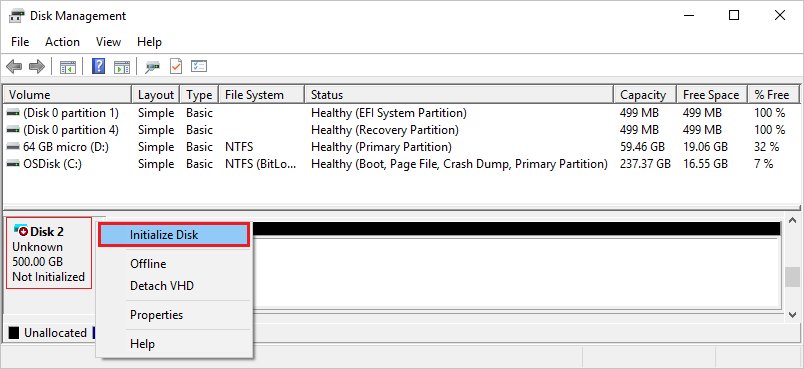
- If the disk says Not Initialized and it is new or empty, right-click it and select Initialize Disk. Initializing a disk already in use erases its data, so skip this step if you need the files.
- Confirm the correct disk is selected in the Initialize Disk dialog.
- Keep the default GUID Partition Table (GPT) style for a hard drive or SSD, and select OK.
- Wait for the status to change from Initializing to Online.
GPT is what most computers use, and it allows volumes larger than 2 TB. Master Boot Record (MBR) is the older style used on older computers and removable media such as memory cards.
Create new volume
An initialized disk with Unallocated space has nowhere to store files yet, so File Explorer shows nothing. Skip this if you are trying to recover files from that space.
- In Disk Management, right-click the Unallocated space and select New Simple Volume, then select Next.
- Accept the default size to use the whole drive, and select Next.
- Choose a drive letter and select Next.
- Choose a file system, usually NTFS, and select Next.
- Select Finish and wait for the volume to show as Healthy.
To split the drive instead, you can create and format partitions of any size from the same window.
Assign drive letter
A healthy partition without a letter holds your files but stays hidden from File Explorer. Adding a letter is safe and does not touch the data.
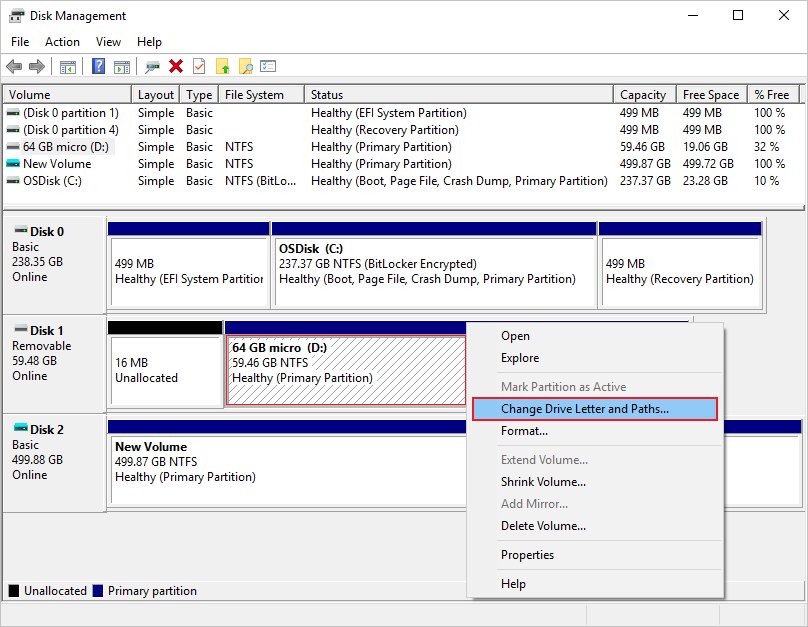
- In Disk Management, right-click the volume and select Change Drive Letter and Paths.
- Select Add for a drive with no letter, or Change to replace a letter that conflicts.
- Select Assign the following drive letter and pick a letter from the list.
- Select OK, then select Yes if a confirmation appears.
Do not change the letter of a drive that holds Windows or installed apps. Those apps can have trouble running or finding the drive afterward.
Fix hard drive not showing up using Device Manager
Device Manager shows whether Windows sees the hardware but has a driver problem with it. Reinstalling the device driver is often enough to bring the drive back.
- Right-click Start and select Device Manager.
- Expand Disk drives and Storage controllers.
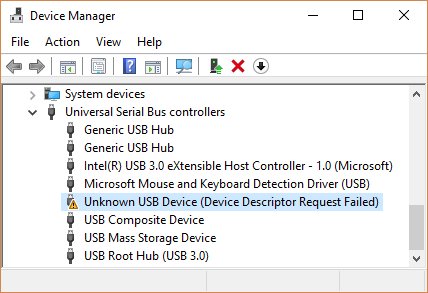
- Look for an entry with an exclamation point, select it, and read its status.
- Right-click the flagged device and select Uninstall device, then select Uninstall.
- Select Action > Scan for hardware changes.
- Restart the PC if the device does not return, because Windows tries to reinstall the driver after a restart.
Only uninstall the flagged device or the missing drive's own entry. Leave the disk that Windows runs from untouched.
Update your drivers
Windows Update is the recommended source for drivers. Use a manual install only when Windows finds nothing and the manufacturer publishes a newer version.
- Right-click Start, select Device Manager, and expand the category that holds the device.
- Right-click the device and select Update driver.
- Select Search automatically for updated driver software.
- If Windows finds nothing, select Search for updated drivers on Windows Update and follow the Windows Update steps.
- For a manual install, download the driver from the device manufacturer's own site, matching your Windows version and architecture.
- Select Update driver > Browse my computer for drivers, then Browse, choose the driver folder, and select OK > Next.
- Select Close when you see that the driver is installed or that the best drivers are already installed.
Avoid driver update tools and download portals. The drive maker or PC maker's own support page is the only other source you need.
Run Hardware and Devices troubleshooter
Windows 10 keeps this older troubleshooter, even though Microsoft has deprecated the tool behind it and removed the troubleshooter from newer Windows 11 releases. It can catch configuration problems, but it cannot repair a failed disk.
Press Win + R, enter the command below, and press Enter. If Windows says the troubleshooter is unavailable, skip to the next fix.
msdt.exe /id DeviceDiagnostic/id tells the Microsoft Support Diagnostic Tool which troubleshooting pack to run, and DeviceDiagnostic is the pack for hardware and devices connected to the computer.
You should see: the troubleshooter opens. Select Next and let it finish, then apply any fix it offers.
Run SFC and CHKDSK commands
These two tools do different jobs. SFC repairs Windows system files, while CHKDSK checks the file system on a drive that already has a letter, so it cannot help a drive with no letter or no volume.
- In the taskbar search box, enter
cmd, right-click Command Prompt, and select Run as administrator. - Enter
DISM.exe /Online /Cleanup-image /Restorehealthand wait for it to finish, which can take several minutes. - Enter
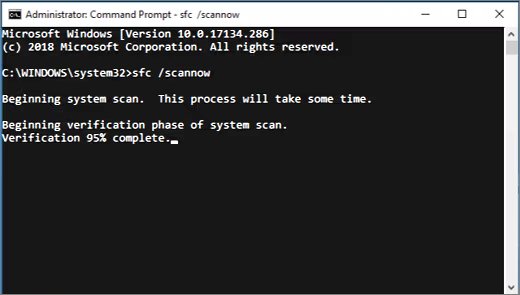
sfc /scannowand keep the window open until the scan reaches 100%. - Enter
chkdsk d: /f, replacingd:with your drive's letter, to find and fix logical errors. - Enter
chkdsk d: /rif you suspect physical damage. It looks for bad sectors and tries to recover data from them, and it can take hours on a large hard drive.
Windows Resource Protection did not find any integrity violations means SFC found no missing or corrupted files. If CHKDSK says the volume is in use, close open files or answer Y to schedule the check for the next restart.
Unhide partitions/drives
A volume can carry a hidden attribute or a setting that blocks a default drive letter. DiskPart can read and clear both without touching the files.
- Open Command Prompt as an administrator and enter
diskpart. - Enter
list volumeand note the number of the missing volume, matching it by size and label. - Enter
select volume=3, replacing3with your volume's number. - Enter
attributes volumeto see whether Hidden or No Default Drive Letter is set. - Enter
attributes volume clear hiddento remove the hidden attribute. - Enter
attributes volume clear nodefaultdriveletterif that setting is on. - Enter
assign letter=e, using any free letter, then enterexit.
On a basic MBR disk, these attributes apply to every volume on the disk. Windows also refuses to assign a letter to system, boot, and OEM partitions, so an error on those is expected.
Restore your system
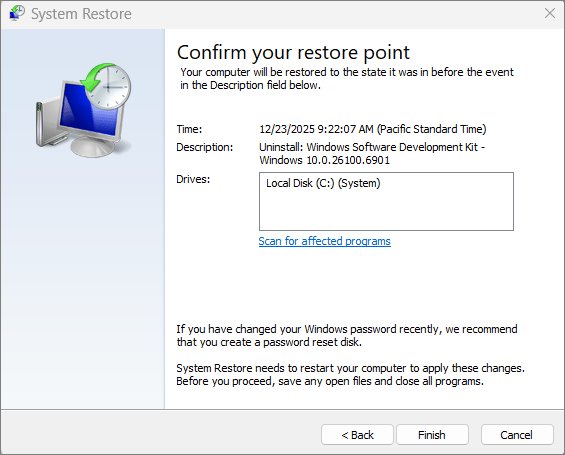
System Restore helps when the drive disappeared after a driver, update, or program change. It reverts system files, registry settings, and installed programs without affecting your personal files.
- Press Win + R, enter
rstrui.exe, and press Enter. - Select Next in the Restore system files and settings box.
- Pick a restore point from before the drive went missing. Select Show more restore points if you do not see one.
- Select Scan for affected programs to see what would be removed.
- Select Next, then Finish, and let Windows restart.
If Windows will not start normally, you can run it from the recovery environment under Troubleshoot > Advanced options > System Restore.
Clean your hard drive with DiskPart
This is the last resort, for a drive you are ready to wipe. The clean command removes all partitions and volume formatting from the selected disk, so selecting the wrong disk destroys the wrong data.
- Copy anything you need off the drive, or accept that it will be lost.
- Open Command Prompt as an administrator and enter
diskpart. - Enter
list diskand identify the drive by its size. Disk numbers can change after a restart, so never assume which number is yours. - Enter
select disk=1, replacing1with the number of the drive to wipe. - Enter
cleanto remove the partition information, then enterexit. - Open Disk Management, right-click the disk and select Initialize Disk if it asks for that, and select OK.
- Right-click the Unallocated space, select New Simple Volume, and follow the wizard.
The longer clean all command sets every sector to zero, which completely deletes all data on the disk. Use it only when you want nothing recoverable, such as before passing a drive on.
How to tell if Windows 10 detects a hard drive
Windows has three separate views of a drive, and each one proves something different. Check them in this order.
- Open File Explorer > This PC. A listed drive with a letter is ready to use.
- Open Disk Management. A disk with a status of Online and a volume marked Healthy is working correctly.
- Open Command Prompt as an administrator, enter
diskpart, and enterlist disk. Your drive's number and size should appear there. - Open Device Manager and expand Disk drives. The model should be listed with no exclamation point.
Once the drive is back, you can manage drives and free up disk space from the same tools. Back up its files too, because a disk that disappears once can do it again.
Disk Management errors when a hard drive is not showing up
The disk status is Unreadable
The disk is not accessible because of a hardware failure, corruption, or I/O errors. The status can also appear briefly while a disk spins up or during a rescan.
- Select Action > Rescan Disks, or restart the PC, and see if the status changes.
- Try a different cable and port, then a different PC.
The disk status is Foreign
A dynamic disk was moved from another computer, so it is not yet part of this PC's configuration.
- Right-click the disk and select Import Foreign Disks.
- Check that the existing volumes are now visible.
The disk status is Offline or Missing
The disk may be corrupted, powered down, disconnected, or only intermittently available.
- Make sure the disk is turned on, plugged in, and attached to the computer.
- Right-click the disk and select Reactivate Disk.
- If it stays offline, check the cables and disk controller, then test the disk on another computer.
The volume status is Failed
The volume cannot start, the disk is damaged, or the file system is corrupt. Unless the disk or file system can be repaired, this status means data loss.
- Confirm the physical disk is turned on, plugged in, and attached.
- Work through the connection and hardware checks above.
The volume status is Unknown
The volume's boot sector is corrupted, or a new disk never finished the wizard that creates its signature.
- For a new disk, right-click it and select Initialize Disk.
- For a disk that holds files, stop here and recover the data first, because initializing erases a disk already in use.
Change Drive Letter and Paths is missing or grayed out
The volume is not ready for a letter. It may be unallocated, or it may be an EFI System or Recovery partition, or your account may lack permissions.
- Open Disk Management with Run as administrator.
- Initialize the disk and create a volume if the space is unallocated.
- Leave EFI System and Recovery partitions without a letter.
Recover files from a hard drive not showing up on Windows 10
Initializing, formatting, creating a volume, and running clean can each destroy data you may still be able to get back. Decide whether the files matter before you use any of them.
| Your situation | What to do | What to avoid |
|---|---|---|
| Files matter and the drive is unstable | Copy them to another drive the moment it appears | Long scans such as chkdsk /r before you have a copy |
| Drive shows RAW, Unallocated, or Not Initialized | Try the drive on a second PC, then use a data recovery app | Format, New Simple Volume, and Initialize Disk |
| Files are vital and the drive will not appear anywhere | Contact a professional data recovery lab | Repeated power cycling and repair attempts |
| Files were deleted from a drive Windows can read | Run Windows File Recovery and save to a different drive | Saving new files to the same drive |
Hard drive not showing up on Windows 10 FAQ
Why is my hard drive not showing up on Windows 10?
The usual causes are a bad cable or port, a disk that is offline or not initialized, a volume with no drive letter, or a driver problem. A failing disk is the most common reason a disk goes missing entirely, so check the connection and test it on another PC.
Why does my new hard drive not show up in File Explorer?
A new internal disk must be initialized and given a volume before File Explorer can show it. Open Disk Management, right-click the disk, select Initialize Disk, then right-click the unallocated space and select New Simple Volume.
Why is my hard drive detected in Disk Management but not in File Explorer?
File Explorer only lists volumes that have a drive letter. If the partition is healthy with a file system, right-click it and select Change Drive Letter and Paths to add one. If it says Unallocated or RAW, it needs a new volume or format first.
Why is my external hard drive not showing up on Windows 10?
External drives usually fail to appear because of a weak USB port, a hub, a bad cable, or missing power. Plug the drive directly into a port on the PC, try another cable, turn on its power switch, and then select Action > Rescan Disks.
Will initializing a hard drive erase my data?
Yes, initializing a disk that is already in use erases all data on it. Microsoft's instructions are written for new disks with no existing data, so back up first, and try the troubleshooting steps if the disk holds files you still need.
Does assigning a drive letter delete anything?
No, adding a drive letter only changes how Windows refers to the volume, and the files stay where they are. Avoid changing the letter of a drive that holds Windows or installed apps, because those apps can have trouble finding the drive.
Can CHKDSK fix a hard drive that is not showing up?
CHKDSK needs a drive letter to run, so it cannot help a disk with no volume or no letter. Assign a letter first if the partition exists. Then run chkdsk with /f for logical errors, or with /r to check for bad sectors.
Is it safe to use the DiskPart clean command?
It is safe only for a drive you are ready to wipe. The clean command removes all partitions and formatting from the selected disk, and selecting the wrong disk removes the wrong data. Confirm the disk by its size in list disk before you run it.
Do these hard drive fixes work on Windows 11?
Yes, Disk Management, DiskPart, Device Manager, SFC, and CHKDSK work the same way on Windows 11. The Hardware and Devices troubleshooter is the exception, because newer releases removed it. On version 26H2, USB drives that go undetected have their own fixes.