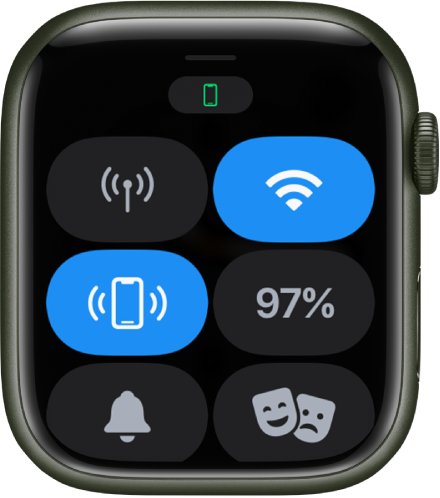
Apple Watch has no app or icon named Find My iPhone: press the side button to open Control Center and tap the Ping iPhone button, which makes your iPhone play a sound.
This guide also shows where the Find My app lives on each watchOS version, how to restore a missing button, and how to find an iPhone that is off or out of range.
Where is the Find My phone on Apple Watch?
The Ping iPhone button is one of the default controls in Control Center, so you can reach it from any watch face.
- Press the side button on your Apple Watch to open Control Center.
- Scroll with the Digital Crown if you do not see the Ping iPhone button straight away.
- Tap Ping iPhone. Your iPhone plays a sound so you can track it down.
- In a dark room, touch and hold Ping iPhone, and the iPhone flashes as well.
If your iPhone is not in range of the watch, the button cannot reach it. Open the Find My app on the watch, or sign in at icloud.com/find instead.
Find My iPhone on Apple Watch by watchOS version
The map app has a different name depending on your watchOS version, so look for the name in the matching row.
| Your watchOS | Sound only, iPhone nearby | Map, iPhone anywhere |
|---|---|---|
| watchOS 27 | Side button > Control Center > Ping iPhone | Find My app > top-left button > Devices |
| watchOS 26 or watchOS 11 | Side button > Control Center > Ping iPhone | Find Devices app > your iPhone |
| watchOS 9 | Swipe up from the watch face > Control Center > Ping iPhone | Find Devices app > your iPhone |
On watchOS 9, you cannot open Control Center from the Home Screen. Press the Digital Crown to go back to the watch face first.
How to find iPhone with Apple Watch using Precision Finding
Precision Finding adds a heading and distance on top of the sound. It works with Apple Watch Series 9, Apple Watch Ultra 2, and iPhone 15 and later, excluding iPhone 16e and iPhone 17e. It is not available in every country or region.
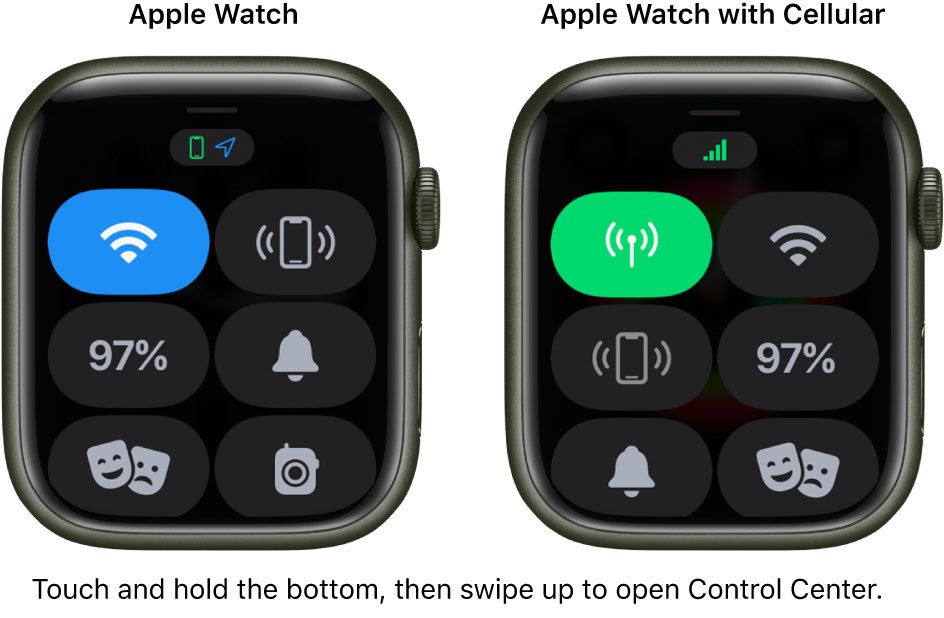
- Press the side button to open Control Center.
- Tap Ping iPhone. The iPhone plays a sound, and the watch shows a general heading and distance when the iPhone is in range.
- Tap the Ping iPhone button in the bottom-right corner to play the sound again as you search.
- Touch and hold that button to make the iPhone flash in the dark.
- Follow the heading on the screen, adjusting as it moves.
- Keep going until the watch screen turns green and the iPhone pings twice.
Where is the Find My app on Apple Watch?
The Find My app shows your iPhone on a map, so it helps when the iPhone is too far away to hear. On watchOS 26 and watchOS 11, the same job is done by the Find Devices app.
- Open the Find My app on your Apple Watch.
- Tap the button at the top left, then tap Devices.
- Turn the Digital Crown to scroll through your devices and see their locations on the map.
- Tap the name of your iPhone.
- Tap Play Sound to ping it, or tap Directions to navigate there in the Maps app.
On older versions, open the Find Devices app, tap your iPhone, then tap Play Sound or Directions. If the iPhone is offline, you see Sound Pending, and the sound plays the next time it connects to Wi-Fi or cellular.
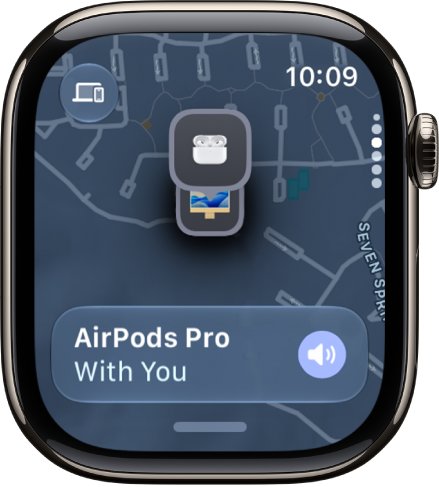
How to add the Ping iPhone button to Apple Watch Control Center
Control Center can be rearranged, so the button may have moved or been removed. A reset brings back the original layout in one step.
- Press the side button to open Control Center.
- Scroll to the bottom and tap Edit.
- Tap the add button, tap the control you want, then confirm.
- Touch and hold a control and drag it to move it higher in the list.
- Scroll to the bottom and tap Done.
To restore the default layout, go to Settings > Control Center > Reset Control Center Layout on the watch. On your iPhone, open the Apple Watch app, tap My Watch > Control Center > Reset Control Center.
Where is the Find My iPhone setting?
The setting lives on the iPhone, not the watch. A paired Apple Watch is set up automatically when you turn on Find My iPhone.
- Open the Settings app on your iPhone.
- Tap your name, then tap Find My.
- Tap Find My iPhone, then turn on Find My iPhone.
- Turn on Find My network so the iPhone can be seen when it is offline.
- Turn on Send Last Location so the iPhone sends its location to Apple when the battery is low.
To check the watch itself, go to Settings on the Apple Watch, tap your name, tap your watch name, then tap Find My Watch, and make sure Find My network is on.
You can also change your location on Find My iPhone from the Find My app on the device you share from.
Find My iPhone from computer with iCloud
Use this when you have no Apple Watch nearby or the iPhone is out of range. iCloud shows the location if the iPhone is powered on and has a network connection.
- In a web browser, go to icloud.com/find.
- Sign in with your Apple Account.
- Choose your iPhone from the device list.
- View its location on the map.
- If the phone is lost, mark it as lost in the Find My app on another Apple device, so it locks and shows your contact details.
With Send Last Location on, iCloud.com shows the location sent just before the battery ran out for up to 24 hours.
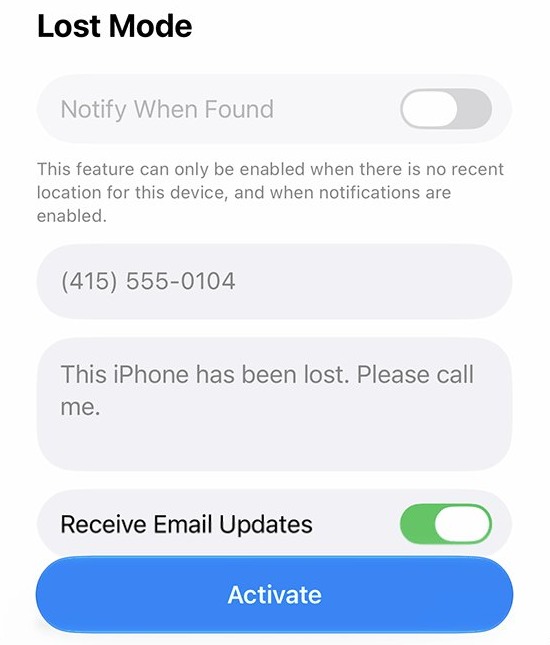
How to get an Apple Watch alert when you leave your iPhone behind
- Open the Find My app on your Apple Watch.
- Tap the button at the top left, then tap Devices.
- Turn the Digital Crown to your iPhone and tap its name.
- Scroll down to Notify Me, then turn on When Left Behind.
- Set a trusted location, such as home, where no alert is needed.
On older watchOS versions, open Find Devices, tap your iPhone, then tap Notify When Left Behind under Notifications.
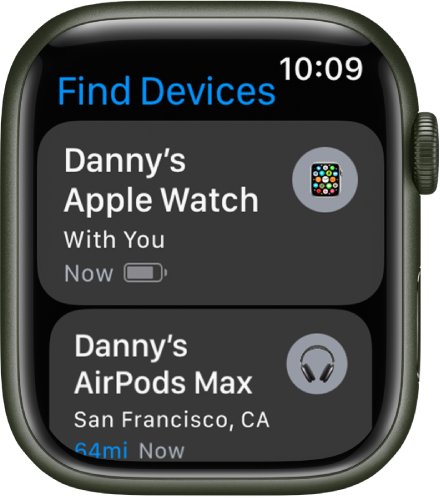
How to tell if Apple Watch is connected to iPhone
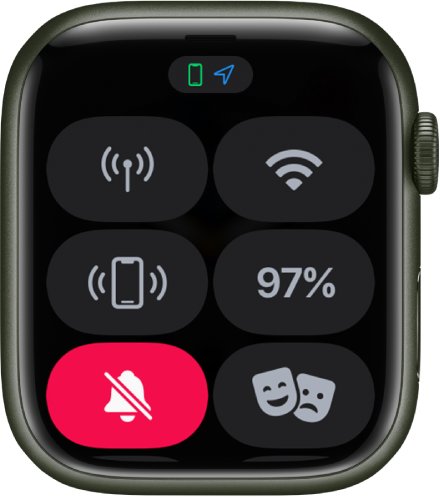
The Ping iPhone button depends on the connection between the two devices, and Control Center shows its state.
- Press the side button to open Control Center.
- Look for the green iPhone icon, which means the watch is connected.
- Look for a red iPhone icon or a red X, which means the devices are not connected.
Find My iPhone no location found and other messages explained
| What Find My shows | What it means | What to do |
|---|---|---|
| Last known location | The iPhone cannot report now, for example because its battery ran out. This shows for up to seven days | Go to that spot and look for the phone |
| No location found | More than seven days have passed since the iPhone last sent its location through the Find My network | Mark it as lost if it is still missing |
| Not sharing location • Online | The iPhone is online but cannot send its location, for example because of a Location Services issue | Check Location Services on the iPhone once you have it |
| Sound Pending | The iPhone is offline, so the sound is waiting | The sound plays the next time it connects to Wi-Fi or cellular |
| iPhone not listed | The device may need a software update | Update to the latest iOS and watchOS |
Ping iPhone not working on Apple Watch
Control Center shows a red iPhone icon or a red X
The Apple Watch and iPhone are not connected.
- Keep the watch and iPhone close together.
- On the iPhone, open Control Center and make sure Airplane Mode is off and Wi-Fi and Bluetooth are on.
- On the watch, press the side button and make sure Airplane Mode is off.
- Restart both the Apple Watch and the iPhone. If the watch is frozen, hard reset the Apple Watch instead.
- If the icon stays red, unpair the watch, then pair your Apple Watch with the iPhone again.
Tapping the button produces no sound because the iPhone is too far away
The iPhone is out of range of the Apple Watch.
- Open the Find My app or Find Devices app on the watch.
- Tap your iPhone and check its location on the map.
- Tap Directions to walk to it, or sign in at icloud.com/find from a computer.
The Ping iPhone button is not in Control Center
The button was removed or moved during an edit.
- Open the Settings app on the Apple Watch.
- Tap Control Center.
- Tap Reset Control Center Layout.
If the watch and phone connect but Find My still misbehaves, work through these iPhone Find My and Apple Watch fixes.
Find My iPhone on Apple Watch FAQ
Where is the find my phone app?
On iPhone, iPad and Mac it is the Find My app. On Apple Watch with watchOS 27 it is also called Find My, while watchOS 26 and watchOS 11 call it Find Devices. On a computer, use icloud.com/find in a web browser.
Where is the find my iphone on the iphone?
Open the Settings app, tap your name, then tap Find My and Find My iPhone. That screen holds the on and off switch, plus Find My network and Send Last Location. To locate other devices, open the Find My app instead.
Why does find my iphone say no location found?
Find My shows No location found when more than seven days have passed since the iPhone last sent its location to Apple through the Find My network. Until then, it can show the last known location, for example after the battery runs out.
Why is find my iphone not updating location?
An iPhone that is offline or out of battery cannot report a new position, so Find My keeps showing its last known location. If you see Not sharing location • Online, the phone is online but cannot send its location, for example because of a Location Services issue.
Can I find my iphone if the battery is dead?
Yes, up to a point. Find My shows the last known location for up to seven days after the battery runs out. With Send Last Location on, the iPhone also tries to upload its location just before it needs charging, and iCloud.com shows it for up to 24 hours.
Can I find my iphone if its turned off?
Yes, on supported iPhones with the Find My network turned on. Apple says Find My can locate supported devices even when they are powered off, in Low Power Mode or in Airplane Mode. The location comes from nearby Apple devices that report it anonymously.
Why won't find my iphone turn off?
Turning it off happens at Settings > your name > Find My > Find My iPhone. If you cannot turn it off there or no longer have the phone, remove the device from your account using Find My on iCloud.com. Doing this also removes Activation Lock.