Open Messages, tap the Filters button at the top of the conversation list, and tap Recently Deleted to see messages you deleted in the last 30 days.
This guide covers that folder and three more methods: your message filters, an iCloud backup, and a Mac or PC backup, plus what to try when all four come up empty.
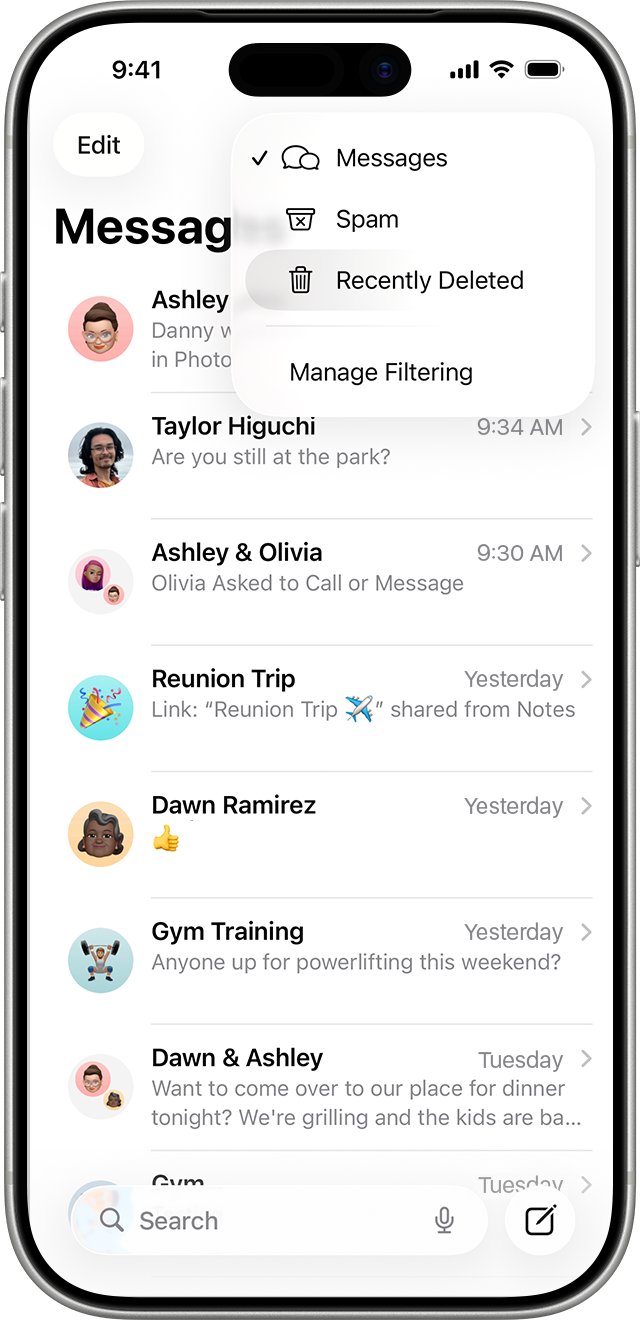
How to see deleted messages on iPhone: step by step
Method 1 is the Recently Deleted folder, which needs iOS 16 or later. It restores messages without touching anything else on your iPhone.
- Open the Messages app.
- Tap the Filters button at the top of the conversation list. On iOS 18, tap Edit instead.
- Tap Recently Deleted. On iOS 16, Edit can show it as Show Recently Deleted.
- Select the conversations whose messages you want to restore, then tap Recover.
- Tap Recover Messages to confirm.
The messages return to your conversation list. If you use Messages in iCloud, they also return on your other devices where Messages in iCloud is on.
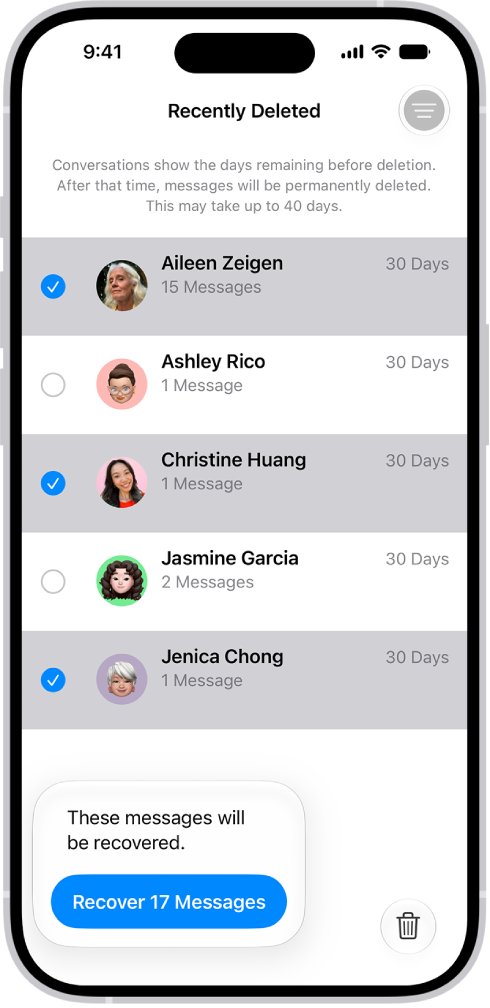
Best way to see deleted messages on iPhone
| Your situation | Use this method | What it costs you |
|---|---|---|
| Deleted within the last 30 days on iOS 16 or later | Method 1: Recently Deleted | Nothing. Other data stays as it is |
| The message may never have been deleted | Method 2: filters and Unknown Senders | Nothing. You only change the view |
| Older than 30 days, with an iCloud backup from before the deletion | Method 3: iCloud backup | You erase the iPhone and return to the backup's date |
| Older than 30 days, with a Mac or PC backup from before the deletion | Method 4: computer backup | The iPhone returns to the backup's date |
Where do deleted iPhone messages actually go?
A deleted message moves to the Recently Deleted folder first and leaves for good after 30 days. Apple's support article gives the window as 30 to 40 days, so treat 30 as the safe limit.
| Stage | What happens | Can you see it? |
|---|---|---|
| You delete a message or conversation | It moves to Recently Deleted for up to 30 days | Yes, with Method 1 |
| You tap Delete inside Recently Deleted | It is permanently removed, and Apple says this can't be undone | Only from an older backup |
| Keep Messages removes it automatically | Conversations older than your chosen period are removed | Check Recently Deleted, then your backups |
| You retract it with Undo Send | It is permanently deleted | No |
| An audio message expires before you save it | It can't be recovered | No |
| Someone else deletes it on their phone | It affects only that person's devices | It stays on your iPhone if you still have it |
Deleting and recovering affects only your iPhone and other Apple devices signed in to the same Apple Account. You can't recover messages on anyone else's device.
Method 2: Check filters, Unknown Senders and Focus filters on iPhone
A message that seems to have vanished may be sitting in a filtered list. Check these before you restore anything, because this method changes nothing.
- Open Messages and tap the Filters button at the top of the conversation list.
- Tap Unknown Senders and look for the conversation.
- Tap the message, then tap Mark as Known to move it back into your conversation list.
- Return to the filter list and check Transactions and Promotions if they appear.
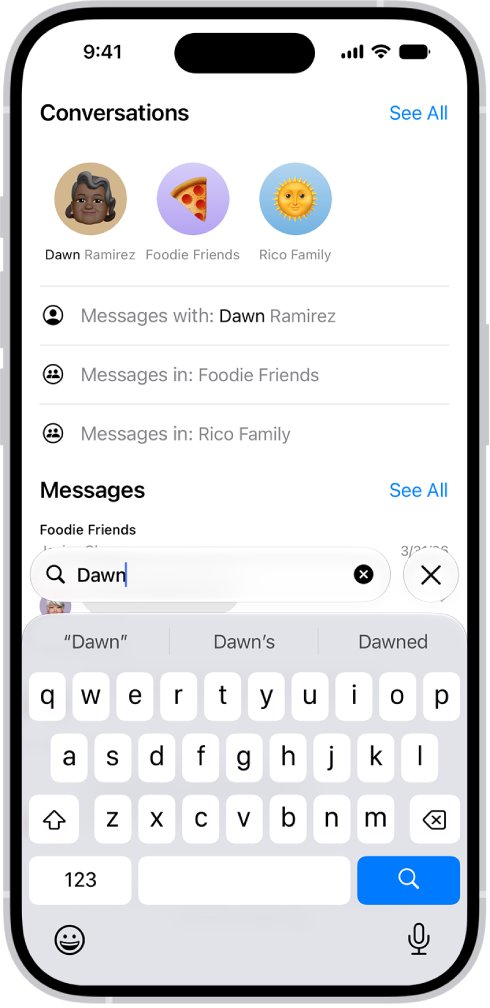
- Tap the search field below the conversation list and type a word from the message or the person's name.
- Tap a result to open that message.
Turn off any active Focus if you use a Focus with a message filter, then check the list again.
Method 3: See deleted iPhone messages from an iCloud backup
Use this when Recently Deleted is empty and Messages in iCloud was off when the backup ran. iCloud Backup includes your messages only when Messages in iCloud is off, because synced messages are not added to the backup.
Check first: go to Settings > your name > iCloud > iCloud Backup, then tap your iPhone and read the last backup's date. iCloud backs up daily on power and Wi-Fi, so act soon and avoid running a new backup, which can replace the one you need. The restore erases the iPhone, so copy newer photos and files somewhere else first.
- Go to Settings > General > Transfer or Reset iPhone.
- Tap Erase All Content and Settings, enter your passcode or Apple Account password if asked, and tap Continue.
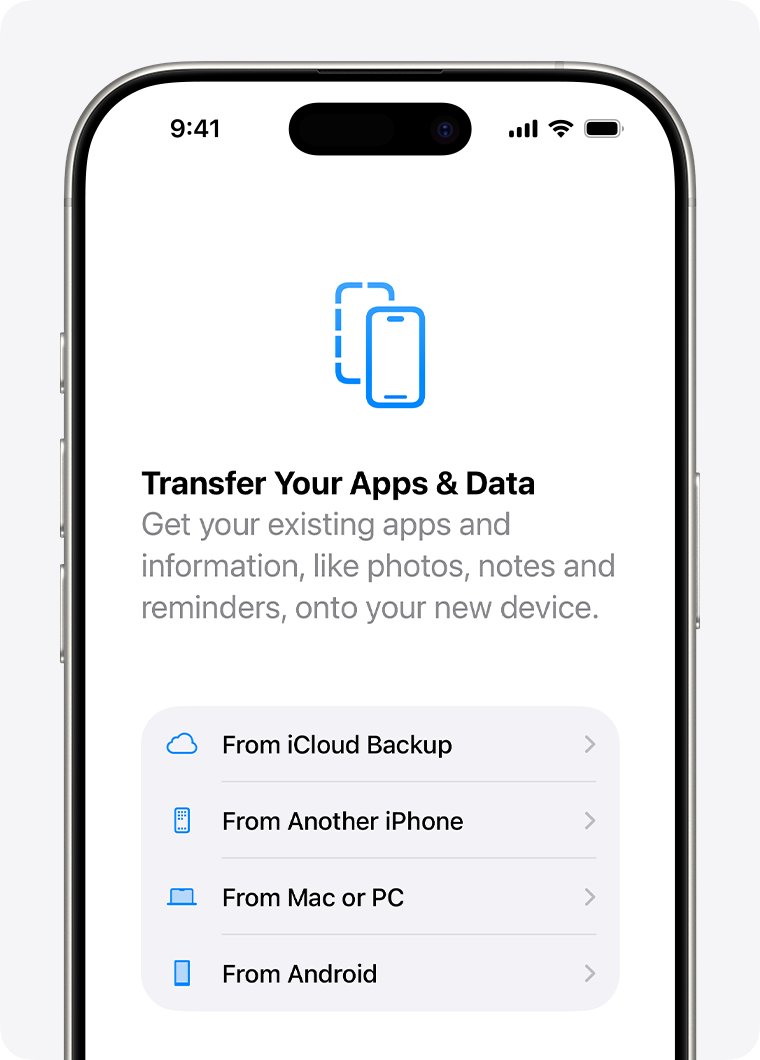
- Follow the onscreen setup steps until you reach the Transfer Your Apps & Data screen.
- Tap From iCloud Backup.
- Sign in to the Apple Account that made the backup.
- Review the date and size of each backup, then choose one from before you deleted the messages.
- Keep the iPhone connected to Wi-Fi and power until the progress bar finishes.
Do not set the iPhone up as new along the way. Apple warns that setting up as new creates iCloud backups that replace your saved ones. The iPhone backup and restore process works differently for iCloud and computer backups, so match the steps to where your backup lives.
Method 4: Restore deleted iPhone messages from a Mac or PC backup
A computer backup does not require erasing the iPhone from Settings first, but it still replaces what is on the iPhone with the backup's contents. Use the backup dated before the deletion.
- On a Mac with macOS Catalina 10.15 or later, open Finder. On a PC with Windows 10 or later, open the Apple Devices app.
- Connect the iPhone to the computer with a USB cable.
- Select your iPhone in the sidebar.
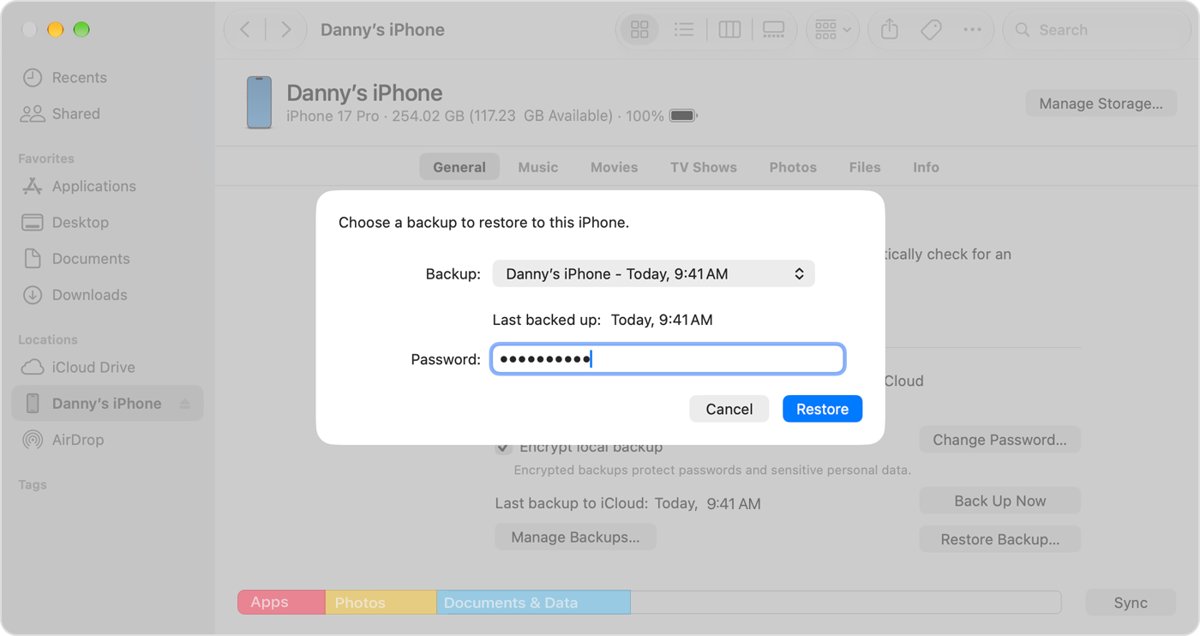
- Click Restore Backup.
- From the Backup menu, review the date and size of each backup and choose the right one.
- Enter the password if the backup is encrypted, then click Restore.
- Keep the iPhone connected while it restarts and syncs, then disconnect it when the sync finishes.
Alternative ways to see deleted iPhone messages
These routes do not count as restores, and most return less than the four methods above. Try them when you have no usable backup.
| Option | What it can give you | The limit |
|---|---|---|
| Check your other Apple devices | A device with Messages in iCloud turned off keeps its own copy | With Messages in iCloud on, a deletion on the iPhone removes the message from those devices too |
| Ask your carrier for message records | Carriers can show text activity on your bill or account. Verizon, for example, shows text history on a PDF of your bill | Records list activity, not message content. Verizon's texting FAQ says nothing about recovering deleted texts |
| Search instead of scroll | The search field finds old messages by word, person, or attachment type | It finds only messages still in the app |
| Ask the other person | They keep their copy, because your deletion does not affect what recipients see | They must still have the conversation |
| Third-party recovery software | Claims vary, while Apple's recovery documentation lists only Recently Deleted and backups | Skip these tools. They need access to your phone or backup, and Apple does not document them as a recovery route |
Photos sent in a message are separate from photos saved to your library. You can also recover deleted photos that you saved from a conversation.
How to avoid losing messages again
Two settings prevent most permanent losses: keeping messages forever, and keeping a regular backup.
- Go to Settings > Apps > Messages.
- Scroll down, tap Keep Messages below Message History, and choose Forever.
- Go to Settings > your name > iCloud > iCloud Backup and turn on Back Up This iPhone.
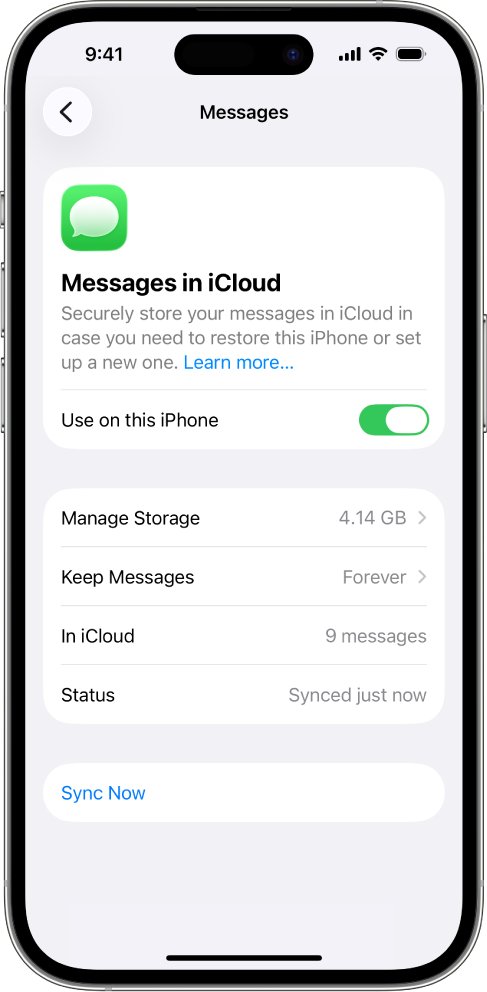
- Go back to iCloud, tap See All, then Messages in iCloud, and choose whether Use on this iPhone stays on.
With Messages in iCloud on, messages sync across devices but stay out of your backup, and a deletion syncs too. With it off, your daily iCloud backup carries them. To see SMS on other devices either way, you can turn on Text Message Forwarding, which sends SMS and MMS to your other Apple devices.
How to tell if deleted iPhone messages came back
Check the conversation itself rather than the restore screen. A completed restore does not guarantee the backup held the message.
- Open Messages and look for the conversation in the main list.
- Tap the search field and type a word you remember from the message.
- Check the date of the most recent message in the conversation, which shows how far back the restore went.
- If you used a backup, check that newer photos and app data finished downloading before you decide anything is missing.
Recently Deleted still not working?
Recently Deleted is missing from Messages
The iPhone runs a version before iOS 16, or the option sits under a different button on your iOS version.
- Go to Settings > General > About and check your iOS version.
- On iOS 18, tap Edit at the top of the conversation list.
- On later versions, tap the Filters button at the top of the conversation list.
- If you deleted the message before updating to iOS 16, use a backup, because the folder can't recover it.
Recently Deleted is empty
The 30-day window has passed, or the message was permanently removed.
- Note when you deleted the message.
- Run Method 2 in case the message was filtered rather than deleted.
- Move to Method 3 or Method 4 if a backup predates the deletion.
The iCloud backup restored but the messages are not there
Messages in iCloud was on when the backup ran, so the messages were never in it.
- Go to Settings > your name > iCloud, tap See All, then Messages in iCloud.
- Check for a Mac or PC backup from before the deletion, and use Method 4 if one exists.
- Check other devices that had Messages in iCloud turned off.
The computer backup asks for a password you do not have
The backup was encrypted with a password you set earlier.
- Try passwords you used for other Apple or computer accounts.
- If it stays locked, pick another backup from the Backup menu.
Deleted iPhone messages FAQ
How long do deleted messages stay on an iPhone?
Apple's iPhone User Guide says deleted messages stay in the Recently Deleted folder for up to 30 days. Its support article says 30 to 40 days. Treat 30 days as the limit, and recover anything you need well before then.
Can I see deleted messages on iPhone without restoring a backup?
Yes, if you deleted them in the last 30 days on iOS 16 or later. Open Messages, tap the Filters button, then tap Recently Deleted. You can read the conversation there before recovering it, and nothing else on the iPhone changes.
Will restoring from a backup delete my current photos and data?
A restore replaces what is on the iPhone with the backup's contents, so anything newer that is not stored elsewhere can be lost. Photos in iCloud Photos download again afterward. Copy newer data somewhere else before you erase the iPhone.
Why does the Recently Deleted option not appear in my Messages app?
Your iPhone may run a version before iOS 16, which has no such folder. On iOS 16 and 17, look under Edit or Filters. On iOS 18, tap Edit. On later versions, tap the Filters button at the top of the conversation list.
Can my mobile carrier recover deleted text messages for me?
Do not count on it. Carrier records show text activity, and Verizon says texts sent to you are stored for up to 5 days and lists text history on your bill PDF. Your backups are the realistic way to get message content back.
Can a deleted message be retrieved?
Often, yes. A message you deleted in the last 30 days can be retrieved from Recently Deleted, and an older one can come back from a backup made before the deletion. Messages removed with Undo Send are permanently deleted and can't be retrieved.
How do I see messages I deleted on my phone?
On an iPhone, open Messages, tap the Filters button at the top of the conversation list, and tap Recently Deleted. Conversations you deleted in the last 30 days appear there, and you can recover any of them with the Recover button.
How do I check for deleted messages?
Open Messages and check Recently Deleted, then your message filters. You can only check your own iPhone and Apple devices using your Apple Account. Apple says you can't recover messages, attachments, or conversations on anyone else's device.
How do I find deleted messages in the Messages app?
Check Recently Deleted first, then the Unknown Senders list and any filter folders, because a filtered message can look deleted. Use the search field below the conversation list to find a word or a person's name in messages you still have.
How do I see deleted messages on WhatsApp on iPhone?
WhatsApp can restore chats only from your own iCloud backup, because it does not store chat history on its servers. Check for a backup in WhatsApp under Settings > Chats > Chat backup. Do not create a new backup first, because it overwrites the one holding the missing chats.