To fix an Outlook email stuck in the Outbox, switch to Work Offline, delete the message or remove its large attachment, then go back online and send it again.
A large attachment is the most likely cause, so this guide starts there, then covers offline mode, send settings, passwords, full mailboxes, profile repair, add-ins, new Outlook, Outlook.com and Google Workspace accounts.
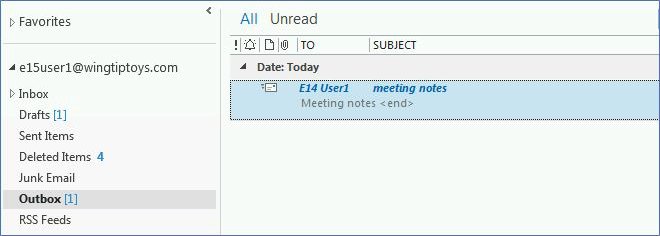
Outlook email stuck in Outbox
These steps release the message in classic Outlook for Windows. Go offline first so you can edit or delete the message.
- On the Send/Receive tab, select Work Offline.
- In the Navigation Pane, select Outbox.
- Delete the message, or drag it to Drafts, open it and delete the attachment.
- If Outlook says it is transmitting the message, close Outlook. If it won't close, open Task Manager, select
outlook.exeon the Processes tab and select End task. - Restart Outlook and repeat steps 2 and 3 if you needed step 4.
- Select Work Offline again to reconnect.
- Open the message in Drafts, attach a smaller file or a link, and select Send.
Why are my Outlook emails not being sent?
Match what you see to a row, then go straight to that fix.
| What you see | Likely cause | What to do |
|---|---|---|
| One message sits in the Outbox and others send | Large attachment | Remove the attachment or replace it with a link |
| Work Offline is blue, or the status bar says Disconnected or Trying to connect | Outlook is offline | Select Work Offline to reconnect, then Send All |
| Messages send only when you select Send/Receive | Send immediately when connected is off | Turn the option on in Outlook Options |
| Sending stopped after you changed your password | Outlook holds the old password | Update the password in Outlook |
| Nothing sends or arrives, and storage is full | Microsoft cloud storage is full | Free up mailbox storage, then resend |
| Mail sends in safe mode only | An add-in is interfering | Start in safe mode and create a new profile |
| A message waits until a set time | A delivery delay is set | This is expected, and it sends at that time |
Delayed messages stay in the Outbox on purpose in classic Outlook. If you delay send in Outlook, the message remains there until its delivery time, and Outlook has to be online.
How to send emails that are stuck in the Outbox of Outlook
If the message has no large attachment, Outlook may simply be offline. Look at the status bar at the bottom of the window first.
- Open a browser and load microsoft.com or bing.com to confirm your internet connection works.
- In Outlook, open the Send/Receive tab.
- In the Preferences group, select Work Offline to toggle the mode until the status bar no longer shows Working Offline.
- Select Send All.
- Select Send/Receive All Folders if the message hasn't moved.
If you can't see the folder at all, first find the Outbox in Outlook.
Email stuck in Outlook outbox because of a large attachment
Microsoft names a large attachment as the most likely cause. The attachment size limit covers the whole message, including the attachment and the email itself, and it depends on the account type.
| Account | Size limit | Better way to send the file |
|---|---|---|
| Internet accounts such as Outlook.com and Gmail | 20 MB | Upload to OneDrive, Dropbox, iCloud or Google Drive and paste a link |
| Exchange business accounts | 10 MB by default | Save to a SharePoint library or OneDrive and share a link |
| Any account | Same limits as above | Compress the file into a zip, which may bring it under the limit |
Microsoft's Outlook.com help page uses 25 MB for that service, so stay under 20 MB if you want a message to work in every app.
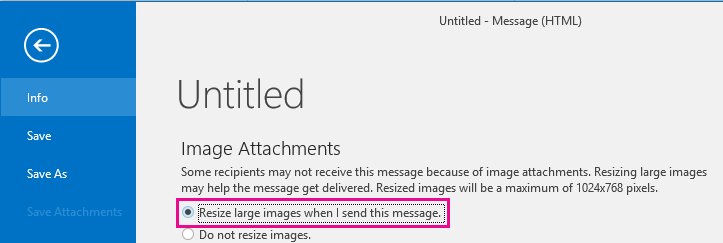
In classic Outlook, you can also shrink images. Attach them, go to File > Info and select Resize large images when I send this message. Changing the visible size of a picture in the message body doesn't make the message smaller.
Outlook emails stuck in outbox until you press Send/Receive
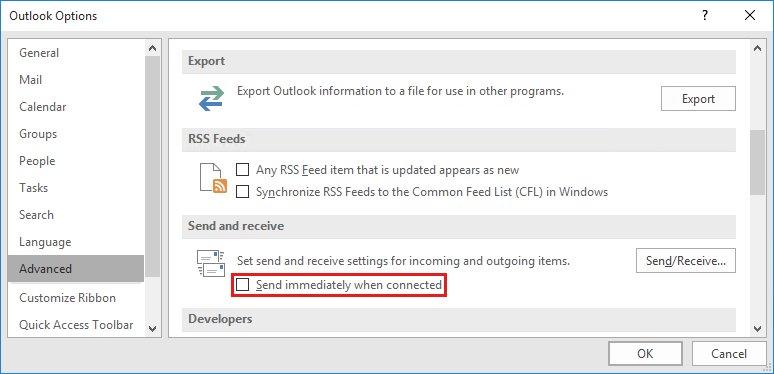
When Send immediately when connected is off, every message waits in the Outbox for a manual send. This applies to Outlook 2010 and later.
- On the File tab, select Options.
- In the Outlook Options dialog box, select Advanced.
- In the Send and receive section, turn on Send immediately when connected.
- Select OK.
If the option is greyed out, group policy controls it and your administrator has to change it.
Microsoft Outlook email stuck in outbox in new Outlook for Windows
New Outlook for Windows has its own order of checks, and the classic Work Offline steps don't appear in Microsoft's list for it.
- Confirm your internet connection by loading microsoft.com or bing.com in a browser.
- Select Sync on the View tab, and wait for the status message at the bottom of the message list.
- Open the Outbox and open the stuck messages, oldest first.
- If an attachment is over 20 MB, delete it and attach a smaller file or a link.
- Select the account name if you recently changed your password, select Continue and enter the new password.
- Check your mailbox storage, because you can't send or receive when Microsoft cloud storage is full.
Sync doesn't work for Gmail, Yahoo, iCloud or generic POP and IMAP accounts. If Outlook asks for an app password, create one on your email provider's site and paste it when Outlook asks for the account password.
Email stuck in my outbox after a password change in classic Outlook
A password changed elsewhere, such as on the web or your phone, has to be updated in classic Outlook too. The account repair wizard is the place to do it.
- Select File.
- Select Account Settings, then Account Settings again from the menu.
- On the Email tab, select your account, then select Repair.
- Follow the wizard's prompts, and enter the new password if it asks for one.
- Restart Outlook and select Send All.
The Repair option isn't available when Outlook 2016 connects to an Exchange account. If a repair doesn't clear the problem, create a new profile, which is where Outlook stores your accounts and name.
Open Outlook in safe mode to fix emails stuck in outbox
Safe mode turns off add-ins, which makes it a quick test. You can also open Outlook in safe mode in other ways if the command doesn't run.
- Close Outlook.
- Press the Windows key, type
outlook.exe /safeand press Enter. - Open the Outbox and try to send the stuck message.
- If it sends, close safe mode and create a new Outlook profile, which Microsoft says should restore sending.
If it still fails in safe mode, repair the Office app, which can take up to half an hour. Mail stored in a Personal Folders file (.pst) can also be damaged, and the Inbox Repair Tool fixes that file in about 15 minutes.
Email stuck in Outbox in Outlook.com
On Outlook.com, a stuck message sits in either Drafts or Outbox, so check both folders.
- Open Drafts, then Outbox, and find the stuck message.
- Delete any attachment over 25 MB.
- Attach a smaller file, or upload the file to OneDrive and attach a link, then send it again.
- If your Inbox is full, right-click Junk Email, select Empty folder and try again.
- If you send from Outlook on a PC or Mac, select Send/Receive > Send/Receive all folders.
How to connect Google Workspace to Outlook
Gmail no longer supports apps that sign in with only your Google username and password, so an account set up that way needs reconnecting with Google sign-in. These steps add the account to Outlook.
- In classic Outlook, select File > Add Account. In new Outlook, select View > View settings > Accounts > Your accounts > Add account.
- Enter your address and select Connect in classic Outlook, or Continue in new Outlook.
- Sign in on the Google page that opens.
- On the Google account permissions window, select Allow.
- Select Done, and send a test message.
Microsoft writes these steps for Gmail accounts, so ask your administrator if a managed Workspace address is refused. Workspace users can also use Google Workspace Sync for Microsoft Outlook (GWSMO), which syncs email, calendar and contacts through its own Outlook profile. Your administrator has to do some setup before you install it.
Older versions such as Outlook 2016 may not support Gmail's recommended security standards. Google also caps an account at 15 connected email clients, and going over shows a Too many simultaneous connections error.
How do I fix a stuck email in Outlook outbox?
These are the harder cases, where the steps above don't move the message.
Outlook stuck at loading a profile and mail won't send
Office processes left running can stop Outlook from opening or sending, and Microsoft also lists two presence options to turn off.
- Right-click the taskbar and select Task Manager.
- On the Processes tab, find every Office process.
- Select each one and select End task.
- Start Outlook, then select File > Options > People.
- Clear Display online status next to name and Show user photographs when available.
- Select OK, restart Outlook and check the Outbox.
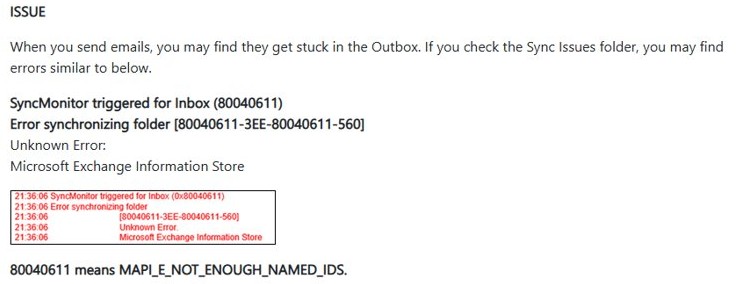
Sync Issues folder shows SyncMonitor error 80040611
Outlook for Microsoft 365 has a known issue where a mailbox runs out of named properties, which traps mail in the Outbox.
- Open the Sync Issues folder and look for
SyncMonitor triggered for Inbox (80040611). - Ask your Microsoft 365 administrator to open a support case for a mailbox move.
- Recreate the Outlook OST after the move.
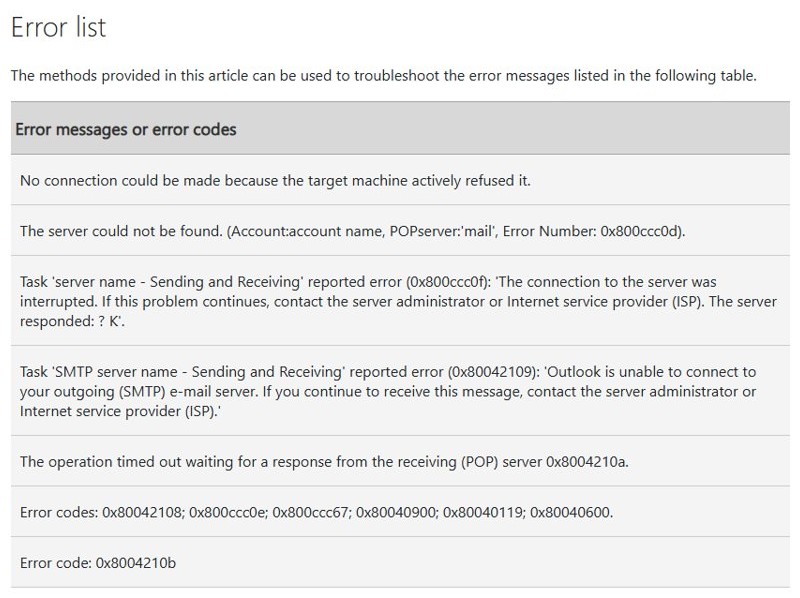
Error 0x800ccc0f or 0x80042109 when you send
Outlook lost its connection to the server, or can't reach the outgoing (SMTP) server.
- Confirm your internet connection in a browser.
- Select Work Offline on the Send/Receive tab if it is on, to go back online.
- Update your password in Outlook if you changed it.
- Repair the account from File > Account Settings > Account Settings > Repair.
- Resend the message.
Some antivirus programs scan email and can block sending until a detected virus is removed. Contact your antivirus provider's help desk if that applies, rather than turning the protection off.
How to tell if an email left the Outlook outbox
A message that has really gone leaves the Outbox and appears among your sent mail.
- Open the Outbox and confirm the message is no longer listed.
- Open Sent Items and find the message at the time you sent it.
- Look at the status bar and confirm it no longer shows Disconnected or Working Offline.
Outlook email stuck in Outbox FAQ
How do I fix a stuck email in Outlook outbox?
Select Work Offline on the Send/Receive tab, open the Outbox, and delete the message or drag it to Drafts and remove the attachment. Select Work Offline again to reconnect, then send the message with a smaller file or a link.
Why is my email stuck in the Outlook outbox?
A large attachment is the most likely cause. Outlook also holds mail when it is offline, when Send immediately when connected is off, when it has an old password, or when your Microsoft cloud storage is full.
How do I delete an email stuck in the Outbox?
Turn on Work Offline, open the Outbox and delete the message. If Outlook says it is transmitting, close Outlook or end outlook.exe in Task Manager, restart Outlook, and delete the message before you go back online.
Why are all my emails stuck in the outbox?
When every message waits, the cause is usually the whole account and not one attachment. Check for Work Offline, a changed password, full storage and the Send immediately when connected option. Then repair your profile if those are all fine.
What is the attachment size limit in Outlook?
Microsoft lists 20 MB for internet accounts such as Outlook.com and Gmail, and a 10 MB default for Exchange accounts. The limit covers the attachment and the email together. For larger files, upload to OneDrive and send a link.
Why does Outlook for Mac hold my large email in Drafts?
Outlook for Mac shows an attachment-too-large error and keeps the message in Drafts, not the Outbox. Open Drafts, select the message, remove some attachments and select Send. If you delete it instead, Microsoft says to delete it from Deleted Items too, or the error keeps returning.
Does a delayed email stay in the Outbox?
Yes, in classic Outlook for Windows. A message with a delivery time stays in the Outbox until that time, and Outlook has to be online. In new Outlook and Outlook on the web, scheduled messages wait in the Drafts folder.