Download macOS Monterey from Apple's App Store listing, where it is free and at version 12.7.6, using a Mac that is compatible with Monterey.
This guide also covers the Terminal full installer, a bootable USB, macOS Recovery, the DMG and ISO question, and what to do when the Get button is dimmed.
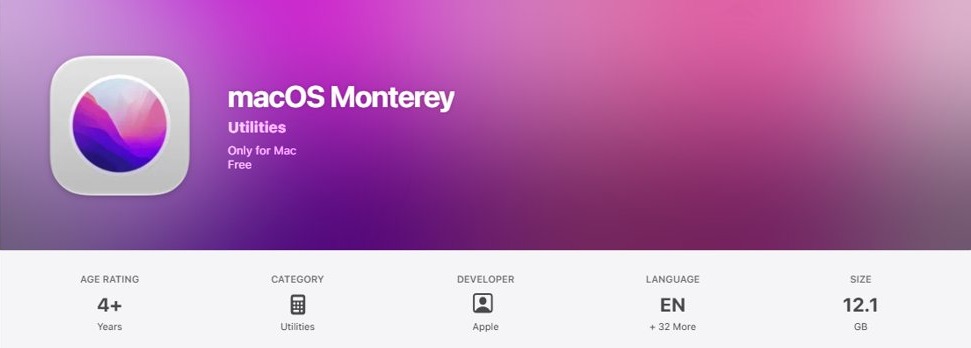
Where can I download macOS Monterey?
Apple still offers Monterey through the Mac App Store, and its support page holds the link that opens the listing. Do this on the Mac that will run Monterey, or on any other compatible Mac.
- On your Mac, open Apple's How to download and install macOS page in Safari.
- Scroll to Other methods for older macOS versions, then to Download via the App Store.
- Click macOS Monterey 12 to open the listing in the App Store.
- Click Get to begin downloading.
- If Software Update opens and asks whether you want to download macOS, allow the download.
- When the installer opens automatically, follow the onscreen instructions, or quit it to keep the installer in Applications for later.
The macOS Monterey App Store listing can also be viewed in any browser, but the download itself only runs on a Mac.
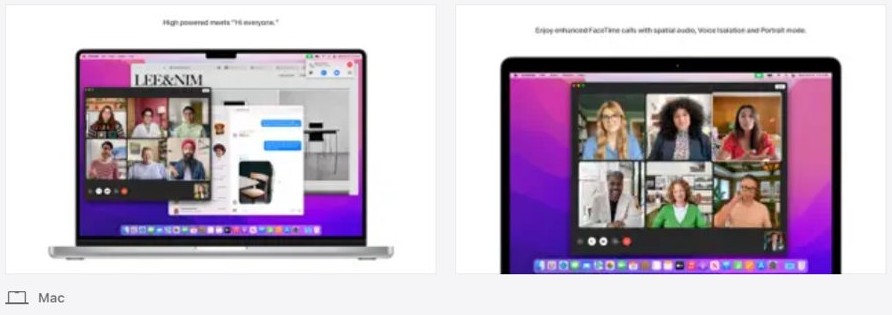
Download macOS Monterey: App Store vs Terminal vs USB
| Your situation | Use this | Why |
|---|---|---|
| A compatible Mac that starts normally | App Store link | Fewest steps, and the installer opens by itself |
| The Mac runs macOS Catalina 10.15 or later and you want a stored installer | Terminal with softwareupdate |
Shows which versions Apple offers for that Mac model |
| Several Macs to set up, or other install methods failed | Bootable USB installer | No repeat download for each Mac |
| The Mac already runs Monterey and needs a reinstall, or does not start up all the way | macOS Recovery | Built into the Mac and keeps your apps and personal data |
| The Mac can run something newer than Monterey | Software Update | Apple recommends the latest macOS that is compatible with your Mac |
macOS Monterey compatible Macs
Apple lists these models as able to install Monterey. A Mac outside this list may get a dimmed Get button or a compatibility message in the App Store.
| Mac family | Oldest supported | Newest listed |
|---|---|---|
| MacBook Pro | Retina, 13-inch, Early 2015 | 13-inch, M2, 2022 |
| MacBook Air | 11-inch and 13-inch, Early 2015 | M2, 2022 |
| MacBook | Retina, 12-inch, Early 2016 | Retina, 12-inch, 2017 |
| iMac | 21.5-inch and Retina 4K or 5K, Late 2015 | 24-inch, M1, 2021 |
| iMac Pro | 2017 | 2017 |
| Mac mini | Late 2014 | M1, 2020 |
| Mac Studio | 2022 | 2022 |
| Mac Pro | Late 2013 | 2019 |
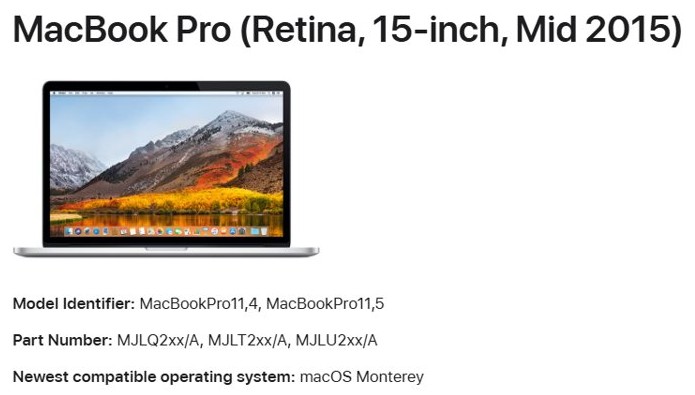
Check the exact model against Apple's Monterey compatibility page, because a few sizes in a family start later than others. For example, the Retina 15-inch MacBook Pro is listed from Mid 2015.
macOS Monterey latest version
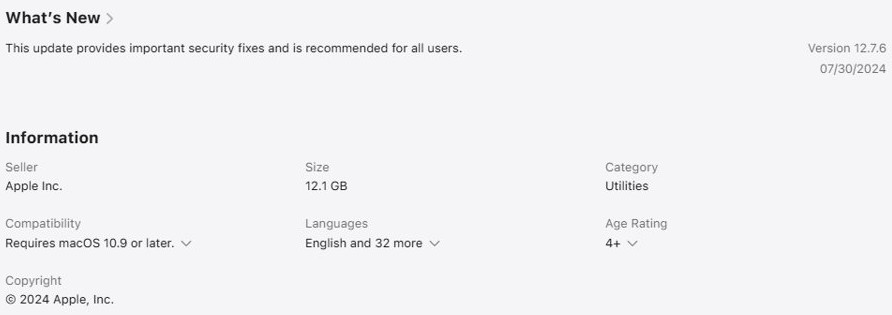
Monterey 12.7.6 is the final version Apple lists, so the App Store listing gives you that release.
| Detail | macOS Monterey |
|---|---|
| Latest version | 12.7.6 |
| Release date of 12.7.6 | July 29, 2024 |
| Price on the App Store | Free |
| Size on the App Store | 12.1 GB |
| Installer app name | Install macOS Monterey |
| USB drive for a bootable installer | 32GB has more than enough space |
Apple's security releases page lists no Monterey update after 12.7.6, and Apple recommends the latest macOS compatible with your Mac. If your Mac can run a later version, you can update macOS through Software Update.
Download macOS Monterey 12.7.6 full installer with Terminal
Terminal fetches the same installer app without opening the App Store. It only offers versions no earlier than the one that came with your Mac, or the closest version still available.
- Confirm that your Mac is using macOS Catalina 10.15 or later.
- Open Terminal from the Utilities folder inside Applications.
- Type
softwareupdate --list-full-installersand press Return to see the versions available for your Mac model. - If 12.7.6 is in the list, type
softwareupdate --fetch-full-installer --full-installer-version 12.7.6and press Return. - Wait while Terminal shows the percentage downloaded.
- When Terminal says the install finished successfully, open Applications and find Install macOS Monterey.
If a different Monterey version appears in the list, use that number in the command instead.
How to install macOS Monterey
The download only places an installer on your Mac. Monterey is not installed until you run that app.
- Back up your Mac before you install new system software.
- Open the Applications folder.
- Double-click Install macOS Monterey.
- Follow the onscreen installation instructions and enter your administrator password if asked.
- Let the installation finish without putting your Mac to sleep or closing its lid.
The Mac may restart several times and show a progress bar or a blank screen during installation.
Create a macOS Monterey bootable USB installer
A bootable installer helps when you set up several Macs, or when other install methods fail. Apple aims these steps at system administrators and other experienced users, because the command erases the USB drive.
- Download the installer and quit it if it opens. It must stay in Applications with the name Install macOS Monterey. An App Store download for this purpose needs macOS Mojave 10.14 or later.
- Connect a USB flash drive directly to your Mac and rename it
MyVolume. - Open Terminal from Applications > Utilities.
- Paste
sudo /Applications/Install\ macOS\ Monterey.app/Contents/Resources/createinstallmedia --volume /Volumes/MyVolumeand press Return. - Type your administrator password and press Return. Terminal shows no characters as you type.
- Type
Yto confirm that the drive can be erased, then press Return. - If Terminal asks to access files on a removable volume, click OK.
- When Terminal says the install media is now available, quit Terminal and eject the drive.
The finished drive takes the name Install macOS Monterey, and you can delete the installer from Applications to recover the space.
Install macOS Monterey from a bootable USB
The target Mac must be online so the installer can get firmware and other information for that model. An incompatible Mac may fail to finish, or start up to a circle with a line through it.
| Your Mac | How to start from the USB drive | Then |
|---|---|---|
| Mac with Apple silicon | Shut down, connect the drive, and press and hold the power button until startup options load. Select the installer and click Continue. | Follow the onscreen installation instructions |
| Intel-based Mac | Shut down, connect the drive, turn on the Mac and immediately hold Option. Release it when your bootable volumes appear, select the installer and press Return. | Choose your language, select Install macOS in the Utilities window and click Continue |
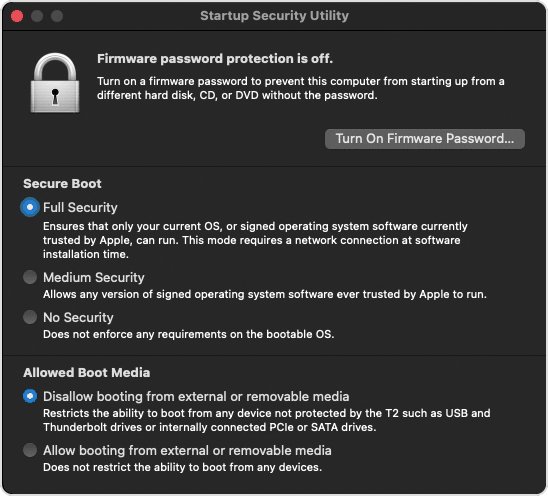
A Mac with the Apple T2 Security Chip that refuses the drive needs Startup Security Utility set to allow booting from external or removable media.
Reinstall macOS Monterey from macOS Recovery
You can reinstall macOS from Recovery without removing your apps or personal data, though a backup first is still wise. Recovery does not let you pick a version, so the start method decides what you get.
| Your Mac and start method | macOS you get |
|---|---|
| Apple silicon, hold the power button until startup options load | Current version of the most recently installed macOS |
| Intel, Command-R | Current version of the most recently installed macOS |
| Intel, Option-Command-R | Possibly the latest macOS compatible with your Mac |
| Intel, Shift-Option-Command-R | Possibly the macOS that came with your Mac, or the closest still available |
Recovery only gives you Monterey when Monterey is the version that row points to. Otherwise use the App Store link or a USB installer.
Download macOS Monterey DMG or ISO
Apple publishes direct DMG downloads only for macOS Sierra 10.12 and older. Monterey comes through the App Store or Terminal as an app, and Apple's download page lists no ISO.
Skip DMG and ISO files for Monterey and download the Install macOS Monterey app from Apple instead. Apple does not offer Monterey in those formats, so any such file comes from someone else. Apple's own advice for an installer that is damaged or cannot be verified is to delete it and download from Apple.
macOS Monterey download on Windows
Apple has no Windows download for Monterey. The App Store listing is marked Only for Mac, and the Terminal and bootable USB methods both use commands that run on a Mac.
Use a compatible Mac to download the installer and build a USB drive, then take that drive to the Mac that needs it. In most cases Apple requires the download to come from a Mac that is compatible with that macOS version, so a Windows PC cannot stand in for it.
The same rule applies to other older macOS downloads, so a Windows PC cannot fetch those either.
Where does macOS Monterey download to?
Every Apple route ends with the same app in the same folder, whichever method you used.
- In the Finder, choose Go > Applications from the menu bar.
- Look for an app named Install macOS Monterey.
- If you see a
.dmgor.pkgfile instead, it did not come from the Monterey methods above, so download again from Apple. - After installing, choose About This Mac from the Apple menu.
- Read the macOS name and version number in the window. It should show Monterey and 12.7.6.
macOS Monterey download not working
The Get button is dimmed or the App Store says Monterey is not compatible
This Mac cannot run Monterey. The App Store may also say the requested version of macOS is not available.
- Compare your Mac with Apple's Monterey compatibility list.
- If the model is not listed, download from a compatible Mac or use the version your Mac supports.
- Open Software Update to see what your Mac can install.
The macOS Monterey App Store link does not open
The link did not hand over to the App Store in your current browser.
- Open Safari from the Applications folder.
- Load Apple's download page again and click macOS Monterey 12.
Terminal says update not found
That version number is not available for your Mac model.
- Run
softwareupdate --list-full-installers. - Repeat the fetch command with a Monterey number from that list.
- If no Monterey version appears, use the App Store link on a compatible Mac.
An error occurred while downloading or installing, or the software is damaged
Low storage, an unstable connection or a bad copy of the installer. Apple says these messages are sometimes only temporary.
- Free up storage space if the message mentions it.
- Check that your Mac has a stable internet connection.
- Start up in safe mode and try the App Store install again.
- If it persists, use Disk Utility in macOS Recovery to repair your startup disk.
- Delete the installer and download it again from Apple.
Terminal says the installer does not appear to be valid, or command not found
The installer copy is bad, or it is not in Applications under its original name.
- For the invalid installer message, delete the installer, repair your startup disk with Disk Utility and download it again.
- For command not found, check that Install macOS Monterey is in Applications.
- Copy the Monterey command again, including each backslash, and run it.
macOS Monterey download FAQ
Can I still download macOS Monterey?
Yes. Apple still links macOS Monterey 12 in the App Store from its How to download and install macOS page. You need a compatible Mac, and the listing currently offers version 12.7.6.
Is macOS Monterey free to download?
Yes. The macOS Monterey listing on the App Store is free. There is no reason to pay for a Monterey installer, so use the link on Apple's own support page.
How do I install macOS Monterey?
Download it from the App Store or with Terminal, then open Applications and double-click Install macOS Monterey. Follow the onscreen instructions, and keep the Mac awake with the lid open until it finishes.
What is the latest version of macOS Monterey?
macOS Monterey 12.7.6 is the latest version Apple lists, released on July 29, 2024. Apple's security releases page shows no Monterey update after that date, and the App Store listing is on the same version.
Is there a macOS Monterey DMG download?
Not from Apple. Its direct DMG links stop at macOS Sierra 10.12. For Monterey, Apple gives you the Install macOS Monterey app through the App Store or the softwareupdate command in Terminal.
Can I download macOS Monterey on Windows?
No. Apple offers no Windows version of the download, and the App Store listing is marked Only for Mac. Use a compatible Mac to download the installer and create a bootable USB drive.
How big is the macOS Monterey download?
The App Store lists macOS Monterey at 12.1 GB. Allow extra free space for installation, and if Apple's installer reports that storage is too low, free up space and try again.
Why can't I find macOS Monterey on the App Store?
Use the macOS Monterey 12 link on Apple's download page rather than browsing the store, because Apple provides that link for finding it. If it fails to open, try again in Safari, which Apple recommends when these links misbehave.