Your iPhone camera takes a short video with every photo because Live Photos is on, and you turn it off in the Camera app by swiping up from Photo, tapping Live and choosing Off.
This guide covers how to keep it off, how to remove the moving part from photos you already took, and the other reasons an iPhone records video: holding the shutter or a volume button, the Camera Control, and Camera opening in Video mode.
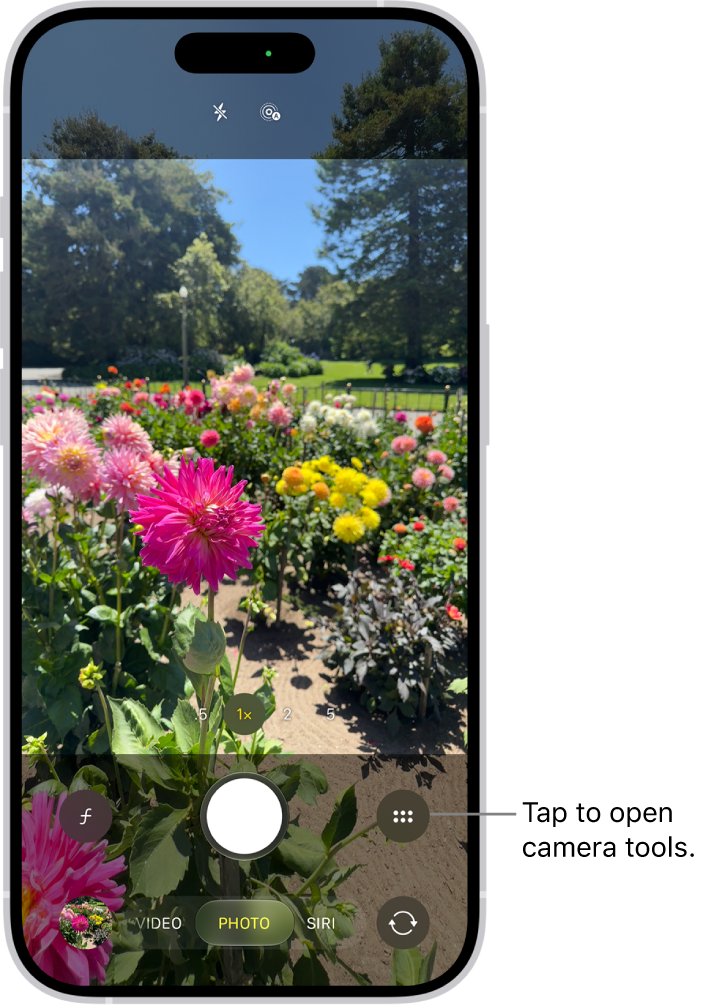
How to turn off Live Photos on iPhone camera
A Live Photo records what happens 1.5 seconds before and after you take the picture, including audio. It's on by default, which is why a normal tap of the shutter seems to record a clip.
- Open Camera on your iPhone.
- Make sure the camera is set to Photo mode.
- Swipe up from Photo at the bottom of the screen.
- Tap Live, then choose Off. On iOS 26, tap Live until it shows Live Off.
- Tap the screen outside the menu to close it.
Photos you take now are stills. The setting can switch back the next time you open Camera, so finish with the Preserve Settings steps below.
Why does my iPhone camera take a video instead of a photo?
| What you see | Cause | Fix |
|---|---|---|
| The saved photo moves and plays sound when you press and hold it | Live Photos is on | Turn off Live Photos, then turn on Live Photo in Preserve Settings |
| Recording starts when you keep your finger on the shutter | Holding Shutter in Photo mode records video | Tap and release the shutter quickly |
| Recording starts when you press a volume button | Holding volume up or down records video in Photo mode | Press briefly, or turn on Use Volume Up for Burst |
| Recording starts when you press the side camera button | Click and hold on the Camera Control records video | Click once and let go |
| Camera opens on Video instead of Photo | Camera Mode in Preserve Settings saved your last mode | Swipe back to Photo and turn off Camera Mode |
How to keep Live Photos off on iPhone
Turning Live Photos off in the Camera app alone doesn't always last, because Camera can turn it back on automatically. Preserve Settings makes it keep your last choice.
- Open the Settings app.
- Tap Camera, then tap Preserve Settings.
- Turn on Live Photo.
- Open Camera and set Live Photos to off.
- Close Camera, open it again and check that Live Photos is still off.
Live Photo being on in this list doesn't turn the feature on; it tells Camera to save your last choice. To see the setting at all times on iOS 26 or later, go to Settings > Camera > Indicators and turn on Live Photo.
How to turn off Live Photos on iOS 18
Older versions of iOS keep the Live Photo button at the top of the camera screen instead of in a pull-up menu.
- Open Camera on your iPhone.
- Make sure the camera is set to Photo mode.
- Tap the Live Photo button at the top of the camera screen.
- Check that a slash now appears through the button.
A slash through the button means Live Photos is off. The Preserve Settings steps above apply here too.
How to stop iPhone recording video when you hold the shutter button
Touching and holding the shutter in Photo mode starts a video, without switching to Video mode. Apple's iPhone User Guide describes no setting that turns this off, so the fix is how you press.
- Tap the Shutter button and lift your finger straight away to take a photo.
- To stop an accidental recording, release the button or tap Record.
- Tap the thumbnail at the bottom of the screen to open the clip in Photos, then delete it if you don't want it.
- For several fast shots, drag Shutter left to use Burst mode, then lift your finger to stop.
If you slid the button onto the lock by accident, recording carries on without your finger. Tap Record to stop it.
How to take photos with iPhone volume buttons without recording video
A short press of either volume button takes a photo. Pressing and holding one starts a video in Photo mode.
- Open Camera in Photo mode.
- Press volume up or volume down once and let go to take a photo.
- To change what holding volume up does, go to Settings > Camera.
- Turn on Use Volume Up for Burst. Holding volume up now takes burst shots.
Burst shots save as a set of photos rather than a video. Tap the Burst thumbnail to choose the ones you want to keep.
iPhone Camera Control takes a video instead of a photo
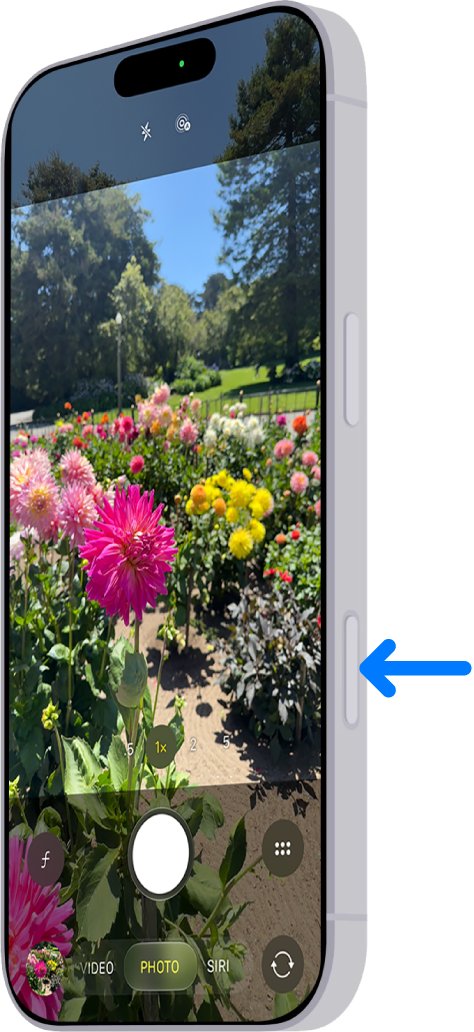
On models with the Camera Control, the same button does three jobs depending on how you press it. One click opens Camera, a second click takes a photo, and click and hold records video.
- Click the Camera Control to open Camera.
- Check that the mode at the bottom of the screen says Photo, because a click starts recording in Video mode.
- Click the Camera Control once and let go to take a photo.
- To change how Camera opens, go to Settings > Camera > Camera Control, then choose Single Click or Double Click.
With Double Click, it takes two clicks to open Camera, so a single stray press won't launch it.
How to stop iPhone camera opening in Video mode
Camera normally opens in Photo mode. It opens elsewhere when Camera Mode is on in Preserve Settings and your last session ended in another mode.
- Open Camera and swipe left or right until Photo is selected.
- Go to Settings > Camera > Preserve Settings.
- Turn off Camera Mode.
- Close Camera, open it again and check that Photo is selected.
Leave Live Photo on in the same list. If other camera options have drifted too, you can reset your iPhone camera settings without touching your photos.
How to remove the video from a Live Photo
Turning Live Photos off only affects new photos. For one you already took, switch off the effect in the Photos app.
- Open the Live Photo in the Photos app.
- Tap Edit.
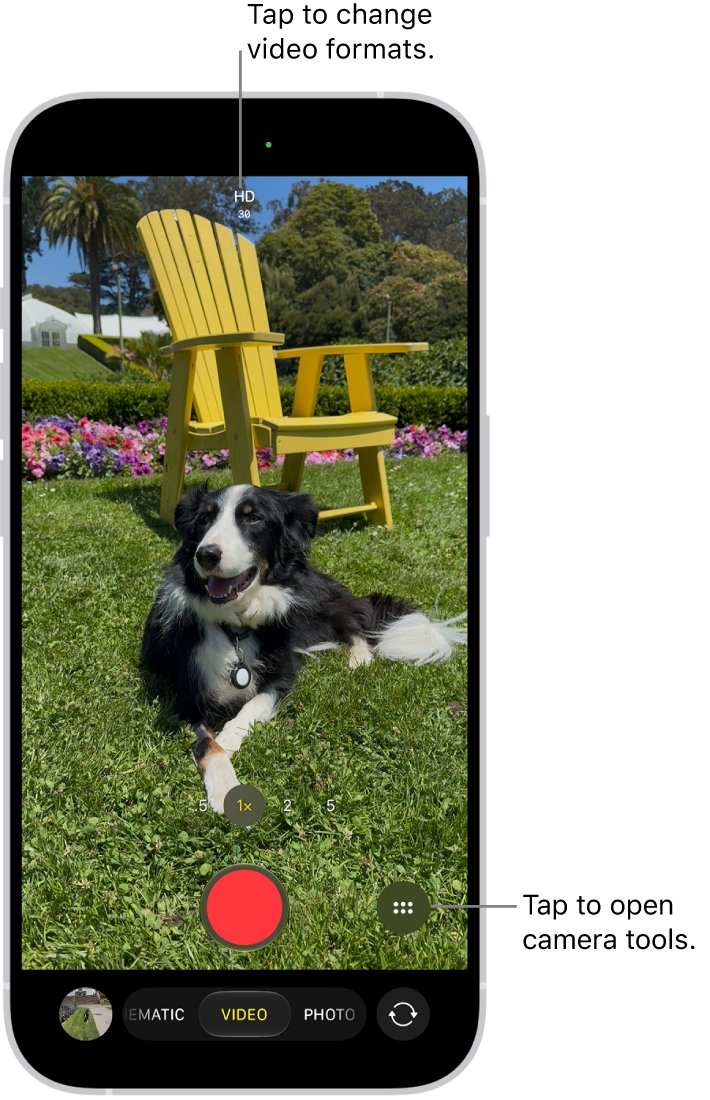
- Tap LIVE at the top of the screen to turn Live Photo off.
- Tap Done.
Tap LIVE again in the same place to turn it back on. To share just the still, tap Share and tap LIVE in the upper-left corner of the photo. Mail always sends a Live Photo as a still image.
How to change the key photo in a Live Photo
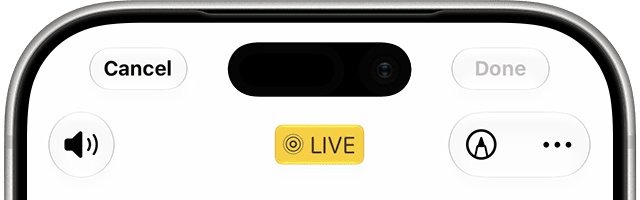
The key photo is the frame that shows when the Live Photo isn't playing. Use this when the moment you wanted is in the clip rather than the saved frame.
- Open the Live Photo and tap Edit.
- Tap the Live Photo button.
- Drag the white frame to choose a different thumbnail.
- Release your finger, then tap Make Key Photo.
- Tap Done.
How to tell if a photo is a Live Photo on iPhone
- Open Photos and tap Collections.
- Scroll to Media Types and tap Live Photos to list every Live Photo you have.
- Open one and press and hold the screen; it plays with motion and sound.
- Take a new photo with Live Photos off, tap the thumbnail, then press and hold the screen.
A new photo that stays still and doesn't appear under Live Photos means the setting is working.
What is a Live Photo on iPhone?
A Live Photo isn't a separate video in your library. It's one item in your photo library that shows a still until you press and hold it.
| Detail | What applies |
|---|---|
| What it captures | 1.5 seconds before and after the shot, with audio |
| Default setting | On |
| iPhones that have it | iPhone 6s and later |
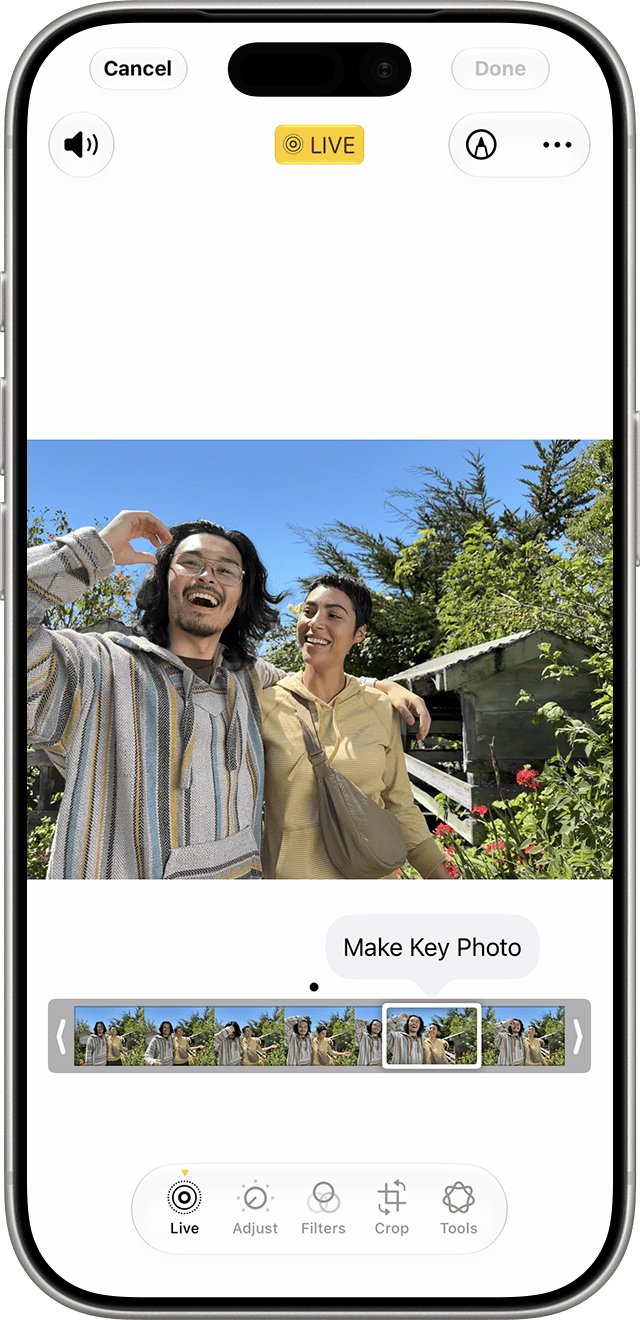
| Effects you can add | Loop, Bounce and Long Exposure, from the Live Photo button when the photo is open |
| When it's unavailable | When ProRAW or HEIF Max is turned on |
| Third-party editing | Apps other than Photos might remove effects you applied |
Live Photos save to your photo library with your other shots, the same library you back up with iCloud Photos.
iPhone camera on or video camera not working
Why does Live Photos keep turning back on?
Camera turns Live Photo on again automatically unless it's told to save your setting.
- Go to Settings > Camera > Preserve Settings.
- Turn on Live Photo.
- Open Camera and turn Live Photos off once more.
Why is my camera on?
A green indicator appears whenever an app uses the camera, and a message at the top of Control Center appears when an app has recently used it.
- Look for the green dot at the top of the screen.
- Open Control Center and read the message at the top.
- Go to Settings > Privacy & Security > Camera.
- Turn off access for any app you don't want using the camera.
Why isn't my video camera working?
Video recording isn't available during a phone or FaceTime call.
- End the phone or FaceTime call.
- Open Camera and tap Video.
- Tap Record, or press either volume button, to start recording.
iPhone camera taking video FAQ
Why does my iPhone take a video with every photo?
Live Photos is on, which is the default setting. It records 1.5 seconds before and after each shot, with audio. Turn it off from the Live control in Camera, then turn on Live Photo under Settings > Camera > Preserve Settings so it stays off.
How to take a video on camera?
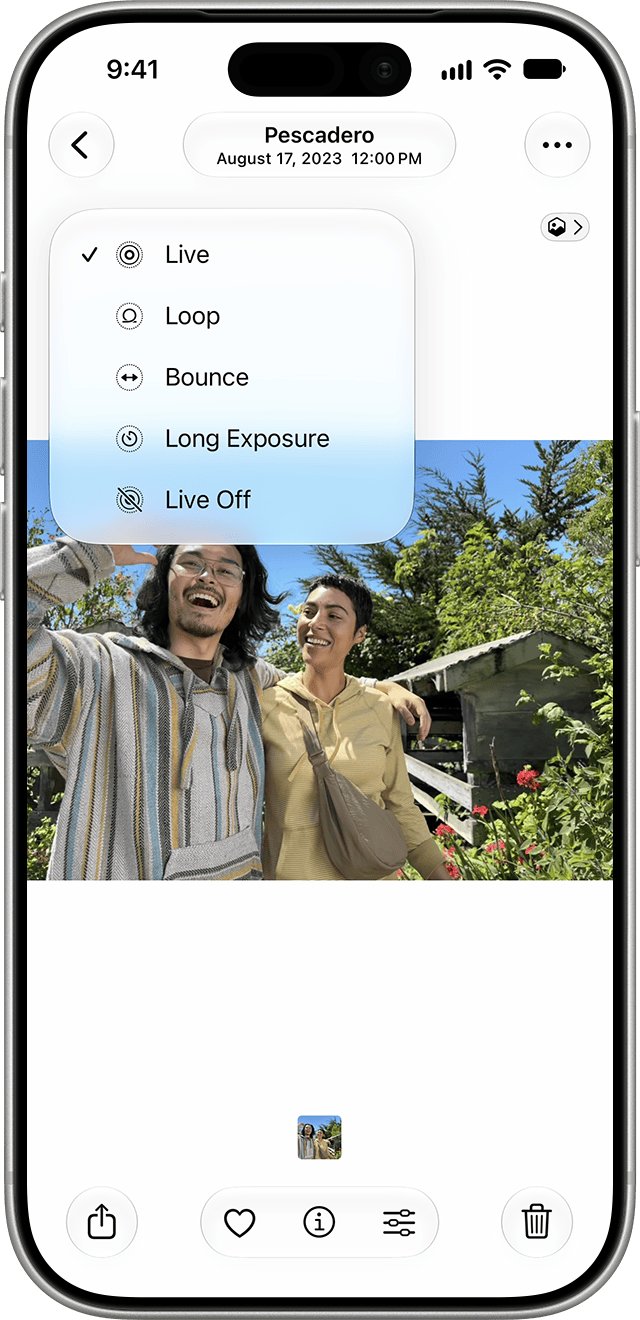
Open Camera and tap Video to switch to Video mode. Tap the Record button, press either volume button or click the Camera Control on supported models to start, and repeat the same action to stop. In Photo mode, you can also touch and hold the Shutter button.
How to use camera and video at the same time?
Tap the white Shutter button while a video is recording to take a still photo. In Photo mode, touch and hold the Shutter button to start recording, slide it onto the lock so you can let go, then tap Shutter whenever you want a still.
How to take pictures from video?
On iPhone, tap the white Shutter button during recording to capture a still photo. For a Live Photo you already took, tap Edit, tap the Live Photo button, drag the white frame to another moment, then tap Make Key Photo and Done.
Where do my camera videos go?
They save to your photo library in the Photos app, along with your photos. Tap the thumbnail at the bottom of the Camera screen to open the video you just recorded. Live Photos are also listed under Collections > Media Types > Live Photos.
Is my camera on?
A green dot at the top of your iPhone screen means an app is using the camera. An orange indicator means an app is using the microphone without the camera. Control Center shows a message at the top when an app has recently used either.
What's using my camera?
Open Control Center and read the message at the top, which appears when an app has recently used the camera. To review every app with permission, go to Settings > Privacy & Security > Camera, where you can turn access on or off for each app.