Your iCloud backup does not contain your photos when iCloud Photos is on, so after a restore the library has to download separately from iCloud Photos, and it only appears once Sync this iPhone is on and the download finishes over Wi-Fi.
This guide explains what a backup restores, how to read the sync status in Photos, how to force the library to finish, where hidden and deleted photos go, and fixes for photos that never reached iCloud.
Fix iCloud Photos not showing all photos on iPhone
Apple states that photos and videos in iCloud Photos are not included in the nightly iCloud backup. A restored iPhone gets them back from iCloud Photos, not from the backup file.
- Open the Settings app on your iPhone.
- Tap your name, then tap iCloud.
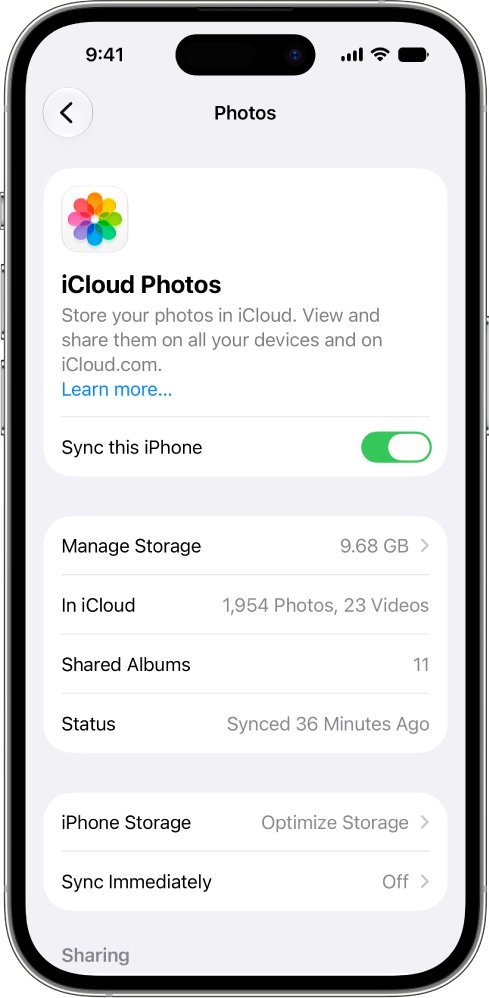
- Tap Photos, then turn on Sync this iPhone.
- Connect to Wi-Fi and plug the iPhone into power so the library can keep downloading.
- Open the Photos app, tap Collections, then tap your account icon to see the sync status and the last sync time.
- Leave the iPhone on Wi-Fi until the status no longer shows uploading, downloading or paused.
Download time depends on the size of the library and your internet speed, so a large library can take hours after a restore.
Does iCloud Backup include photos when iCloud Photos is on?
No. iCloud Backup and iCloud Photos are two separate services, and a photo lives in only one of them. Which one depends on whether Sync this iPhone was on before the backup.
| Setting before the backup | Where your photos were stored | What happens after a restore |
|---|---|---|
| iCloud Photos on (Sync this iPhone on) | In iCloud Photos, uploaded as you took them | Photos download from iCloud Photos after the restore, over Wi-Fi |
| iCloud Photos never turned on | In the iCloud backup, as part of the Camera Roll | Photos come back with the backup itself |
| Restore still running | Split between the backup and iCloud | Settings > [your name] > iCloud > iCloud Backup says the device is currently being restored |
| iPad backup restored to an iPhone (or the reverse) | Depends on the source device | Apple notes that a cross-device restore does not restore all data |
| Photos never finished uploading before the old phone was wiped | Only on the old device | Those photos are not in iCloud Photos or the backup |
Apple also advises keeping separate backup copies of an iCloud Photos library, because the photos are not duplicated in your iCloud backup.
Check iCloud Photos sync status on iPhone
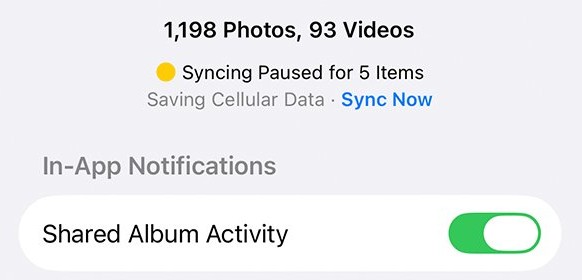
The Photos app shows a small status badge on your account icon. It tells you whether the library is still syncing, paused or blocked by full storage.
- Open the Photos app.
- Tap Collections.
- Look at the account icon in the top-right corner: a partially filled blue circle means photos are uploading, and a gray outline means uploads are paused.
- Look for a yellow badge (syncing paused), a yellow warning icon (iCloud storage almost full) or a red exclamation mark (iCloud storage full).
- Tap your account icon to read the details and the time your iPhone last synced with iCloud.
Sync iCloud Photos immediately on iPhone
In iOS 27 and later, Sync Immediately tells iCloud Photos to prioritize syncing for one day. It can raise battery and cellular use, and it pauses when Low Power Mode or Low Data Mode is on.
- Open the Photos app and tap Collections.
- Tap your iCloud account profile at the top of the screen.
- Tap Sync Immediately, then tap For Today.
- Turn off Low Power Mode and Low Data Mode while the sync runs.
- Tap Off later if you want to stop early; otherwise the setting switches off by itself after one day.
The same option is in Settings > your name > iCloud > Photos > Sync Immediately.
Download and keep originals on iPhone
Optimize iPhone Storage is on by default. It keeps small versions of photos on the phone and the full-resolution originals in iCloud, so older photos can look blurry or load slowly until you open them.
- Open Settings on your iPhone.
- Tap your name, then tap iCloud.
- Tap Photos, then tap iPhone Storage.
- Tap Download and Keep Originals.
- Check free space in Settings > General > iPhone Storage first, because full-size originals need room on the phone.
Find hidden and recently deleted photos on iPhone
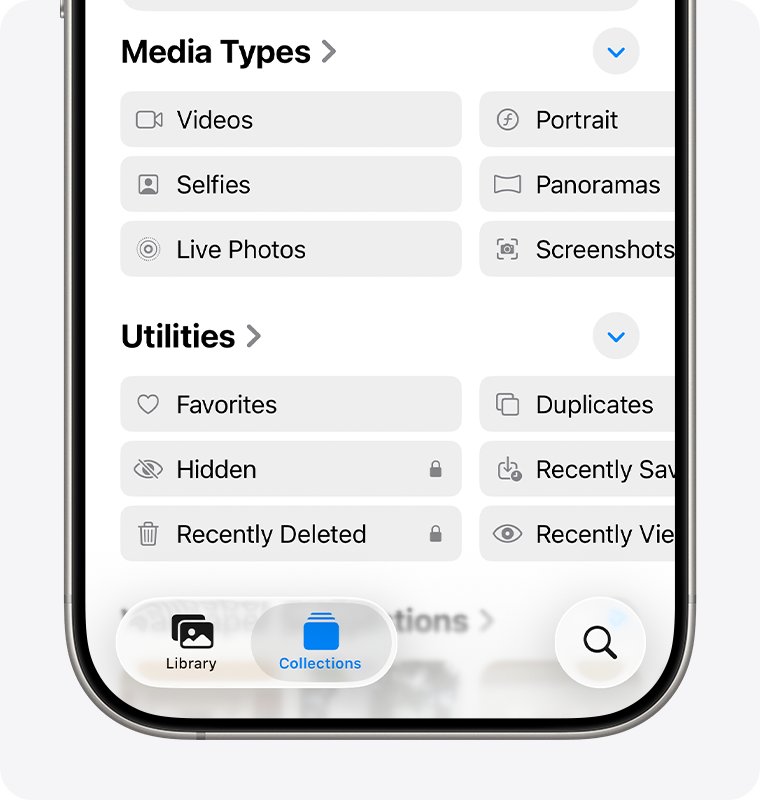
With iCloud Photos, a photo hidden or deleted on one device is hidden or deleted on every device. Two albums in Collections often hold the "missing" pictures.
- Open Photos, tap Collections, then scroll down to Utilities.
- Tap Hidden, tap View Album, then unlock it with Face ID or Touch ID.
- Touch and hold a photo you want back in the library, then tap Unhide.
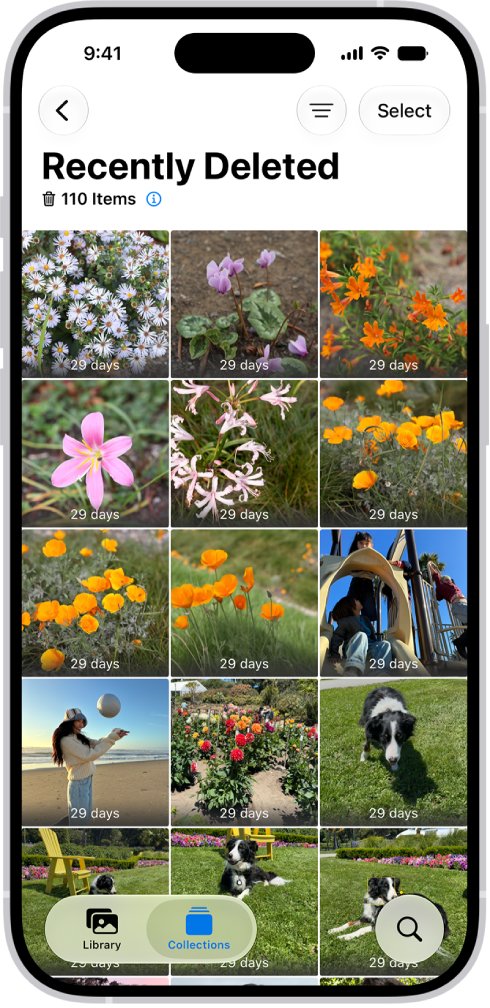
- Go back to Collections and open the Recently Deleted album to look for photos deleted within the last 30 days.
- If Hidden is not listed, go to Settings > Apps > Photos and turn on Show Hidden Album.
Items stay in Recently Deleted for 30 days, then iCloud Photos removes them permanently.
Check all your photos on iCloud.com
iCloud.com shows exactly what is stored in iCloud Photos. If a photo is there, your iPhone will get it once syncing finishes; if it is not, it never uploaded.
- On a computer or tablet, go to icloud.com/photos.
- Sign in with the same Apple Account your iPhone uses.
- Select Library in the sidebar.
- Compare the newest and oldest photos with what the iPhone shows.
- To keep a copy of any photo, select it and click the download button.
If the count on iCloud.com is complete but the iPhone is short, the iPhone is still downloading. If iCloud.com is short too, the missing photos were never uploaded from the old device.
Why is iCloud only showing some photos?
Why is iCloud only showing some photos after a restore?
The library is still downloading, or Sync this iPhone is off on the restored phone.
- Go to Settings > your name > iCloud > iCloud Backup and check whether the restore is still in progress.
- Go to Settings > your name > iCloud > Photos and confirm Sync this iPhone is on.
- Keep the iPhone on Wi-Fi and power until the Photos status shows the sync has finished.
Why aren't my photos going to iCloud?
iCloud storage is full, or uploads are paused.
- Open Photos > Collections and look for a red exclamation mark or a yellow badge on your account icon.
- Tap the account icon to read why syncing stopped.
- Free space in iCloud or upgrade to an iCloud+ plan if storage is full.
- Check that every device is signed in to the same Apple Account.
Why are my iCloud photos not downloading or loading?
Optimize iPhone Storage keeps only small copies on the phone, or the connection is too slow for full-size files.
- Connect to a stable Wi-Fi network.
- Turn off Low Power Mode and Low Data Mode.
- Choose Download and Keep Originals under Settings > your name > iCloud > Photos > iPhone Storage if you have the space.
Why are my photos missing from iCloud?
They were hidden or deleted on another device, which changes the whole library.
- Open Photos > Collections > Utilities > Hidden and unhide the photos.
- Open the Recently Deleted album in Collections and recover anything deleted in the last 30 days.
Why does iCloud not show all photos on my PC?
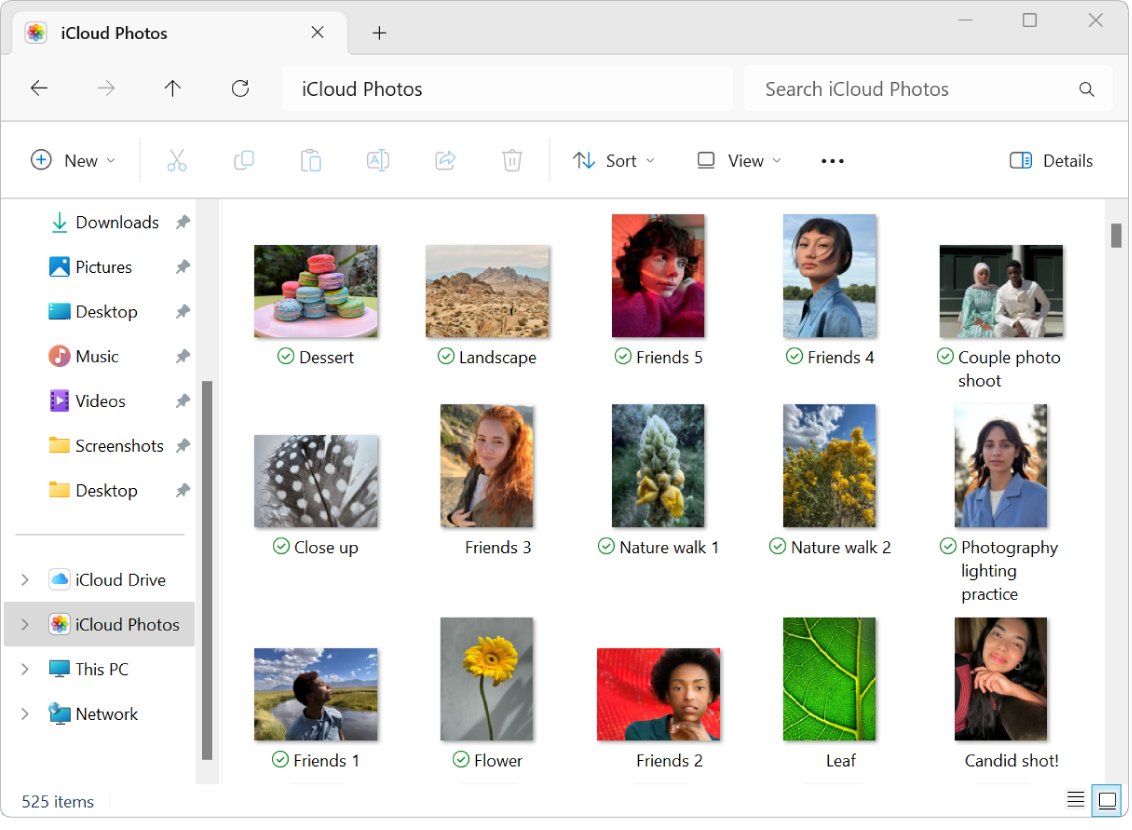
iCloud for Windows shows thumbnails until each photo is downloaded.
- Open File Explorer and click iCloud Photos in the navigation pane, or open Pictures > iCloud Photos.
- Double-click a thumbnail to download and view the photo.
- Update iCloud for Windows if you use an iCloud Shared Photo Library, because those changes appear automatically only in version 14 or later.
iCloud Photos missing after backup FAQ
Why is iCloud not showing all my photos?
Usually the library is still syncing, Sync this iPhone is off, or iCloud storage is full. Open Photos, tap Collections, then tap your account icon to see whether uploads are running, paused or blocked, and when the last sync happened.
Why aren't all my photos in iCloud?
Photos only reach iCloud Photos if Sync this iPhone was on and the upload finished. Photos taken while storage was full, or on a device signed in to another Apple Account, never uploaded and will not appear on other devices.
Why are my photos not showing up in iCloud?
Check the status badge on your account icon in Photos > Collections. A red exclamation mark means iCloud storage is full, and a yellow badge or gray outline means syncing is paused. Fix the cause and syncing resumes.
Why is iCloud Photos not working after a restore?
iCloud Photos is not restored from the backup file. Turn on Sync this iPhone under Settings > your name > iCloud > Photos and keep the iPhone on Wi-Fi so the library can download from iCloud.
Why are my iCloud photos not downloading?
Optimize iPhone Storage keeps small versions on the phone and downloads originals on demand, which needs a working connection. Stay on Wi-Fi, turn off Low Power Mode, or choose Download and Keep Originals if the iPhone has enough free space.
Why won't my iCloud photos load?
A full-size original has to download before it opens sharply. A slow or metered connection, Low Data Mode or paused syncing delays it. Move to a faster Wi-Fi network and check the sync status in Photos > Collections.
Why can't I see photos in iCloud on another device?
Every device must be signed in to the same Apple Account with iCloud Photos turned on. On a Mac, turn on Sync this Mac; on a Windows PC, set up Photos in iCloud for Windows.
Why are my photos missing from iCloud after deleting them on one device?
With iCloud Photos, a delete on one device deletes everywhere. Open the Recently Deleted album in Photos > Collections to recover items deleted within the last 30 days. After that, they are removed permanently.
Why does iCloud not show all photos on my PC?
iCloud for Windows shows thumbnails until you download each file. Open File Explorer, click iCloud Photos in the navigation pane, and double-click a thumbnail to download it.