Open Settings > Personalization > Dynamic Lighting, select your keyboard, and pick a color under Effects to change the keyboard backlight color in Windows 11.
That page only works with RGB keyboards that support Dynamic Lighting, so this guide also covers the Lenovo, ASUS, Dell, HP, MSI and Acer apps, single-color backlights, auto brightness and fixes when the color will not change.
How to change keyboard backlight color in Windows 11/10?
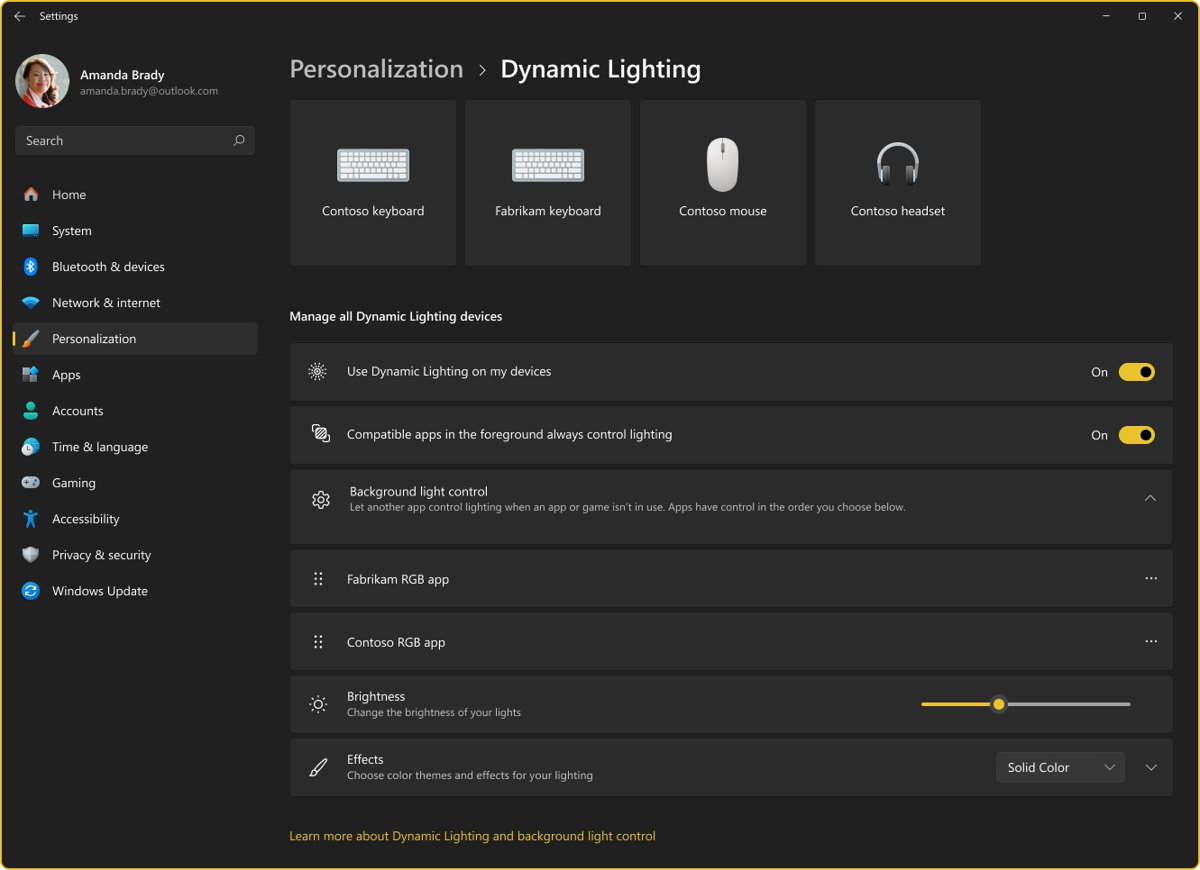
Windows 11 has a built-in color control called Dynamic Lighting. It drives keyboards and laptops that follow the open HID LampArray standard, so one page can set every compatible device to the same color.
- Press Win + I to open Settings.
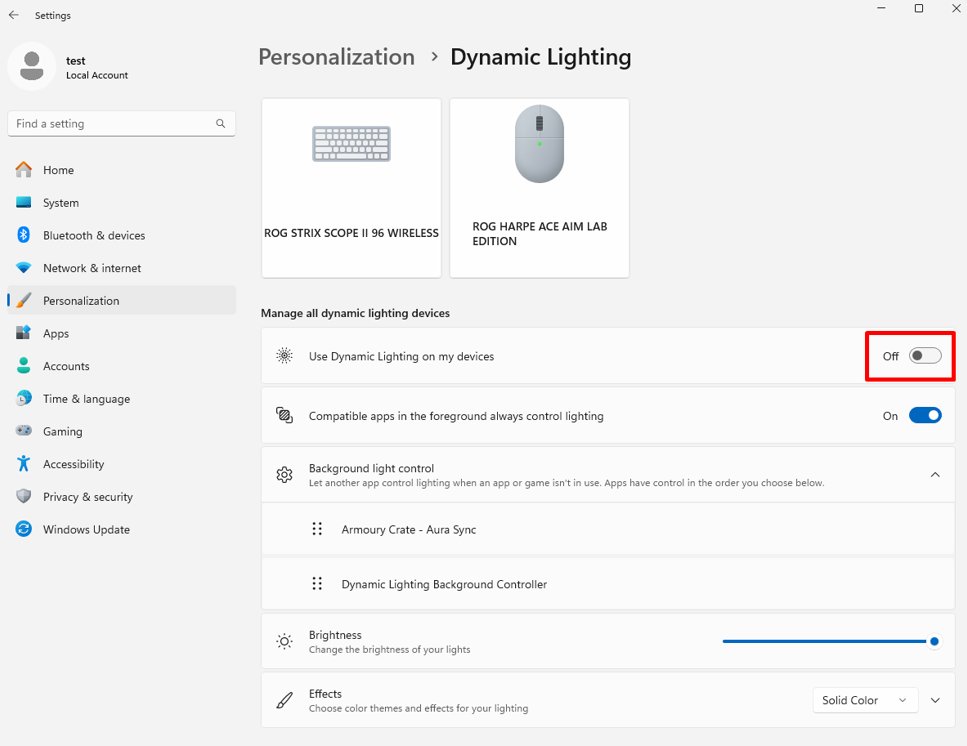
- Select Personalization in the left pane, then select Dynamic Lighting.
- Turn on Use Dynamic Lighting on my devices.
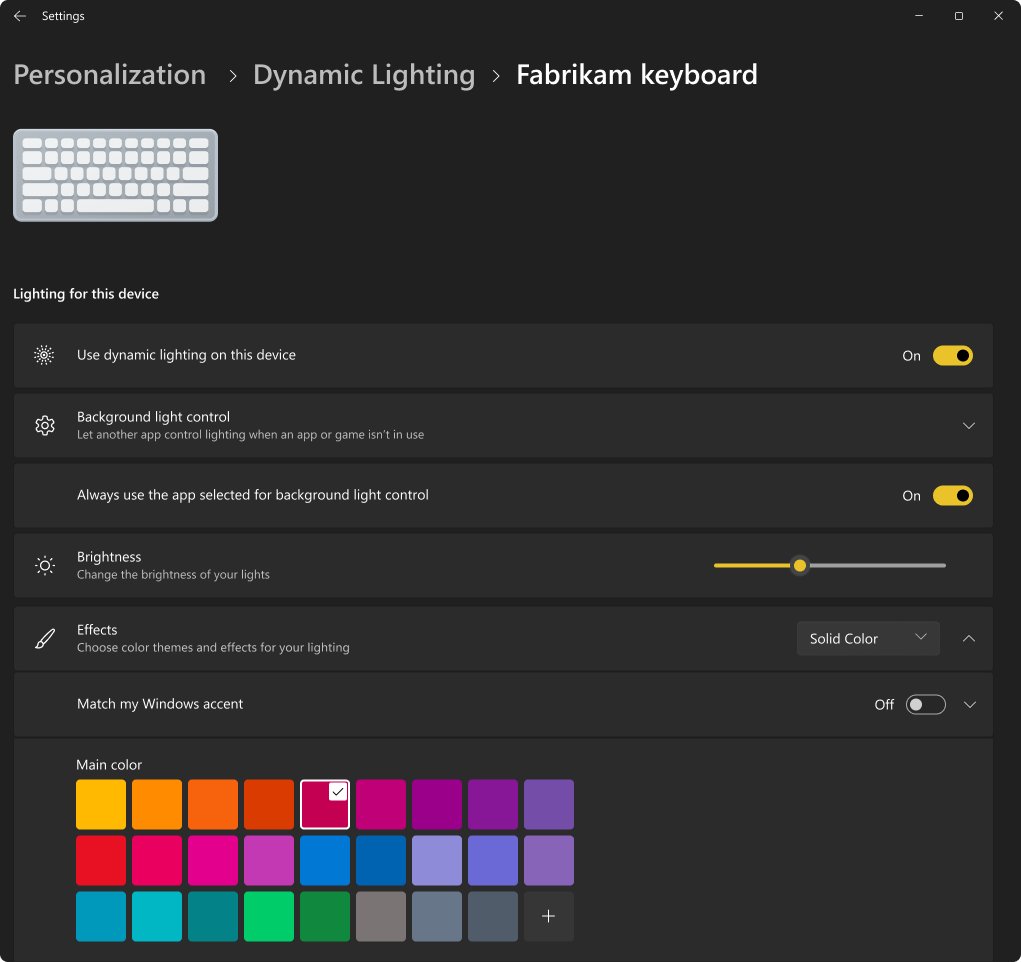
- Select your keyboard's card at the top of the page to change only that keyboard, or stay on the main page to change every connected device.
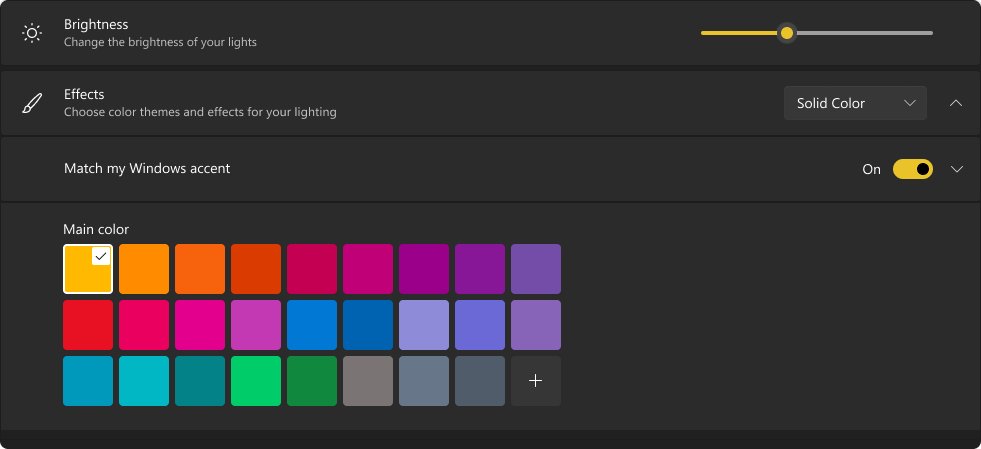
- Expand Effects and choose an effect, such as a solid color, then pick the color you want.
- Expand Brightness and drag the slider to set how bright the keys glow.
To open the page directly, press Win + R, type ms-settings:personalization-lighting and press Enter.
Windows 10 has no Dynamic Lighting page. On a Windows 10 PC, the keyboard color is set only in the laptop or keyboard maker's own app, covered in the brand sections below.
Keyboard backlight color change by laptop brand
Gaming laptops usually ship with the maker's own lighting app, and some of those models also show up in Dynamic Lighting. Find your brand, then use the route in the second column.
| Laptop or keyboard | Where to change the color | Notes |
|---|---|---|
| Any Dynamic Lighting keyboard (Logitech G LIGHTSYNC, Razer, HyperX and others) | Settings > Personalization > Dynamic Lighting | Logitech states every G LIGHTSYNC RGB device is supported |
| Lenovo Legion | Fn + Space for preset effects, Lenovo Vantage for your own colors | Fn plus the brightness keys changes the light level |
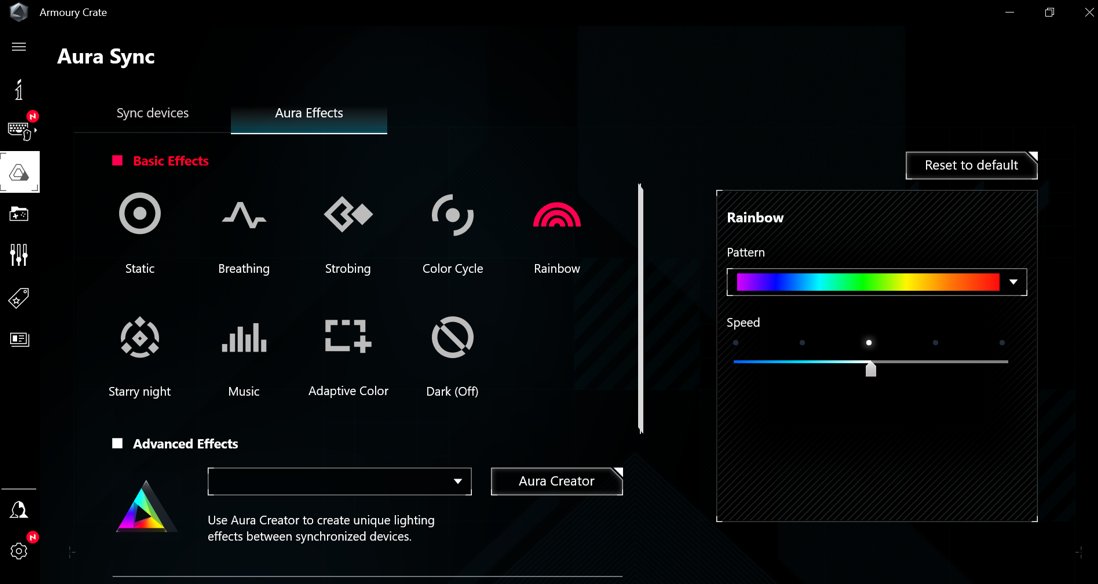
| ASUS ROG and TUF | Armoury Crate > Aura Sync > Aura Effects, or Dynamic Lighting on listed models | Set Armoury Crate first under Background light control |
| Dell Alienware and Dell gaming models | Alienware Command Center > Lighting or AlienFX | The app must be running in the system tray |
| HP OMEN | OMEN Command Center > Lighting | Offers static colors and dynamic effects |
| MSI Gaming Series | MSI Center, on models that offer lighting control | MSI Center supports Gaming Series laptops with Intel 11th gen or AMD 5000 and newer |
| Acer Nitro and Predator | Dynamic Lighting if the laptop shows a card there, otherwise Acer's preinstalled control app | Acer is a Dynamic Lighting partner |
| Single-color backlight (white or one fixed color) | Color cannot be changed | Only brightness and on or off work |
Can I change my keyboard backlight color?
You can change the color only if the keyboard has RGB LEDs. A single-color backlight has one LED color built into the hardware, so no app or Windows setting can turn white keys blue.
Microsoft's own keyboard backlight support in Windows 11 covers simple single-zone backlights and controls brightness only. Zoned and per-key RGB keyboards are handled by Dynamic Lighting instead.
| Backlight type | Color change possible | What controls it |
|---|---|---|
| Single-color (white or one fixed color) | No | Backlight key for brightness and on or off |
| Single-zone RGB | Yes, one color for the whole keyboard | Maker's app or Dynamic Lighting |
| Multi-zone RGB | Yes, a color per zone | Maker's app or Dynamic Lighting |
| Per-key RGB | Yes, a color per key | Maker's app or Dynamic Lighting |
A quick test: if the backlight key only cycles between off, dim and bright, and the maker's app shows no lighting page, the keyboard is single-color.
Dynamic Lighting keyboard color effects in Windows 11
The Effects section in Dynamic Lighting runs one of six background effects across your devices. Some take a single color and others blend a main and a second color.
| Effect | What the keys do | Color options |
|---|---|---|
| Solid color | Every key shows one static color (the Windows default) | One color |
| Breathing | The keys pulse on and off in a steady pattern | One color |
| Rainbow | All keys cycle through the RGB colors together, forward or in reverse | Fixed rainbow order |
| Wave | Two colors travel across the keyboard left, right, up, down, inward or outward | Main and second color |
| Wheel | Two colors circle around a center point, clockwise or counterclockwise | Main and second color |
| Gradient | Two static colors blend horizontally, vertically or outward | Main and second color |
Animated effects also have a speed setting. Colors can look slightly different on keyboards and mice from different makers, which Microsoft notes is expected.
If you want the keys to match the rest of the desktop, you can also change the taskbar color to the same shade.
How to change keyboard backlight color on Lenovo Legion laptops
Lenovo Legion laptops ship with factory lighting profiles you can switch from the keyboard, plus custom effects in the Lenovo Vantage app.
- Press Fn + Space to cycle through the factory lighting effects until you reach one you like.
- Press Fn with the brightness up or down key to change how bright the keys glow.
- Open Lenovo Vantage from the Start menu to build your own lighting effect.
- Select the keyboard lighting controls in Vantage, choose the colors and effect, and apply them.
- Press Fn with the brightness down key several times if you want to turn the backlight off completely.
On ThinkPad and Yoga laptops, Fn + Space changes the brightness of a single-color backlight instead of its color.
How to change keyboard backlight color on ASUS TUF and ROG laptops
ASUS ROG and TUF laptops use the Armoury Crate app, which now includes every Aura Sync feature. The same steps work on a TUF laptop and an ROG Strix or Zephyrus.
- Open Armoury Crate from Windows search.
- Select Aura Sync, then Sync devices, and confirm your laptop keyboard is listed.
- Select Aura Effects and choose a Basic effect, then set its color.
- Use Advanced effects with Aura Creator if you want per-key or layered lighting.
- Install Playground from the Feature Library if Armoury Crate does not detect the keyboard.
Several ROG Zephyrus, ROG Strix, ROG Strix SCAR and TUF A14, A15, A16, A18 and F16 models also support Windows Dynamic Lighting. On those laptops, put Armoury Crate at the top of Background light control in Dynamic Lighting so its effects apply.
Vivobook and other ASUS laptops without Armoury Crate lighting support use the backlight hotkey, Fn + F7 or Fn + F3 and Fn + F4 depending on the model, to change brightness only.
How to change keyboard backlight color on Dell Alienware
Dell's per-key RGB and multi-zone color control is limited to Alienware and some Dell gaming models. Other Dell laptops, including Inspiron, Latitude and XPS, offer brightness levels only, set with Fn and the backlight key.
- Open Alienware Command Center and leave it running in the system tray.
- Select the Lighting or AlienFX section.
- Choose a lighting theme, color or brightness setting.
- Apply the change and watch the keyboard update.
- Use Reset to Default in the Lighting section if a saved lighting profile behaves strangely.
While Alienware Command Center is active, Fn with the backlight key does not control the lighting. Without the app, that key only changes global brightness.
Dell's color lighting guidance does not cover Dell Rugged laptops, so check the keyboard lighting keys in your Rugged model's manual on Dell's support site.
Enable or disable keyboard backlight auto brightness in Windows 11
Auto brightness changes how bright the keys are, not their color. It reads the ambient light sensor and needs Windows 11, version 25H2, build 26200.7922 or later on a keyboard that hands backlight control to Windows.
- Press Win + I to open Settings.
- Select Bluetooth & devices, then Keyboard.
- Expand Keyboard backlight.
- Turn Change keyboard brightness automatically when lighting changes on or off.
- Open System > Power & battery > Energy saver and turn Lower keyboard brightness when using energy saver on or off if you also want the keys dimmed on battery.
The default curve turns the backlight off in bright rooms above about 200 lux. If the keys go dark too soon after you stop typing, change the keyboard backlight timeout as well.
How to tell if your keyboard supports Dynamic Lighting in Windows 11
- Press Win + R, type
winverand press Enter; ASUS lists OS build 22621.2361 or later for Dynamic Lighting. - Open Settings > Windows Update and install pending updates if the build is older.
- Open Settings > Personalization > Dynamic Lighting.
- Look for your keyboard's card at the top of the page; a card means the keyboard supports Windows color control.
- Change the color under Effects and watch the keys switch to the new color.
No card means the keyboard does not report itself as a LampArray device. Use the maker's app instead, or the backlight key if the keyboard is single-color.
Keyboard backlight color not changing in Windows 11
Dynamic Lighting Brightness and Effects sliders do nothing
A background RGB app has a higher priority than the Dynamic Lighting Background Controller.
- Open Settings > Personalization > Dynamic Lighting.
- Expand Background light control.
- Drag the controller you want to use to the top of the list.
- Change the color under Effects again.
Keyboard color resets after moving it to another USB port
Background lighting settings are tied to the device and the port it uses, so a new port counts as a new device.
- Plug the keyboard back into its original USB port, or
- Select the keyboard's new card in Dynamic Lighting and set the color again.
A game keeps changing the keyboard color
Compatible apps in the foreground always control lighting lets the active app take over the keys.
- Open Dynamic Lighting in Settings.
- Turn off Compatible apps in the foreground always control lighting.
- Close or minimize the game to return control to the background effect.
Alienware keyboard shows only white or dim light
Alienware Command Center is not installed or not running.
- Start Alienware Command Center and check its icon is in the system tray.
- Select Reset to Default in the Lighting section.
- Uninstall and reinstall Alienware Command Center from Dell's support site if the Lighting section is missing.
ASUS lighting stops responding after a Windows upgrade
The ASUS WDL HAL component that links Armoury Crate to Dynamic Lighting is out of date.
- Open Armoury Crate > Settings > Update Center and select Check for Updates.
- Update ASUS WDL HAL.
- Move Armoury Crate to the top of Background light control in Dynamic Lighting.
Vendor app and Windows fight over the keyboard color
Both Dynamic Lighting and the maker's app are trying to drive the same LEDs.
- Decide which one should own the lighting.
- To use only the maker's app, turn off Use Dynamic Lighting on my devices.
- To use only Windows, move Dynamic Lighting Background Controller to the top of Background light control.
If the backlight does not light at all, the color is not the problem; turn on the backlit keyboard with the maker's key first.
Keyboard backlight color FAQ
How do I change my keyboard backlight color?
On Windows 11, open Settings > Personalization > Dynamic Lighting, select the keyboard and pick a color under Effects. If the keyboard has no card there, use the maker's app, such as Lenovo Vantage, Armoury Crate or Alienware Command Center.
Can I change my keyboard backlight color?
Only if the keyboard has RGB LEDs. A single-color backlight has one fixed LED color, so software can change its brightness but never its color. RGB keyboards change color through Dynamic Lighting or the maker's app.
How to change keyboard backlight color on Lenovo?
On a Lenovo Legion, press Fn + Space to cycle the factory lighting effects, or create your own effect in Lenovo Vantage. On ThinkPad and Yoga laptops, Fn + Space changes the brightness of a single-color backlight only.
How to change keyboard backlight color on ASUS?
Open Armoury Crate, select Aura Sync > Aura Effects, and choose an effect and color. This works on ROG and TUF models, including the TUF A15 and F16. Vivobook models with a single-color backlight cannot change color.
How to change keyboard backlight color on Dell?
Only Alienware and some Dell gaming laptops have RGB keyboards. Open Alienware Command Center, go to Lighting or AlienFX, choose a color and apply it. Other Dell laptops offer brightness levels only.
How to change keyboard backlight color on MSI?
Use MSI Center on MSI Gaming Series laptops that offer lighting control, or Dynamic Lighting in Windows 11 if the laptop shows a card there. MSI laptops with a single-color backlight can only change brightness.
How to change keyboard backlight color on Acer Nitro 5?
Check Settings > Personalization > Dynamic Lighting first, since Acer is a Dynamic Lighting partner. If the Nitro shows no card there, use the lighting page in Acer's preinstalled control app. Single-color Nitro keyboards cannot change color.
Does Windows 11 support backlit keyboards?
Yes. Windows 11 controls RGB keyboard color through Dynamic Lighting, and version 25H2 build 26200.7922 or later adds automatic backlight brightness for compatible single-zone keyboards in Settings > Bluetooth & devices > Keyboard.
Why does Dynamic Lighting not show my keyboard?
The keyboard does not support the HID LampArray standard, or Windows needs updating. ASUS lists OS build 22621.2361 or later. Install updates, reconnect the keyboard, and use the maker's app if no card appears.
How do I turn off Dynamic Lighting in Windows 11?
Open Settings > Personalization > Dynamic Lighting and turn off Use Dynamic Lighting on my devices. Your keyboard then returns to its default behavior, and the maker's own lighting app takes over again.