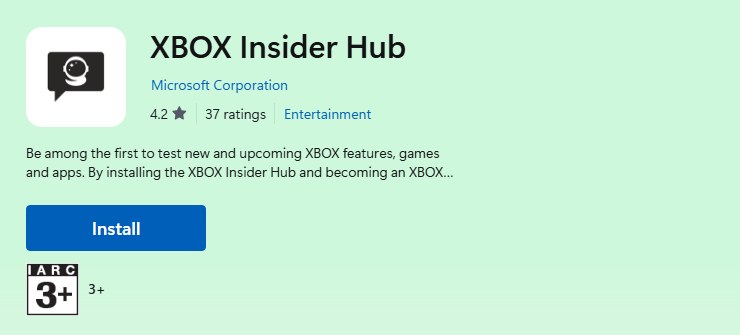
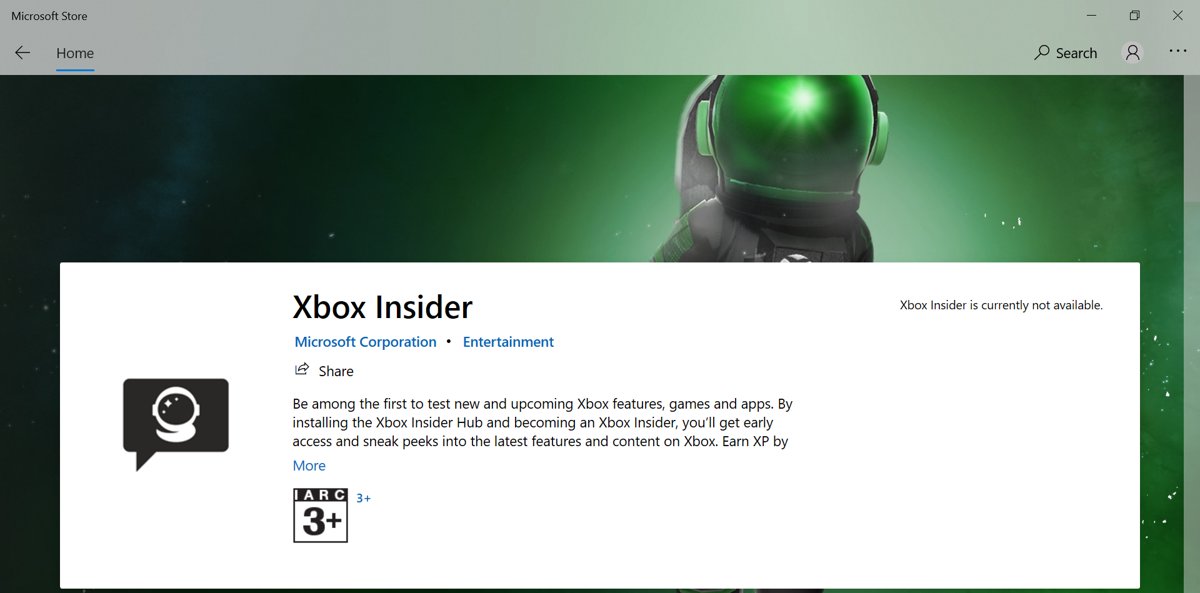
Install Xbox Insider Hub on Windows 10 or Windows 11 by opening the Microsoft Store, searching for insider and selecting Get on the Xbox Insider Hub listing.
This tutorial covers the requirements, both install routes, first sign-in, joining PC previews, install and sign-in errors, and how to uninstall the app or leave a preview.
Method 1: Installing Xbox Insider Hub directly from the Microsoft Store
This is the route Xbox Support documents for Windows devices. It takes a minute on a PC that is signed in to the Store with a Microsoft account.
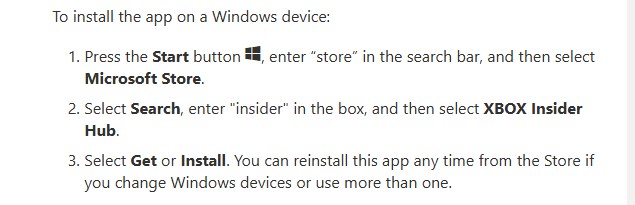
- Select Start, type store, and select Microsoft Store.
- Select the search box, type insider and press Enter.
- Select Xbox Insider Hub in the results.
- Select Get or Install and wait for the download to finish.
- Select Open, or find Xbox Insider Hub in the Start menu app list.
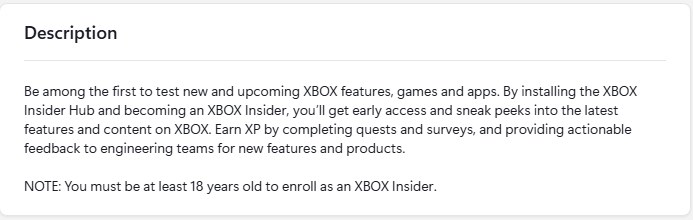
The Xbox Insider Hub is free. You must be 18 or older to enroll in the Xbox Insider Program, and the app asks you to accept its Terms and Conditions the first time it opens.
System requirements, account prerequisites, and regional availability
| Requirement | What it means | How to check |
|---|---|---|
| Windows version | Windows 11, or Windows 10 OS Build 14393 or later | Settings > System > About, then read OS build |
| Microsoft Store | The Microsoft Store app must open and install apps; Windows 10 below version 15063 has to be updated first | Select Start, type Microsoft Store and open it |
| Microsoft account | The account and Gamertag you sign in with decide which previews you see | Select the profile icon in Microsoft Store |
| Age | 18 years or older to enroll in the Xbox Insider Program | The age on your Microsoft account |
| Family settings | Microsoft family settings can hide apps from a child account | Sign in with an adult account you manage yourself |
| Region | Not every Store app is offered in every country or region, and the Store hides apps that are not available in yours | Check the country or region set in Windows matches where you live |
| Preview eligibility | Each preview has its own requirements, and only previews you qualify for are listed | The Info tab of each preview in the Hub |
The Xbox Insider Program is separate from the Windows Insider Program. You do not need Windows preview builds to use the Hub; those are only for people who want to install Windows 11 Insider Preview builds.
Preparing your PC: Windows updates, Microsoft Store sign-in, and common checks
Microsoft lists these as the first fixes when a Store app will not install, so doing them up front avoids most failed installs.
- Select Start > Settings > Windows Update > Check for updates, install anything offered, and restart the PC.
- Open Microsoft Store, select Library > Get updates so the Store itself is current.
- Select the profile icon at the top of the Store and sign in with the Microsoft account you will use for Xbox.
- Check that the date, time, time zone and region set in Windows are correct.
- If the Store will not open or shows a blank page, press Windows key + R, type
wsreset.exeand select OK.
The wsreset.exe window stays blank for about ten seconds, then closes and opens Microsoft Store. It clears the Store cache without removing any apps.
Method 2: Installing Xbox Insider Hub via direct Microsoft Store link (if search fails)
When a Store search does not return the app, open its product page by Store ID instead. Xbox Insider Hub's Store ID is 9PLDPG46G47Z.
- Open a browser and go to
https://apps.microsoft.com/detail/9pldpg46g47z. - Select the Get button on the Xbox Insider Hub page.
- Allow the browser to open Microsoft Store when it asks.
- Select Get or Install on the Store page that opens.
- Alternatively, press Windows key + R, type
ms-windows-store://pdp/?ProductId=9PLDPG46G47Zand select OK to jump straight to the listing in the Store app.
If the page opens but there is no Get or Install button, the Store has judged the app unavailable for your account, region or device. Work through the troubleshooting section below.
First-time setup: signing in, permissions, and initial app configuration
- Open Xbox Insider Hub from the Start menu.
- Sign in with the same Microsoft account you use in Microsoft Store and the Xbox app.
- Read and accept the Xbox Insider Program Terms and Conditions when they appear.
- On the main landing page, check that the Gamertag under your profile picture is the one you want to test with.
- If you see "Unspecified error" or sign-in fails, quit the Hub completely, sign out of Windows and back in, then restart the PC and try again.
Content in the Hub is tied to the signed-in Microsoft account and Gamertag. Signing in with a second account shows a different set of previews.
What is Xbox Insider Hub?
Xbox Insider Hub is Microsoft's free app for the Xbox Insider Program on Windows PC and Xbox consoles. Through it you test Xbox system updates, features, games and apps before release, and send feedback to the teams building them.
| Hub feature | What it does |
|---|---|
| Previews | Lists the game, app and feature previews you are eligible to join |
| Quests and surveys | Feedback tasks for a preview; completing them earns Xbox Insider XP |
| Xbox Insider XP | Your activity score; with tenure and interests it makes you eligible for more previews |
| PC Gaming preview | The Windows preview for upcoming features in the Xbox app on PC |
| Report a problem | Sends bug reports to the developers; on console it installs with the Hub as the Xbox Insider bundle |
Navigating the Xbox Insider Hub interface on Windows
| Where in the Hub | What you find there | What to use it for |
|---|---|---|
| Main landing page | Your profile picture and signed-in Gamertag | Confirm you are on the right account |
| Previews | Every preview you are currently eligible for | Pick a preview to join |
| Preview page, Info tab | Eligibility requirements and details for that preview | Check you meet the requirements before joining |
| Preview page, Join | Registers your account for the preview | Start a preview |
| Preview page, Manage | Options for a preview you have joined, including Unenroll | Leave a preview |
| Preview page, Show in store | A link to the game or app's Store page | Install the preview build if the Store did not open by itself |
| Quests and surveys | Feedback tasks for previews you joined | Share feedback and earn XP |
Joining Xbox Insider programs, previews, and feature flights
Joining the Xbox Insider Program on PC happens the moment you sign in to the Hub and accept the terms. Each preview inside it is joined separately.
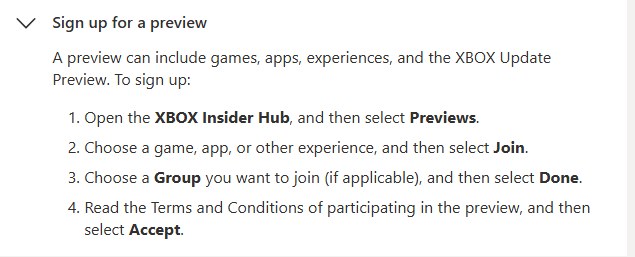
- Open Xbox Insider Hub and sign in.
- Select Previews.
- Select the preview you want, such as a game demo or the PC Gaming preview for the Xbox app.
- Read the requirements on the Info tab.
- Select Join.
- Wait for registration to finish. For a game, the Hub sends you to Microsoft Store to install the preview build.
- If the Store does not open, select Show in store on the preview's Info page; if that page is blank, wait 15 to 20 minutes and try again.
No previews listed is normal for a new account. Eligibility grows with your interests, your tenure as an Insider, your Xbox Insider XP and the activities you complete.
Troubleshooting installation errors and common problems
Xbox Insider Hub won't install or is not installing
An outdated Windows build, a pending restart, an outdated Store or a corrupt Store cache.
- Install Windows updates and restart the PC; Store apps will not install until a recent update has been restarted.
- In Microsoft Store, select Library > Get updates.
- Press Windows key + R, run
wsreset.exe, and try the install again. - Check Settings > System > About and confirm the OS build is 14393 or later on Windows 10.
Xbox Insider Hub does not appear in Store search
The app is not offered in your region, family settings hide it, the device is incompatible, or the PC is not authorized for Store apps.
- Open the direct Store link from Method 2.
- Sign in to the Store with an adult Microsoft account.
- Correct the country or region set in Windows if it does not match where you live.
Microsoft Store does not open
A damaged Store cache, missing Windows updates, or wrong time and location settings.
- Run
wsreset.exefrom Windows key + R. - Install the latest Windows updates.
- Check the time, date and region settings, then open the Store from Start.
Xbox Insider Hub not loading or "Unspecified error" at sign-in
The app or the Windows session is holding a stale sign-in.
- Quit the Hub completely: right-click its taskbar icon and select Close window.
- Sign out of Windows and sign back in.
- Restart the PC and open the Hub again.
- If it still fails, select Start > Settings > Apps > Installed apps, select More next to Xbox Insider Hub > Advanced options, and choose Repair, then Reset if Repair does not help.
A preview you are eligible for is missing
The Hub is signed in with a different Microsoft account or Gamertag.
- Check the Gamertag under your profile picture on the Hub's main page.
- Sign in with the account that received the invitation.
Store page is blank or has no Install button after joining a preview
Microsoft Store is signed in with a different account than the Hub.
- Select the profile icon in Microsoft Store and check the signed-in account.
- Switch to the account you joined the preview with.
- Open the preview again in the Hub and select Show in store.
Error or blank screen when joining a preview
A failed registration left the preview half-joined.
- If Manage is visible on the preview's Info page, select Manage > Unenroll.
- Close the Hub completely, sign out of Windows and back in, and restart the PC.
- Join the preview again.
How to uninstall, reinstall, or leave the Xbox Insider program safely
Leaving a preview and removing the app are separate steps. Leave any game preview first so the Store stops offering you the test build.
- To leave a preview, open the Hub, select the preview, then select Manage > Unenroll.
- After leaving a game beta, wait 15 to 20 minutes before reinstalling the game, so your account is removed from the beta and you get the public version.
- To uninstall the Hub on Windows 11, select Start > Settings > Apps > Installed apps, find Xbox Insider Hub, then select More > Uninstall.
- On Windows 10 or 11, you can also select Start > All apps, right-click Xbox Insider Hub and select Uninstall.
- To reinstall, open Microsoft Store, select Library, find Xbox Insider Hub and select Install.
- To stop participating in the program entirely or close your Xbox Insider account and delete its data, use the options Xbox Support lists in the Xbox Insider Program FAQ.
Xbox Insider Hub FAQ
What is Xbox Insider Hub?
Xbox Insider Hub is Microsoft's free app for the Xbox Insider Program on Windows PC and Xbox consoles. It lists previews of Xbox updates, features, games and apps you can test early, plus quests and surveys for sending feedback.
How do I get Xbox Insider on PC?
Open Microsoft Store, search for insider, select Xbox Insider Hub and choose Get or Install. Then open the Hub, sign in with your Microsoft account and accept the Xbox Insider Program Terms and Conditions.
How do I join the Xbox Insider program?
Install the Xbox Insider Hub on a Windows PC or Xbox console and sign in. Accepting the terms on first launch enrolls you. You must be 18 or older, and each preview inside the program is joined separately from the Previews section.
How do I join Xbox Insider Hub previews?
Open the Hub, select Previews, choose a preview, read the eligibility requirements on its Info tab and select Join. Only previews you are eligible for are listed, so a new account may see few or none at first.
How do I become an Xbox Insider?
Anyone 18 or older with a Microsoft account can become an Xbox Insider by installing the Xbox Insider Hub and signing in. Completing quests and surveys raises your Xbox Insider XP, which makes you eligible for more previews.
How do I uninstall Xbox Insider Hub?
On Windows 11, go to Settings > Apps > Installed apps, find Xbox Insider Hub and select More > Uninstall. You can also right-click it in Start > All apps and select Uninstall. Leave any game previews first.
Why is Xbox Insider Hub not installing?
Usually Windows needs updating or restarting, Microsoft Store is outdated, or the Store cache is damaged. Install updates, restart, update the Store from Library, run wsreset.exe and try again. On Windows 10, the build must be 14393 or later.
Is Xbox Insider Hub available on Windows 11?
Yes. Xbox Insider Hub installs from Microsoft Store on Windows 11 and Windows 10, and the PC Gaming preview for the Xbox app on PC is joined from inside it.