To print from iPhone, open the file, tap the Share button, tap Print, choose an AirPrint printer on the same Wi-Fi network, and tap Print again.
This guide covers AirPrint step by step, printing photos, text messages, emails and notes, the HP, Epson and Canon apps, printing through a computer, and what to do when the printer will not show up.
How to print from iPhone: step-by-step
AirPrint is built into iPhone, so a printer that supports it needs no driver or extra app.
Your iPhone and the printer must be on the same Wi-Fi network before you start.
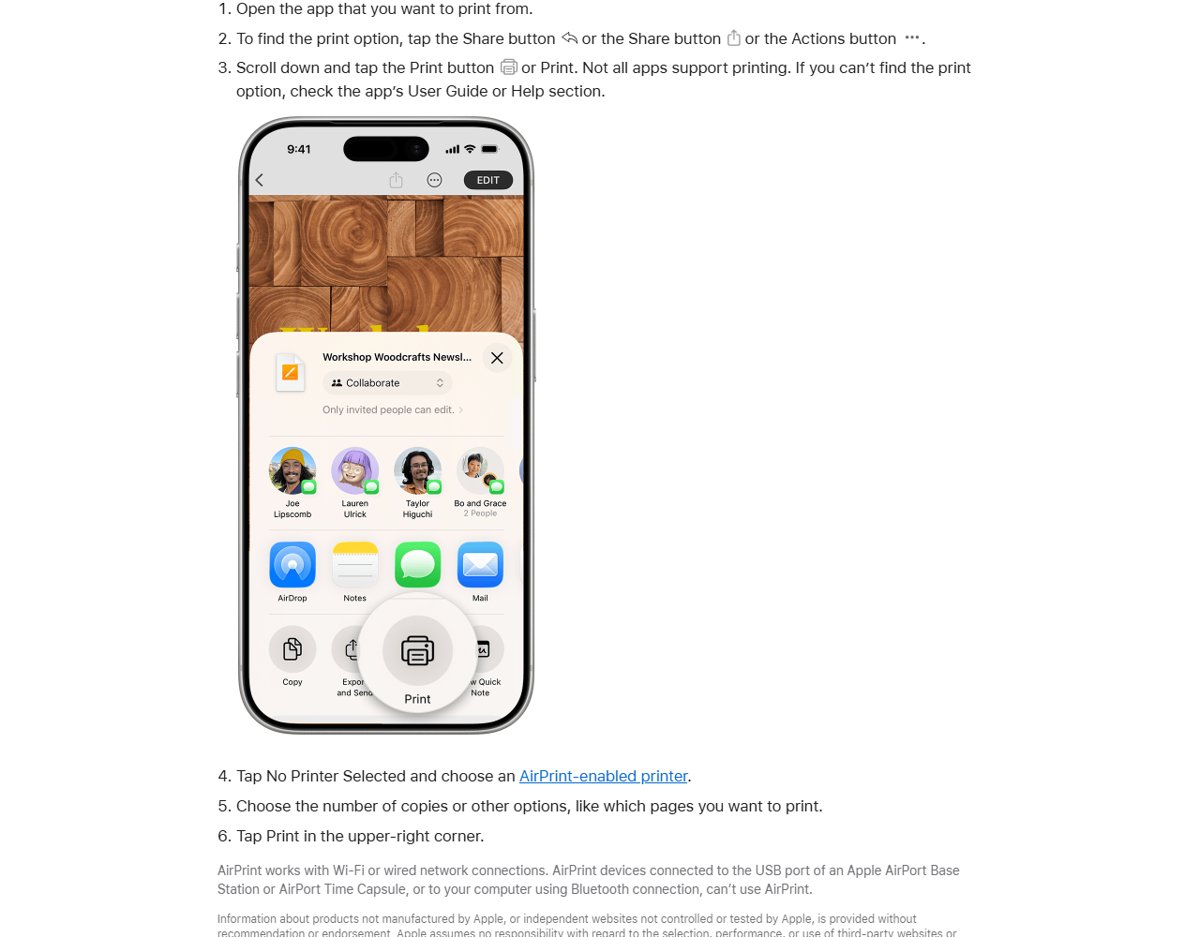
- Turn on the printer and make sure it is connected to the same Wi-Fi network as your iPhone.
- Open the app that holds what you want to print, such as Photos, Mail, Notes or Safari.
- Open the photo, email, note or page you want on paper.
- Tap the Share button or the Actions button, depending on the app.
- Scroll down and tap Print. If you do not see it, swipe up on the list of actions.
- Tap No Printer Selected and choose your AirPrint printer.
- Set the number of copies and the pages you want, then tap Print in the upper-right corner.
Not every app supports printing. If an app has no Print action, check that app's help section or save the item as a PDF and print it from another app.
How can I print from my iPhone to my printer?
There are four practical routes, and the right one depends on what your printer supports.
The printing methods are compared below by what your printer supports, so pick the first row that matches.
| Your printer | Printing method | Why this one |
|---|---|---|
| Supports AirPrint and is on Wi-Fi or a wired network | AirPrint from the Share menu | Built into iOS, no app or driver needed |
| HP, Epson or Canon model, AirPrint missing or limited | The printer maker's free app | Adds setup, scanning, ink levels and printer-specific features |
| Printer offers cloud or email printing | Send the file through the maker's cloud service | Prints when the printer is not on your current network |
| Connected to a computer by USB only | Send the file to the computer and print there | AirPrint cannot reach USB or Bluetooth printers |
Why is printing from iPhone difficult?
Printing from iPhone is simple once the printer is set up correctly. Most failures trace back to one of these four limits.
| Limit | What it means for you |
|---|---|
| iPhone prints only through AirPrint or an app | You cannot install a classic printer driver on iPhone the way you do on a PC |
| The printer must support AirPrint | Older or budget models without AirPrint need the maker's app or a computer |
| Same network required | A printer on a guest network, or on a different router will not appear |
| USB and Bluetooth printers are excluded | A printer plugged into an AirPort base station's USB port, or paired over Bluetooth, cannot use AirPrint |
| Each app decides whether it can print | Some apps hide Print under Share, some under Actions, and some have no print option at all |
How do I know if my printer supports AirPrint?
Apple keeps a searchable list of AirPrint printers, supplied by each manufacturer and updated regularly.
- Open Apple's About AirPrint page in Safari.
- Tap Search for AirPrint-enabled printers.
- Search by your printer's brand, model or category.
- Check the category shown next to your model. A printer marked USB-only prints driverless only from a Mac over USB, not from iPhone.
- If your model is not listed, check the printer's manual or the manufacturer's support site.
How to print photos from iPhone
The Photos app prints one picture or a batch in a single job.
- Open the Photos app.
- To print one picture, open the photo and tap the Share button.
- To print several, tap Library or open a collection, tap Select, tap each photo, then tap the Share button.
- Swipe up on the list of actions and tap Print.
- Choose the printer and number of copies, then tap Print.
How to print text messages from iPhone
The quickest way to put a conversation on paper is to screenshot it, then print the screenshot from Photos.
- Open the conversation in Messages and scroll to the part you want.
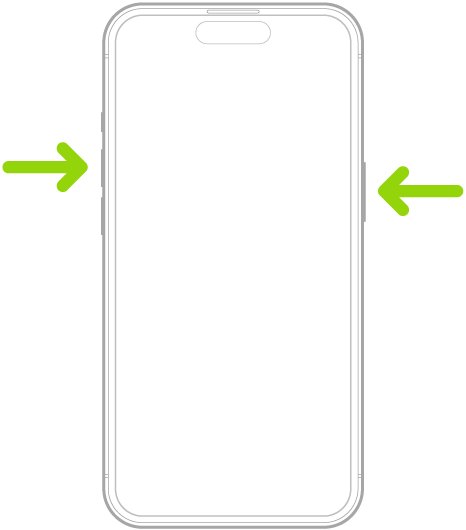
- On an iPhone with Face ID, press and release the side button and the volume up button together. On an iPhone with a Home button, press the side button and the Home button together.
- Repeat for each screen of the conversation you need.
- Open Photos, tap Collections, scroll to Media Types and tap Screenshots.
- Tap Select, choose the screenshots, tap the Share button and tap Print.
Crop each screenshot before saving it if you want to leave out the keyboard or other messages.
How to print emails, notes and web pages from iPhone
Mail, Notes and Safari all print through AirPrint, but the Print button sits in a slightly different place in each.
| What to print | Where to tap | Then |
|---|---|---|
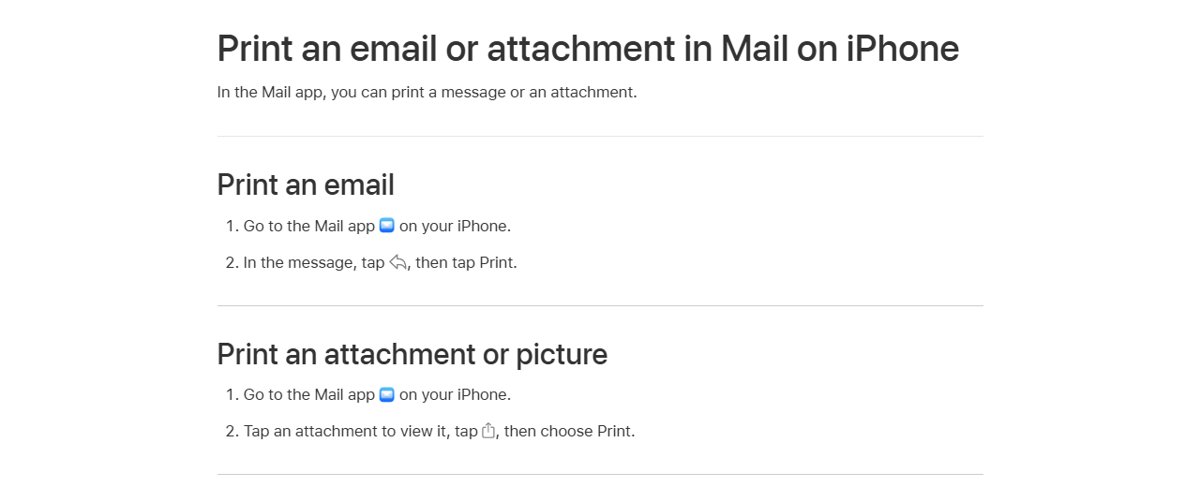
| An email in Mail | Open the message and tap the actions button in its toolbar | Tap Print |
| An email attachment | Tap the attachment to open it, then tap the Share button | Choose Print |
| A note in Notes | Open the note and tap the More button | Tap Print, choose the printer, tap Print |
| A web page in Safari | Tap the Share button | Swipe up and tap Print |
| A downloaded PDF | Open it from the Files app and tap the Share button | Tap Print |
Downloaded PDFs land in the Files app by default. If you cannot spot one, find downloads on iPhone first, then print it from there.
How to print from iPhone to HP, Epson or Canon printer
Most current HP, Epson and Canon wireless printers support AirPrint, so the steps in the first section work as they are.
Install the maker's free app when you need to put the printer on Wi-Fi, scan, check ink or reach a model without AirPrint.
| Printer brand | Official iPhone app | What the app adds |
|---|---|---|
| HP | HP app, formerly HP Smart | Printer setup, printing, scanning, checking HP ink levels and support |
| Epson | Epson Smart Panel | Wi-Fi setup, printing, scanning and supplies; older unsupported models use Epson iPrint instead |
| Canon | Canon PRINT | Setup, printing, scanning, ink levels and printing via the cloud for PIXMA, MAXIFY, imageCLASS and SELPHY models |
Epson Smart Panel finds only printers on Epson's supported list, so use Epson iPrint if Smart Panel cannot see your model.
Alternative solutions for printing from iPhone
When AirPrint is not an option, one of these routes still gets the page out.
| Alternative | How it works | Best for |
|---|---|---|
| Printer manufacturer app | Install the HP, Epson or Canon app and print from inside it | Printers without AirPrint, or when you also want scanning |
| Email-to-print or cloud printing | Send the file to the printer through the maker's cloud service, set up in its app | Printing to a home or office printer while you are away |
| Print via a computer | Send the file to a Mac or PC, then print it there | USB-only printers |
| Third-party printing apps | Apps from the App Store that print to non-AirPrint printers | Only when the maker's own app does not support your model |
Use the printer maker's own app before any third-party printing app, since it comes from the company that makes the printer and its drivers.
How to print from iPhone through a Windows PC or Mac
This route suits a printer that is plugged into a computer by USB and has no network connection.
- Open the photo or document on your iPhone and tap the Share button.
- On a Mac nearby, tap AirDrop and choose the Mac. For a Windows PC, tap Mail and email the file to yourself.
- On the computer, open the file from the Downloads folder or from the email.
- Choose Print from the app's File menu.
- Choose the printer and click Print.
If the printer is not listed on the PC, add the printer in Windows 11 first. On a Mac, you print documents and photos from the same File menu.
How to print multiple copies or selected pages on iPhone
The print sheet that opens after you tap Print holds every option your printer supports.
These tips save paper and ink on long documents and photo batches.
- Tap Print from the Share or Actions menu.
- Set the number of copies you need.
- Choose the page range so only the pages you need print.
- Review the other options your printer offers, such as paper or color settings, then tap Print.
The options shown depend on the printer, so a photo printer and a laser printer present different settings.
How to see or cancel a print job on iPhone
Print Center appears in the App Switcher while a job is waiting or printing.
- Open the App Switcher: swipe up from the bottom and pause, or double-press the Home button.
- Tap Print Center. The badge on its icon shows how many documents are in the queue.
- Tap a job to see its status.
- To stop it, select the job and tap Cancel Printing.
A job that has finished printing leaves the queue on its own.

Printing from iPhone still not working?
Match what you see to one of these cases.
Why does my printer not show up on my iPhone?
The iPhone and printer are on different networks, or the printer does not support AirPrint.
- Open Settings > Wi-Fi on your iPhone and note the network name.
- Check the printer's control panel or network report and confirm it shows the same network.
- Look up the model in Apple's AirPrint printer list.
- If the printer is not AirPrint-enabled, use the maker's app instead.
Why can't I print from my iPhone anymore?
A new router, new Wi-Fi password or new internet provider leaves the printer on the old network.
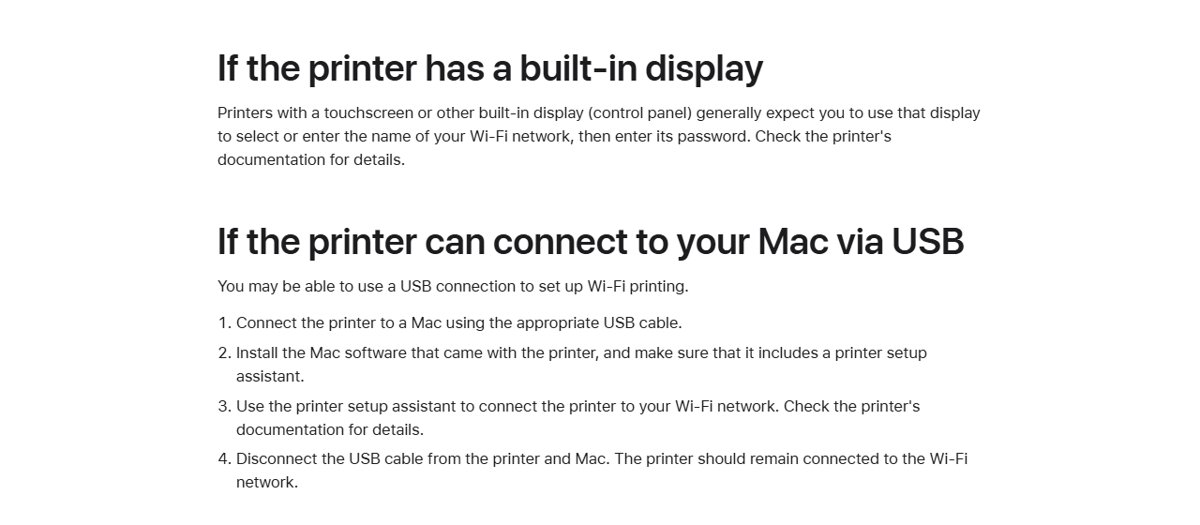
- On a printer with a display, open its Wi-Fi or network setup and choose the new network.
- Enter the new Wi-Fi password on the printer.
- If the printer supports WPS, follow the router's WPS instructions to add it.
- Try Print again from your iPhone once the printer shows as connected.
There is no Print option in the app
Not all apps support printing, and some hide the action lower in the list.
- Tap the Share button, then swipe up on the list of actions.
- Try the Actions or More button if Share has no Print action.
- If the app still has none, screenshot the content or save it as a PDF and print it from Photos or Files.
The printer is connected by USB or Bluetooth
AirPrint works only over Wi-Fi or a wired network.
- Connect the printer to Wi-Fi from its control panel, or with the maker's setup app.
- If it has no network support, print through a computer instead.
The print job is stuck
A job left in the queue blocks the ones behind it.
- Open the App Switcher and tap Print Center.
- Select the stuck job and tap Cancel Printing.
- Check the printer for paper, ink or error lights, then print again.
How to print from iPhone 17, 16, 15 and older models
The steps are the same on every model, from iPhone 11 to iPhone 17 Pro. AirPrint is part of iOS, not the hardware, so iPhone 12, 13, 14, 15 and 16 owners follow the same Share > Print steps. Only the screenshot buttons differ between Face ID and Home button models. Keep iOS updated so the print sheet matches the current steps.
An older phone that no longer gets updates still prints, though the menu labels can differ slightly. On an older model such as iPhone 8, update the iPhone 8 to the latest iOS it supports.
Printing from iPhone FAQ
Can I print from my iPhone?
Yes. Any iPhone prints to an AirPrint-enabled printer on the same Wi-Fi network. Open the item, tap Share, tap Print, pick the printer and tap Print. Printers without AirPrint work through the maker's app or a computer.
Can you print text messages from iPhone?
Yes. Take a screenshot of the conversation with the side and volume up buttons, or the side and Home buttons on older models. Then open the screenshot in Photos, tap Share and tap Print.
Can I print from my iPhone without Wi-Fi?
Not with AirPrint, which needs Wi-Fi or a wired network shared with the printer. Some printers offer a direct connection through their own app, such as the Ad Hoc mode Canon PRINT lists for SELPHY photo printers. Otherwise, send the file to a computer.
Does printing from iPhone cost anything?
No. AirPrint is built into iOS and needs no extra driver or software. The HP app, Epson Smart Panel and Canon PRINT are also free on the App Store. You only pay for paper and ink.
How do I print from my iPhone to an HP printer?
If the HP printer supports AirPrint, tap Share > Print and choose it. Otherwise install the free HP app, formerly HP Smart, add the printer and print from inside the app.
How do I print from iPhone to an Epson printer?
Use AirPrint if the Epson model supports it. For setup, scanning or older models, install Epson Smart Panel. If Smart Panel cannot find the printer, Epson directs you to Epson iPrint instead.
How do I print from iPhone to a Canon printer?
Canon PIXMA, MAXIFY and imageCLASS printers with AirPrint appear in the iPhone print sheet. Install Canon PRINT for setup, scanning, ink levels and cloud printing.
How do I print photos from iPhone?
Open Photos, open the picture, tap Share and tap Print. To print several at once, tap Select in Library, choose the photos, then tap Share and Print.
Why can't I print from my iPhone?
The usual cause is that the iPhone and printer are on different Wi-Fi networks, or the printer does not support AirPrint. Join both to the same network and check the model in Apple's AirPrint list.