To restore default display color settings in Windows 11, turn off Night light, Color filters and HDR, then remove any color profile you added under Settings > System > Display > Color profile and set the display maker's profile as the default.
Windows has no single reset button for color, so each setting goes back on its own. The sections below cover every setting that changes screen color, the Windows 10 paths, and fixes for black, grey and over-saturated screens.
Restore or reset display color settings to default in Windows 11/10
Work through these in order and stop when the colors look right. Each step undoes one setting that tints or shifts the whole screen.
- Select Start > Settings > System > Display.
- Turn Night light off. If it keeps coming back, open Night light and turn off Schedule night light.
- Go to Settings > Accessibility > Color filters and turn the Color filters switch off.
- Back in Settings > System > Display, select the display at the top and turn HDR off if you switched it on before the colors changed.
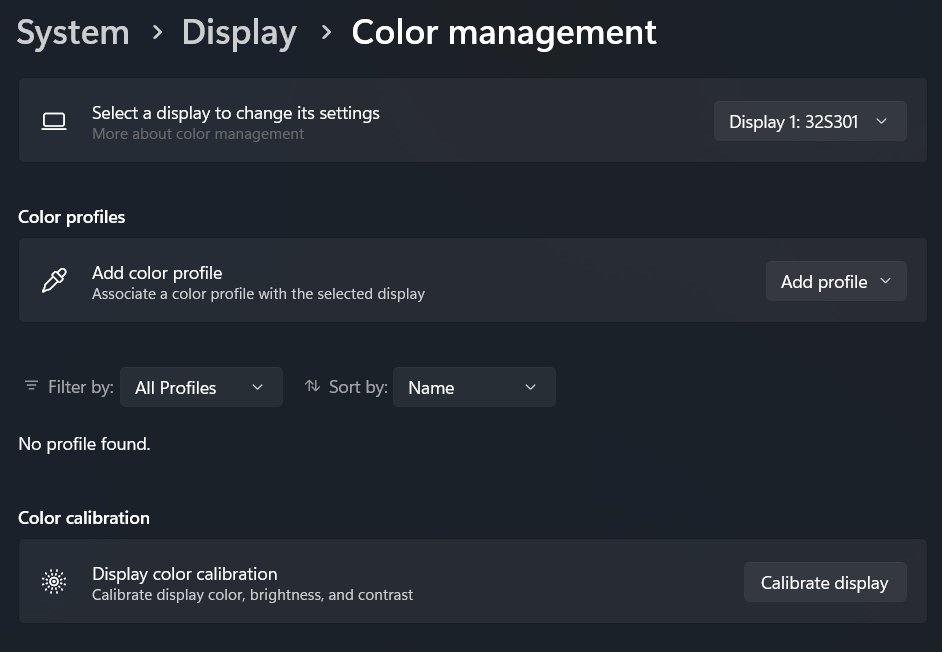
- Select Color profile, choose the same display, expand each profile you or a calibration tool added and select Remove.
- Select Set profile on the profile from the display or PC maker.
- Restart the PC so every app picks up the restored colors.
On Windows 10, the same settings live under Settings > System > Display and Settings > Ease of Access > Color filters; the Windows 10 section below has the full path list.
If the colors are still off, use the buttons on the monitor itself to open its menu and run its own reset. Settings changed in Intel Graphics Command Center, AMD Software or NVIDIA Control Panel also need resetting in that app.
Display color settings in Windows 11 and where to reset each one
| What you see | Setting that causes it | Where to put it back |
|---|---|---|
| Warm, orange or red tint | Night light | Settings > System > Display > Night light: turn off, or drag Strength left |
| Grey, inverted or odd hues everywhere | Color filters | Settings > Accessibility > Color filters: turn off |
| Single color wash over the screen | Screen tint | Settings > Accessibility > Screen tint: turn off |
| Black background with bright text and links | Contrast themes | Press Left Alt + Left Shift + Print Screen to toggle the contrast theme off |
| Washed-out or too-bright desktop on an HDR display | HDR | Settings > System > Display > HDR: turn off, or adjust SDR content brightness |
| Colors changed after calibration or a profile download | Color profile | Settings > System > Display > Color profile: remove the profile, then Set profile on the default |
| Laptop screen color shifts with room lighting | Adaptive color | Settings > System > Display > Brightness & color: turn off Adaptive color (built-in displays with a color sensor only) |
| Dark taskbar, Start menu or accent color | Personalization colors | Settings > Personalization > Colors or Themes |
Turning on color filters switches Screen tint off, because the two cannot run together.
Reset color profile to default in Windows 11
When Windows manages color, it uses the display's default color profile, and falls back to the display's own EDID data when there is none. A downloaded or calibrated profile set as the default is the most common reason colors stay wrong after every other setting is back to normal.
- Select Start > Settings > System > Display > Color profile.
- At the top of the Color management page, select the display whose colors are wrong.
- Expand a profile that you added and select Remove at the bottom of it.
- Repeat for every profile you added, keeping the one installed with the display or PC.
- Select Set profile on that remaining profile to make it the default.
- Close and reopen apps that show color-managed images, such as photo editors.
To load a different profile later, you can change the display color profile with Add profile on the same page.
Remove a display calibration profile in Windows 11
Calibrate display and the Windows HDR Calibration app both save their result as a new color profile for that display. Deleting that profile returns the display to its previous colors.
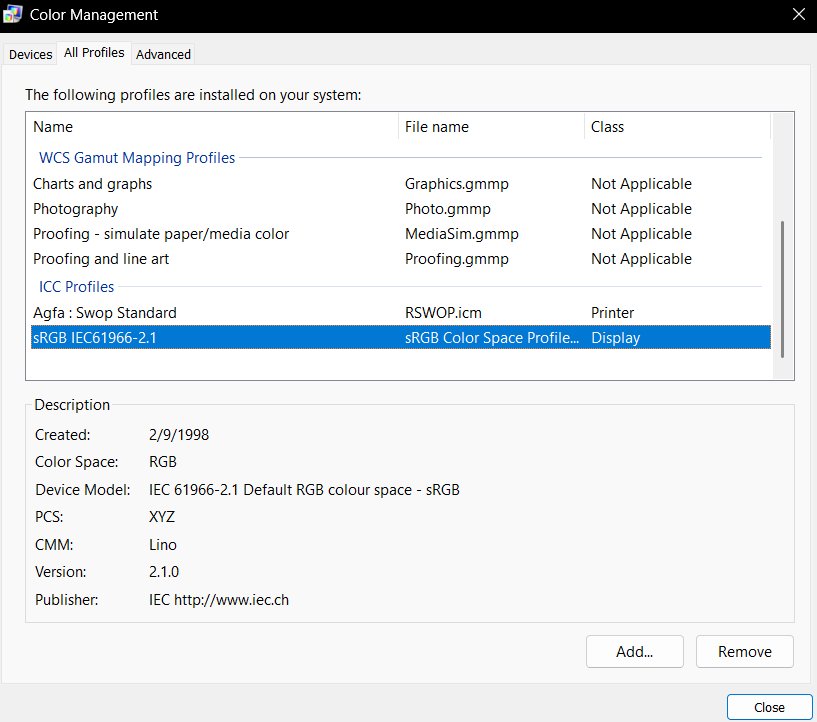
- Open Control Panel and select Color Management.
- Select the All Profiles tab.
- Select the profile created by the calibration.
- Select Remove and confirm.
- Open Settings > System > Display > Color profile and select Set profile on the display maker's profile.
- Restart apps or the PC to clear the old calibration from open windows.
To calibrate again from scratch, select Calibrate display on the Color profile page. On an HDR external display, that button sends you to the Windows HDR Calibration app.
How to reset screen color to default with color filters off
Color filters change colors across all of Windows. The list includes Grayscale, Inverted, Grayscale inverted, Red-green and Blue-yellow.
- Press Windows logo key + U to open Accessibility settings.
- Select Color filters.
- Turn the Color filters switch off.
- Turn off the keyboard shortcut for color filters on the same page if a filter keeps switching on by accident.
- If the screen still looks tinted, select Screen tint under Vision and turn it off.
When the shortcut is turned on, Windows logo key + Ctrl + C toggles color filters on and off, which is the usual cause of a screen that suddenly turns grey.
Turn off Night light to return to default display color
- Select the Network or Speakers icon on the right side of the taskbar.
- Select Night light in Quick Settings to turn it off.
- To stop it coming back, open Settings > System > Display > Night light.
- Turn off Schedule night light.
- If you want Night light but less tint, leave it on and drag Strength to the left.
If you still want warmer evenings, you can schedule Night light for set hours instead of leaving it on. A greyed-out Night light switch can mean the display driver needs an update.
Reset HDR color settings in Windows 11
HDR changes how standard (SDR) apps look on the same screen. A wrong brightness balance makes the desktop look washed out or too bright.
- Open Settings > System > Display and select the HDR display at the top.
- Turn HDR off to return to standard color, or select HDR to open its page.
- To keep HDR, drag SDR content brightness (external display) or HDR content brightness (built-in display) until standard apps look normal.
- On a laptop, expand the HDR section and clear Turn off HDR when my PC is running on battery if colors look under-saturated after restarting on battery.
- Restart any app whose colors still look too bright and desaturated.
For HDR, ICC and HDMI range problems in more depth, fix washed-out Windows 11 colors one cause at a time.
Restore default display settings in Windows 11
Resolution, scale and orientation are not color settings, but a wrong resolution often looks blurry or stretched. Windows marks the default for each one as (Recommended).
- Open Settings > System > Display and select the display at the top.
- Under Scale & layout, open the Scale list and choose the option marked (Recommended).
- In the Display resolution row, choose the option marked (Recommended).
- In Display orientation, choose the orientation Windows recommends.
Restore default colors in Windows 10 display
- Select Start > Settings > System > Display and turn Night light off. Open Night light settings and turn off Schedule night light.
- Go to Settings > Ease of Access > Color filters and turn off Turn on color filters. Older Windows 10 versions call this page Color & high contrast.
- On an HDR display, open Settings > System > Display > Windows HD Color settings and turn off Use HDR.
- Open Control Panel > Color Management, select the All Profiles tab, and Remove any profile you added.
- To recalibrate, type calibrate display color in the Settings search box and follow the steps.
- Restart the PC.
How to restore background color to default in Windows 11
The desktop background, taskbar and accent colors are Personalization settings, not display color. A theme resets them together.
- Open Settings > Personalization > Themes.
- Select one of the default themes that come with Windows to apply its background, colors and sounds.
- For colors only, open Settings > Personalization > Colors.
- Under Choose your mode, pick Light, Dark or Custom.
- Set Accent color to Automatic to let Windows pick it from your background, or choose one under Windows colors.
How to check display color settings in Windows 11
- Open Settings > System > Display and confirm Night light shows Off and HDR matches what you want.
- Select Color profile and check which profile is the default for the selected display.
- Open Settings > Accessibility and confirm both Color filters and Screen tint are off.
- Open a photo you know well, full screen, and compare skin tones and whites with how they looked before.
- On a second monitor, select that display at the top of Display settings and repeat, because HDR and color profiles are set per display.
Changed resolution, now black screen on Windows 11
The screen went black right after you picked a new resolution
The display cannot show the resolution or refresh rate you chose, or the graphics driver stopped responding.
- Press Windows + Ctrl + Shift + B to reset the graphics driver. A beep or a brief flicker means it worked.
- Press Windows + P, then press P again and Enter to cycle through PC screen only, Duplicate and Extend in case the picture moved to another display.
- If the screen stays black, force the PC off during startup until Windows recovery appears.
- Select Troubleshoot > Advanced options > Startup Settings > Restart, then press F5 for Safe Mode with Networking.
- In Safe Mode, open Settings > System > Display, choose the (Recommended) option under Display resolution, and restart normally.
Black screen every time the PC starts after the resolution change
A faulty or incompatible display driver keeps loading the bad mode.
- Start in Safe Mode with Networking as above.
- Open Device Manager and expand Display adapters.
- Right-click the graphics adapter and select Update driver, or open Properties > Driver and select Roll back driver if the problem began after a driver update.
- Restart and set the (Recommended) resolution again.
Grey screen after update in Windows 11 [fix]
Everything on the screen turned grey or black and white
The Grayscale color filter is on, often switched on by the Windows logo key + Ctrl + C shortcut.
- Press Windows logo key + Ctrl + C once to toggle color filters off.
- If nothing changes, open Settings > Accessibility > Color filters.
- Turn the Color filters switch off.
- Turn off the shortcut on that page so it cannot switch on by accident.
A grey or blank screen appears after a Windows update
Microsoft links this to an incompatible display driver or an incomplete update.
- Press Windows + Ctrl + Shift + B to reset the graphics driver.
- If the screen stays grey, start in Safe Mode with Networking from Troubleshoot > Advanced options > Startup Settings.
- Open Device Manager, expand Display adapters, open the adapter's Properties > Driver tab and select Roll back driver.
- If rolling back does not help, run System Restore and choose a restore point from before the update.
- Once the screen works, update the graphics driver from the PC or GPU maker.
Over-saturated colors on my main monitor in Windows 11
Reds, greens and skin tones look too vivid on a wide-gamut monitor
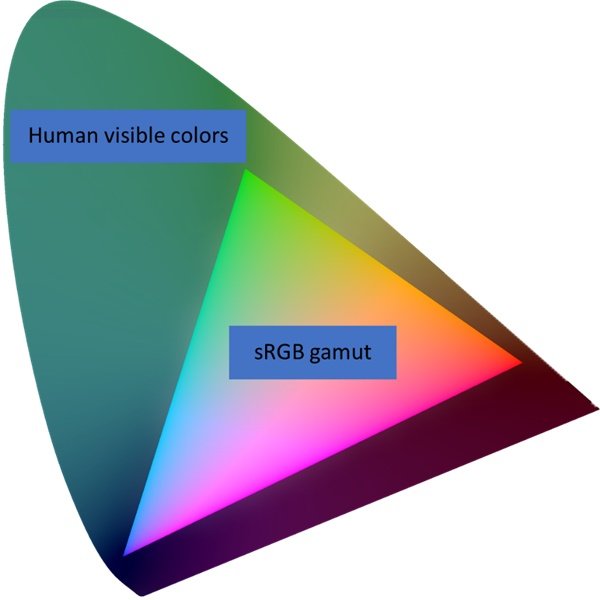
Without color management, Windows treats app content as sRGB, and a wide-gamut monitor shows sRGB red as its own most saturated red.
- Open Settings > System > Display > Color profile and select the main monitor.
- Turn on Automatically manage color for apps if the page offers it.
- If it does not, install the monitor maker's ICC profile with Add profile and select Set profile on it.
- Or switch the monitor to its sRGB picture mode from the monitor's own menu.
The main monitor has a strong red or orange cast
Night light is on, and on HDR displays it can tint content red.
- Open Settings > System > Display > Night light.
- Select Turn off now, or drag Strength to the left.
HDR games and video look unnatural and over-saturated after calibration
The Color saturation slider in the Windows HDR Calibration app was moved right of its default left position.
- Open Control Panel > Color Management and select the All Profiles tab.
- Select the HDR calibration profile and select Remove.
- Run the Windows HDR Calibration app again and leave the color saturation slider at its default left position.
Restore default display color settings FAQ
How do I restore default display settings?
Open Settings > System > Display, select the display, and choose the options marked (Recommended) for Scale and Display resolution. Set Display orientation to the one Windows recommends. A rotated external monitor must also be physically turned to match.
How do I reset screen color to default?
Turn off Night light under Settings > System > Display, then turn off Color filters under Settings > Accessibility. If colors are still wrong, remove any custom profile on the Color profile page and set the display maker's profile as the default.
How do I return to default display color after calibrating?
Calibration saves a new color profile. Remove it from Control Panel > Color Management > All Profiles, then select Set profile on the display maker's profile under Settings > System > Display > Color profile, and restart your apps.
How do I restore background color to default?
Open Settings > Personalization > Themes and apply one of the default Windows themes. That resets the desktop background, window colors and sounds together. For accent color only, go to Personalization > Colors and set Accent color to Automatic.
How do I restore default colors in Windows 10?
Turn off Night light in Settings > System > Display, turn off color filters in Settings > Ease of Access > Color filters, and remove added profiles in Control Panel > Color Management > All Profiles. Restart the PC afterwards.
Is there one button to reset display colors to default?
No. Windows 11 has no single color reset. Night light, color filters, Screen tint, HDR and color profiles each go back separately, and the monitor's own menu has its own reset for brightness, contrast and picture mode.
How do I change display colors back to default on an external monitor?
Select the external monitor at the top of Settings > System > Display and reset its HDR and color profile there, because both are set per display. Then use the monitor's menu buttons to run its built-in reset.