Steam Workshop is Valve's free hub inside the Steam Community where players discover, subscribe to, create and share mods, maps and items for games that support it, and Steam downloads every subscribed item into the game for you.
Below is how to open it, how to judge a mod before you subscribe, how to upload and share your own item, how visibility works, and how to fix items that will not download.
How to access Steam Workshop?
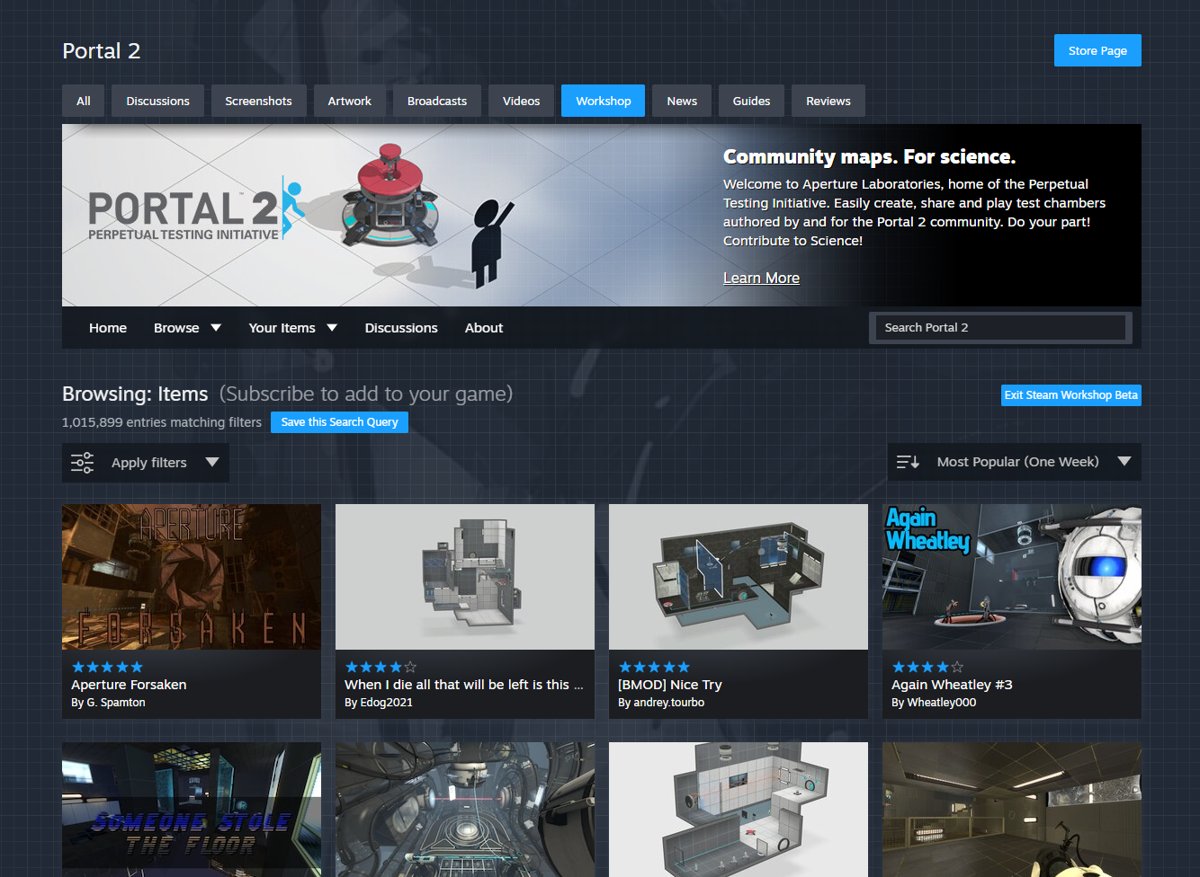
Every game with Workshop support has its own Workshop page in its Steam Community hub. You can reach it from the Steam client for PC or from a browser at steamcommunity.com/workshop.
- Open Steam and sign in with the account that owns the game.
- Open the game's Community hub and select the Workshop tab, or go to
steamcommunity.com/workshopand pick the game under Browse All Workshops. - Select Browse to see items, then sort by a list such as Most Popular (One Week) or pick a category.
- Open an item and select Subscribe.
- Launch the game; Steam downloads the item and the game loads it.
Only games whose developer turned on Workshop have a Workshop tab. If you do not see it, the game has no Workshop.
What is the Steam Workshop?
Valve describes the Workshop as a central hub of player-created content and the tools to publish, organise and download that content into your games. Each game decides how it uses the Workshop.
| Question | Answer |
|---|---|
| Where it lives | The Steam Community, at steamcommunity.com/workshop, with one Workshop per supported game |
| How big it is | Over 3,000 games with Workshop enabled and over 50 million uploaded items, according to Valve |
| Who makes the content | Members of the Steam community, using tools the game developer provides |
| Ready-to-use Workshop | Anyone can upload, and players subscribe to items directly; authors can update their items at any time (Skyrim mods, Cities: Skylines assets) |
| Curated Workshop | Items go into a voting queue and the developer accepts the ones added to the game (Team Fortress 2 hats and weapons) |
| Cost | Subscribing to free items costs nothing; some ready-to-use Workshops sell paid items, and Steam handles payments to authors |
| Updates | Steam keeps subscribed items up to date and downloads new versions when the game launches |
Is the content on the Steam Workshop any good?
Quality varies, because anyone with an eligible account can upload to a ready-to-use Workshop. Each item page gives you enough signals to judge a mod before you subscribe.
| Item page signal | Where to find it | What it tells you |
|---|---|---|
| Ratings | Star rating and count under the item title | How other players rate it overall |
| Current Subscribers | Stats box on the right | How many players use it right now |
| Change Notes | Tab above the description | Whether the author still updates it, and which game versions it supports |
| Comments and Discussions | Tabs above the description | Reports of crashes, conflicts and fixes from other players |
| Posted and File Size | Details box on the right | How old the upload is and how much it adds to your download |
| Collections | "See all collections" link | How many curated mod lists include it |
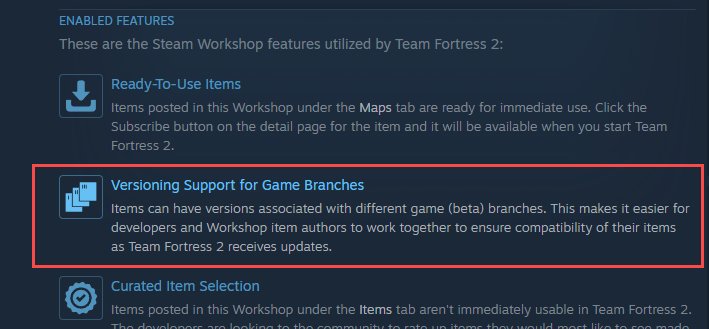
If a game developer turns on game branch versions, an item can list the game versions it works with. Steam then downloads the newest item version that matches your game build.
How to upload a mod to Steam Workshop
Workshop items are uploaded through each game's own tool rather than a website form. The uploader sits inside the game, in its official mod tools, or in a separate editor app listed in your Steam library.
- Read the game's Workshop About page for the item types, file formats and rules it accepts.
- Install the game's official mod tools or editor if it has them, and build your item.
- Open the game's uploader and choose the content folder and a preview image.
- Enter a title, a description and any tags the game offers, then choose a visibility.
- Submit the item; the uploader creates its Workshop page.
- Open that page in Steam and accept any agreement it shows, or the item stays hidden.
- To update the item later, upload again from the same tool and add a change note.
Uploading needs a full licence for the game. Valve blocks Workshop uploads from copies borrowed through Family Sharing or played in a Free Weekend.
Can anyone add content to the Steam Workshop?
Anyone can browse and subscribe, but submitting content has conditions on your account and on the game.
| Requirement | Details |
|---|---|
| Account is not limited | Steam blocks Workshop submissions and Workshop voting until the account has spent at least $5.00 USD in the Steam store |
| You own the game outright | Family Sharing and temporary licences such as Free Weekends cannot upload |
| The game supports Workshop | Only games whose developer enabled Workshop accept items |
| The game's uploader | Content goes through the game's own tool, not a website form |
| Agreement accepted | By submitting an item or accepting a revenue share, you agree to Valve's legal terms; unaccepted items stay hidden |
| Curated games | Your item enters a voting queue and the developer decides whether it goes into the game |
To lift the limited-account block, add $5 or more to your wallet; you can redeem a Steam Wallet code worth at least that amount. Receiving a gift from a friend does not count.
Steam Workshop item visibility: public, friends-only, hidden and unlisted
| Visibility | Who can see the item | Use it for |
|---|---|---|
| Public | Everyone | Releasing a finished mod to all players |
| Friends-only | Your Steam friends | Testing with a small group |
| Hidden (private) | Only you, the creator | Taking an item down; Valve calls this the closest thing to deleting it through the API |
| Unlisted | Anyone with the link, but it does not appear in search, browse lists or other users' lists | Sharing a mod privately with a link |
How to share a Steam Workshop mod with friends
- Open the item's Workshop page.
- Select Share to get a link to the item.
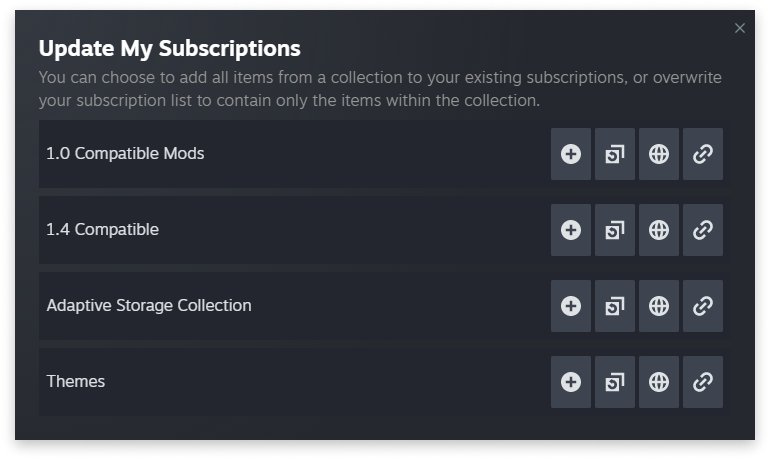
- Select Add to Collection to group it with other items into a collection you can share as one link.
- For your own item, set the visibility to Unlisted or Friends-only if you do not want it in public lists.
- Send the link; friends open it and select Subscribe.
In multiplayer games that support it, the game can download a custom map from the Workshop for friends who join your match, even if they have not subscribed.
How to remove Steam Workshop items and unsubscribe from mods
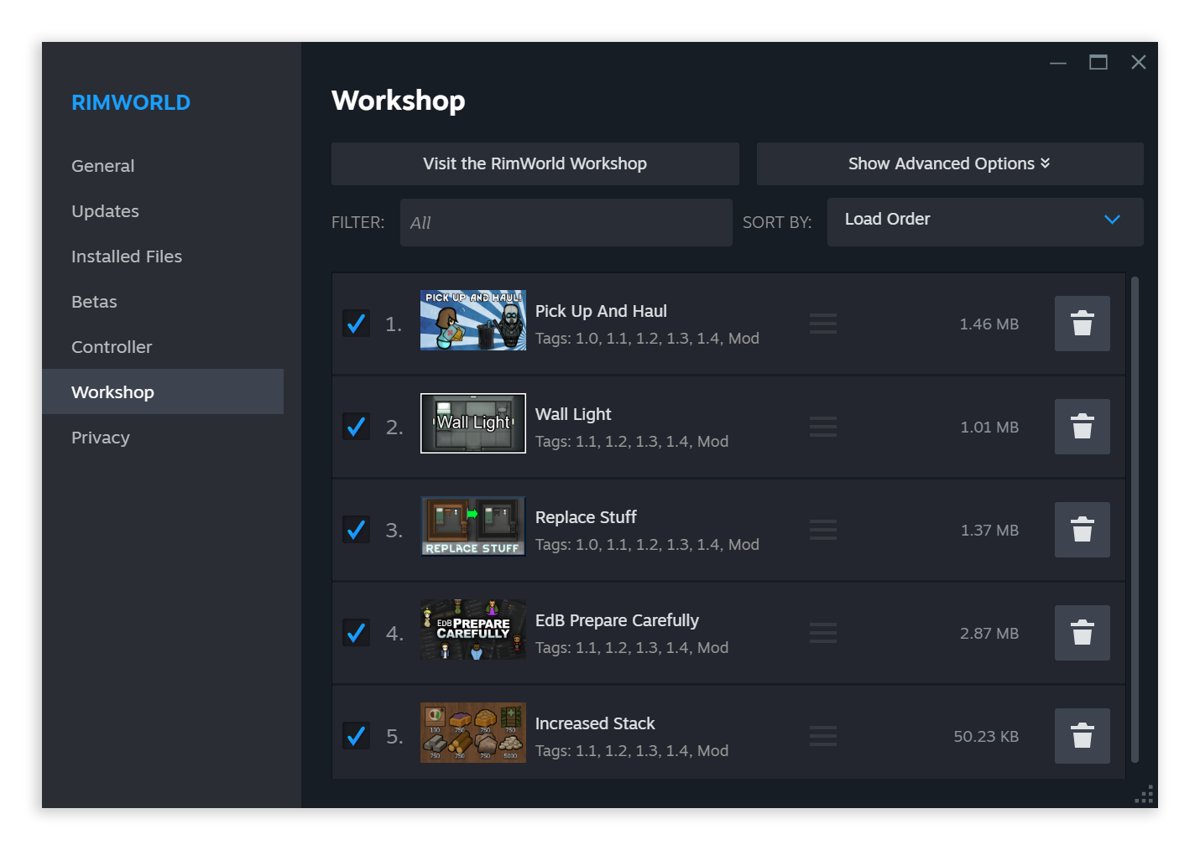
Unsubscribing removes the item from your game after you quit it. Your saved games may still expect the mod, so remove it between sessions rather than mid-playthrough.
- Open the game's Workshop page, select Your Items and open your list of subscribed items.
- Open the item you want to remove.
- Select the subscribe button again to unsubscribe; it switches back to Subscribe.
- Quit the game if it is running; Steam removes the item after the game closes.
- To pull your own upload, change its visibility to hidden so only you can see it.
Steam Workshop mods not downloading or not working
Subscribed item does not download
Workshop downloads run through the Steam client when the game launches, and new subscriptions download after the game starts.
- Launch the game once; updated items install before it starts and new items download in the background.
- Open the Steam Downloads page and look for the Workshop download banner.
- Wait for earlier subscriptions to finish, because items download in the order you subscribed.
- If downloads crawl, speed up slow Steam downloads and try again.
Game crashes or content is missing after subscribing
A mod file is incomplete, or the item does not support your game version.
- Restart the PC and open Steam.
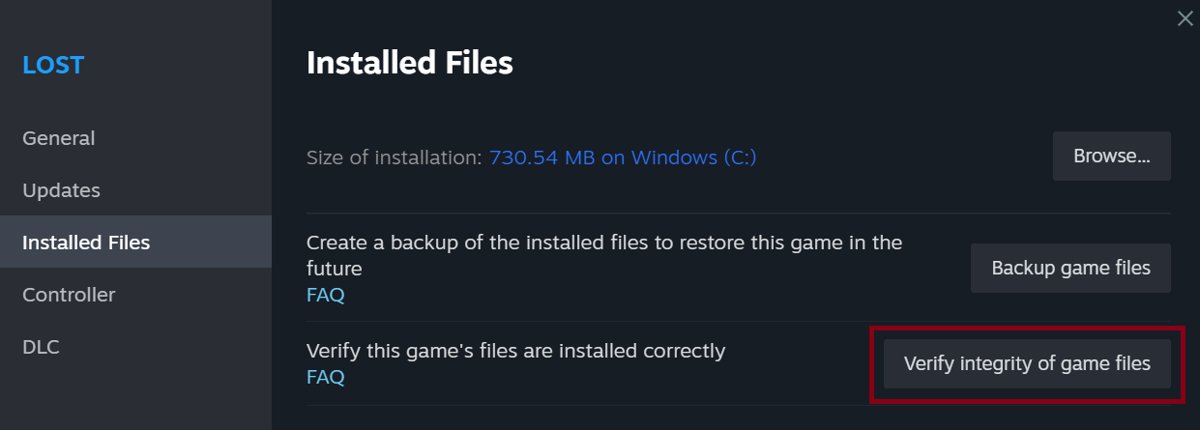
- Right-click the game in your Library and select Properties.
- Select Installed Files, then Verify integrity of game files; this also re-downloads Workshop items.
- Check the item's Change Notes for the game versions it supports, and unsubscribe from items that are out of date.
Your uploaded item does not appear in the Workshop
The item is hidden until you accept the agreement, or its visibility is not Public.
- Open the item's page from the game's uploader or from Your Items.
- Accept any agreement shown at the top of the page.
- Change the visibility to Public and save.
You cannot upload, vote or post in Workshop discussions
The account is limited, or the game came through Family Sharing or a Free Weekend.
- Spend at least $5.00 USD in the Steam store, or add that much to your Steam Wallet.
- Buy the game on your own account if you only borrowed it.
- Try the upload again from the game's tool.
Upload or download fails with no clear error
Steam records Workshop transfers in its own log files.
- Open the Steam installation folder.
- Read
logs\Workshop_log.txtfor download and install errors. - For uploads, read the
workshopbuilds\depot_build_<appid>.logfile for that game.
Is the Steam Workshop worth it?
Yes, for any game that supports it: the Workshop is free to browse, installs and updates mods for you, and removes them cleanly when you unsubscribe. Manual modding means downloading files from third-party sites and copying them into game folders yourself. The Workshop keeps everything inside Steam, shows ratings and change notes before you commit, and gives creators a built-in way to publish, update and, in some games, earn from their work.
Steam Workshop FAQ
Where is Steam Workshop?
Steam Workshop is part of the Steam Community. Open a supported game's Community hub in Steam and select the Workshop tab, or visit steamcommunity.com/workshop in a browser and choose the game under Browse All Workshops.
How do I use Steam Workshop?
Open the game's Workshop, browse or search for an item, open it and select Subscribe. Steam downloads the item when you launch the game and keeps it updated. Select the button again to unsubscribe when you no longer want it.
How do I remove an item from Steam Workshop?
Open the item's page and select the subscribe button again so it reads Subscribe. Steam removes the item after the game quits. If you created the item, set its visibility to hidden so that only you can see it.
Are Steam Workshop mods free?
Most are. Subscribing to a free item costs nothing, but some ready-to-use Workshops sell paid items, and curated items can be sold in-game. For paid items, Steam handles the purchase, the payments to authors and developers, and tax withholding.
Can I make and upload my own Steam Workshop mod?
Yes, if the game supports Workshop and you own a full copy on an account that has spent at least $5.00 USD. Build the item with the game's official tools, then submit it through the game's own uploader.
Can I share a Steam Workshop mod with friends only?
Yes. Set your item's visibility to Friends-only so only your Steam friends see it, or to Unlisted so anyone with the link can open it while it stays out of search and browse lists.