To generate a battery health report on Windows 11 or Windows 10, open Command Prompt as administrator, type powercfg /batteryreport and press Enter; Windows saves an HTML report and prints its location.
This guide covers the steps on both versions, the command's output and duration options, what every part of the report means, and how to turn its numbers into a battery health percentage.
Generating a battery report in Windows 11
The battery report is built into Windows through the powercfg command-line tool, so there is nothing to install. Microsoft's own steps run it from an elevated Command Prompt.
- Select Start and type Command prompt.
- Right-click Command Prompt and choose Run as administrator, then select Yes.
- Type
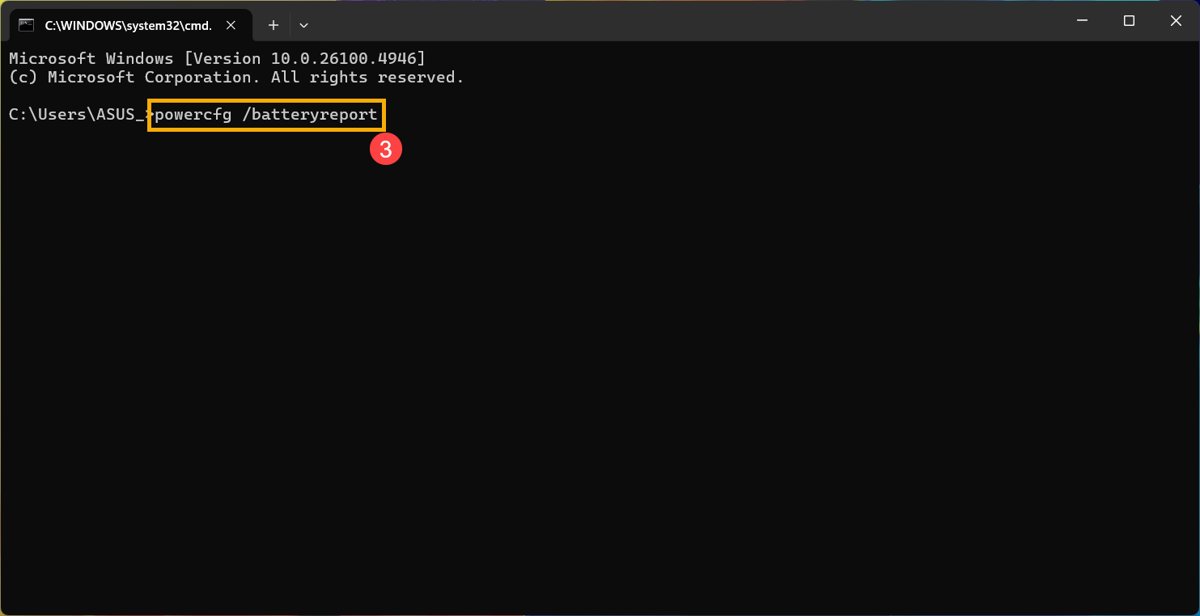
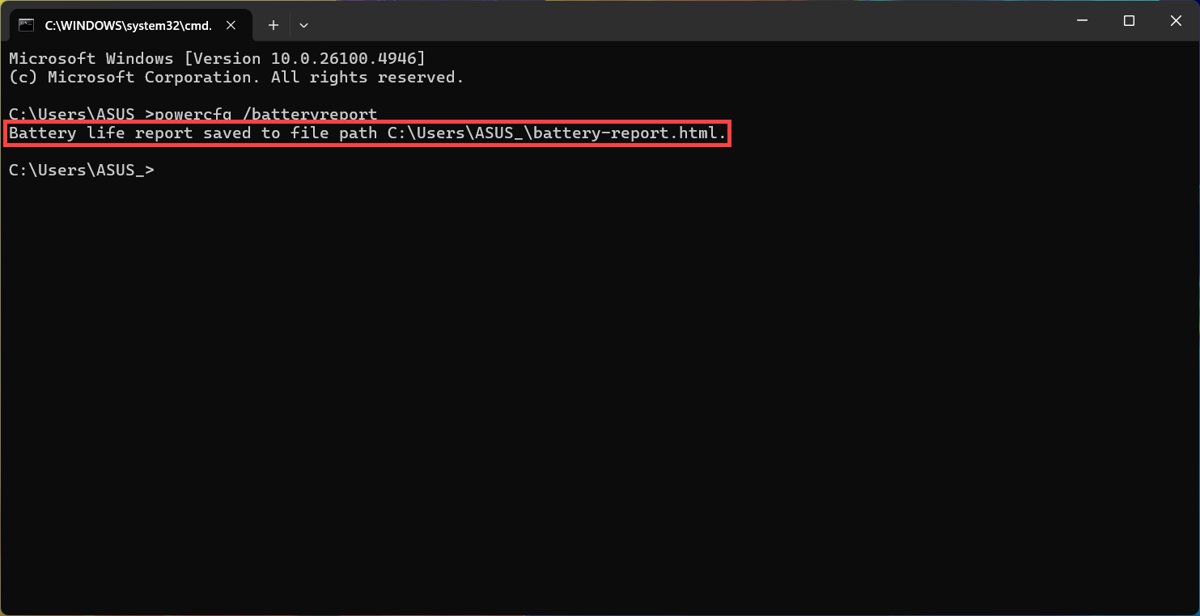
powercfg /batteryreportand press Enter. - Note the file path that Command Prompt prints once the report is saved.
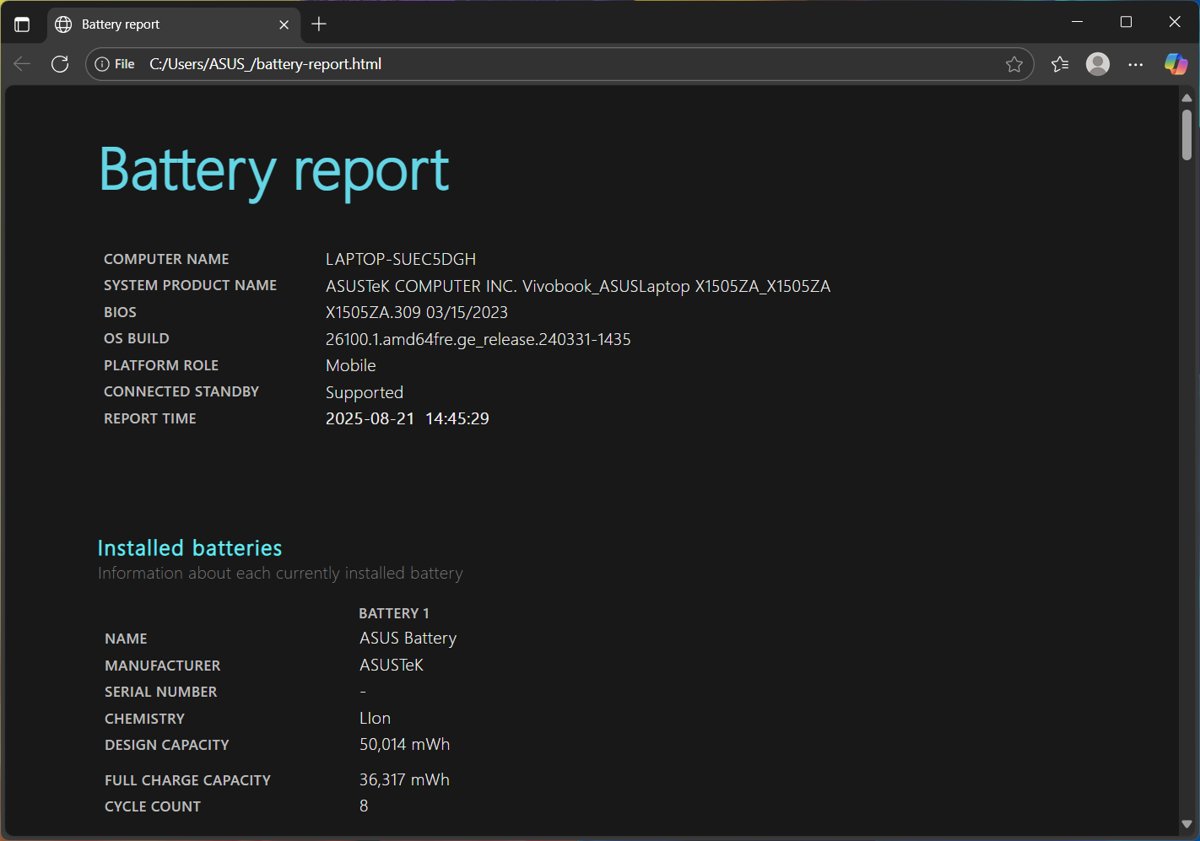
- Open File Explorer, go to that folder and double-click the battery report HTML file.
- Read the report in your web browser; it opens like any local web page.
The report is a snapshot of the moment you ran it. Run the command again whenever you want fresh figures.
Generating a battery report in Windows 10
The command is identical on Windows 10 because powercfg ships with both versions. Only the way you reach an elevated prompt looks slightly different.
- Select the search box on the taskbar and type cmd.
- Right-click Command Prompt in the results and select Run as administrator.
- Select Yes in the User Account Control prompt.
- Type
powercfg /batteryreportand press Enter. - Copy the saved file path shown in the window.
- Paste the path into the File Explorer address bar and press Enter to open the report.
Windows 10 reached end of support on October 14, 2025, but the battery report still works on it exactly as before.
Powercfg /batteryreport output location and duration options
Without options, powercfg /batteryreport writes the HTML file to the folder the prompt is currently in. Use /output to choose the folder and file name, so you never have to hunt for it.
powercfg /batteryreport /output "%USERPROFILE%\battery-report.html"/output sets the path and file name of the HTML report. /output file_name /xml saves the report as XML instead, and /duration days sets how many days the report analyses, for example powercfg /batteryreport /duration 4.
You should see: Command Prompt prints the saved file path, and battery-report.html appears in your user folder.
In PowerShell or Windows Terminal, write the same path as "$env:USERPROFILE\battery-report.html", because PowerShell does not expand %USERPROFILE%.
Why battery health matters
Lithium-ion cells lose capacity after repeated charge and discharge cycles. A worn battery holds less charge than it did new, so it runs out sooner and needs charging more often.
| What wears down | What you notice | Where the report shows it |
|---|---|---|
| Full charge capacity drops below design capacity | Shorter time between charges | Installed batteries and Battery capacity history |
| Cycle count rises with use | Gradual, steady loss of runtime | Installed batteries (when the battery reports it) |
| Heavy apps or settings drain power faster | Runtime is short even on a healthy battery | Recent usage and Battery usage |
| Severe deterioration | Very short runtime or a visibly swollen battery | Not in the report: stop using the device if the battery expands |
Navigating the battery report
The report is one long HTML page split into sections. Microsoft suggests starting with Installed batteries, Recent usage and Battery usage, then moving on to the history and estimates further down.
| Section | What it covers | Use it to |
|---|---|---|
| Installed batteries | Each battery in the PC with its design capacity, full charge capacity and cycle count | Work out current battery health |
| Recent usage | Power states over the last 72 hours | See when the PC was active, asleep or charging |
| Battery usage | Battery drains over the last 72 hours | Spot periods of unusually fast drain |
| Usage history | A longer history of battery use | Compare time on battery against time plugged in |
| Battery capacity history | Changes in charge capacity going back several months | See how fast capacity is falling |
| Battery life estimates | Estimated runtime based on the PC's actual history | Compare today's runtime with the battery's design runtime |
Basic information & battery specifications
The Installed batteries table holds the numbers that matter most for battery health. Capacities are shown in milliwatt-hours (mWh).
| Field | Meaning | What to look for |
|---|---|---|
| Design capacity | The energy the battery could hold when it was new | The fixed reference value for health |
| Full charge capacity | The energy the battery holds on a full charge today | Lower than design capacity on any used battery |
| Cycle count | How many times the battery has discharged 100% of its capacity, added up across sessions | Rises over time; 50% + 30% + 20% on three days counts as one cycle |
| Missing values | Some batteries do not report every field, such as cycle count | A blank or missing field is a firmware limit, not a fault |
Recent usage and battery drain
These two sections cover the last 72 hours. They record power states and battery drains even while the PC was not actively in use, such as during sleep.
| What you see | What it tells you | What to do |
|---|---|---|
| Steady small drops while asleep | Normal standby drain | Nothing |
| Large drops while asleep or with the lid closed | Something keeps the PC busy in standby | Run powercfg /sleepstudy on Modern Standby PCs to find the cause |
| Fast drain during active use | Apps or settings using a lot of power | Check Settings > System > Power & battery > Battery usage |
| Charge rising while on AC power | The battery is charging as expected | Nothing |
Battery capacity history
This table tracks full charge capacity against design capacity over several months. The trend matters more than any single row.
| Pattern | What it means |
|---|---|
| Full charge capacity close to design capacity | The battery is healthy |
| A slow, steady decline over months | Normal ageing of lithium-ion cells |
| A sharp drop between two periods | Faster wear, often from heat or long periods at full or empty charge |
| Capacity below roughly 70% of design | Runtime is noticeably shorter; replacement becomes worth considering |
Battery life estimates
Windows estimates runtime from how the PC has actually been used, not from a lab test. Read the estimates alongside the capacity figures above them.
| Comparison | What it shows |
|---|---|
| Full charge runtime close to design runtime | Battery wear is not the reason for short runtime |
| Full charge runtime well below design runtime | Lost capacity is shortening your runtime |
| Short runtime on a battery with high capacity | Power-hungry apps or settings are the likely cause |
| No estimate shown | There is not enough battery drain data yet, common on new or mostly plugged-in PCs |
How to check battery health percentage in Windows 11
The report does not print a health percentage, but two of its numbers give you one. This is the same calculation Microsoft uses for Surface batteries.
- Open the battery report and scroll to Installed batteries.
- Note the Full charge capacity value in mWh.
- Note the Design capacity value in mWh.
- Divide full charge capacity by design capacity and multiply by 100.
- Read the result as your battery health, for example 42,000 / 50,000 = 84%.
Subtract the result from 100 to get the wear level. A battery at 84% health has a wear level of 16%.
How to interpret the data
Microsoft publishes two sets of thresholds: one for Surface battery replacement and one in Intune's battery health report for business devices. Together they give a practical scale.
| Battery health | What it means | Suggested action |
|---|---|---|
| 80% or higher | Little practical capacity loss | Keep using it and follow good charging habits |
| 70% to 80% | Moderate wear; runtime is shorter than new | Watch the capacity history for a faster decline |
| Below 70% | Wear level above 30%; Microsoft offers Surface replacement at this point | Consider a battery replacement from the PC maker |
| Below 60% | Intune treats this as most impacted | Plan a replacement, especially if runtime is under 3 hours |
Battery health report in Intune Endpoint analytics
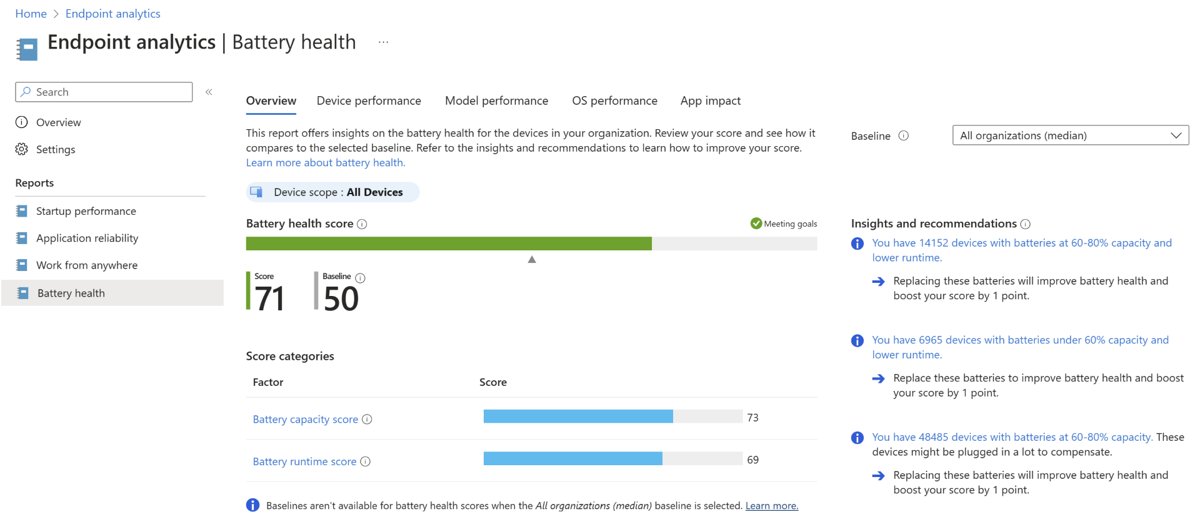
IT admins can see battery health for every managed laptop instead of running the command on each one. The report is part of Intune Advanced Analytics and scores capacity and runtime from 0 to 100.
- Sign in to the Microsoft Intune admin center.
- Select Reports > Endpoint analytics > Battery health.
- Open the Device performance tab and sort by Max capacity.
- Select a device to see its runtime trend, cycle count and top battery-draining apps from the last 14 days.
- Use the App impact tab to find apps that drain batteries across the organisation.
Powercfg /energy vs powercfg /batteryreport
Powercfg has several reports, and each answers a different battery question.
| Command | What it reports | Use it when |
|---|---|---|
powercfg /batteryreport |
Battery usage and capacity over the lifetime of the system | You want battery health and runtime history |
powercfg /energy |
Common energy-efficiency and battery life problems | Settings or devices may be wasting power |
powercfg /sleepstudy |
Modern Standby quality over the last three days | The battery drains while the PC sleeps |
powercfg /systemsleepdiagnostics |
Sleep transitions while you were away, last three days | The PC does not sleep when it should |
Pro tips for prolonging battery life
Battery capacity loss cannot be reversed, but these habits from Microsoft slow it down and stretch each charge. You can also customize Windows 11 battery settings for longer runtime.
- Keep the charge between roughly 20% and 80% where you can, and avoid frequent deep discharges.
- Turn on Smart charging if your PC offers it, so the battery stays at a healthier level while plugged in.
- Avoid using or charging the laptop in high temperatures.
- Store an unused laptop at about 40–60% charge in a cool, dry place.
- Select Start > Settings > System > Power & battery > Energy recommendations and select Apply all.
- Set Energy saver to turn on automatically at a battery level you choose.
- Open Battery usage on the same page and limit background activity for apps that drain the battery.
Screen timeout and sleep timing also matter; you can tune Windows 11 power and sleep settings to cut idle drain.
When to replace a laptop battery based on the battery report
Replace the battery when health falls below about 70% and the shorter runtime affects your day, or immediately if the battery swells. Below 70% the wear level is over 30%, which is where Microsoft offers Surface battery replacement. A swollen battery is a safety risk: stop using the device, do not press on or puncture it, and contact the manufacturer.
If the battery stops charging or drains in minutes rather than hours, work through these laptop battery draining and charging fixes before you buy a replacement.
Windows battery report FAQ
Where is the battery report saved in Windows 11?
The battery report is saved as an HTML file in the folder Command Prompt was in when you ran the command. Command Prompt prints the full path right after it saves the file. Add /output with a path to save it somewhere you choose.
Do I need administrator rights to run powercfg /batteryreport?
Microsoft's instructions run powercfg /batteryreport from Command Prompt opened with Run as administrator. Use an elevated prompt so the command can save the report and read all battery data without permission errors.
What is a good battery health percentage for a laptop?
A laptop battery at 80% health or higher has little practical capacity loss. Between 70% and 80% runtime is noticeably shorter, and below 70% Microsoft offers Surface battery replacement. Calculate health by dividing full charge capacity by design capacity.
What does cycle count mean in the battery report?
Cycle count is how many times the battery has discharged 100% of its capacity in total, not in one session. Discharging 50% one day, 30% the next and 20% on the third adds one cycle.
Why is cycle count missing from my battery report?
Cycle count is missing when the battery does not report it to Windows. This depends on the battery and its firmware, so a blank cycle count is not a sign of a faulty battery.
How far back does the Windows battery report go?
Recent usage and battery drains cover the last 72 hours. Usage history and battery capacity history go back several months. Add /duration followed by a number of days to set how many days the report analyses.
Can I save the battery report as XML?
Yes. Run powercfg /batteryreport /output "battery-report.xml" /xml to save the report as XML instead of HTML. XML is useful when you want to process the figures with a script or another tool.
Does generating a battery report change any settings?
No. powercfg /batteryreport only reads battery and usage data and writes a report file. It does not change power plans, charging behaviour or any other setting, so you can run it as often as you like.
Can I check battery health without Command Prompt?
Settings > System > Power & battery shows the battery level and per-app battery usage, not capacity. Surface owners can use the Surface Diagnostic Toolkit, which lists designed capacity, current capacity and wear level.