To troubleshoot an iPhone, restart it first, force restart it if it is frozen, then install the latest iOS update, because those three steps clear most app, connection and performance problems.
This guide covers each step in order, symptom-by-symptom fixes for connection, app, charging and Find My problems, how to check for an Apple outage, and when recovery mode or service is the answer.
How to troubleshoot iPhone: basic steps in order
Work down this list and test the problem after each step. Stop as soon as the iPhone behaves normally again.
- Quit the app that misbehaves: open the App Switcher, swipe to the app, then swipe up on it, and reopen it.
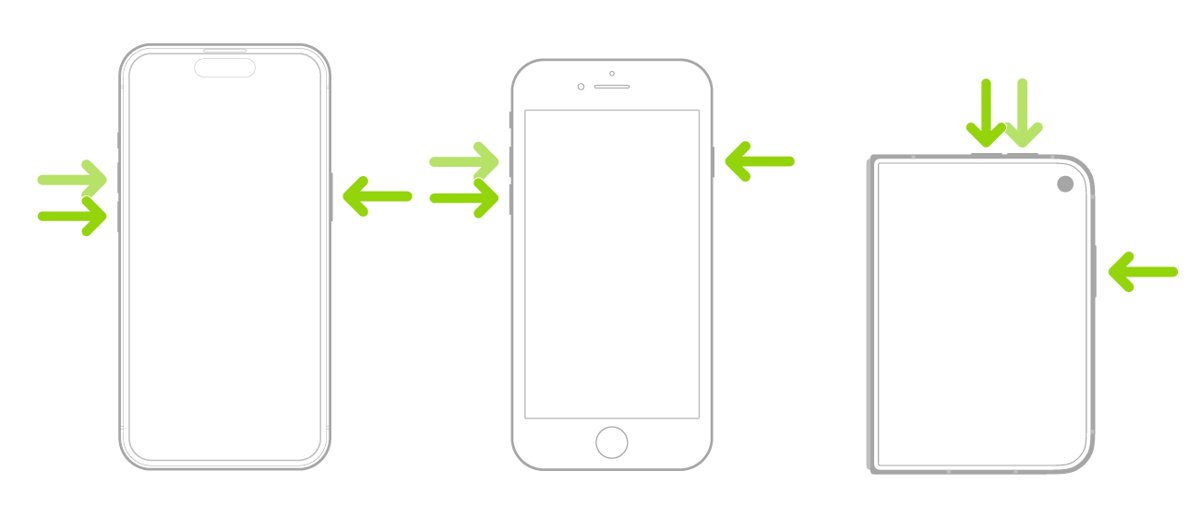
- Restart the iPhone: press and hold the side button and either volume button until the power-off slider appears, drag it, wait 30 seconds, then hold the side button until the Apple logo appears.
- If the screen does not respond, force restart the iPhone: press and release volume up, press and release volume down, then hold the side button until the Apple logo appears.
- Open Settings > General > Software Update and tap Download and Install if an update is listed.
- Open the App Store, tap your profile icon, then tap App Updates to update apps.
- Open Settings > General > iPhone Storage and clear space if the bar is nearly full.
- If the problem continues, download the latest Apple Support app on iOS 18 or later to run additional diagnostics.
Back up the iPhone before any reset in the later sections. Restarts and updates keep your data and settings unchanged.
Common issues with iPhone and the first fix for each
Find your symptom, apply the first fix, and move to the second only if the first fails.
| Symptom | First fix | If that fails |
|---|---|---|
| An app freezes, closes or will not open | Quit and reopen the app | Update the app, then delete and redownload it |
| The screen is frozen or unresponsive | Force restart | Charge for one hour and force restart again |
| Screen is black or the iPhone will not turn on | Force restart, then charge for one hour | Check the charger and cable, then arrange service |
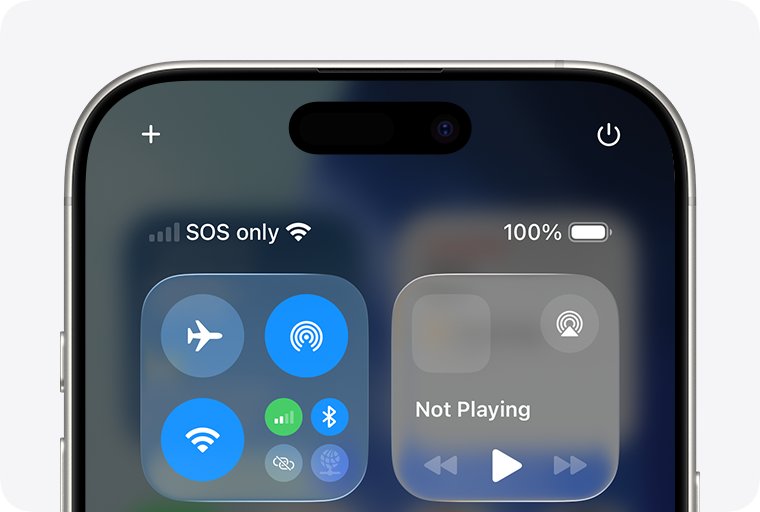
| SOS, No Service or Searching in the status bar | Turn Airplane Mode on for 15 seconds, then off | Restart, update carrier settings, contact the carrier |
| Cannot connect to Wi-Fi | Check Wi-Fi is on and Airplane Mode is off | Restart the router, then Reset Network Settings |
| Storage Almost Full alert | Follow the recommendations in iPhone Storage | Offload or delete large apps and videos |
| Device missing or offline in Find My | Check iCloud sign-in and network connection | Turn on Set Automatically for date and time |
| Stuck on the Apple logo or Connect to computer screen | Force restart | Update or restore in recovery mode |
How to back up iPhone before you reset or restore it
Resets and restores can remove settings or data. An iCloud backup takes a few taps and lets you recover everything afterwards.
- Open Settings, tap your name, tap iCloud, then tap iCloud Backup.
- Turn on Back Up This iPhone.
- Connect to Wi-Fi and tap Back Up Now.
- Wait for the backup to finish before you reset anything.
- To back up to a Mac instead, connect the iPhone with a cable, select it in the Finder sidebar, click General, then click Back Up Now.
iCloud also backs up automatically each day while the iPhone is connected to power, locked and on Wi-Fi.
How to restart iPhone by model
A normal restart closes everything cleanly. The button combination depends on whether your iPhone has Face ID or a Home button.
- On iPhone X, 11, 12, 13 or later, press and hold either volume button and the side button until the power-off slider appears.
- On iPhone 6, 7, 8 or SE (2nd or 3rd generation), press and hold the side button until the slider appears.
- On iPhone SE (1st generation), 5 or earlier, press and hold the top button until the slider appears.
- Drag the slider, then wait 30 seconds for the iPhone to turn off.
- Press and hold the side button, or the top button on older models, until you see the Apple logo.
How to force restart a frozen iPhone
Use a force restart when the screen will not respond and the power-off slider cannot be used. It does not erase any content.
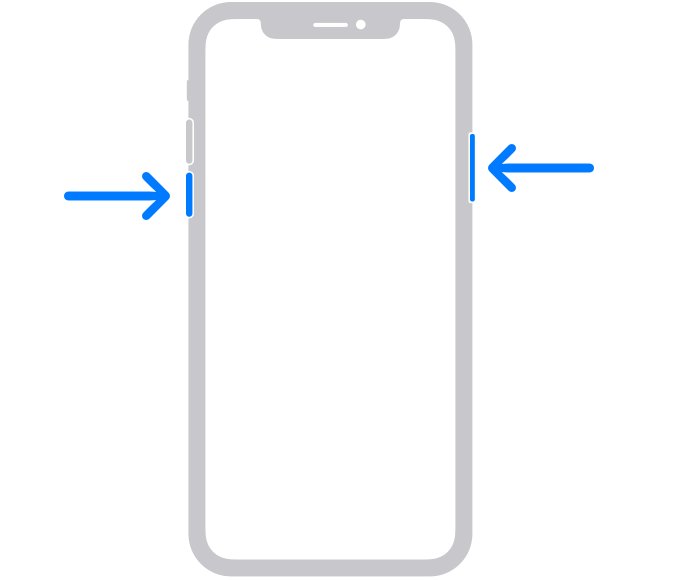
- Press and quickly release the volume up button.
- Press and quickly release the volume down button.
- Press and hold the side button.
- Release the side button when the Apple logo appears; this can take longer than 10 seconds.
- If nothing appears, charge the iPhone for one hour and try again.
If the iPhone shows a low-charge battery image, check the cable and adapter, then charge for 30 minutes or until it starts.
How to update iOS to fix iPhone problems
Updates fix bugs and keep your data and settings unchanged. If the update itself stalls or fails, fix common iOS update problems and try again.
- Open Settings and tap General.
- Tap Software Update to see the installed version and any available update.
- Tap Download and Install, then follow the onscreen instructions.
- To stay current, tap Automatic Updates and turn on Automatically Install.
- If the iPhone cannot update over the air, connect it to a Mac, select it in the Finder, click General, then click Check for Update.
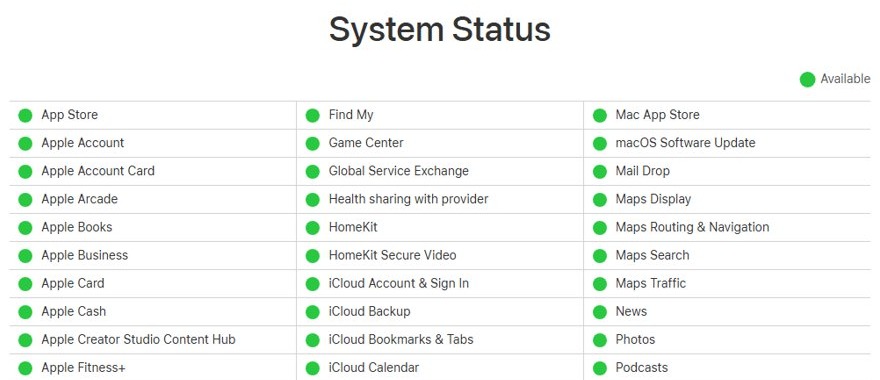
Is iPhone having issues today? Check Apple System Status
When iCloud, the App Store, Find My or Apple Account sign-in fails for everyone at once, the fault is on Apple's side, not on your iPhone.
- Open apple.com/support/systemstatus in any browser.
- Find the service that fails, such as iCloud Account & Sign In, App Store or Find My.
- A green circle marked Available means the service is working, so continue troubleshooting the iPhone.
- Any other status means Apple is reporting a problem; wait for it to clear before resetting anything.
- For calls, texts and cellular data, contact your carrier, because Apple's page does not cover carrier networks.
Why is my iPhone having connection problems
SOS, No Service or Searching in the status bar
The iPhone is not connected to your carrier's network; SOS still allows emergency calls.
- Open Settings, turn on Airplane Mode for at least 15 seconds, then turn it off.
- Restart the iPhone.
- Open Settings > General > About on Wi-Fi and install a carrier settings update if offered.
- With Dual SIM, open Settings > Cellular, tap the line and tap Turn On This Line if it is off.
- When traveling, open Settings > Cellular > Cellular Data Options and turn on Data Roaming.
- Contact your carrier to confirm the account is active and there is no outage in your area.
iPhone cannot connect to Wi-Fi
Wi-Fi is off, Airplane Mode is on, or the router or saved network settings are at fault.
- Open Settings > Wi-Fi, make sure Wi-Fi is on and tap the network name; a blue checkmark confirms the connection.
- Make sure Airplane Mode is off.
- Check whether other devices can join the same network.
- Restart the router and modem by unplugging them and plugging them back in.
- If the router has separate bands, join the 5 GHz network instead of 2.4 GHz, or the reverse.
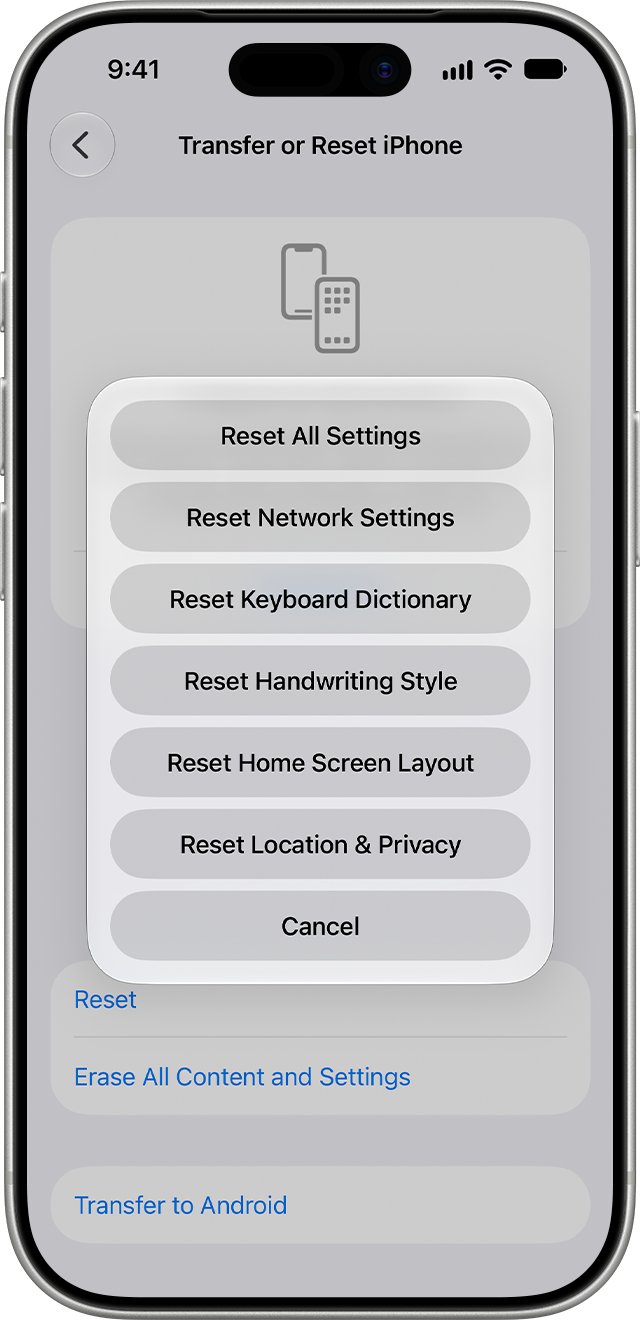
- As a last step, open Settings > General > Transfer or Reset iPhone > Reset > Reset Network Settings.
The Wi-Fi setting is dimmed or grayed out
A software state blocks the Wi-Fi radio from turning on.
- Restart the iPhone.
- Open Settings > Wi-Fi and check whether the switch responds.
- If it stays dimmed, update iOS and contact Apple if the problem remains.
Why is my iPhone not working properly
An app stops responding, closes unexpectedly or will not open
A bug in the app or a stuck app process.
- Quit the app from the App Switcher, then reopen it.
- Restart the iPhone and open the app again.
- Open the App Store, tap your profile icon, tap App Updates and update the app.
- Delete the app and download it again; data stored only in the app may be lost.
- If it still fails, contact the app's developer.
iPhone screen is black or the iPhone will not turn on
The battery is fully drained or the system is frozen.
- Force restart the iPhone.
- Charge it for one hour, then force restart again.
- If a low-battery image appears, charge for up to 10 minutes before use; the display can stay blank for up to 2 minutes at first.
- If it still will not turn on, arrange service with Apple.
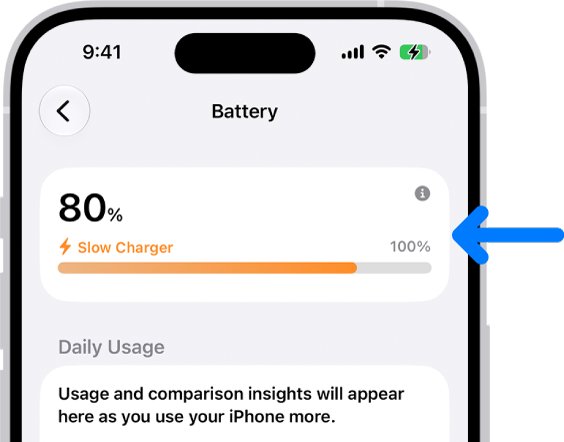
iPhone charges slowly or not at all
A low-power charger, a computer that is off, heat, or liquid in the port.
- Open Settings > Battery and look for a Slow Charger message.
- Use a power outlet adapter instead of a keyboard USB port or a computer that is turned off.
- Let a hot iPhone cool, because charging pauses at extreme temperatures and resumes on its own.
- If you suspect liquid in the port, do not plug in the cable until you dry out an iPhone that won't charge after water.
Storage Almost Full alert or the iPhone feels slow
Too little free space for apps, updates and temporary files.
- Open Settings > General > iPhone Storage.
- Tap Show All under recommendations and tap Enable on the ones you want.
- Tap a large app and choose to offload it, which keeps its documents and data, or delete it.
- Remove large videos you no longer need.
Find My iPhone troubleshooting
iPhone does not appear in Find My
Find My is not set up, or the device uses a different Apple Account.
- Open Settings; if you see Sign in to your iPhone, tap it and sign in with your Apple Account.
- Make sure every device uses the same Apple Account.
- Check that the iPhone has a Wi-Fi or cellular connection, then turn Airplane Mode on and off.
- Open Settings > General > Date & Time and turn on Set Automatically.
- Restart the iPhone.
Find My shows Offline or No location available
The device is off, out of battery or not on a known network, or Send Last Location expired after 24 hours.
- Charge and turn on the device, then connect it to Wi-Fi or cellular data.
- Use Play Sound, a lock request or erase from Find My anyway; the device receives the command once it is back online.
- If the device was sold or given away, erase it in Find My, then remove it from your account.
How to reset iPhone settings without losing data
When problems survive restarts and updates, a settings reset removes a bad configuration while keeping your photos, apps and messages.
| Reset option | What it resets | Data deleted? |
|---|---|---|
| Reset All Settings | Network, keyboard dictionary, location, privacy settings and Apple Pay cards | No data or media |
| Reset Network Settings | Wi-Fi networks and passwords, cellular, VPN and APN settings; device name returns to iPhone | No data or media |
| Reset Location & Privacy | Location Services and privacy settings | No data or media |
| Reset Home Screen Layout | Built-in apps return to their original layout | No data or media |
| Erase All Content and Settings | Everything on the iPhone | Yes, all content is removed |
Open Settings > General > Transfer or Reset iPhone > Reset and choose an option. Do not tap Erase All Content and Settings unless you have a backup and mean to wipe the iPhone.
iPhone stuck on Apple logo: restore in recovery mode
Use recovery mode when the Apple logo stays for several minutes with no progress bar, the Connect to computer screen appears, or the computer reports recovery mode. Restore erases the iPhone, so try Update first.
- Update your Mac, or install the latest Apple Devices app on a Windows PC.
- Connect the iPhone to the computer with a USB cable and open the Finder or the Apple Devices app.
- On iPhone 8 or later, press and release volume up, press and release volume down, then hold the side button until the Connect to computer screen appears.
- Locate the iPhone on the computer and choose Update when the Update or Restore options appear.
- If updating fails, choose Restore, which reinstalls iOS and erases all data.
- If the download takes more than 15 minutes and the iPhone leaves recovery mode, let it finish, then repeat the button steps.
- Set up the iPhone and restore your backup.
If recovery mode will not work, or a button is broken or sticks, the iPhone needs service from Apple.
iPhone troubleshooting FAQ
How do I troubleshoot my iPhone?
Restart it, force restart it if the screen is frozen, then install the latest iOS and app updates. If the problem continues, free up storage, reset settings, and run diagnostics in the Apple Support app on iOS 18 or later.
Why is my iPhone having connection problems?
The usual causes are Airplane Mode, a carrier outage or account issue, an outdated carrier settings file, or a faulty router. Toggle Airplane Mode, restart, check for a carrier settings update, then reset network settings as a last step.
What is wrong with my iPhone?
Match the symptom first: an app crash points to the app, No Service points to the carrier, and a black screen points to a frozen system or drained battery. The Apple Support app on iOS 18 or later can run diagnostics.
Why is my iPhone not working properly?
Most slowdowns and glitches come from a stuck app, missing updates or nearly full storage. Quit the app, restart the iPhone, update iOS, and clear space in Settings > General > iPhone Storage before trying a settings reset.
Is there a problem with iPhone today?
Check apple.com/support/systemstatus. It shows whether Apple services such as iCloud, the App Store, Find My and Apple Account sign-in are available. Carrier outages are not listed there, so contact your carrier for calls and data.
Is iPhone having issues today?
If several people see the same iCloud or App Store failure at once, look at Apple System Status. A green Available marker means Apple's service is working and the problem is on your device or network.
Is there an iPhone issue I can fix without a computer?
Yes, most of them. Restarts, force restarts, iOS updates, storage cleanup and settings resets all run on the iPhone itself. Only recovery mode and some restores need a Mac or a Windows PC.
Does Reset All Settings delete data on iPhone?
No. Reset All Settings returns network, keyboard, location, privacy and Apple Pay settings to their defaults but deletes no data or media. Only Erase All Content and Settings removes your content.