If your apps didn't transfer to your new phone, open the App Store or Google Play while signed in to the same account and reinstall them from your purchase list at no extra cost.
This guide covers new iPhones set up with Quick Start or an iCloud backup, moves between Android and iPhone, new Android phones, and the fixes for apps that stay greyed out or never appear.
How to redownload apps on a new iPhone
Your App Store purchase history follows your Apple Account, not the old phone, so every app you ever downloaded can be installed again without paying twice.
- Open the App Store app on the new iPhone.
- Tap the My Account button or your photo at the top of the screen.
- Tap Apps & Purchase History, then tap Your Apps.
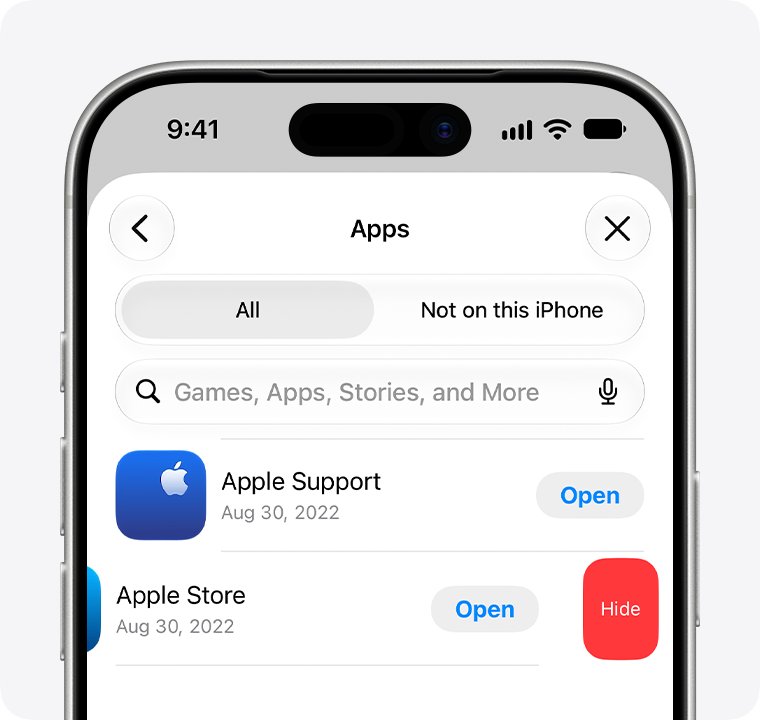
- Tap Not on this iPhone to list apps you own that are missing from this phone.
- Tap the Redownload button next to each app you want back.
If the list is empty or an app is missing from it, the app was probably bought with a different Apple Account, hidden, or is no longer sold. The troubleshooting section below covers each case.
Why didn't my apps transfer to my new phone?
Match what you see on the new phone to a row, then use the fix in the last column.
| What you see | Likely reason | What to do |
|---|---|---|
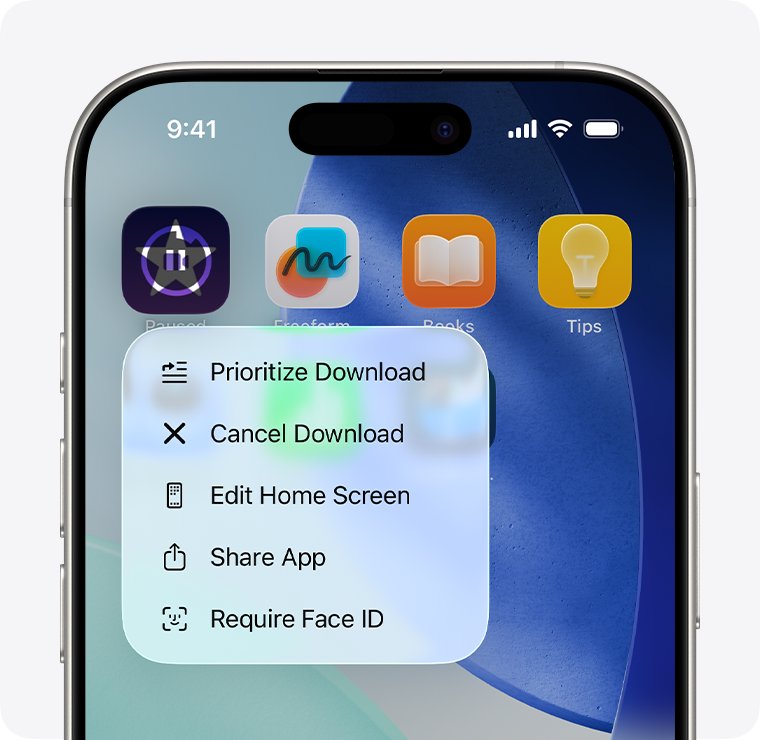
| App icons are greyed out or show a progress circle | You chose to download from iCloud during Quick Start, so apps install in the background after setup | Stay on Wi-Fi and power, or touch and hold an app and choose Prioritize Download |
| No apps at all after an iCloud restore | The restore is still running, or you skipped the Apple Account sign-in that restores purchases | Check Settings > [your name] > iCloud > iCloud Backup for a restore in progress |
| Some apps are missing, others arrived | Those apps were bought with another Apple Account, are hidden, or are no longer in the App Store | Sign in with the other account, unhide the purchase, or look for a replacement app |
| Apps installed but you are logged out or the data is gone | Some third-party apps keep their data on their own servers, not in iCloud Backup | Sign in to the app with its own account so it can download your data again |
| Moved from Android to iPhone and most apps are missing | Move to iOS only matches some free apps that exist on both stores | Download the iPhone versions from the App Store |
| Moved from iPhone to Android and paid apps are missing | Purchases do not carry across stores; only free apps with a Google Play version move | Install the Android versions from Google Play and contact the developer about paid apps |
| New Android phone has no apps after setup | The backup was skipped, the restore is still running, or the new phone runs an older Android version | Reinstall from Manage apps & device in Google Play |
How to transfer apps from old iPhone to new iPhone with Quick Start
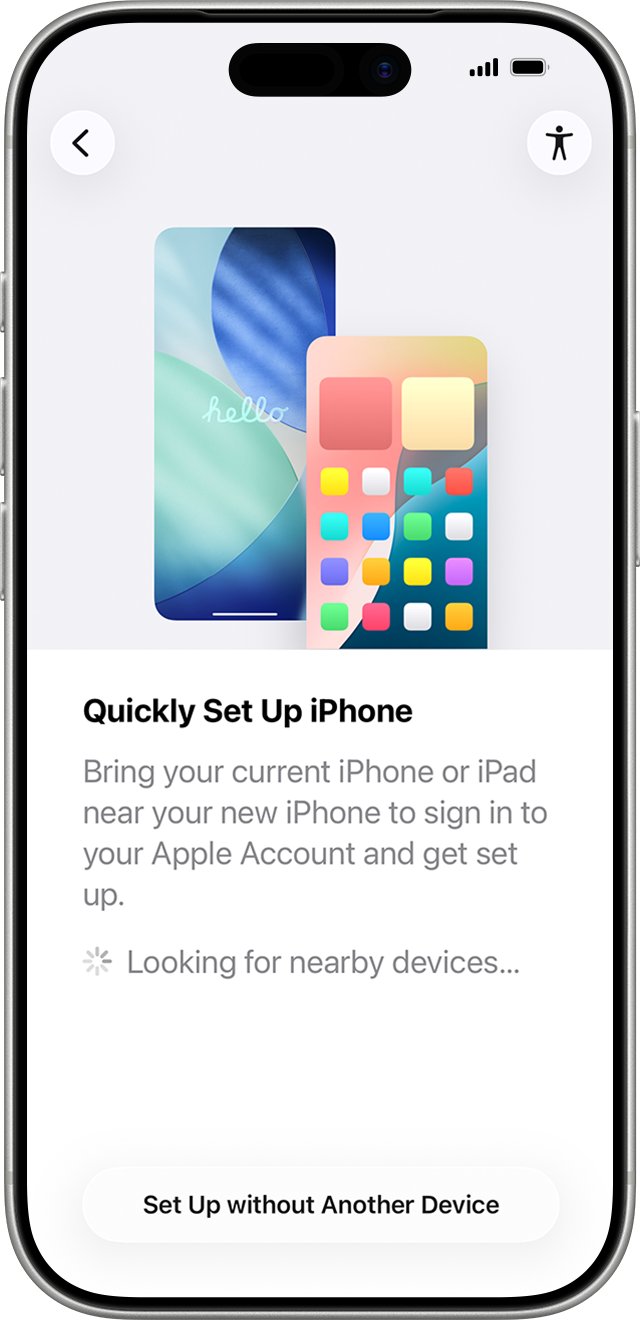
Quick Start copies your apps and data from your current iPhone or iPad running iOS 11 or later. It occupies both devices, so pick a time when you can leave the old phone alone for several minutes.
If your new phone is already set up and the apps never came across, erase it first: go to Settings > General > Transfer or Reset iPhone > Erase All Content and Settings, then run setup again from the start. Your content stays in iCloud when you erase the phone.
- Update both iPhones to the latest version of iOS.
- On the old iPhone, connect to Wi-Fi, turn on Bluetooth, unlock it and go to the Home Screen.
- Turn on the new iPhone and place it next to the old one, then follow the onscreen prompt.
- Connect the new iPhone to Wi-Fi or your cellular network and set up Face ID or Touch ID.
- Choose how to transfer: download from iCloud lets you use the phone right away while apps install in the background; transferring directly from the old iPhone makes you wait until both phones finish.
- Keep both phones next to each other and plugged in to power until the migration completes.
If the setup prompt disappears from the old iPhone or the new iPhone gets stuck on setup mid-transfer, restart both phones and try again. Quick Start does not work on a new device enrolled in Apple School Manager or Apple Business.
How to restore apps from an iCloud backup on a new iPhone
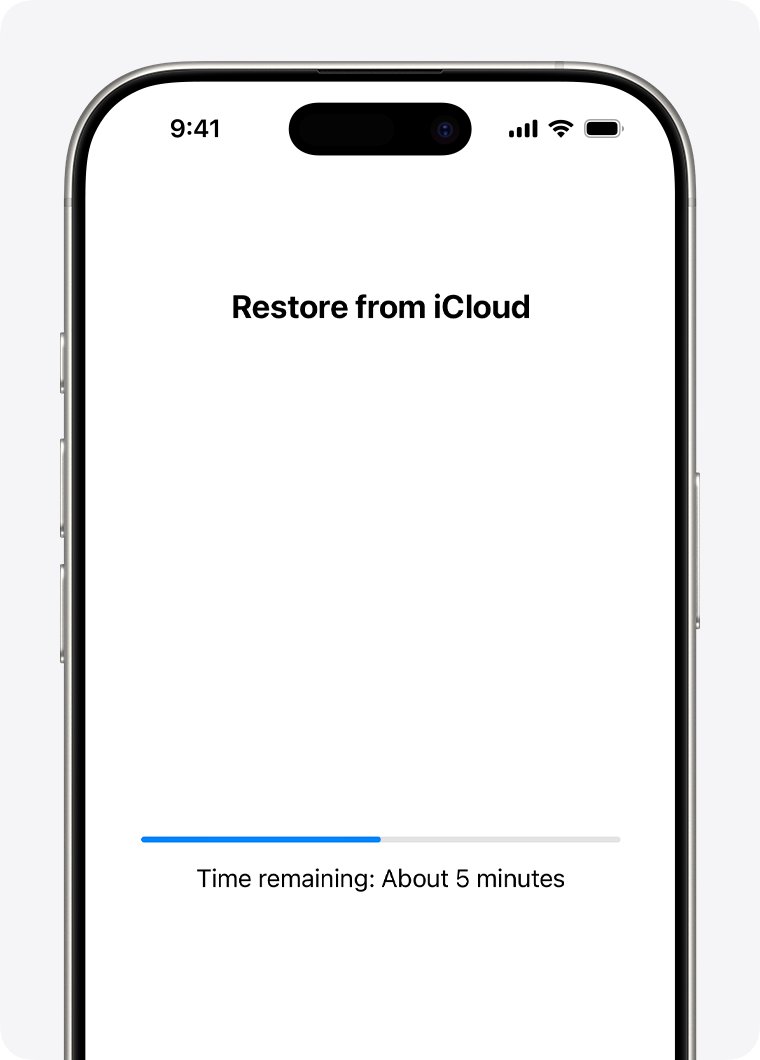
An iCloud backup stores your purchase history, so the restore reinstalls your apps from the App Store after setup. It only works over Wi-Fi; you can't restore from a backup over a cellular connection.
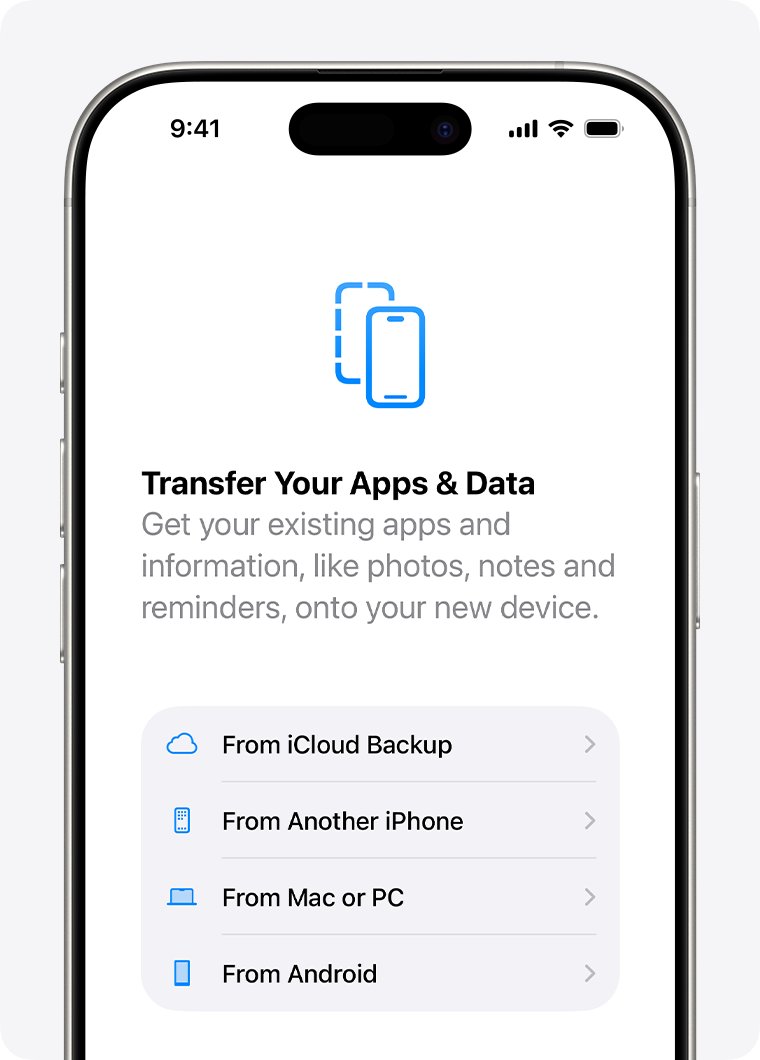
- Turn on the new iPhone and follow the setup steps until you reach the Transfer Your Apps & Data screen.
- Tap From iCloud Backup and sign in to your Apple Account.
- Compare the date and size of each backup and choose the most recent one. Tap Show All if the backup you want is not listed.
- When asked, sign in again to restore your apps and purchases. If you bought apps with more than one Apple Account, sign in to each one.
- Keep the iPhone connected to Wi-Fi and power until the progress bar finishes.
- Finish setup, then leave the phone on Wi-Fi and power while apps, photos and music keep downloading in the background.
Skipping the Apple Account sign-in during step 4 is the most common reason apps never download after a restore. You can still redownload them later from Not on this iPhone in the App Store.
Apps didn't transfer from Android to iPhone with Move to iOS
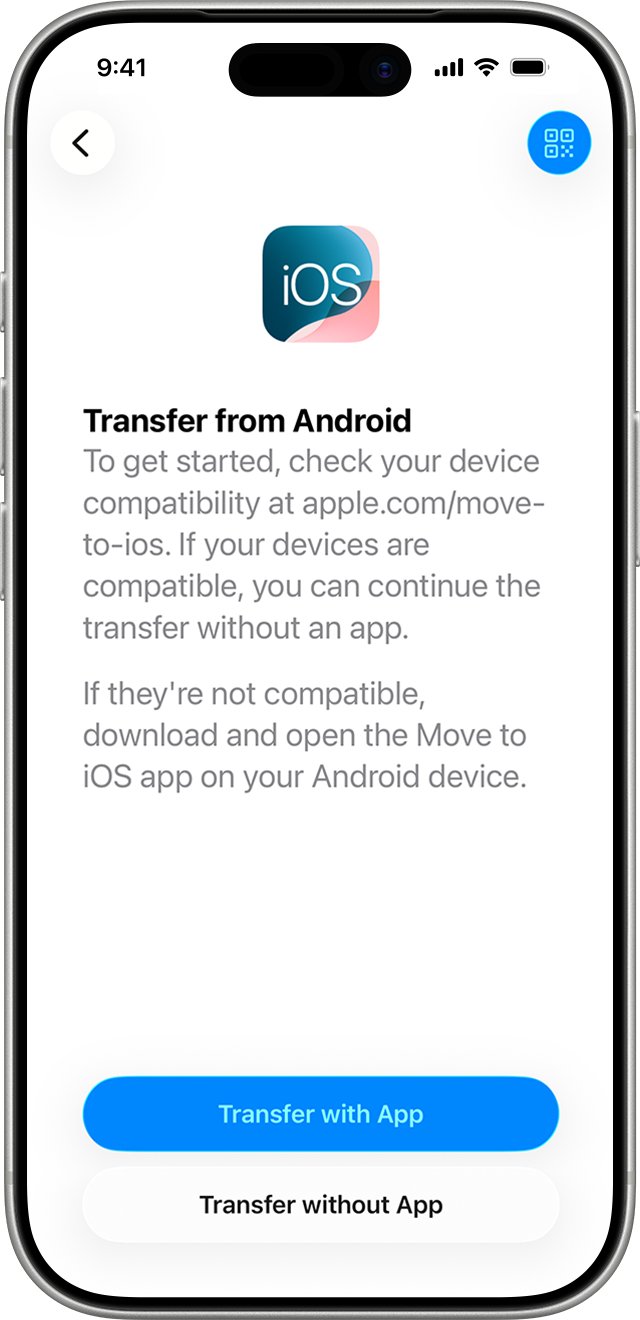
Move to iOS transfers contacts, messages, photos, files, calendars, bookmarks, mail accounts and WhatsApp chats. Apps are a different story: only some free apps that exist on both Google Play and the App Store, and support the transfer feature, come across.
Paid Android apps never move, because a Google Play purchase does not unlock the iPhone version. You have to download or buy each app again from the App Store.
- Finish setup on the iPhone and let the Move to iOS loading bar complete before you touch either phone.
- Open the App Store on the iPhone and download any free apps that were matched during the transfer.
- On the Android phone, open Google Play, tap your profile icon and tap Manage apps & device to list the apps you used.
- Search the App Store for each app by name and tap Get or the price to install it.
- Open each app and sign in with the account you used on Android to bring back its data.
If the transfer stopped part way, keep the Move to iOS app on screen on the Android phone the whole time, turn off Wi-Fi tools such as Smart Network Switch and cellular data, and restart both phones. To rerun the transfer on a set-up iPhone, erase it and start setup again.
How to reinstall apps on a new Android phone from Google Play
Android backs up apps and app data to your Google Account and offers to restore them during setup. A full restore can take up to 24 hours, and the new phone must run the same or a later Android version than the old one, or the transfer may be incomplete.
Apps you bought on Google Play install free on any Android device signed in to the same Google Account.
- Open Google Play on the new phone.
- Tap your profile icon on the right side of the screen.
- Tap Manage apps & device, then tap Manage.
- If an app you own is not listed, tap This device at the top, then tap Not installed.
- Select the apps you want and tap Install.
You can also install apps from a computer: go to play.google.com, find the app, select Install, pick your new phone and select Install again. If Google Play asks you to buy an app again, you are signed in to a different Google Account from the one you bought it with.
Apps not transferring from iPhone to Android
Google's switching tool copies contacts, calendar events, photos, videos and messages from an iPhone. Most free apps move when you transfer with a cable, but only if they are available at no cost in Google Play.
Purchased iPhone apps do not carry over. For a paid app, Google recommends contacting the app developer to ask how to move your purchase.
- Connect the iPhone to the new Android phone with a cable when the Android setup asks how to copy your data.
- Choose the data types you want to copy, such as contacts, photos and messages, and let the copy finish.
- Open Google Play and search for any app that did not appear, then tap Install.
- Sign in to each app with the account you used on the iPhone.
- For a paid app with no free Android version, contact its developer before you buy it again.
Why can't I get to my apps on my new iPhone?
Apps that transferred can still seem missing when they land in App Library instead of on a Home Screen page. App Library shows every installed app, including ones removed from the Home Screen.
- Go to the Home Screen and swipe left past the last Home Screen page to open App Library.
- Tap the search field at the top and type the app name, or scroll the alphabetical list.
- Touch and hold the app until the icons jiggle and the app moves to the Home Screen, then lift your finger.
- To stop new downloads going only to App Library, open Settings > Home Screen & App Library and choose Add to Home Screen.
Hidden Home Screen pages also send new apps to App Library. Touch and hold the wallpaper, tap the dots at the bottom of the screen and add the checkmarks back to show those pages.
How to see which apps are not on this iPhone
The App Store keeps a list of every app your Apple Account owns that is not installed on the phone in your hand. An empty list means everything you own is installed.
- Open the App Store and tap your photo at the top of the screen.
- Tap Apps & Purchase History, then Your Apps.
- Tap Not on this iPhone and scroll the list.
- Open Settings > [your name] > iCloud > iCloud Backup. If you see "This iPhone is currently being restored and will automatically back up when it is done", apps are still on their way.
On Android, the equivalent check is Manage apps & device > Manage > Not installed in Google Play.
Apps not transferring to new iPhone or Android phone
Apps stuck on Waiting or not downloading after the transfer
Apps install from the App Store after setup, and they stall without Wi-Fi, power, a payment method or a working App Store connection.
- Connect the iPhone to Wi-Fi and plug it in to power.
- Touch and hold the stuck app on the Home Screen and choose Prioritize Download.
- Restart the iPhone and check whether the downloads resume.
- Add a valid payment method to your Apple Account; the App Store can require one even for free apps.
- If a message mentions a billing problem with a previous purchase or verification required, resolve your payment method first.
Repeated password prompts during an iCloud restore
Apps were bought with more than one Apple Account, and each account must sign in before its apps restore.
- Enter the password for each Apple Account the iPhone asks for.
- If you don't know a password, tap Skip this Step or Cancel.
- Repeat until the prompts stop.
- Sign in to the other Apple Account in the App Store later to redownload the apps you skipped.
An app is missing from Not on this iPhone
The app was bought with another Apple Account, hidden from the purchase list, made only for another device, or removed from the App Store.
- Sign in to the App Store with the Apple Account that bought the app and check Your Apps again.
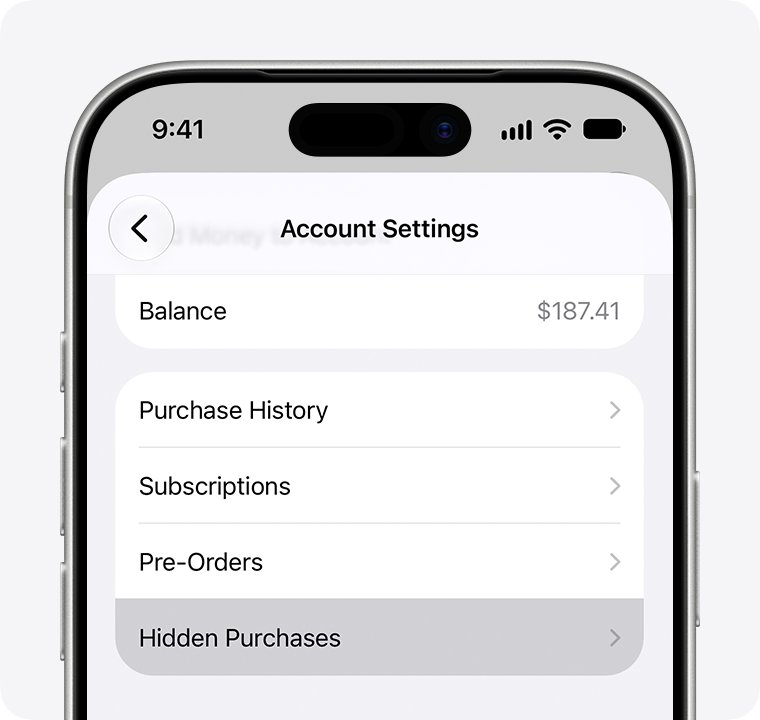
- Tap your photo, tap your name, tap Hidden Purchases, find the app and tap Unhide, then redownload it.
- Check that the app has an iPhone version; an app bought for Mac may not run on iPhone.
- If the app was refunded or pulled from the store, search the App Store for its replacement.
Apps installed but I can't transfer data between apps or old phone data is missing
iCloud Backup and Google backups cover app data only for apps that support it; some third-party apps keep data on their own servers.
- Open the app and sign in with the account you used on the old phone.
- Use the app's own restore or sync option if it has one.
- On Android, contact the developer to learn whether the app supports Google backup.
- If you still have the old phone, keep it until each app's data has moved.
New Android phone restored only some apps
The restore can take up to 24 hours, and restoring onto an older Android version can leave the transfer incomplete.
- Leave the phone on Wi-Fi and power and give the restore time to finish.
- Check that the new phone runs the same or a later Android version than the old one, and update it if not.
- Install the remaining apps from Manage apps & device > Not installed in Google Play.
"This device is associated with another Apple Account"
The iPhone was recently used to download purchases with a different Apple Account.
- Note the number of days in the message.
- Wait until that period ends before you redownload purchases with your account, or sign in with the account the phone is already associated with.
Contacts and photos follow their own rules on a new phone. You can move contacts to the new phone separately, and missing iCloud photos on a new iPhone usually come down to iCloud Photos settings.
Apps not transferring to new phone FAQ
Will my apps transfer to a new phone?
Yes, between two phones of the same kind. Quick Start and iCloud backups reinstall your iPhone apps, and Google backups reinstall Android apps. Between iPhone and Android, only some free apps carry over, and paid apps must be downloaded or bought again in the other store.
How do I transfer apps to a new phone?
On iPhone, use Quick Start or restore an iCloud backup during setup, then sign in to your Apple Account when asked. On Android, restore your Google backup during setup. Either way, missing apps can be reinstalled free from your purchase list in the App Store or Google Play.
Can I transfer apps between phones?
You can transfer apps between two iPhones or two Android phones signed in to the same account. Between iPhone and Android you can't move the apps themselves, because each store sells its own version. Move to iOS and Google's switching tool only match some free apps.
Why can't I get to my apps on my new iPhone?
The apps may still be downloading, or they may be in App Library instead of on a Home Screen page. Swipe left past your last Home Screen page, search App Library for the app, and drag it to the Home Screen. Greyed-out icons mean the download has not finished.
Why didn't my apps transfer to my new iPhone 17?
The model does not change the cause. Apps usually download from the App Store after Quick Start or an iCloud restore, so they need Wi-Fi, power and your Apple Account sign-in. Redownload anything missing from Not on this iPhone in the App Store.
Why didn't my apps transfer to my new Android phone?
The Google backup may have been skipped during setup, the restore may still be running, or the new phone may run an older Android version. Open Google Play, go to Manage apps & device, filter by Not installed and install the apps you are missing.
Why can't I transfer data between apps on my new phone?
Some third-party apps do not keep their data in iCloud Backup or Google backup. They store it on their own servers instead. Sign in to the app with the same account you used on the old phone, or use the app's own transfer or restore feature.