Yes, you can live chat with Microsoft Support: go to support.microsoft.com/contactus or open the Get Help app, describe your problem, select Contact Support and choose chat as your contact method.
This guide covers the web and Get Help routes, callbacks, business admin support, the Microsoft Store sales chat, how to spot a fake support chat, and what to do when the chat option does not appear.
Step by step tutorial: Can I live chat with Microsoft Support?
This route works from any browser on a PC, Mac or phone, and it is the one Microsoft points home users to first. Self-help results appear before the contact options, so expect a short detour.
- Go to support.microsoft.com/contactus in your browser.
- Select Sign in and sign in with the Microsoft account linked to the product. Select Can't sign in if you are locked out.
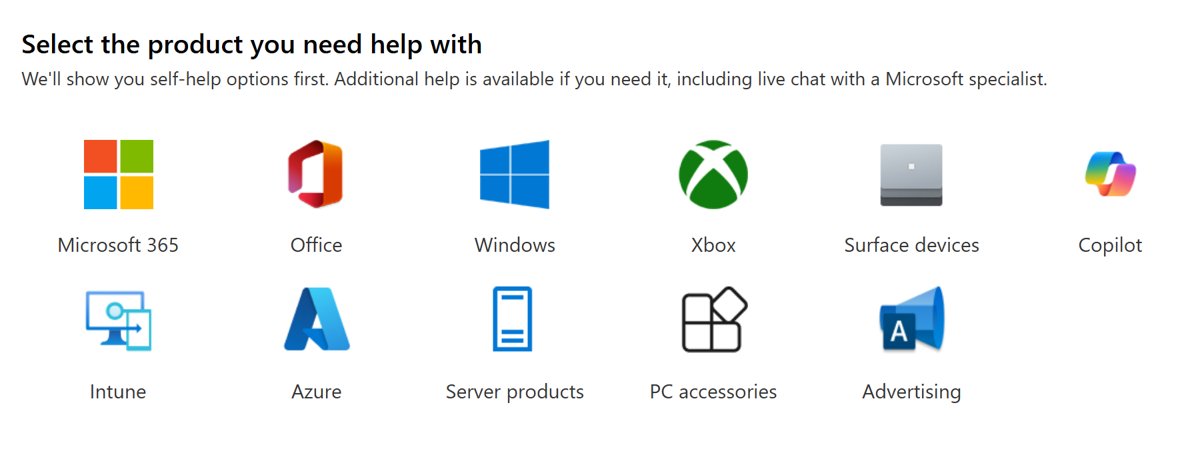
- Select the tile for your product, such as Microsoft 365, Office, Windows or Surface devices. If yours is not listed, select Get help and support under Can't find your product?
- Under Personal & family accounts, select Get Home support.
- Type a short description of the problem and read the self-help results that appear.
- If they do not solve it, select Contact Support, pick the affected product and any extra options, then select Confirm.
- Choose the chat option, confirm your contact details, and wait for the chat window to connect you to an agent.
Chat sits behind self-help on purpose, so the button appears only after you describe the problem. Signing in first also lets Microsoft show the contact options that match your subscription.
Microsoft live chat options
Microsoft runs several separate support desks, and the right one depends on what you bought and who you are. Starting in the wrong place is the most common reason the chat option never appears.
| Your situation | Where to start | Contact methods |
|---|---|---|
| Home user with Windows, Microsoft 365 Personal or Family, Office or Surface | support.microsoft.com/contactus > Get Home support | Chat or callback after self-help |
| Windows PC signed in with a Microsoft personal account | The Get Help app | Chat, callback, or a repair request for hardware |
| Question about buying a Microsoft product | microsoft.com/store | Sales live chat or a regional phone number |
| Microsoft 365 business admin | Microsoft 365 admin center > Help & support | Phone or email request |
| Business user who is not an admin | support.microsoft.com/contactus > Get self-help support | Self-help, or ask your organization's admin |
| Xbox console, games or Game Pass | support.xbox.com contact page | Handled by Xbox Support, not the main support site |
| Azure, Dynamics 365, Intune or server products | The product's own portal, such as the Azure portal's Help + support blade | Service requests in that portal |
How to chat with Microsoft from the Get Help app
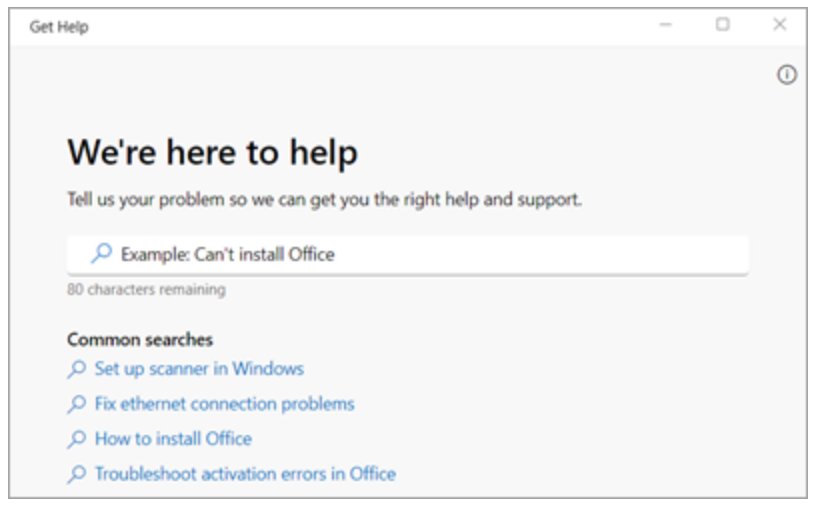
Get Help is built into Windows 11 and Windows 10. It works for people who sign in to Windows with a Microsoft personal account, and it can run a Windows troubleshooter before it offers a person.
- Select Start, type Get Help and open the app.
- Describe the issue in the search box and press Enter.
- Run any troubleshooter or solution it suggests. Many common problems end here.
- If the problem persists, select Contact Support.
- Choose the affected product or service, pick any extra options so the request reaches the right team, then select Confirm.
- Select Chat as the contact method and confirm your contact details.
- Wait for the browser chat window to open and connect you with an agent.
If you cannot sign in to your Microsoft account at all, use Microsoft's sign-in helper first. Support agents cannot send password reset links or change account details for you.
How to request a Microsoft support callback instead of chat
A callback suits problems that are easier to explain by voice. It starts the same way as a chat, from Get Help or the contact page.
- Open Get Help or go to support.microsoft.com/contactus and describe your problem.
- Select Contact Support, choose the product, then select Confirm.
- Select the callback option and enter your phone number.
- Note the request number in the confirmation you receive.
- Keep your phone nearby. An agent calls you back, and call times vary.
For a hardware fault on a Surface or other Microsoft device, the same contact screen offers a repair request link. Find your device there and create a service order.
How to contact Microsoft business support in the admin center
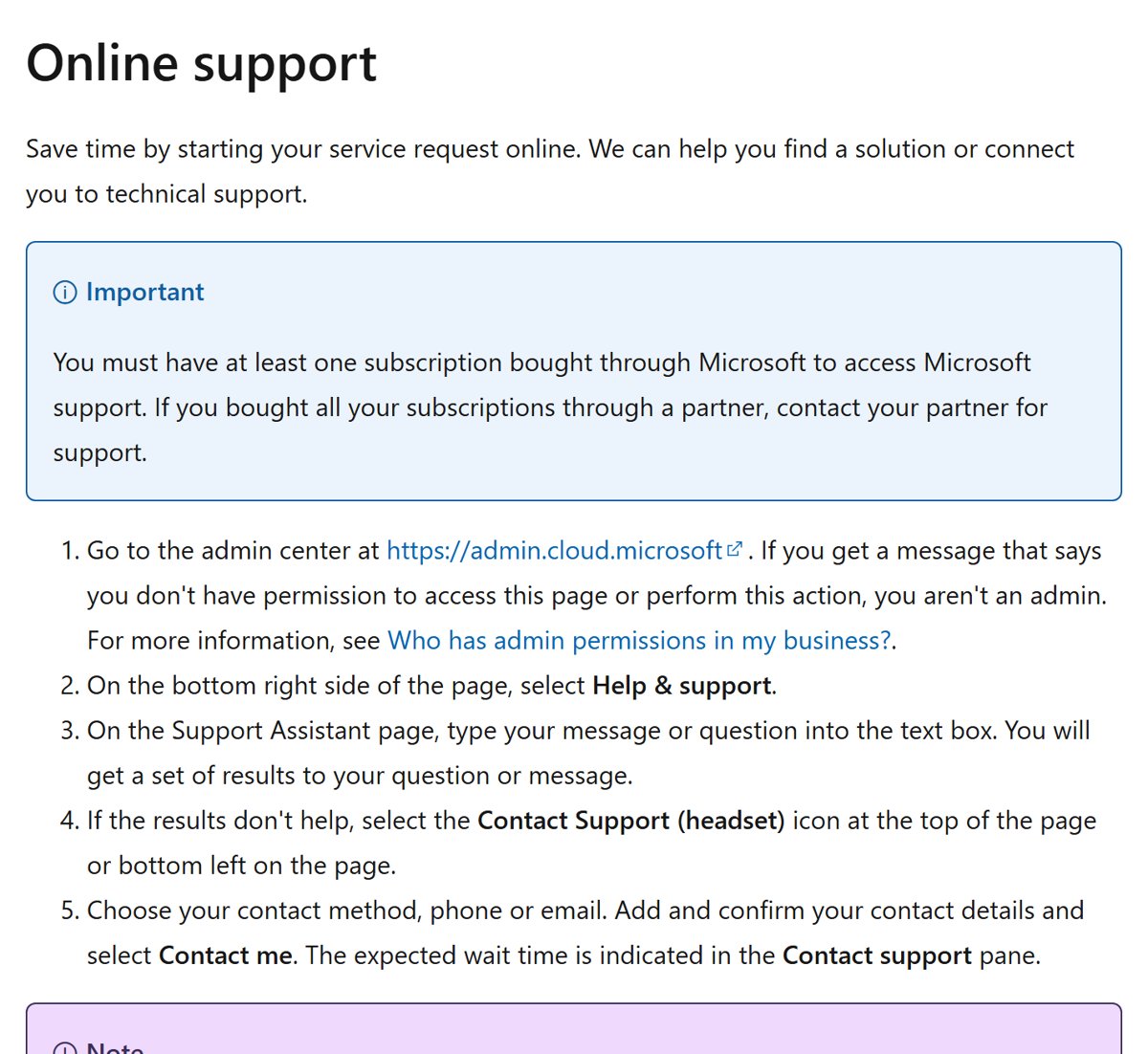
Assisted support for Microsoft 365 for business is for admins only, and it starts in the Microsoft 365 admin center. At least one subscription must be bought through Microsoft; if a partner sold you every subscription, contact that partner instead.
- Go to the Microsoft 365 admin center at admin.cloud.microsoft and sign in with an admin account.
- Select Help & support at the bottom right of the page.
- Type your question on the Support Assistant page and read the results.
- If they do not help, select the Contact Support (headset) icon.
- Choose phone or email, add and confirm your contact details, and select Contact me.
- Check the expected wait time shown in the Contact support pane.
The business route offers phone and email, not a consumer-style chat. Technical support is provided in English 24 hours a day, 7 days a week, and billing support runs 9 AM to 5 PM, Monday through Friday, in most countries.
If you see a message that you do not have permission, your account is not an admin. Ask your organization's admin to open the request.
Microsoft support phone numbers for the US, Canada and UK
When chat is not offered, Microsoft's customer support page lists regional phone numbers. Numbers marked toll free work for local calls only, while toll numbers work for local and long-distance calls.
| Country | Toll-free numbers | Toll number |
|---|---|---|
| United States (+1) | 855 270 0615, 800 865 9408, 800 642 7676 | 305 418 9136 |
| Canada (+1) | 800 865 9408, 855 270 0615 | None listed |
| United Kingdom (+44) | (0)800 026 0329, (0)344 800 6006 | None listed |
If your country is not on Microsoft's list, use Get Help instead. Business admins should take the current number from the global phone numbers list linked in the admin center, because those numbers have changed.

How to tell a real Microsoft support chat from a scam
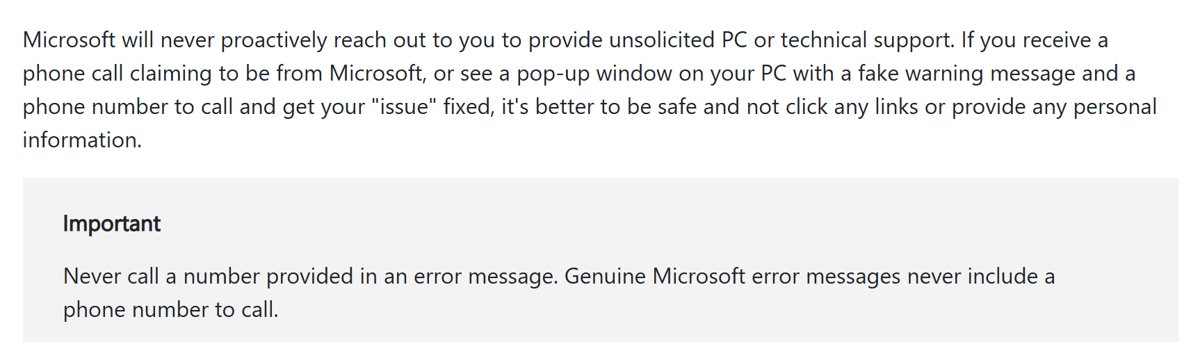
Fake "Microsoft support" pop-ups and callers are common, and they often push a chat or phone number. Microsoft states that it never proactively reaches out to offer unsolicited PC or technical support.
| Sign | Real Microsoft support | Likely a scam |
|---|---|---|
| Who starts the contact | You do, from support.microsoft.com, Get Help or the admin center | A call, email or pop-up reaches you first |
| Phone numbers in error messages | Never included in genuine Microsoft error messages | A warning screen tells you to call a number |
| Website address | support.microsoft.com, admin.cloud.microsoft or support.xbox.com | A look-alike domain or a link from an ad |
| Password requests | Agents cannot send reset links or change account details | Asks for your password or a one-time code |
| Remote access | Only within a support case you opened | Demands remote access before you asked for help |
If a pop-up or caller claims to be Microsoft, do not click its links or share personal information. Close it and start a fresh request from support.microsoft.com yourself.
Tips: Can I live chat with Microsoft Support?
| Tip | Why it helps |
|---|---|
| Sign in before you start | Microsoft uses your account to show the right products, subscriptions and contact options |
| Pick the exact product, not a general one | The request is routed to the team that handles that product |
| Write the error message word for word | The agent can search for it at once instead of asking you to repeat it |
| Open one request per problem | Separate issues are handled faster as separate requests |
| Save the chat transcript or request number | You can quote it if you need to follow up |
| Use the right desk for non-Microsoft devices | Microsoft support covers Microsoft products; an iPhone or Mac problem goes to the vendor, so you would chat with Apple support instead |
| Try again at another time if chat is missing | Contact options depend on hours of operation, product, scenario and subscription |
Microsoft live chat not working
The chat option does not appear after Contact Support
Contact options depend on hours of operation, the product, the scenario and your subscription.
- Go back and select the specific product rather than a general category.
- Check that you are signed in with the Microsoft account that owns the product or subscription.
- Select the callback option if it is offered.
- Try the request again later in the day if neither chat nor callback is available.
Get Help will not let you contact support
Get Help on a PC is for people signed in to Windows with a Microsoft personal account.
- Open support.microsoft.com/contactus in a browser instead.
- Select Sign in and sign in with your Microsoft account.
- Select Get Home support and describe the problem.
- Select Contact Support and choose chat.
You can't sign in to your Microsoft account to reach chat
Most account problems block the contact page, and agents cannot reset passwords for you.
- Select Can't sign in on the contact page.
- Select Start sign-in helper.
- Enter the email address or phone number you sign in with.
- Follow the self-help it gives, then return to the contact page.
The admin center says you do not have permission
Business support requests can only be opened by a Microsoft 365 admin.
- Ask your organization's admin to open the request.
- Use Get self-help support on support.microsoft.com/contactus in the meantime.
- If every subscription came from a partner, contact that partner for support.
Your issue isn't resolved through live chat
The first agent may not own your product area, or the case needs more time.
- Ask the agent to escalate the case or transfer it to the right team before the chat ends.
- Write down the request or case number.
- Request a callback for the same problem and quote the number.
- For billing issues on a business account, contact support again during billing hours, 9 AM to 5 PM, Monday through Friday.
Microsoft support live chat FAQ
Does Microsoft have a live chat support?
Yes. Home users can chat with a Microsoft agent after self-help, from support.microsoft.com/contactus or the Get Help app in Windows. Select Contact Support, choose your product and pick the chat option.
How do I contact Microsoft live chat?
Go to support.microsoft.com/contactus, sign in, select your product and then Get Home support. Describe the problem, select Contact Support, confirm the product and choose chat. On Windows, the Get Help app follows the same steps.
Can I chat with a live person at Microsoft?
Yes. After you describe your issue and select Contact Support, the chat option connects you to a Microsoft agent in a browser chat window. Self-help results and troubleshooters appear first, so you need to move past them.
Is Microsoft live chat available 24/7?
Microsoft does not publish fixed chat hours for home users. Contact options depend on hours of operation, product, scenario and subscription. For Microsoft 365 business admins, technical support is available in English 24 hours a day, 7 days a week.
Can I request a callback instead of using live chat?
Yes. On the contact method screen, choose the callback option and enter your phone number. You receive a confirmation with a request number, and an agent calls you back. Call times vary.
Do I need a Microsoft account to use live chat support?
Signing in is recommended, and the Get Help app on a PC needs a Microsoft personal account. If you cannot sign in, use the Can't sign in link and Microsoft's sign-in helper first.
Can I use live chat for any Microsoft product?
Not from one place. Windows, Microsoft 365, Office and Surface use support.microsoft.com and Get Help. Xbox has its own support site, purchases go through microsoft.com/store, and business admins use the Microsoft 365 admin center.
What if my issue isn't resolved through live chat?
Ask the agent to escalate or transfer the case before the chat ends, and keep the request number. You can then request a callback or contact support again and quote that number so you do not start over.
Does Microsoft have chat for buying products?
Yes. For help with a purchase, Microsoft directs you to microsoft.com/store for live chat options, or to the sales phone numbers for your region on its customer support page.