When audio cuts off automatically during a Microsoft Teams call, the cause is usually Windows muting other sounds for the call, a Teams mic or noise setting, a Bluetooth headset dropping its link, or a weak network connection.
Match what you hear to the table below, then use the fix for that cause; the later sections cover blurry video, the “No speakers or headphones are plugged in” error and a Windows Audio service stuck on Stopping.
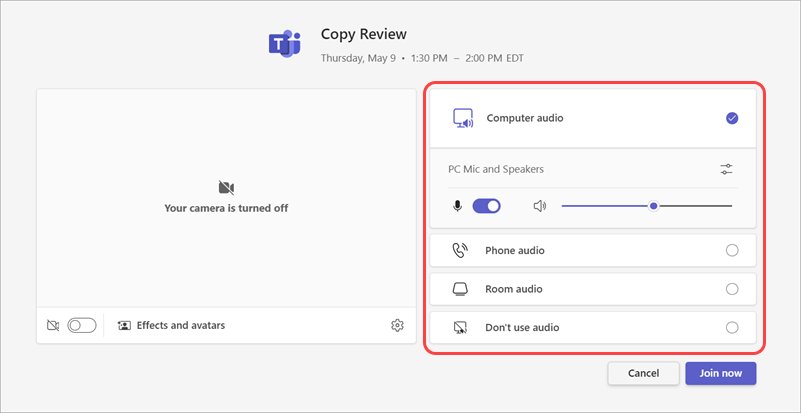
Audio cuts off automatically during a call in Microsoft Teams
Find the row that matches what happens on your PC. Each fix has its own section further down.
| What you notice | Likely cause | Fix |
|---|---|---|
| Music, videos or other apps go silent or quiet the moment a call starts | Windows lowers or mutes other sounds during calls | Change the Communications tab in Sound settings |
| Others say your voice fades or drops out | Automatic mic sensitivity or noise suppression | Adjust Automatically adjust mic sensitivity and Noise suppression in Teams |
| Sound stops on a Bluetooth headset, then returns | The headset is disconnecting | Re-pair the headset and update the Bluetooth driver |
| Voices break up, sound robotic or freeze | Packet loss, jitter or a weak connection | Check Call health and improve the Wi-Fi signal |
| Audio drops when you answer a call notification or resume from hold | A headset that is not Teams certified | Switch to a certified device or a different headset |
| You hear nothing until you unmute yourself | An organizer or presenter muted you | Select Unmute, or ask the organizer about meeting roles |
How to stop Windows muting other sounds during a Teams call
Windows treats a Teams call as communications activity. Its default is to cut the volume of every other sound by 80%, and it can be set to mute them completely, which feels like audio cutting off the moment a call starts.
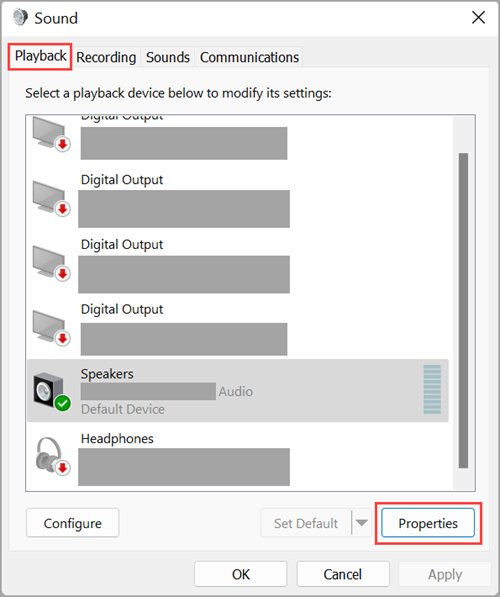
- Select Start > Settings > System > Sound.
- Select More sound settings to open the classic Sound dialog.
- Open the Communications tab.
- Choose the option that leaves other sounds alone instead of muting them or reducing them by 80% or 50%.
- Select Apply, then OK.
- Join a test call and play a video to check that the other sound stays at full volume.
Windows restores the volume of lowered streams when every communication stream closes, so audio that comes back after you hang up points to this setting.
How to change Teams speaker and microphone settings
Teams can end up on a different speaker or mic than the one you are wearing, especially after you plug in a dock or headset mid-call.
- In Teams, select Settings and more (…) > Settings.
- Select Devices, then Manage devices to connect or disconnect audio devices.
- Under Audio settings, pick your headset or speakers in the Speaker drop-down and your mic in the Microphone drop-down.
- Turn Automatically adjust mic sensitivity off if people say your voice fades in and out, or on if your level jumps around.
- Turn Sync device buttons on so the mute and volume buttons on your headset work with Teams.
- Select Make a test call to hear how you sound.
Mic sensitivity works much like automatic gain control on a Windows microphone, so check both if your level keeps shifting. You can also run a Teams test call before every important meeting.
During a meeting, select the arrow next to Mic in the meeting controls and choose More audio settings to change the same options without leaving the call.
How to change noise suppression in Microsoft Teams
Noise suppression removes sound Teams judges to be noise. Strong settings can strip out music and, with a poor mic, parts of your voice.
- In Teams, select Settings and more (…) > Settings > Devices.
- Find Noise suppression.
- Select Background noise only for normal calls in a noisy room.
- Select Voice isolation only if other voices leak into your mic; without a headset it needs a voice profile.
- Turn noise suppression off for a high-fidelity mic in a quiet room, as Microsoft recommends.
- Make a test call and listen for words that drop out.
On Teams for iOS, the Low level is the one Microsoft suggests for playing music to other participants, while High suppresses all background sound that isn’t speech.
Why is my headphone audio cutting out in Teams?
Microsoft lists frequent disconnections, low audio quality and no sound as signs of a Bluetooth settings, driver or compatibility problem. A wired headset that cuts out usually has a loose plug or a failing cable instead.
- Select Start > Settings > Bluetooth & devices.
- Next to your headset, select More options (…) > Remove device.
- Select Add device and pair the headset again.
- If it still drops, turn Bluetooth off, wait 10 seconds, and turn it back on.
- Open Device Manager, expand Bluetooth, right-click the adapter and select Update driver > Search automatically for updated driver software.
- Restart the PC and select the headset again in Teams Devices settings.
Microsoft also points out that headsets which are not Teams certified can drop calls, for example when you select a call notification or resume a call from hold.
Teams call health: packet loss, jitter and round-trip time
Choppy audio that comes and goes is often the network. During a call, select More actions in the meeting controls, then Settings > Call health to see live numbers, and compare them with the values below.
| Metric | Typical good value | What a bad value means |
|---|---|---|
| Round-trip time | Under 200 ms | Audio arrives late and people talk over each other |
| Received packet loss | Under 2% | Words and syllables go missing |
| Received jitter | Under 30 ms | Audio sounds choppy or robotic |
| Audio sent bitrate | Above 24 kbps | Your voice reaches others at low quality |
| Send and receive limits | Not very low | Teams is capping bandwidth because of network conditions or competing traffic |
If the numbers look fine on your side, the other participant may have the connection problem.
How to stop audio from cutting out on Wi-Fi during Teams calls
Both people on a call need a stable connection with enough throughput. These are the steps Microsoft gives for improving home Wi-Fi for Teams.
- Move closer to the router, or move the router to a central spot with fewer walls and ceilings in the way.
- Add a Wi-Fi repeater if the signal is weak where you take calls.
- Pick the 5 GHz band for speed at short range, or 2.4 GHz for longer range in a larger home.
- Run a speed test and compare the upload and download results with what your internet provider promises.
- Update the router firmware and the PC’s network adapter driver.
- Check the Microsoft 365 Service Status page if calls drop for everyone at once.
How to update Microsoft Teams to fix audio problems
Microsoft recommends restarting Teams and running the latest version when calls keep dropping. Teams updates itself when idle, but you can install a waiting update straight away.
- Look for an update notice at the top of the Teams window.
- Select Update > Update and restart Teams.
- Wait for Teams to close, update and reopen.
- If it does not reopen, start Teams from the Start menu.
- Join a test call and check the audio again.
If no update notice appears, there are other ways to update Microsoft Teams on Windows and check the version you run.
Blurry or pixelated video in Microsoft Teams
Everyone’s video looks blurry or blocky
A poor connection lowers audio and video quality, and Teams caps bandwidth when the network is struggling.
- Open More actions > Settings > Call health and check the send and receive limits.
- Move closer to the router or switch Wi-Fi bands.
- Turn your own Camera off in the meeting controls to free bandwidth for audio.
Your own video looks soft
A video filter is smoothing the picture.
- On the pre-join screen, select Open device settings.
- In Video Settings, turn Soft focus off.
- Join the meeting and compare.
Fewer videos show or tiles freeze
Teams shows fewer videos when bandwidth or device memory is low.
- Close other apps and browser tabs that stream or download.
- Restart Teams.
- Use Pin for me on the speaker you need so their video stays in view.
No speakers or headphones are plugged in on Windows 11 [fix]
This message means Windows 11 sees no working output, so Teams has nothing to play through either. Fix it in your Windows sound settings first, then pick the device again in Teams.
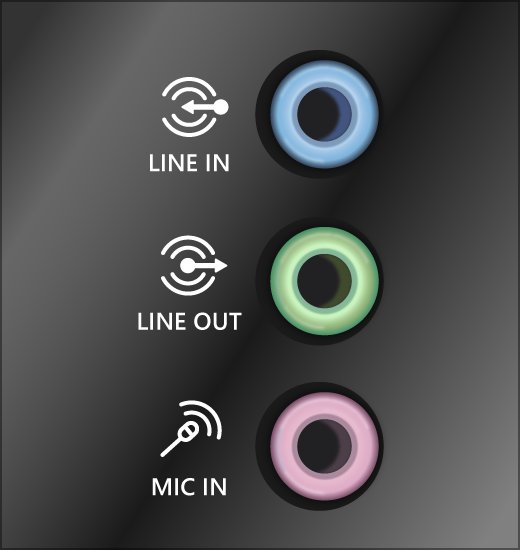
- Check that the plug sits fully in the green or headphone jack, or try a different USB port.
- Select Start > Settings > System > Sound and choose your device under Output.
- Run the audio troubleshooter in the Get Help app.
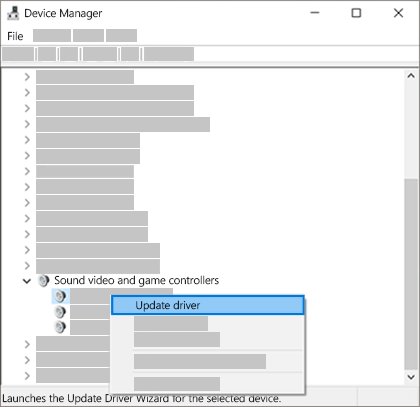
- Open Device Manager, expand Sound, video and game controllers, and select Enable device on your audio device if it is off.
- If nothing is listed, select View > Show hidden devices, then Action > Scan for hardware changes.
- Update the driver, or uninstall it and restart so Windows reinstalls it.
For more Windows-side checks, such as audio enhancements and default formats, you can fix sound and audio problems in Windows 11 step by step.
Windows Audio Service stuck on Stopping
Teams loses all sound when the Windows Audio service stops or hangs. A service frozen on Stopping cannot be restarted from Services until Windows resets it.
- Select Start, type
services.msc, and press Enter. - Find Windows Audio and check its status.
- If it shows Stopping and does not change, save your work and select Start > Power > Restart.
- After the restart, open Services again, right-click Windows Audio and select Restart.
- Right-click Windows Audio Endpoint Builder and select Restart.
- Double-click Windows Audio and make sure Startup type is not set to Disabled.
- If the service hangs again, update or reinstall the audio driver from Device Manager.
Why does my audio keep cutting out in Microsoft Teams?
“Please hold on while we try to reconnect you”
The network connection dropped long enough for Teams to lose the call.
- Check Call health for packet loss and round-trip time.
- Move closer to the router or use a stronger Wi-Fi band.
- Rejoin the meeting, or dial in by phone if the connection stays poor.
Audio drops when you select a call notification or take a call off hold
Headsets that are not Teams certified can cause these drops.
- Try the call with the PC’s built-in speakers and mic.
- If the drop stops, switch to a headset listed as Teams certified.
- Turn Sync device buttons on for the headset you keep.
Your voice cuts out for others but you hear them fine
Noise suppression or automatic mic sensitivity is cutting your level.
- Change Noise suppression to Background noise only, or turn it off in a quiet room.
- Turn Automatically adjust mic sensitivity off.
- Make a test call to confirm the fix.
Audio is fine in other apps but Teams cuts out for everyone
A Microsoft 365 service incident.
- Check the Microsoft 365 Service Status page.
- Restart Teams once the incident clears.
- Install any waiting Teams update.
Microsoft Teams audio cutting out FAQ
How do I fix Microsoft Teams audio?
Select Settings and more > Settings > Devices in Teams and pick the right speaker and mic, then use Make a test call. If audio still cuts out, check Call health, re-pair Bluetooth headsets, change noise suppression and install the latest Teams update.
How do you stop students from muting you in Teams?
Make students attendees rather than presenters. Muting other people is a control for organizers, co-organizers and presenters, so open the meeting options, select Roles and set Who can present to something other than Everyone. You can also turn off Allow mic for attendees under Participation.
Why does my audio randomly cut out on my PC?
Random dropouts on a Windows PC usually come from a disconnecting Bluetooth device, an outdated audio driver, or audio services that stopped. Re-pair the headset, update the driver in Device Manager, and restart Windows Audio and Windows Audio Endpoint Builder in Services.
How do you stop audio from cutting out?
Fix the cause rather than the symptom. Set the Windows Communications tab so other sounds are left alone during calls, keep Bluetooth headsets paired and their drivers current, and improve your Wi-Fi signal so Teams does not lose packets.
Why is my headphone audio cutting out?
A Bluetooth headset that drops in and out is usually losing its connection; remove it in Bluetooth & devices and pair it again. A wired headset that cuts out often has a loose plug or damaged cable, so try another jack or port.
Why does YouTube audio keep cutting out during a Teams call?
Windows reduces or mutes other apps, such as a browser playing YouTube, when it detects a call. Open Sound settings > More sound settings > Communications and choose the option that leaves other sounds alone, then apply the change.
Does noise suppression in Teams cut out music?
It can. Microsoft describes the High level in Teams mobile as suppressing all background sound that isn’t speech, which includes music. Use a lower setting or turn noise suppression off when you play music for others, and turn on Include sound when you share your screen.