To adjust email sync frequency in Windows, open classic Outlook, press Ctrl+Alt+S, select All Accounts, and change the number in Schedule an automatic send/receive every n minutes; new Outlook has no interval setting, so you sync it with View > Sync or F9.
The old Windows Mail sync setting went away when Mail support ended on December 31, 2024. This guide covers both Outlook versions, per-account schedules, offline mail limits, shared mailboxes and fixes when mail stops arriving.
Change email sync frequency in classic Outlook
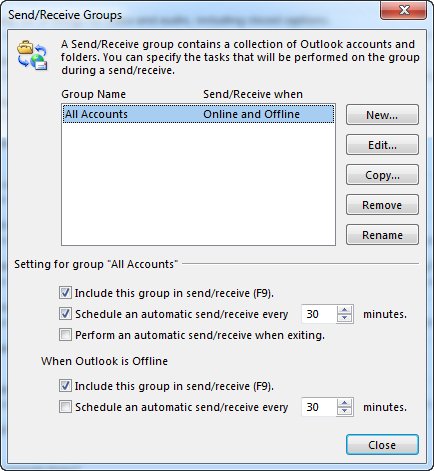
Classic Outlook checks every account in a Send/Receive group on the schedule you set. One account or ten, the default All Accounts group controls the timing.
- Open classic Outlook and select the Send / Receive tab.
- In the Send & Receive group, select Send/Receive Groups > Define Send/Receive Groups, or press Ctrl+Alt+S.
- Select All Accounts, or the custom group you want to change.
- Tick the first Schedule an automatic send/receive every n minutes option, which applies while Outlook is online.
- Type how many minutes Outlook should wait between checks.
- Close the dialog to keep the new interval.
Clear that first option instead if you want classic Outlook to send and receive only when you press F9.
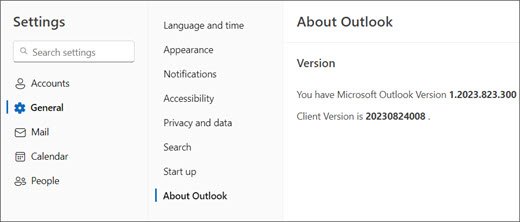
Identify your Outlook version first
Sync frequency lives in different places in each mail app on Windows, and one of them no longer has the setting at all. Check which app you have before changing anything.
| What you see | Your app | Where sync timing is controlled |
|---|---|---|
| A Settings button in the top-right corner | New Outlook for Windows | No interval box; it syncs on its own, and View > Sync or F9 checks now |
| No Settings button, and a File tab on the ribbon | Classic Outlook for Windows | Send / Receive > Send/Receive Groups (Ctrl+Alt+S) |
| The old Windows Mail and Calendar app | Windows Mail (retired) | Support ended December 31, 2024, and active users are being moved to new Outlook |
Change the automatic sync interval in classic Outlook
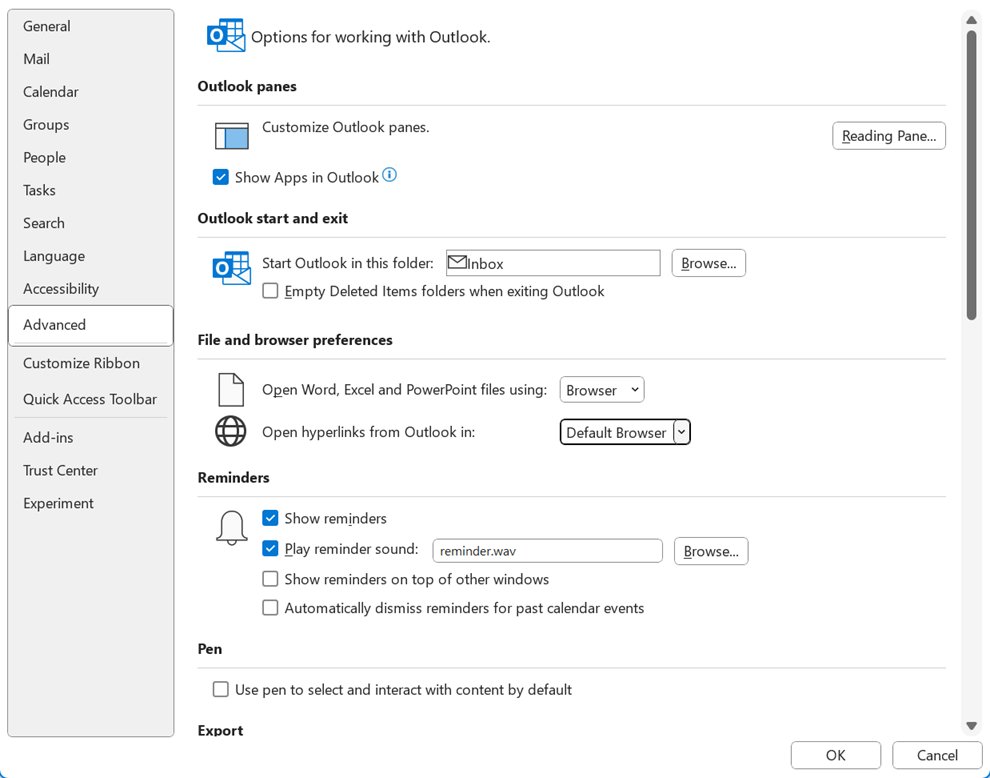
The same Send/Receive Groups dialog also opens from Outlook Options, and it holds a second schedule for when you work offline. Use the offline schedule when you want Outlook to reconnect less often, for example once an hour.
- Select File > Options > Advanced.
- Under Send and receive, select Send/Receive.
- Select the group and set the first Schedule an automatic send/receive every n minutes box for online use.
- Under When Outlook is Offline, tick the second Schedule an automatic send/receive every… box.
- Enter a number between 1 and 1440. Type 1440 for one check a day, because a day has 1,440 minutes.
- Select or clear Include this group in send/receive (F9) to decide whether F9 also runs this group while offline.
- Back on the Advanced page, tick Send immediately when connected so mail written offline leaves as soon as Outlook reconnects.
Exclude one account from automatic synchronization
Every account starts in the All Accounts group. Taking one out of the automatic cycle stops the scheduled checks for it, but you can still send and receive with that account by hand.
- Select Send / Receive > Send/Receive Groups > Define Send/Receive Groups.
- Select All Accounts, then Edit.
- Select the account to leave out and clear Include the selected account in this group.
- Select OK.
- To give that account its own interval instead, select New in the Send/Receive Groups dialog, name the group, include only that account, and set the group's schedule.
- To check an excluded account manually, select Send / Receive > Send/Receive Groups and choose the account.
Manually sync classic Outlook
- Press F9, or select Send / Receive > Send/Receive All Folders, to send and receive for every account.
- To send what is in the Outbox without checking for new mail, use Send All.
- To check one account only, select Send / Receive > Send/Receive Groups, point to the account, and select Inbox.
Classic Outlook also runs an automatic send and receive each time it starts, so closing and reopening it is a quick way to force a full check.
Manage syncing in the new Outlook for Windows
Microsoft replaced the Send / Receive tab with a Sync command in new Outlook, so there is no box for minutes between checks. What you can control is when to sync and how much mail stays on the PC.
| What you want in new Outlook | Where to do it | What it changes |
|---|---|---|
| Check for new mail right now | View > Sync, or F9 | Sends and receives immediately; a status message shows below the message list |
| Keep more or less mail on the PC | Settings > General > Offline > Days of email to save | How far back mail is stored locally |
| Choose which folders sync for offline use | Settings > General > Offline > Folders to save | Which folders are kept on the PC |
| Stop keeping a local copy | Turn off Enable offline email, calendar, and people, then Save | Mail is only available while online |
| A shared mailbox that never updates | Select its folder or Sync, or add it as an account | Automapped shared mailboxes don't sync their Inbox on their own |
| Set an interval in minutes | Not available in new Outlook | Switch to classic Outlook and use its Send/Receive Groups if you need a fixed schedule |
Change how much email new Outlook stores offline
- Select Settings in the top-right corner, then General > Offline.
- Check that Enable offline email, calendar, and people is on. It is on by default.
- Open Days of email to save and choose 7, 30, 90 or 180 days. The default is 30.
- Open Folders to save and choose Default (Inbox, sent, drafts, archive, deleted and snoozed), Default and favorites (the default), or Default, favorites, and recently used.
- Select Save.
If the PC runs short of local storage, new Outlook saves fewer items than these settings allow. The rest of the Outlook app sync settings in Windows 11, such as adding a Gmail account, sit in the same Settings window.
Change how much email classic Outlook keeps offline
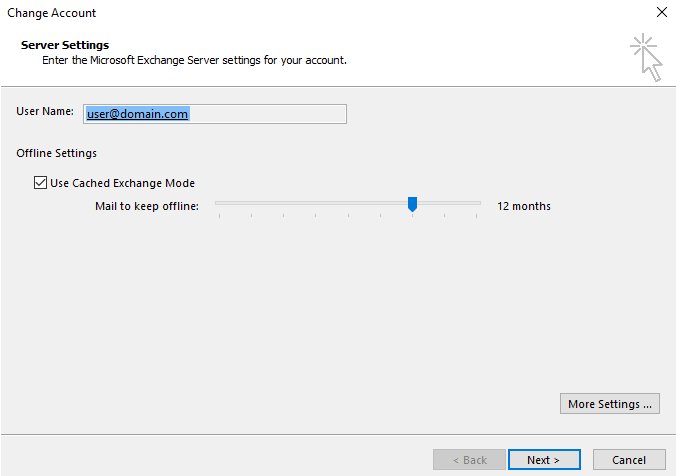
For Exchange and Microsoft 365 accounts, classic Outlook syncs 12 months of mail into its offline .ost file by default. A shorter window makes Outlook open faster and use less disk space; a longer one keeps older mail searchable offline.
- Select File > Account Settings > Account Settings.
- Select the Exchange or Microsoft 365 account and select Change.
- Make sure Cached Exchange Mode is turned on, because the slider depends on it.
- Under Offline Settings, move the Mail to keep offline slider to All, 12 months, 6 months, 3 months or 1 month.
- Finish the dialog so the new range takes effect.
Manually force Outlook to check for new email
New Outlook and Outlook on the web use the same Sync command. It also sends anything waiting in the Outbox.
- In new Outlook, select Mail in the navigation bar.
- On the View tab, select Sync, or press F9.
- Watch for the status message at the bottom of the message list while Outlook syncs.
- In Outlook on the web or Outlook.com, refresh the browser page, or select View > Sync.
Special case: shared mailboxes in new Outlook
A shared mailbox that your IT admin added automatically (automapping) does not pull new mail into its Inbox folders on its own in new Outlook. Sync it by hand, or convert it to a full account so it syncs and sends notifications like your own mailbox.
- To sync now, select the shared mailbox folder, or select Sync on the View tab.
- To make it sync automatically, select Settings > Accounts > Shared with me.
- For an automapped mailbox, expand it and select Convert.
- For one that wasn't automapped, select + Add and follow the prompts.
- Check that the mailbox now appears on the Your accounts page alongside your other accounts.
Adding a shared mailbox as an account needs Full Access permission from your IT admin, and the option may not be in every version of new Outlook yet.
Check whether Outlook is working offline
Classic Outlook shows Working Offline or Disconnected
Work Offline is switched on, or Outlook has lost its connection to the mail server, so no schedule can run.
- Look at the status bar at the bottom of the classic Outlook window for Working Offline or Disconnected.
- Select the Send / Receive tab and check whether Work Offline is highlighted.
- Select Work Offline once to go back online. The button text stays the same; only the highlight goes away.
- Press F9 to send and receive.
New Outlook shows only mail that was already there
New Outlook is working from its offline copy and updates those items once the connection returns.
- Check that the PC is connected to the internet.
- Select View > Sync, or press F9.
- Open Settings > General > Offline and check that offline access is on and Save was selected.
Check your internet connection for Outlook sync
No new mail in Outlook or in a browser
The PC can't reach the mail server, so neither Outlook version can sync.
- Open any website in a browser to see whether the PC is online.
- Reconnect to Wi-Fi or restart the router, then press F9 in Outlook.
- Run Windows Update so Windows and Outlook have the latest fixes for sending and receiving.
Mail arrives in Outlook on the web but not in the Outlook app
The account is fine; the app on this PC hasn't synced since the connection dropped.
- Press F9 in either Outlook version.
- In classic Outlook, check the status bar for Disconnected or Working Offline.
- Close Outlook completely and open it again, which starts a fresh send and receive.
Check your email account settings in Outlook
One account never updates on schedule in classic Outlook
The account was taken out of the All Accounts Send/Receive group.
- Press Ctrl+Alt+S to open Send/Receive Groups.
- Select All Accounts > Edit.
- Select the account and tick Include the selected account in this group.
- Select OK, then press F9.
Outlook rejects the correct password for Gmail, Yahoo or iCloud
The provider wants an app password, and Outlook shows "Please create an app password for Outlook on your email provider's site".
- Sign in to your email provider's website and create an app password for Outlook.
- Enter that app password at Outlook's password prompt instead of your normal password.
Older Exchange or Microsoft 365 mail is missing in classic Outlook
The Mail to keep offline slider limits how far back mail syncs.
- Select File > Account Settings > Account Settings, select the account, and select Change.
- Move the Mail to keep offline slider to a longer range or All.
Remove and re-add the email account in Outlook
An account still won't sync in new Outlook
The account connection on this PC is stuck; removing it only removes it from Outlook, not from the provider.
- On the View tab, select View settings, then Accounts > Your accounts.
- Under Email accounts, select Manage beside the account, then Remove under Account details.
- For a non-Microsoft account, choose to remove it from this device only; Remove from all devices can permanently lose items stored only in the Microsoft Cloud.
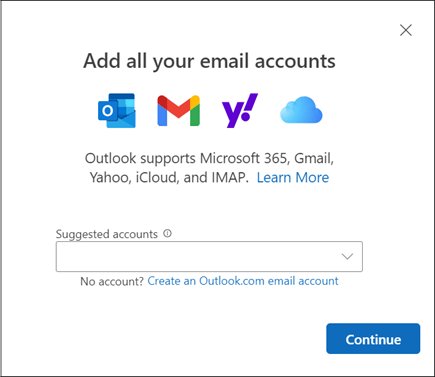
- Back on Your accounts, select Add Account, enter the address, select Continue, then enter the password and select Done.
An account still won't sync in classic Outlook
The account's profile entry is damaged or holds old settings.
- Select File > Account Settings > Account Settings.
- Select the account, select Remove, and select Yes to confirm the warning about offline cached content.
- Select File > Add Account, enter the address, and select Connect.
- Enter the password if asked, then select OK > Finish.
If it is the only account in classic Outlook, create a new Outlook data file first, because Outlook needs somewhere to store mail before the last account can go.
What happened to the Windows Mail sync frequency setting?
Stop looking for the Windows Mail app's sync setting and use Outlook instead. Support for Windows Mail and Calendar ended on December 31, 2024, and Microsoft is automatically switching active users to new Outlook, which has Sync and offline settings but no minutes box. For a fixed schedule, classic Outlook's Send/Receive Groups is the remaining option.
Phones handle this differently: on an iPhone the same idea is the push and fetch setting in the Mail app.
What is the best email sync frequency?
Keep automatic send/receive on in classic Outlook, set the longest interval you can live with, and press F9 when you need mail sooner. Microsoft's send/receive help gives no recommended number. Clearing the schedule means mail arrives only when you press F9, while a separate offline schedule lets Outlook retry less often, such as once an hour, when you work offline. Accounts that need faster checks can sit in their own group with a shorter interval.
What you do not need to change Outlook sync frequency
| You might think you need | What actually applies |
|---|---|
| A custom Send/Receive group for a single account | With one account, the default All Accounts group is all you need |
| The old Windows Mail app | Its support ended December 31, 2024; new Outlook replaced it |
| An interval box in new Outlook | There isn't one; use Sync or F9, or classic Outlook for a schedule |
| To delete an account to stop it syncing automatically | Clear it from the All Accounts group; manual send and receive still works |
| To revisit the settings regularly | Send/Receive groups are usually a one-time setup, changed only when you add accounts or work differently |
Outlook email sync frequency FAQ
How do I change email sync frequency in Windows 11?
In classic Outlook, press Ctrl+Alt+S, select All Accounts, and type a new number in Schedule an automatic send/receive every n minutes. New Outlook, which ships with Windows 11, has no interval setting; use View > Sync or F9 for an immediate check.
Why don't I see email sync frequency settings in Windows?
You are probably using new Outlook or the retired Windows Mail app. New Outlook replaced the Send/Receive tab with a Sync command and has no minutes box, and Windows Mail support ended on December 31, 2024. Only classic Outlook still has a scheduled send/receive interval.
How do I manually sync emails in new Outlook?
Select Mail in the navigation bar, then select Sync on the View tab, or press F9. A status message appears at the bottom of the message list while Outlook syncs. The same command also sends anything waiting in the Outbox.
Why is Outlook not receiving emails automatically?
Classic Outlook may be set to Work Offline, the automatic schedule may be cleared, or the account may be missing from the All Accounts group. Check the status bar for Working Offline, then open Ctrl+Alt+S and confirm the schedule box and account are ticked.
Can I set a different sync interval for each email account in Outlook?
Yes, in classic Outlook. Create a new Send/Receive group with New, include only the accounts that need a different timing, and give that group its own Schedule an automatic send/receive interval. Microsoft suggests leaving All Accounts as it is and using custom groups for different timing.
How often should Outlook check for new email?
Microsoft gives no recommended interval, so pick the longest gap that still fits how quickly you need to see mail, and press F9 for anything urgent. Working offline, a separate schedule of up to 1440 minutes lets Outlook retry less often.
What happened to the Windows Mail app sync settings?
They went with the app. Microsoft ended support for Windows Mail and Calendar on December 31, 2024 and is moving active users to new Outlook, which handles sync through View > Sync and Settings > General > Offline instead of a download schedule.